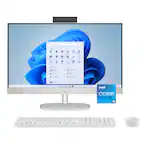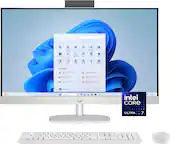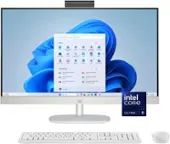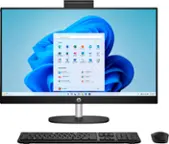
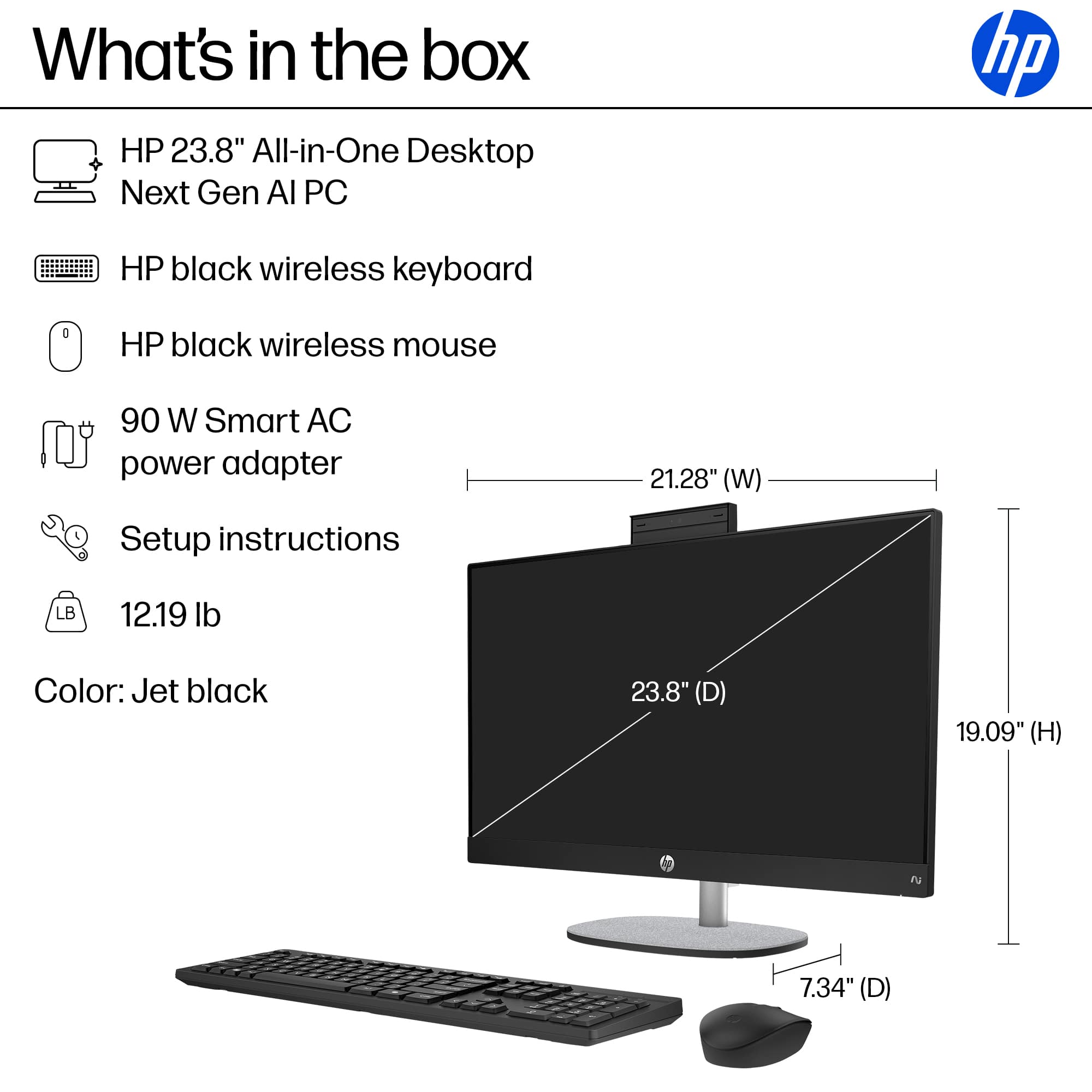
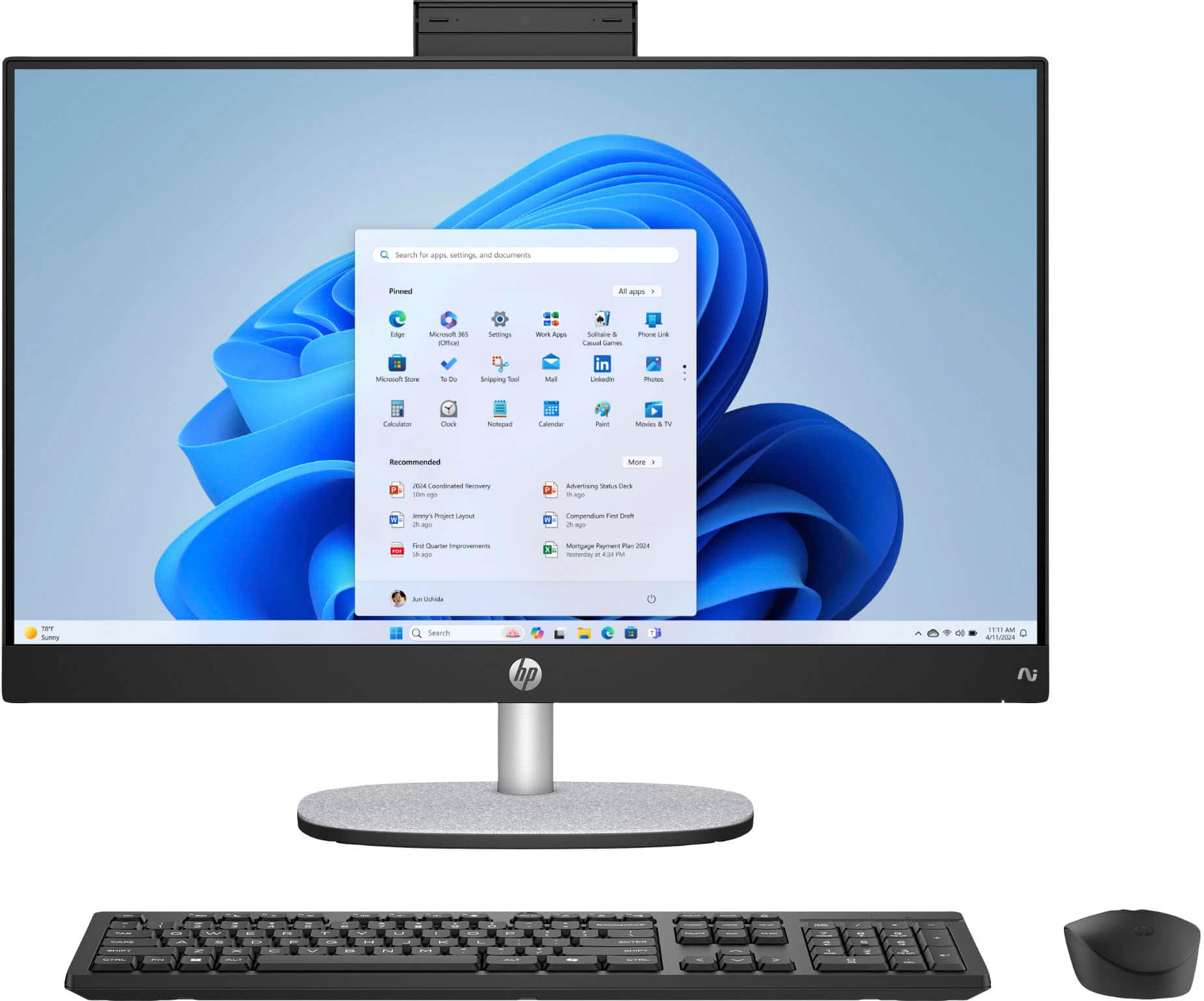
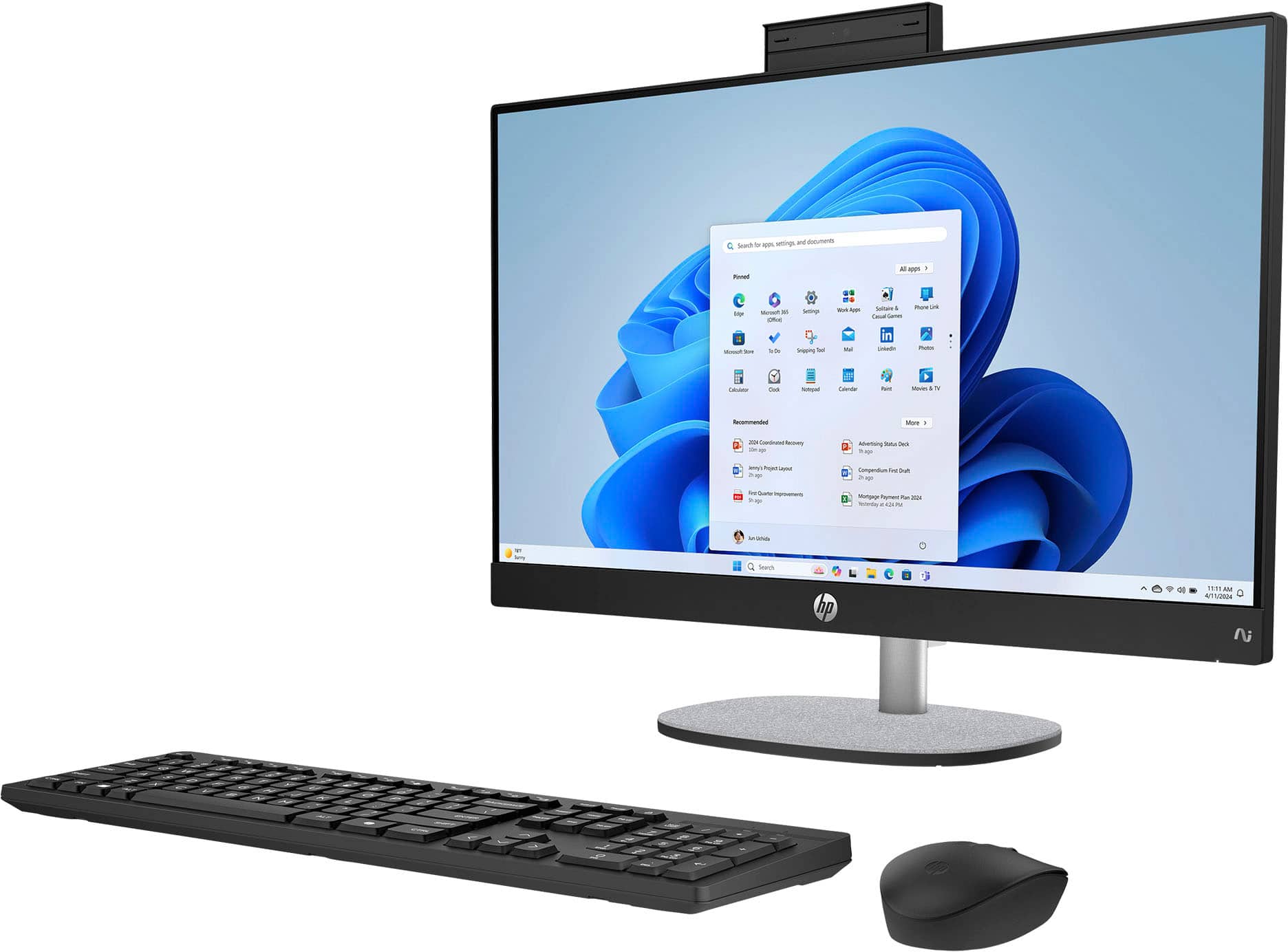



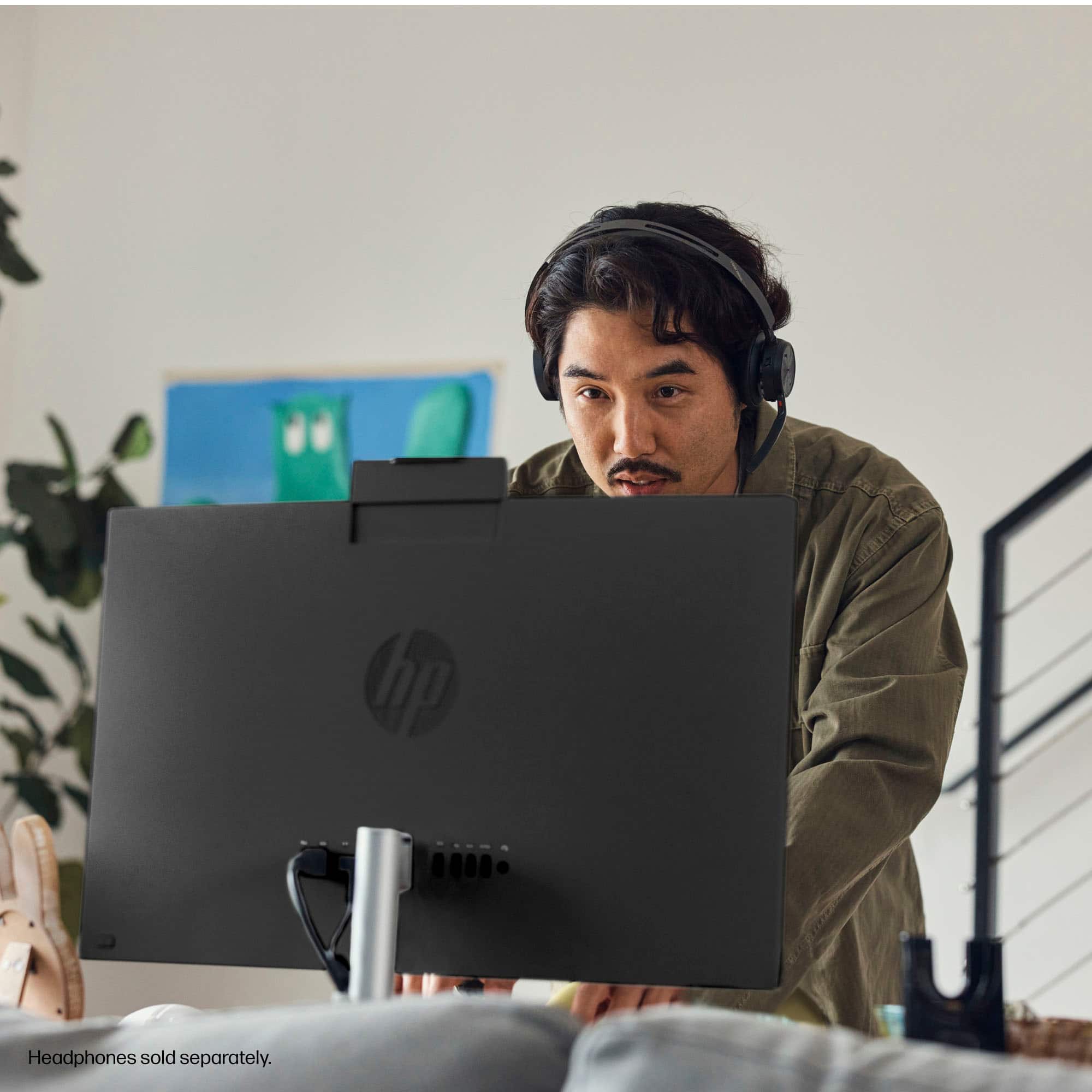

A:AnswerBased on my research, I couldn't find specific documentation for the HP All-in-One 24-ct2024 PC (B5UG7AA), but I can share what I've learned about HP 24" All-in-One models in general:
The difficulty and method vary significantly between HP All-in-One models:
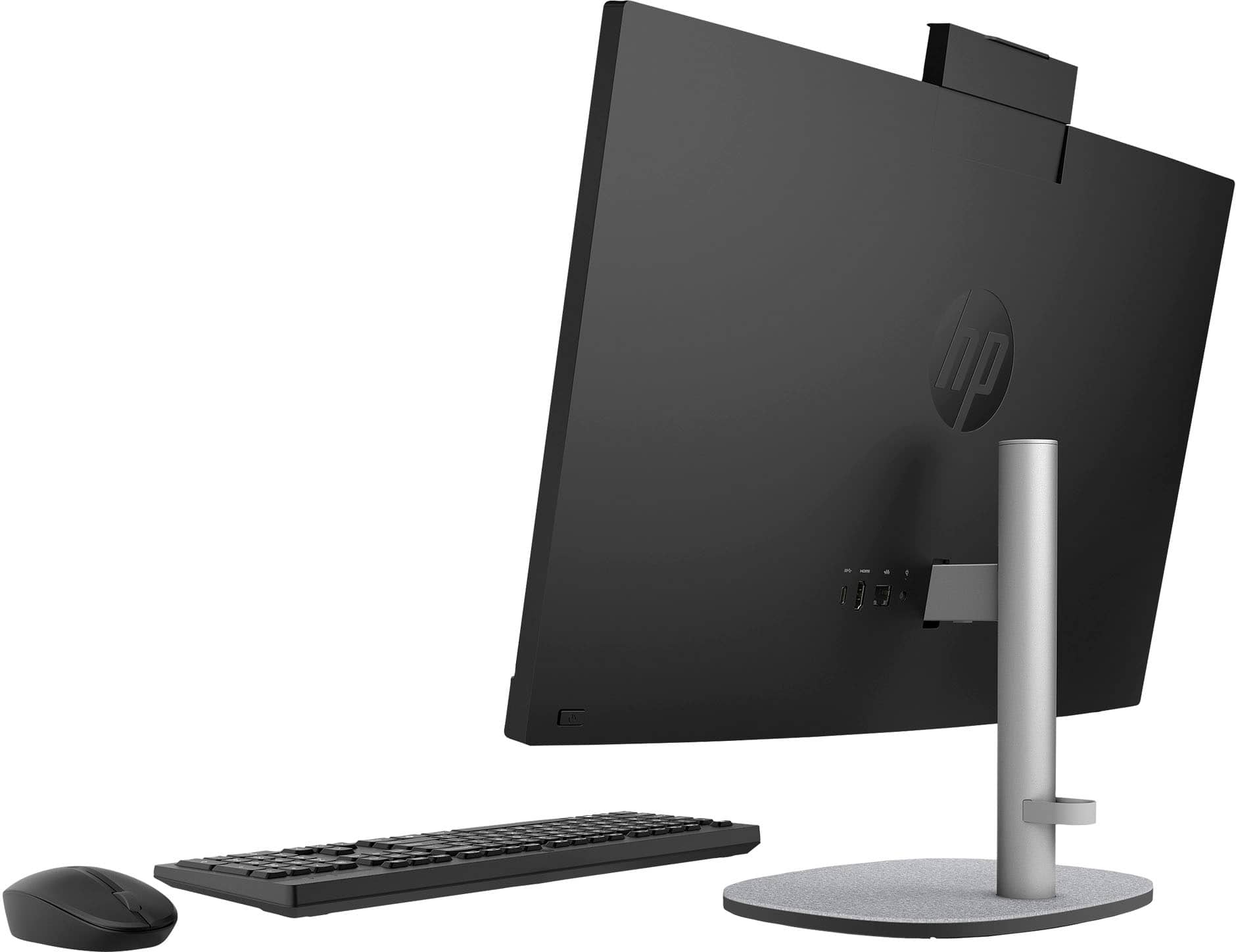
Some HP 24" All-in-One models require placing the unit face-down and removing screws with a Phillips screwdriver to detach the stand HP Support CommunityHP Support Community. The typical process involves removing rubber covers to access two captured Phillips screws on each side of the stand attachment area All in One 24-e014 Back Removal - HP Support Community - 6443331.
However, some HP monitor models have a simpler release button mechanism that allows tool-free stand removal - you just push the release button and pull the stand away HP Support CommunityHP Support Community.
Important consideration for newer models:
Some newer HP All-in-One models include wireless charging electronics built into the base, which means the stand is not designed to be removed How to remove the stand from an HP Pavilion 24-k0xxx desktop... - HP Support Community - 8860486. Additionally, some models lack VESA mounting holes, making monitor arm mounting impossible How to remove the stand from an HP Pavilion 24-k0xxx desktop... - HP Support Community - 8860486.
My recommendation:
Since the 24-ct2024 is a newer 2024 model, I'd suggest:
Check the bottom of the stand base for any covers that might hide screws or a release mechanism
Check your product documentation that came with the computer
Contact HP support directly.
A:AnswerHello! Please check the documentation that came with your new all in one device. Your new all in one device came with a poster-sized instruction sheet thing.
A:AnswerBased on my research, I couldn't find specific documentation for the HP All-in-One 24-ct2024 PC (B5UG7AA), but I can share what I've learned about HP 24" All-in-One models in general:
The difficulty and method vary significantly between HP All-in-One models:
Some HP 24" All-in-One models require placing the unit face-down and removing screws with a Phillips screwdriver to detach the stand HP Support CommunityHP Support Community. The typical process involves removing rubber covers to access two captured Phillips screws on each side of the stand attachment area All in One 24-e014 Back Removal - HP Support Community - 6443331.
However, some HP monitor models have a simpler release button mechanism that allows tool-free stand removal - you just push the release button and pull the stand away HP Support CommunityHP Support Community.
Important consideration for newer models:
Some newer HP All-in-One models include wireless charging electronics built into the base, which means the stand is not designed to be removed How to remove the stand from an HP Pavilion 24-k0xxx desktop... - HP Support Community - 8860486. Additionally, some models lack VESA mounting holes, making monitor arm mounting impossible How to remove the stand from an HP Pavilion 24-k0xxx desktop... - HP Support Community - 8860486.
My recommendation:
Since the 24-ct2024 is a newer 2024 model, I'd suggest:
Check the bottom of the stand base for any covers that might hide screws or a release mechanism
Check your product documentation that came with the computer
Contact HP support directly.
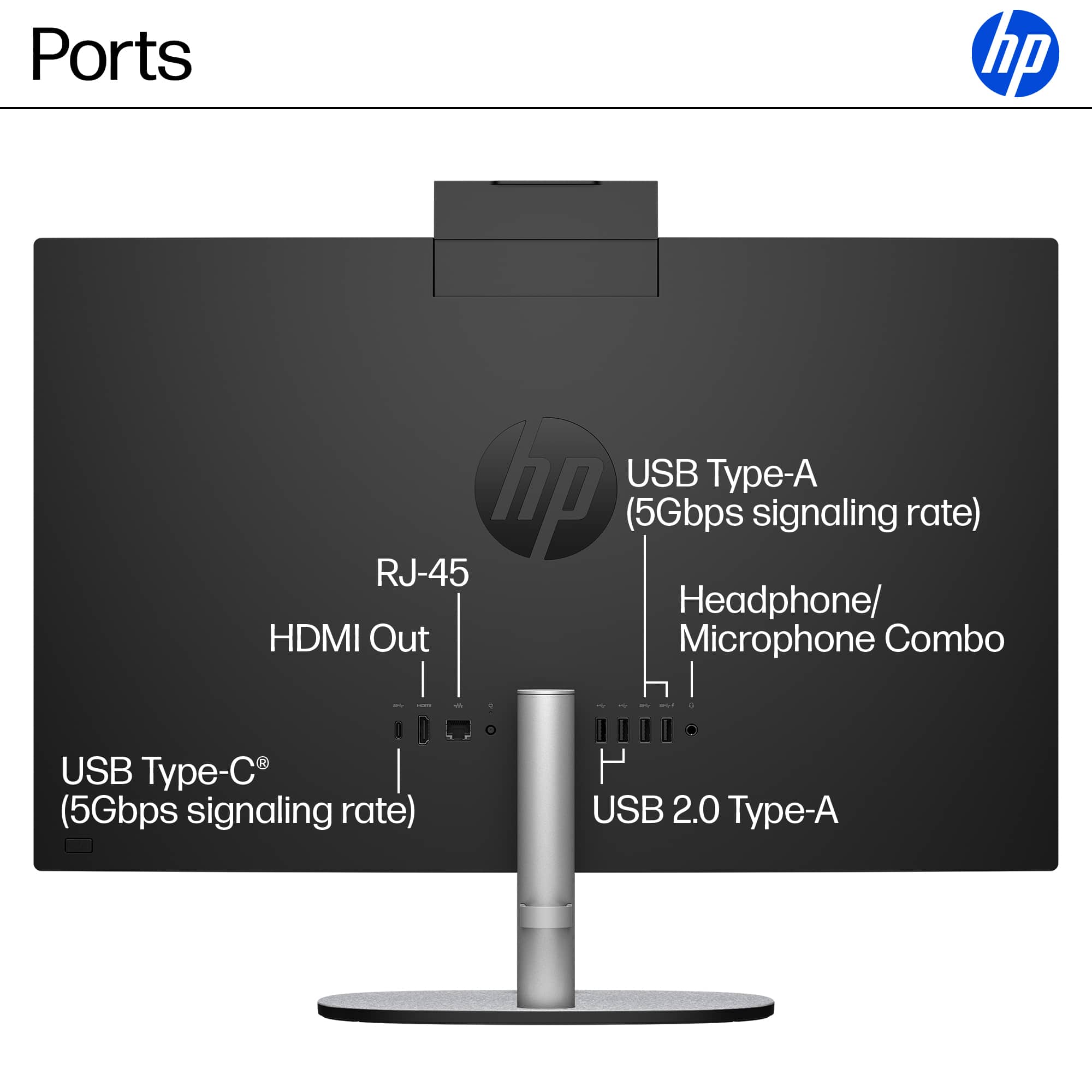
A:AnswerFrom the specifications posted on Best Buy's website:
USB Ports
2 x USB-A 2.0, 2 x USB-A 3.0, 1 x USB-C 3.1
Number of USB Ports (Total)
5
Media Card Reader
No
A:AnswerIt's possible the keyboard is faulty, but let's troubleshoot a few things first since the light turning on briefly is actually a good sign:
Try these steps:
Check/Replace Batteries
Weak batteries are the most common cause of this exact symptom
Replace with fresh batteries (even if you think they're new)
Make sure batteries are inserted correctly
Check for a USB Receiver
Some "wireless" keyboards use a small USB dongle/receiver, not Bluetooth
Look for a tiny USB receiver - it might be stored inside the keyboard's battery compartment
If found, plug it into a USB port on your HP computer
Try the Pairing Button
Look for a small "Connect" or pairing button on the keyboard (often on the bottom or back)
Press and hold it for 3-5 seconds to put it in pairing mode
Then try connecting via Bluetooth on your computer
Check Bluetooth on the Computer
Go to Settings > Bluetooth & devices
Make sure Bluetooth is turned ON
Click "Add device" and look for your keyboard
Power Cycle Everything
Turn off the keyboard
Restart your computer
Turn the keyboard back on and try pairing again