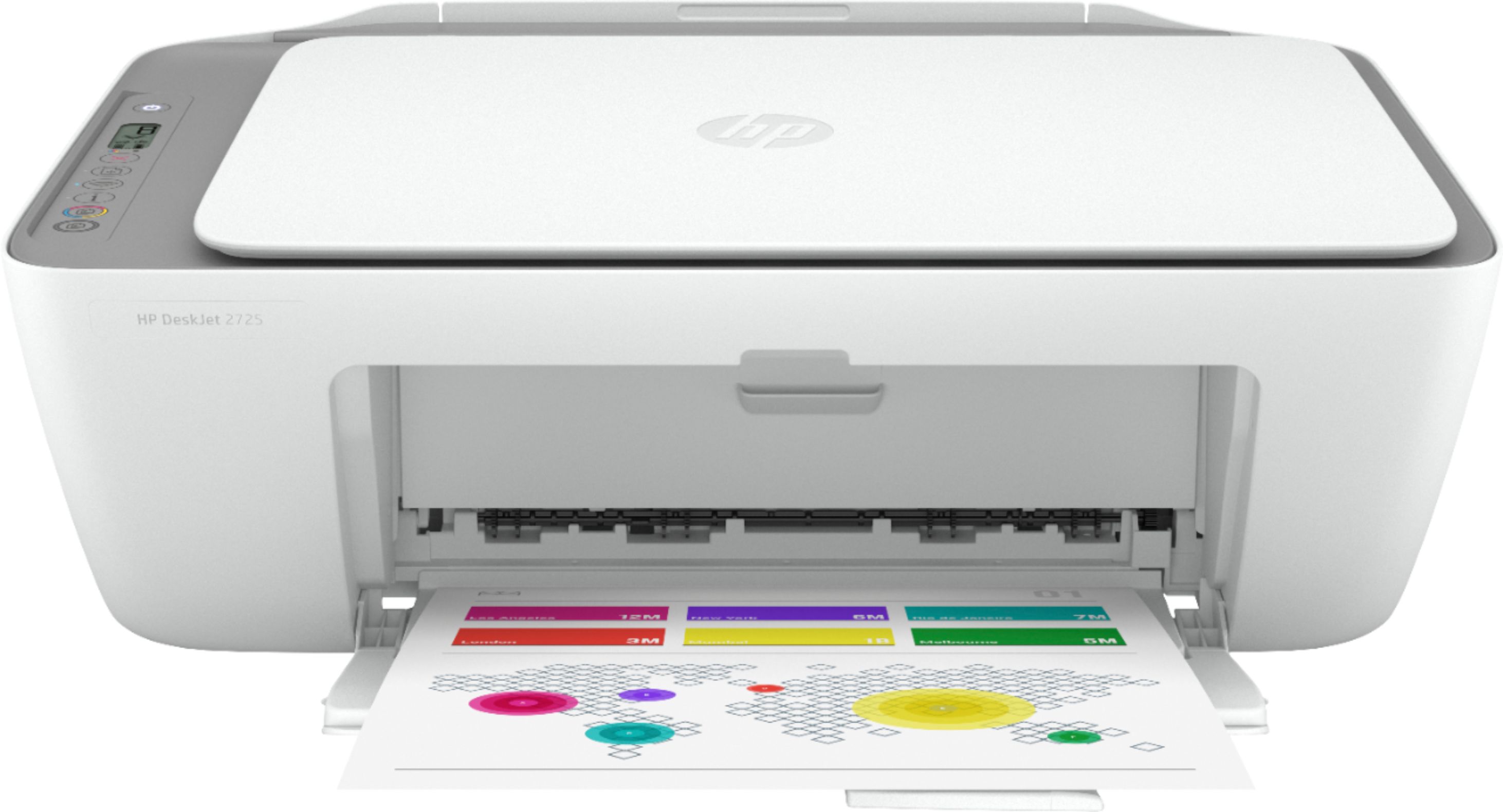
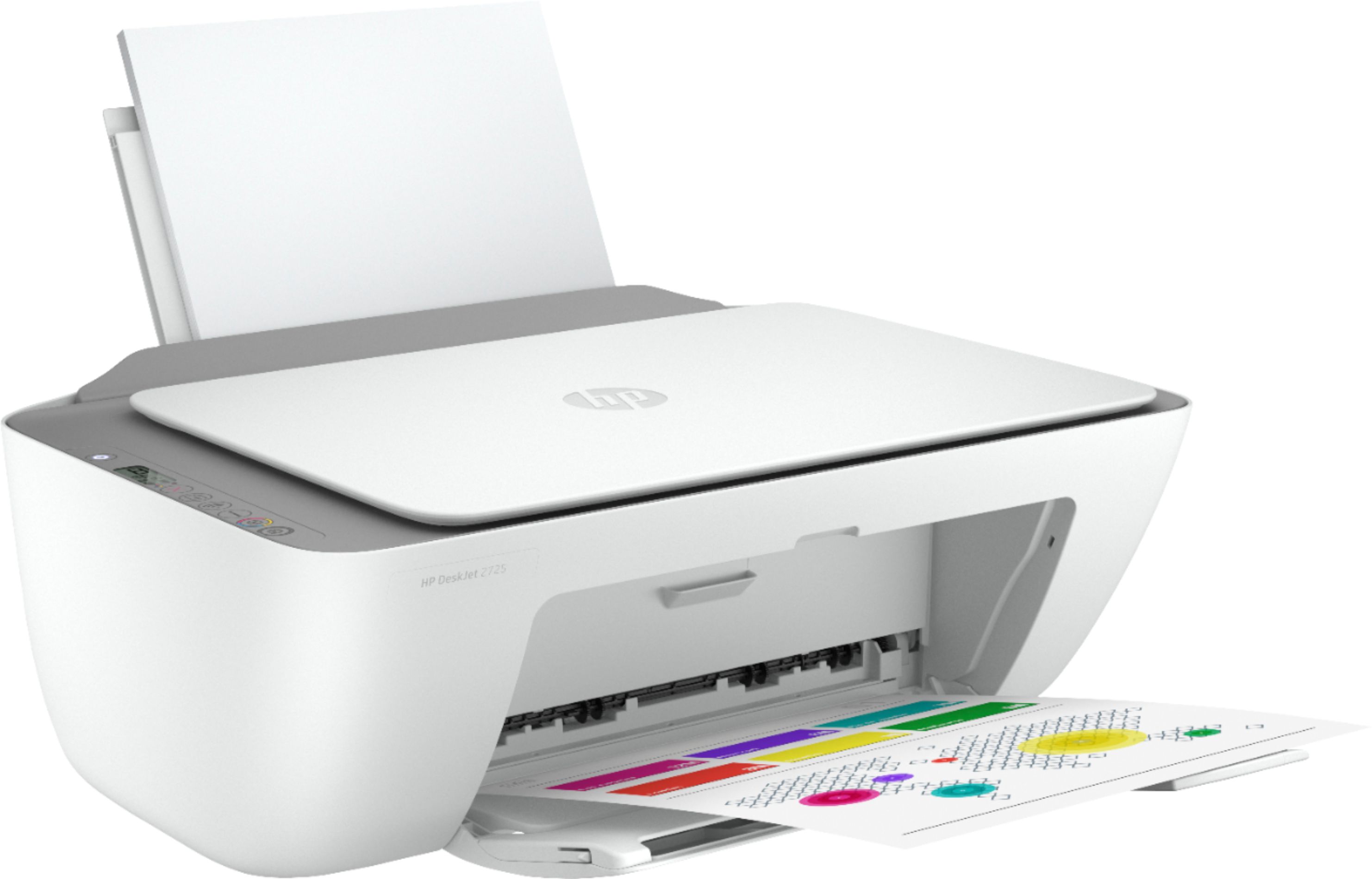
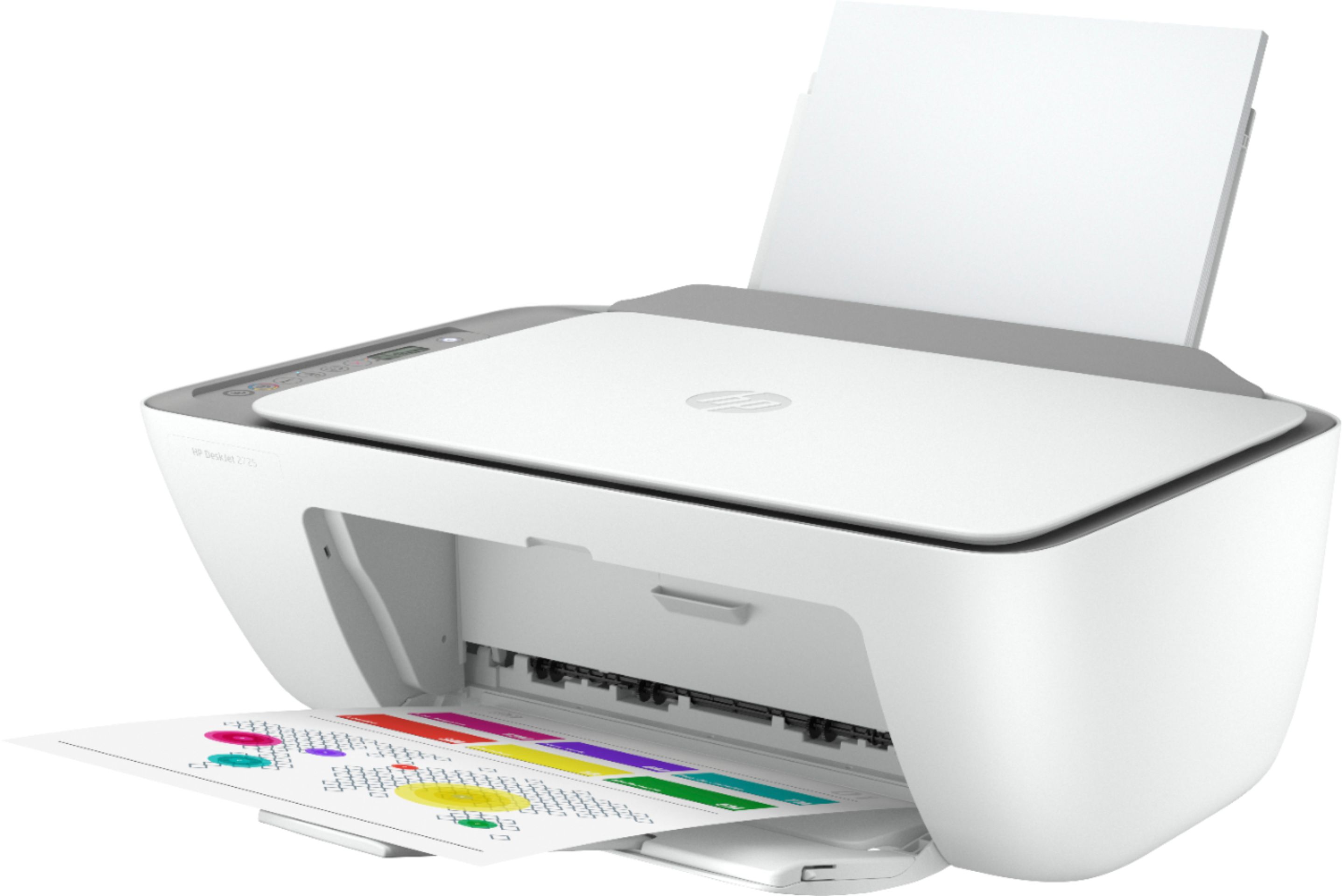
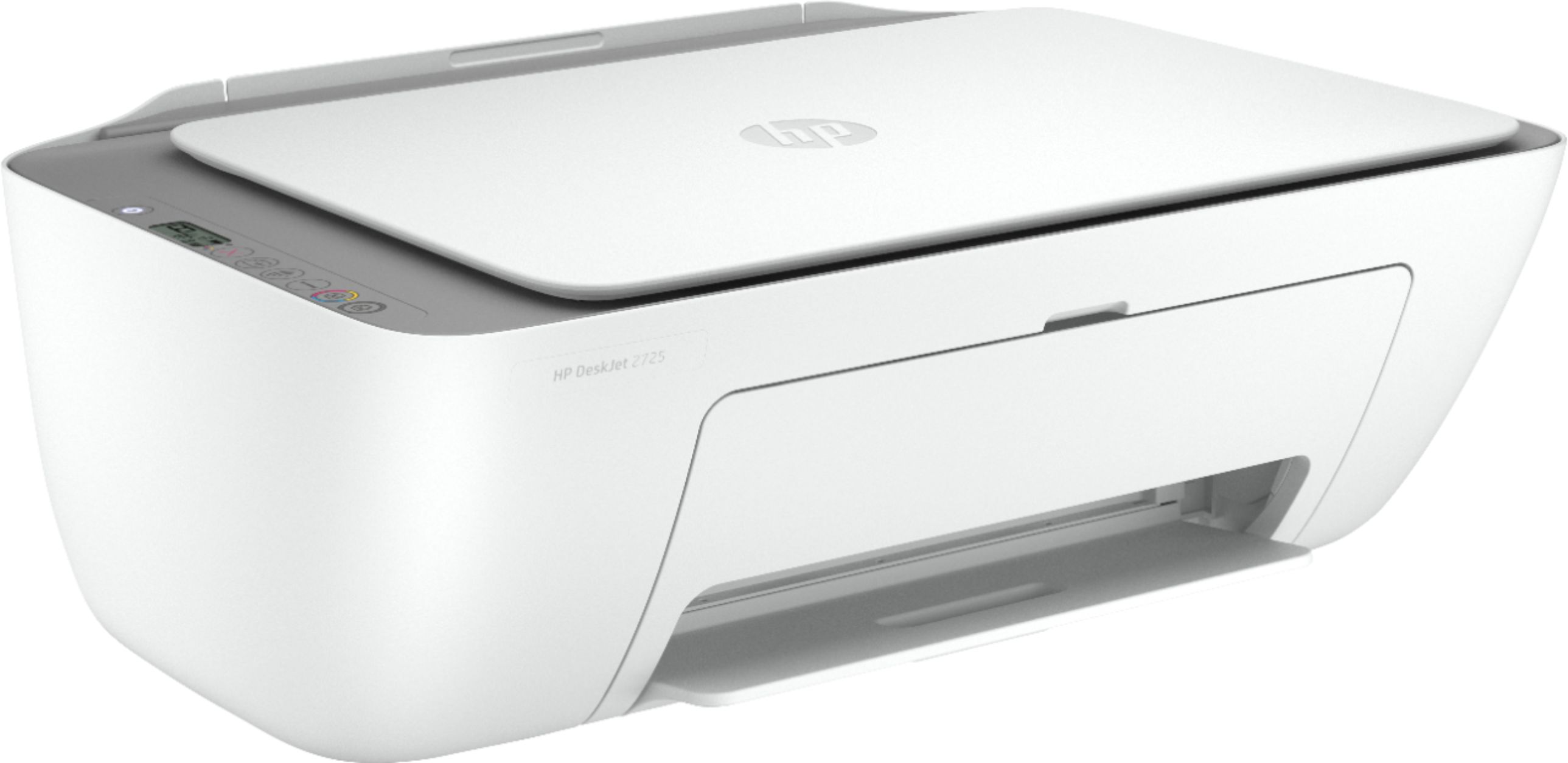
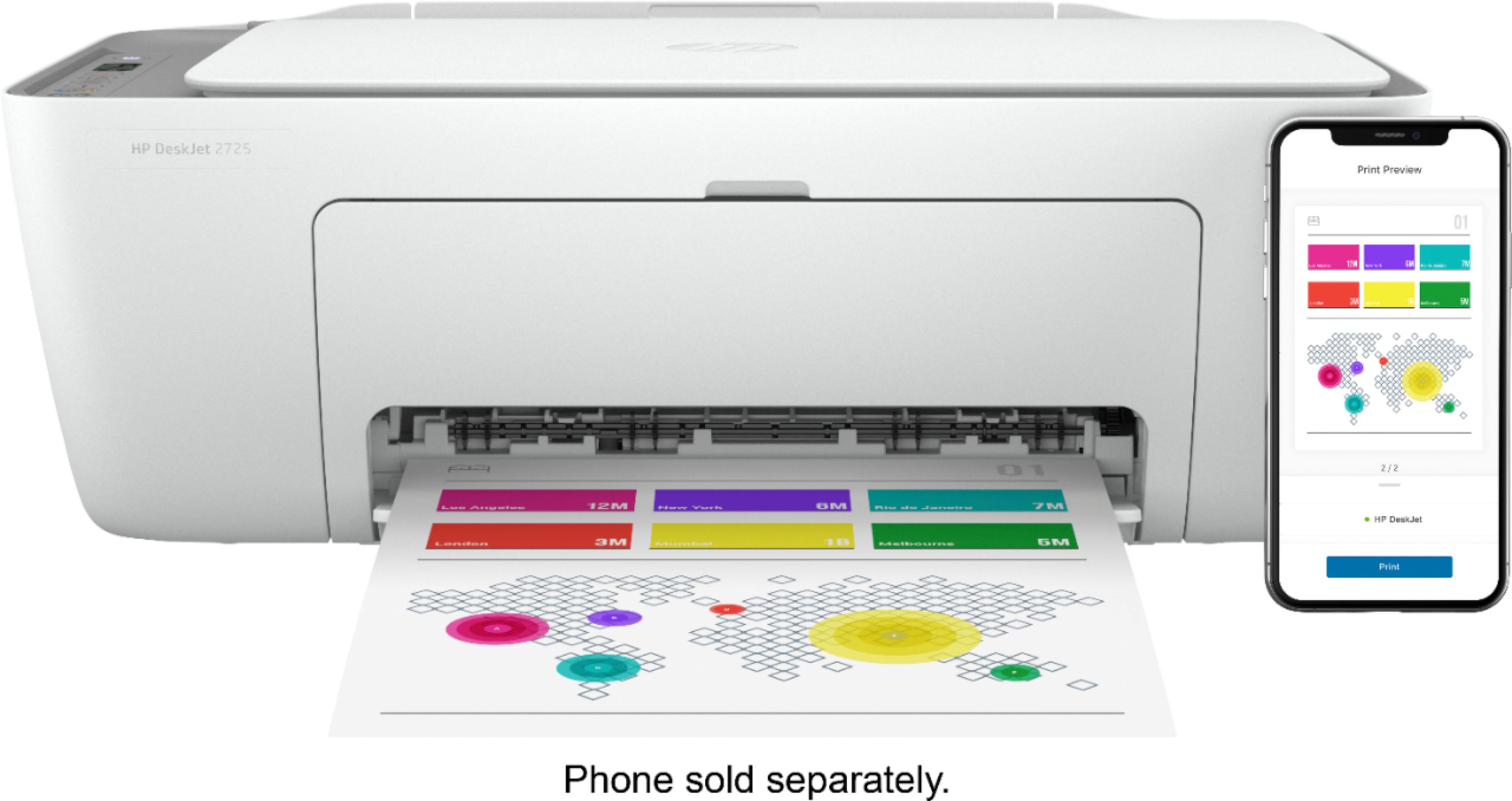
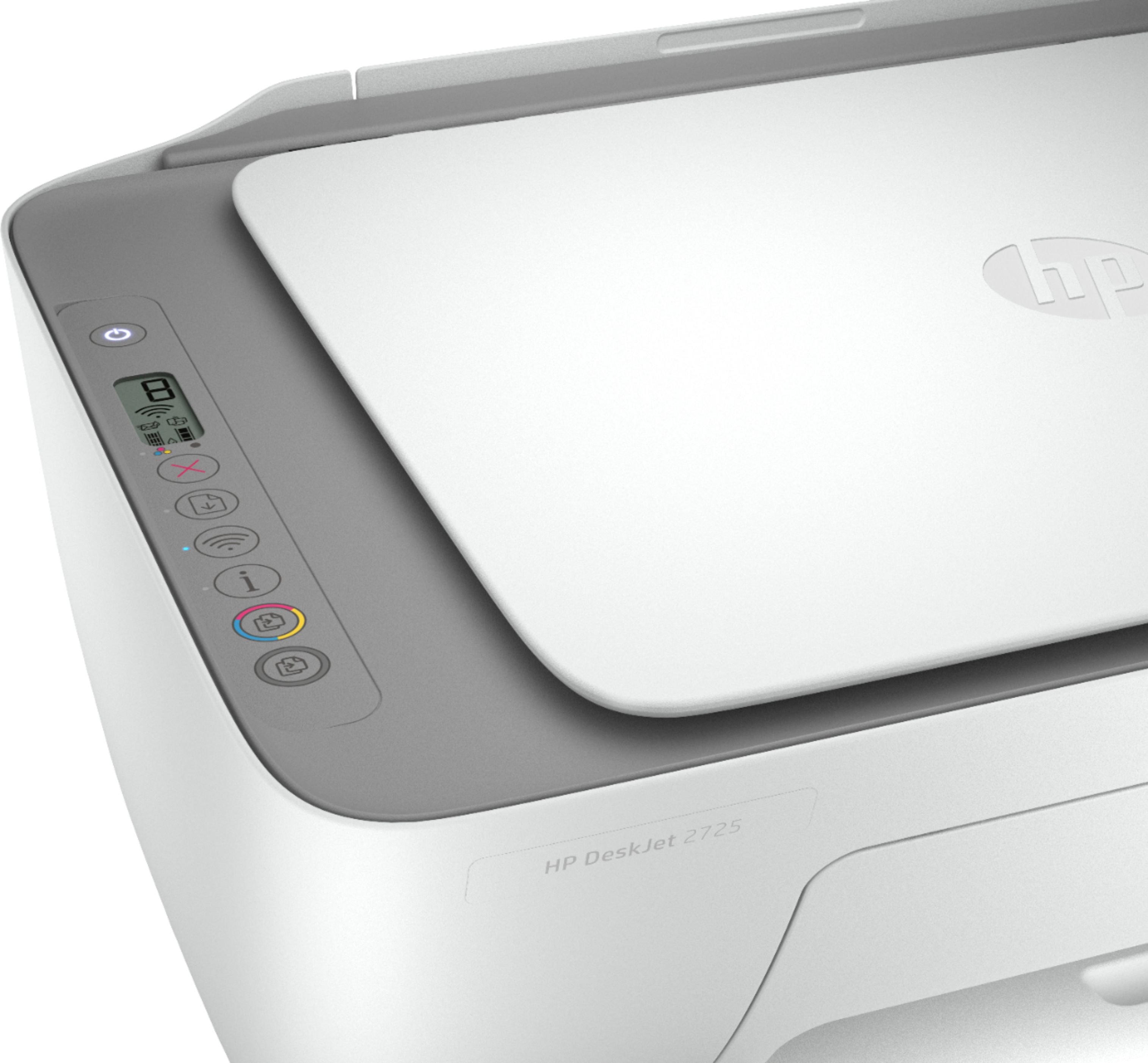
A:AnswerThe dimensions of the HP DeskJet 2725 All-in-One Printer are: (W x D x H) 16.7 x 11.97 x 6.06 inches. And with the output tray extended: (W x D x H) 16.7 x 21.5 x 9.8 inches.
A:AnswerYes, you can print from your iPad or iPhone. Just be sure your device and the printer are on the same wireless network. We recommend using the HP Smart App: https://support.hp.com/us-en/document/c03561640
A:AnswerNo, it does not. This printer is eligible for the HP Instant ink program which begins at 99cents for 15 pages per month. With the HP Instant Ink program, you can save up to 50% on ink and never run out.
With HP Instant Ink, ink is automatically ordered and delivered to your door, and you pay a lot less. You can also choose not to use the HP instant ink program and purchase your ink online or in-store.
A:AnswerNote: I ordered this 2725 printer, but I had a faulty one. It happens. The setup for this HP printer was more work than any printer I've ever owned. Note- no touch screen. I tried to set it up via the control panel [IP adds] and had no avail. I was informed it was up for instant ink with HP, but that seemed impossible to set up had I surpassed the Wifi stage since the printer wasn't listed per the printer list provided for the ink program. Ended up returning and purchasing a $40 more printer... wow! The HP Officejet 3830 setup was flawless, and all I did was click "ok" and "accept" a handful of times.
A:AnswerYes it does using the full HP scanning software or the HP Smart App. If you want to adjust scan size, output type, scan resolution, or file type, and so on, you need to start the scan from the
printer software.
A:AnswerHere is a link to download the free HP drivers:
https://support.hp.com/us-en/drivers/selfservice/hp-deskjet-2700-all-in-one-printer-series/29378157/model/38056354
A:AnswerThis is relatively easy. With the printer turned on, on the front of the printer, pull down the paper output tray, then reach in an pull down the ink cartridge cover. Give it a few seconds to seat itself in the middle of the carriage. Then insert the color cartridge on the left and the black cartridge on the right. The label will be facing up, and the cartridges push in and up and lock into place. Here is a link to a video that should help you: https://www.youtube.com/watch?v=TSVV4kCYKRY
A:AnswerYes it can. You can print directly to this printer with an iPad using wifi direct. You can get full control and functionality of the printer using the HP Smart app, a free app on the Apple IOS store.