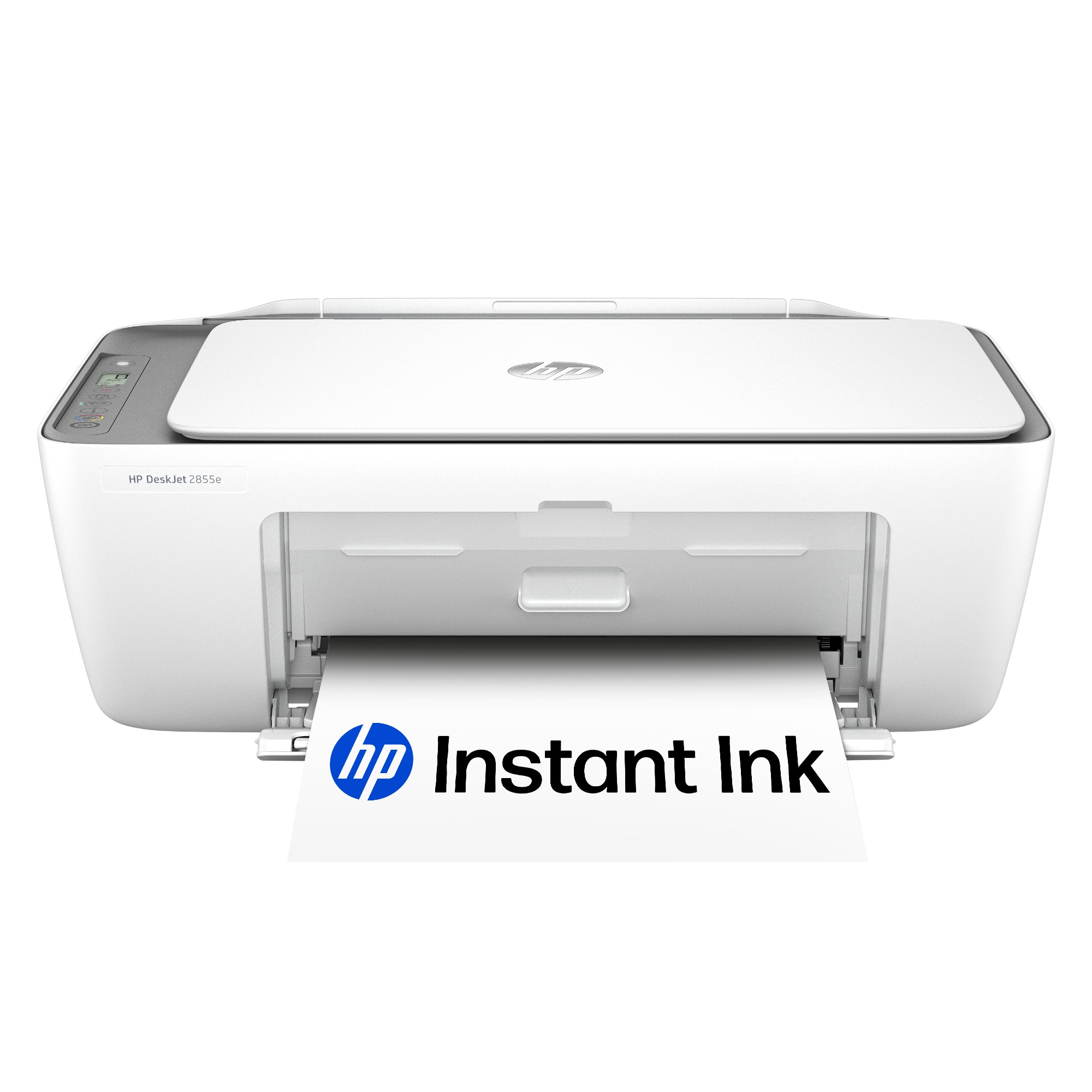
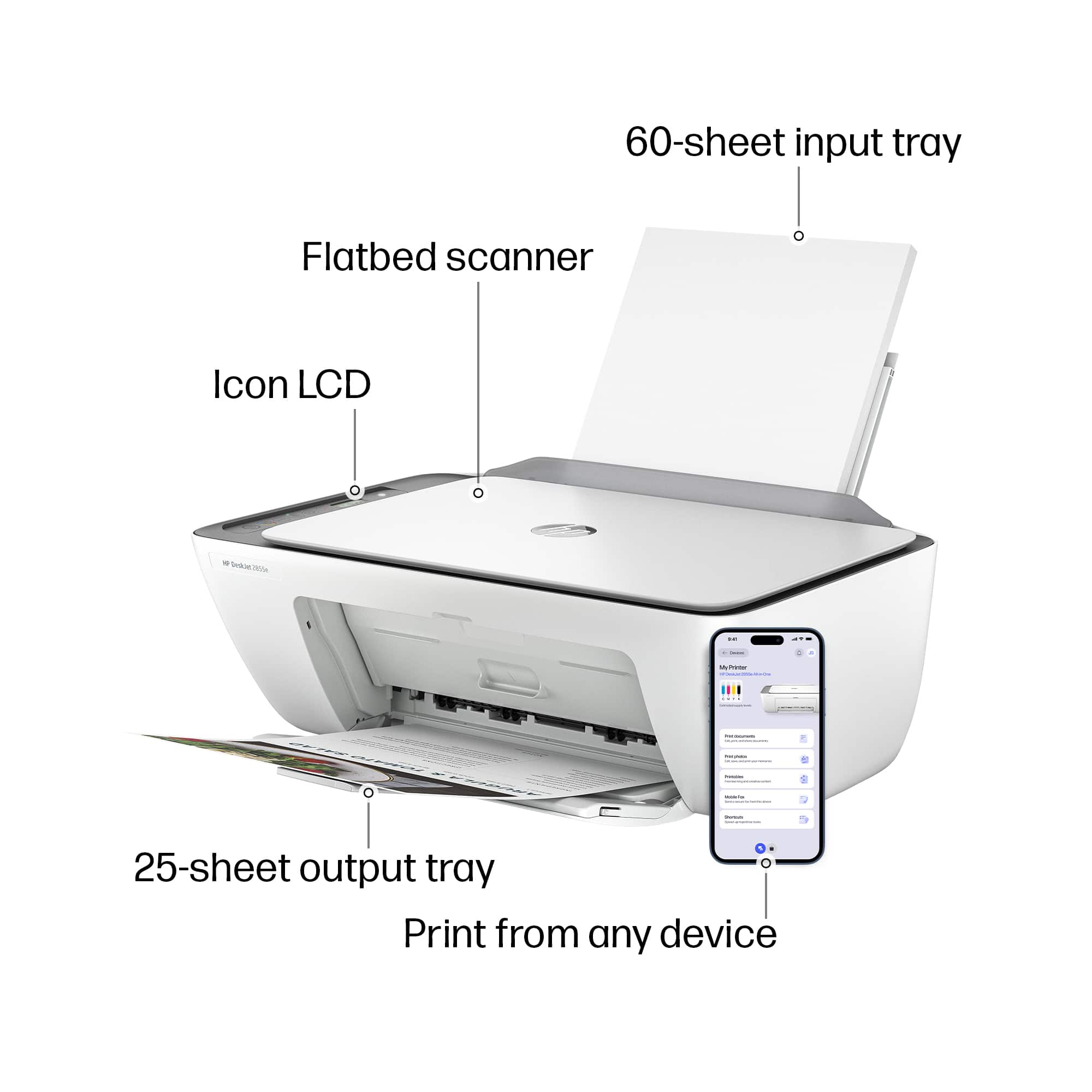
A:AnswerIt's not the best photo printer. The quality of the output was mediocre and I couldn't get it to print a 4x6 inch photo on 4x6 paper. It cut off the right section of the print. I had to print a 4x6 on 8x10 paper and then trim it to size.
A:AnswerThank you for the question. That depends on your operating system (OS). The DeskJet 2855e is compatible with macOS V10.14 Mojave and later operating systems.
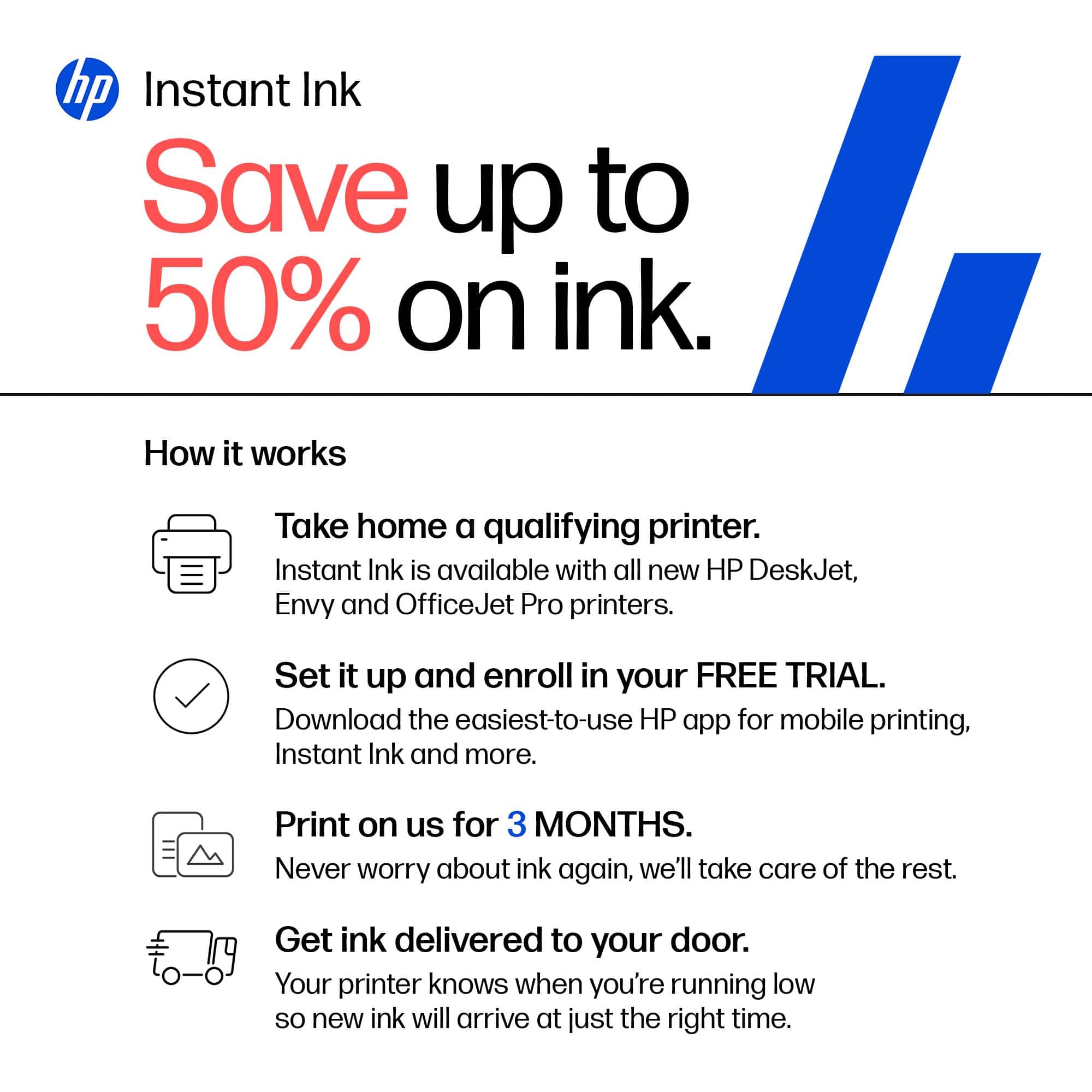
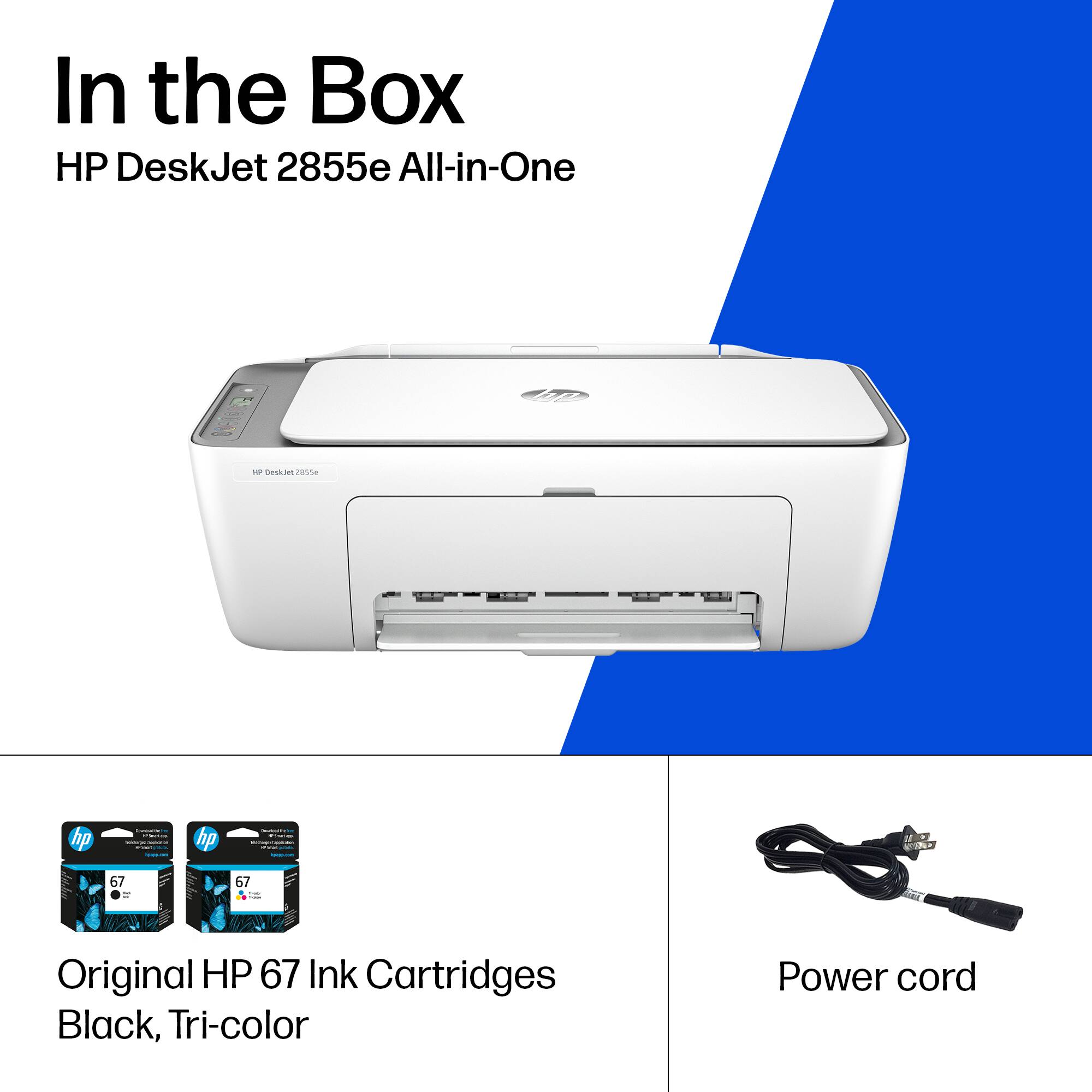
A:AnswerThank you for the question. To reset your HP printer after cancelling Instant Ink, follow these steps: Turn off Web Services. Perform a Full Factory Reset: Remove the ink cartridges from the printer. Unplug the printer from the power source. Wait for about 30 seconds. Plug the printer back in and turn it on. Install new ink cartridges purchased from a retailer (not Instant Ink cartridges). If you have difficulty completing these steps, please reach out to HP Support to assist.
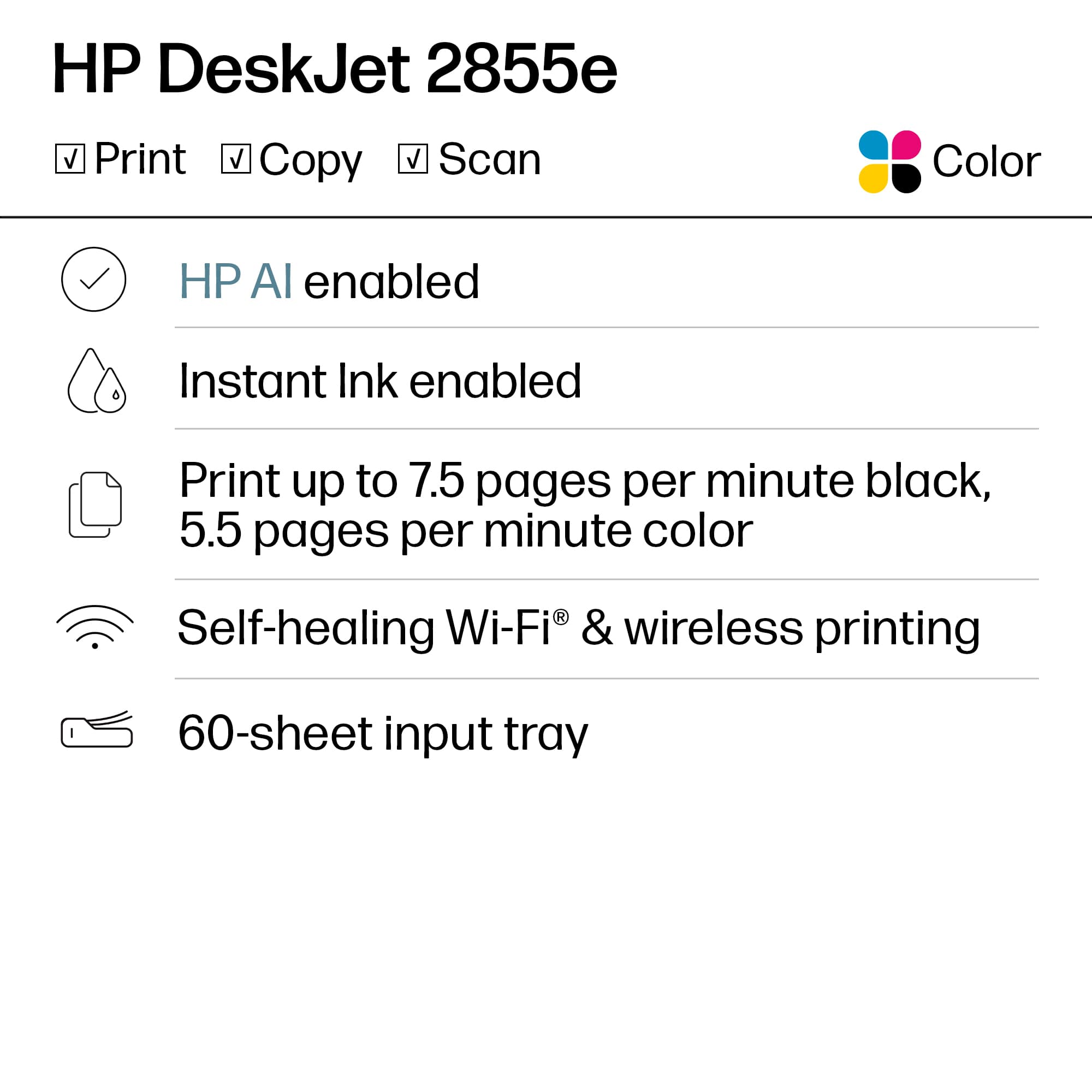
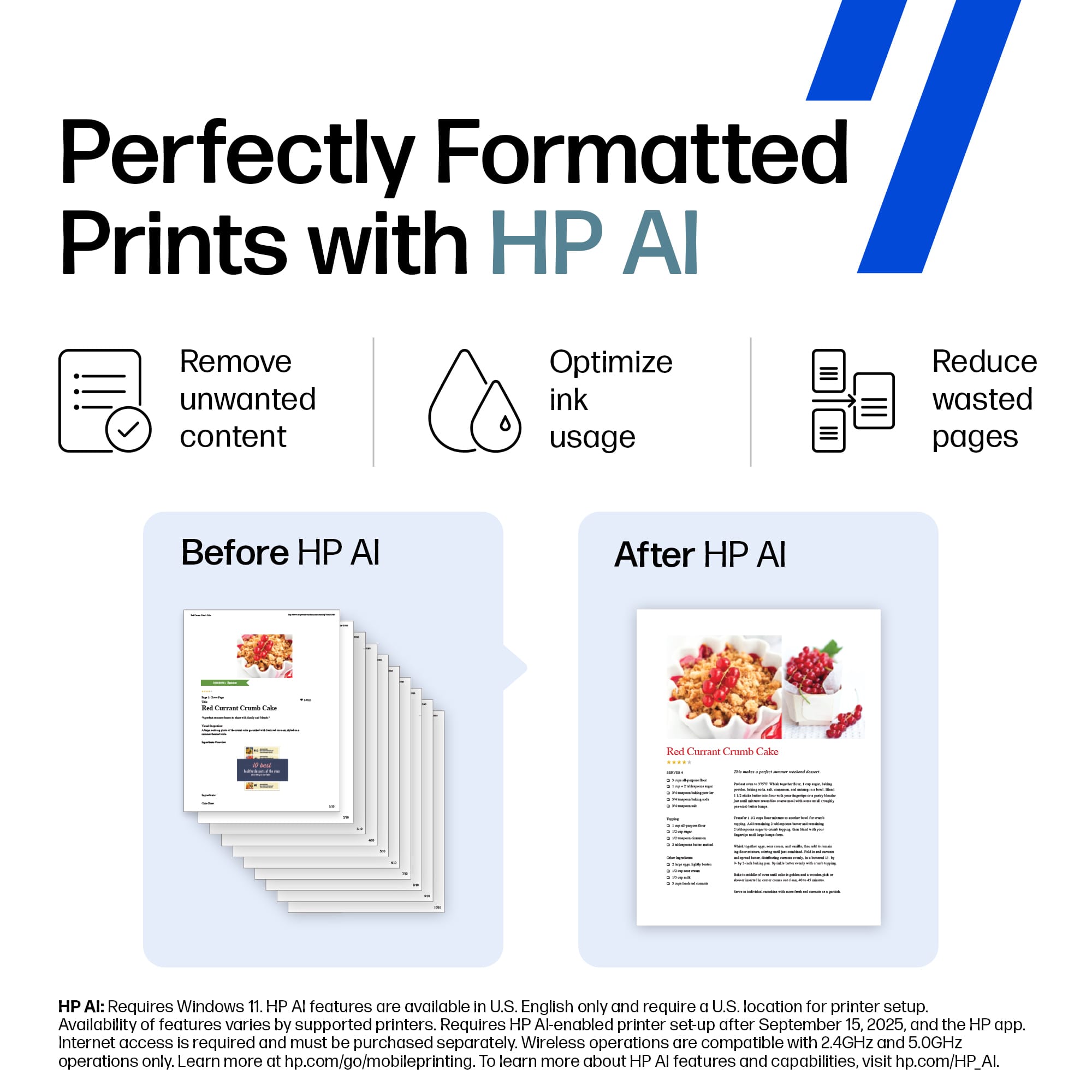
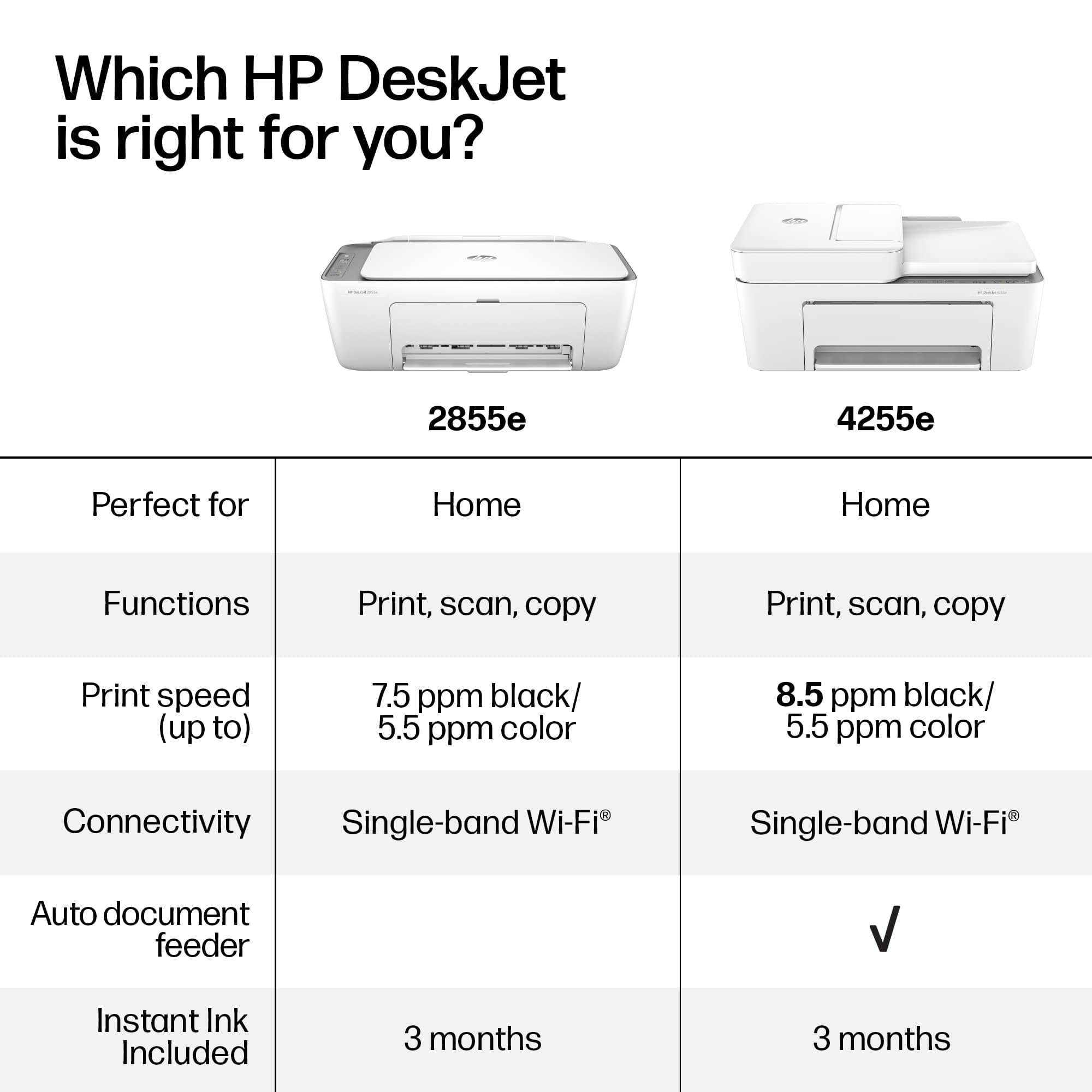
A:AnswerThank you for the questions. Both printers perform the same functions, however, the DeskJet 2855e, a newer model, has self-healing Wi-Fi and better ink optimization.
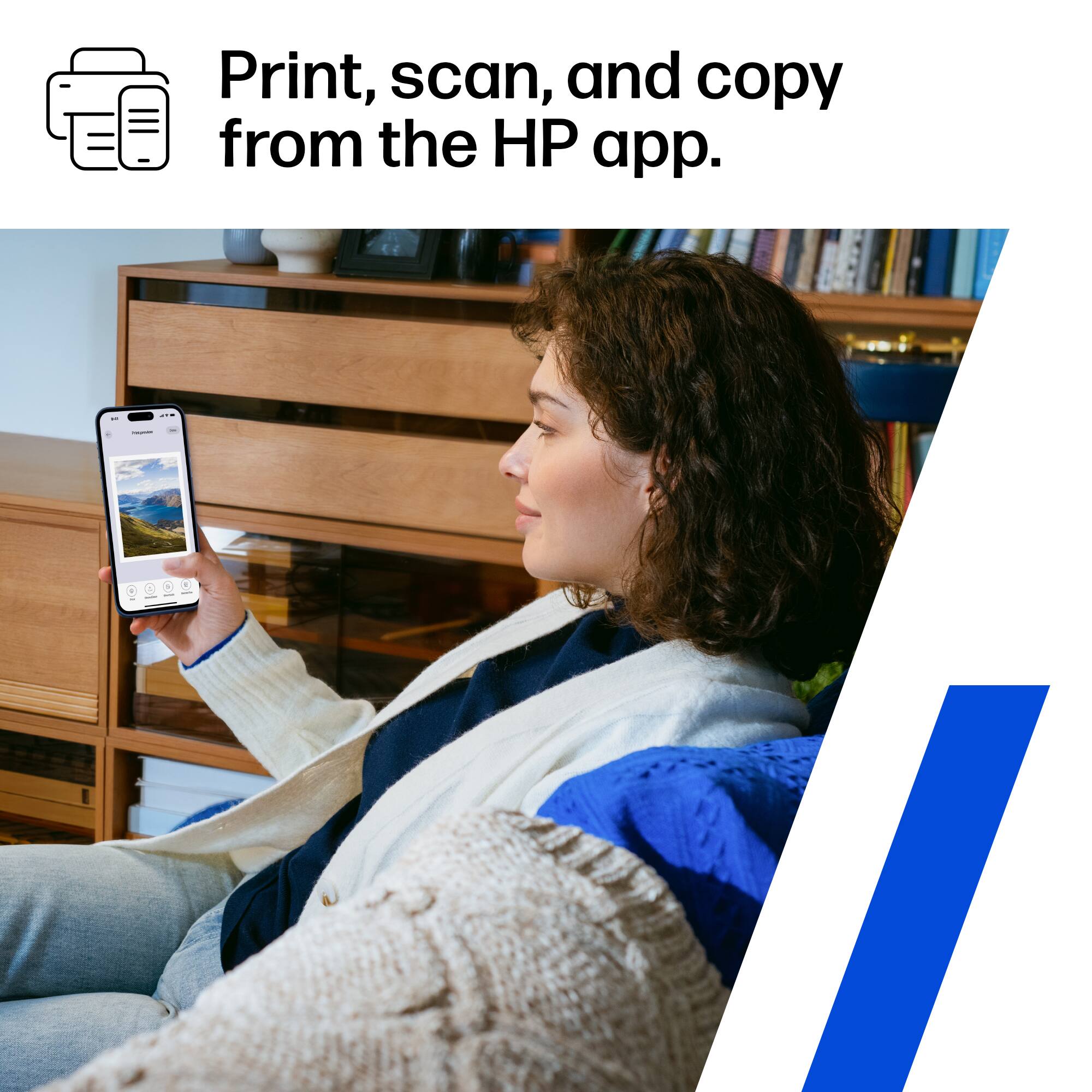
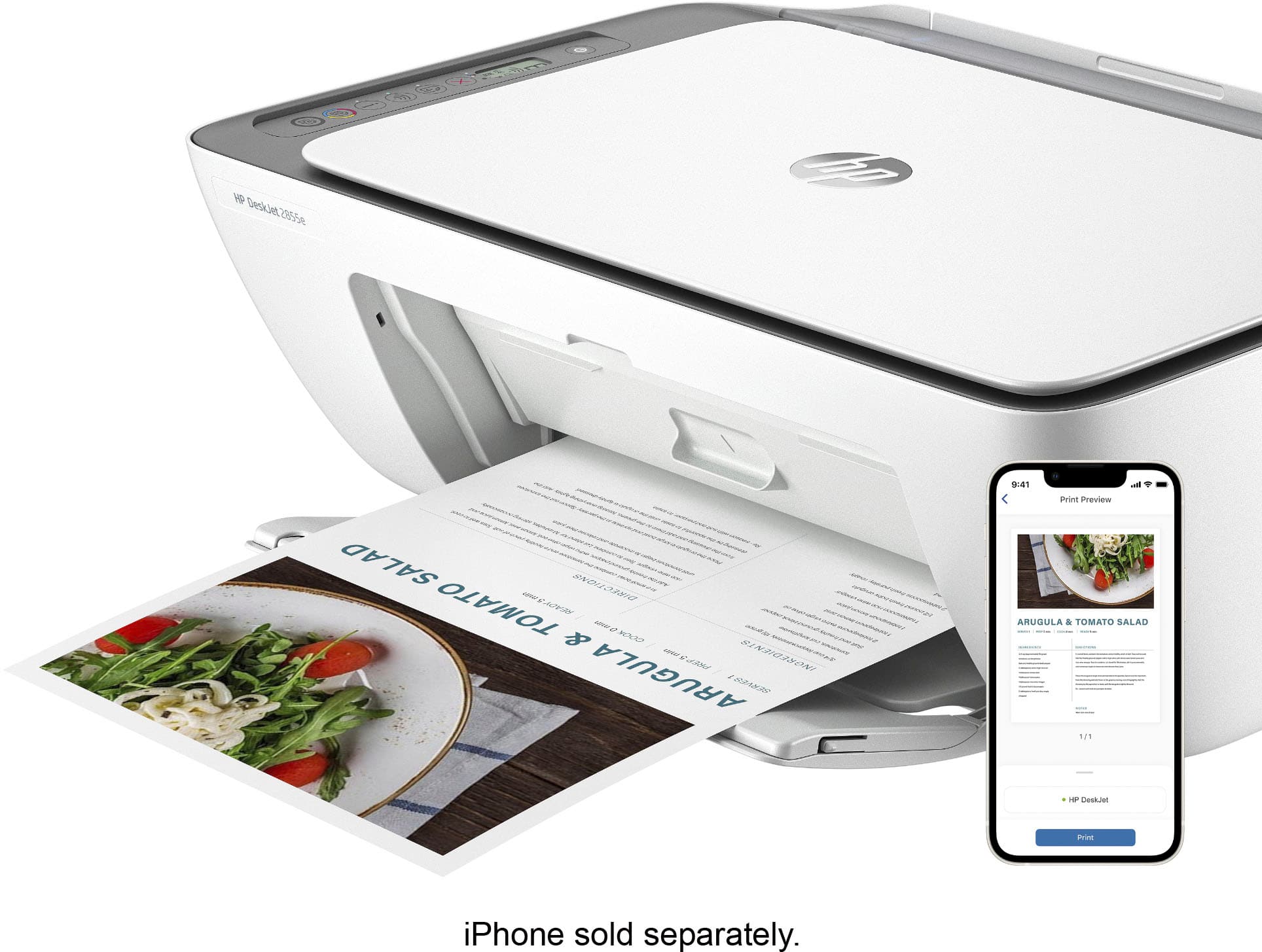
A:AnswerThank you for your question! If you are referring to the HP Smart App, that is available on Android, iOS, and Windows; an iPhone is not required for the HP Smart App.