A:AnswerYou start the scan through the HP Smart app from a device that is connected to the printer. So, for example, if you want to scan a document. You will initiate the scan from the HP Smart app from a laptop or mobile device, i.e. smartphone or tablet. You will choose the printer you want to scan with. After you scan, you will be able to save the scanned item or share it. Here is more information on the HP Smart app: https://support.hp.com/us-en/product/hp-deskjet-2600-all-in-one-printer-series/12319824/model/21481524/document/c04675142
A:AnswerWe would recommend looking at the HP Officejet Pro 9015 or 9025 printers. There are only a few differences between the two 9000 series printers. The 9025 can scan in a single pass double-sided on the auto document feeder. There are 2 trays that hold 250 sheets in each tray. It has a front USB drive so you can print photos or scan to a USB flash drive. And the 9025 can print a few pages. a minute faster and it does have an option for a larger black ink cartridge, the 966xl black.
A:AnswerYou can use the HP Smart app to save to the cloud. You can also use the scan option on the HP Smart app to share via email. To make it easier the next time, we recommend using the HP Smart Tasks. It allows you to make a shortcut, i.e. a scanned item to be emailed to this email address. Here is more information on the HP Smart app: https://support.hp.com/us-en/document/c03561640 and on the HP Smart Tasks: https://support.hp.com/us-en/document/c06211157
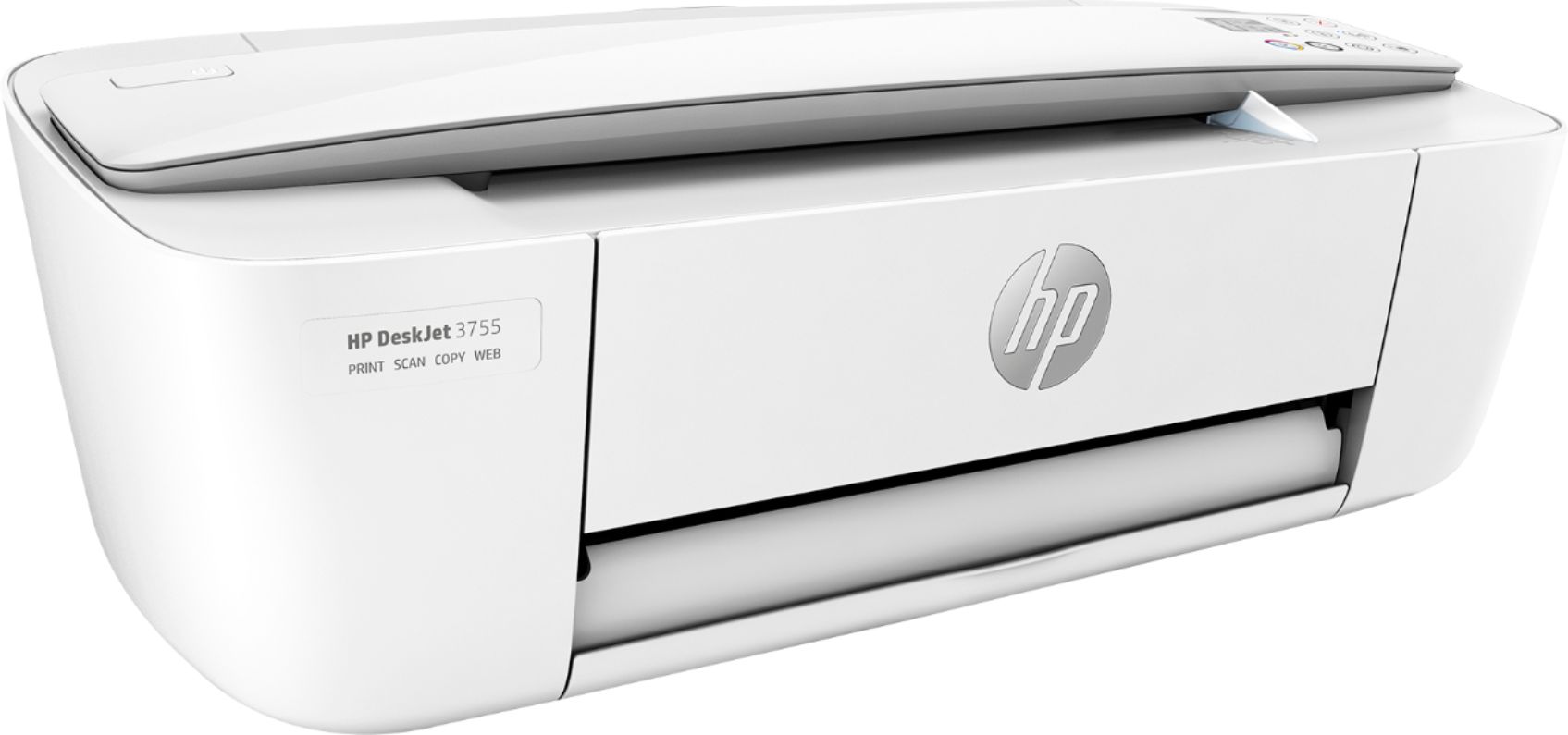
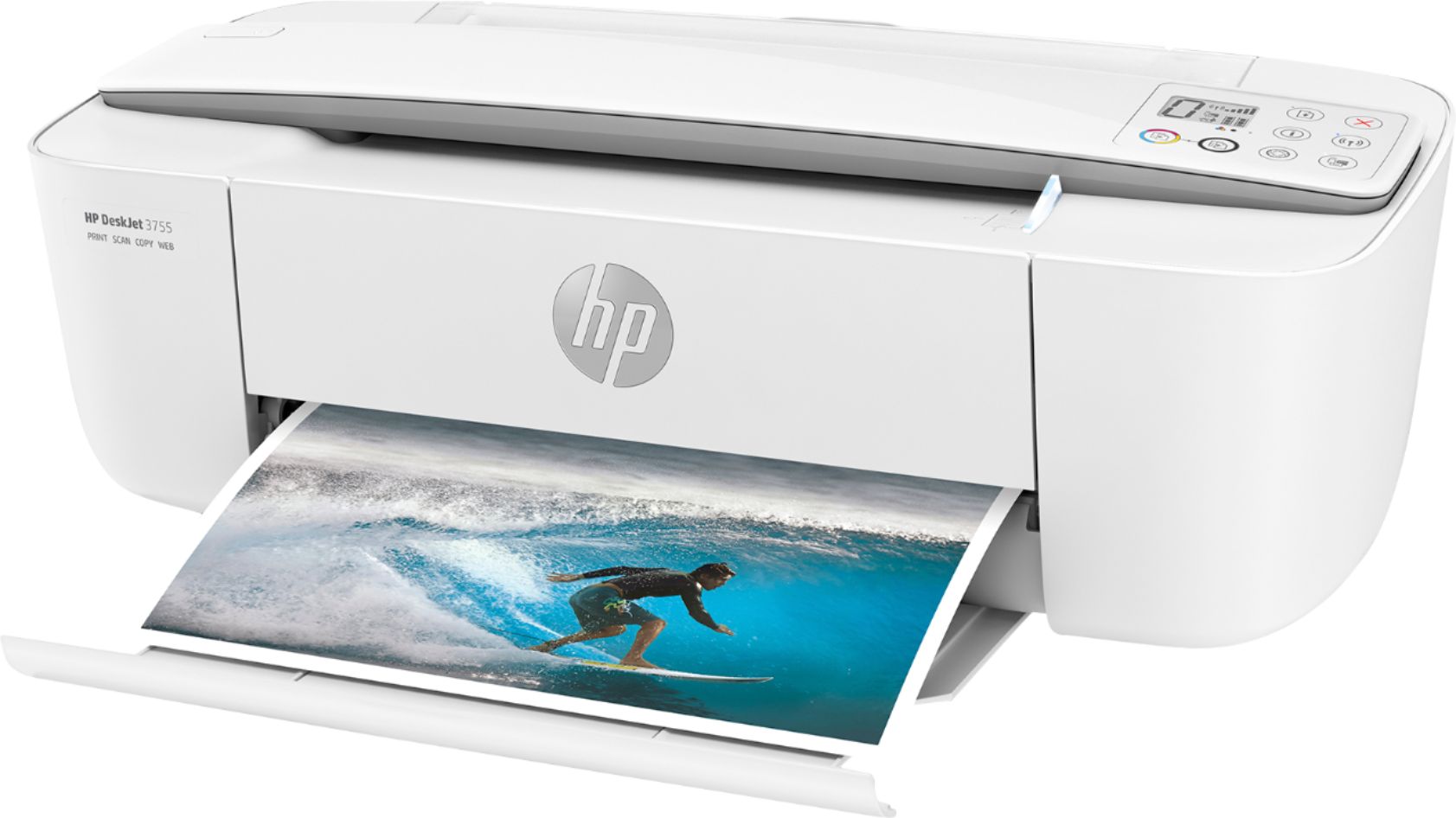
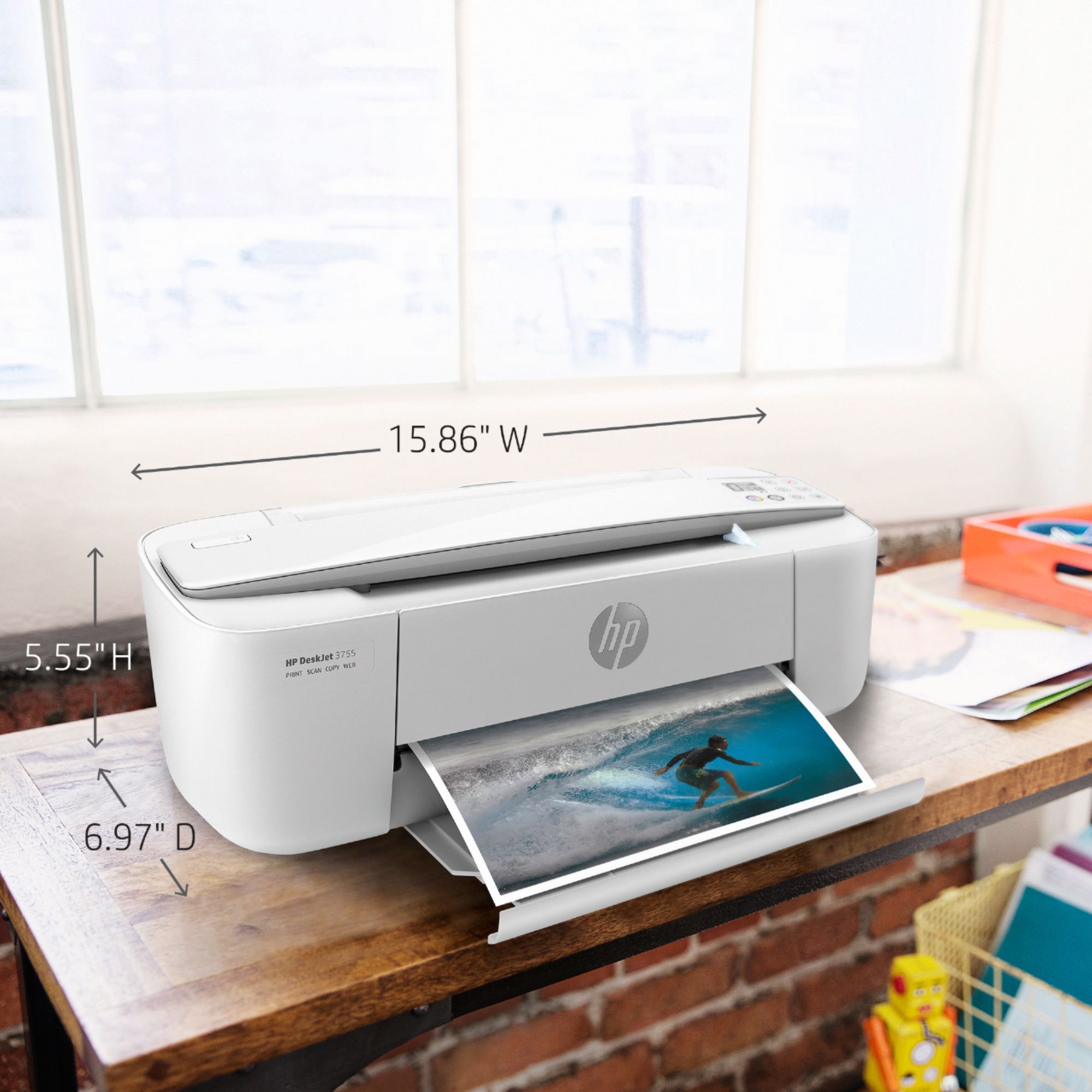
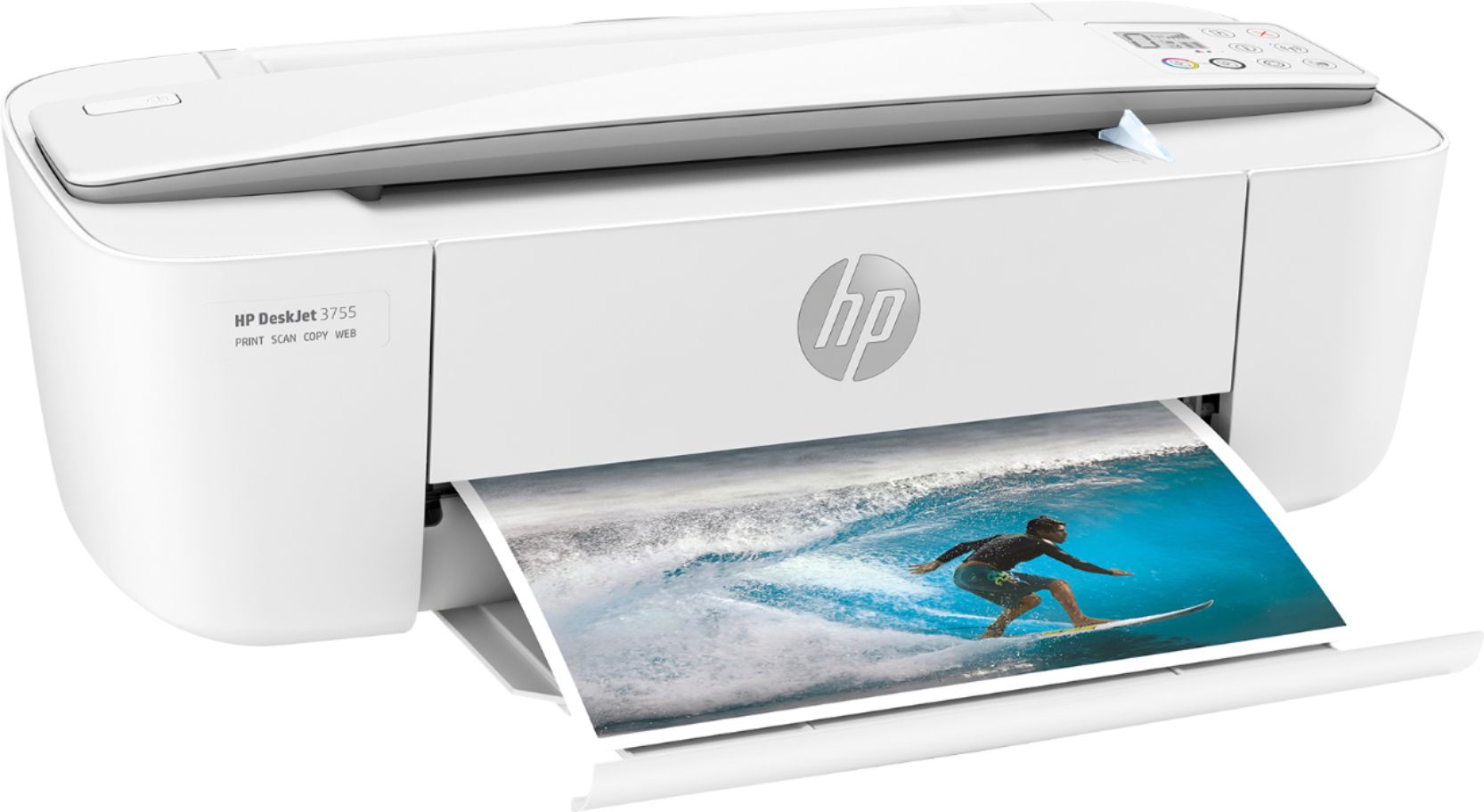
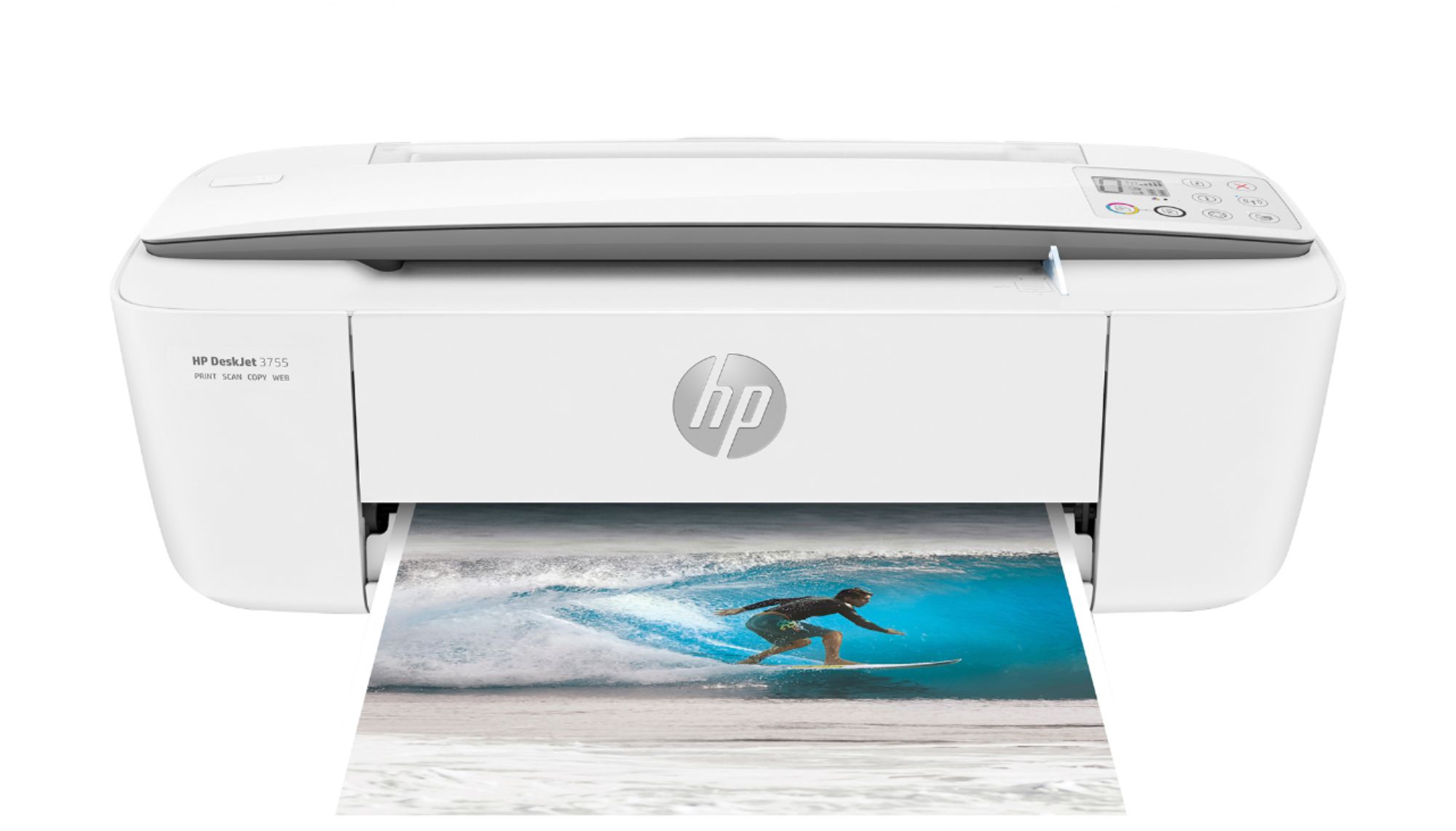
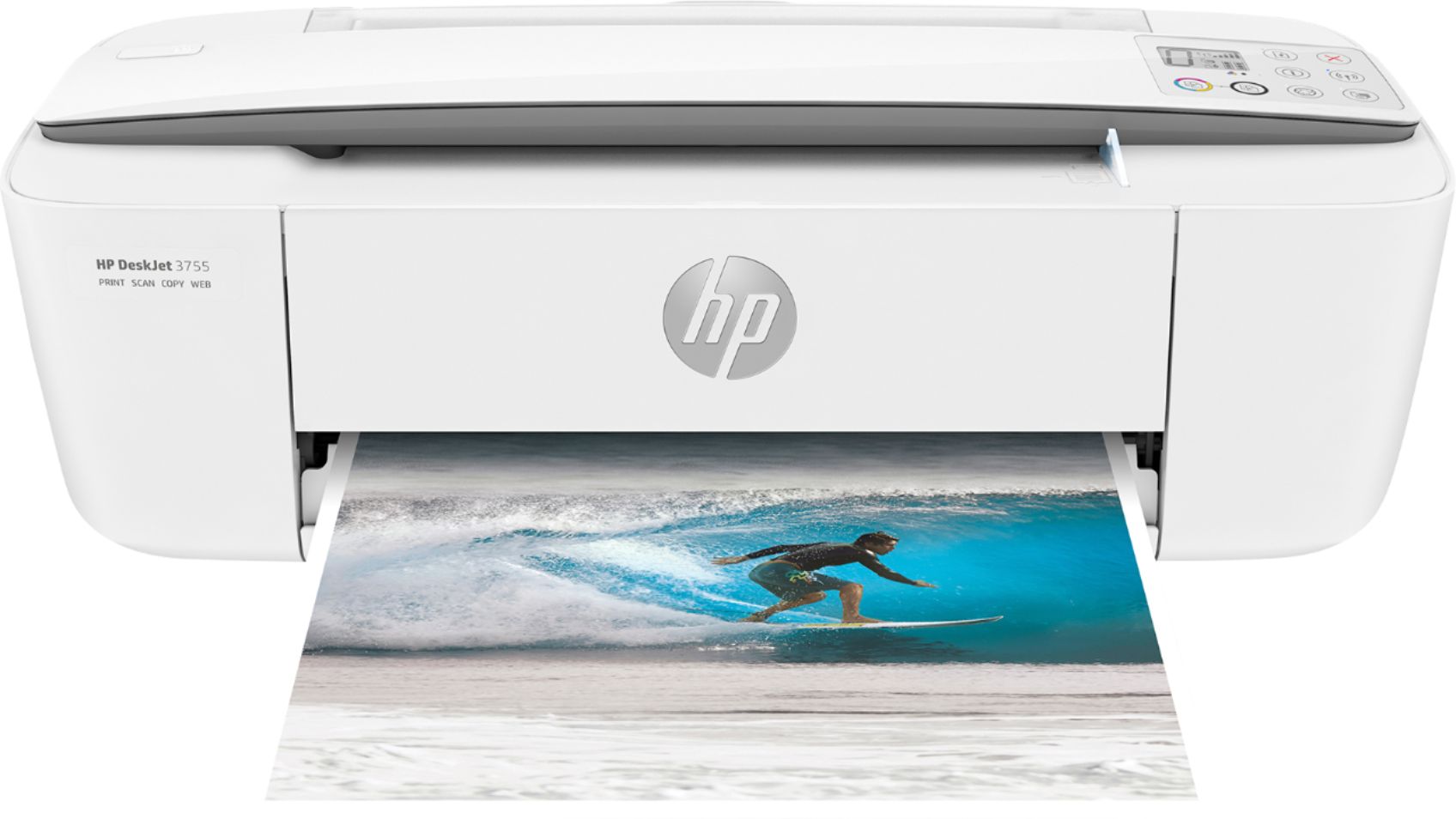
A:AnswerYes, the HP Deskjet 3755 printer will work with the Chromebook. Once you are set up the printer to the wireless network, follow these instructions to set up the printer on the Chromebook: https://support.hp.com/us-en/document/c04122530
A:AnswerYes, the HP Deskjet 3755 printer is compatible with the Chrome operating system. Once you connect the printer to your wireless connection, follow these instructions: https://support.hp.com/us-en/document/c04122530