A:AnswerAfter setting up the printer and connecting it to your wireless network, you will register for HP Instant Ink by visiting https://www.hpinstantink.com. You will choose the plan that works best for you. Within 7 to 10 days, you will receive your Welcome Kit with your first set of ink. After that, HP will send you ink before you need it. HP Instant Ink is where you are paying the number of pages you print. Not the ink. So for example, you choose the 50-page plan for $2.99 a month. If you wanted to, you could print 50 full color 8.5" x 11" photos. You will find that it is a lot cheaper than a set of ink. And you will never be without ink. HP will send you ink before you need it. Remember the key is a page is a page. It doesn't matter what you print.
A:AnswerWe would recommend reaching out to your bank to make sure they do not require checks with MICR Toner. Most banks do not require MICR toner. If you find out that you need checks with MICR toner, then we recommend that you look at this website: https://support.hp.com/us-en/document/c03081484 You would need a modified HP Laser printer that can use MICR toner. Off the shelf printers are not modified for MICR toner. If your bank does not require MICR toner, then you can use this printer.
A:AnswerYes, it does have Bluetooth capability, so you'll be able to connect the printer and phone and print. You'll need to download the free HP Smart app for the phone.
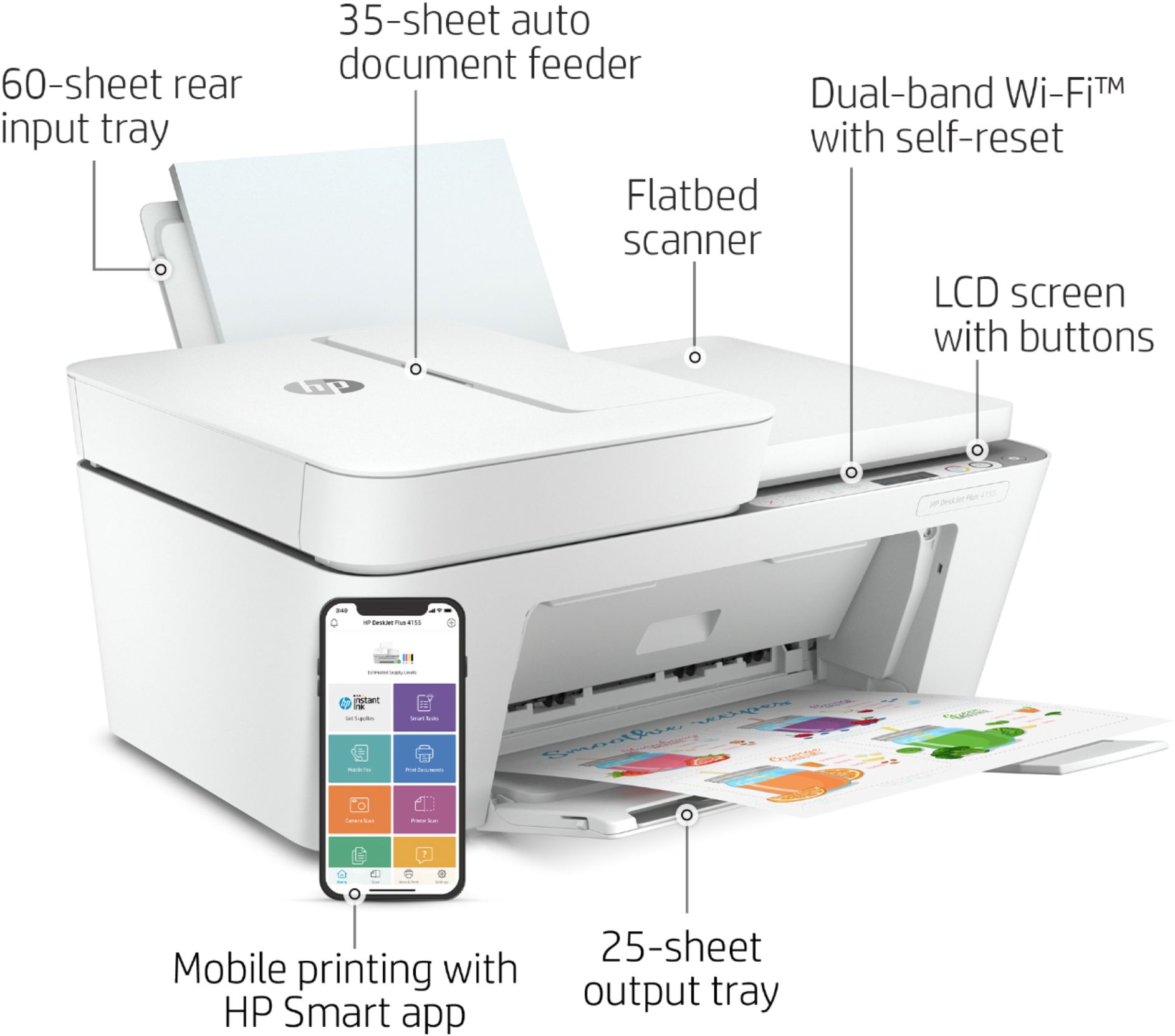
A:AnswerThe printer does not have dual band WiFi, so it won't connect on the 5 GHz WiFi band. Please note that the 5 GHz WiFi band is not the same thing as 5G cellular service being advertised by phone companies.
A:AnswerIt does. If Chrome books don’t print wireless by adding the printer, in the computer’s settings, you just simply download the HP Smart app and you’ll be all set.
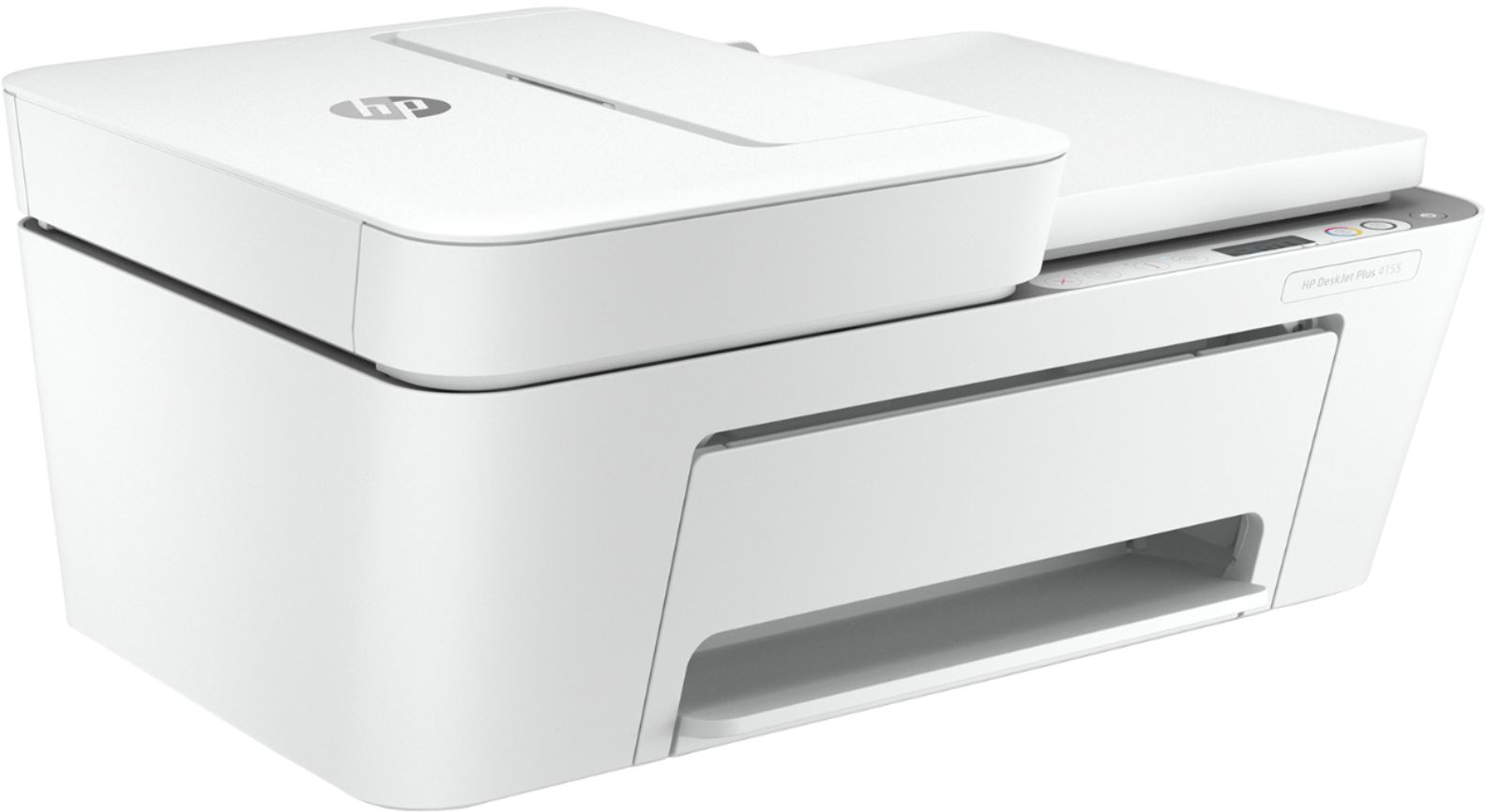
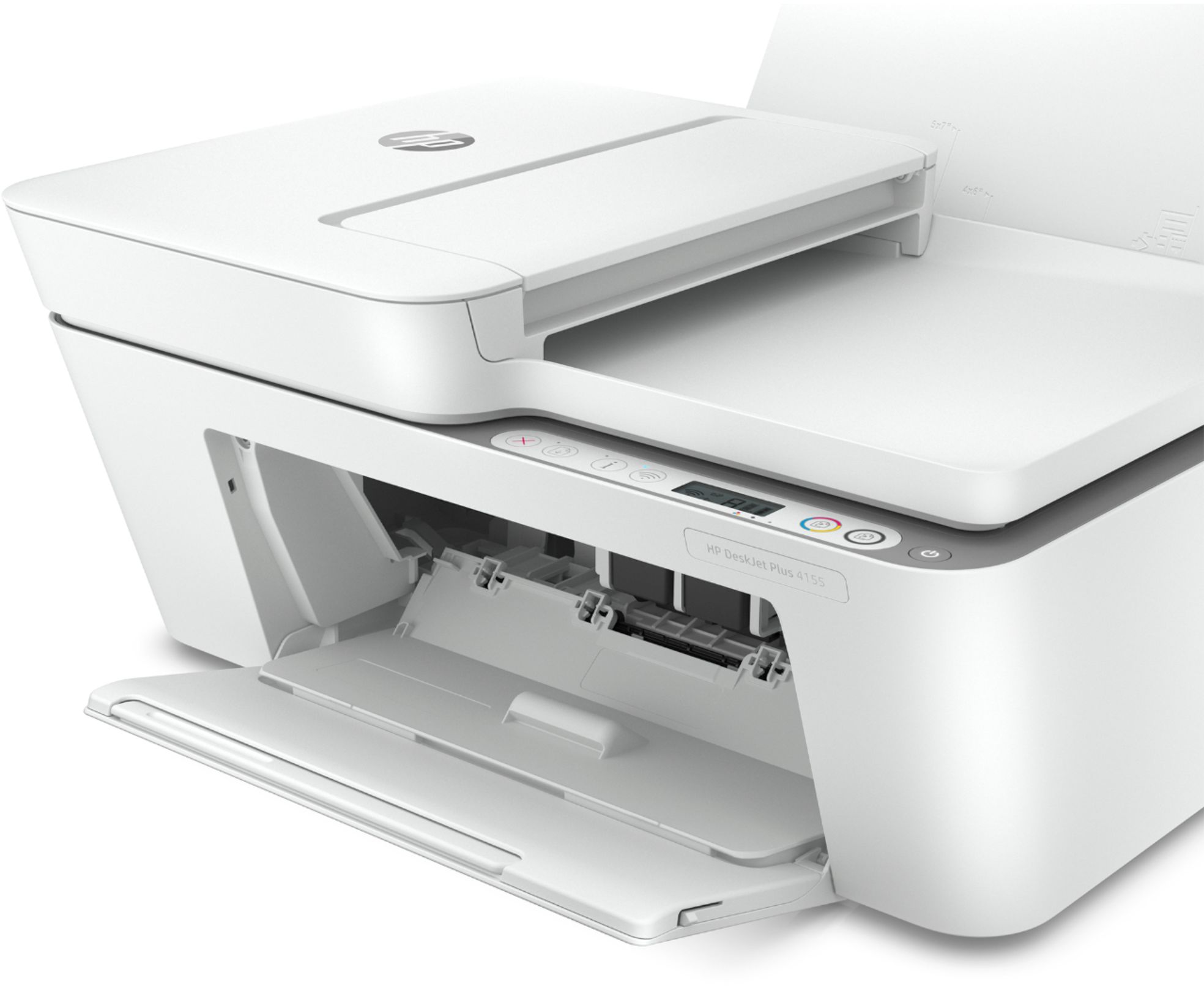
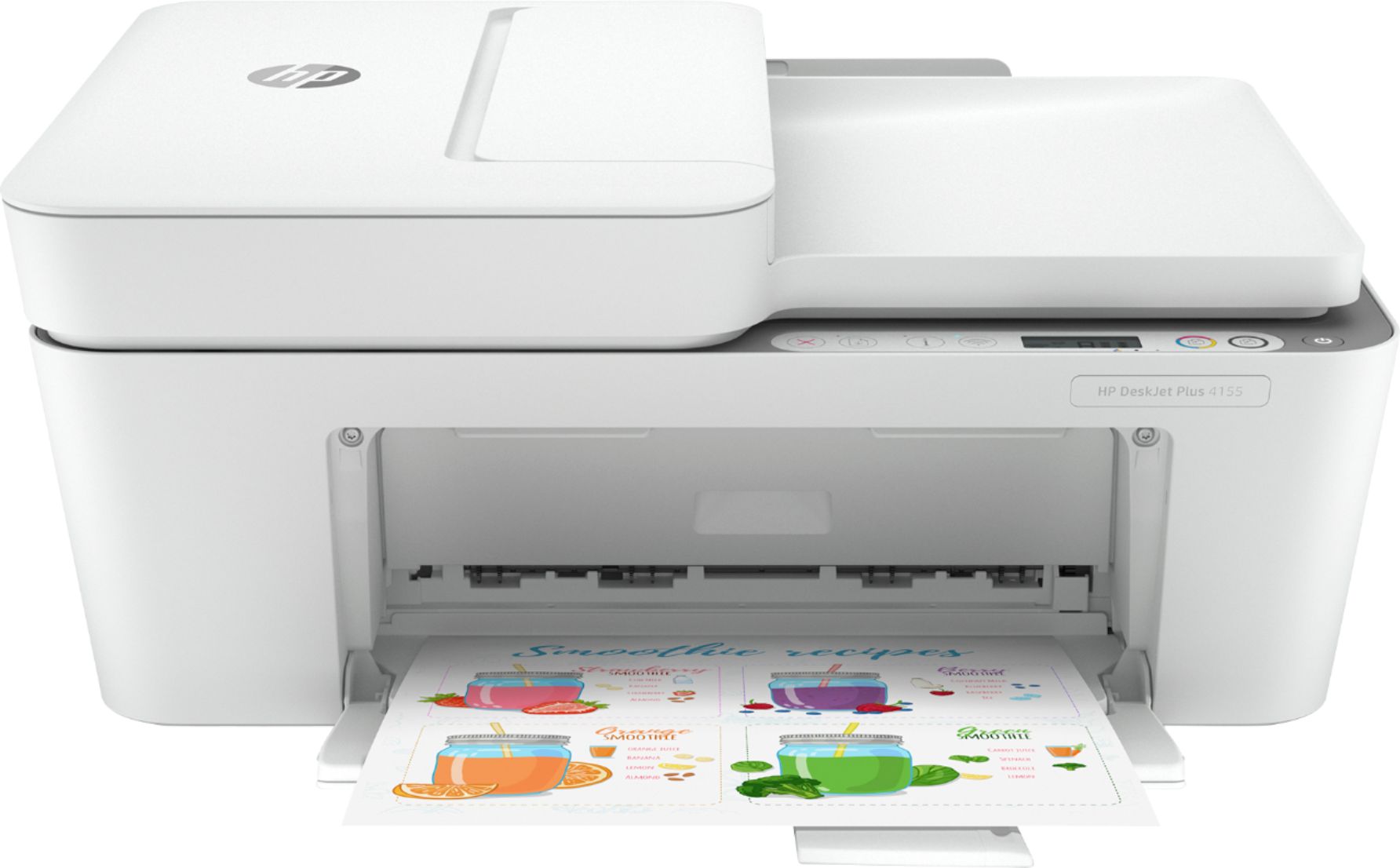
A:AnswerWhen you scan from the HP Deskjet Plus 4155 printer, you would initiate the scan from the computer. After you scan your photo or document, you can save it on your computer. We recommend using the HP Smart app: https://support.hp.com/us-en/product/hp-deskjet-2600-all-in-one-printer-series/12319824/model/21481524/document/c04675142
A:AnswerYes, you can use this HP Deskjet Plus 4155 printer with a Chromebook. Once you connect the printer to your wireless connection, follow these instructions: https://support.hp.com/us-en/document/c04122530
A:AnswerThis HP Deskjet Plus 4155 printer is a great affordable option for a college student. It is compatible with the MacBook Pro. It does print in black and white and color.
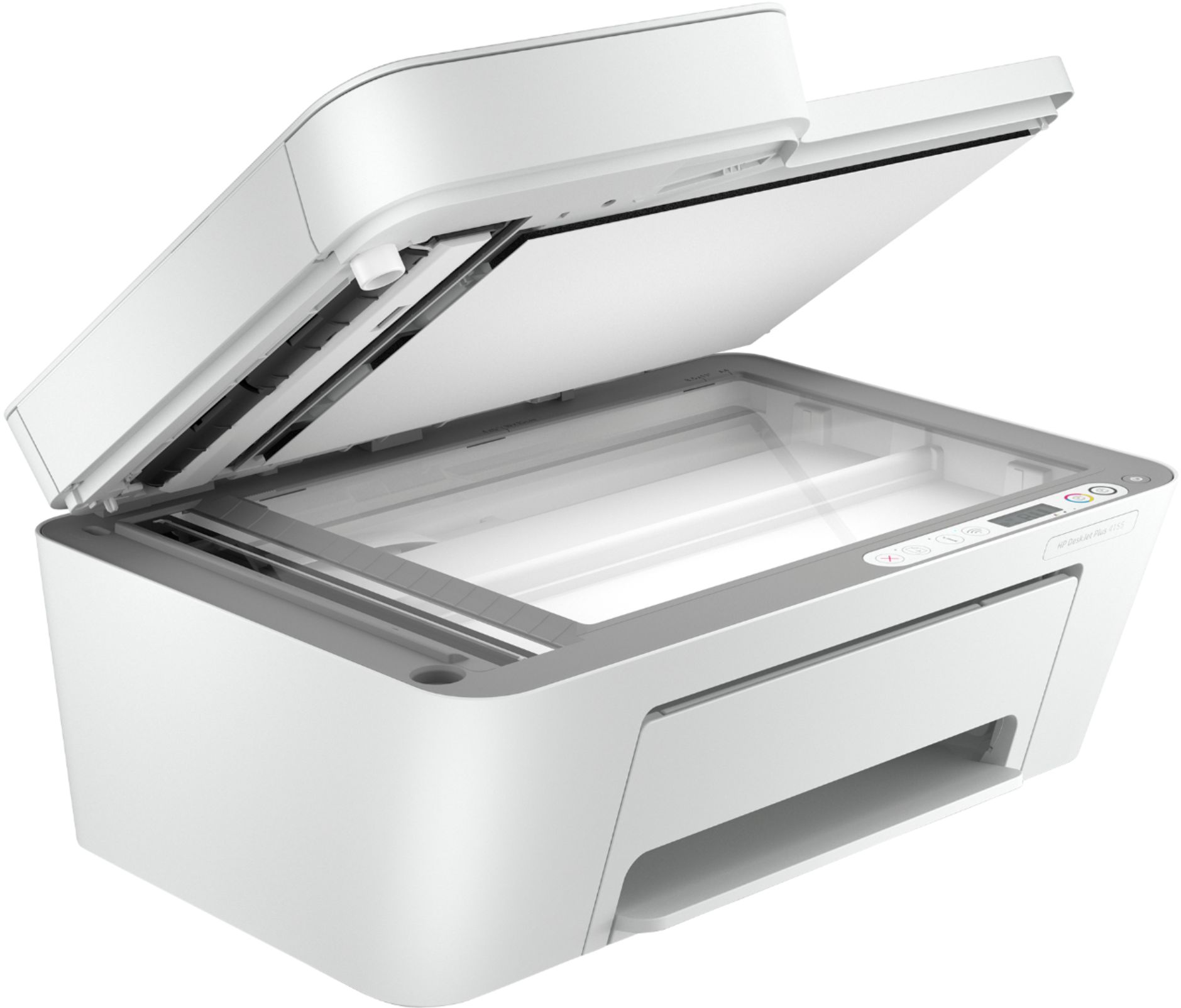
A:AnswerThe HP Deskjet Plus 4155 printer does not scan double sided documents through the auto document feeder. I would recommend looking at the HP Officejet Pro 9015 or 9025 printers, which can scan double sided documents through the auto document feeder.
A:AnswerAbsolutely. I tested it with several Windows 10 and macOS devices, as well as a few iPads and iPhones - All could print and scan with it when properly set up!