A:AnswerWe are so sorry to hear about this!! Please reach out to us if you have not done so already so we can get this taken care of for you!! Here's the link to HP Support: http://support.hp.com/us-en . Click "Contact HP" at the bottom left of the page. Alternatively, you can reach us by phone at 1-800-474-6836.
A:AnswerWe are sorry to hear that you're running into computer connectivity issues! We recommend trying to get the printer setup first with the HP Smart app on a mobile device, as this will help you connect between your network and your computer!
A:AnswerOur newest Envy Photo series of printers would be the most direct replacement for the Photosmart series! These printers are designed with photo printing and project management in mind!
A:AnswerThe paper tray is a drawer that pulls open. We do not recommend trying to load more paper while the printer is printing, this will halt operation.
A:AnswerHere are the paper handling specs:
Media types
Plain Paper; HP Photo Papers; HP Matte Brochure or Professional Paper; HP Matte Presentation Paper; HP Glossy Brochure or Professional Paper; Other Photo Inkjet Papers; Other Matte Inkjet Papers; Other Glossy Inkjet Papers, Plain Paper, Light/Recycled
Media weight supported (U.S. standard)
18 to 22 lb
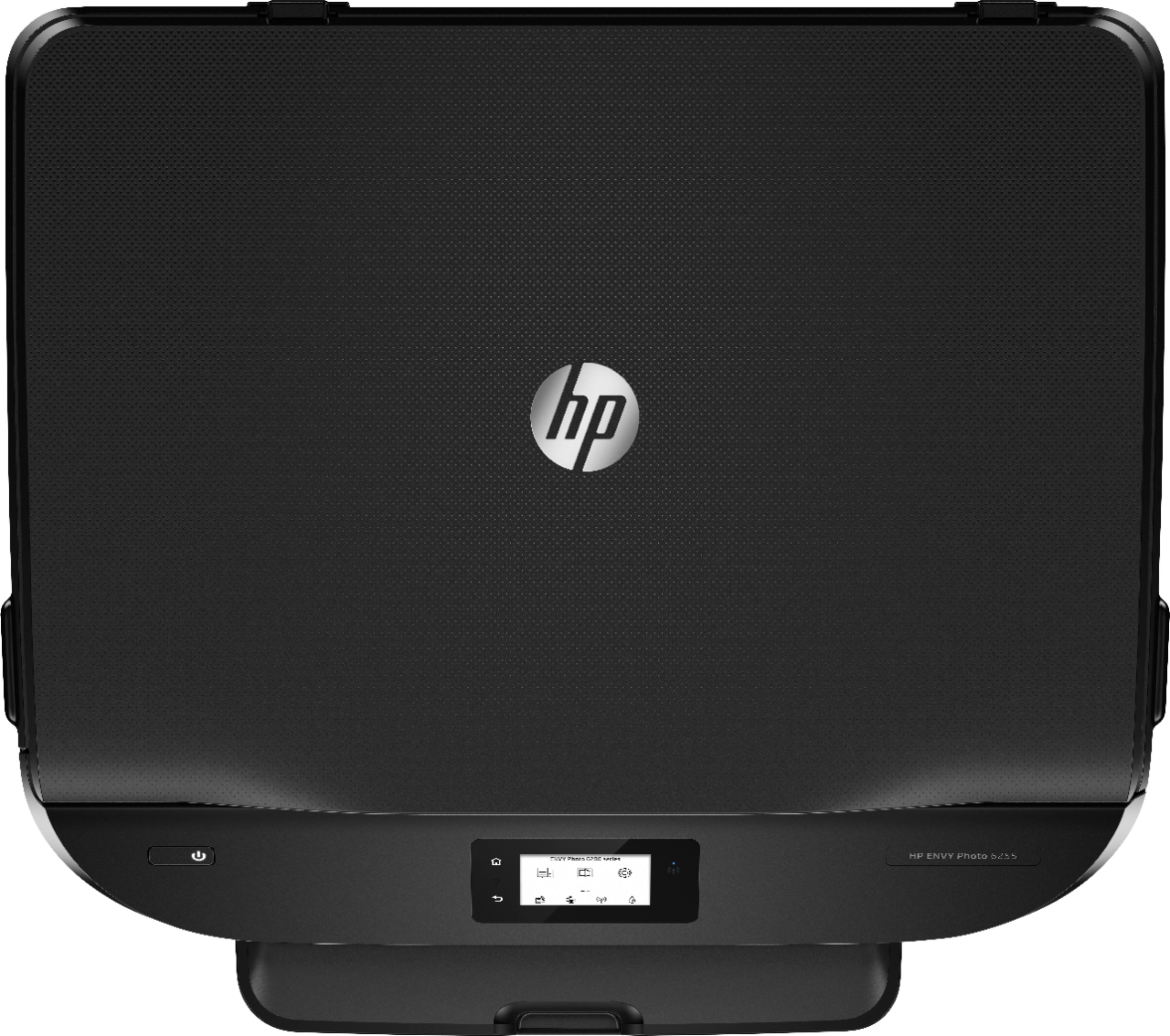
A:AnswerThis printer does not have an auto document feeder to scan multiple pages at a time. It only has a flatbed scanner. You can still scan several pages, but you would have to place each page on the flatbed scanner until the document is complete. We recommend looking at the HP Envy Photo 7855 printer, HP Officejet 3830, HP Officejet Pro 8025, 9015 or 9025 printers, which will have the auto document feeder to scan multiple pages at a time.