A:Answer Hi. Here are some instructions that may help you.
Step 1
Remove all papers from both trays, "In" and "Out" tray, of your printer. Remove the "Out" tray, the top most tray, from the printer. Place about 30 index cards in the "In" tray, the lower tray, of the printer.
Step 2
Use the width adjuster to align the index cards to the right side of the printer. If done right, the width adjuster will be touching the left side of the index cards.
Step 3
Change the properties of your printer to be able to print on index cards. On the desktop of your computer; click "Start," then click "Settings." Choose "Printers" and right click your printer. Select "Properties." Select the "Paper" or "Set Up" tab. The names of the tab will change depending on the HP printer you are using. From the paper size drop down box, select the index card size you are using. Click "OK."
Step 4
Print the document from the program you used to create the index cards.
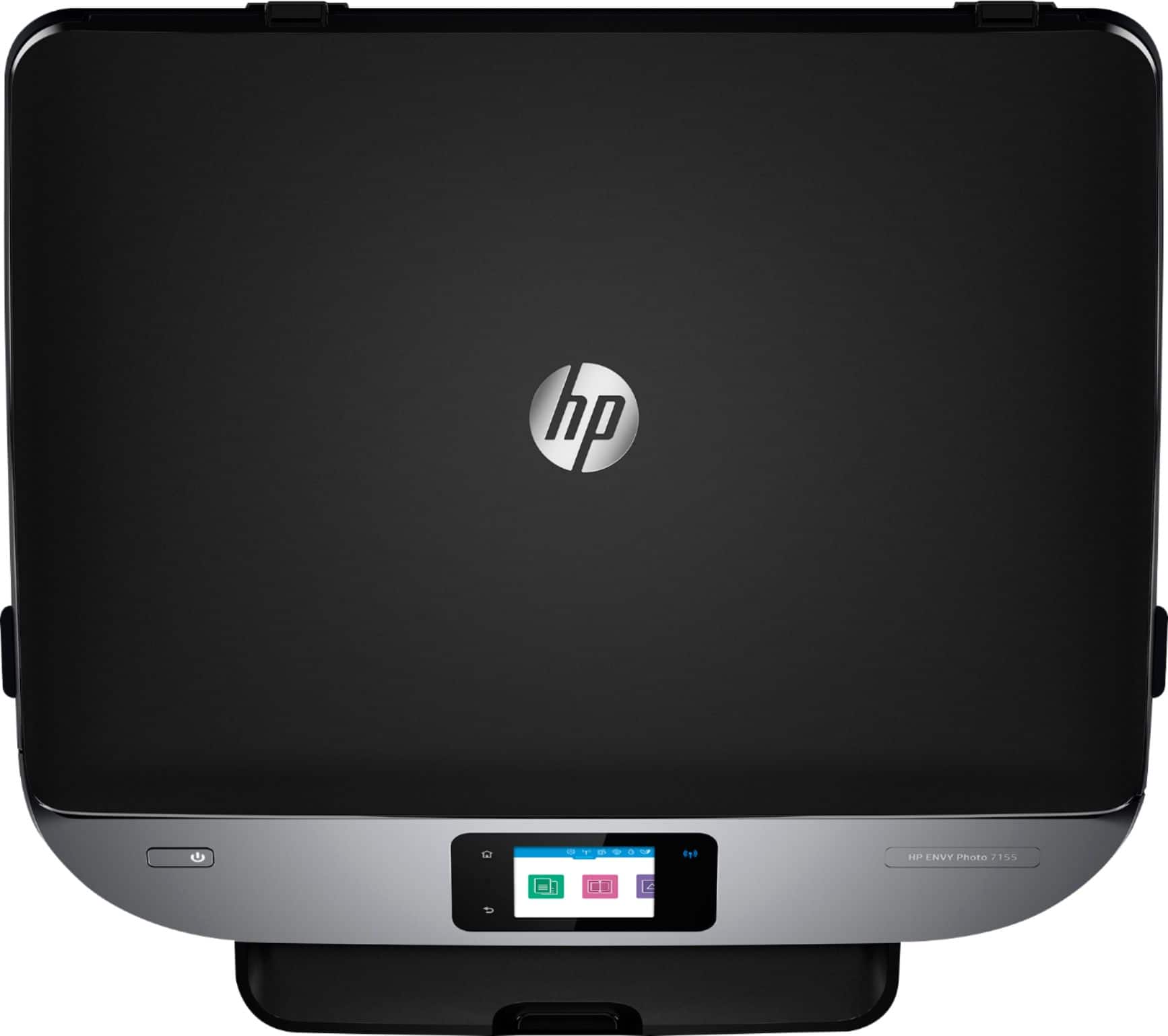
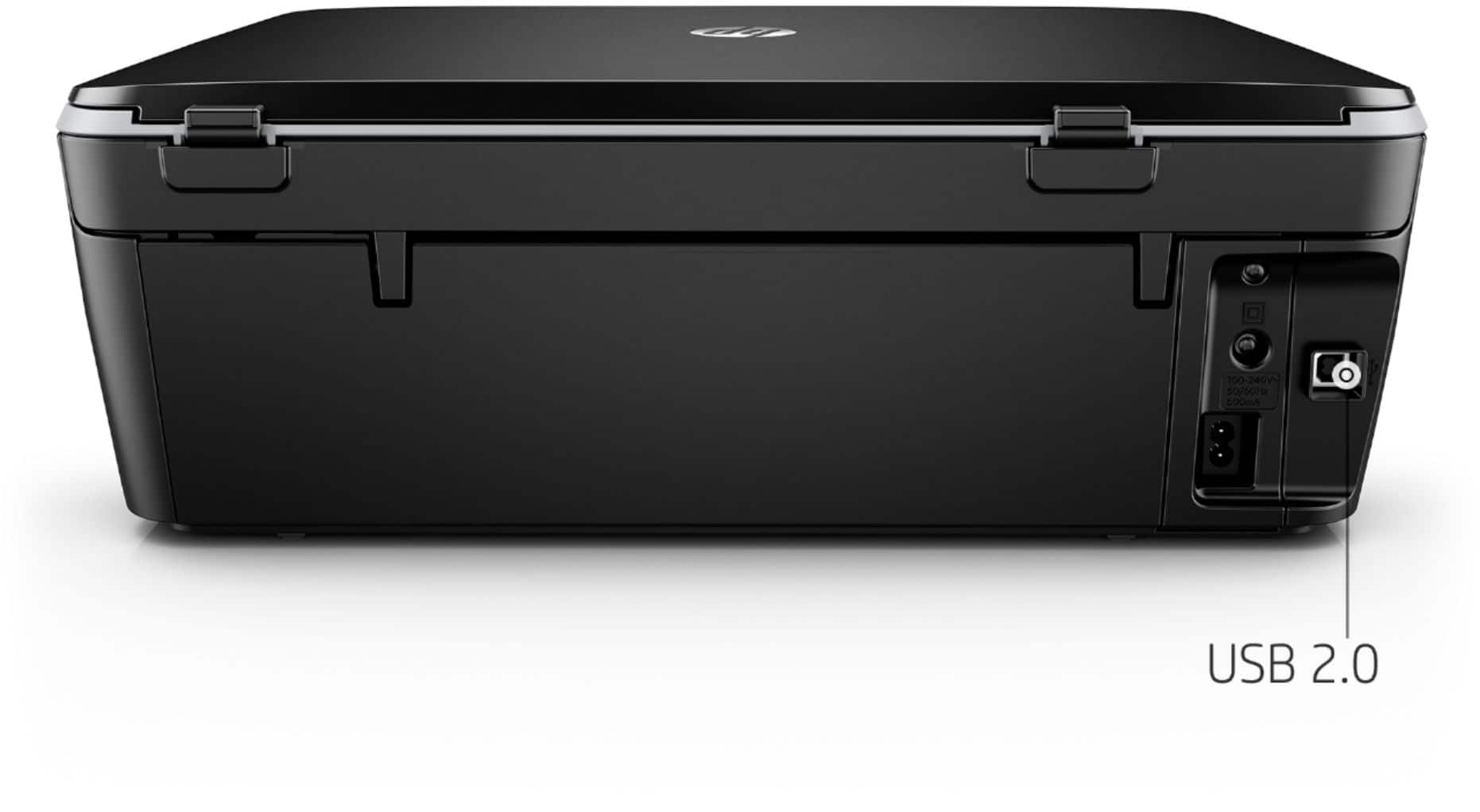
Here is a copy of the User Guide for the 7155:
http://h10032.www1.hp.com/ctg/Manual/c05633496