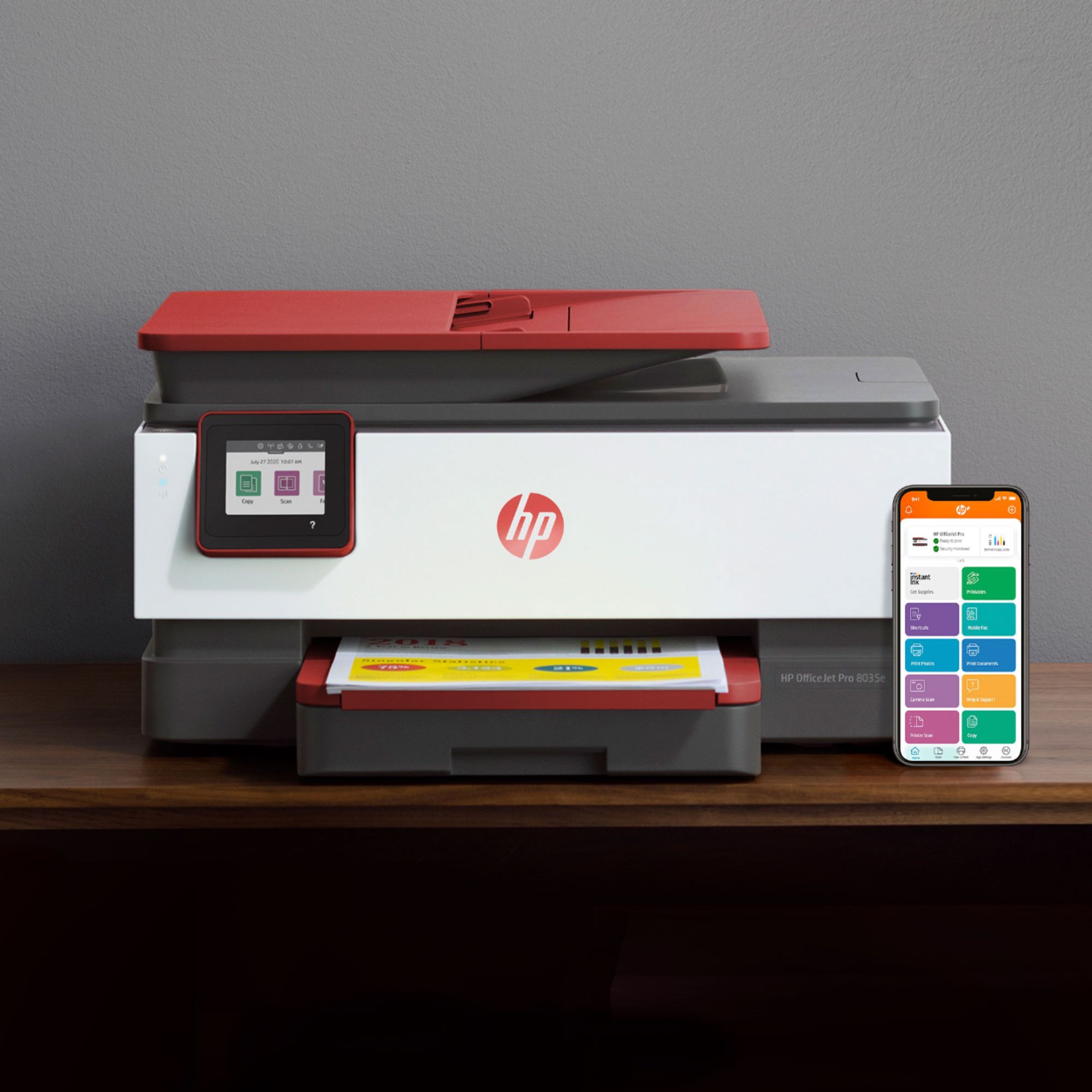
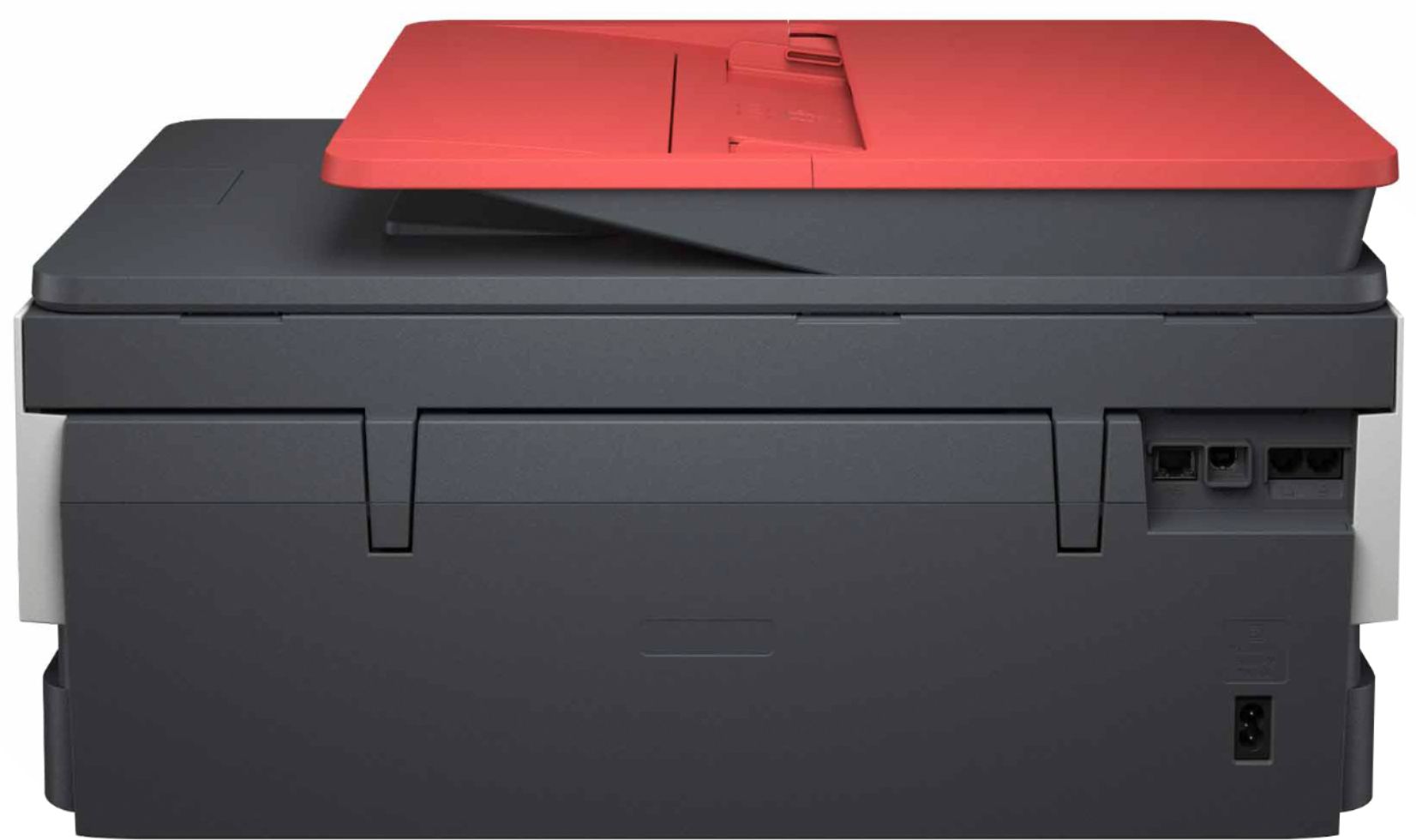
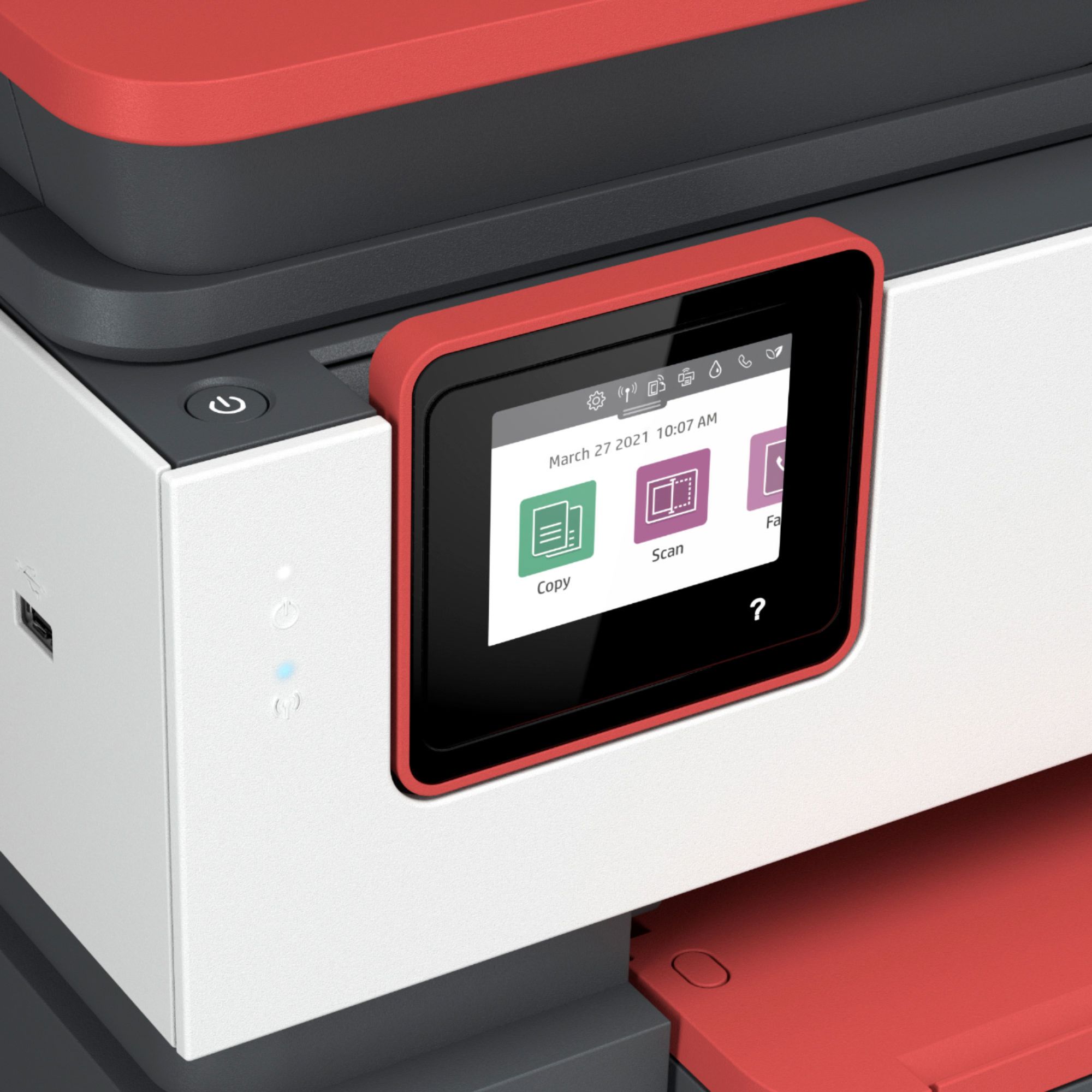
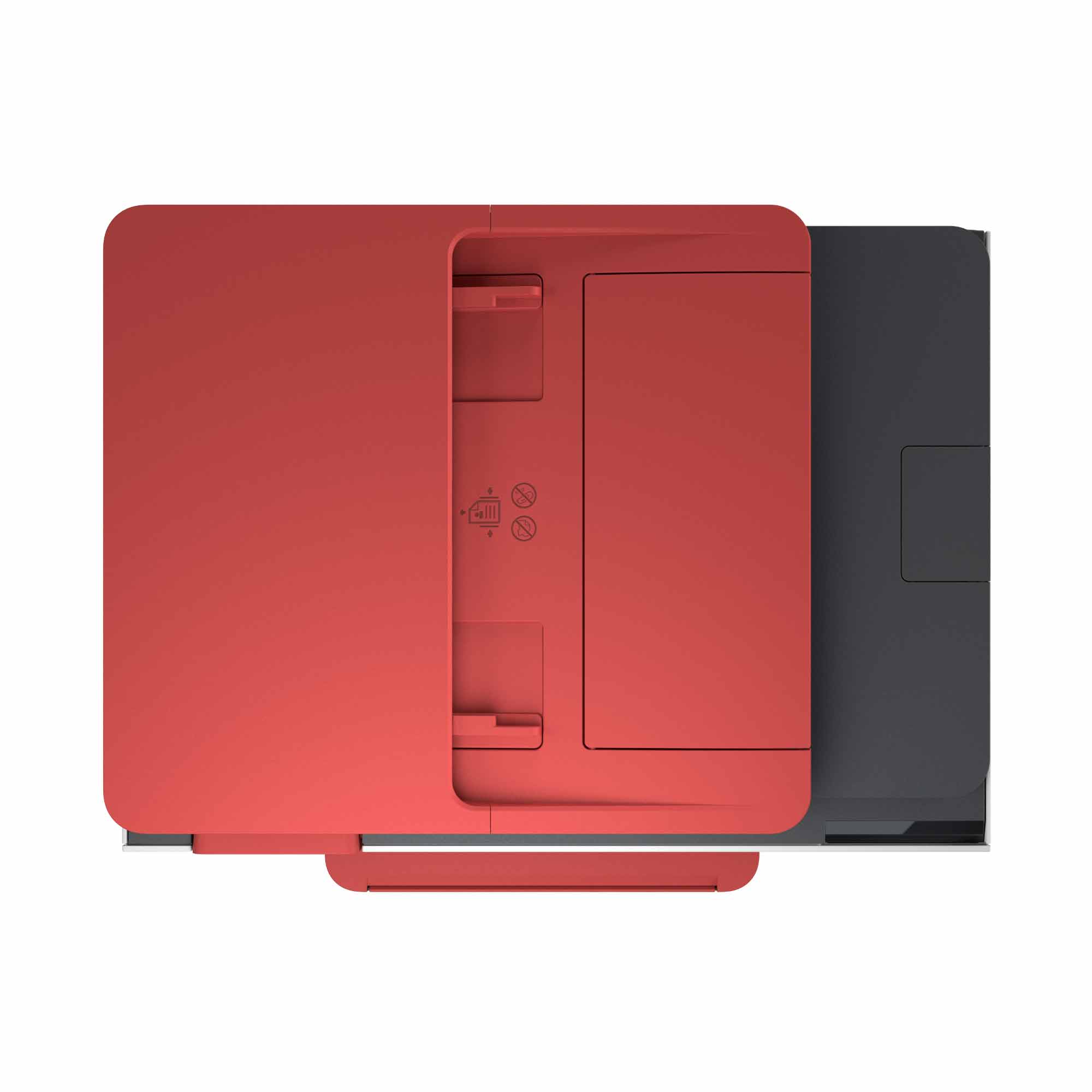
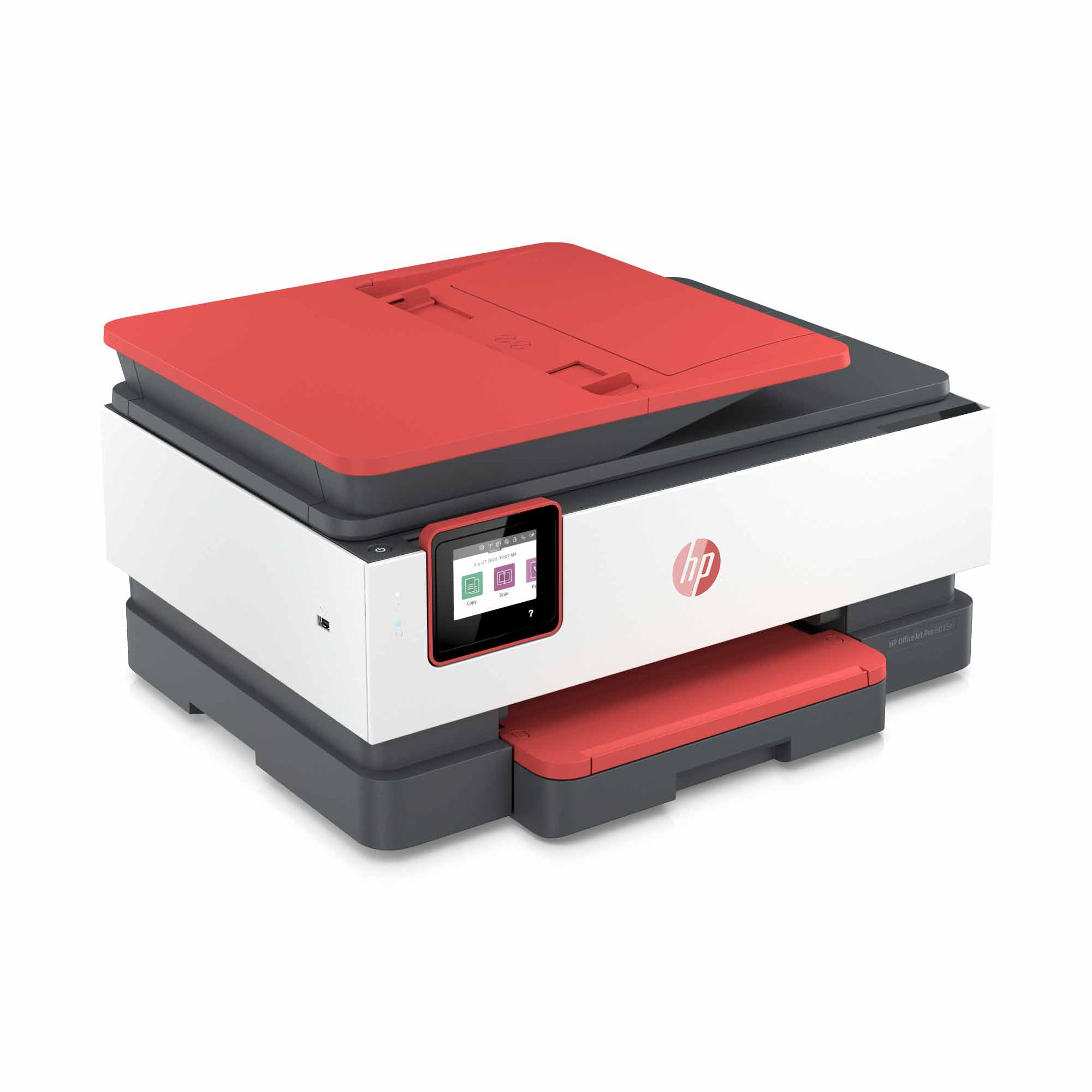
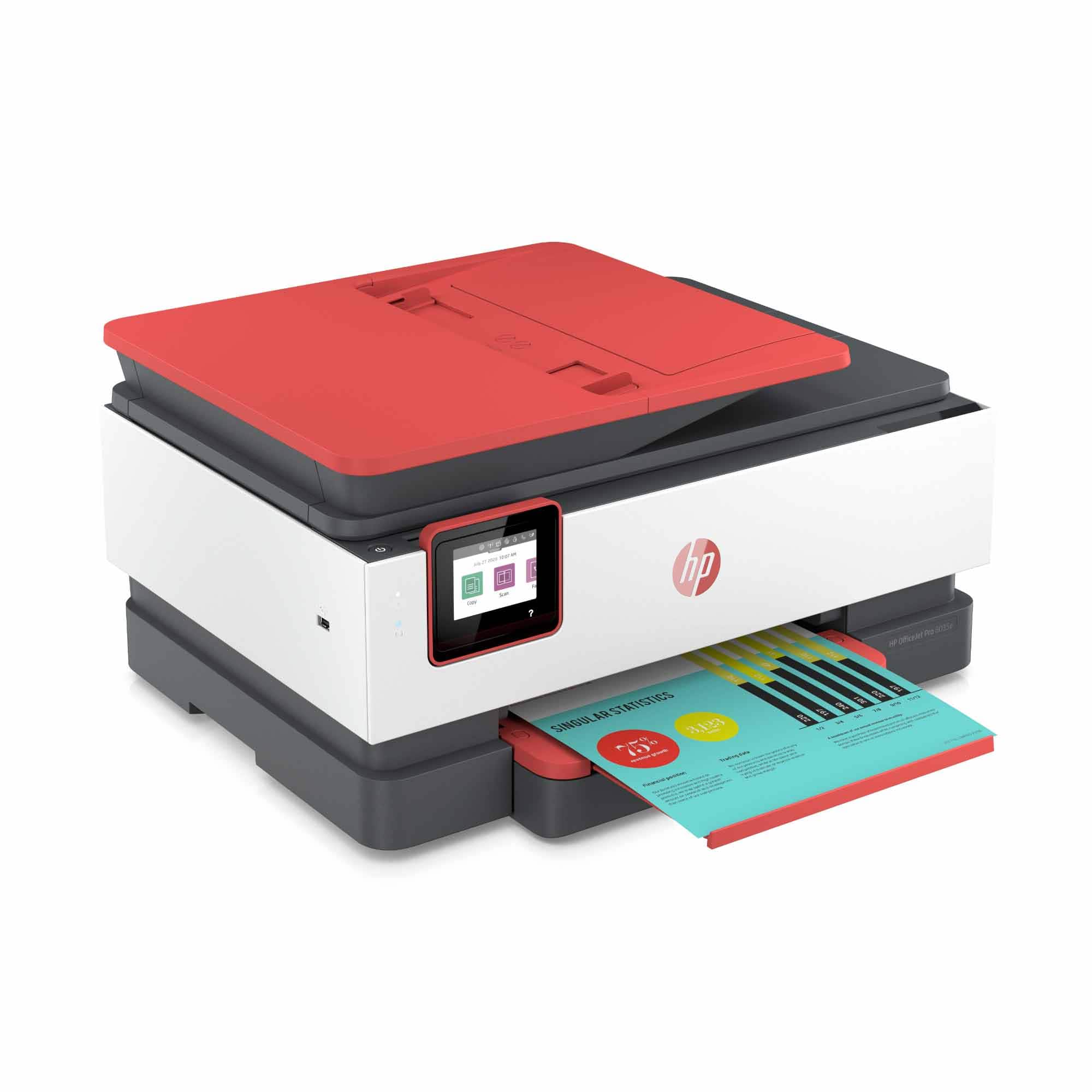
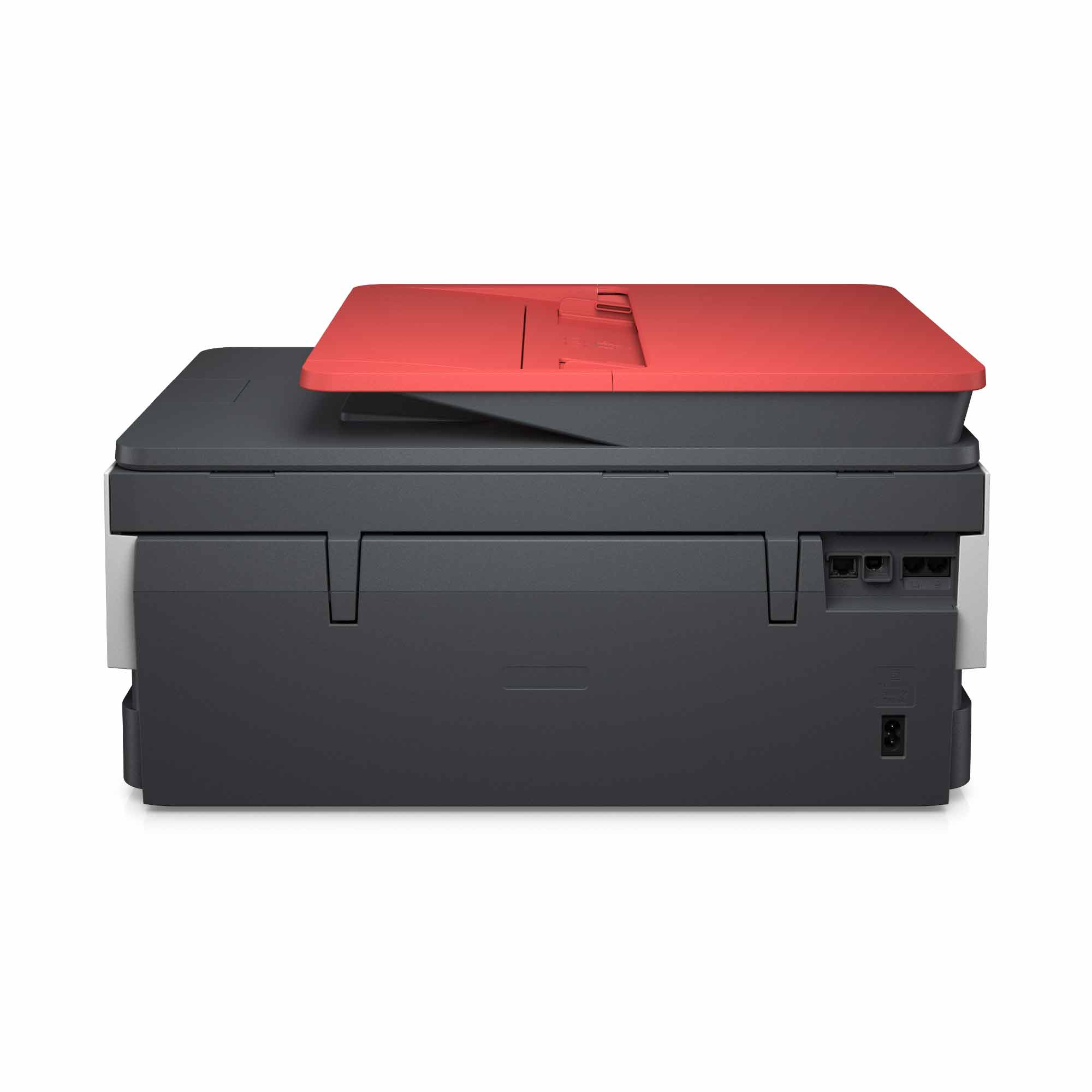
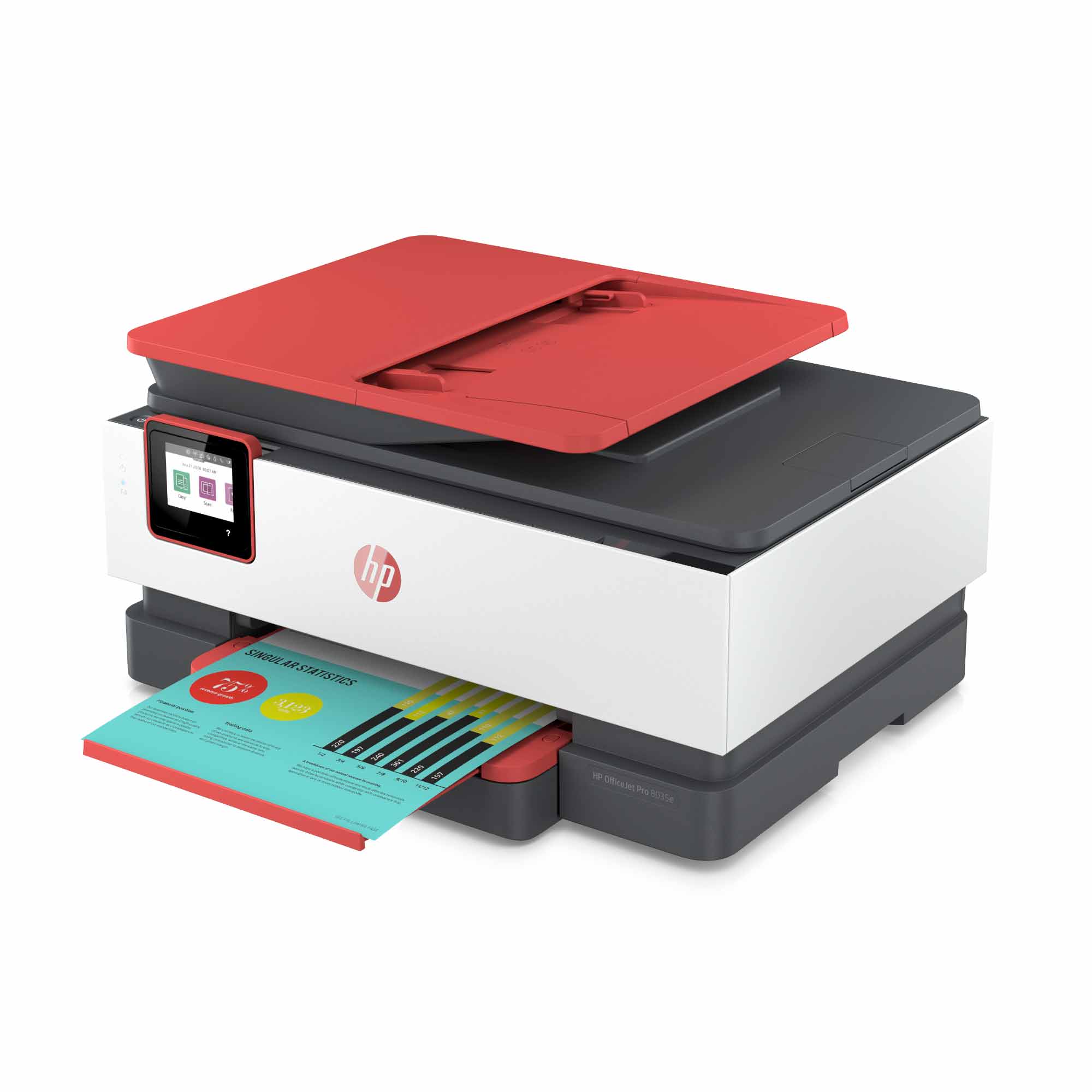
A:AnswerYes, you can, provided that you have photo paper loaded in the tray! This printer can support up to legal size (8.5x14) paper, and printing resolution yields up to 4800x1200.
A:AnswerThis link will walk you through how to print envelopes on the OfficeJet Pro 8035e printer. https://support.hp.com/in-en/product/hp-officejet-pro-8020-all-in-one-printer-series/24208622/document/ish_2423765-1862132-16
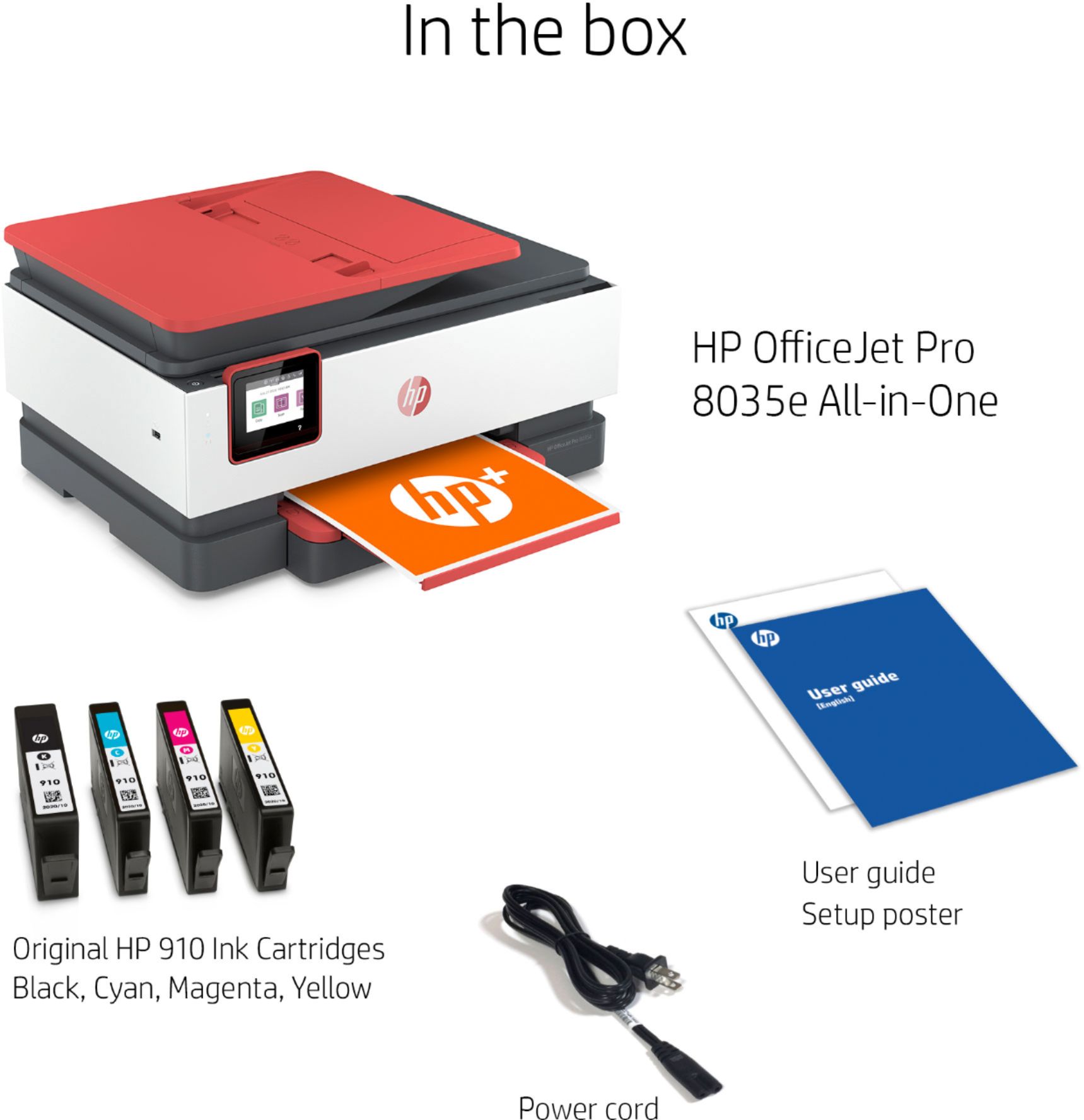
A:AnswerThank you for the question. Your first set of cartridges is included with the printer. To avail yourself of the free ink coverage offer, register for a print plan after you set up the printer. Replacements will be sent to you before you run out of ink. The OfficeJet Pro 8035 accepts HP 910 ink cartridges, should you opt to purchase replacements at your favorite retailer.
A:AnswerThank you for your question! This model has a 225-sheet input capacity (one tray). Regarding your second question, also consider the HP OfficeJet Pro 9025e which has a 500-sheet input capacity (two trays) plus single-pass, two-sided scanning: https://www.bestbuy.com/site/hp-officejet-pro-9025e-wireless-all-in-one-inkjet-printer-with-6-months-of-instant-ink-included-with-hp-white/6450665.p?skuId=6450665
A:AnswerYes, you can use photo paper with this HP Officejet Pro 8035 printer. We recommend using HP Everyday, HP Advanced, or HP Premium Plus photo paper.
A:AnswerThere are instructions included detailing how you do it. It involves setting up an HP account. I followed the steps and have had one ink delivery with no problem.
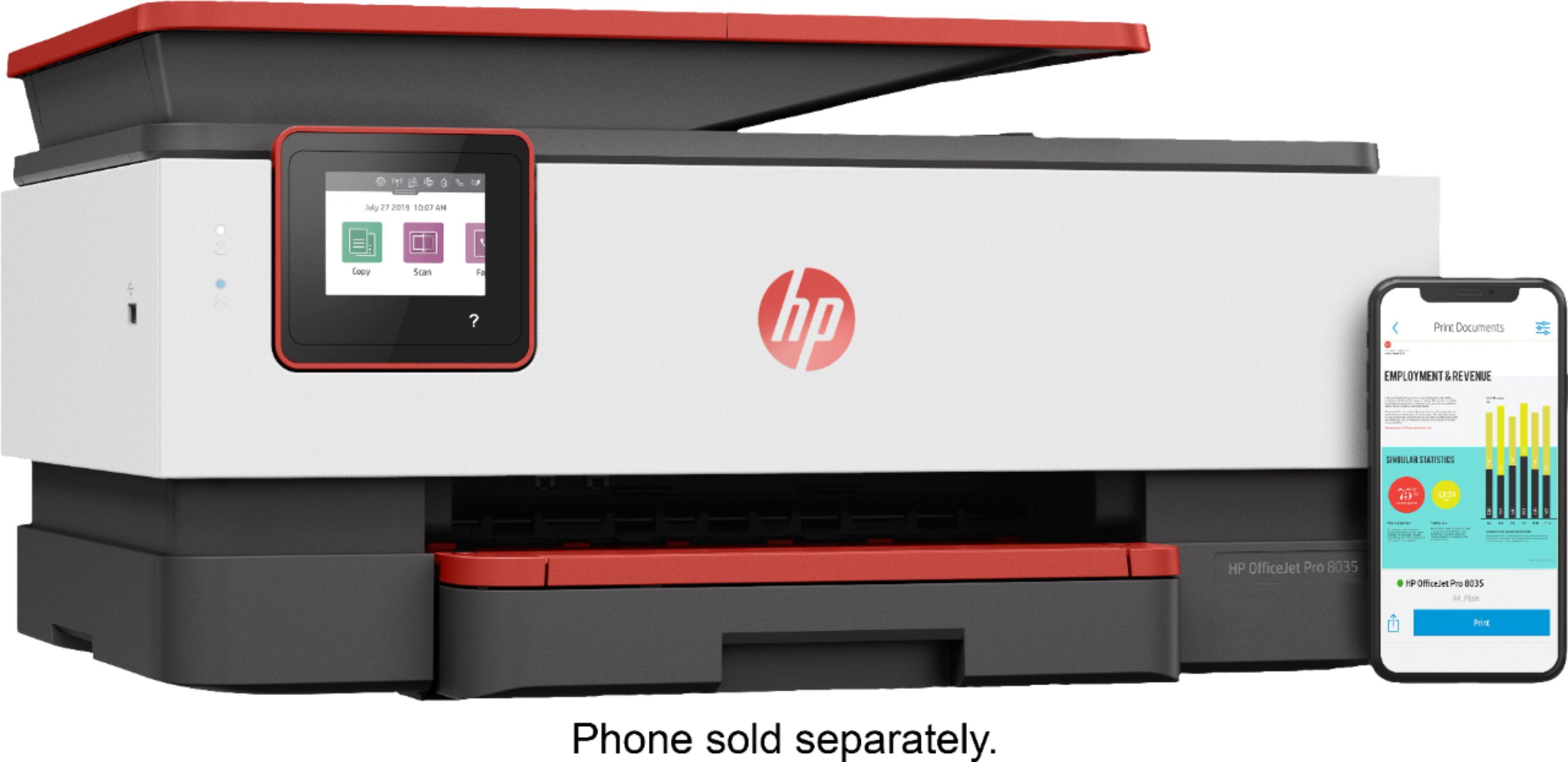
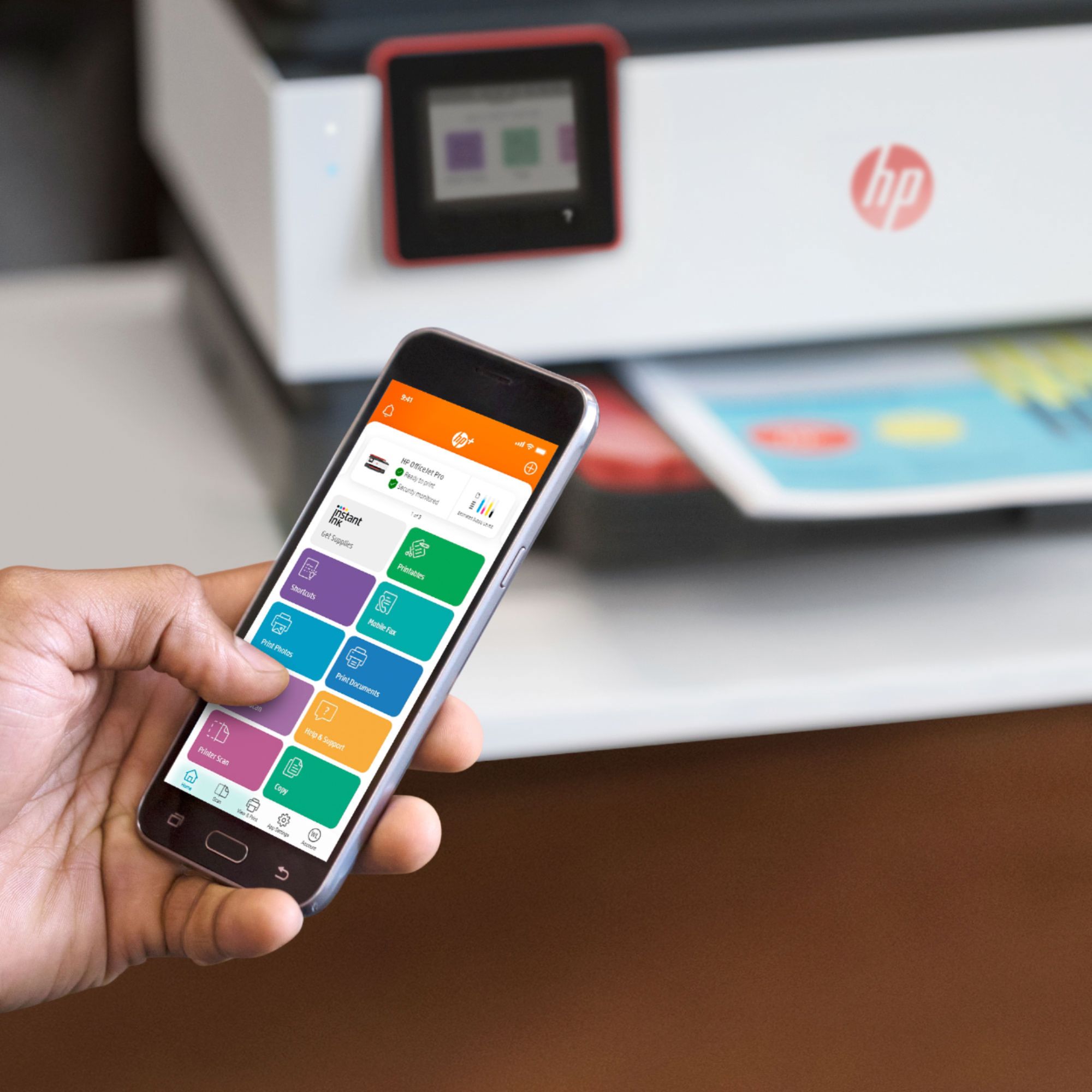
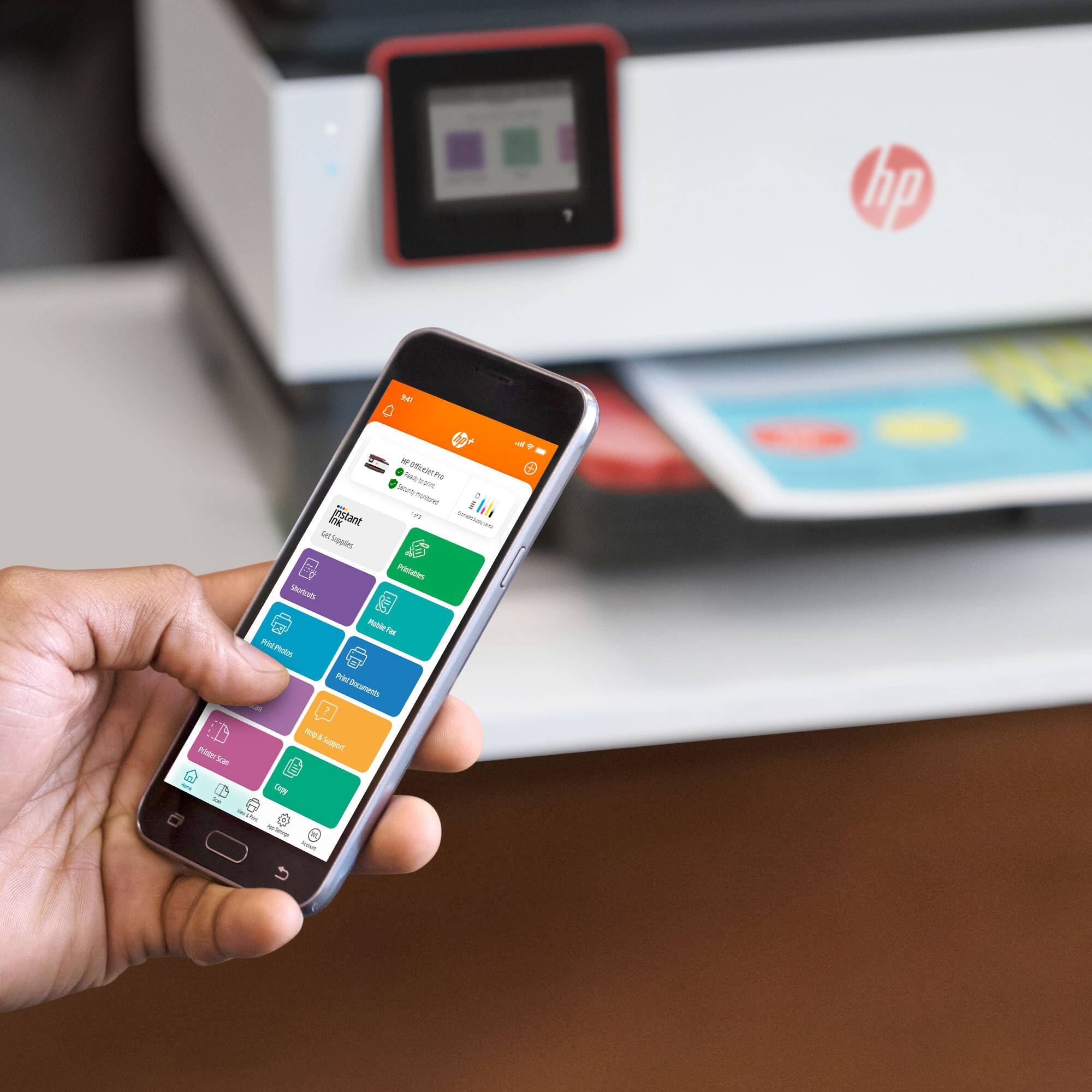
A:AnswerYes if both phone and printer (hp) are on the same netowrk. Just press on three vertical buittons top right corner of the document window and selerct print. your printer model should show up
A:AnswerA set of the 910 ink cartridges will last about 300 pages. Because the price of ink changes regularly, check the Best Buy website for current prices.