A:AnswerHere is the return policy from Best Buy: https://www.bestbuy.com/site/help-topics/return-exchange-policy/pcmcat260800050014.c?id=pcmcat260800050014 If you need further assistance, we recommend reaching out to the customer service team at Best Buy.
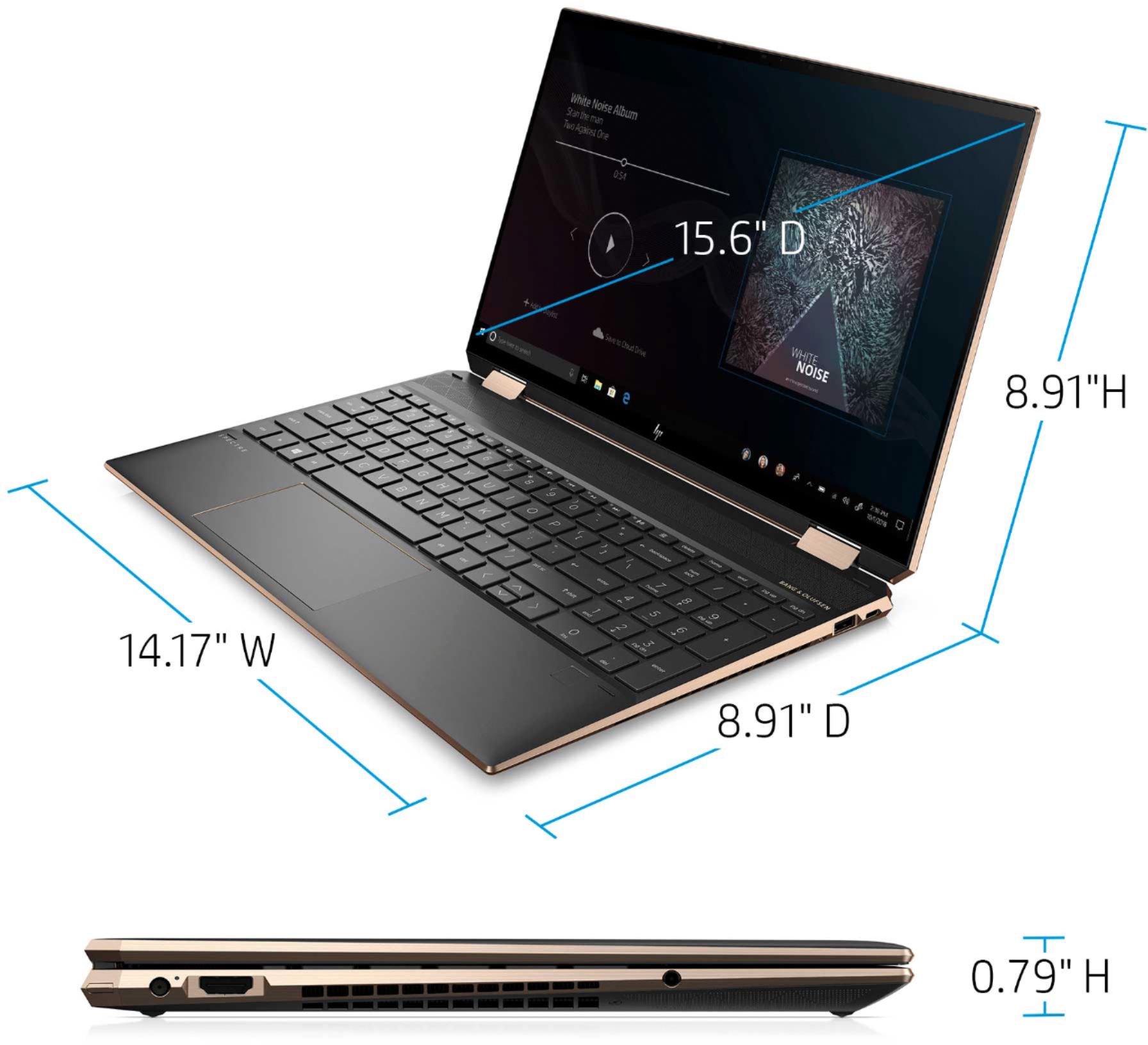
A:AnswerThanks for the question. Unfortunately, HP does not include the response time of the screen in the laptop specifications. Here are the specs of this laptop: https://support.hp.com/us-en/document/c06955333
A:AnswerNo you cannot add another hard drive. It is probably more practical to buy a model like this with the memory and a GPU built-in:
https://www.bestbuy.com/site/hp-spectre-x360-2-in-1-15-6-4k-ultra-hd-touch-screen-laptop-intel-core-i7-16gb-memory-geforce-gtx-1650-ti-1tb-ssd-nightfall-black/6406696.p?skuId=6406696
A:AnswerNot sure about RAM but SSD is NOT upgradable. Not by Best Buy anyway. Maybe by someone that sells Intel SSDs, which Best Buy does not. They tried for 4 days to upgrade to 1TB with a Samsung NVMe Evo Plus SSD then gave up on trying to upgrade it. It was not compatible with the Intel Optane.

A:AnswerOpen box items are can be product that was returned by customers or they were in store displays. They have been tested and inspected to confirm working order and appearance. They have been assigned a condition from Excellent to Fair. If you need further assistance, reach out to the customer service team at Best Buy.
A:AnswerNo, sadly you cannot upgrade this with a Samsung. Best Buy tried for 4 days and gave up. Samsung is not compaitble with the Intel Optane feature and is therefore unrecognizable by the computer. However, I have been Super impressed by the computer's speed and capabilities and recommend it, even without an upgrade.
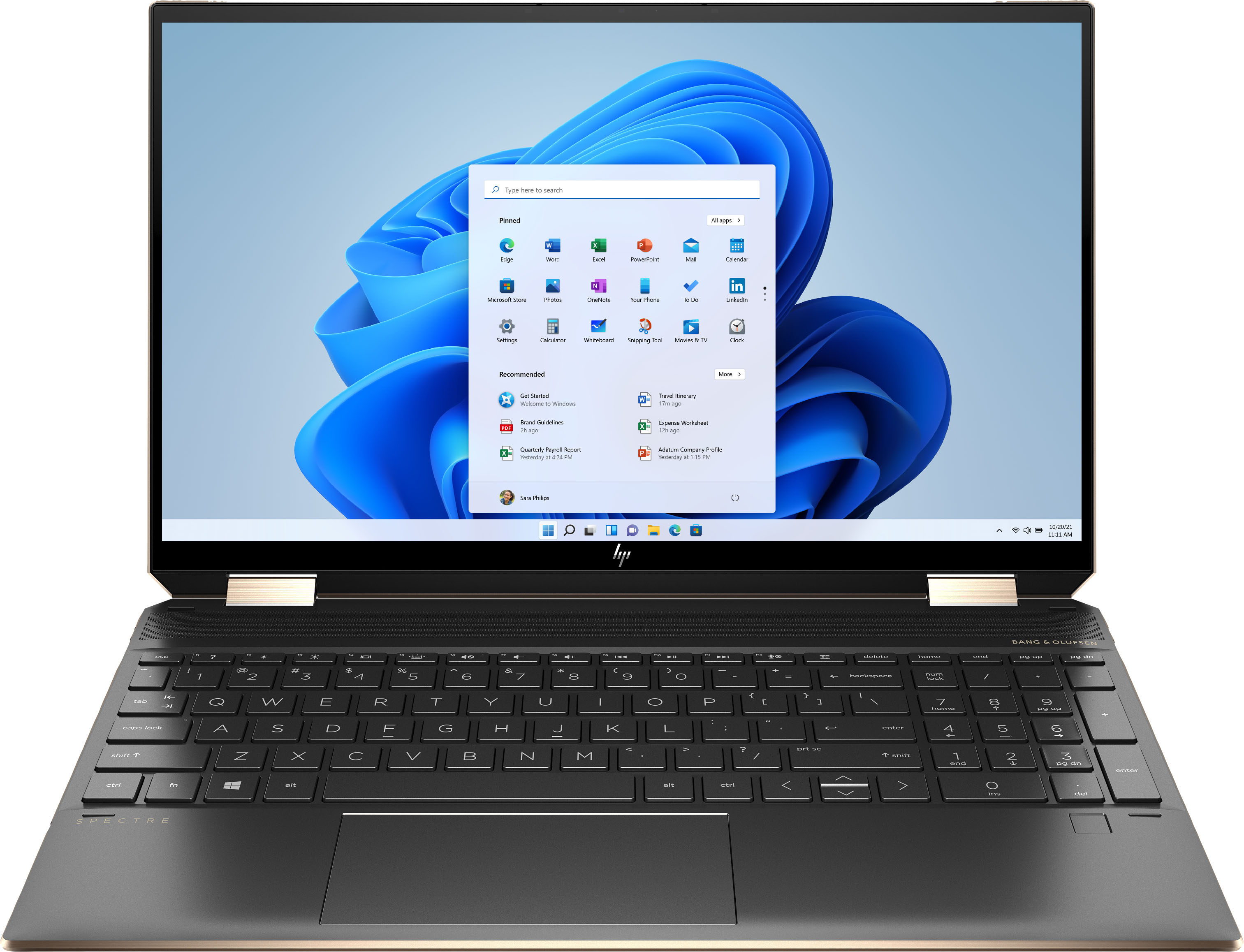
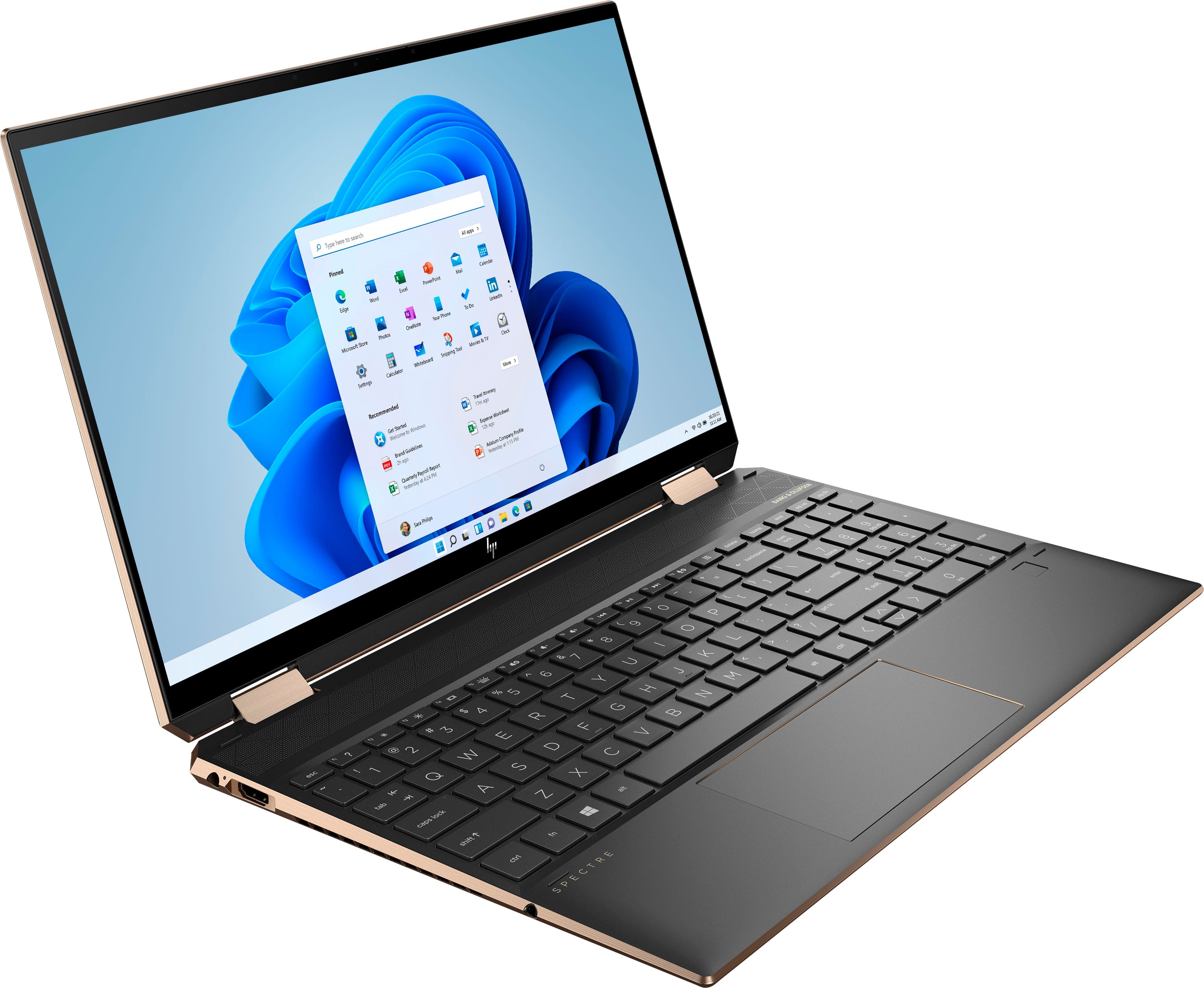
A:AnswerIt has the Intel Iris Xe integrated graphics. Do some research on the improved performance it offers over the previous UHD integrated graphics. Depending on your requirements, you might not need dedicated graphics.
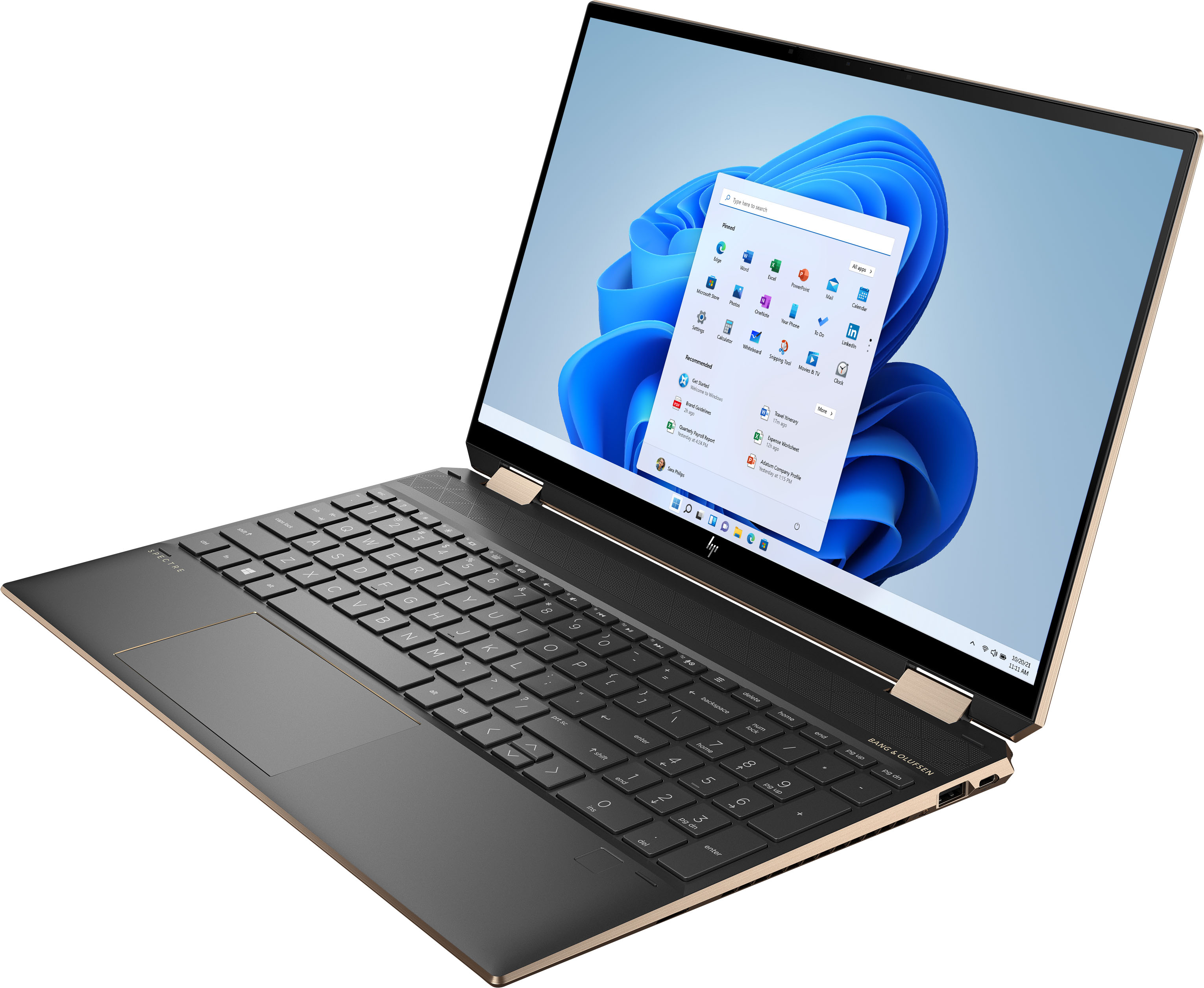
A:AnswerHi Ange and thanks for your question! If your HP notebook computer has a backlit keyboard, take a look at the top bar of your keyboard and locate the F5 button. This button may even be labeled with a backlight icon. Simply clicking this button while pressing the Fn button located at the bottom row of your keyboard will leave you with keyboard lighting operational magic. It may be a simple on/off or, on some models, you can adjust the brightness of the backlighting. Also, depending on your computer model, your PC may be configured to control the backlit keyboard via the F9 or F11 button rather than the F5 button. Practice the same simultaneous Fn + F11 operation to turn on a backlight keyboard light.