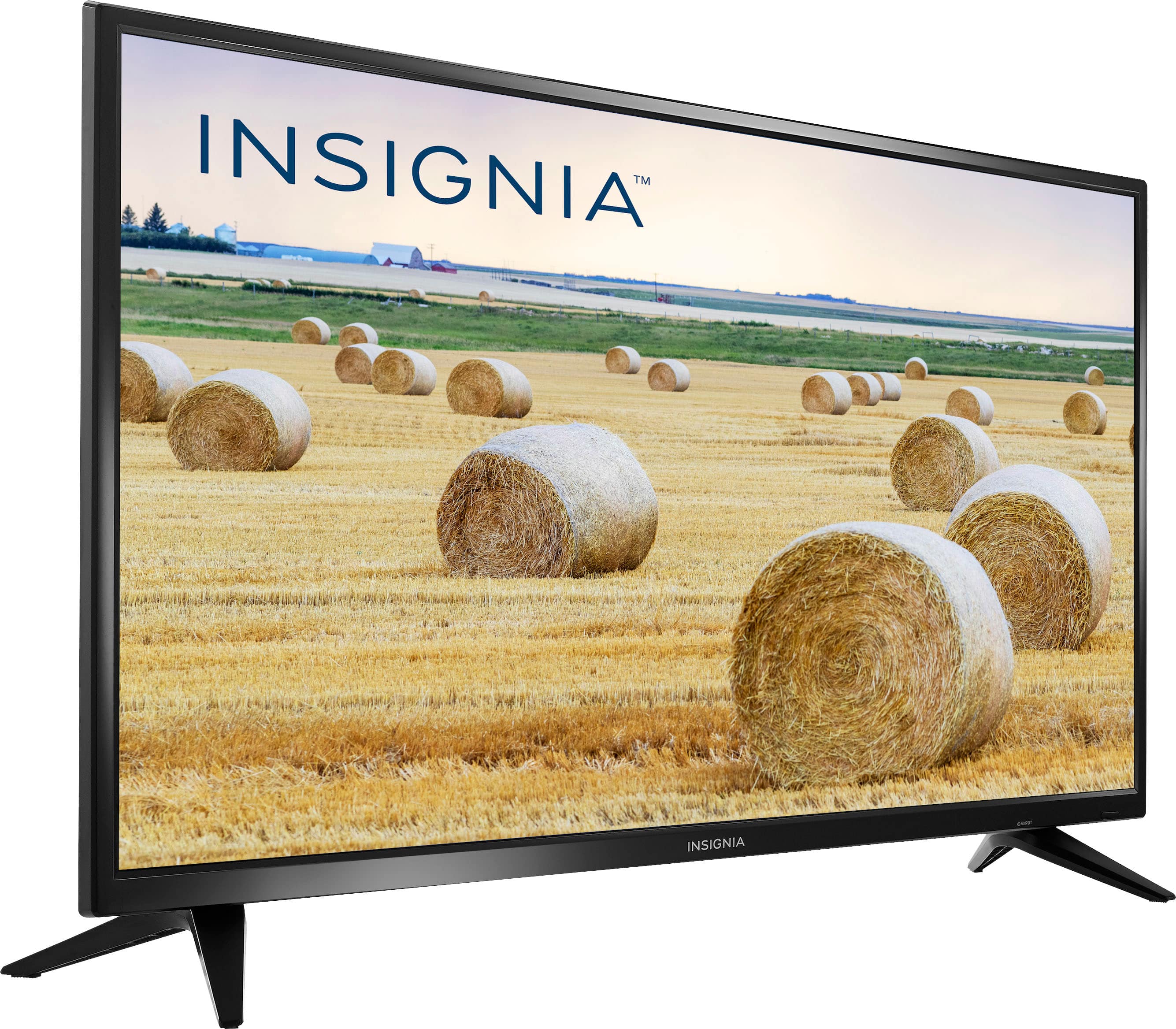
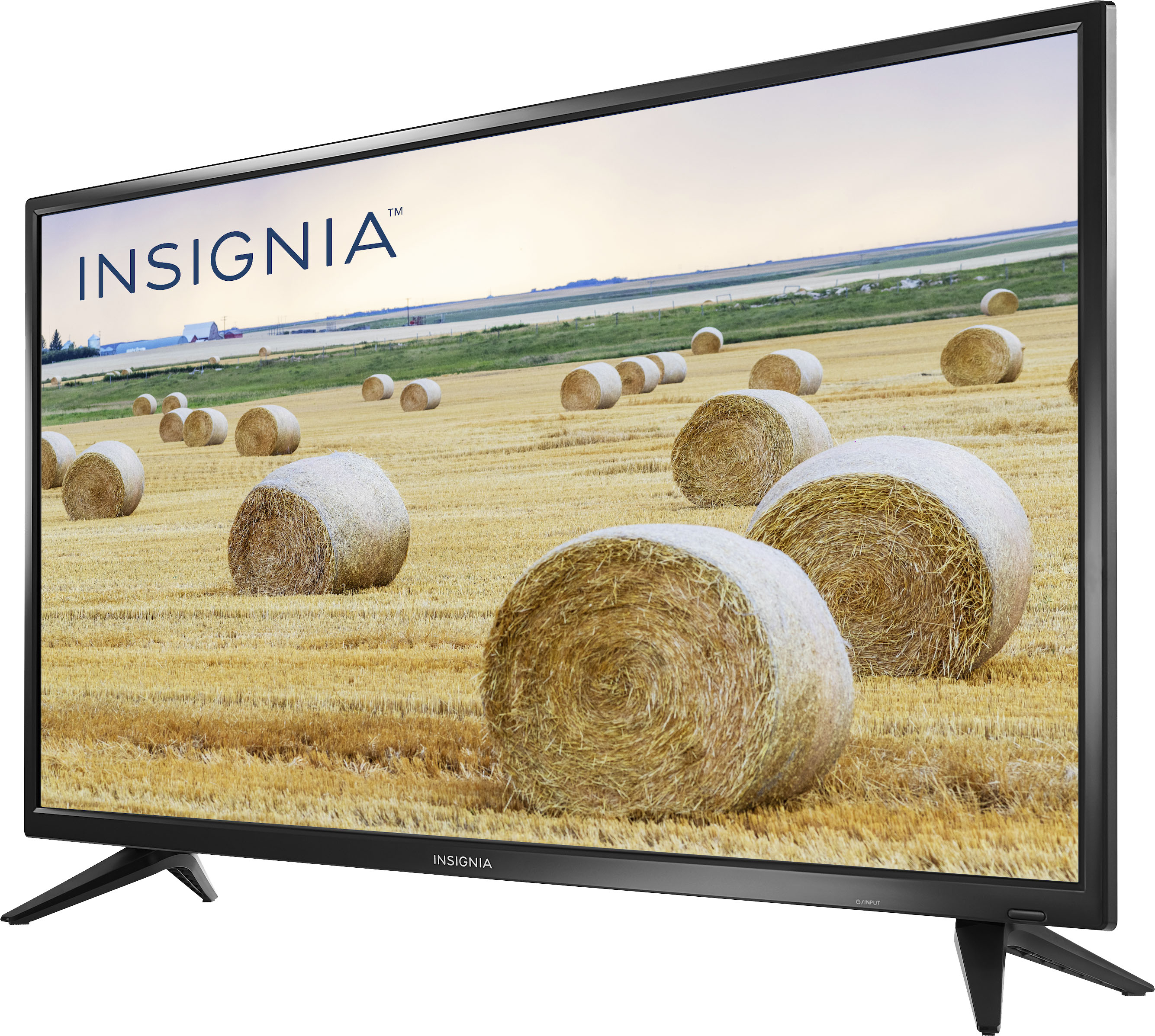
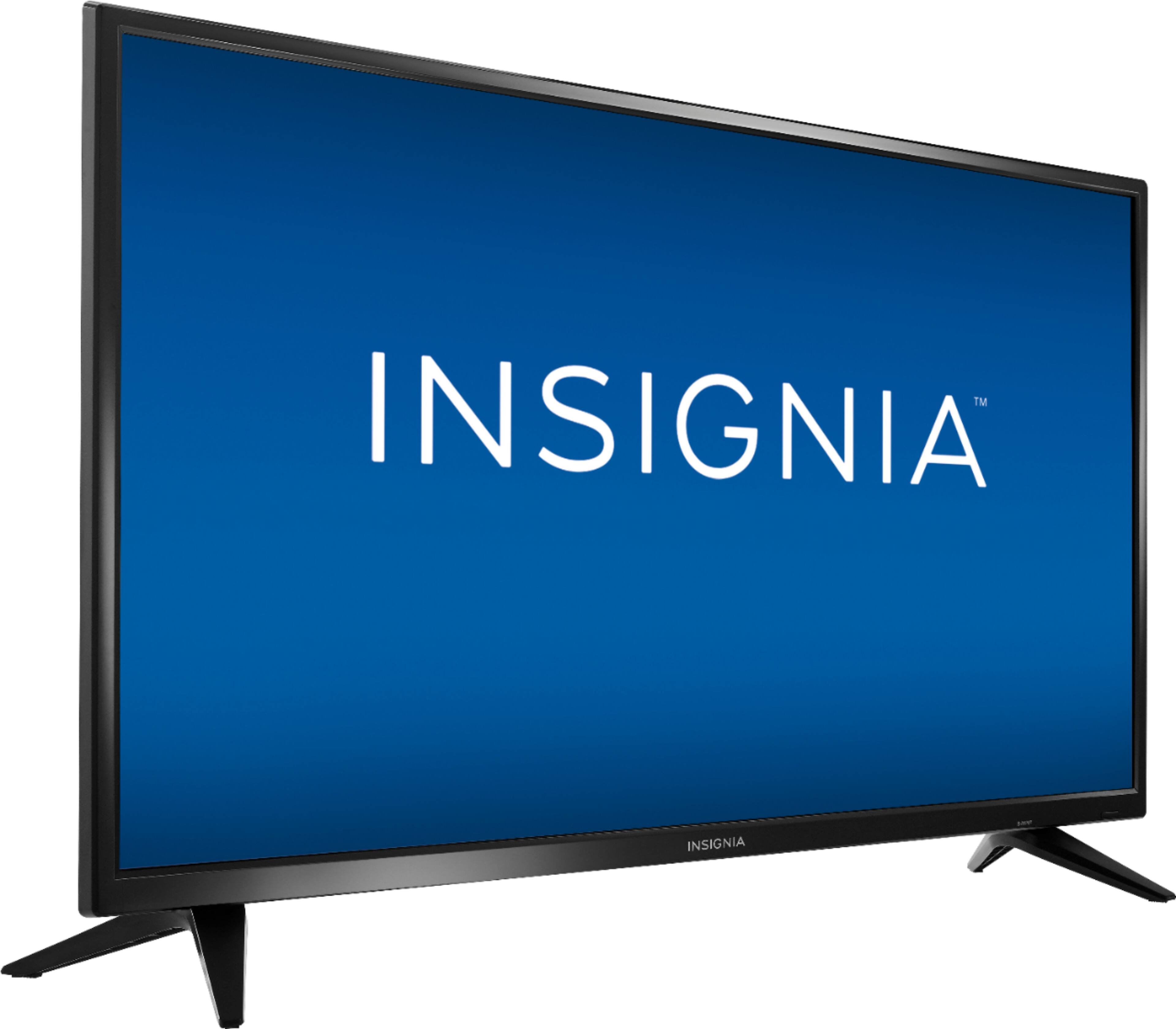
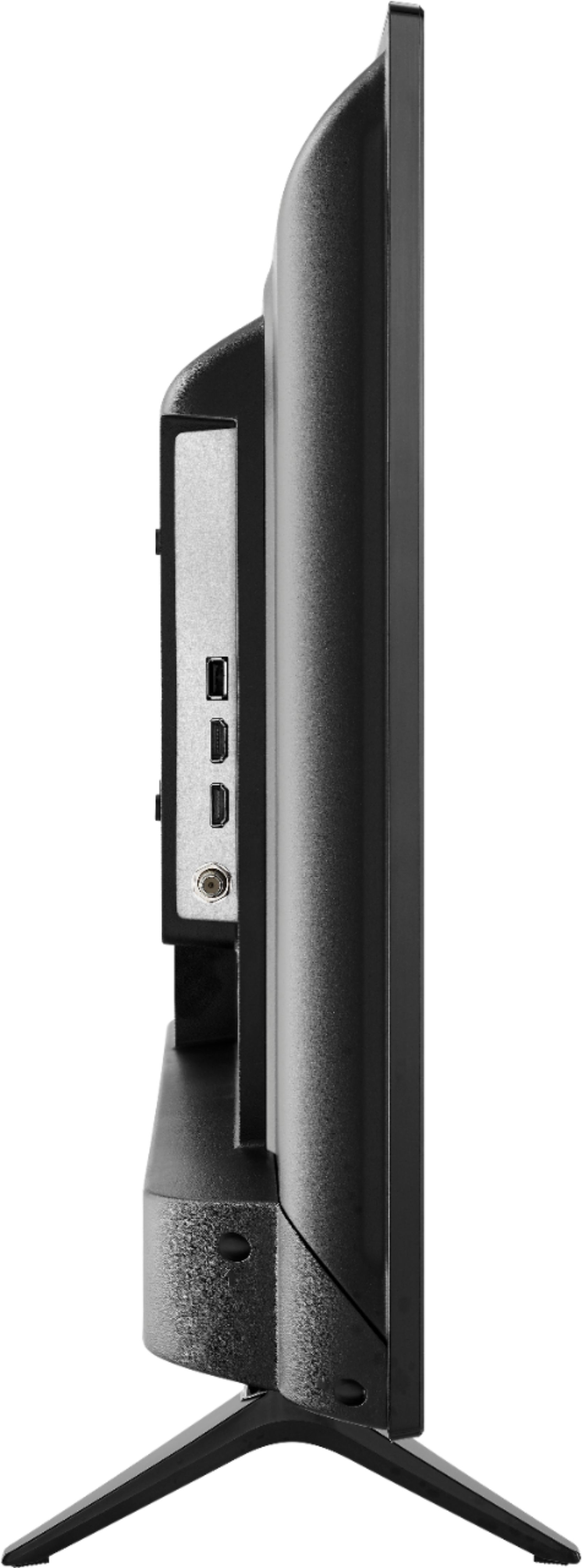
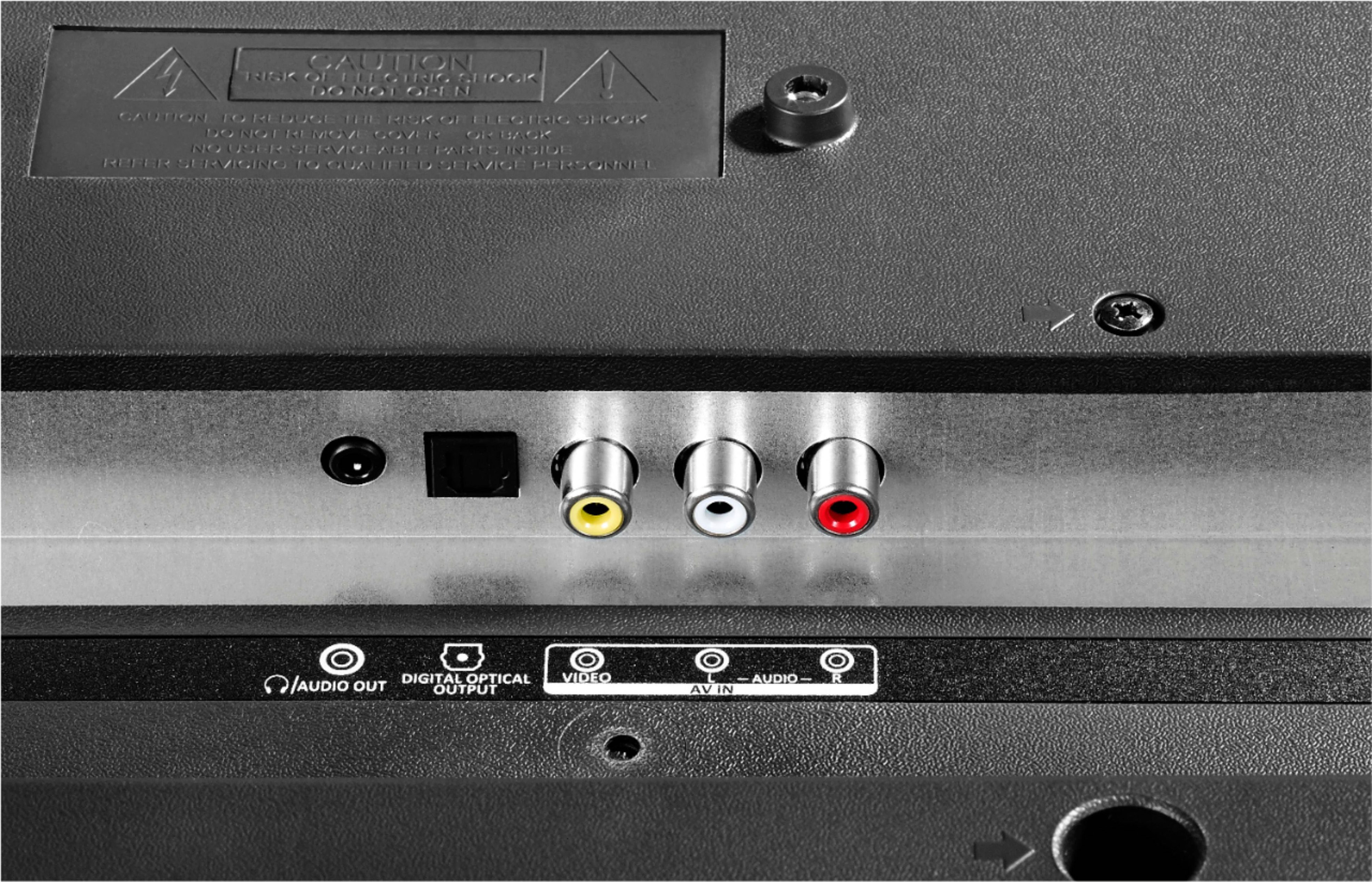
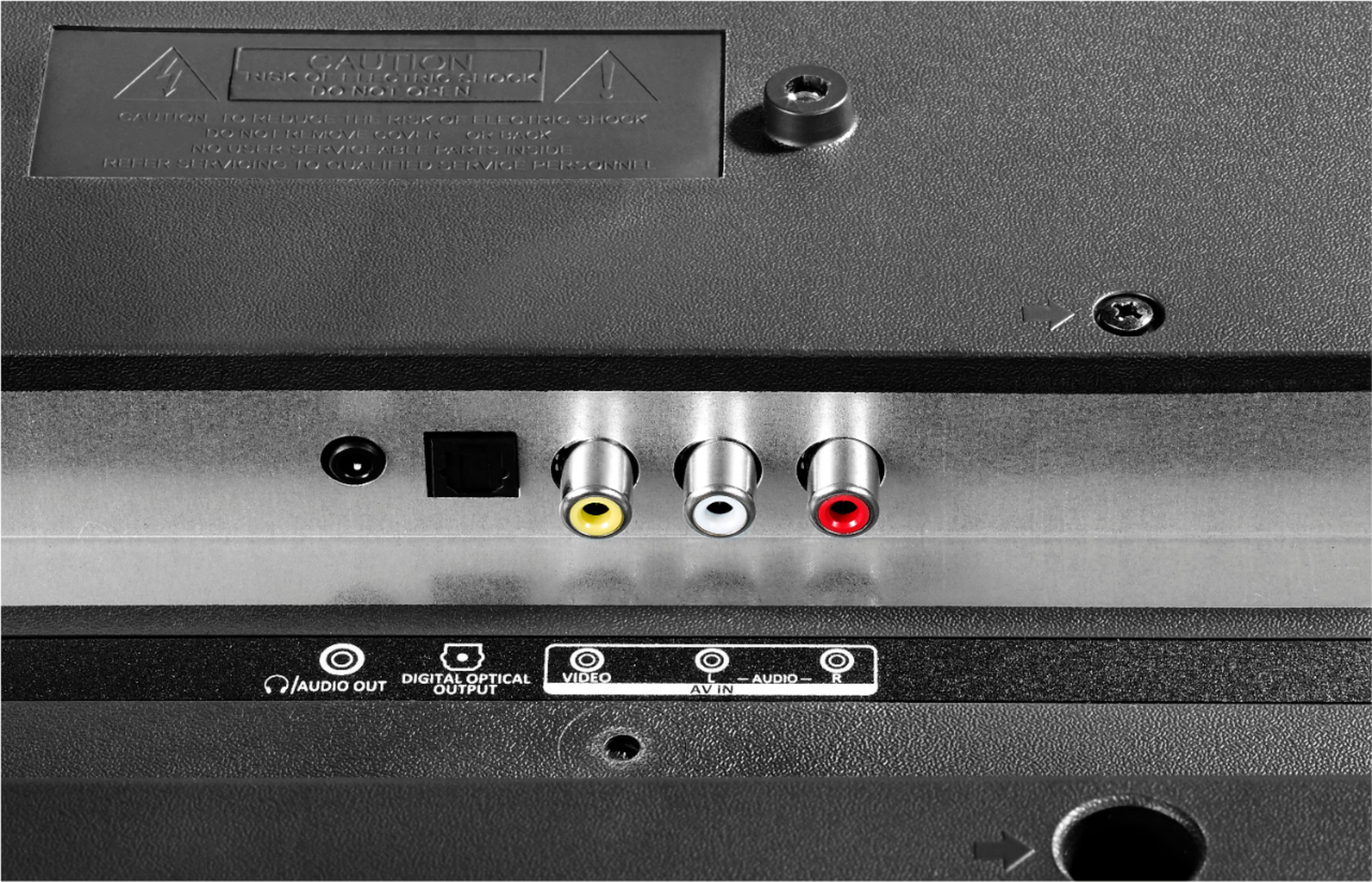
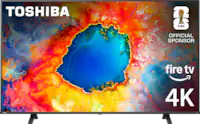
A:AnswerIt depends on your computer. There is no RGB or VGA in so your computer has needs to have an HDMI out in order to connect. If you do, simply connect the HDMI cable from your computer HDMI output to one of the two HDMI inputs on the TV you are all set.
Most laptops have an HDMI out with desktops being less common.
A:AnswerIt is displaying the input resolution (the source you are inputting). Some digital channels broadcast at 480p, some at 720p, and some at 1080p. If you hookup a bluray player it will say 1080p.
A:AnswerYes, my computer recognizes it as an HDTV. I found that, if you put the computer to sleep, or the display to sleep, or turn the computer off the HDTV goes into power savings mode and turns itself off forcing you to turn it on using the remote. To get around this i set my computer to sleep but not shut down, and the display to use a very dim screen saver which keeps the HDTV on all the time. So far I have not seen any burn in or other problems after four months. Please also see my review.
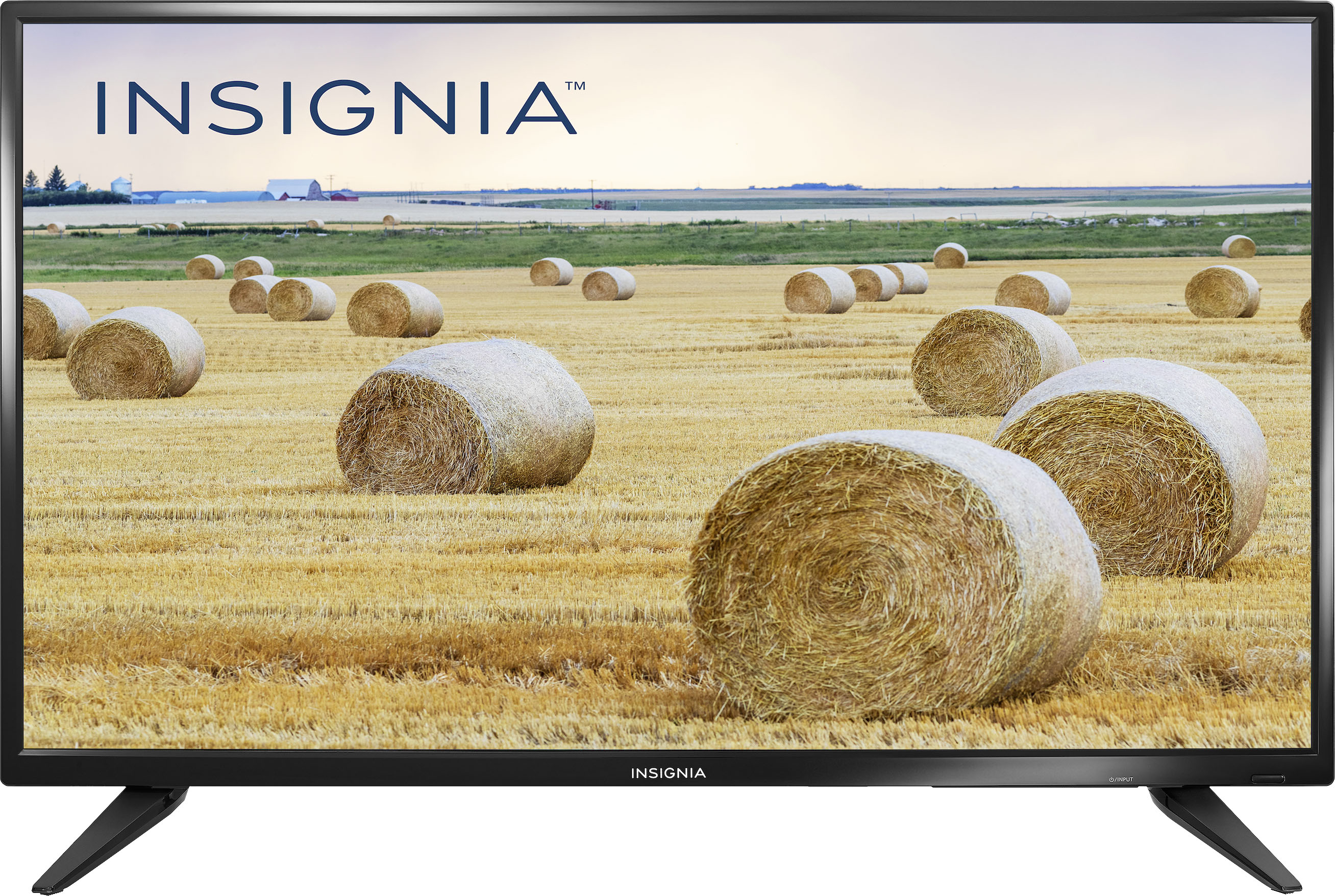
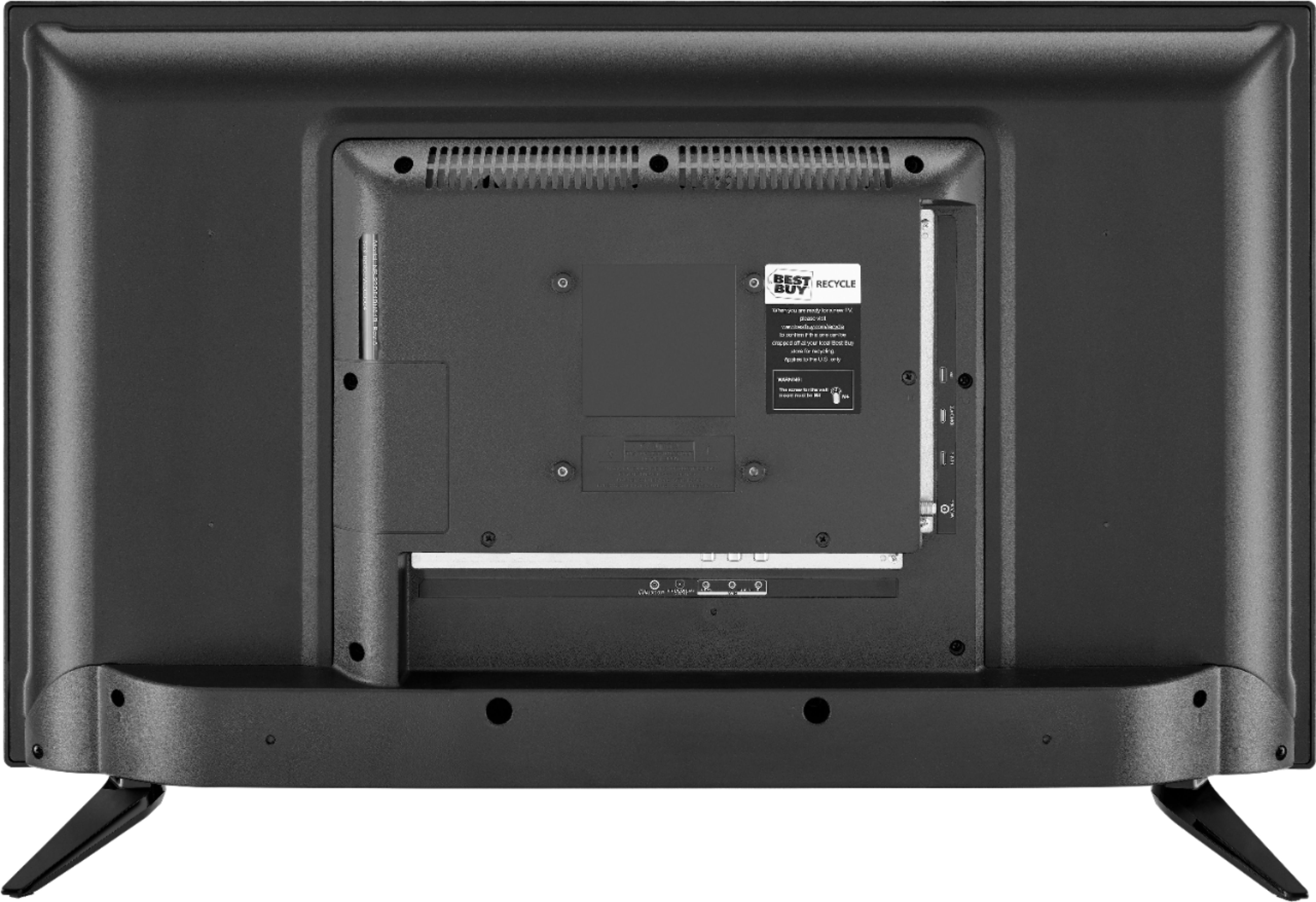
A:AnswerAs noted in the TV specs on the Best Buy website, the TV has VESA mounting holes spaced 100mm x 100mm. (approximately 4 inch x 4 inch) It takes 4 size M4 screws to mount the set.
A:AnswerThe TV has a raised area on the back which makes it stand out from the wall when a bracket is used. I used the universal one sold by Best Buy.
There are 4 screw holes in the corners of the raised area which I used to mount the vertical mounting brackets on the back of the TV. These have hooks at the top which engage the top of the universal mounting bracket that you mount on the wall. Once the TV is hanging on the bracket, you put two screws in from the bottom of the mounting brackets on the TV which engage a lip on the bottom of the wall bracket to lock the TV in place.
Once the TV is mounted, it is still possible to access the connections on the bottom and back of the TV, although accessing the HDMI and USB connectors on the side is a bit tight.
Good luck!