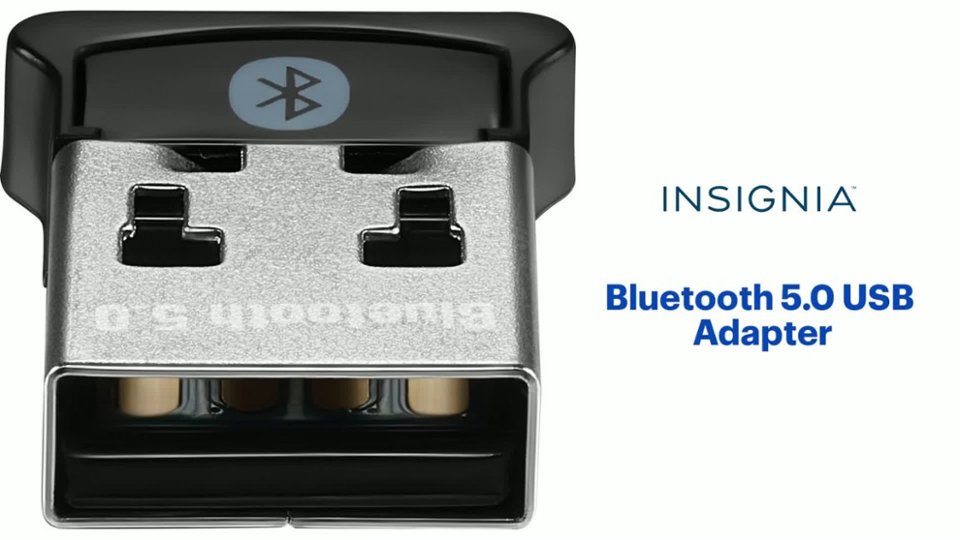
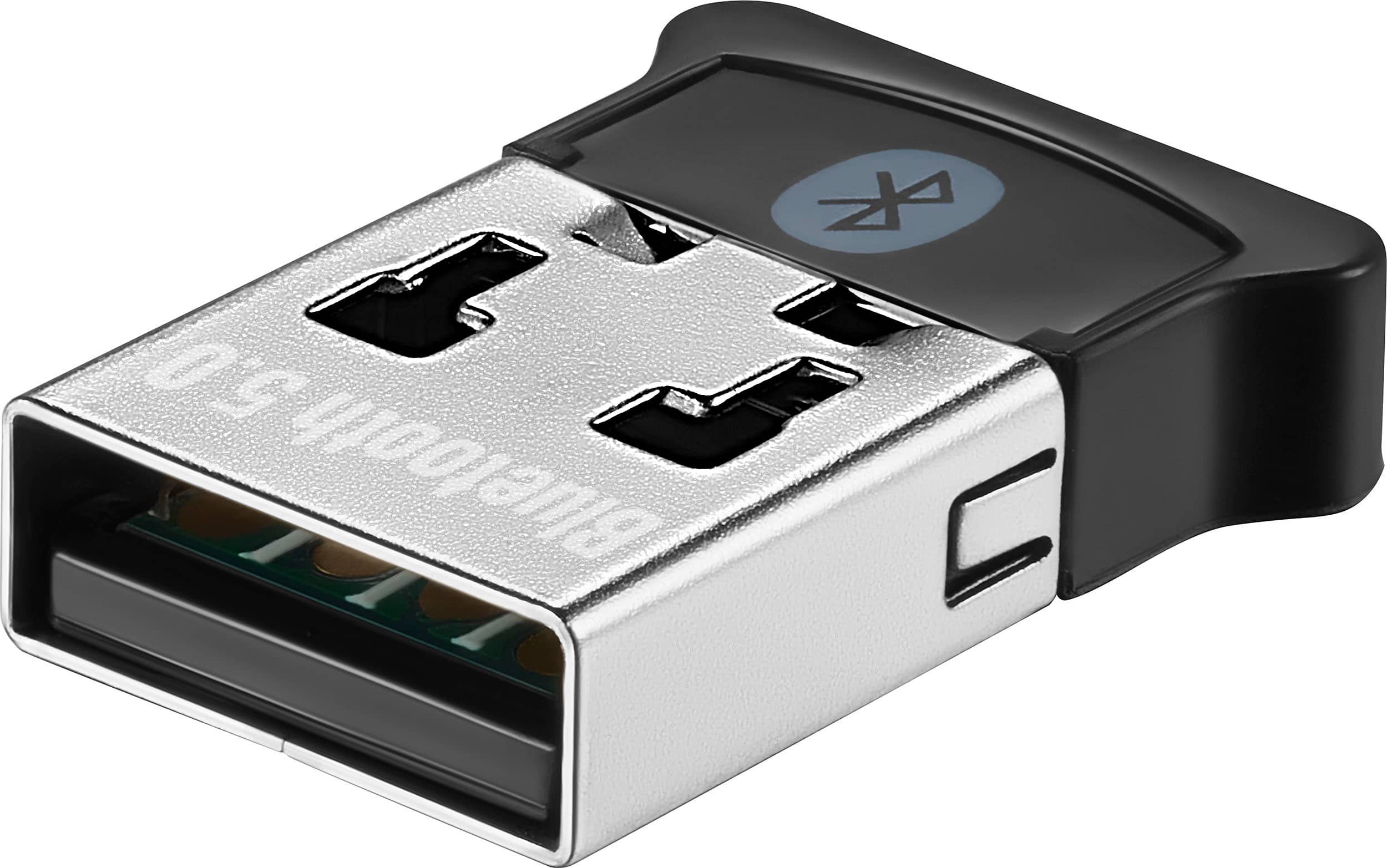
A:AnswerHi mgb! The Insignia™ Bluetooth 5.0 USB Adapter (NS-PA3BT5A2B22) is designed to work with devices that support Bluetooth 5.0. However, the 6th generation iPod Nano does not have built-in Bluetooth capability, so it cannot directly connect to this adapter. Jeth | Insignia Support.
A:AnswerThank you for your inquiry! The Insignia™ Bluetooth 5.0 USB Adapter is compatible with both USB 2.0 and USB 3.0 ports. However, using it with a USB 3.0 port can provide better performance due to the higher data transfer speeds supported by USB 3.0.
A:AnswerHello! The Insignia™ Bluetooth 5.0 USB Adapter (NS-PA3BT5A2B22) is designed to work with laptops and desktops running Windows 8.1, 10, and 1112. Unfortunately, it is not compatible with TVs. Jeth | Insignia™ Support. https://www.bestbuy.com/site/insignia-bluetooth-5-0-usb-adapter-for-laptops-and-desktops-compatible-with-windows-8-1-10-and-11-black/6500986.p?skuId=6500986
A:AnswerIt's only used for computers and laptops, so no it's not recommended for cars you'd be better off using an aux adapter/3.5 headphone jack adapter or cigarette lighter adapter.
A:AnswerI'm sorry to hear you're having trouble pairing your Galaxy Buds with the Insignia™ Bluetooth 5.0 USB Adapter. Let's try to troubleshoot this together:
1. Ensure the Adapter is Properly Installed:
- Plug the Bluetooth adapter into a USB port on your computer.
- Windows should automatically download and install the necessary drivers. If not, you may need to manually install them from the Insignia website.
2. Put Your Galaxy Buds in Pairing Mode:
- Place the earbuds in the charging case, close the lid for 5-6 seconds, then open the case. The earbuds should enter pairing mode automatically.
- Alternatively, you can put the earbuds in your ears, tap and hold both touchpads until you hear a sound indicating they are in pairing mode.
3. Pair the Devices:
- Open the Bluetooth settings on your computer.
- Look for your Galaxy Buds in the list of available devices and select them to pair.
4. Check for Interference:
- Ensure there are no other Bluetooth devices nearby that might interfere with the pairing process.
- Try moving closer to the Bluetooth adapter to ensure a strong connection.
If these steps don't resolve the issue, you might want to try pairing the Galaxy Buds with another device to ensure they are working correctly. If they pair successfully with another device, the issue might be with the adapter or your computer's Bluetooth settings.
A:AnswerI'm sorry to hear you're having trouble with your Kensington Mouse and Keyboard. The Code 31 error indicates that Windows is unable to load the necessary drivers for the device. Here are some steps you can try to resolve this issue:
1. Update the Drivers:
- Open Device Manager by right-clicking the Start button and selecting Device Manager.
- Find your Kensington Mouse and Keyboard under the relevant category.
- Right-click on the device and select Update driver.
- Choose Search automatically for updated driver software.
2. Reinstall the Drivers:
- In Device Manager, right-click on the Kensington device and select Uninstall device.
- Restart your computer. Windows should automatically reinstall the drivers upon reboot.
3. Download Drivers from Kensington:
- Visit the Kensington Support page and download the latest drivers for your mouse and keyboard.
- Install the downloaded drivers and restart your computer.
4. Check for Windows Updates:
- Go to Settings > Update & Security > Windows Update and check for updates. Install any available updates and restart your computer.
If these steps don't resolve the issue, you might want to try using a different USB port or another Bluetooth adapter to rule out hardware issues.
Let me know if this helps or if you need further assistance!
A:AnswerHi FrankK! Yes, the Insignia™ Bluetooth 5.0 USB Adapter (NS-PA3BT5A2B22) is backward compatible with devices that use Bluetooth 4.0 or lower. This means you can use it with your older Bluetooth speakers without any issues. If you have any other questions or need further assistance, feel free to ask! Jeth | Insignia Support. https://www.bestbuy.com/site/insignia-bluetooth-5-0-usb-adapter-for-laptops-and-desktops-compatible-with-windows-8-1-10-and-11-black/6500986.p?skuId=6500986
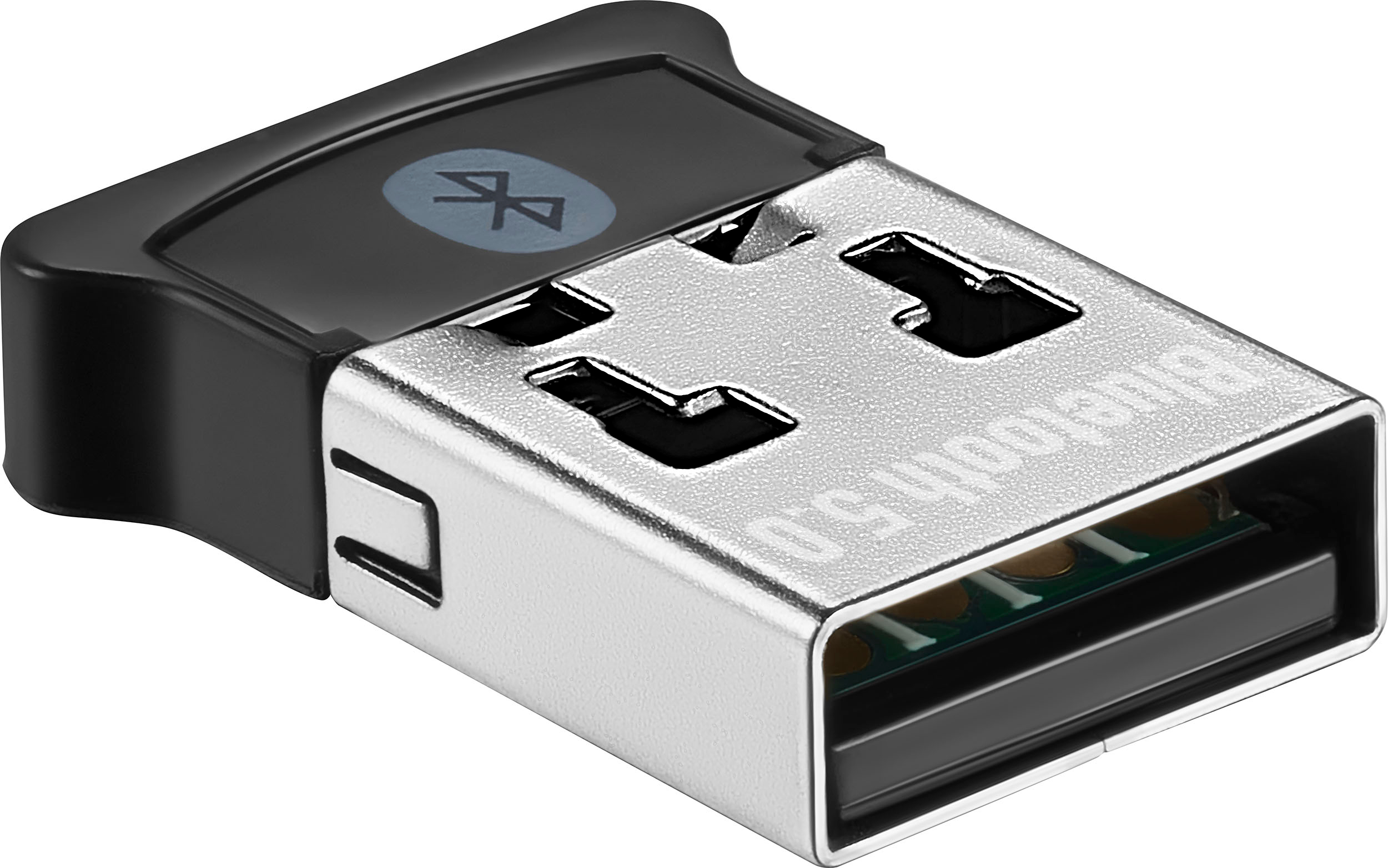
A:AnswerThank you for your inquiry! The Insignia™ Bluetooth 5.0 USB Adapter is primarily advertised as being compatible with Windows 8.1, 10, and 11. Keith | Insignia Support https://www.bestbuy.com/site/insignia-bluetooth-5-0-usb-adapter-for-laptops-and-desktops-compatible-with-windows-8-1-10-and-11-black/6500986.p?skuId=6500986
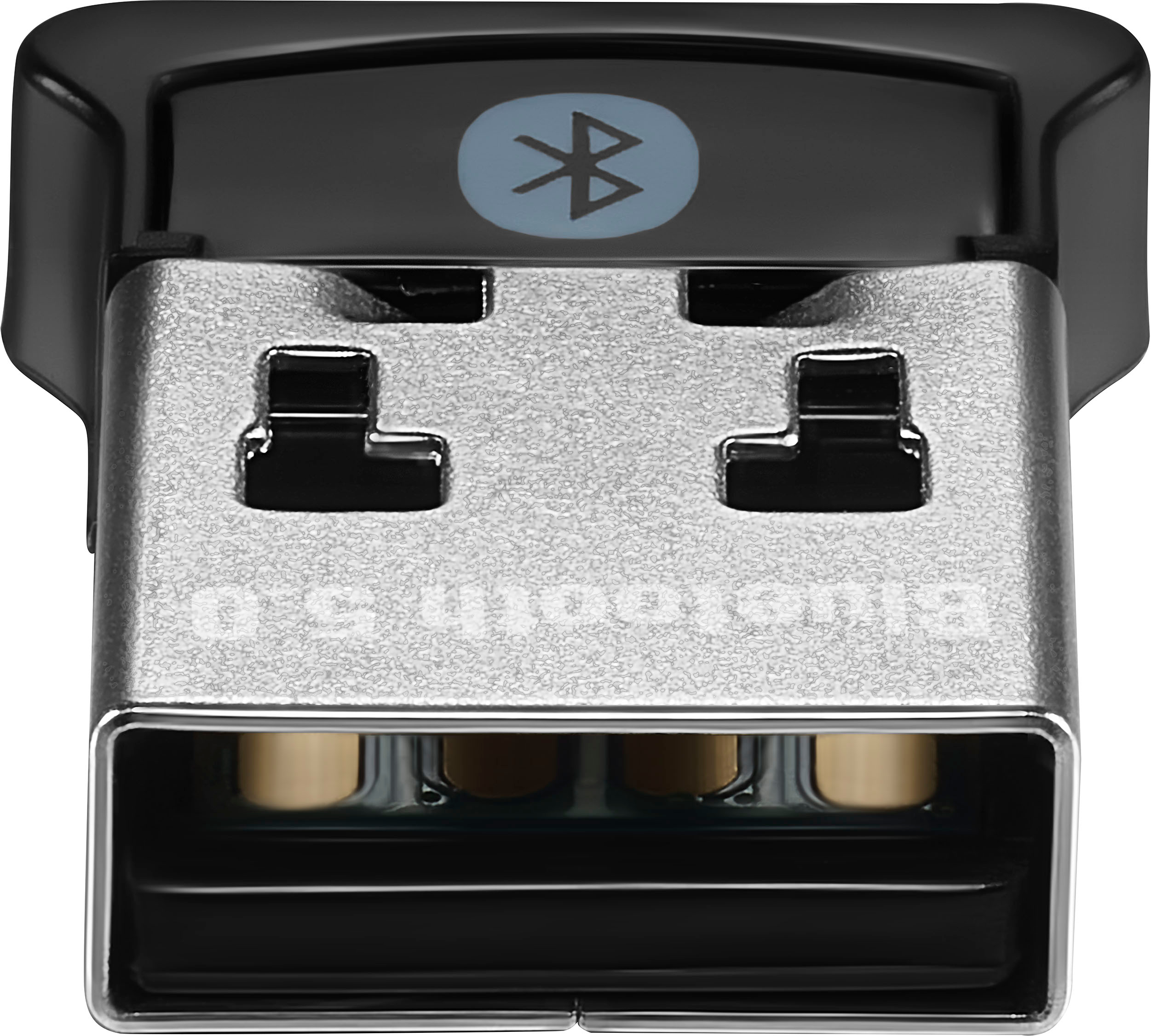
A:AnswerHi Vonte! The Insignia™ - Bluetooth 5.0 USB Adapter for Laptops and Desktops Compatible with Windows 8.1, 10, and 11 is a Bluetooth adapter, and the Turtle Beach Stealth Ultra controller for Xbox primarily uses a specific wireless transmitter for connectivity12. Unfortunately, this adapter won’t work as a replacement for the original USB dongle that came with the controller. Jeth | Insignia Support. https://www.bestbuy.com/site/insignia-bluetooth-5-0-usb-adapter-for-laptops-and-desktops-compatible-with-windows-8-1-10-and-11-black/6500986.p?skuId=6500986
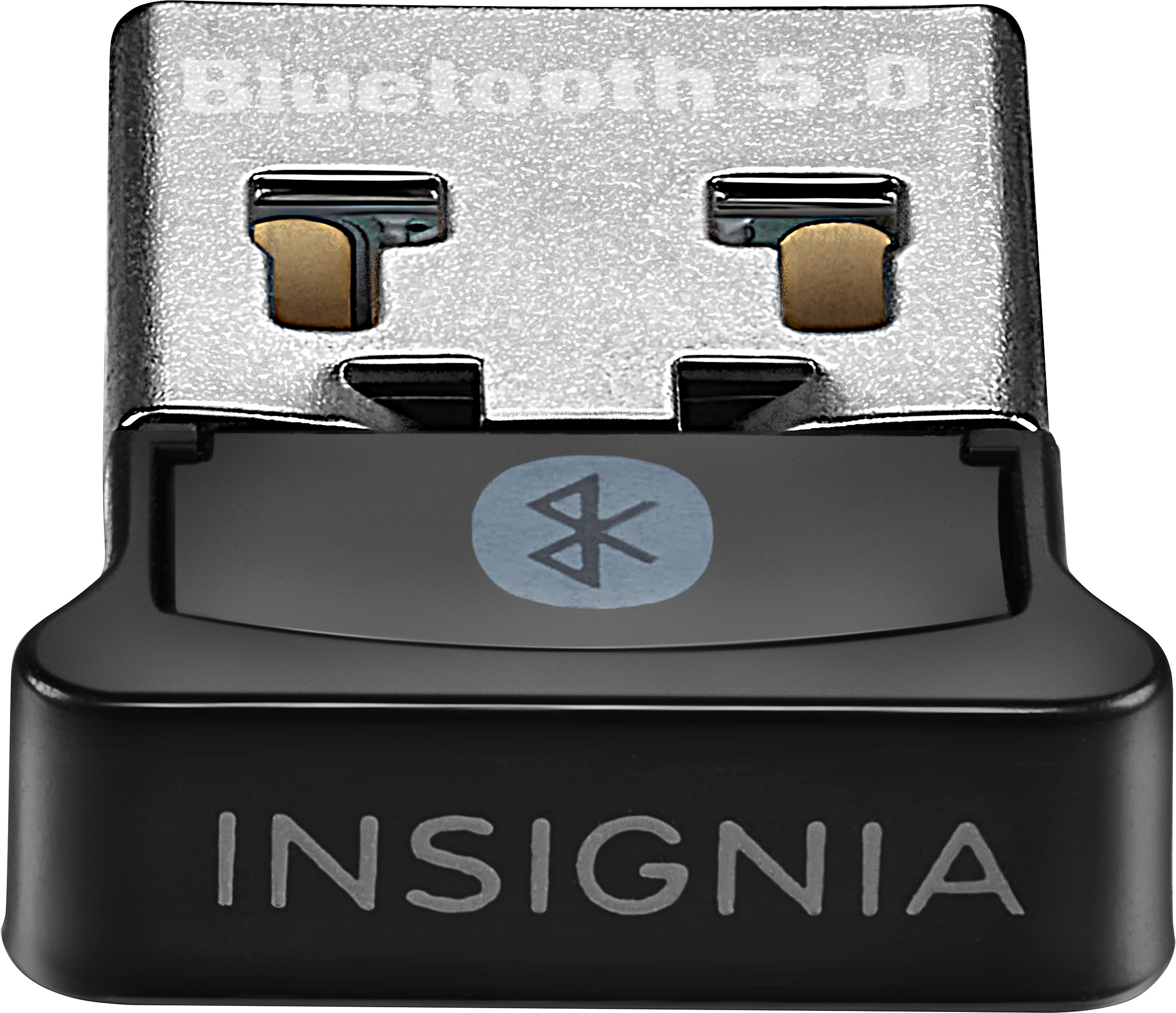
A:AnswerThank you for your inquiry! No, the Insignia Bluetooth USB adapter is not compatible with Dish Network Joeys. Dish Network Joeys require a specific adapter to work with their system, so you will need to look for a different solution or contact Dish Network for assistance. Keith | Insignia Support https://www.bestbuy.com/site/insignia-bluetooth-5-0-usb-adapter-for-laptops-and-desktops-compatible-with-windows-8-1-10-and-11-black/6500986.p?skuId=6500986
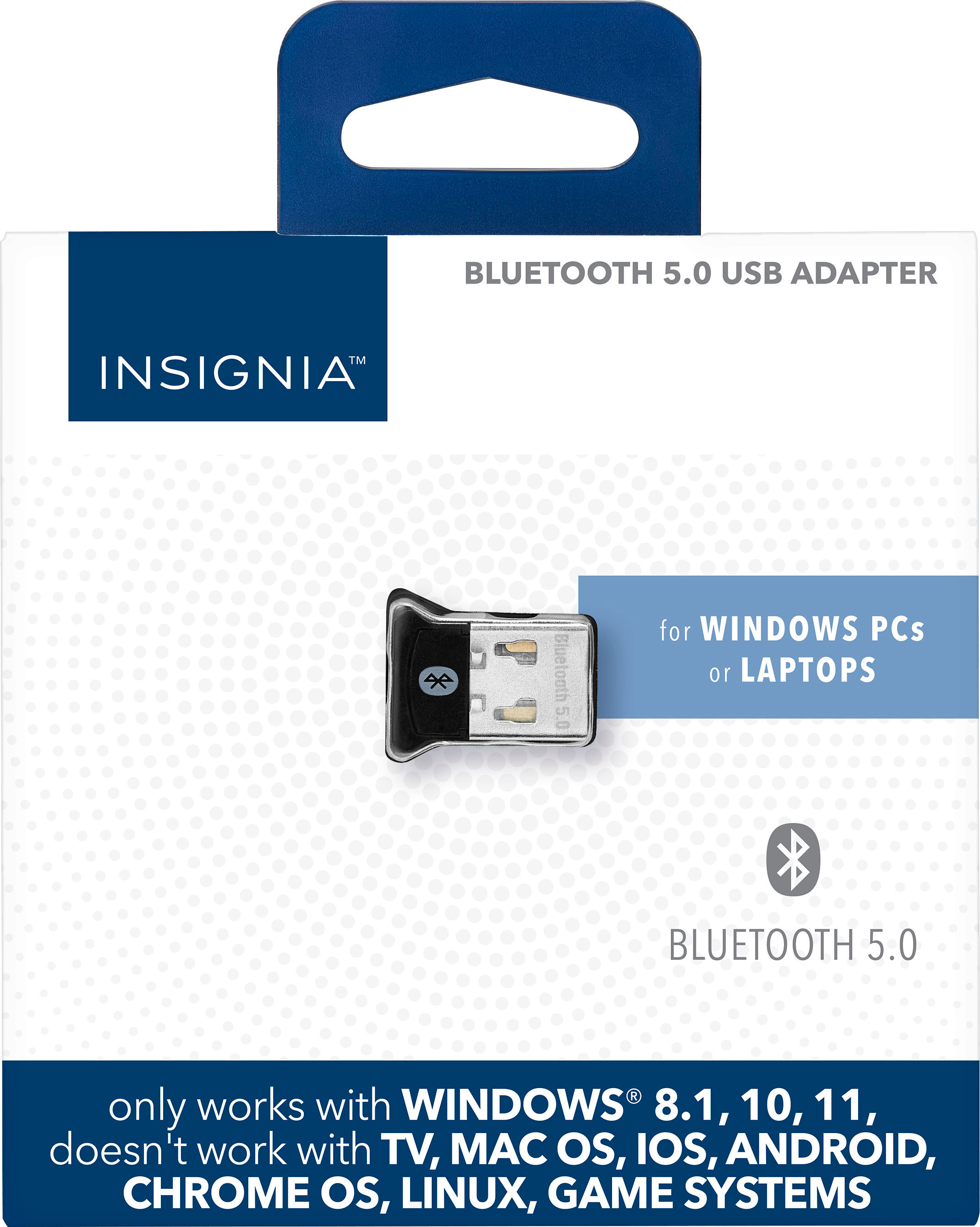
A:Answerif its bluetooth then it should, my laptop with windows 10 was not bluetooth enabled so i got it so i can listen on my headphones.
it was super easy to install and it works perfectly for my needs
A:AnswerNo. Xbox already has Bluetooth and can connect keyboards and such. If Xbox isn’t letting you connect to Alexa by itself this device isn’t going to help.
A:AnswerHi! Yes, you can use the Insignia Bluetooth 5.0 USB adapter to connect your phone to your RCA Roku device and stream movies from your phone. Just make sure to pair the adapter with your phone via Bluetooth first, and then connect the adapter to your RCA Roku device. This will allow you to stream media from your phone to your Roku device wirelessly.
JC | Insignis Support https://www.bestbuy.com/site/insignia-bluetooth-5-0-usb-adapter-for-laptops-and-desktops-compatible-with-windows-8-1-10-and-11-black/6500986.p?skuId=6500986