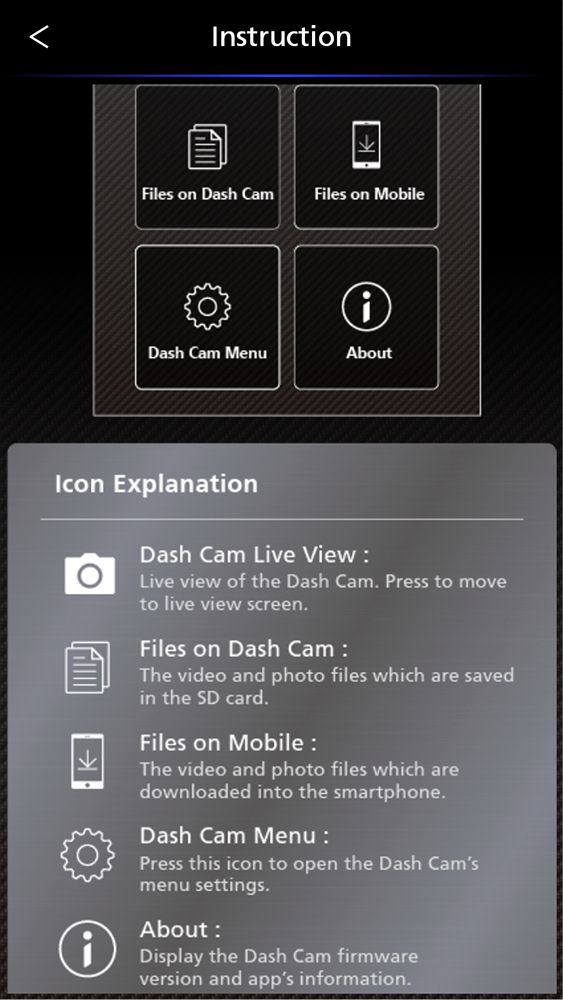
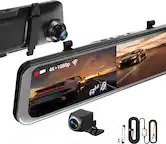
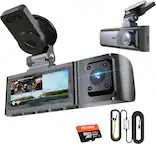
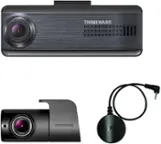
A:AnswerI have an android but you can download the app for the camera on the App Store and inside that, you can open settings and adjust them that way.
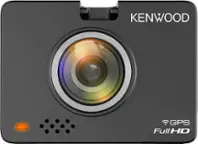
A:AnswerTo check into detail specifications on the unit please contact the Kenwood Customer Service department. Normally aftermarket products are around 114-35 degrees but it would be best to check with Kenwood direct on this.
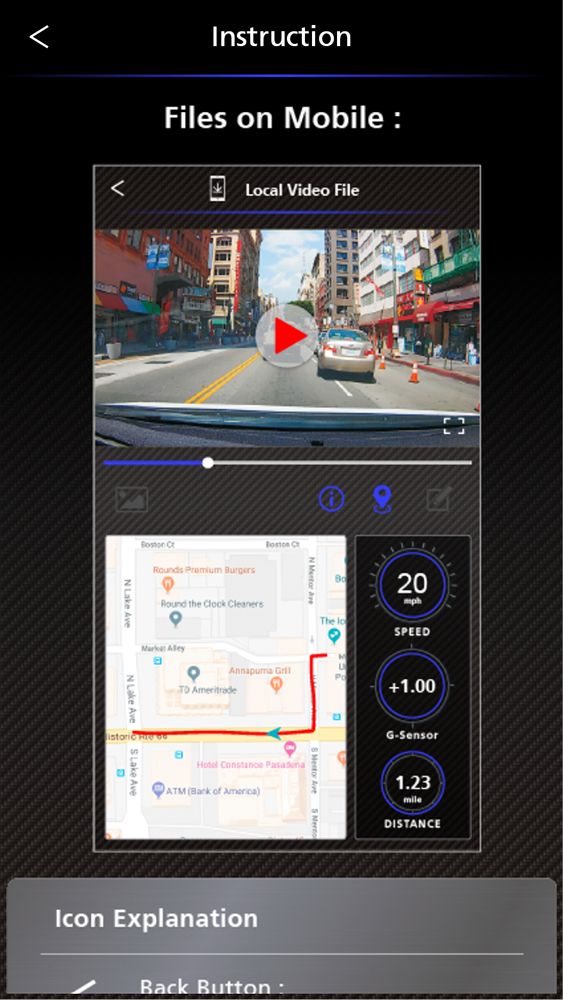
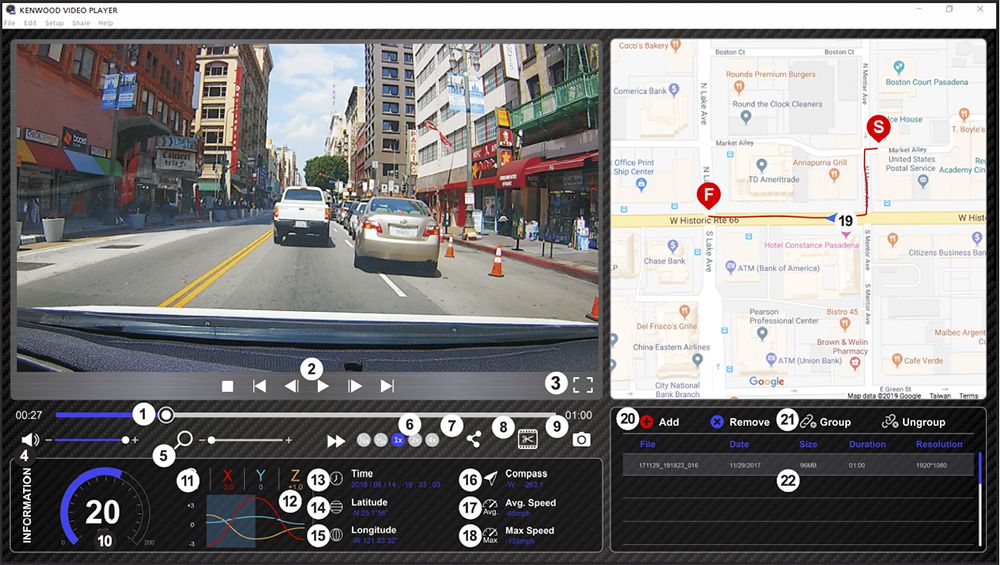
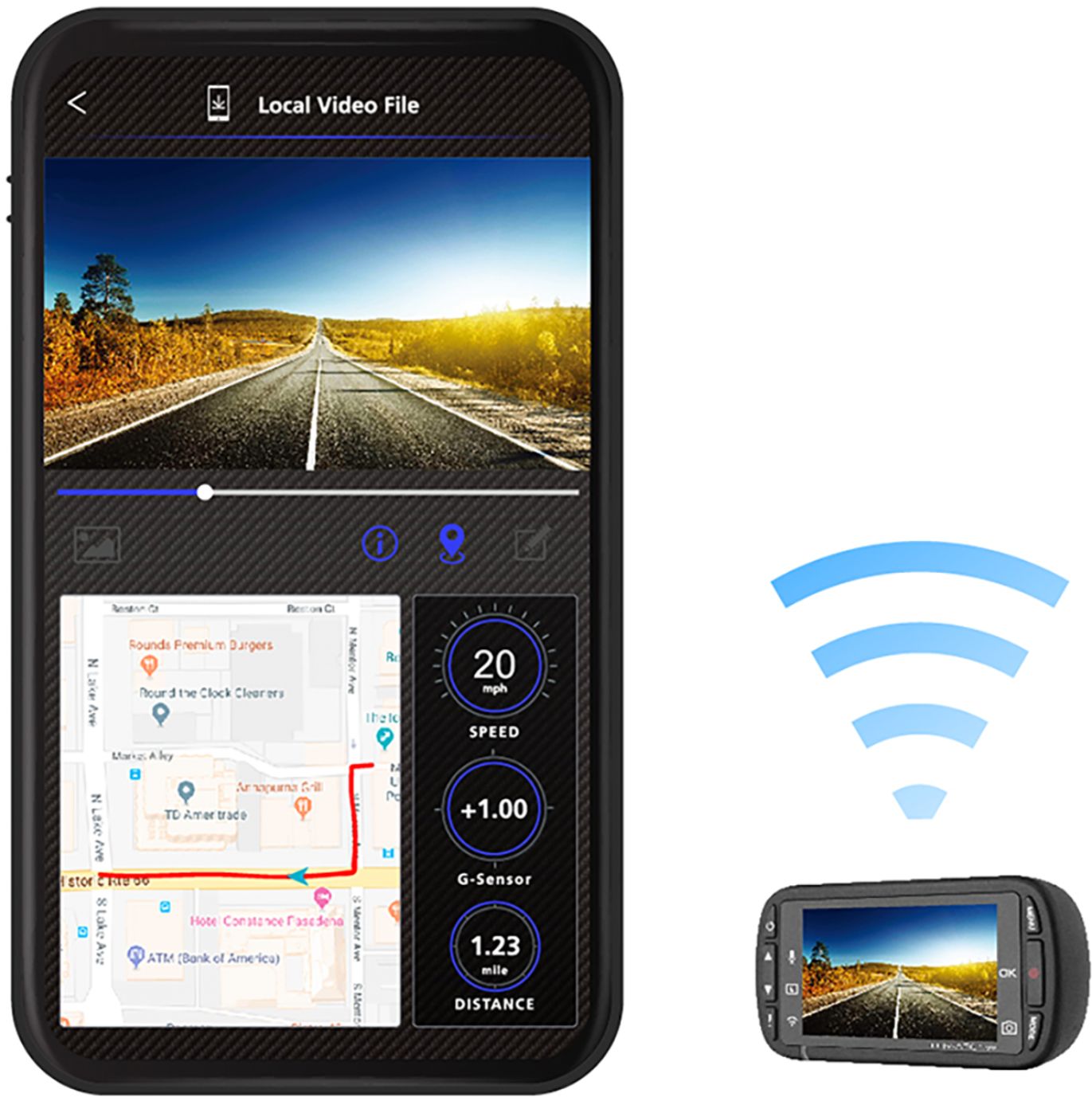
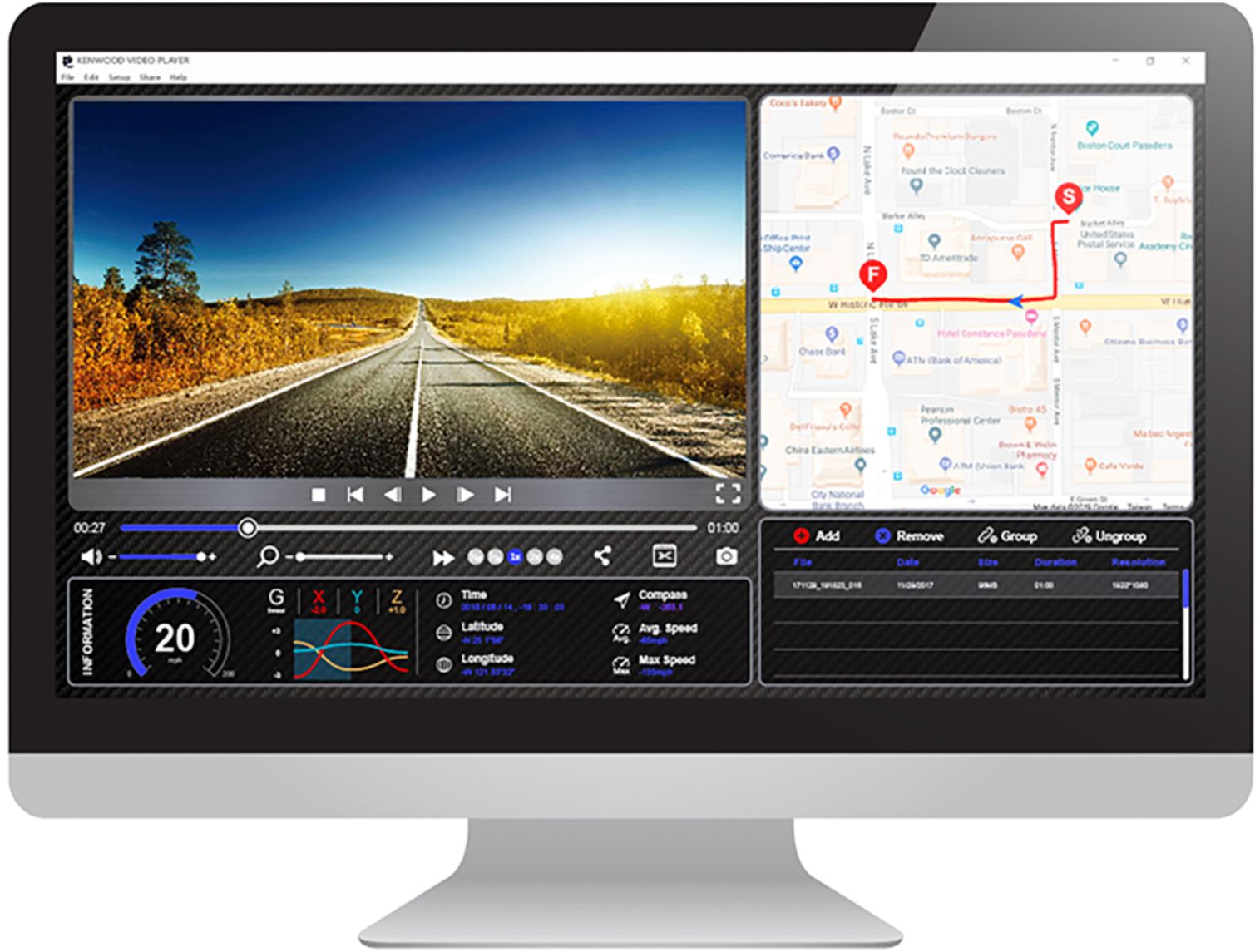
A:AnswerMine flashes at all times too. But it does show at the bottom when you go back into you videos the speed at bottom right hand side. And location as well. And is pretty accurate also. Hope that helps. I watch it on my phone with the app. You can see it better.
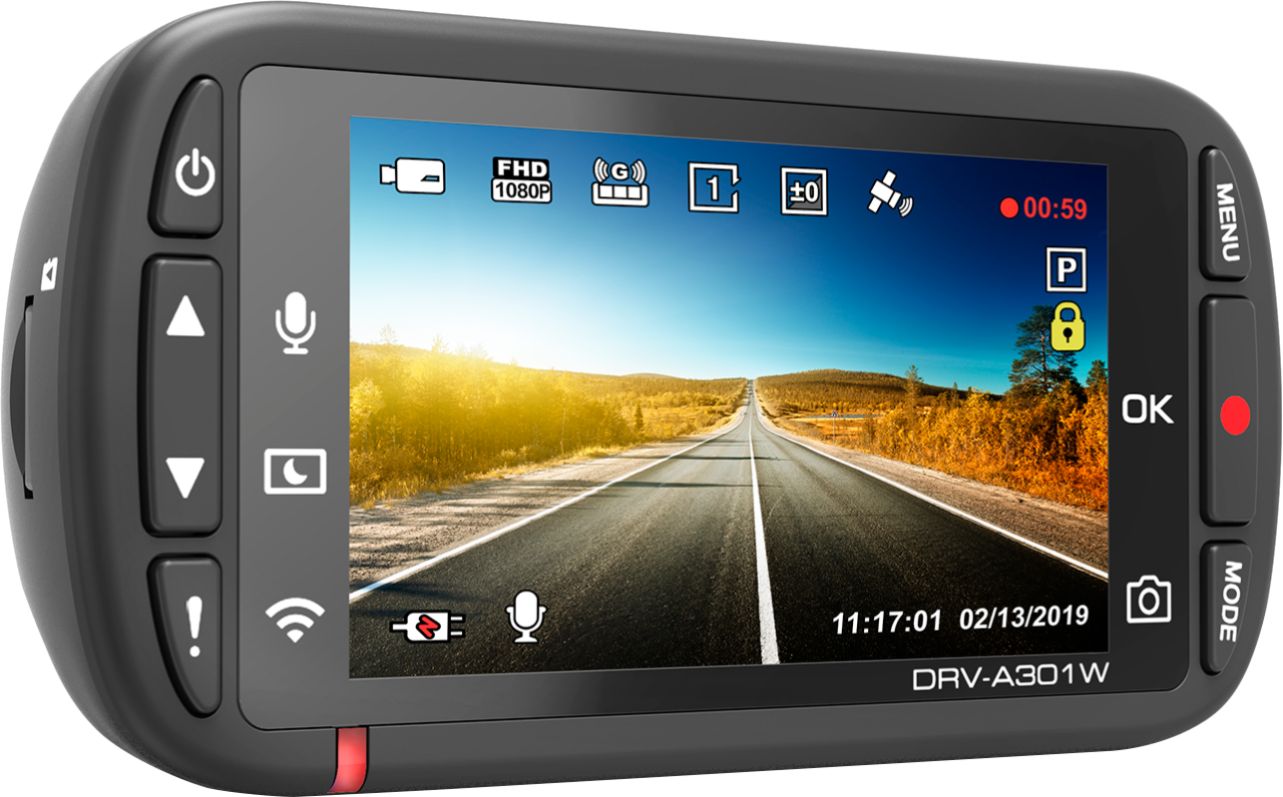
A:AnswerYes. It records 5 minute videos. Once the card is full, it will start to rewrite over the previous videos. Has an lock option so you can lock the videos you want to save and it wont rewrite over them.
A:AnswerFor you can connect the dash cam, you have to do the following:
1. Turn off your data use in your cell phone.
2. Turn on “location service “ in your cell phone.
3. Turn on “wi-fi “ in your cell phone.
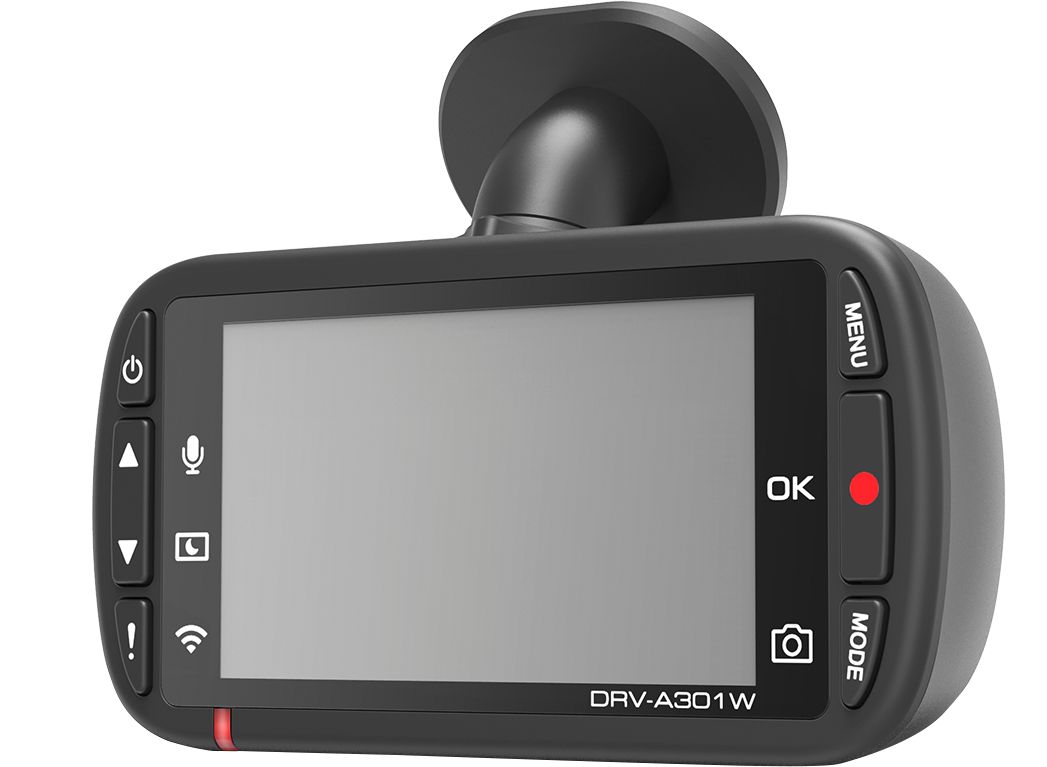
4. Stop recording in the dash cam (red dot).
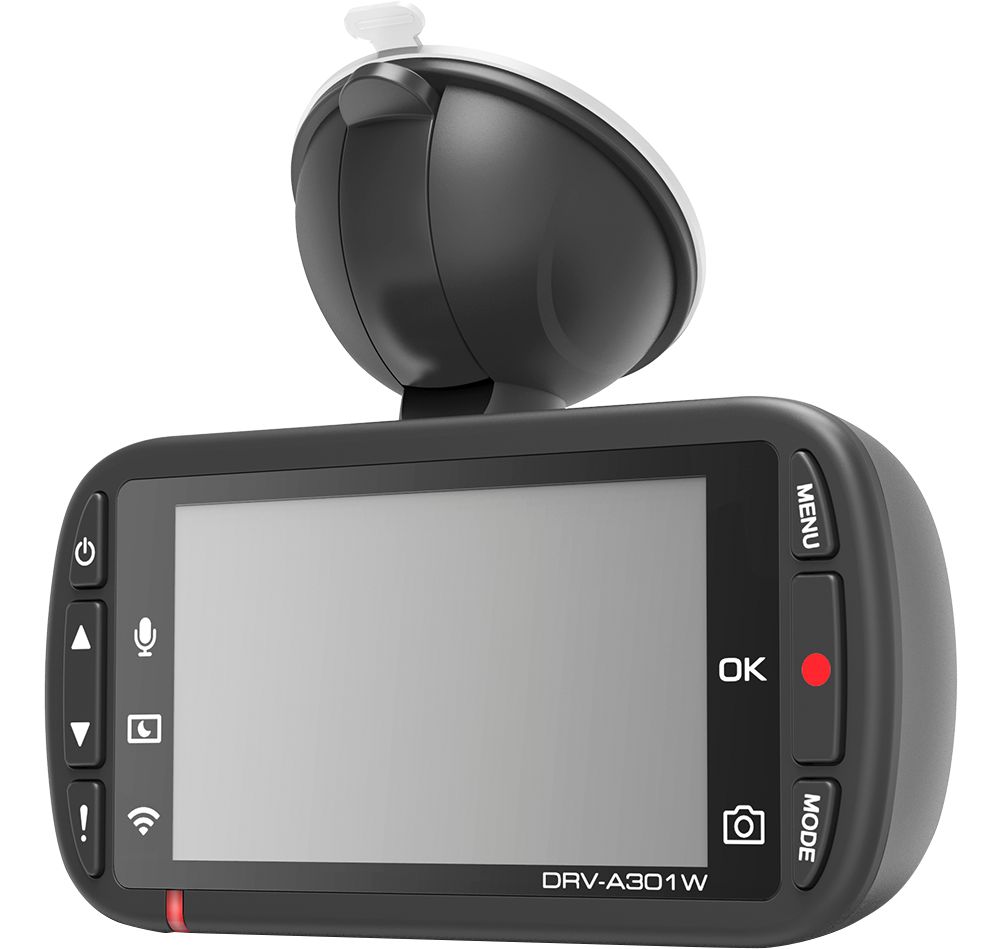
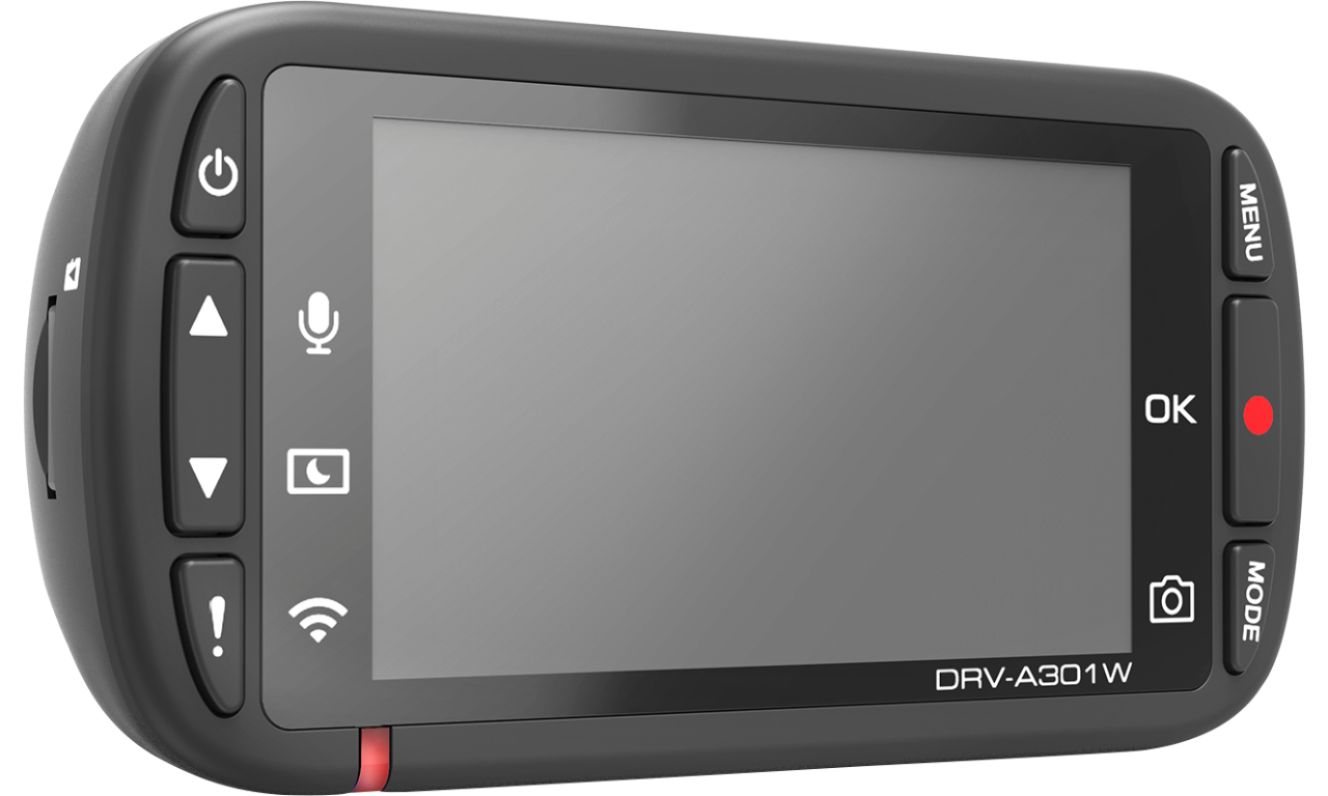
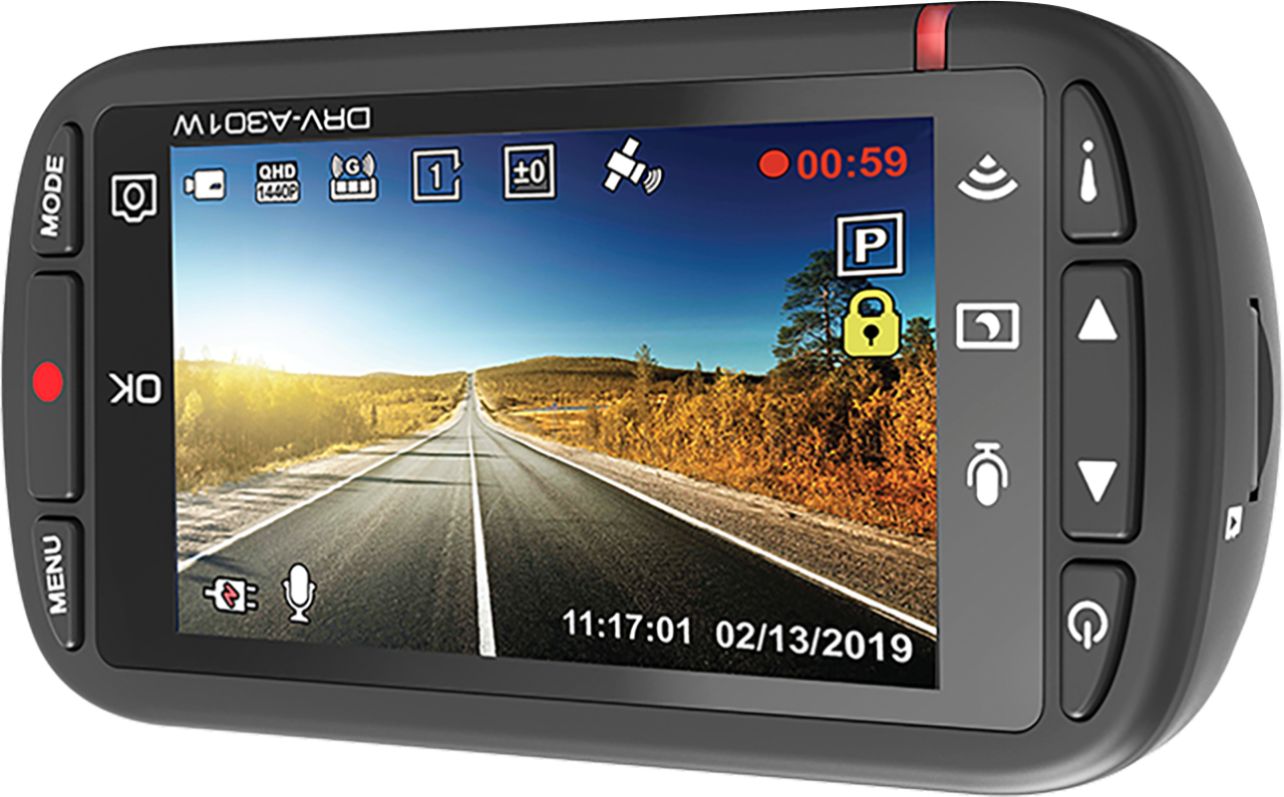
5. Then press the bottom symbol “ ! “ for more than 3 seconds until you hear a sound.
6. Go to your “wi-fi” screen in your cell phone and select the name of your dash cam that will appear or be in your cell wi-fi option selection.
7. Then go to the KENWOOD Dash Cam application (that you have to download it).
8. Select in the application “continue” and then “connect” (sometimes the application connects itself after select “connect”.
9. Then wait for an instant until the application connect to the camera. (You can reformat the SDcard in the application too and see photos and videos recorded and many things).
Here you can find the dash cam manual:
https://www.manua.ls/kenwood/drv-a301w/manual