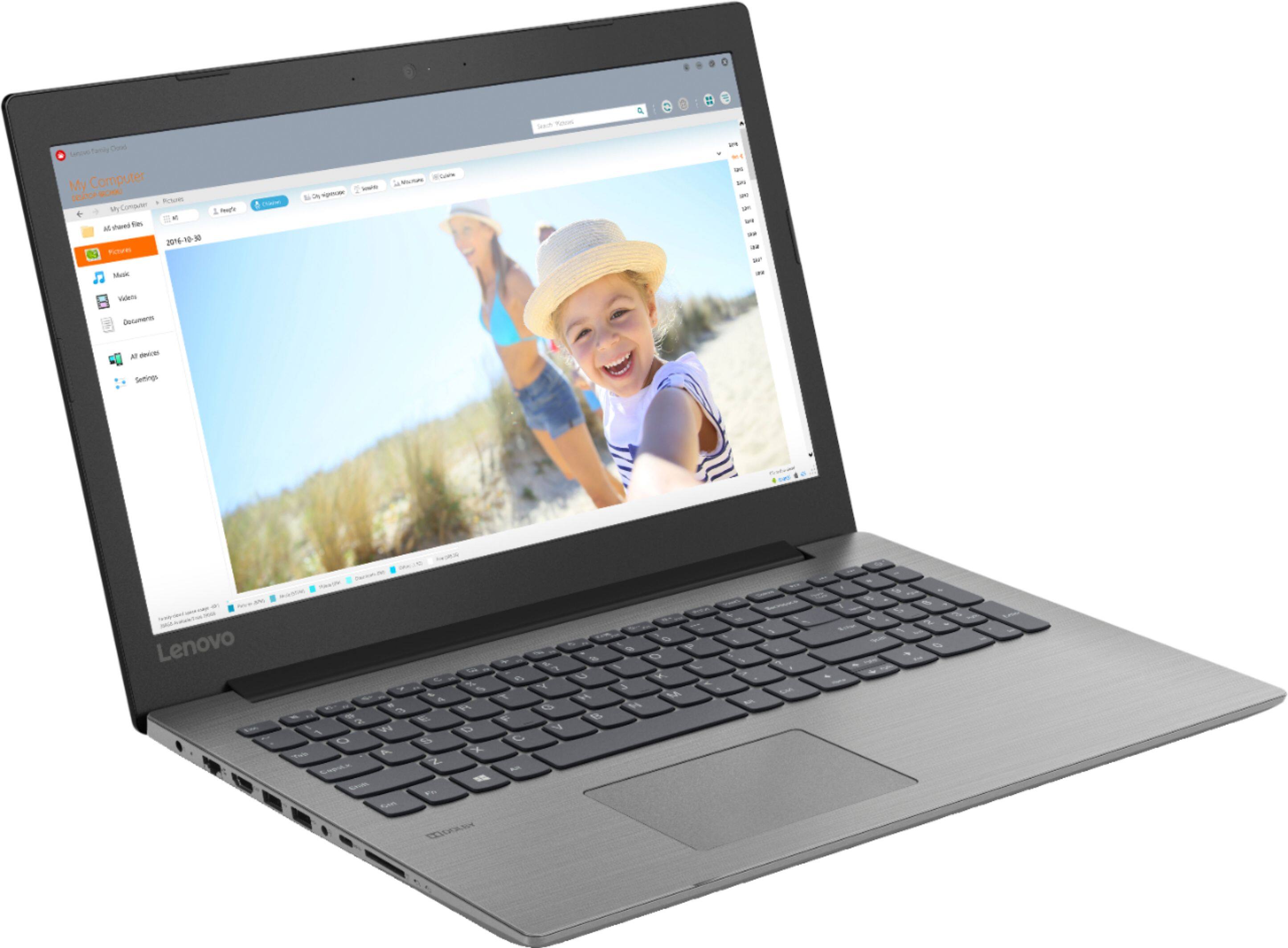
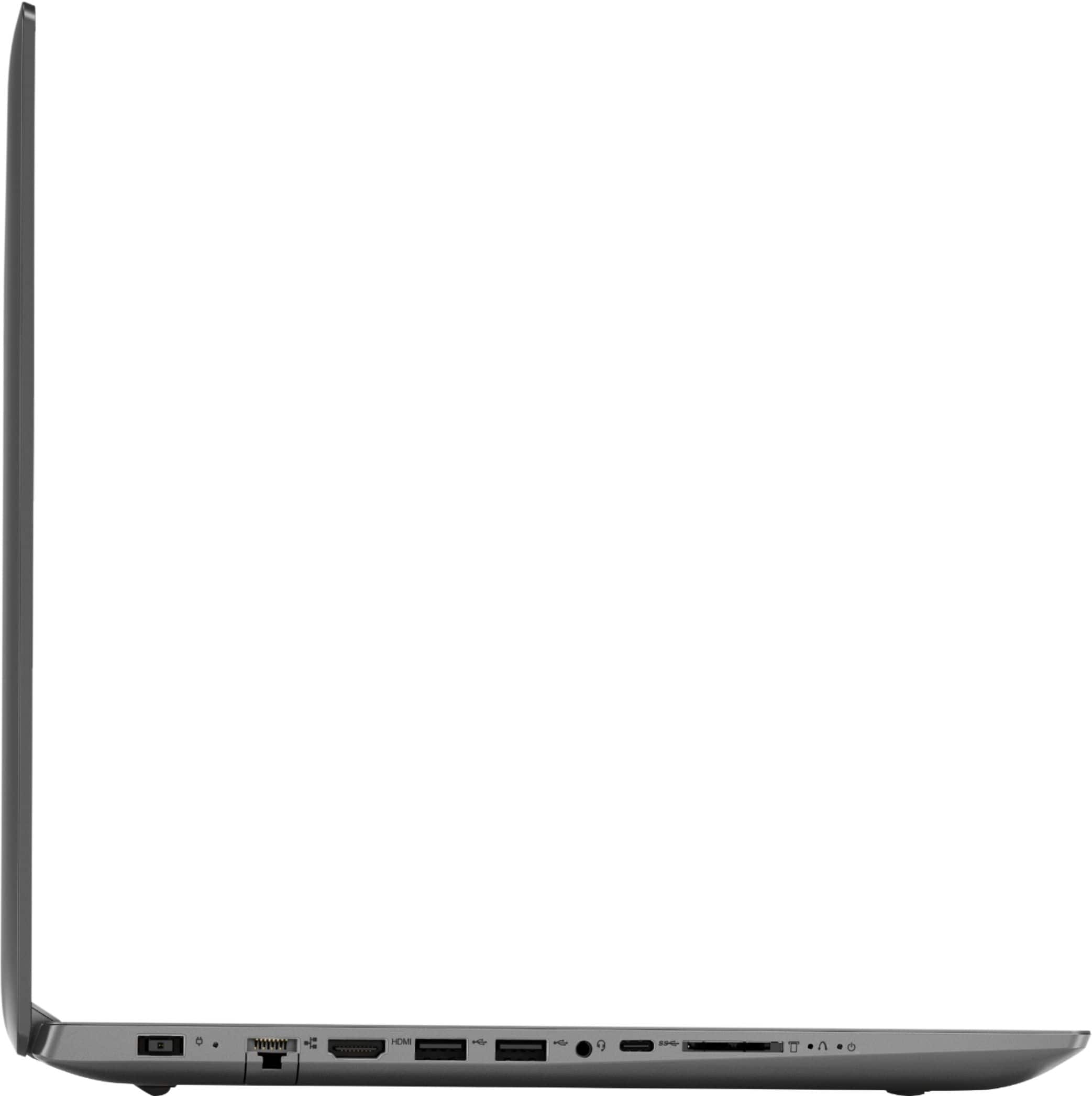
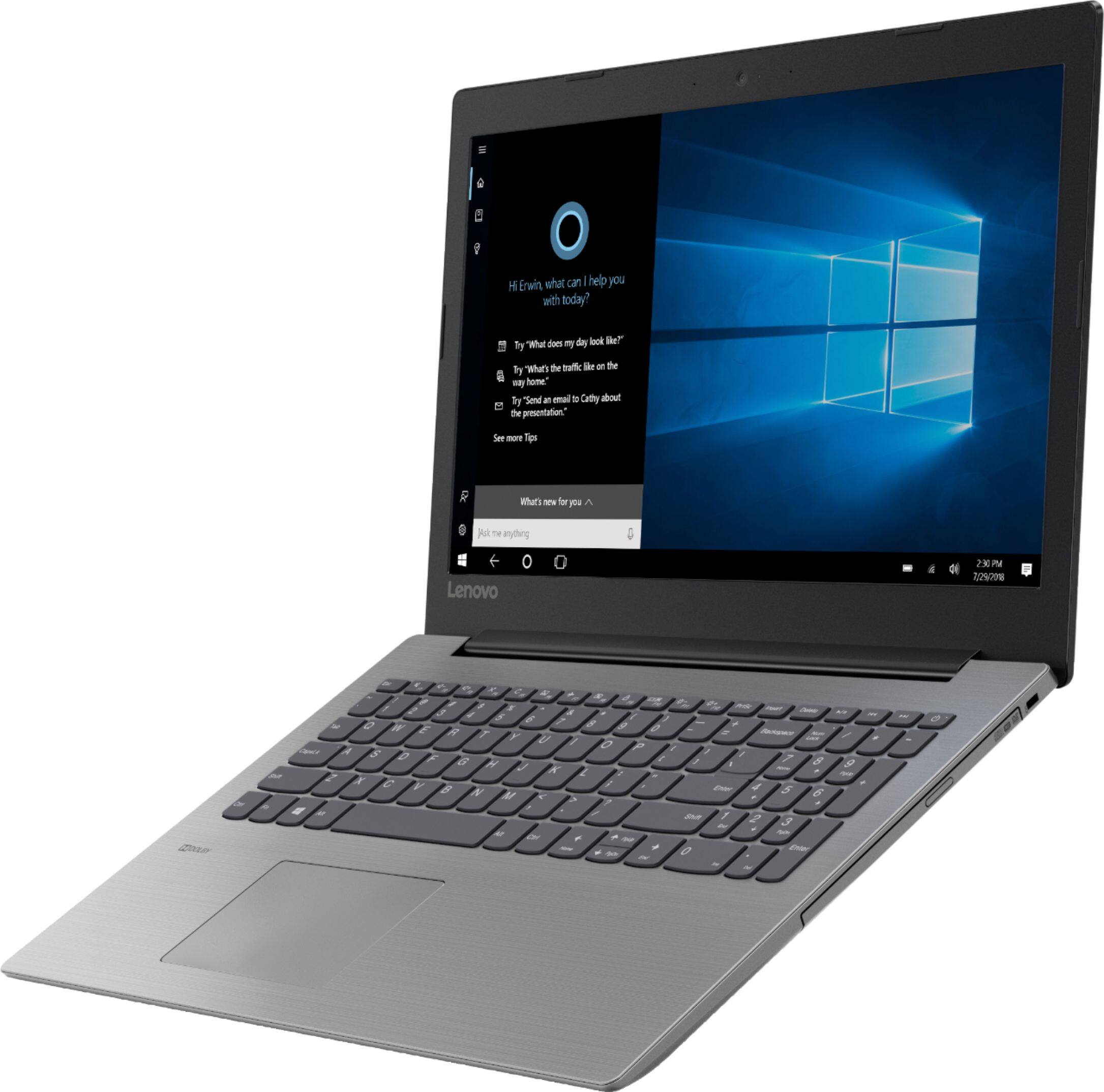
A:AnswerYou plug it in on the side. It's a blue female VGA port that you screw in the external monitor. You can also hook it up using the HDMI cable if the monitor has one.
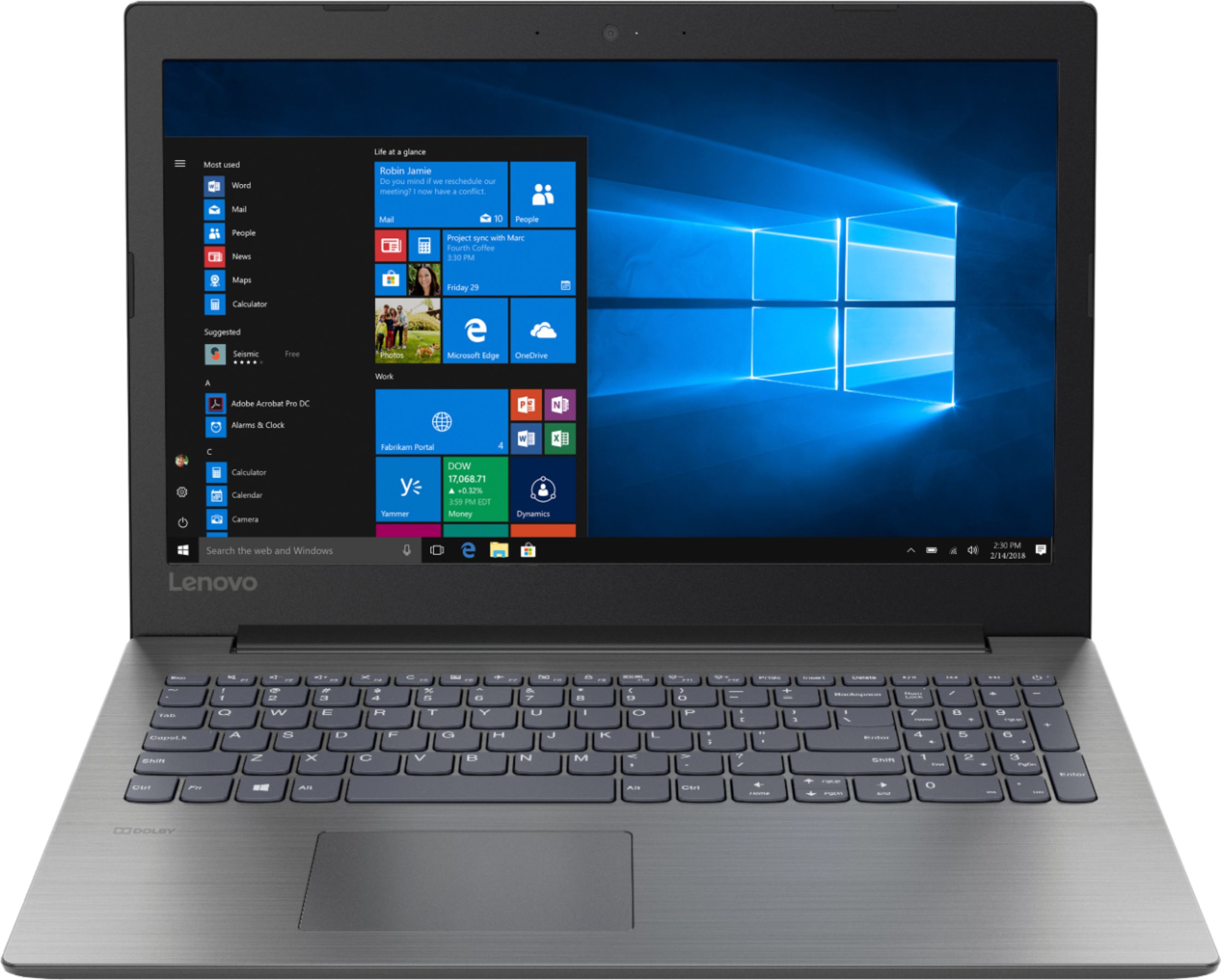
Sometimes you might need to go into the settings from the start menu. It's on the left side about the 3rd icon up, it looks like a gear. Then you want to go to the monitor and display setting and select mirror so both screens have the same image and mouse instead of extending the monitor settings.
A:AnswerThis laptop comes with 8GB of ram not the 4GB the descriptions show. The clock speed of the processor is 2.5ghz is a dual core chip with SMT enabled which means it has 2 virtual cores through hyper threading. So in a sense it is a quad core chip after that is all said and done. For basic everyday tasks this laptop is great in it's original format. I put a SSD in it to ge tthe most out of it. I would recommend the same if you buy this system.
A:AnswerThat will depend on the requirements and compatibility of the specific software. We recommend you check with the specific software publisher's web site for their compatibility with Windows 10 Home 64-bit operating system and the minimum/recommended hardware requirements (Is a Graphics card required, the processor speed and the minimum required system RAM and the minimum available hard drive space) to run their program, then compare those requirements to this system's configuration.
A:AnswerGo to the Lenovo home page(or your brand of laptops homepage) and type in the laptops model and serial number then choose it then you should see the generation it is. click on help tab if you still cannot find. You can find model and serial number in your settings tab.
A:AnswerYes, you may need to reset the device to original factory settings by restoring Windows 10 to factory settings. Check with your email service for the process of deleting an account. If You need to restore your system to original factory default settings, you can do that by typing "restore" in the Cortana search window. Just click on the magnifying glass icon at the bottom left of your Windows 10 Desktop. Click on "Reset This PC" Then click on "Get Started" and follow the on screen directions to restore to factory defaults.
A:AnswerThere is a 30-day trial of Microsoft Office 365 included as part of the Windows 10 operating system. In order to keep the program active after the trial period, you will need to purchase a product key. You will not need to download any additional software. You can use all of the Office programs for 30-days without the product key. After the trial period you will need the 25-digit product key that comes with the purchase of a Microsoft Office 365 license.