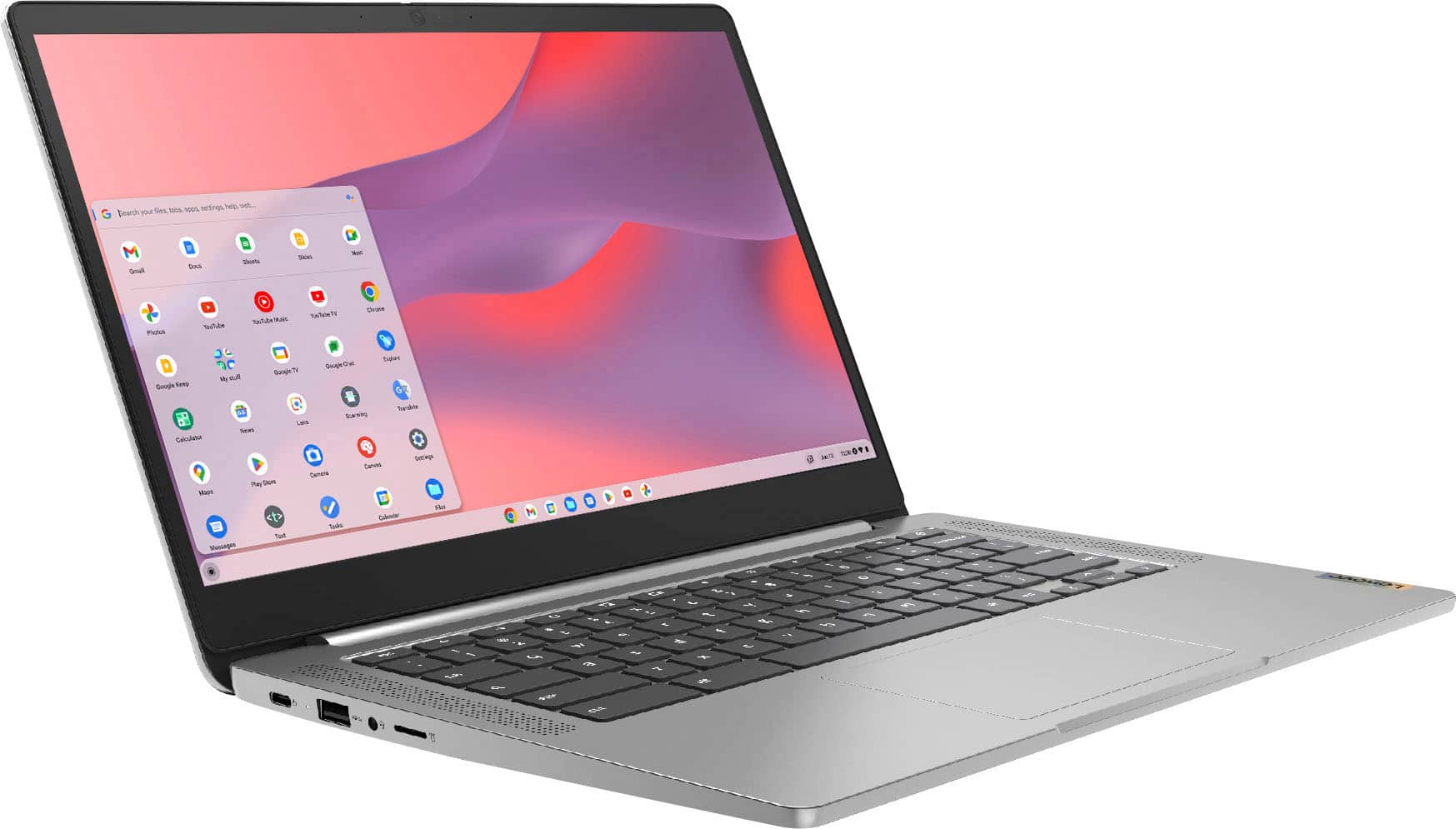
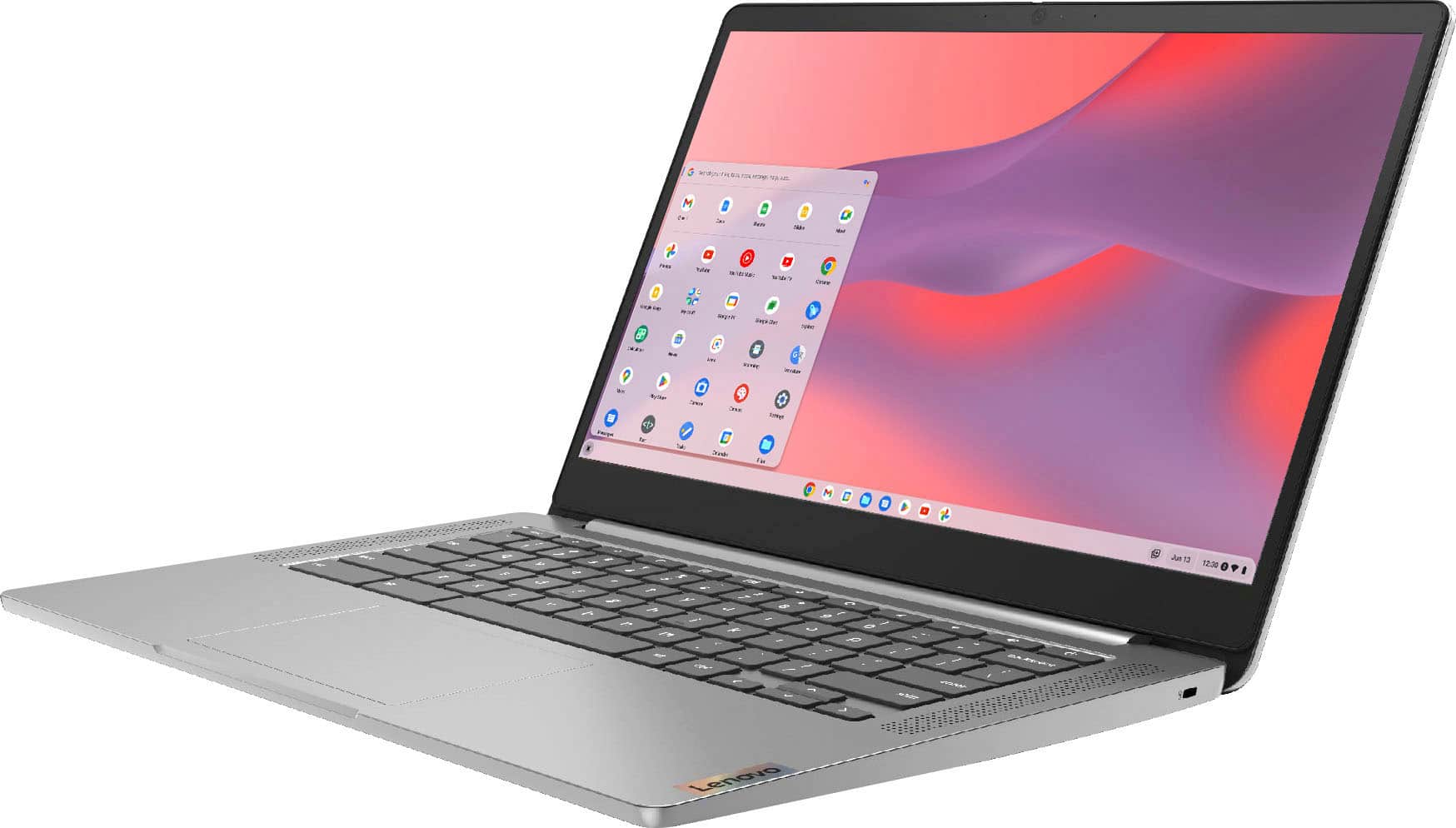
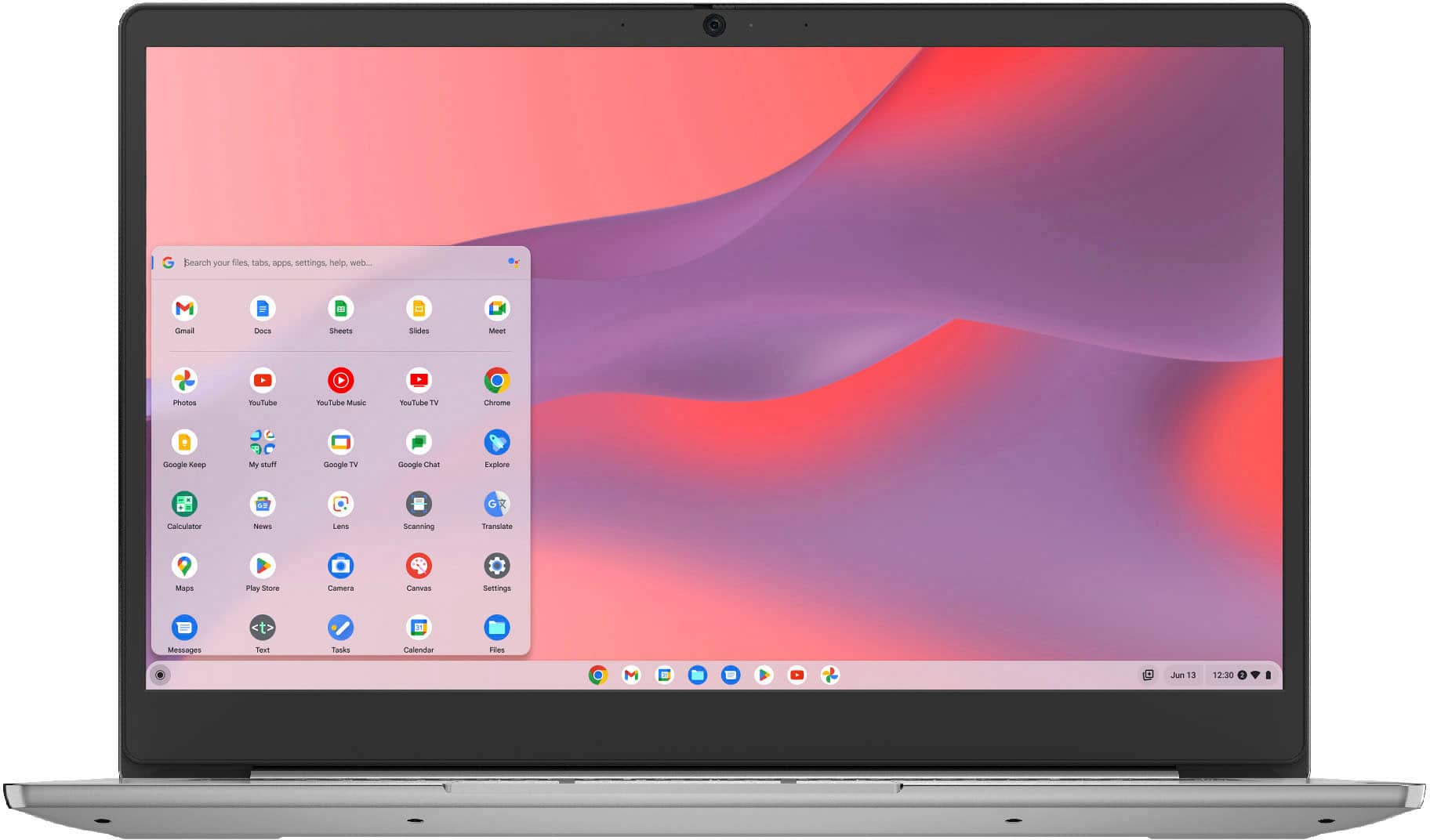
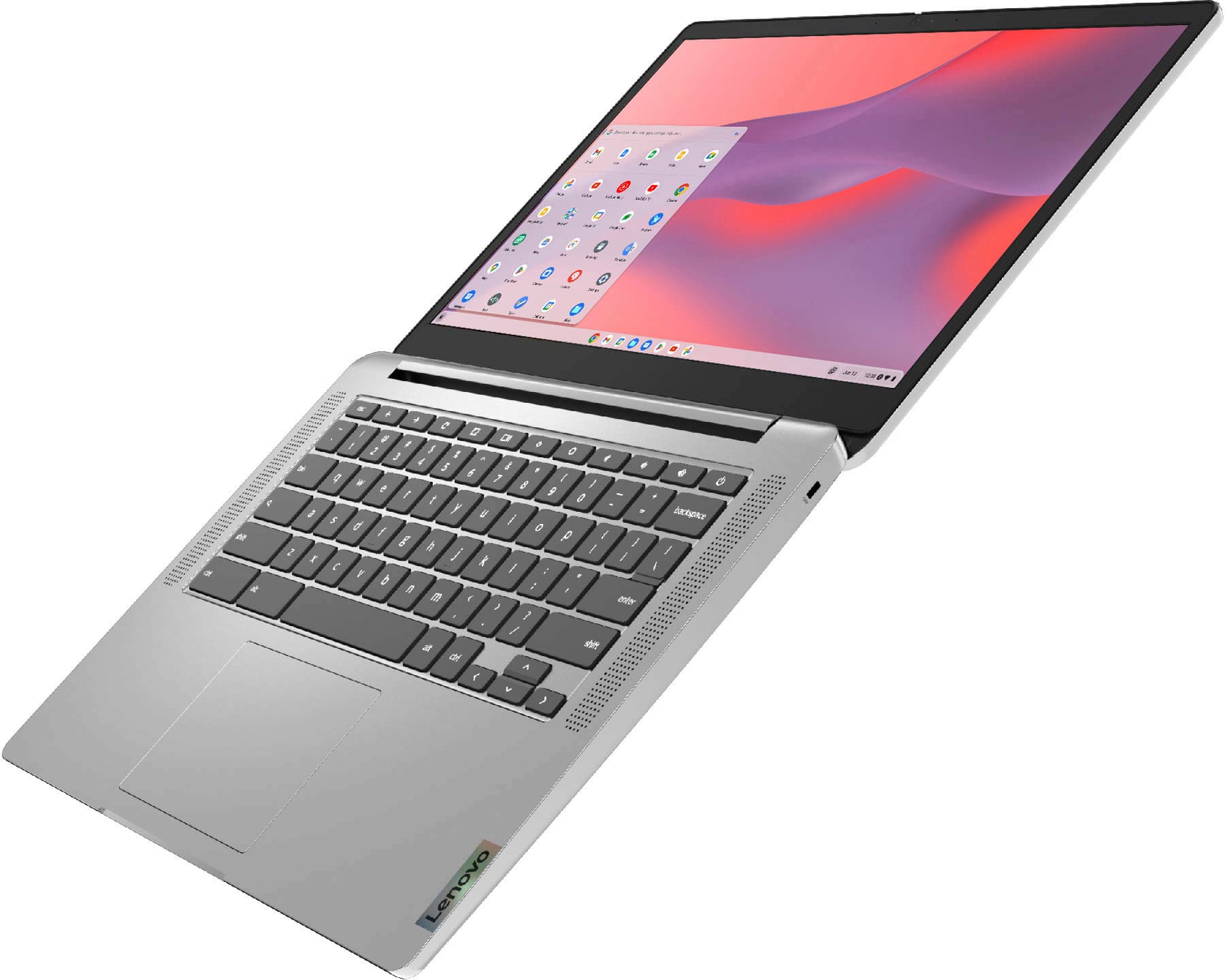
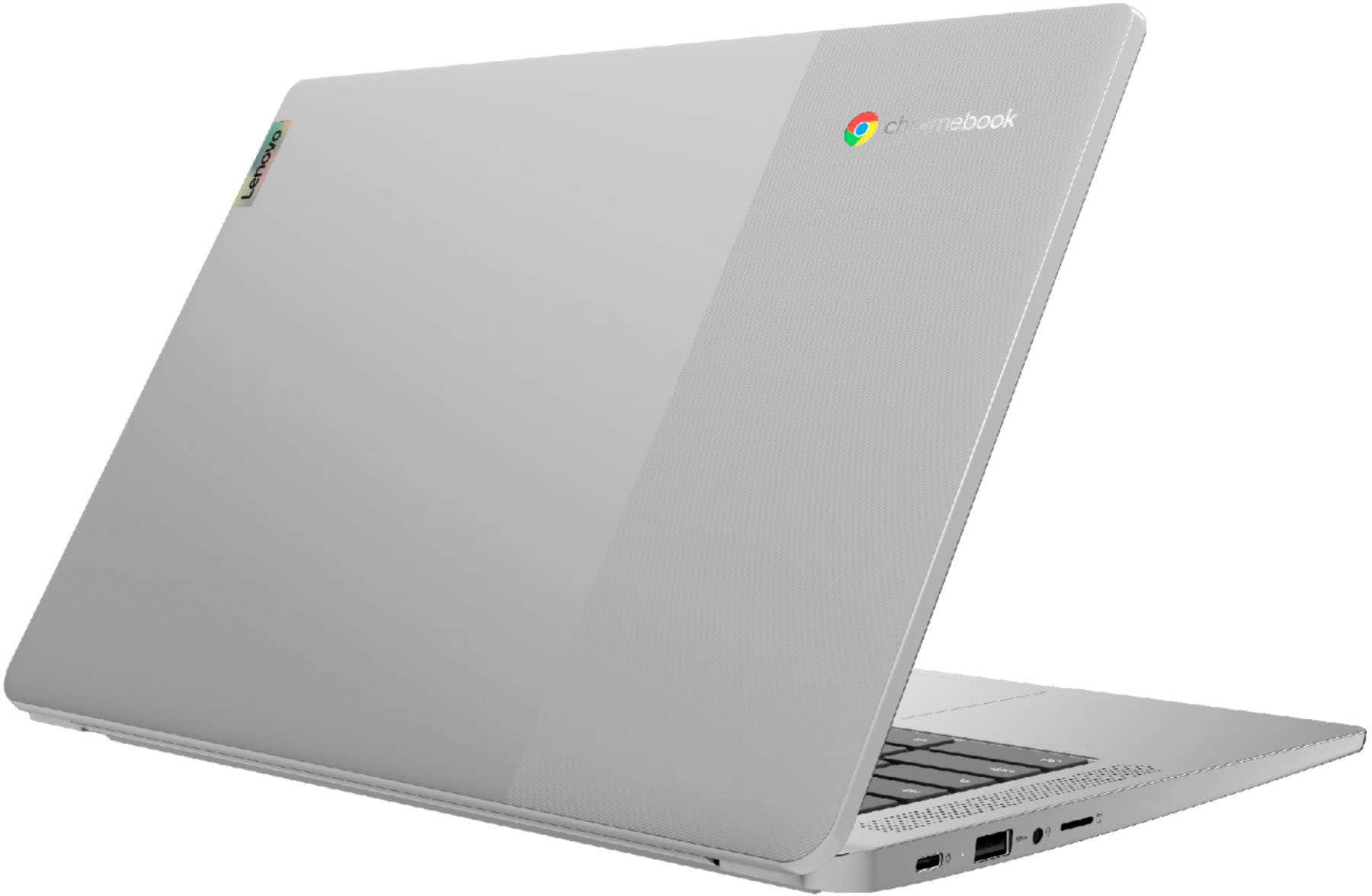
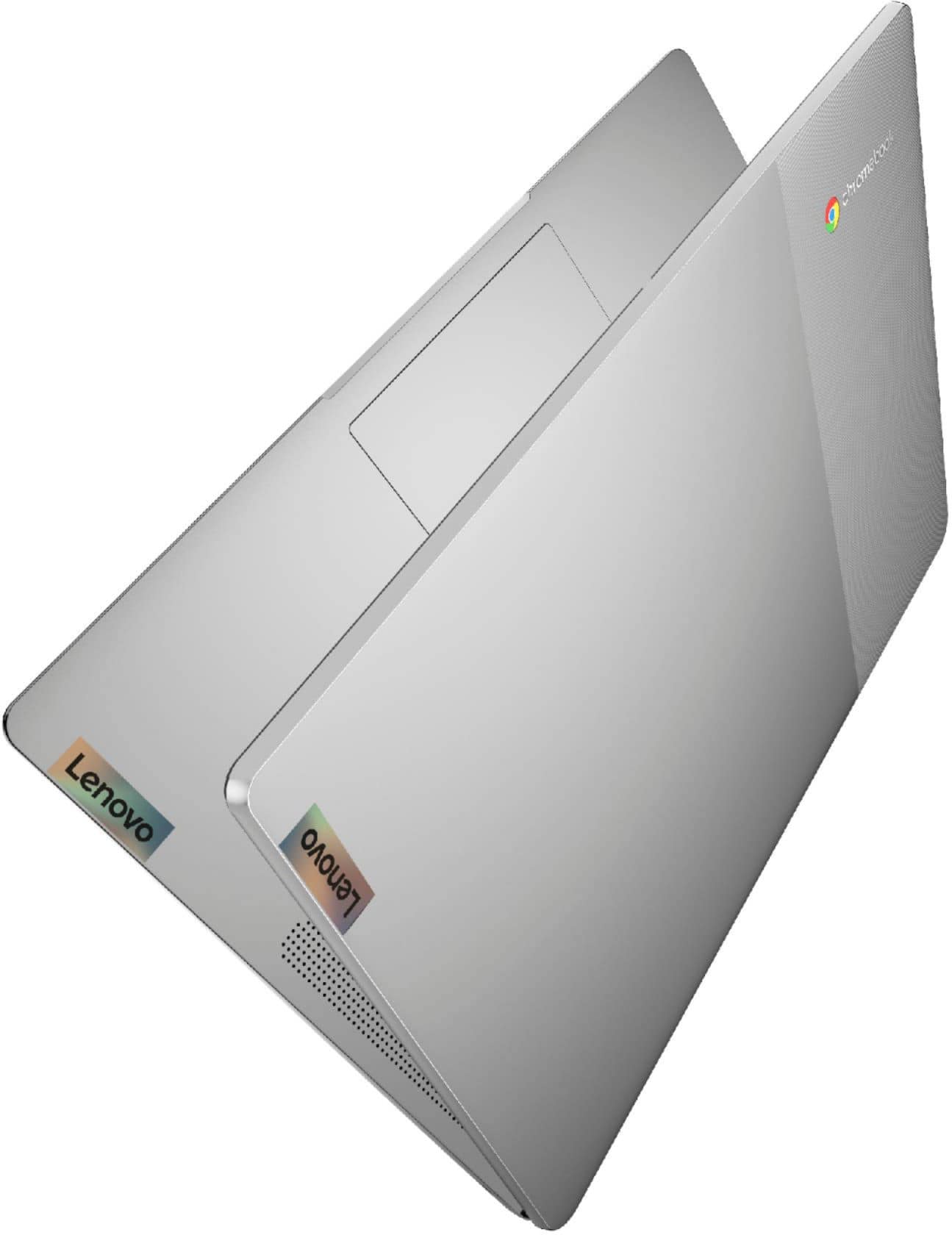
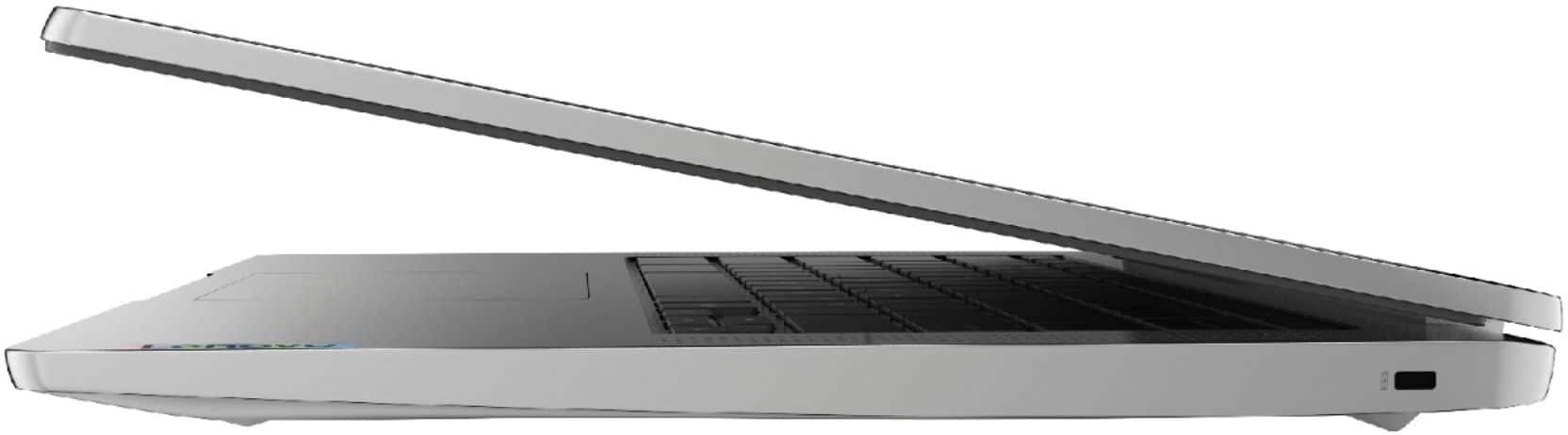
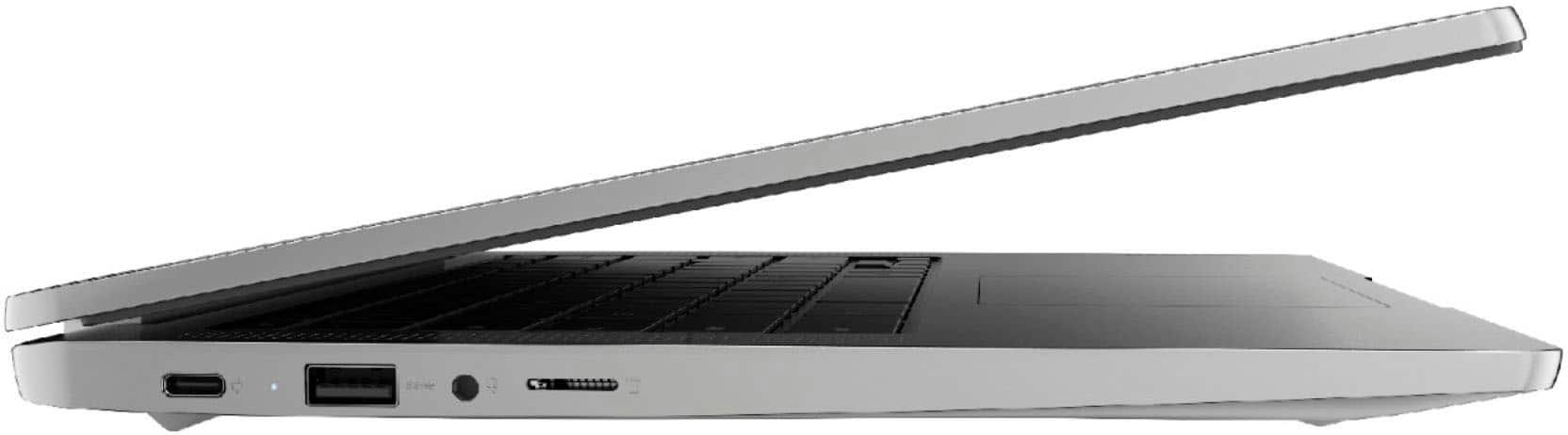
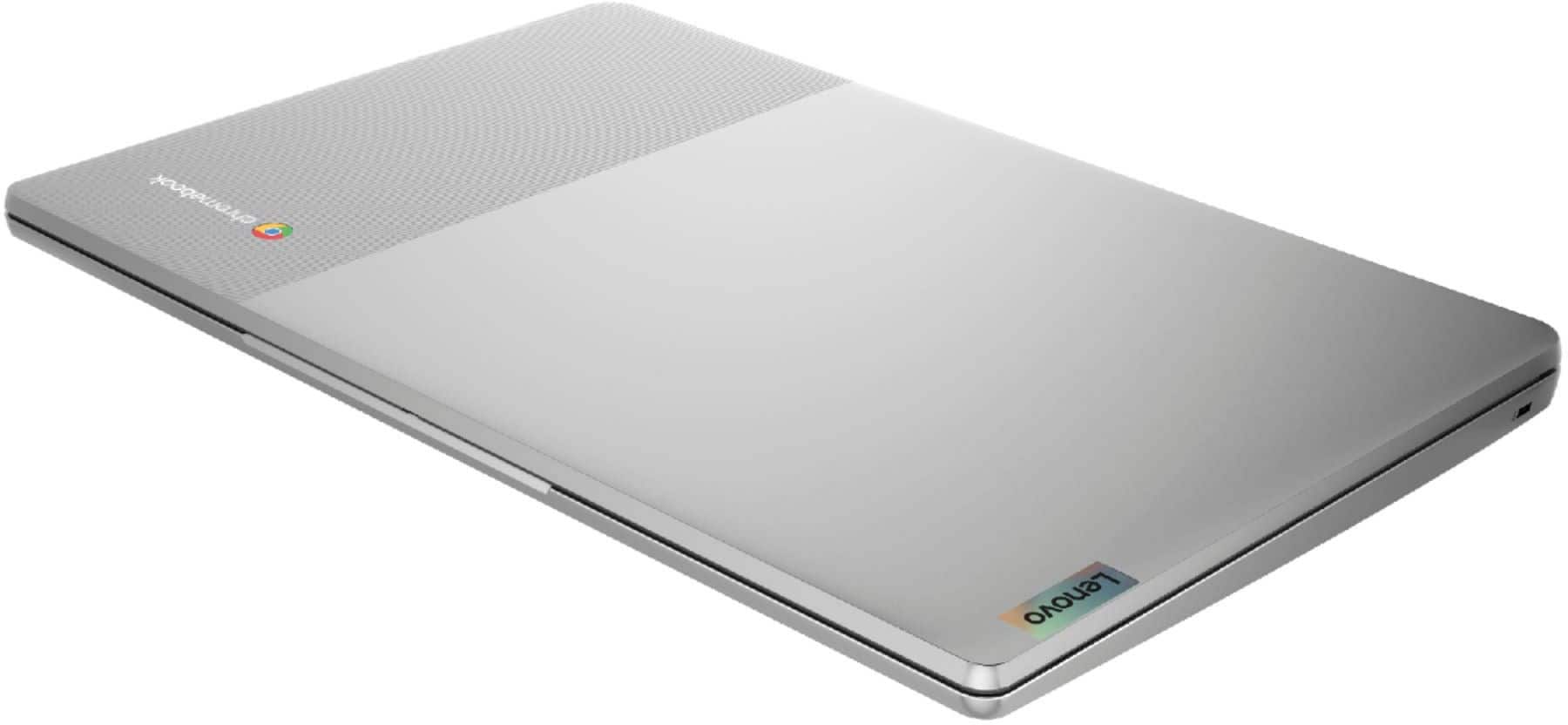
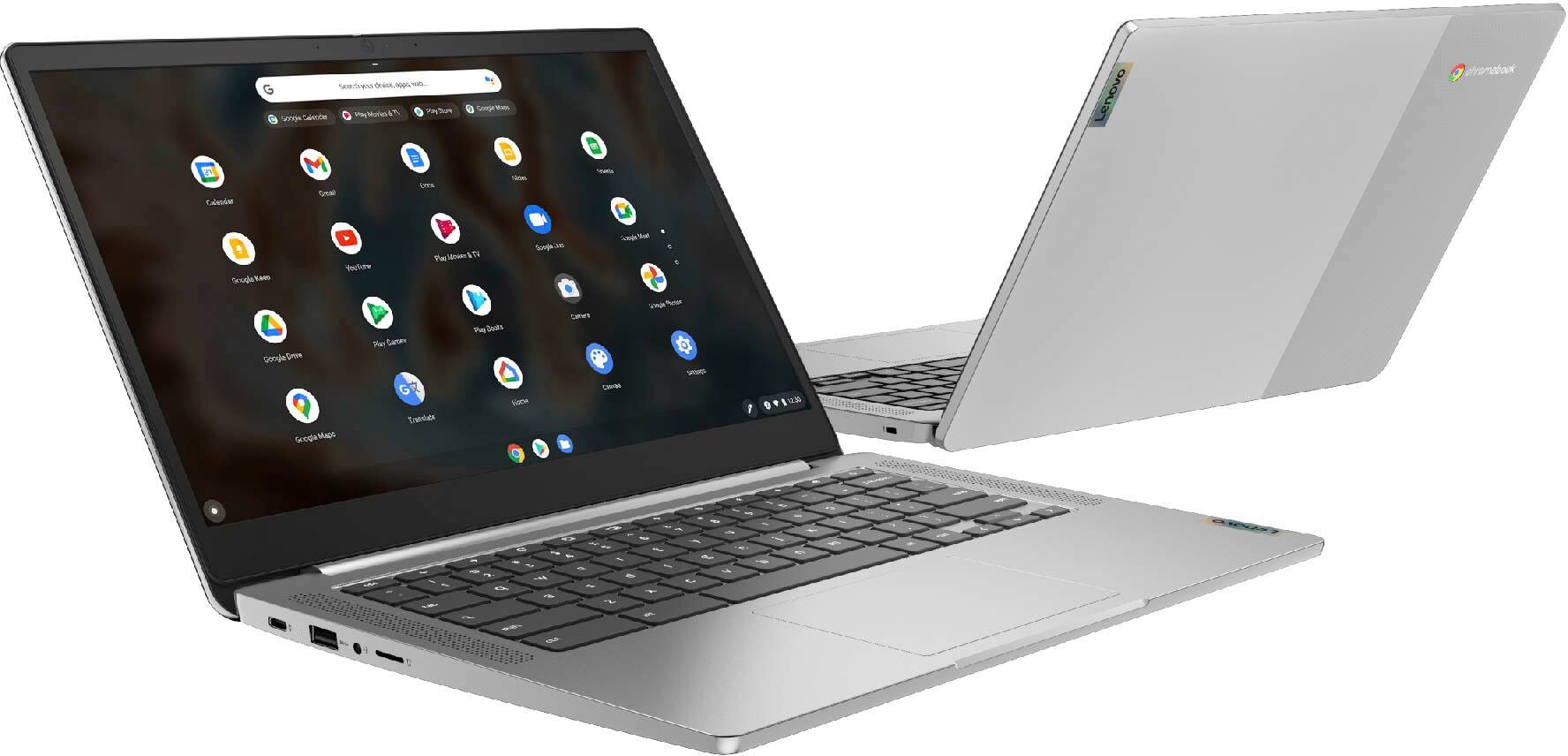
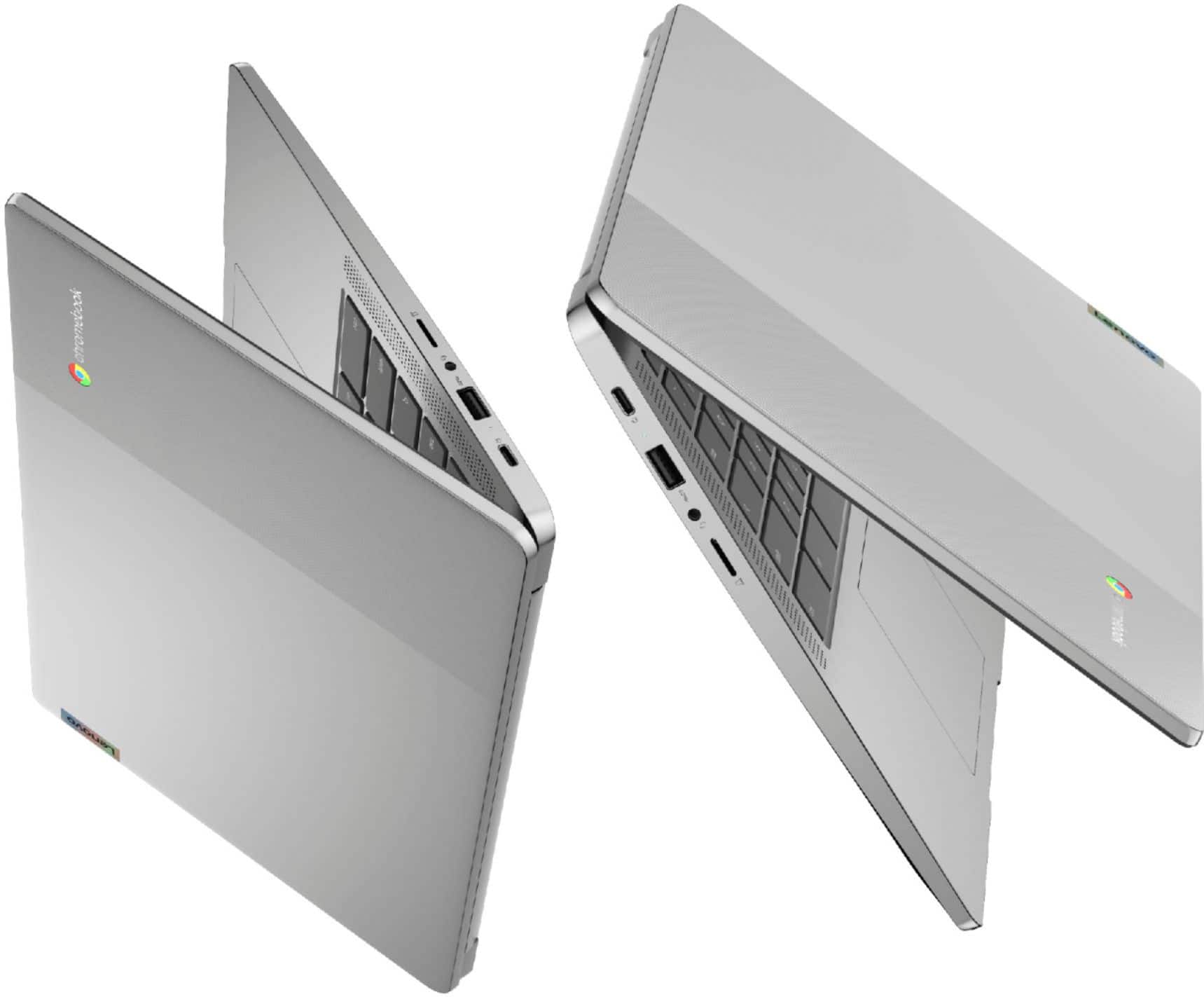
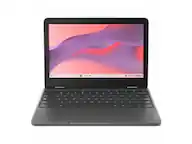
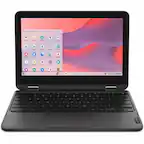
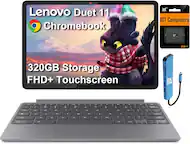
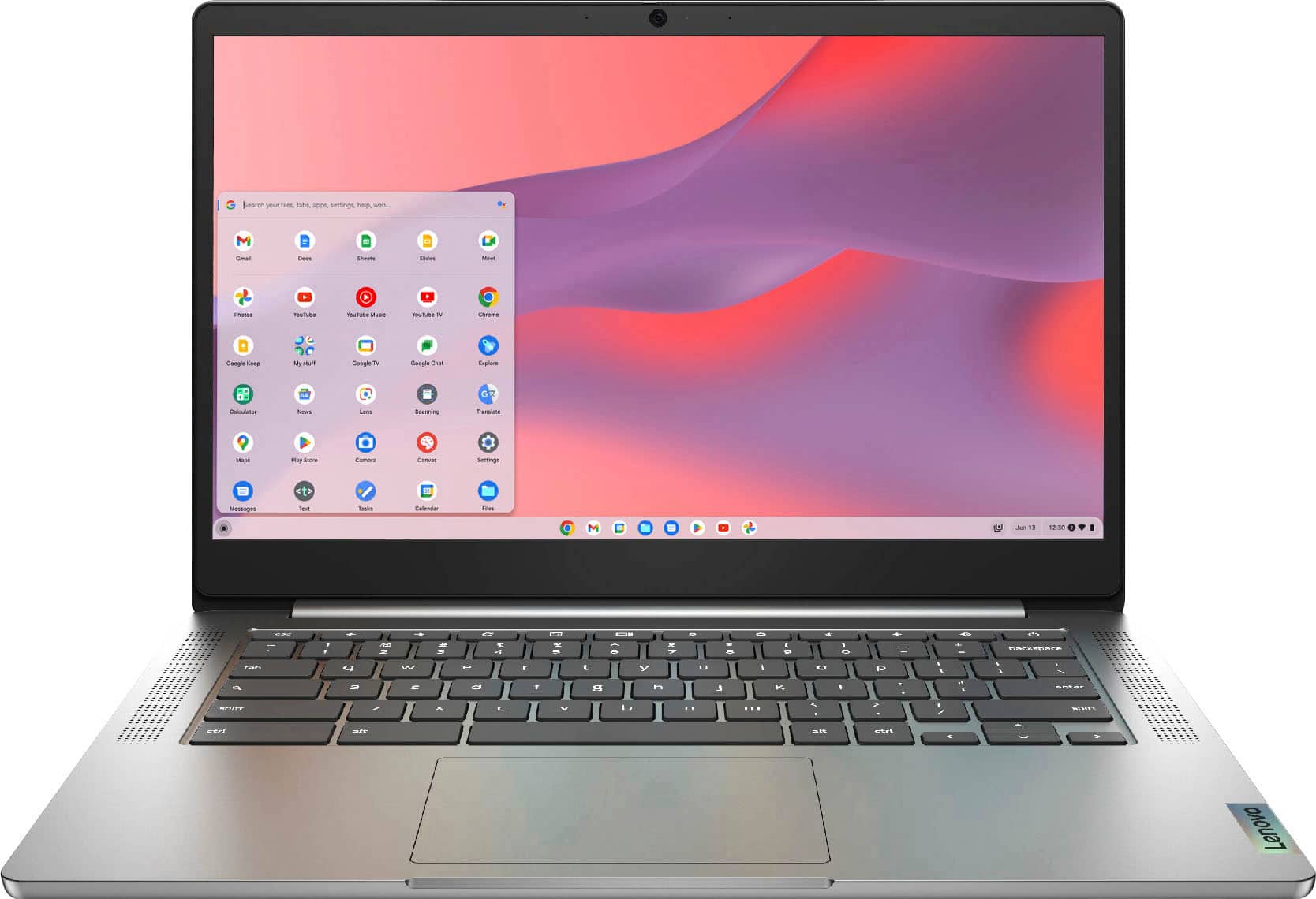
A:AnswerThis Lenovo Chromebook 3 14 model number 82KN0001US, ships with 1x USB-C 2.0 (support data transfer, Power Delivery 2.0, and DisplayPort 1.1a) port for video out to an external monitor. The Chromebook 3 14 supports up to 2 independent displays (native display and 1 external monitor via USB-C). USB-C supports up to 1920x1080@60Hz. You can connect an HDMI monitor to this Chromebook by using a USB-c to HDMI adapter, like this one: https://www.bestbuy.com/site/insignia-usb-c-to-hdmi-adapter-black/6473497.p?skuId=6473497. Be sure the USB-c to HDMI adapter you are using is first compatible with the Chrome Operating System. Will support resolutions of 1920 x 1080. We recommend you check with the adapter's manufacturer's web site for the compatibility and capabilities of the specific adapter you are using. If the issue continues we recommend you contact Lenovo Tech Support for Chromebooks at: 800-426-7378.
A:Answerno, I would normally say install it with Linux but its arm based and doesn't work with x86 appcaltions. For those games, your going to need a lot higher in laptop bmg drive is a very demanding game.
A:AnswerYes I have found a couple of different cases on Amazon there is a Snap-On hardcore case or shell I guess they call it and there is a softer magnetic cover with a built-in kickstand you can put the model number in Amazon and it will bring up a couple of different options in a couple of different colors
A:AnswerYes. The Lenovo Chromebook 3 14 is compatible with Google Play Store APPs. We recommend you check the requirements and compatibility of the specific APPs you want to use with the Chromebook 3 14 and the Chrome Operating System that it uses.
A:AnswerThat will depend on the scanner you will be using an that scanner's requirements and compatibility with the Chrome Operating System installed on this Lenovo Chromebook 3 14. Here is a link to more information about using a scanner with a Chromebook: https://chromeready.com/2690/the-10-best-scanners-for-chromebooks-in-2020/
A:AnswerThe Chrome Operating System. You should first start with the software you will need to use to run the software you want to use with your new computing device. We then recommend you check with the those specific software publisher's web sites of the software you will be using with your new computing device, for their compatibility with either the Chrome Operating System or Windows 10 Home 64-bit operating system and the minimum/recommended hardware requirements (Is a Graphics card required, the processor speed and the minimum required system RAM and the minimum available hard drive space) to run their program, then compare those requirements to this system's configuration or a similar Windows Operating System device. Choose the Operating System the meets your computing needs the best.
A:AnswerAll Chromebooks come with built-in malware and virus protection, with multiple layers of security: Automatic update system: Virus protection stays up-to-date automatically, so you are always running the latest and most secure version. If you choose to add a 3rd party virus protection software or use a VPN, be sure the specific software you install is compatible with the Chrome Operating System and its existing virus protection. Here is a link to more information: https://support.google.com/chromebook/answer/3438631?hl=en