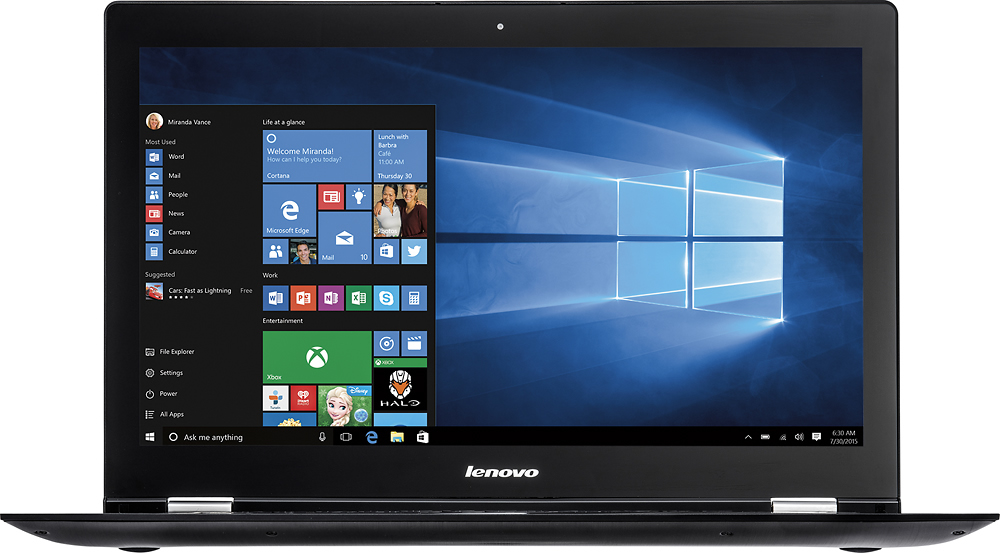
A:AnswerThis system has Bluetooth 4.0. Be sure that the device you are trying to pair with this system is Bluetooth 4.0 compatible. If the device is an Apple product, it probably is not compatible with Bluetooth 4.0. Be sure that Bluetooth is turned on, on this system:
HOW TO TURN ON BLUETOOTH ON A WINDOWS 10 SYSTEM:
1.Use the Windows + I keyboard shortcut to open the Settings app.
2.Navigate through Devices and go to Bluetooth.
3.Click on the peripheral you want to disconnect, and click the Remove button and then click Yes to confirm.
A:AnswerYou can check the product specific Student Deals at Best Buy here:
http://www.bestbuy.com/site/misc/back-to-school/pcmcat334100050000.c?id=pcmcat334100050000
A:AnswerWe recommend you contact the game software publisher for their minimum/recommended requirements to play their games, then compare those requirements to this system's configuration.
A:AnswerThe Intel Core I-5-6200U processor on this system has built in over-clocking (Turbo-Boost). Idle clock speed is 2.3GHz and under stress, Turbo-Boost raises the clock speed to 2.8GHz automatically.
A:AnswerHer is a link to a picture of the AC adapter that comes with the Edge 2:
http://shop.lenovo.com/SEUILibrary/controller/e/web/LenovoPortal/en_US/catalog.workflow:item.detail?hide_menu_area=true&GroupID=460&Code=888014197
It has a standard wall plug.
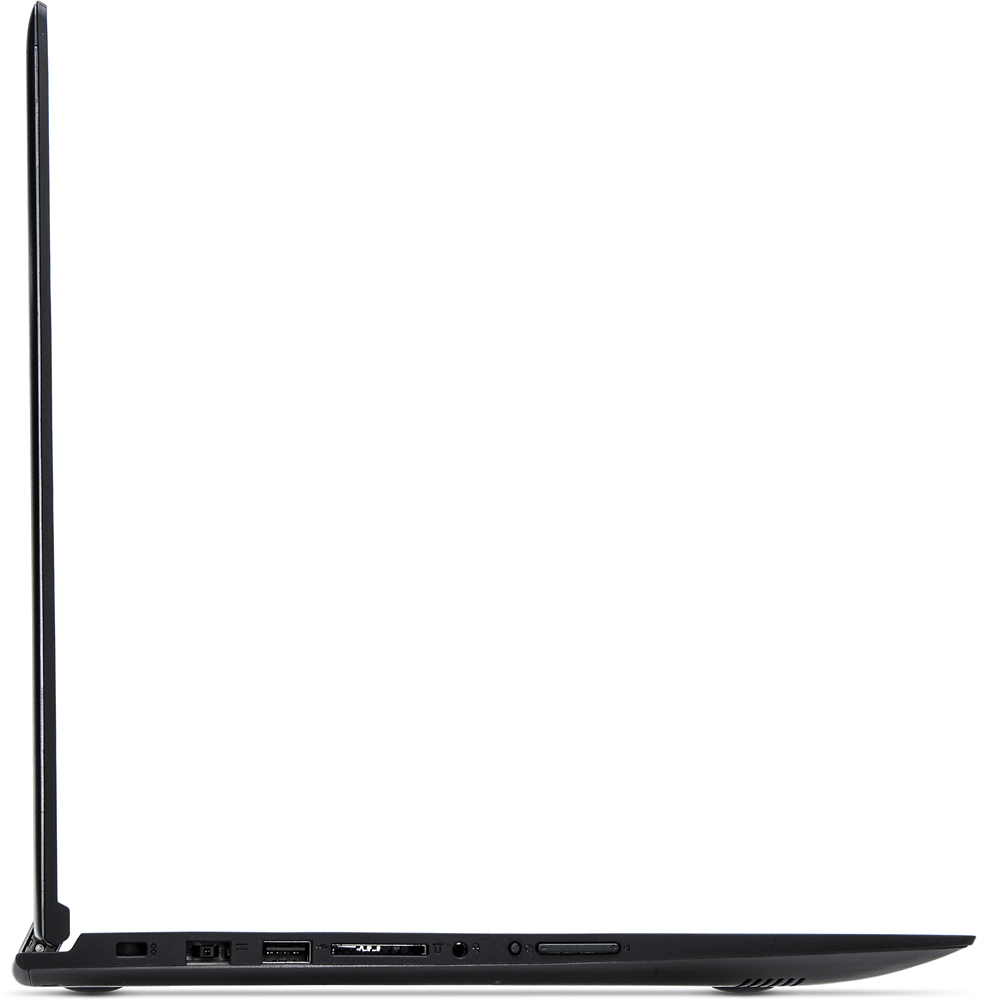
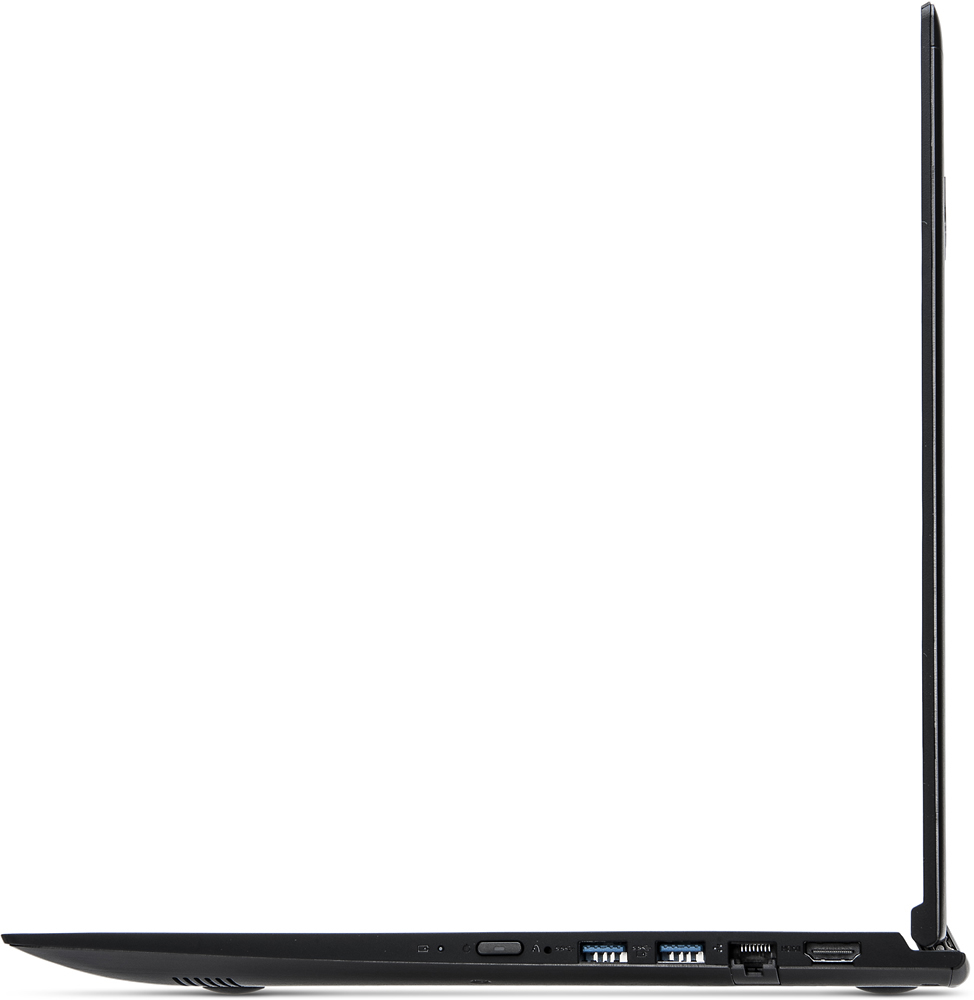
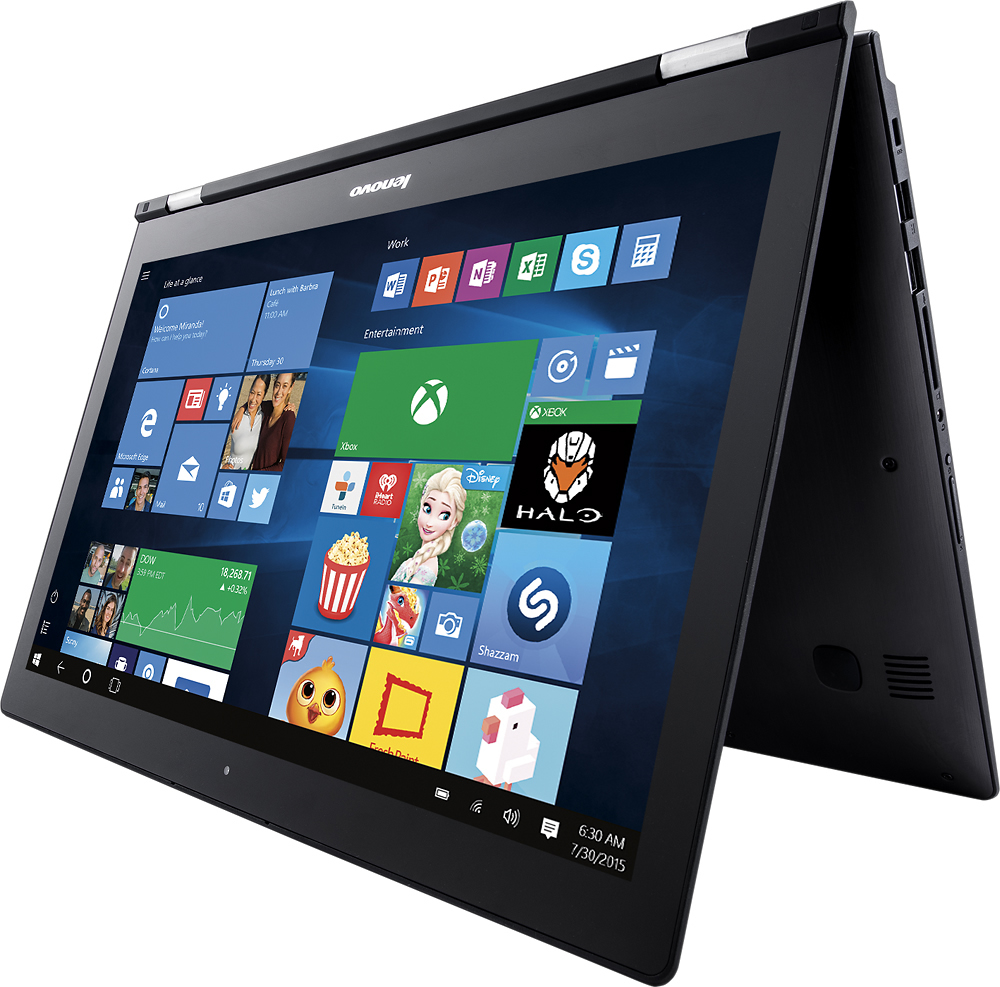
A:AnswerThis system is equipped with OneKey Recovery System. There is a very small button on the right side of this system. It is just above the volume control on the right side. You will need a pen or pencil to push this button. Plug in your device, let the battery charge for a short time. Push the OneKey Recovery Button with a pen or pencil. The system should boot to a screen that will allow you to choose to boot normally to desktop or recover to factory default settings. We recommend you try booting to desktop first, then follow the link below to Lenovo.com support-drivers to look for driver updates for your BIOS:
http://support.lenovo.com/us/en/products/Laptops-and-netbooks/Lenovo-Edge-Series-Laptops/edge-2-1580/80QF/0005US?linkTrack=Caps%253ABody_SearchProduct&tabName=downloads&beta=false
A:AnswerWe recommend you check with the software publisher for their minimum/recommended requirements to run their software, then compare those requirements to this system's configuration.
A:AnswerYou can get additional information about Lenovo International Warranty Services by following the link below:
https://support.lenovo.com/us/en/iwslookupidea
The Limited Manufacturer's Warranty means the coverage applies to "original build" issues, those not caused by the user.