A:AnswerHow do I turn ON the wireless charging station on this LENOVO all in one system ? I tried placing my phone on it, but nothing happened. Can you please navigate me through the process of wireless charging activation ?
Could you please specify that whether iPhone 7 or honor 10 lite is compatible?? And can you please give some examples of which iPhone is compatible with the base of the qi wireless charging and also some other phones.
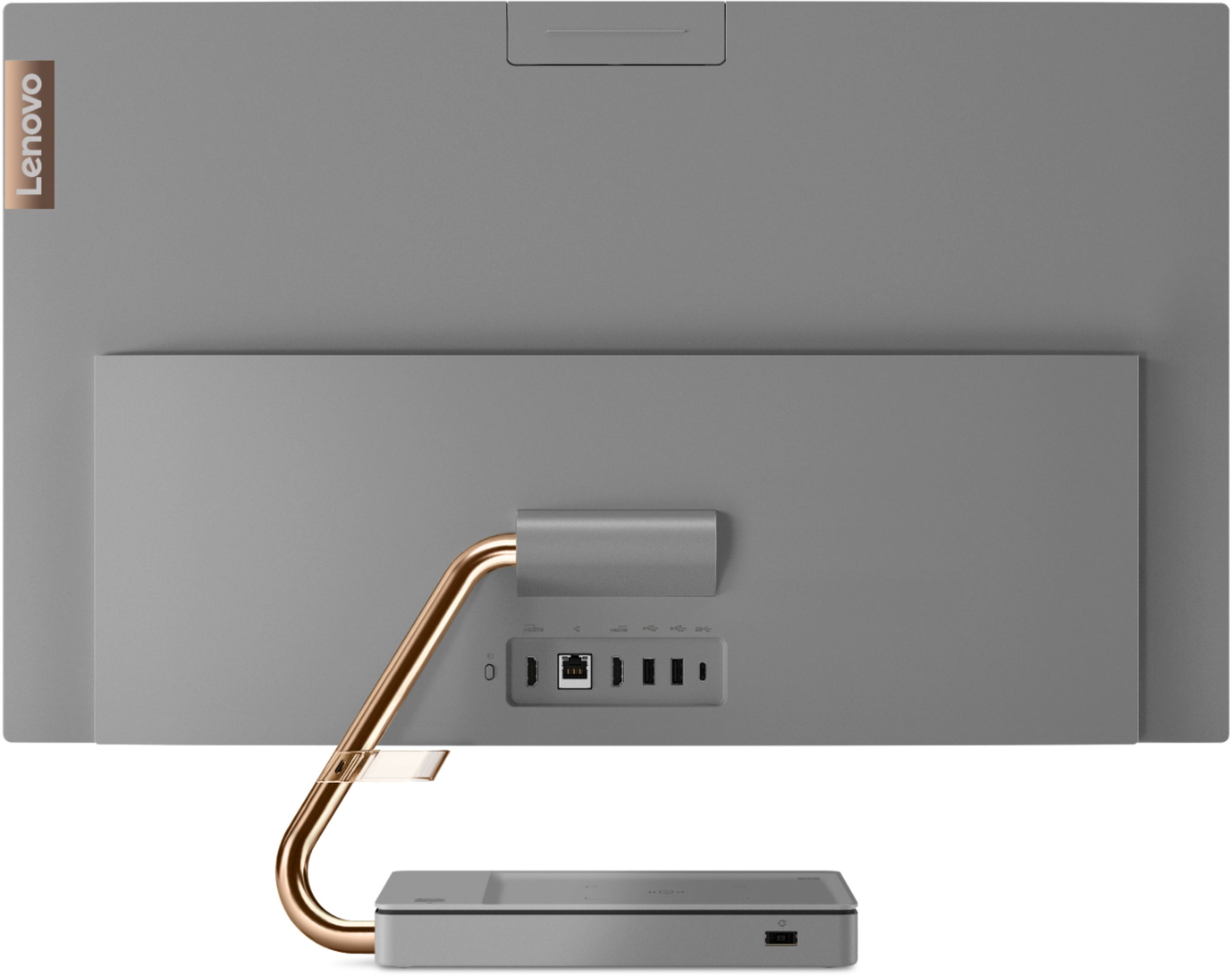
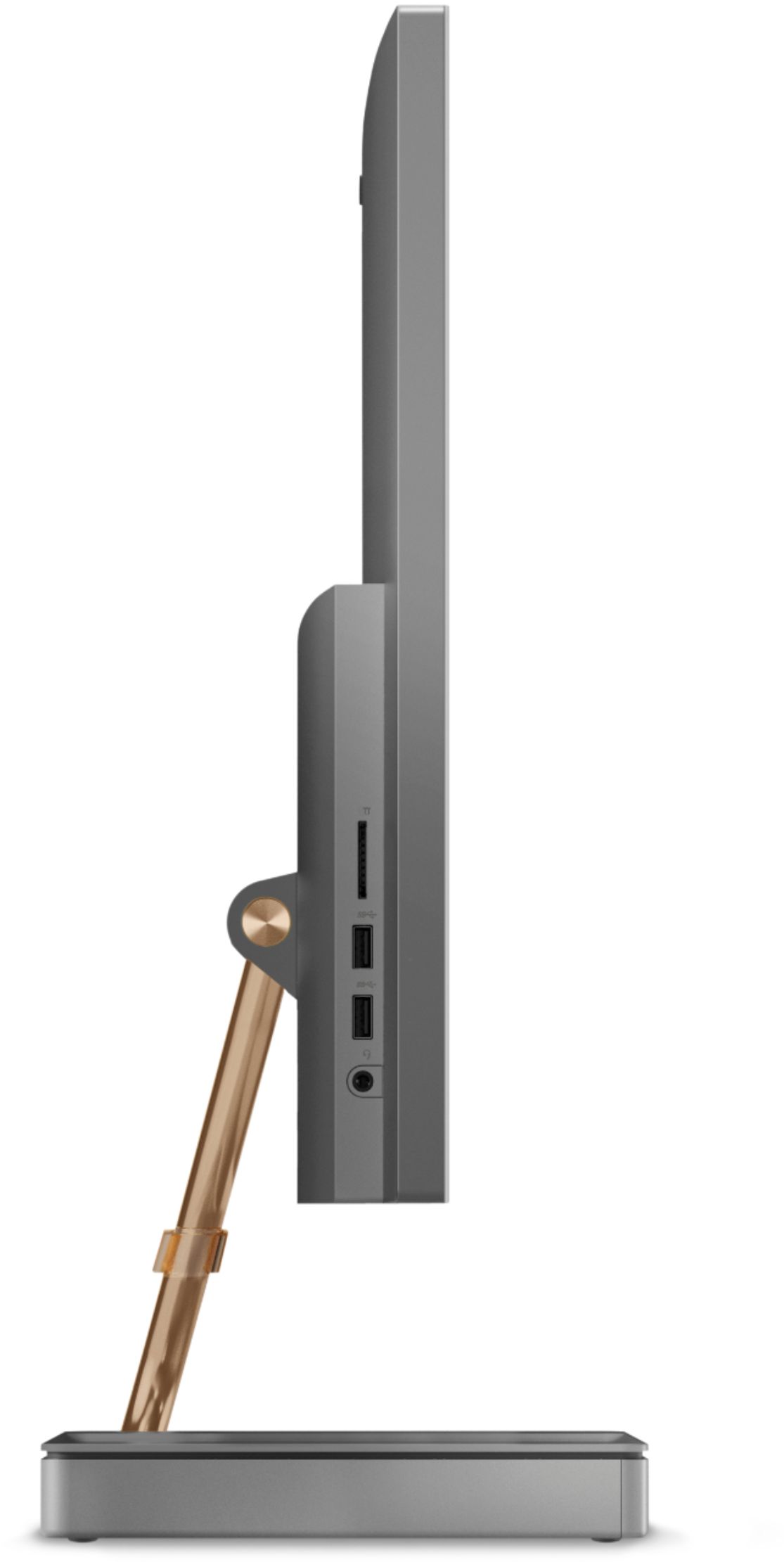
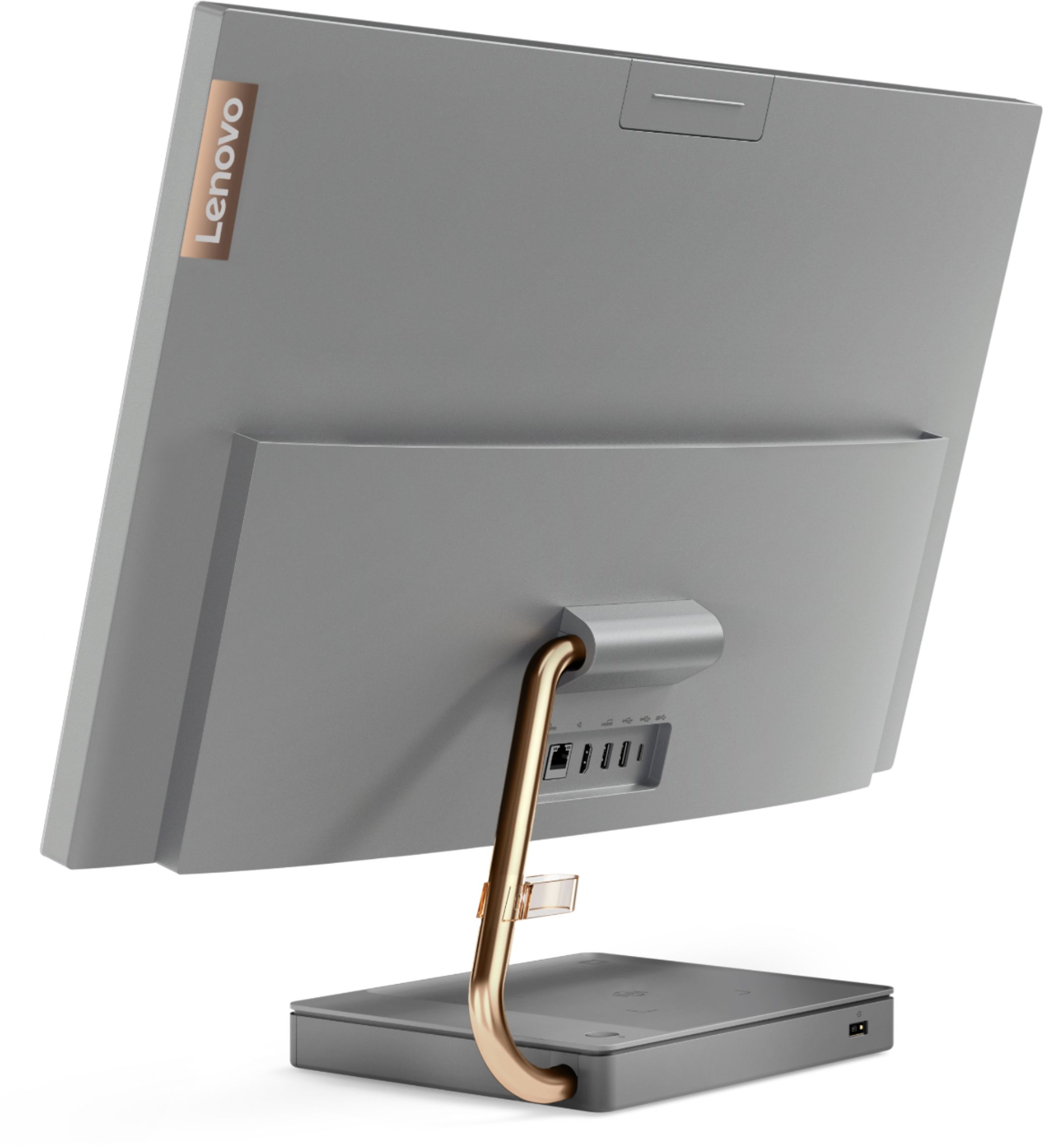
A:AnswerThe Lenovo IdeaCentre A540-27 All-In-One system, model number F0EK007HUS ships with one HDMI-Out port and one HDMI-In port. With the HDMI-Out port you can connect one external monitor to this computer. With the HDMI-In port you can attach an external device like a gaming console and use the IdeaCentre A540-27 AIO as the screen for the gaming console. By connecting one external monitor to the HDMI-Out port you can use both the system screen and the external screen for two monitors.
A:AnswerNo. The Lenovo IdeaCentre A540-27 All-In-One system does not have a built in CD/DVD drive. You can use an external CD/DVD drive that is compatible with Windows and connects via USB, with this model, if you need a CD/DVD drive.
A:AnswerThe Lenovo IdeaCentre A540-27 All-In-One system ships with 12GB of RAM. The maximum RAM this system can support is 32GB in two RAM memory slots. You can use the Live Chat feature on this product web page to contact the Geek Squad about your upgrade options.
A:AnswerYou can use an external solid state hard drive like this one: https://www.bestbuy.com/site/wd-my-passport-ssd-512gb-external-usb-3-1-gen-2-portable-solid-state-drive-with-hardware-encryption-black/6253912.p?skuId=6253912
A:AnswerThere is a USB 2.4GHz WiFi receiver within the battery compartment of the mouse. Take this out and plug it into a USB port on the computer. Install the included battery into the mouse. The keyboard has a rechargeable battery. Use the included Mini-USB to USB cable to charge the keyboard battery, there is a Mini USB port on the front on the keyboard. Plug the USB end into a USB port on the computer. Be sure the computer is turned on. Once the keyboard is plugged an charging you will be able to use the keyboard while it is charging. Once the keyboard finishes charging you can unplug and use wirelessly.
A:AnswerYes. The IdeaCentre A540 delivers a truly immersive sound experience. Featuring certified JBL by Harman speakers, Dolby premium sound, two 3W tweeters, and a 5W subwoofer, it gives you exceptionally rich, clear audio.
A:AnswerThe Lenovo IdeaCentre A540-27 All-In-One system, model number F0EK007HUS, is compatible with up to 32GB of RAM within two TAM memory slots. The RAM is not user upgradable. The hard drive format is M.2 2280 NVMe TLC OPAL solid state and can be user upgraded. We recommend you consult your certified technician about upgrading RAM within this model.
A:AnswerHere is a link to the monitor only version of this All-In-One computer's styling and the equal screen resolution: https://www.bestbuy.com/site/lenovo-q27q-1l-27-ips-led-qhd-freesync-monitor-natural-low-blue-light-built-in-speakers-displayport-hdmi-black/6453642.p?skuId=6453642
A:AnswerThe rechargeable keyboard that ships with the IdeaCentre A540-27 All-In-One system charges by plugging in the included USB-c to USB cable into the keyboard (USB-c side) then attaching the other end of the charging cable into a USB port on the computer. You will be able to use the keyboard while it is charging. The USB-c to USB charging cable for the keyboard ships within the accessories box within the main shipping box, the computer shipped in.
A:AnswerYes there are several way to turn off your screen within Windows 10. Here is a link to more information: https://www.maketecheasier.com/turn-off-windows-screen/
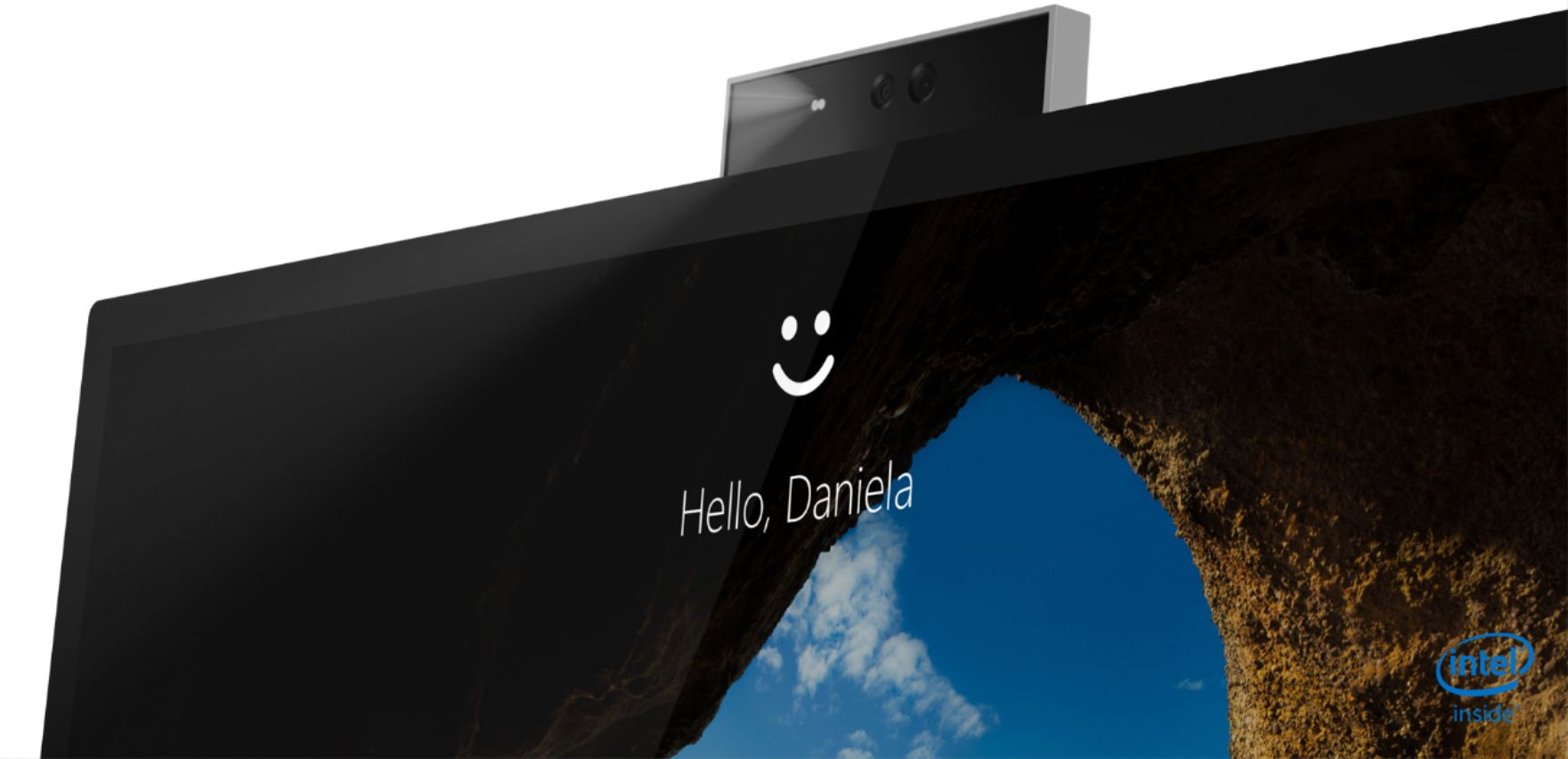
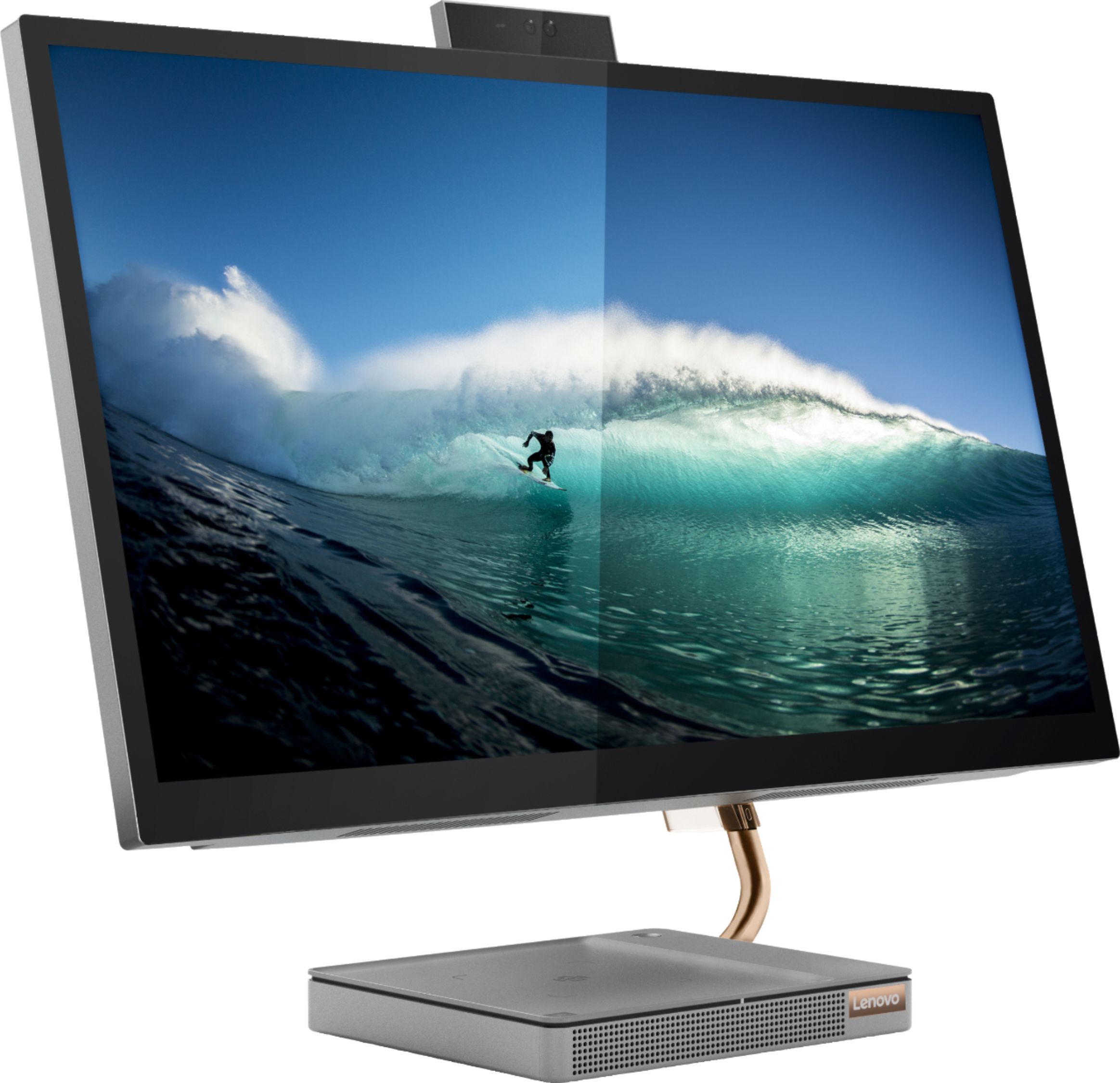
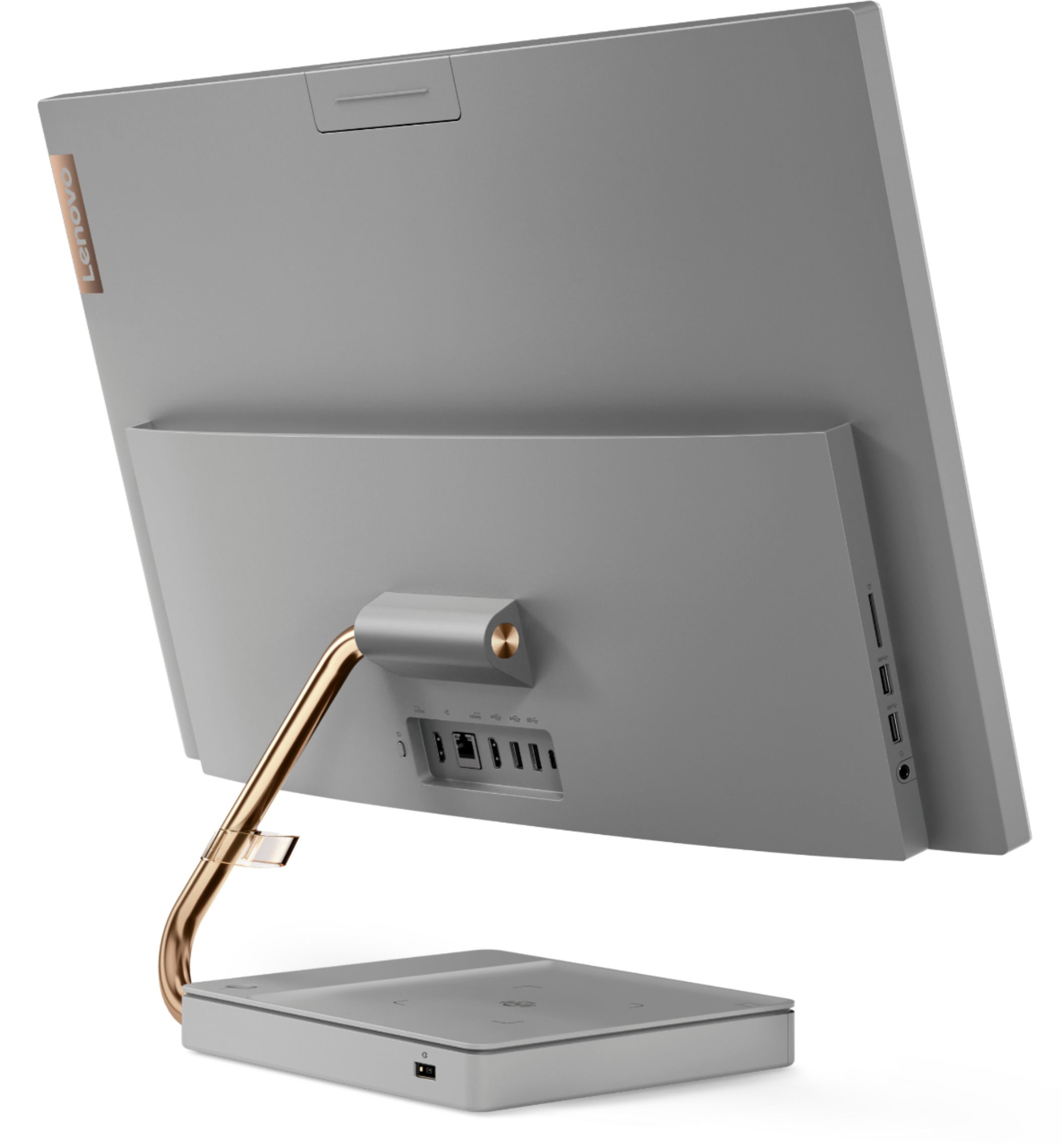
A:AnswerThe camera is located on the top you push it down and it pops up when you need to use it .
Its nice because when your not using it you push it down and its off and out of site so far had this computer for a week and its really nice