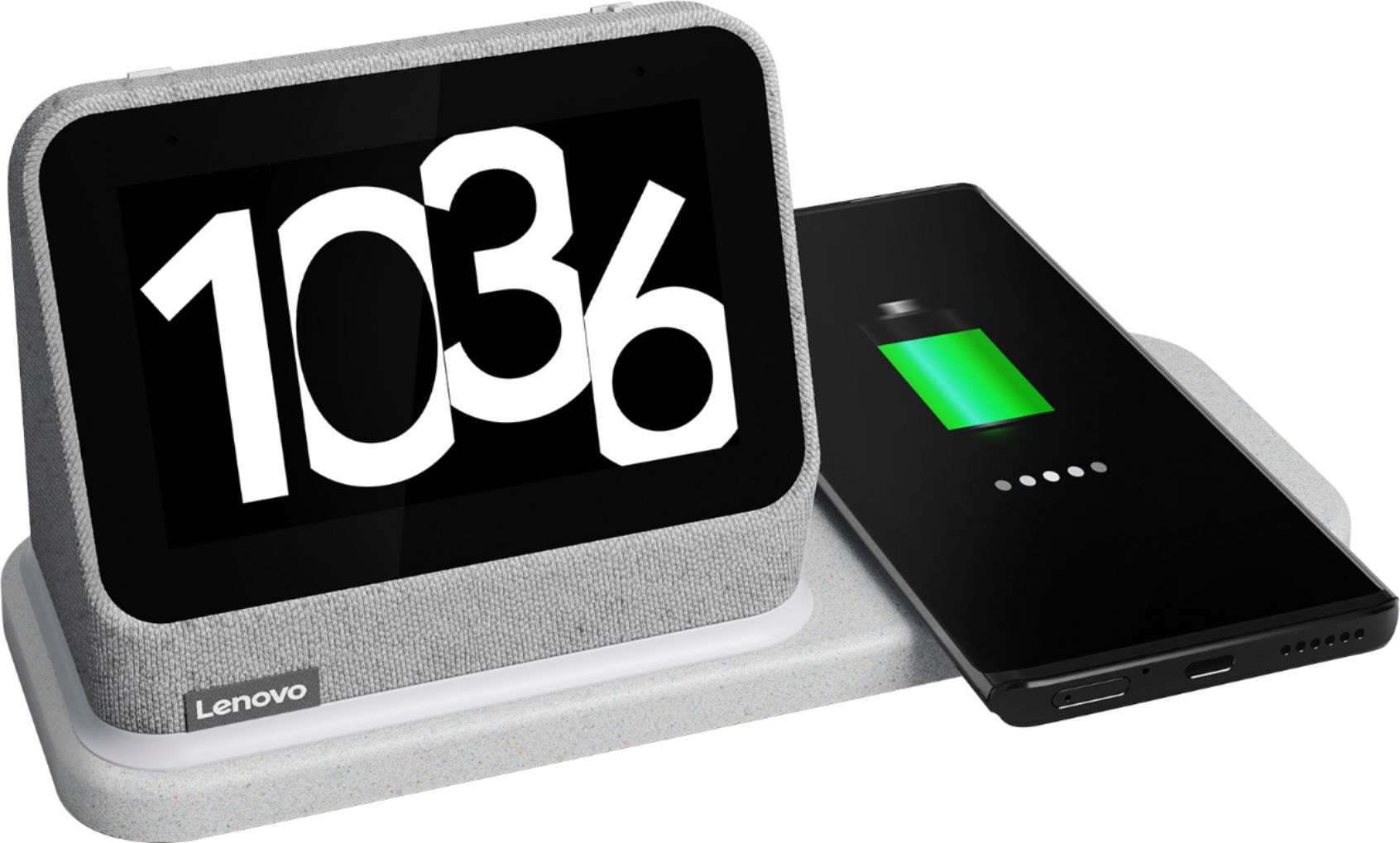
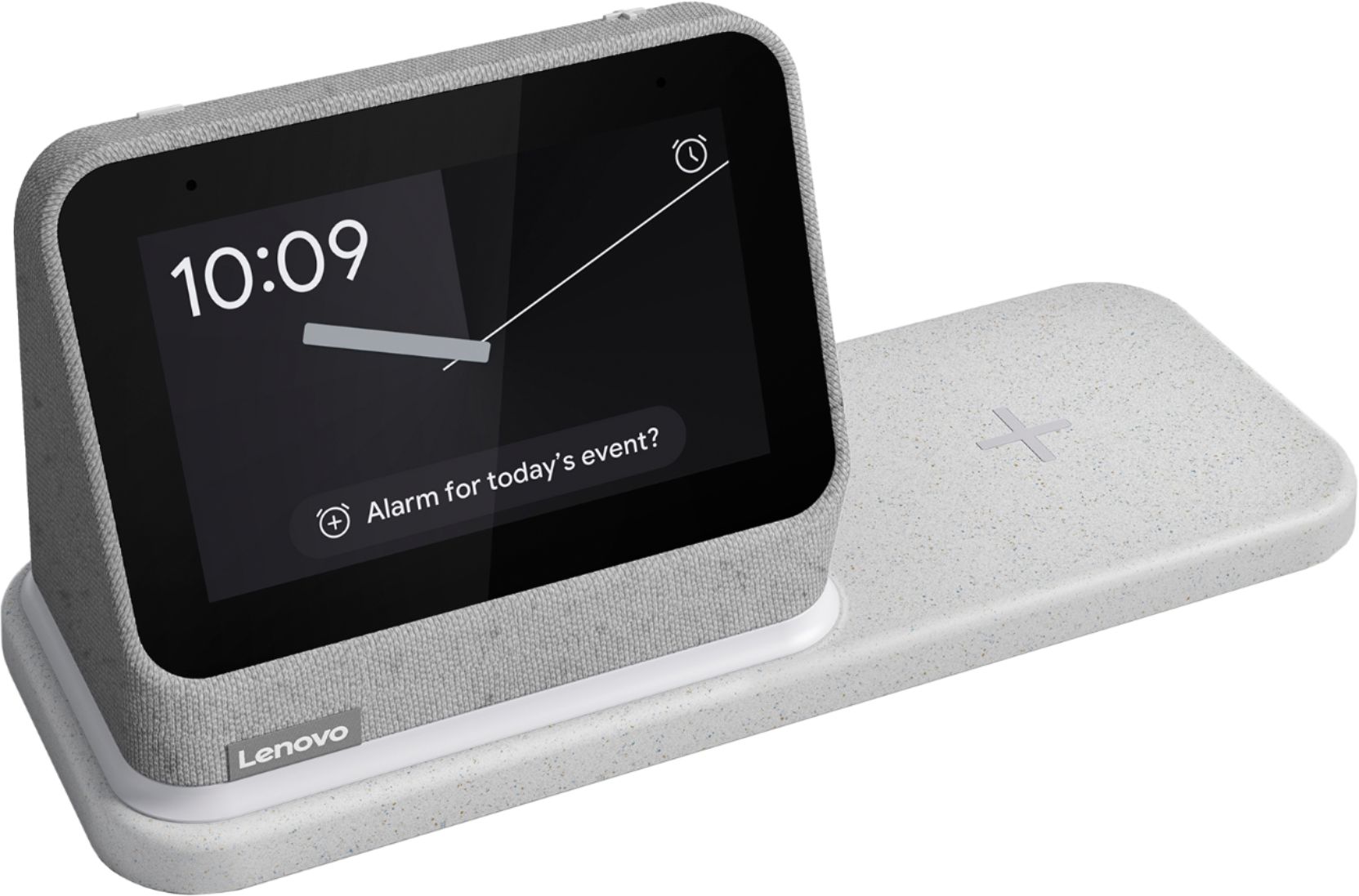
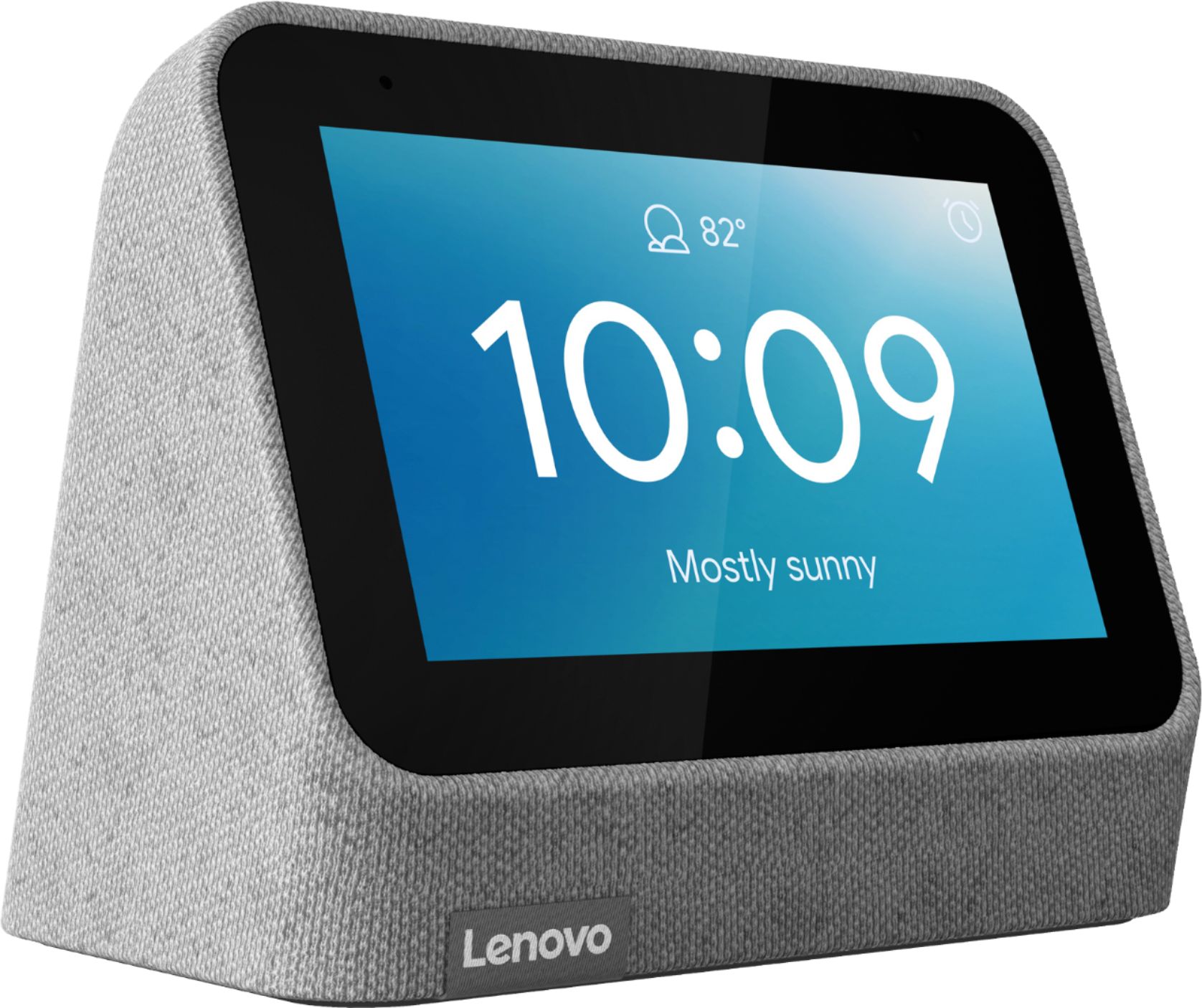
A:AnswerI just got the clock a couple weeks ago and seam to be having the same problem as you. I think we are stuck with the problem. The only help I found is you can get the white numbers to be outlined in black during the day to help see them. Or if you are okay with random colors that are easier to see, one of the backgrounds gave that choice. Personally, it would go a long way into making this clock a much nicer clock if you could choose the color of the numbers which would solve our problem!
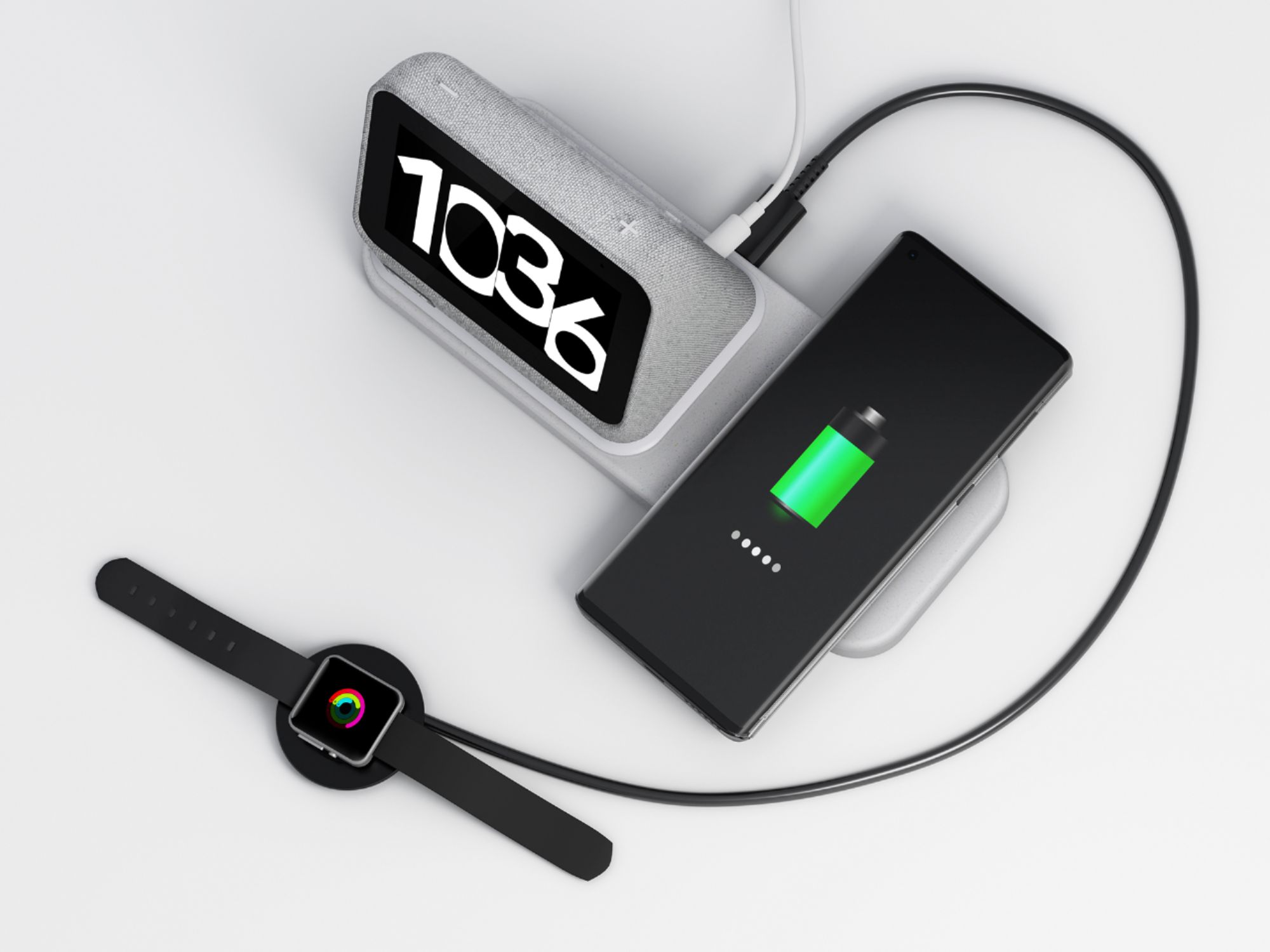
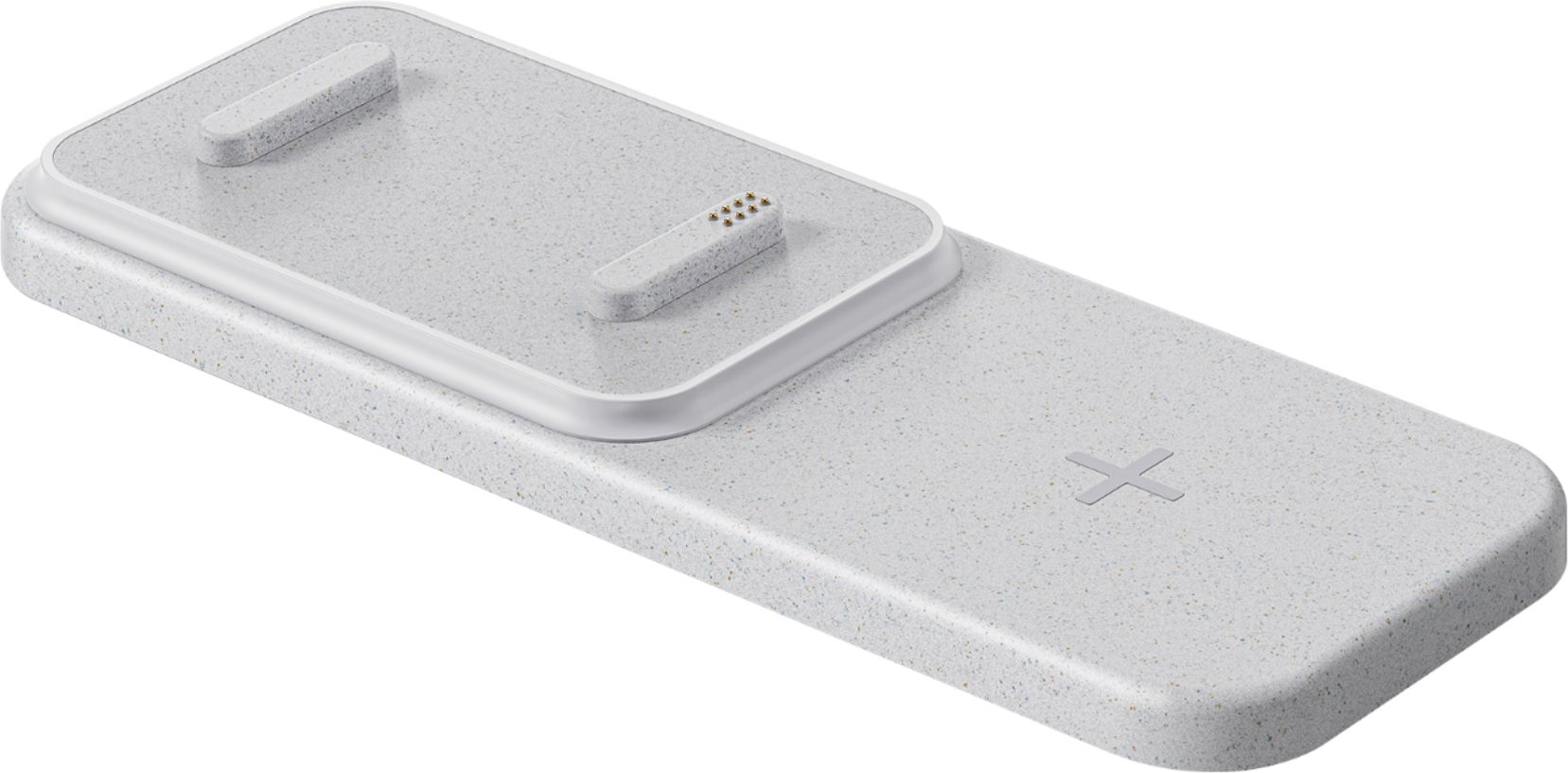
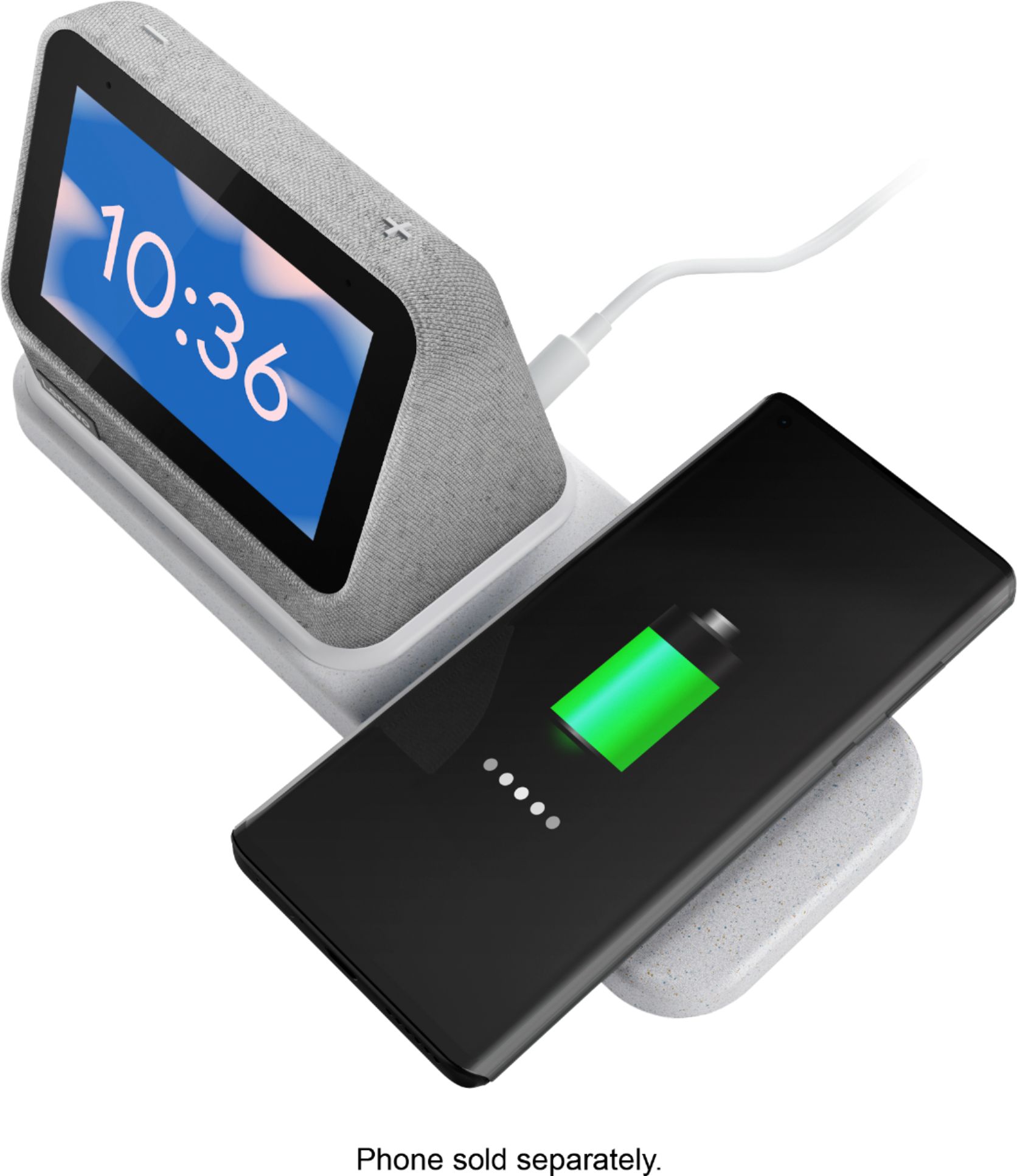
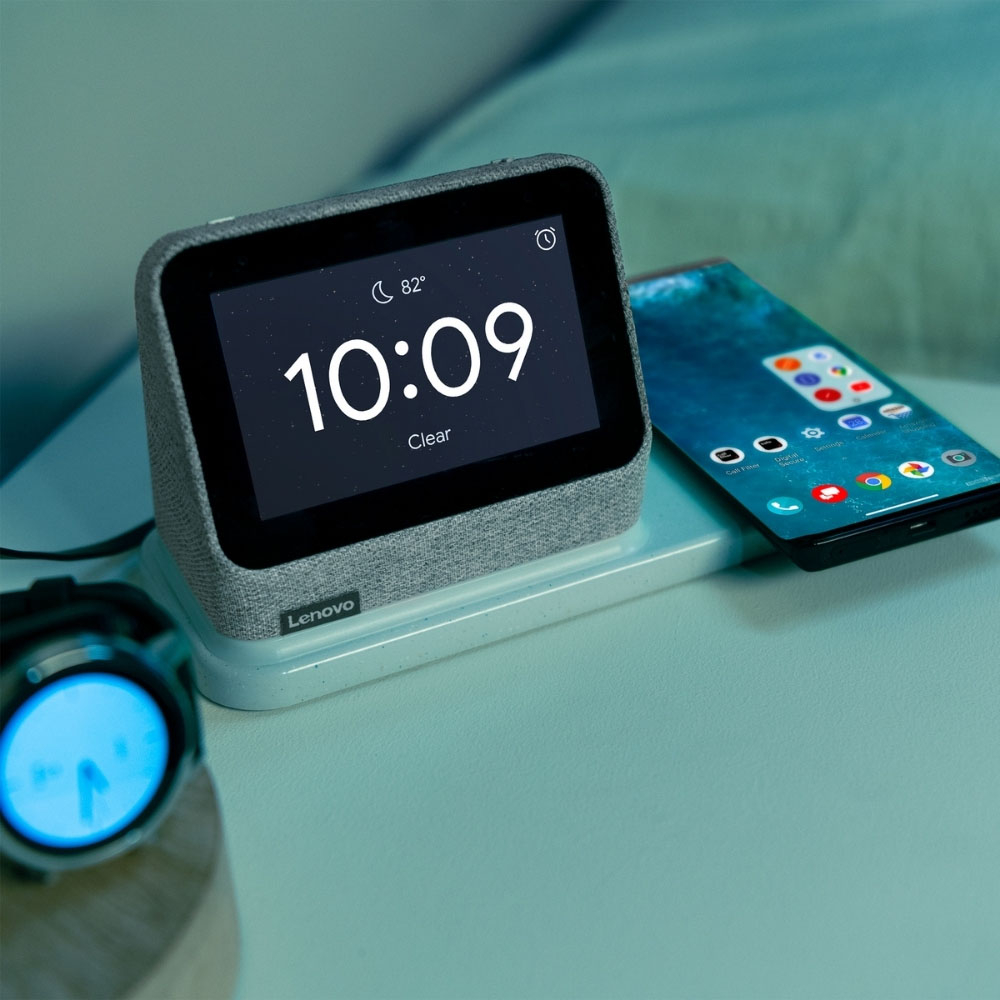
A:AnswerThis Lenovo Smart Clock 2 with Wireless Charging Dock is compatible with both Qi and MagSafe Wireless Charging formats. Be sure you are placing the compatible phone in the proper position for charging on the dock. The nightlight will turn on and you will see the charging indicator on the phone as well, light up when the compatible phone is positioned properly on the wireless charger. If your phone is compatible, but is still not charging, with the wireless charging dock connected to the Smart Clock 2, reset the Smart Clock 2 back to original factory settings by holding down both the minus and plus buttons on the top of the Smart Clock 2 for 10-seconds. Then follow the on-screen instructions. If after this reset your compatible phone still does not charge, we recommend you contact Lenovo Tech Support for Smart Devices for additional help at: 866-426-0911.
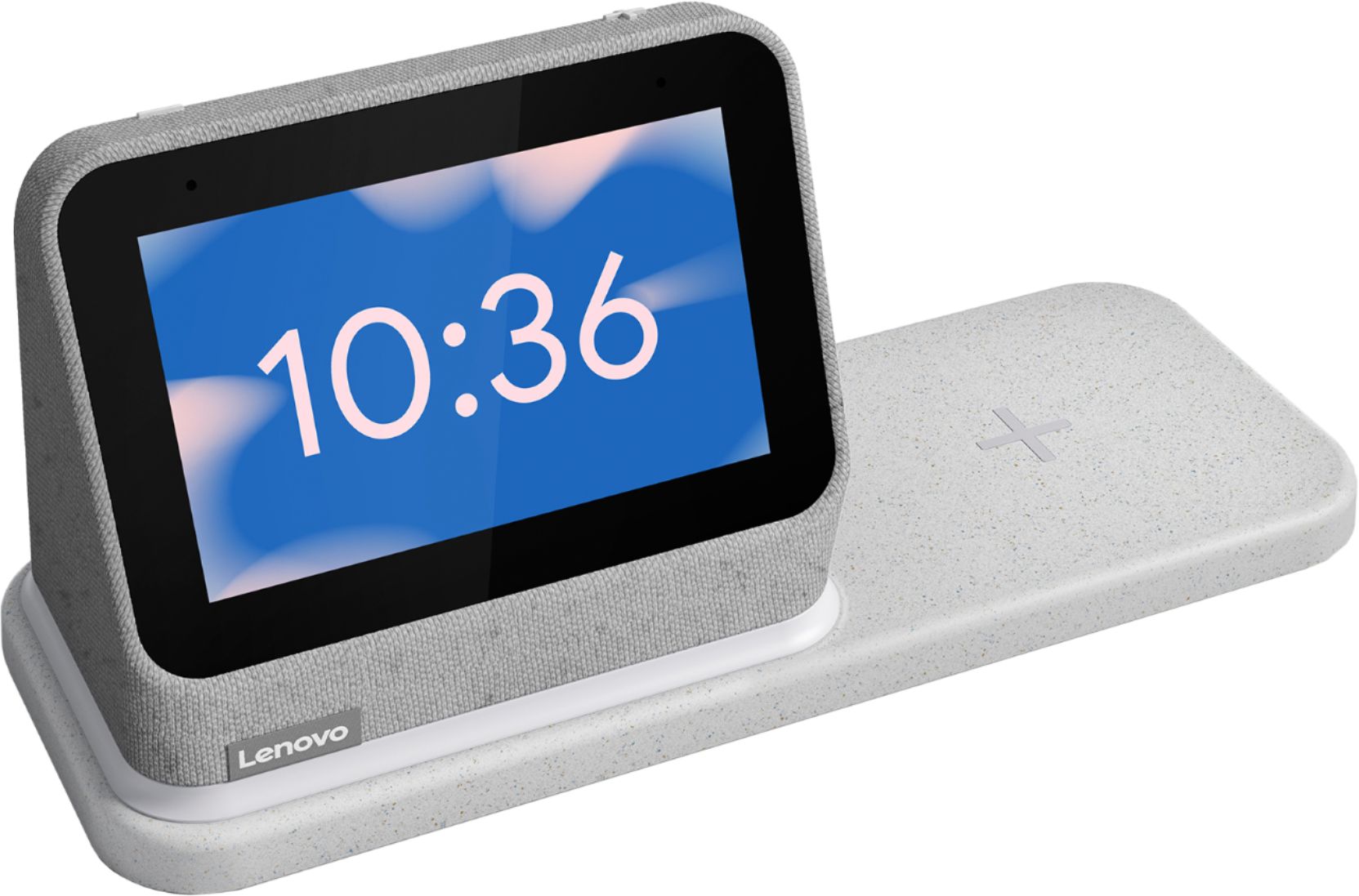
A:AnswerThe Lenovo Smart Clock 2 with Wireless Charging Dock does have an Auto Brightness Control setting. To enable Auto Brightness, swipe up on the touch screen to reveal the settings menus. Select the sun icon to control brightness. Once inside the brightness settings control, tap the sun icon again. A letter A will appear within the sun icon. This indicates that Auto Brightness is turned on and will control the screen brightness based on the ambient lighting.
A:AnswerYou can use music streaming service that are compatible with the Google Assistant within this Lenovo Smart Clock 2 with Wireless Charging Dock as your alarm sound by using the Google Home APP you use to initially setup the Smart Clock 2 from your phone or tablet. We recommend you check your specific streaming service's compatibility with Google Assistant and the Google Home APP.