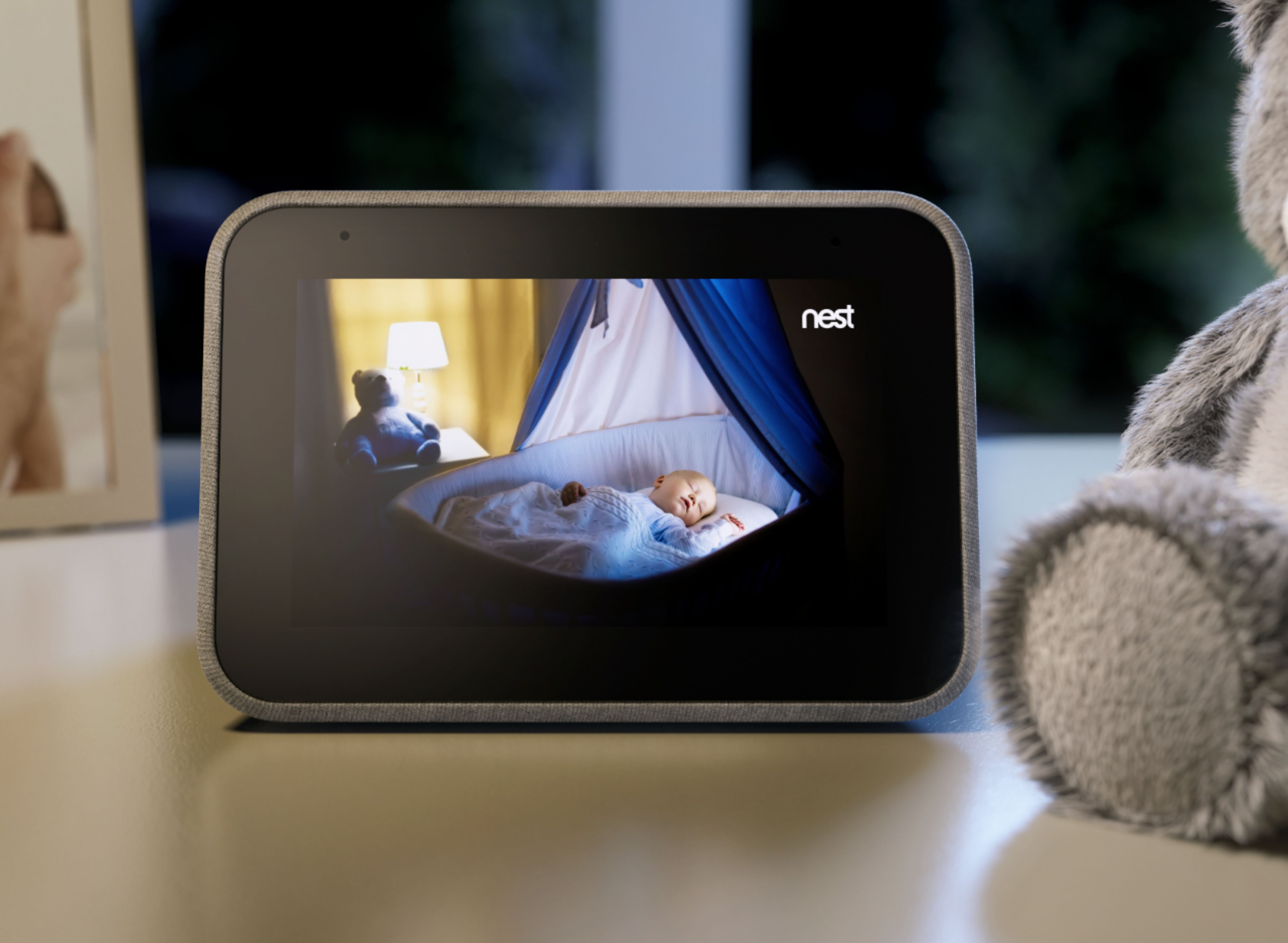
A:AnswerHi Dan, we are happy to hear you are considering purchasing the Lenovo Smart Clock with Google Assistant. To answer your question, yes, this device functions as an intercom with the ability to broadcast and receive messages, and it integrates with the Google Nest Hub Max seamlessly.
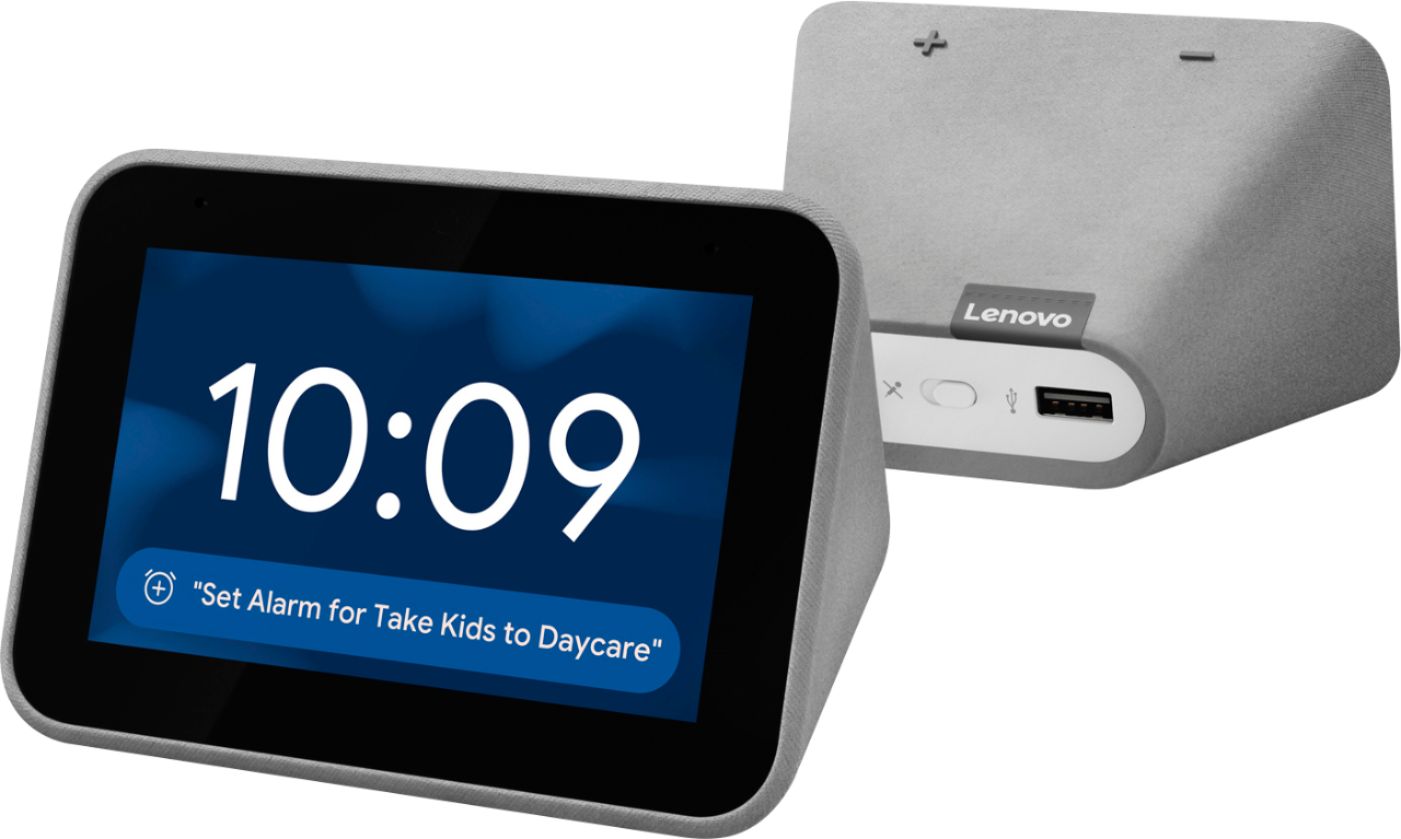
A:AnswerNo you are not able to use FaceTime on the Lenovo Smart Clock. The device itself does not have a built-in camera, so it will not support any video calling apps.
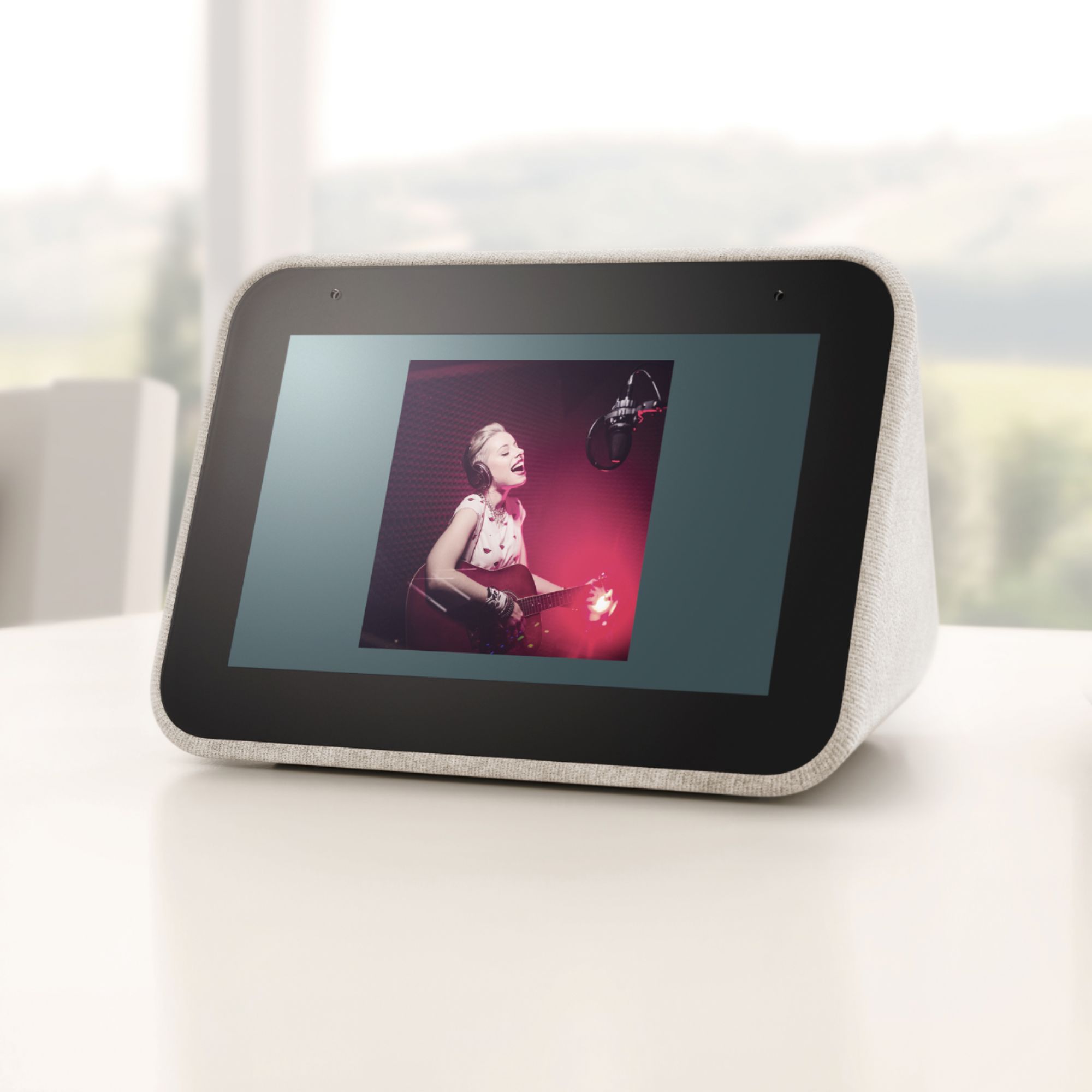
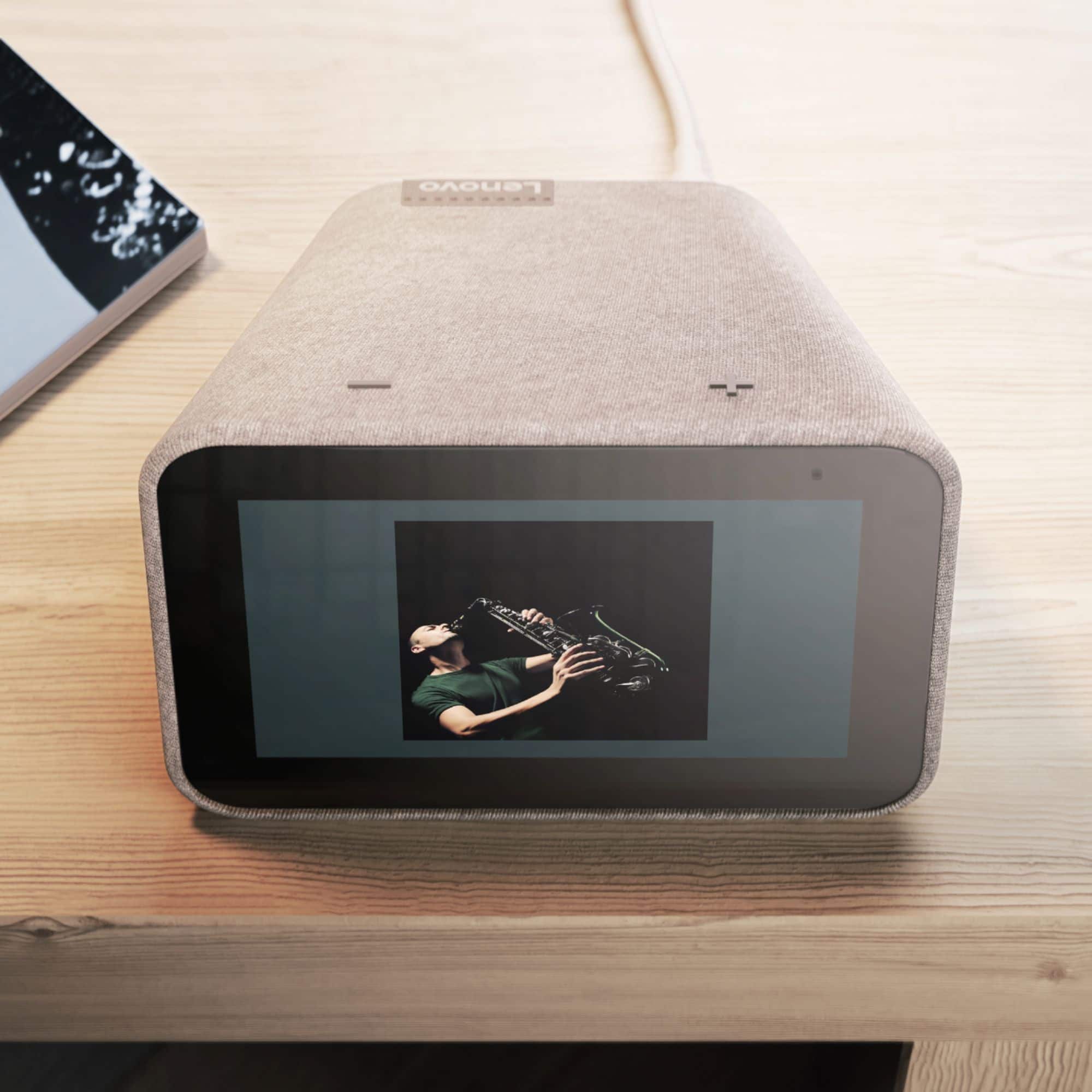
A:AnswerYes, you are able to. You should also be able to simply request that sound by saying "Hey Google! Play white noise", once your device is connected to a Spotify or Pandora account. You can also cast from your phone if you prefer controlling from that.
A:AnswerYou will only need the Google Home app on your phone for initial setup and for some of the settings and features, otherwise you do not need a full Google Home to use the Smart Clock.
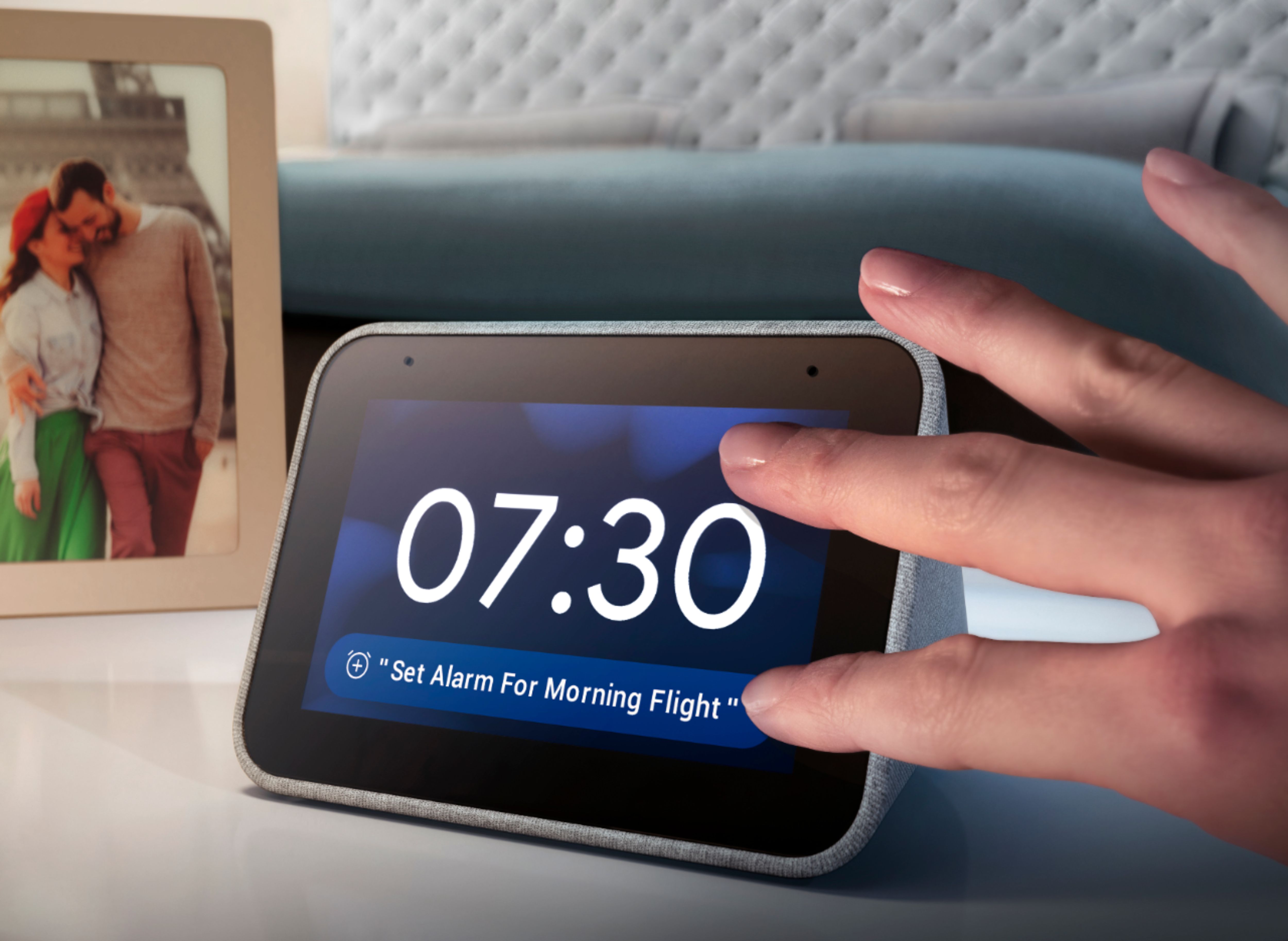
A:AnswerHi! Thanks for your question. Yes, you can set multiple daily reminders and your Lenovo Smart Clock with Google Assistant will remind your verbally and visually.
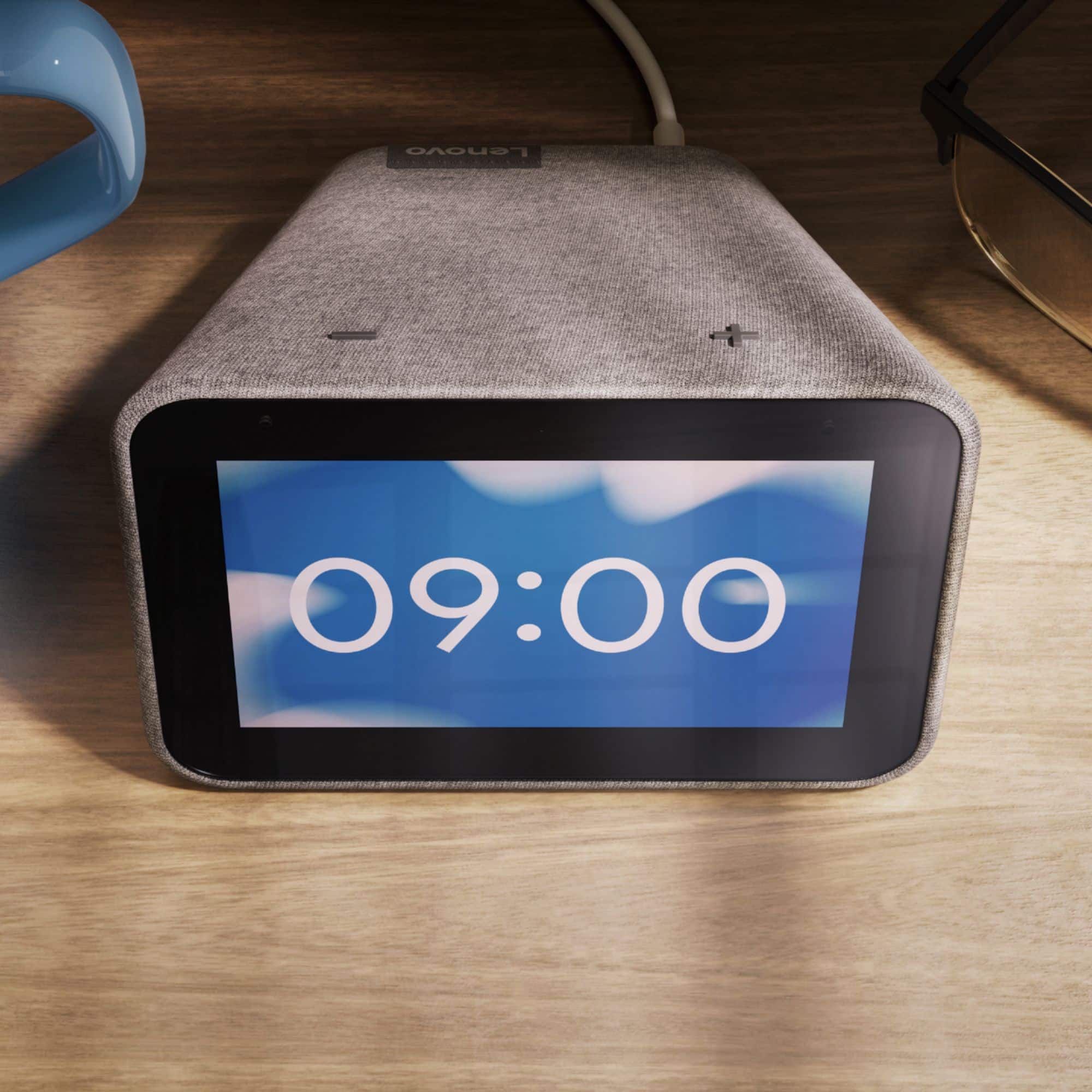
A:AnswerThe Lenovo Smart Clock serves as a minimalist smart home device for your bedside table. To learn more about all the amazing functions and customizations, visit our How-To & Solutions Guide.
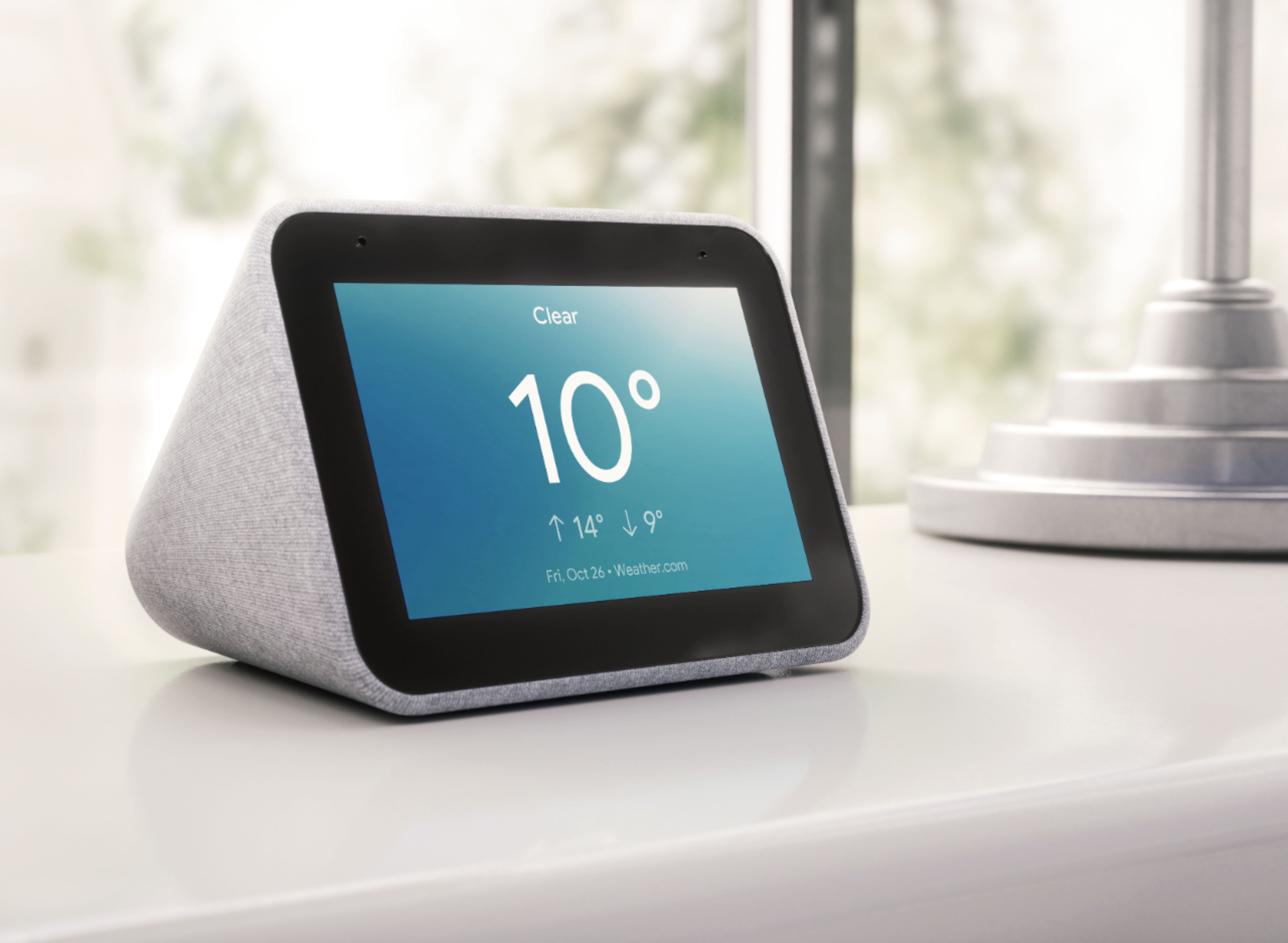
A:AnswerHi Kelly! Currently this device will not display indoor temperature. You can get a verbal response to the indoor temperature if you have a compatible smart thermostat connected to your home network.
A:AnswerHello! No, you do not need anything else. Just download the Google Home app on your phone or tablet to get the Lenovo Smart Clock setup. From there you can stream from Spotify, Pandora, YouTube Music, and more with a simple voice command.
A:AnswerOnly when your in the same wifi.
Just like all google home devices, you have to be home or on the same wifi to be able to control it.
So, no you cant activate it when your at work.