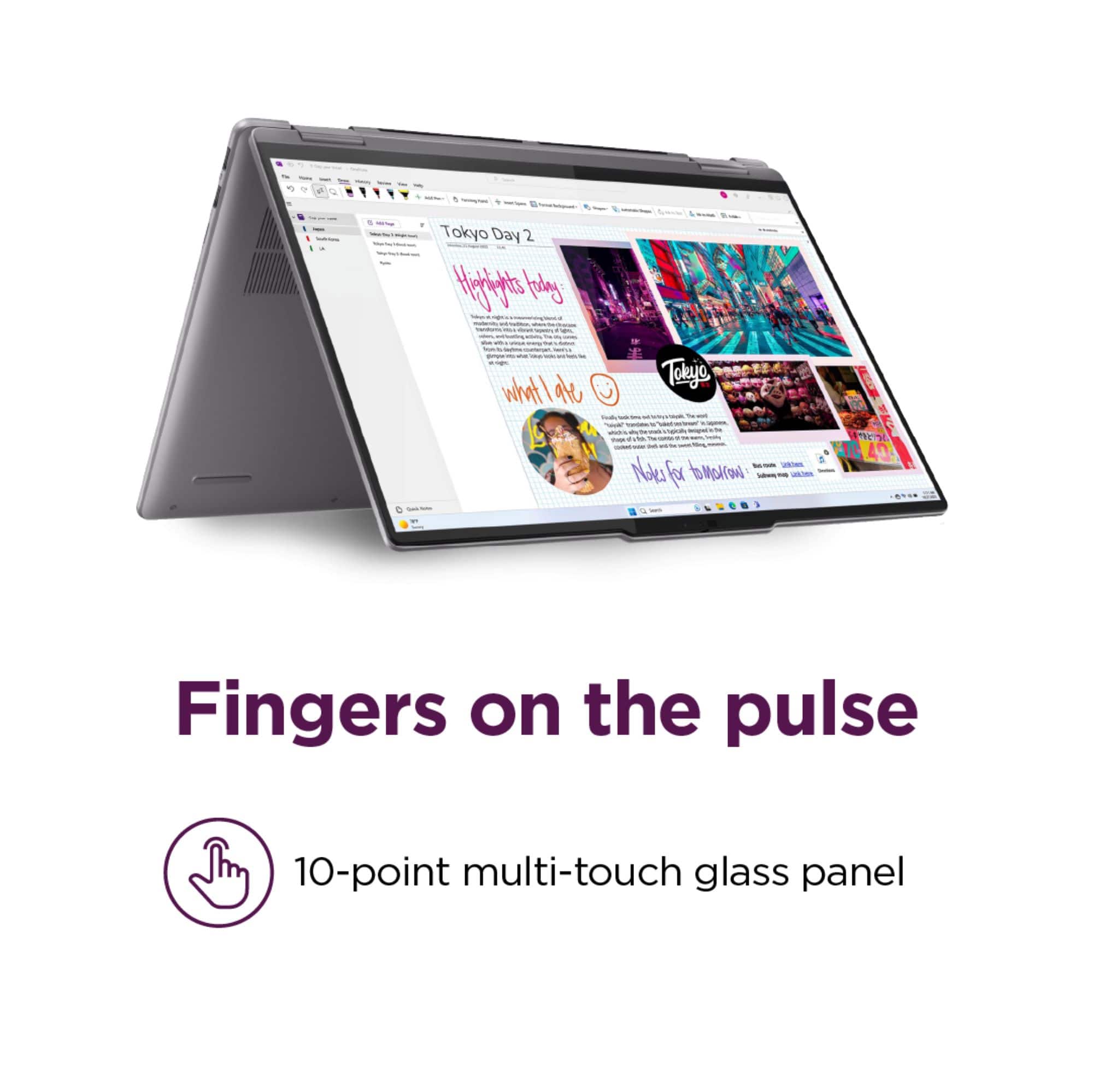
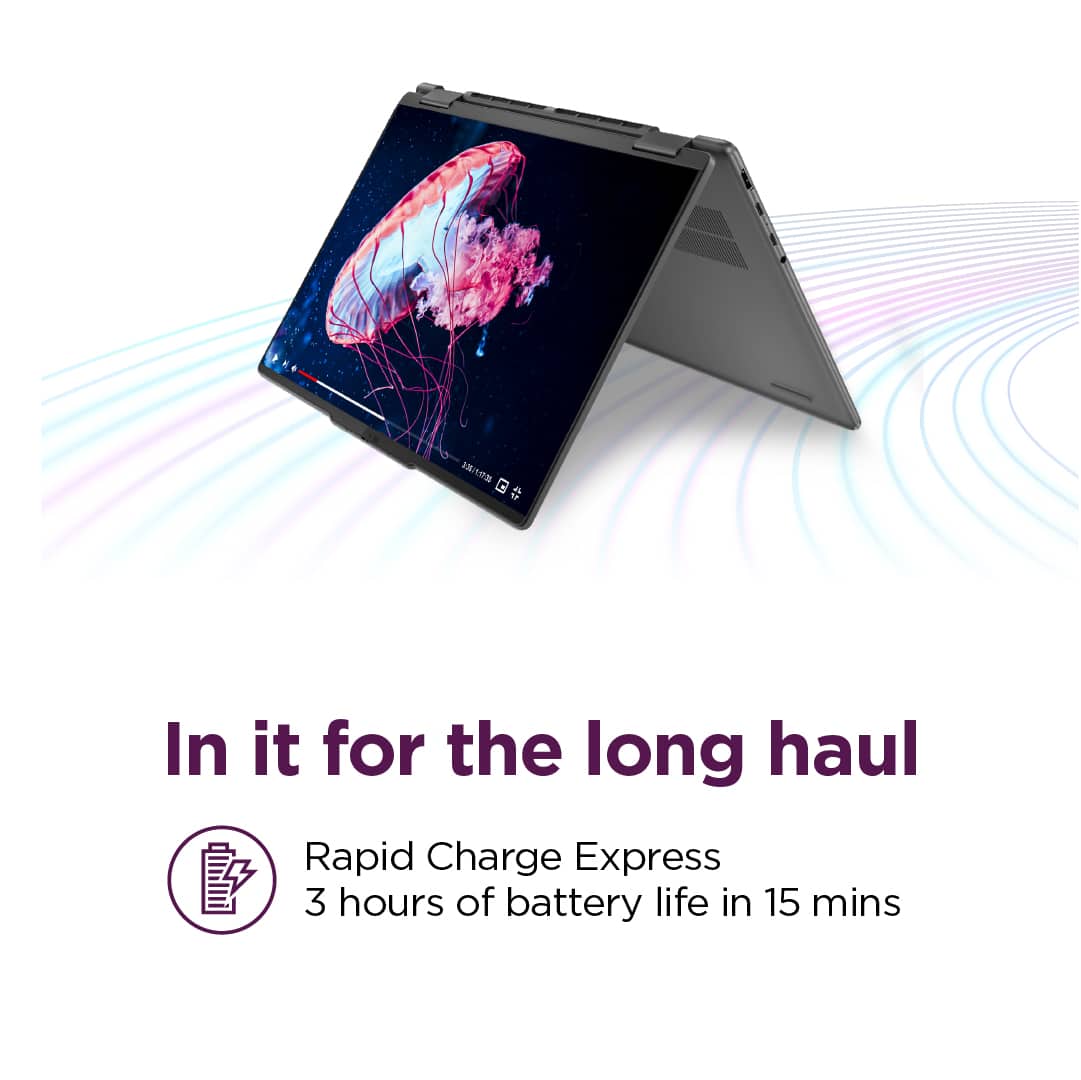
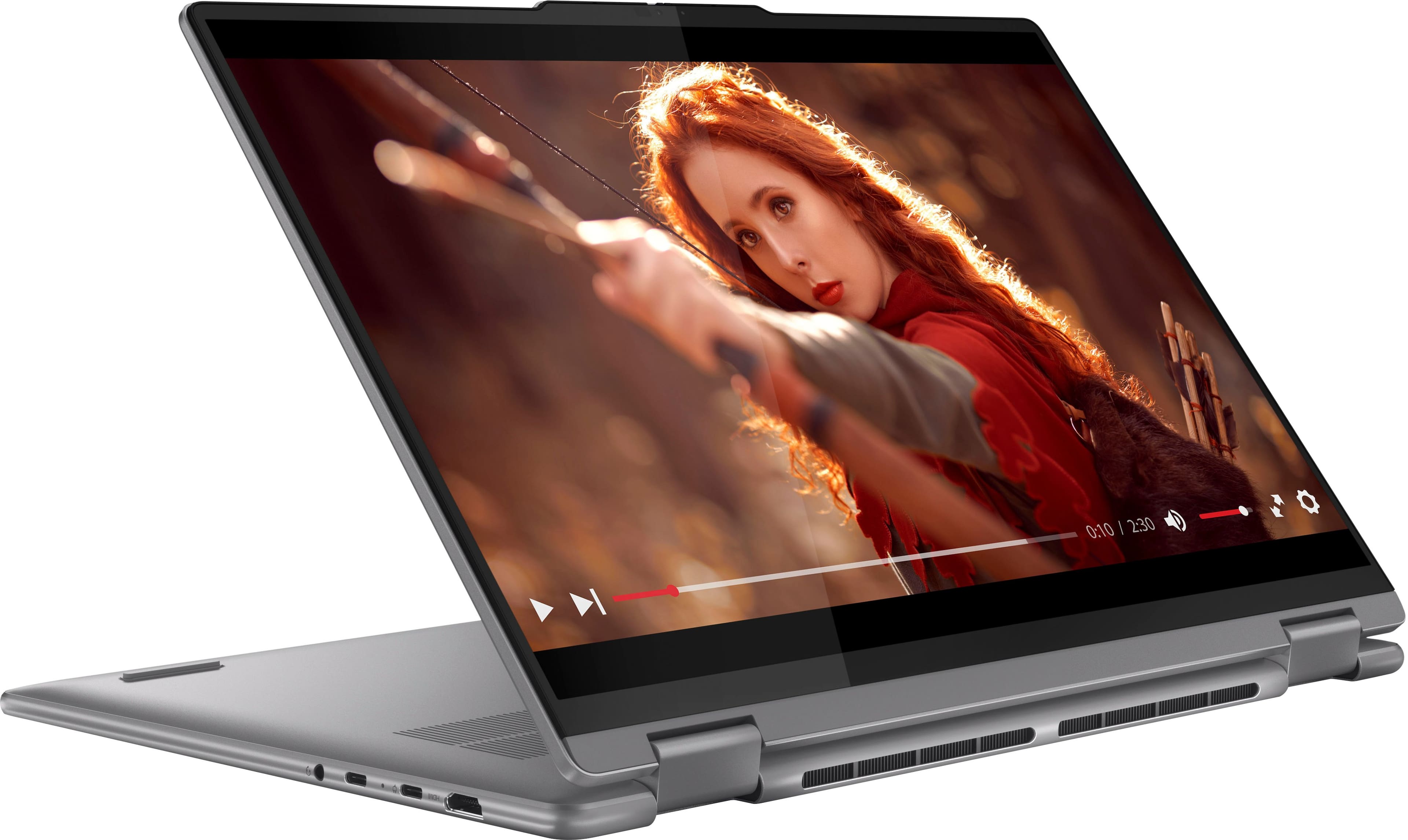
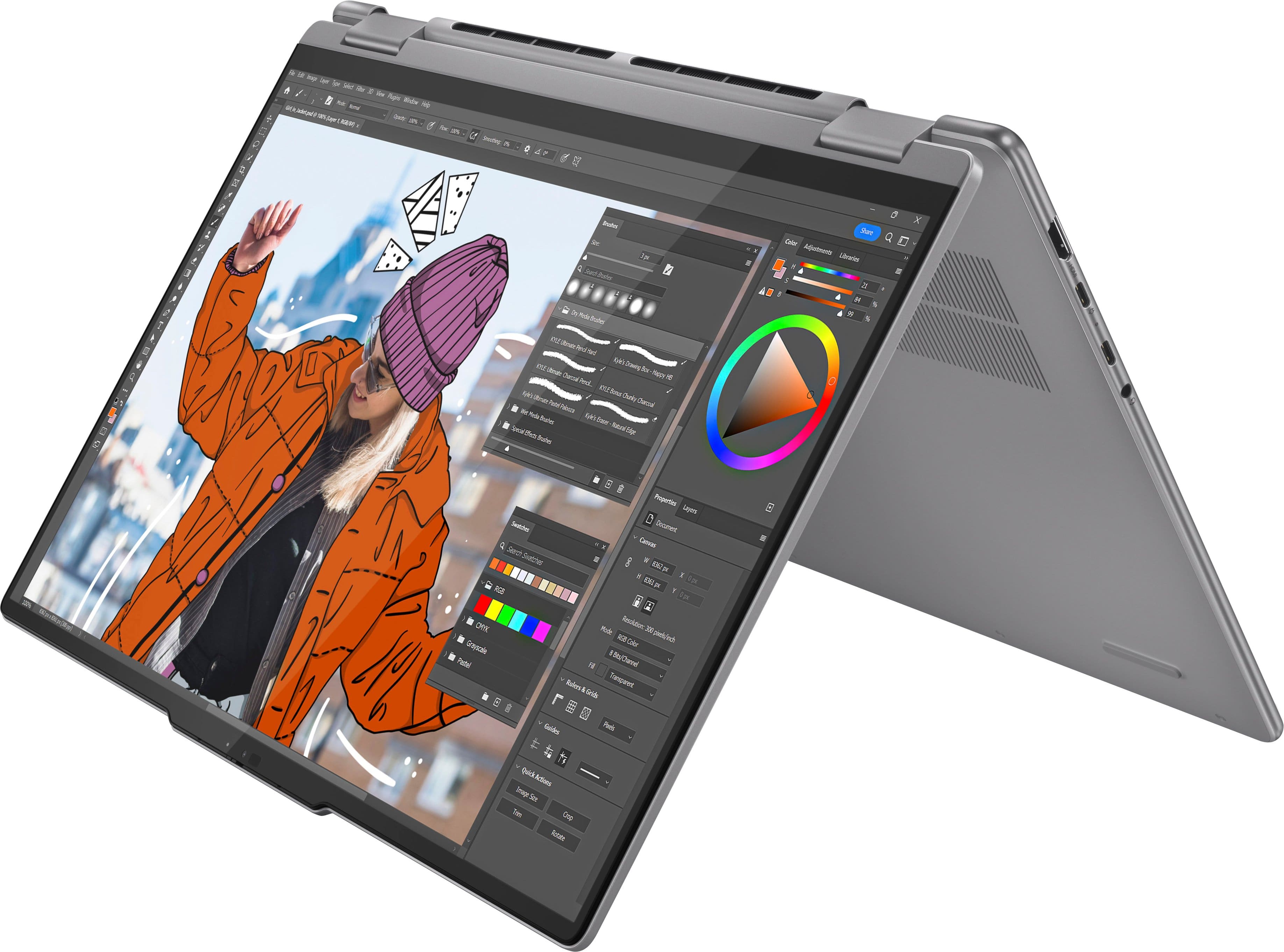
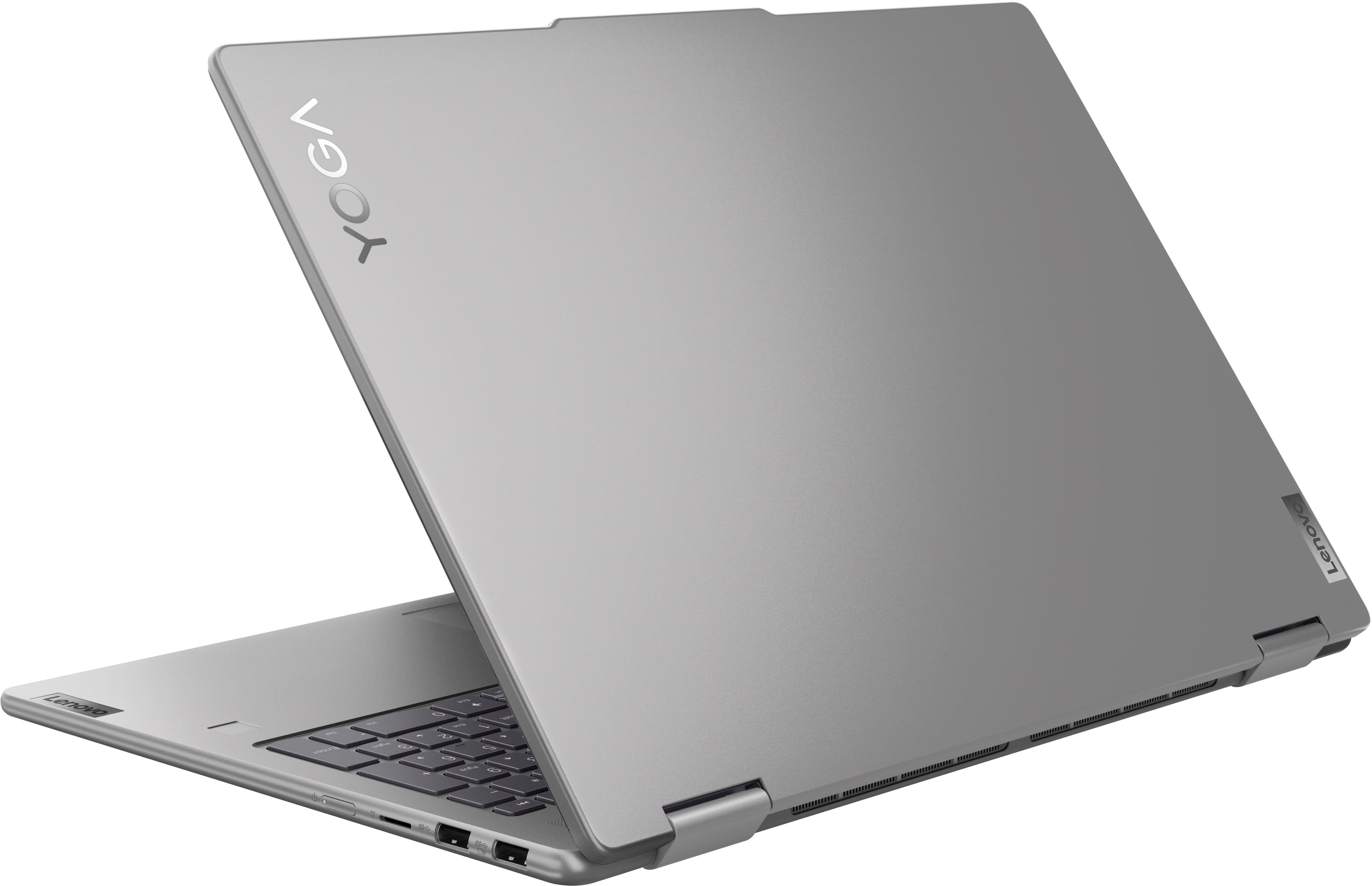
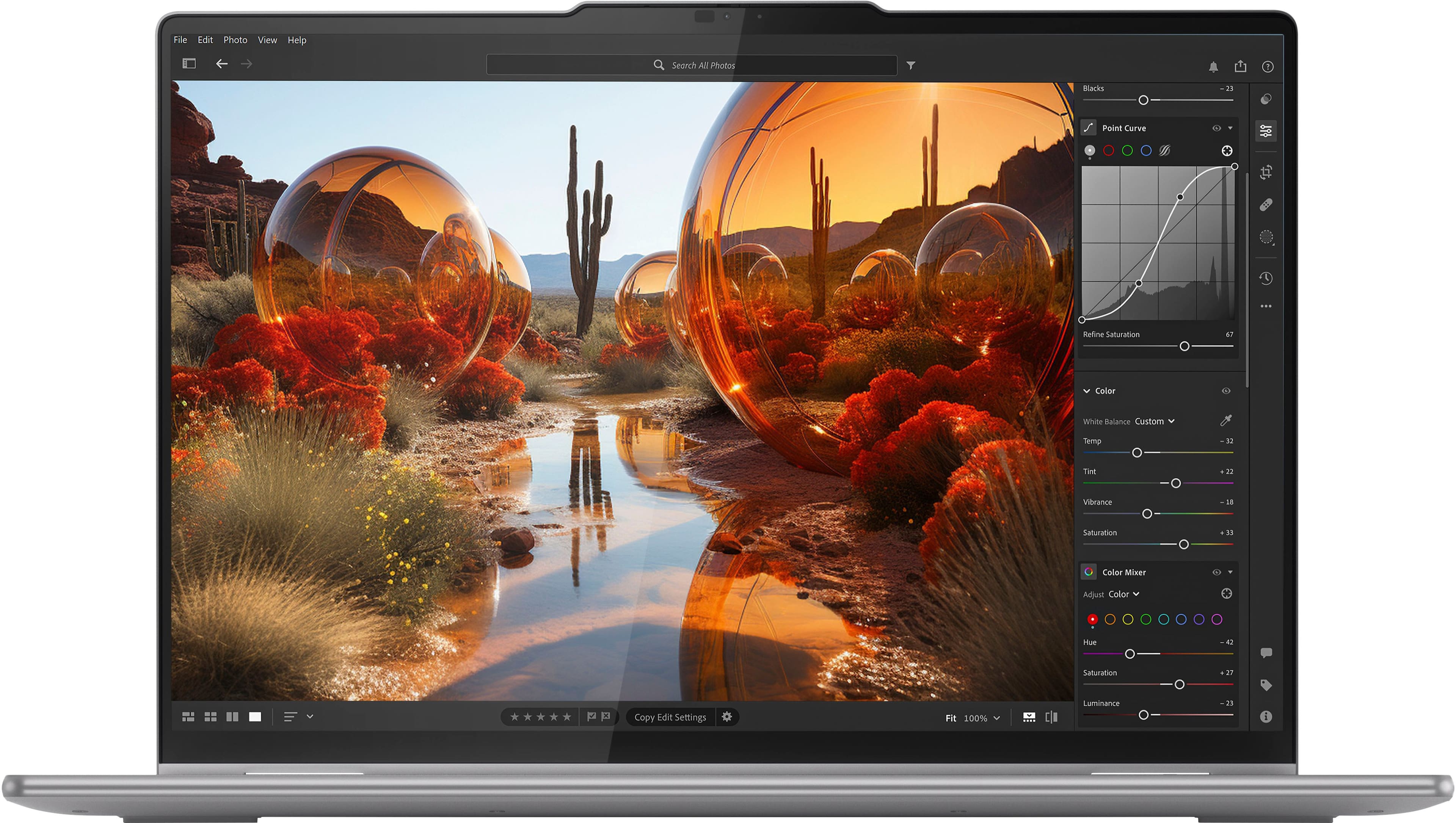
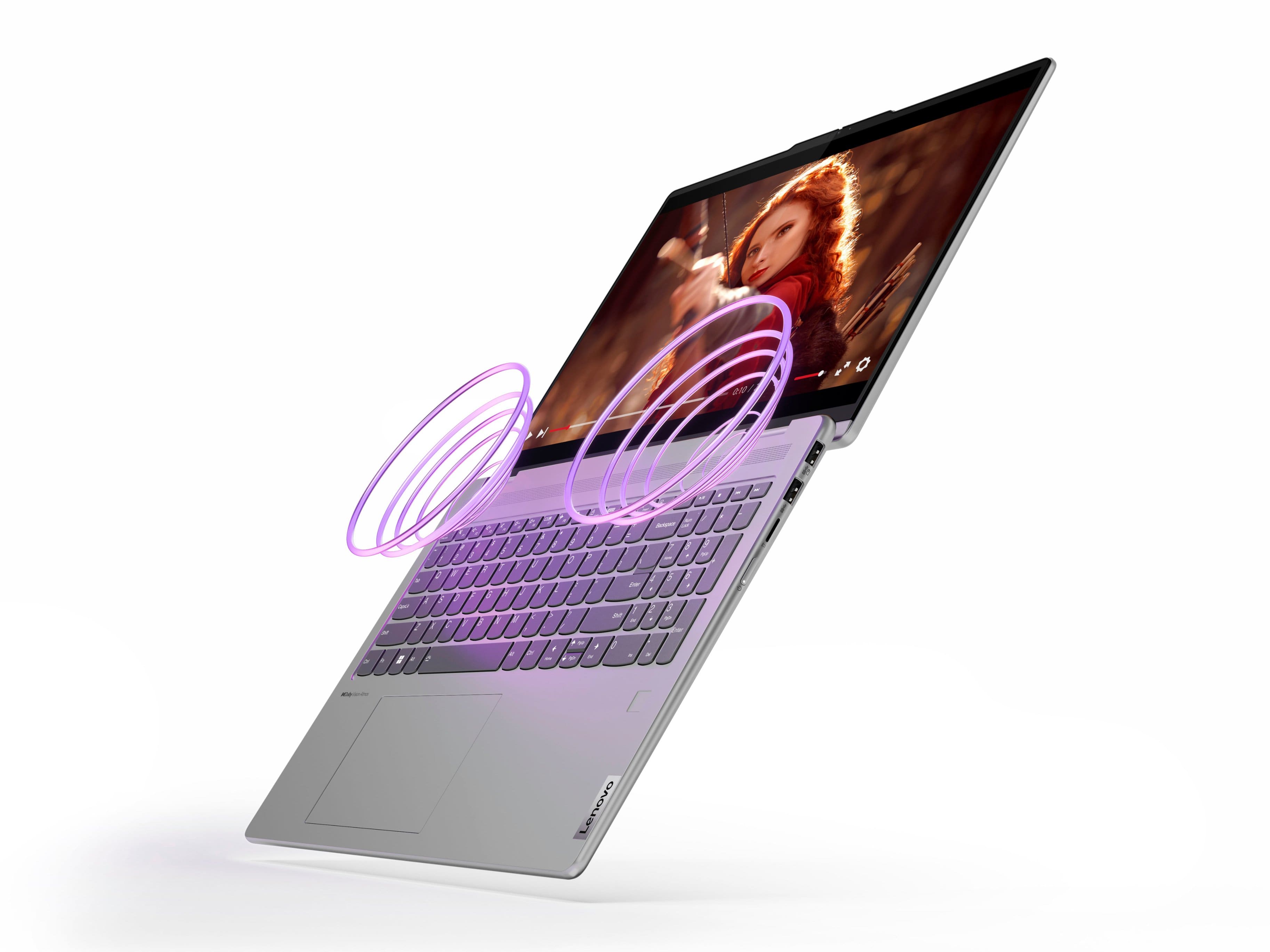
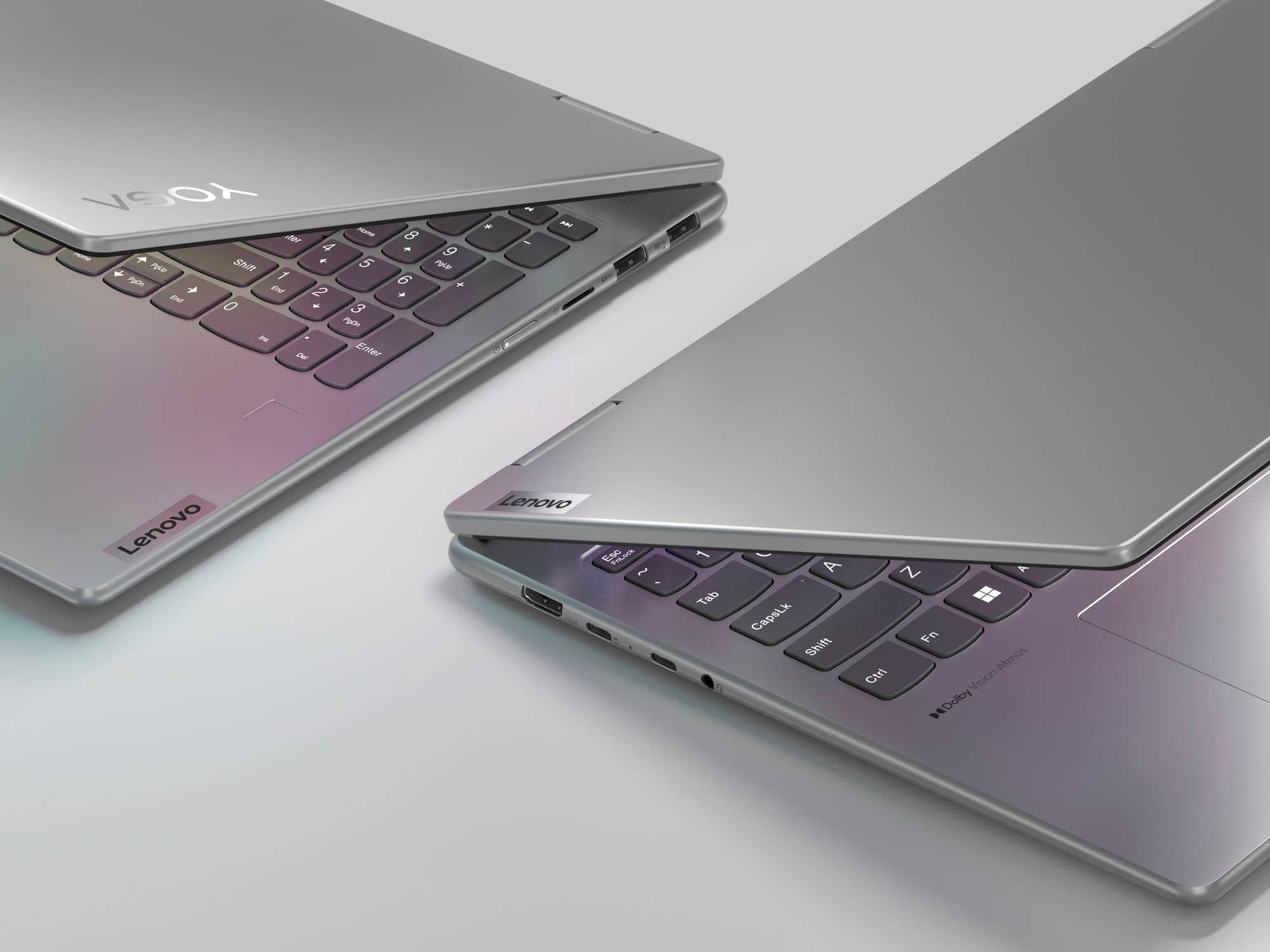
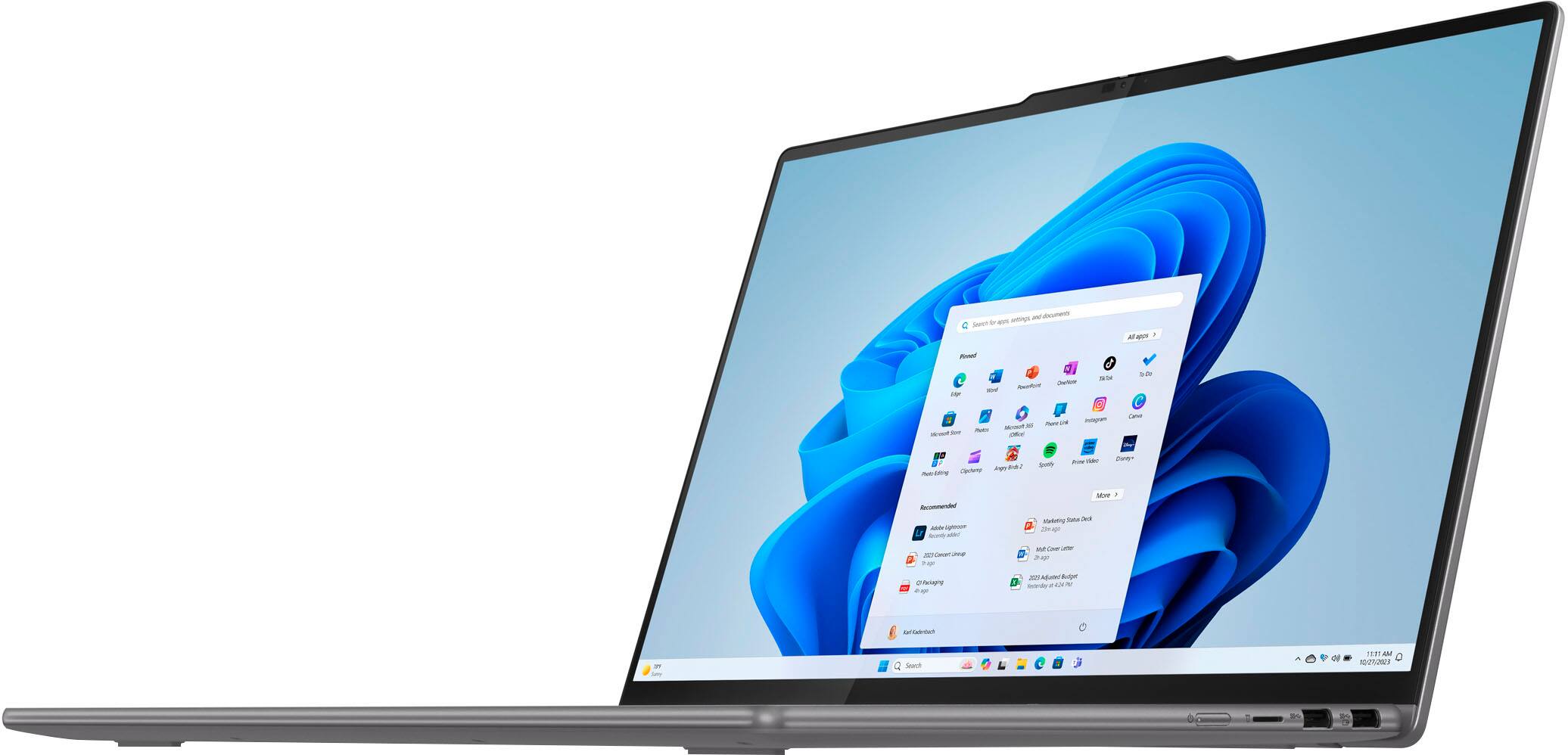
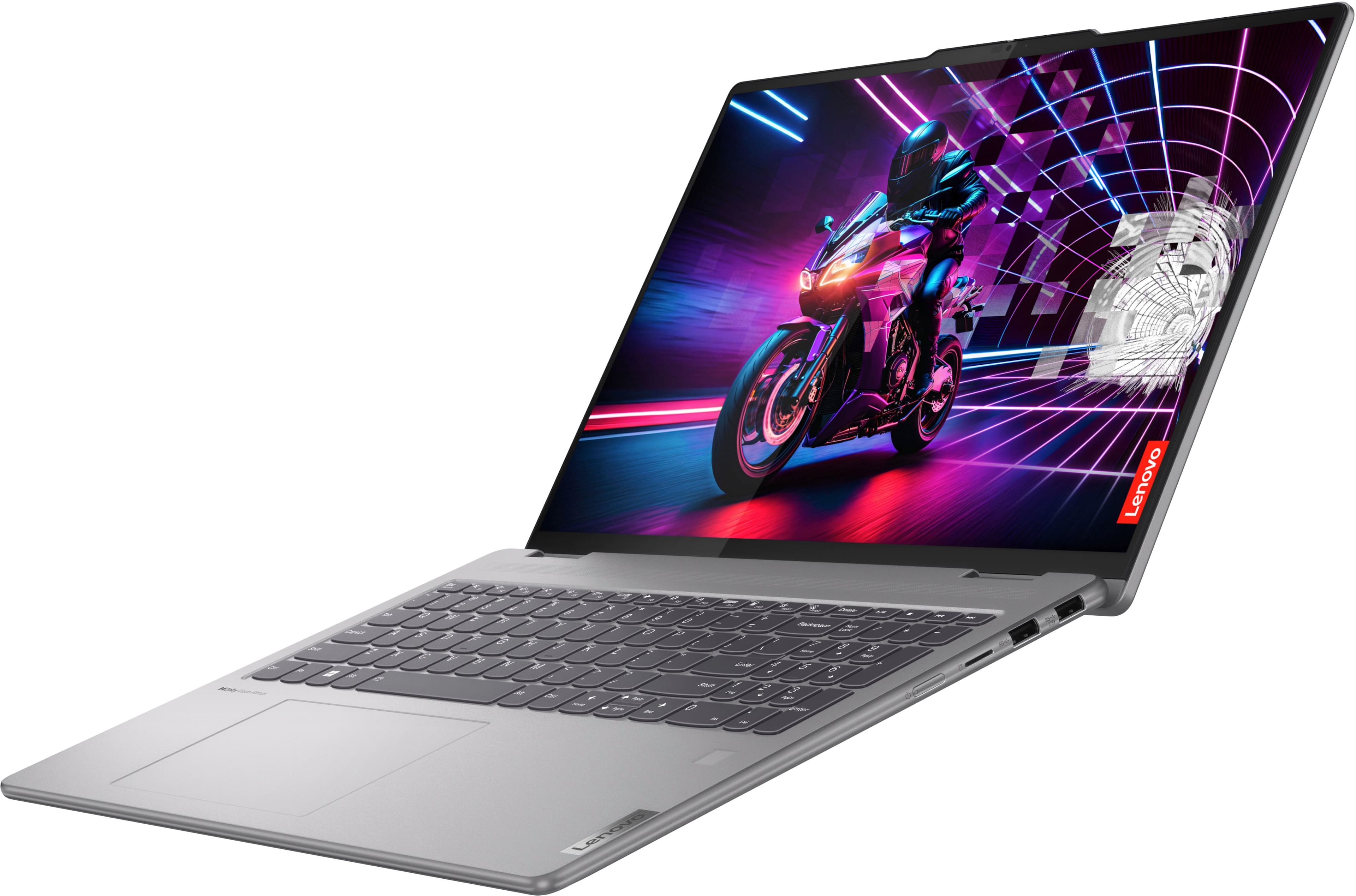
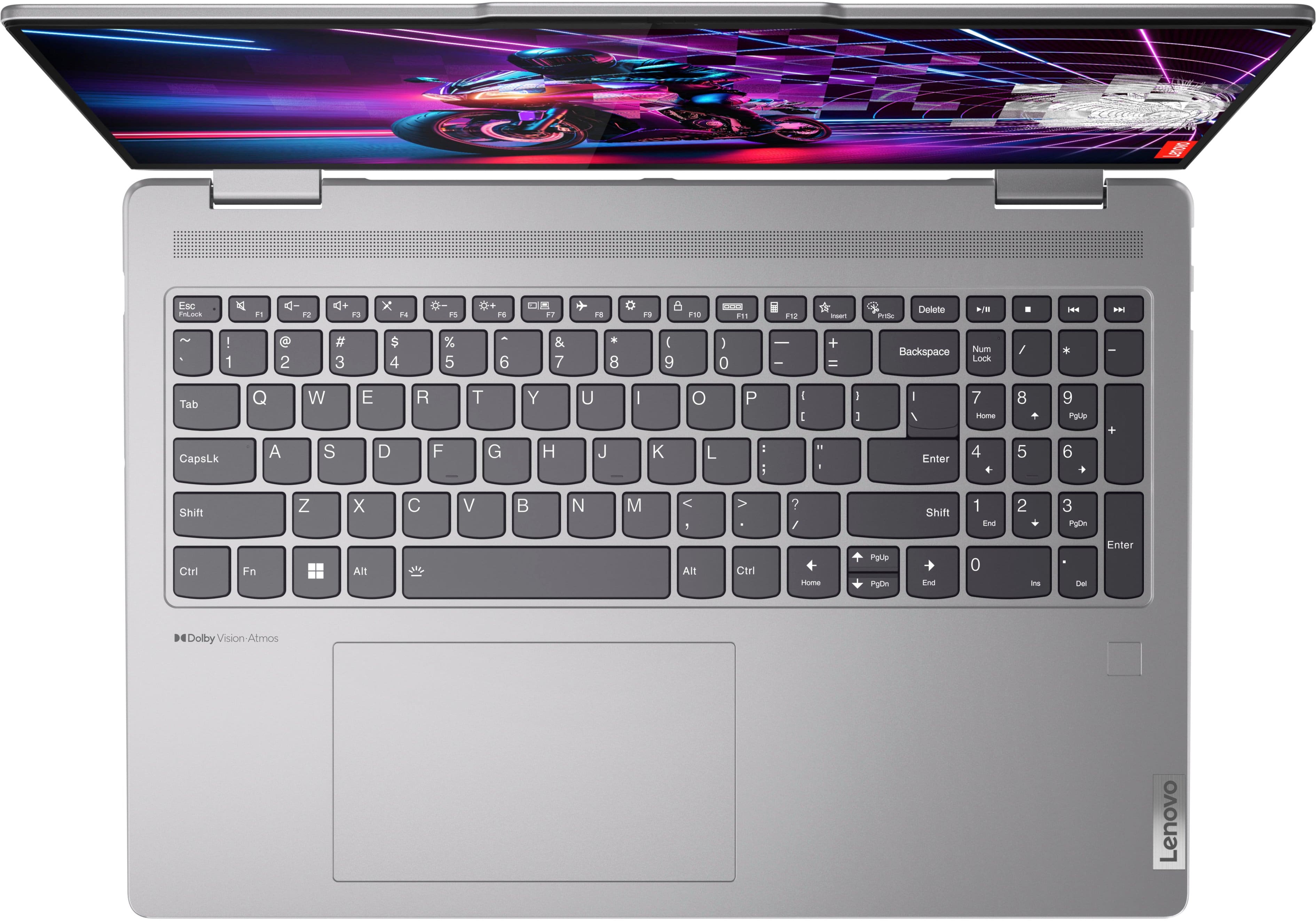
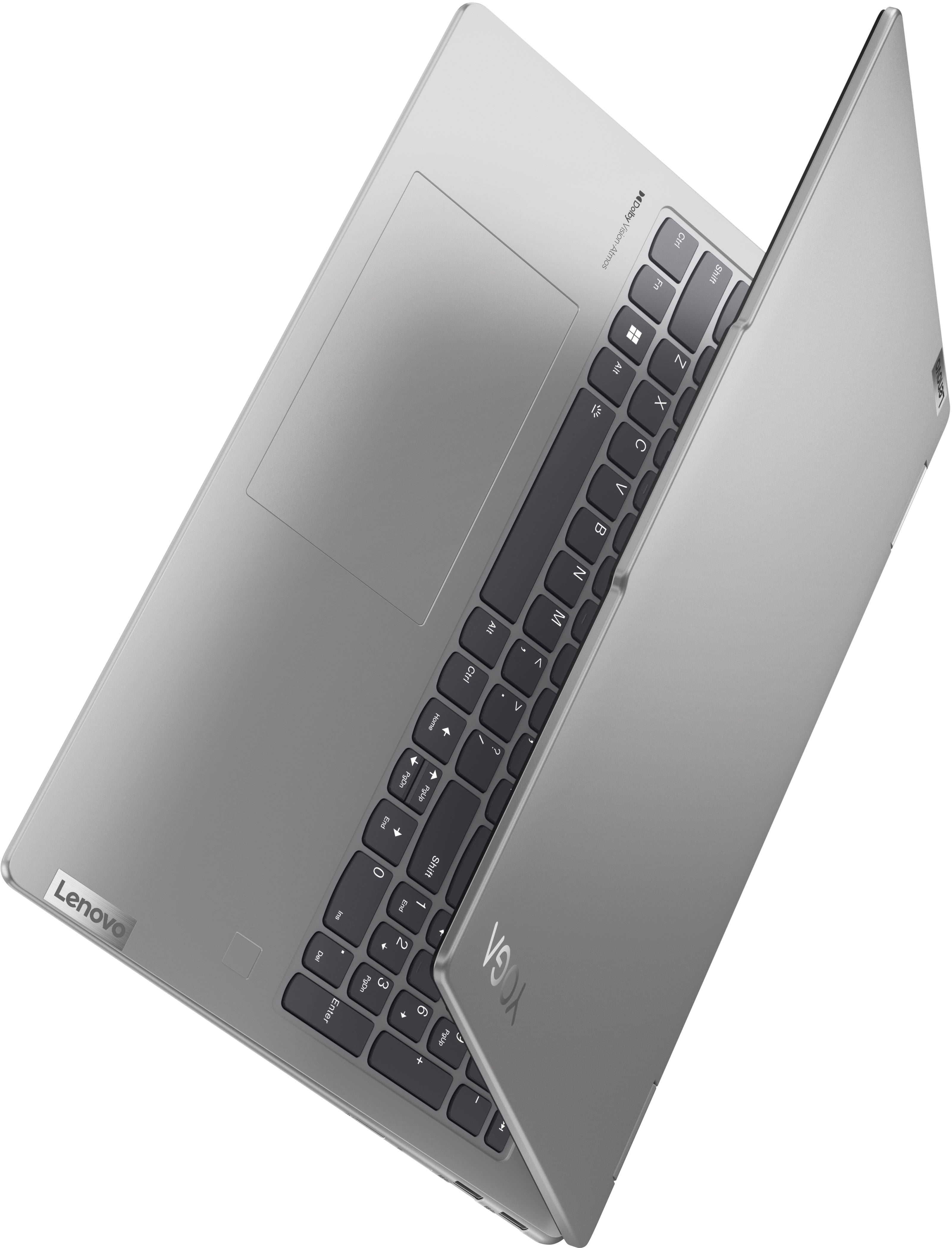
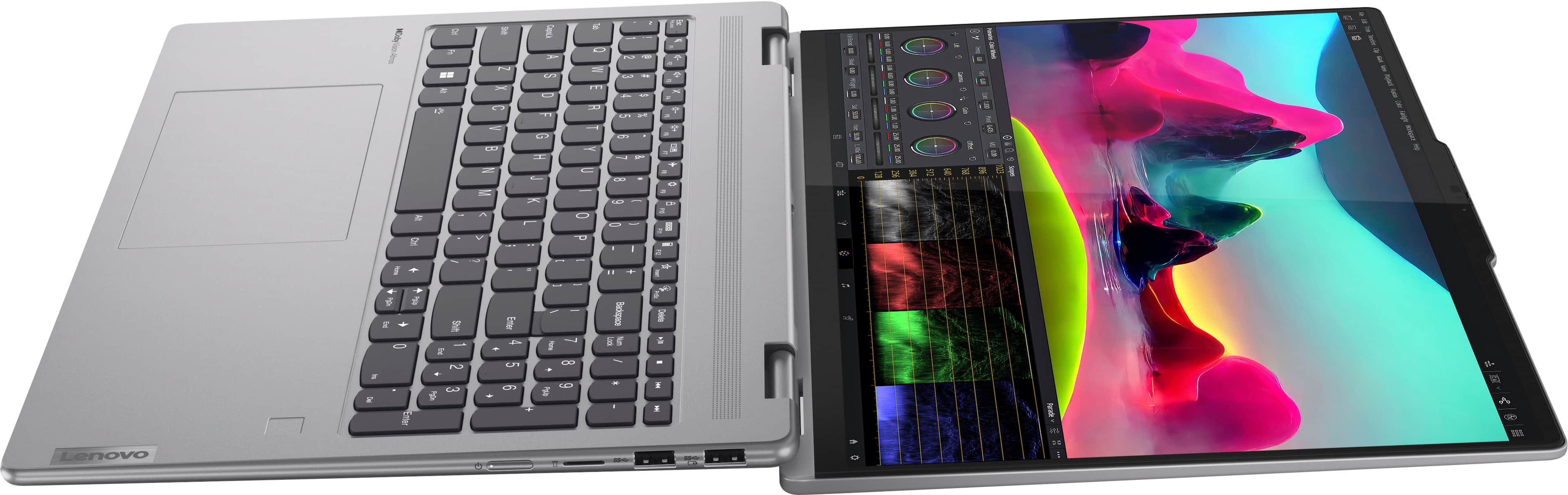
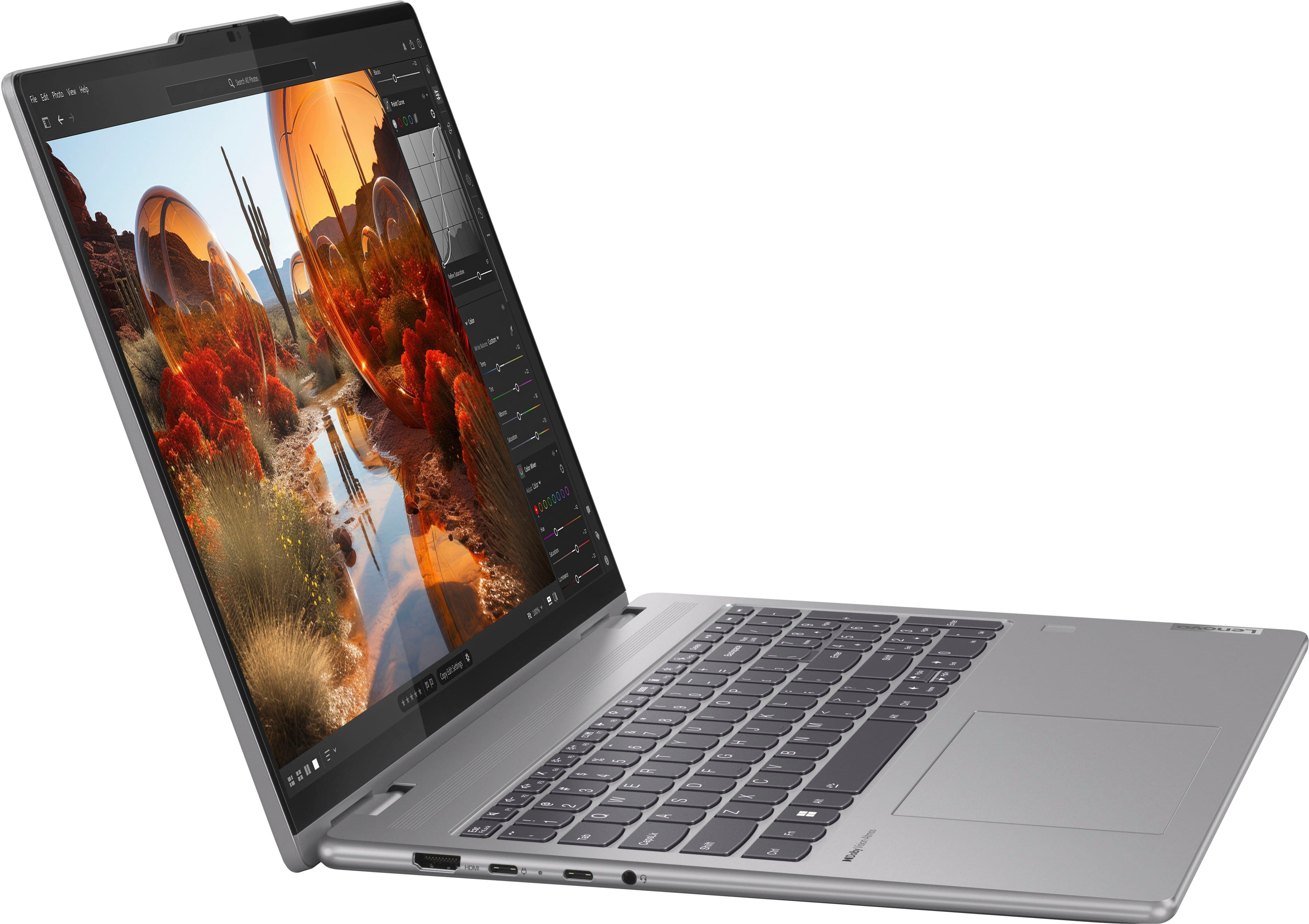
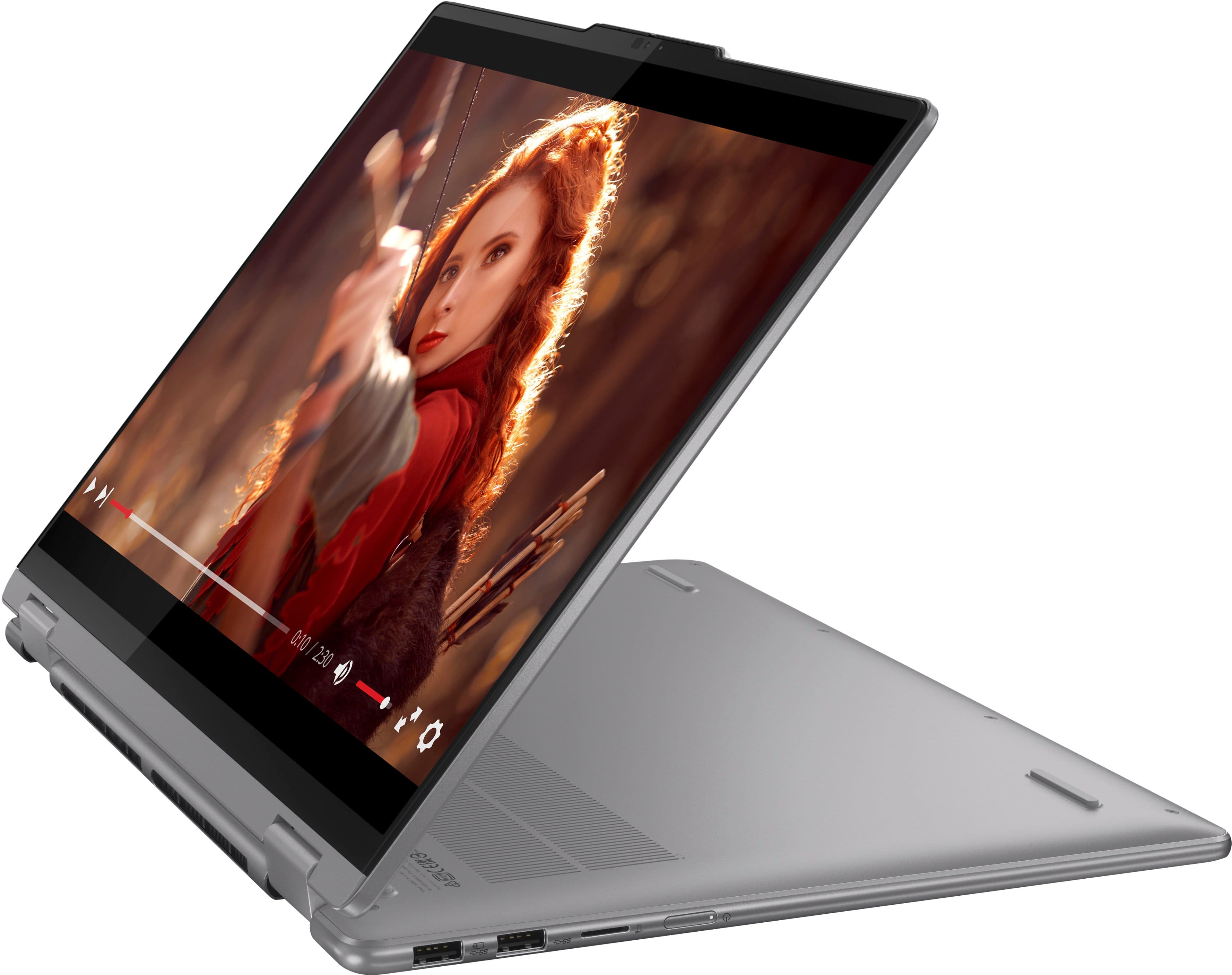
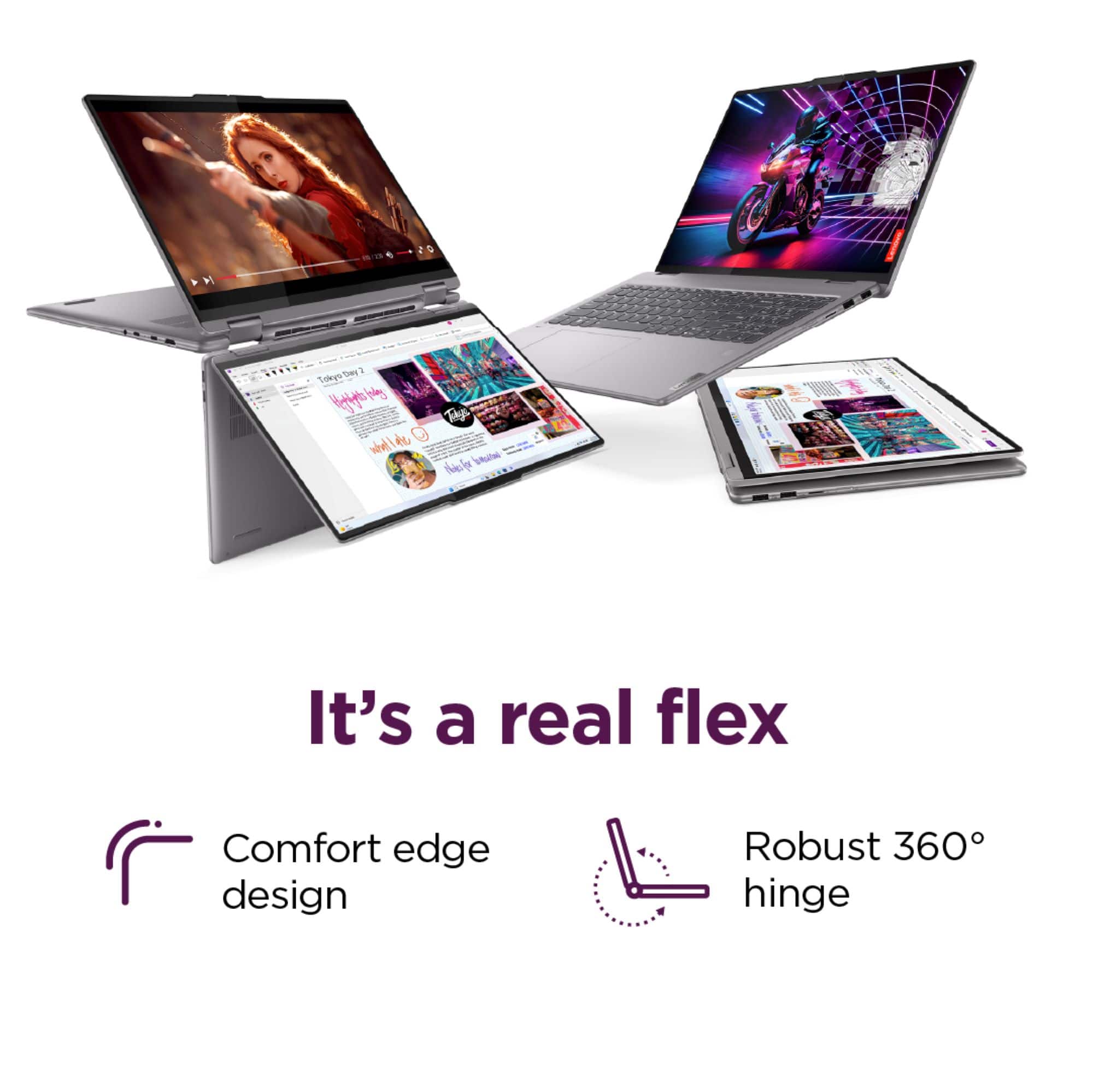
A:AnswerHey, Elizabeth7. You can convert your Yoga 7 2-in-1 into tablet mode, along with tent and stand mode (depicted in the user guide linked later), by lifting the laptop, ensuring you have a firm grip on the bottom half of the laptop (we'll call this part sides C, inside, keyboard and D, bottom with air intake vents), then pushing the top of the laptop or screen (let's call this sides A, outside, top and B, inside/screen) backwards until it makes contact with the bottom of the laptop (sides A and D should touch), and now you're in tablet mode. Should you want a visual of the various modes, they're illustrated on pages 20 and 21 for your Yoga in the user guide linked here: https://download.lenovo.com/consumer/mobiles_pub/yoga_77i_2in1_ug_en.pdf
A:AnswerThis "Flip to Turn On" feature is actually an option in a BIOS/UEFI menu. The default setting was "on". I turned it off and now it acts like a conventional laptop, where you use the power button to turn it on.
A:AnswerHey, horsth. There may be a way to do so; however, two things to disclose, first, new issued keys of Windows 10 are no longer sold by Microsoft. Second, during testing and certification, this system was using Windows 11 and not Windows 10, so functionality is uncertain.
A:AnswerHey, George. It is compatible with Linux and based off user reviews, the touchscreen should work automatically with most common Linux versions but could require some adjustments.
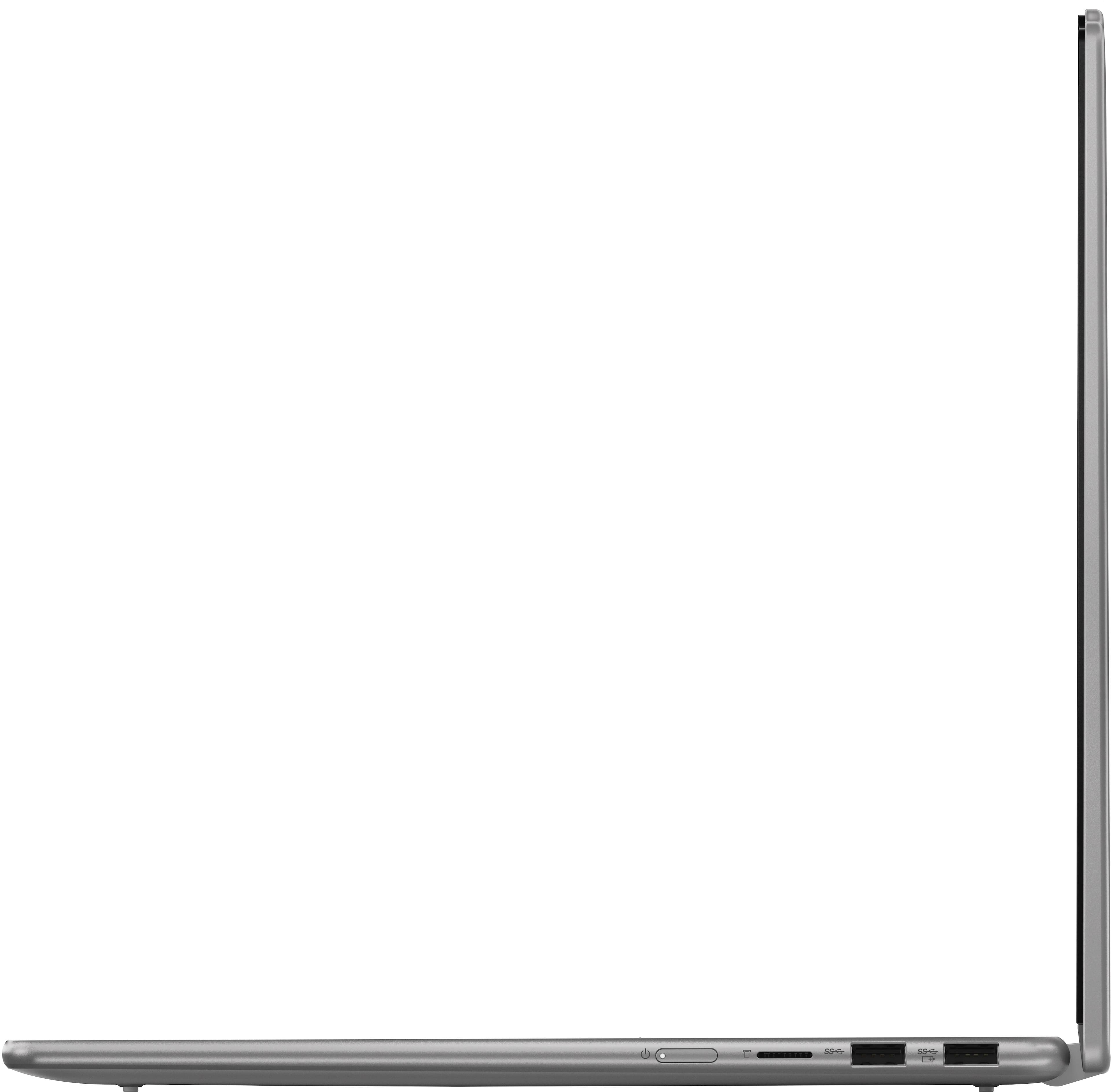
A:AnswerHi, NoraR. This model Yoga features a microSD card slot. If you need a full-size SD card to be read, you can use a USB or USB-C to SD card reader.
A:AnswerHi, motown. Thank you for your question. It ships with Windows 11 Home preinstalled. Regarding upgrades, the memory is soldered to the systemboard and the system's single storage slot is filled with a 1TB SSD, the max storage size tested on this Yoga. Also, most preinstalled applications can be preinstalled, but some cannot as they are integral or built into the system.
A:AnswerHey Gandhi,
This Yoga 7 ships with a 1-year manufacturer warranty. This can be extended, and the item is eligible for Geek Squad and Best Buy's Support and Protection options.
Please feel free to reach out to us with any other questions!
A:AnswerHi Niiiccckkj,
Based on the feedback from many user reviews, you can play Sims 4 on the system just fine. The obstacles that may stand in your way would be with large, power hungry in-game add-ons that require higher graphics performance.
Please let us know if you have any other questions!
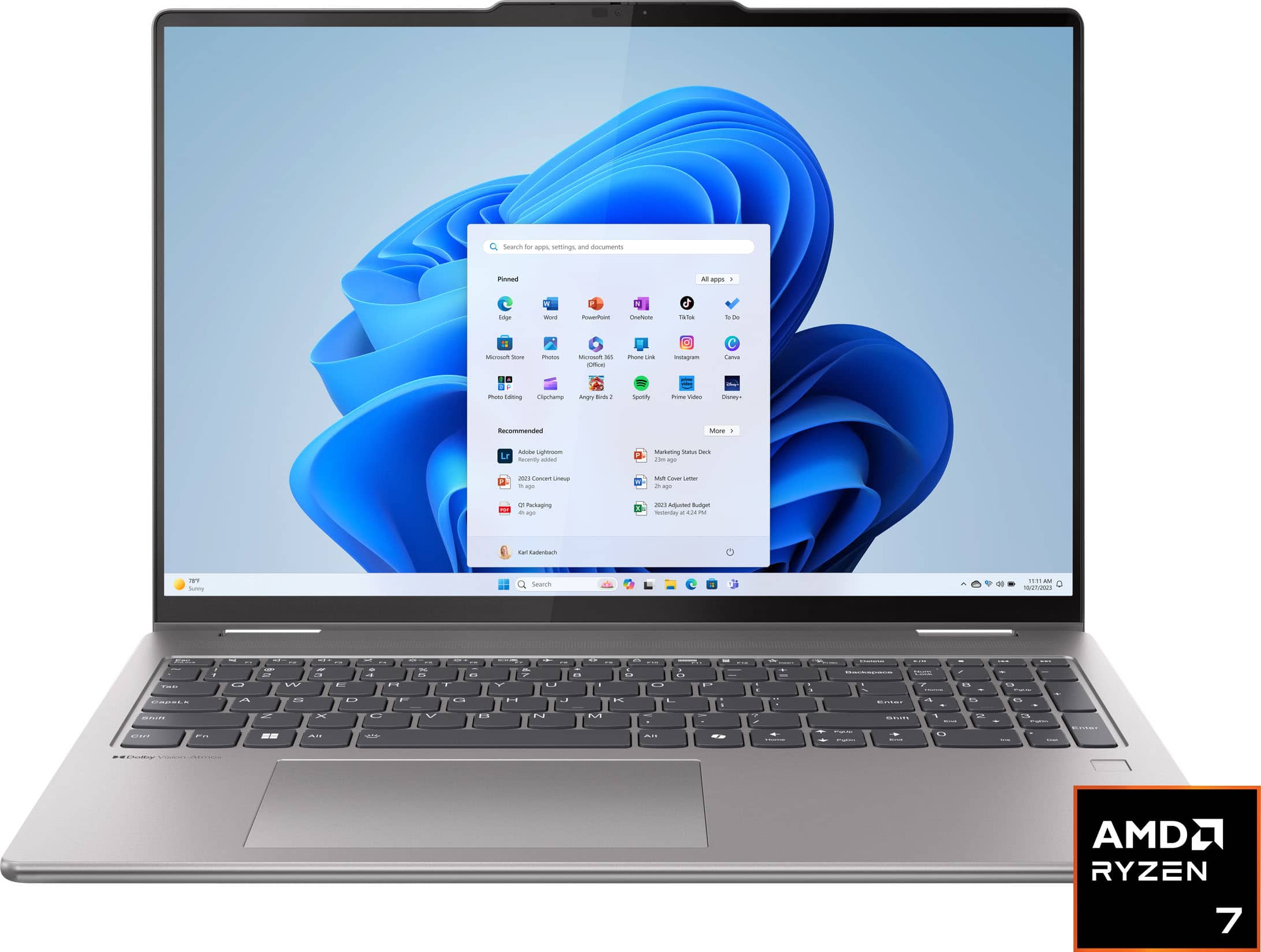
A:AnswerIt is in the very lightly printed section on the top left corner on the back of the laptop. You need good lighting and a magnifying glass to read the small characters. This is a POOR design!
A:AnswerHi MMMM,
This Yoga 7 will work with either MPP or AES pen protocols. One that has been tested to work with this system is currently available at Best Buy https://www.bestbuy.com/site/lenovo-digital-pen-2-gray/6580719.p?skuId=6580719, the Lenovo Digital Pen 2.
Let us know if you have any other questions!
A:AnswerHey Gram,
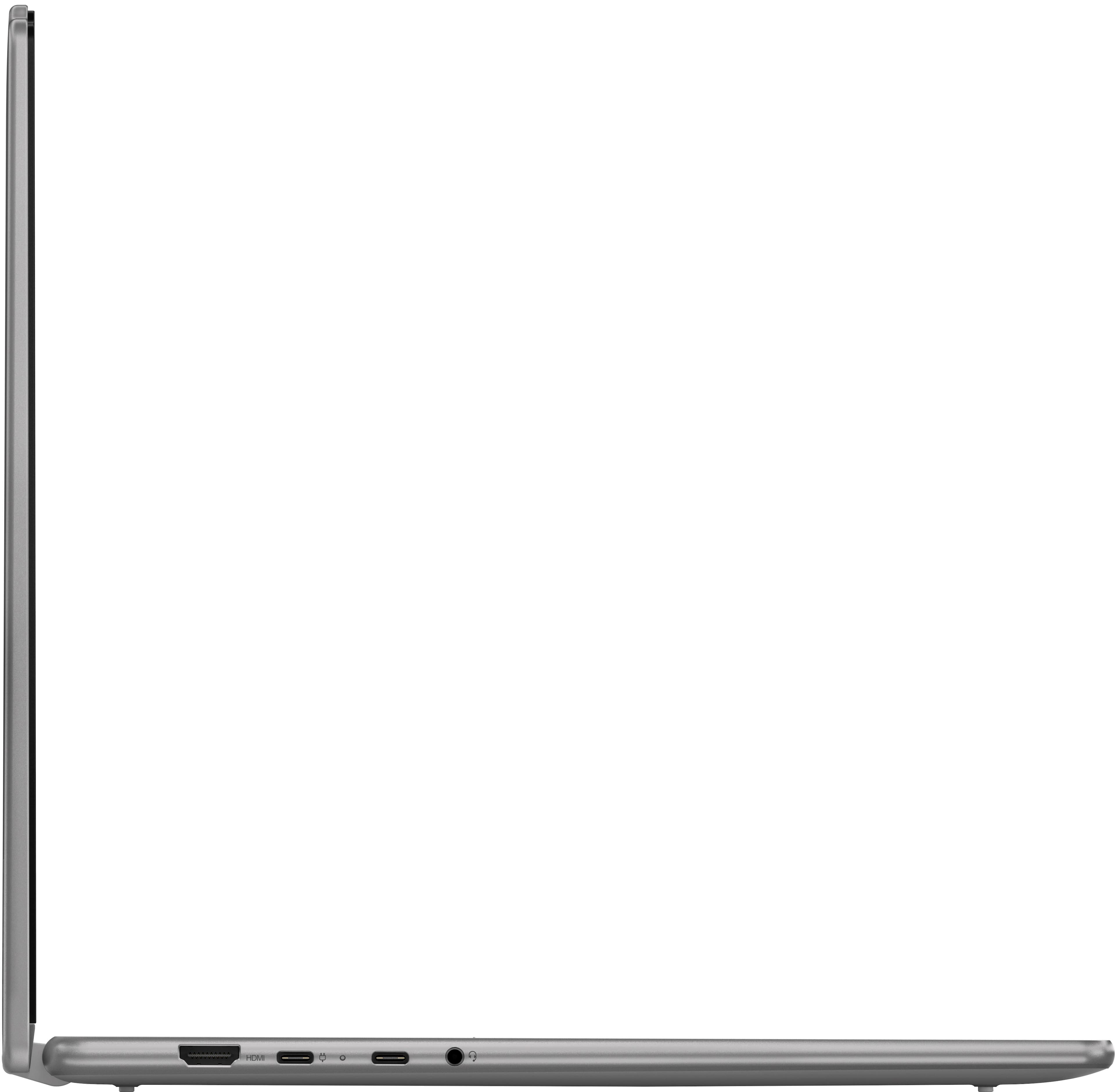
It should work with your Thunderbolt 3 dock, but some specifications with the USB-C ports will not align since the two USB-C 3.2 port on the Yoga 7 do not feature the Thunderbolt 3 technology.
A:AnswerHey there,
Thank you for your inquiries!
1. This is an odd occurrence that you're describing. The reasoning is currently undeterminable without analysis of the machine itself.
To try to resolve this, let's try a few things:
Frist, perform a static discharge/power cycle. To do so, first remove all cables connected to the device (power adapter, HDMI, external mouse, external keyboard, etc.).
Next, be sure device is powered off, then. press and hold the power button down for 60 seconds.
When done, re-attach all cables and insert the power adapter, letting the laptop charge for a couple minutes, then power up the machine as usual.
Try to update the system by opening the Settings app > Select the Windows update tab > Select the Check for updates button.
Next, open the Lenovo Vantage app > on the homepage, select the Check for updates button.
If after the available updates are applied and the system restarts, yet the issue persists, in-depth troubleshooting will be necessary to fix the problem.
We then recommend contacting Lenovo Support here: 877-453-6686, for further assistance.
2. You can disable the touchscreen, but it can be a convenient input method for various use cases.
3. When you power off the system, it remains shut down until you open the lid of the laptop or power the system on.
Let us know if you have any other questions!