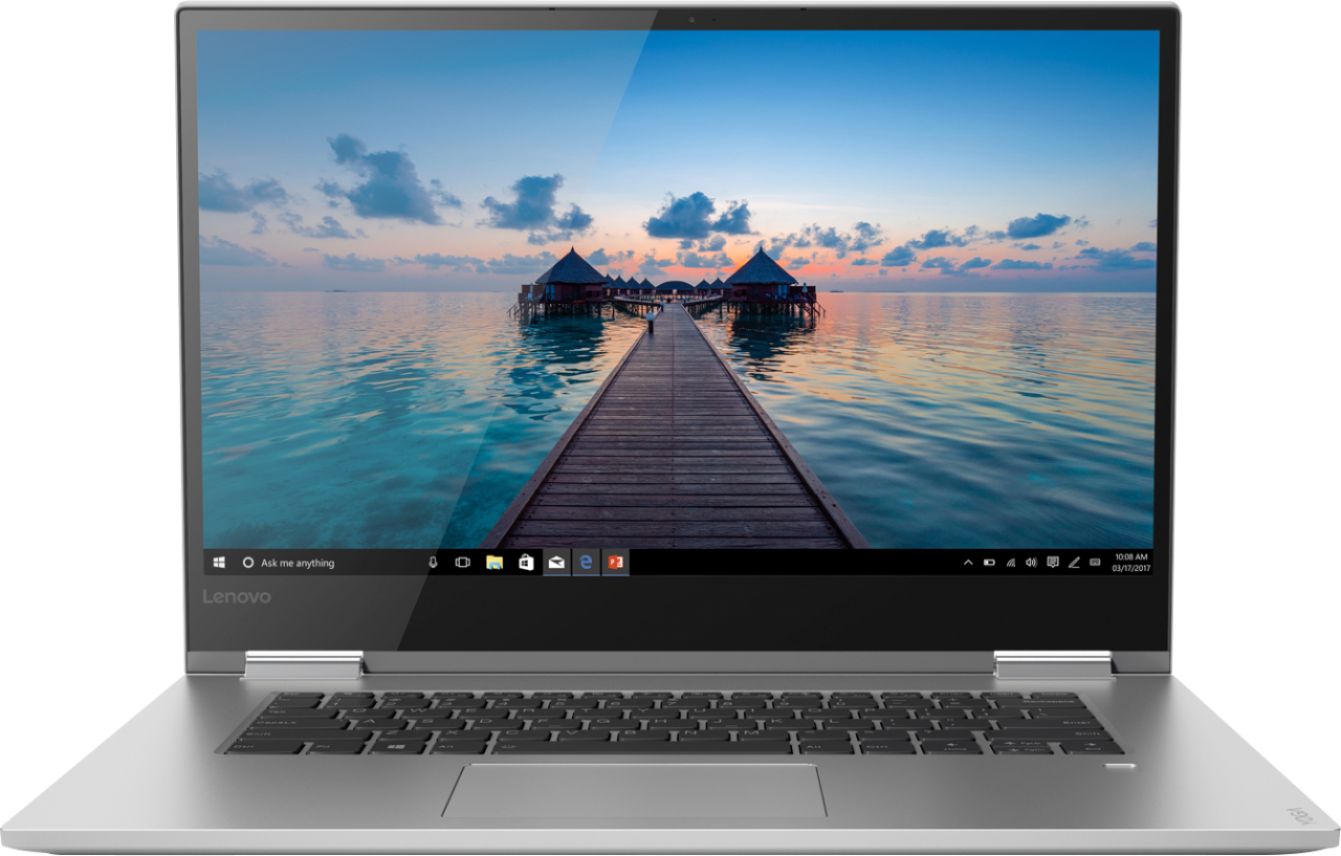
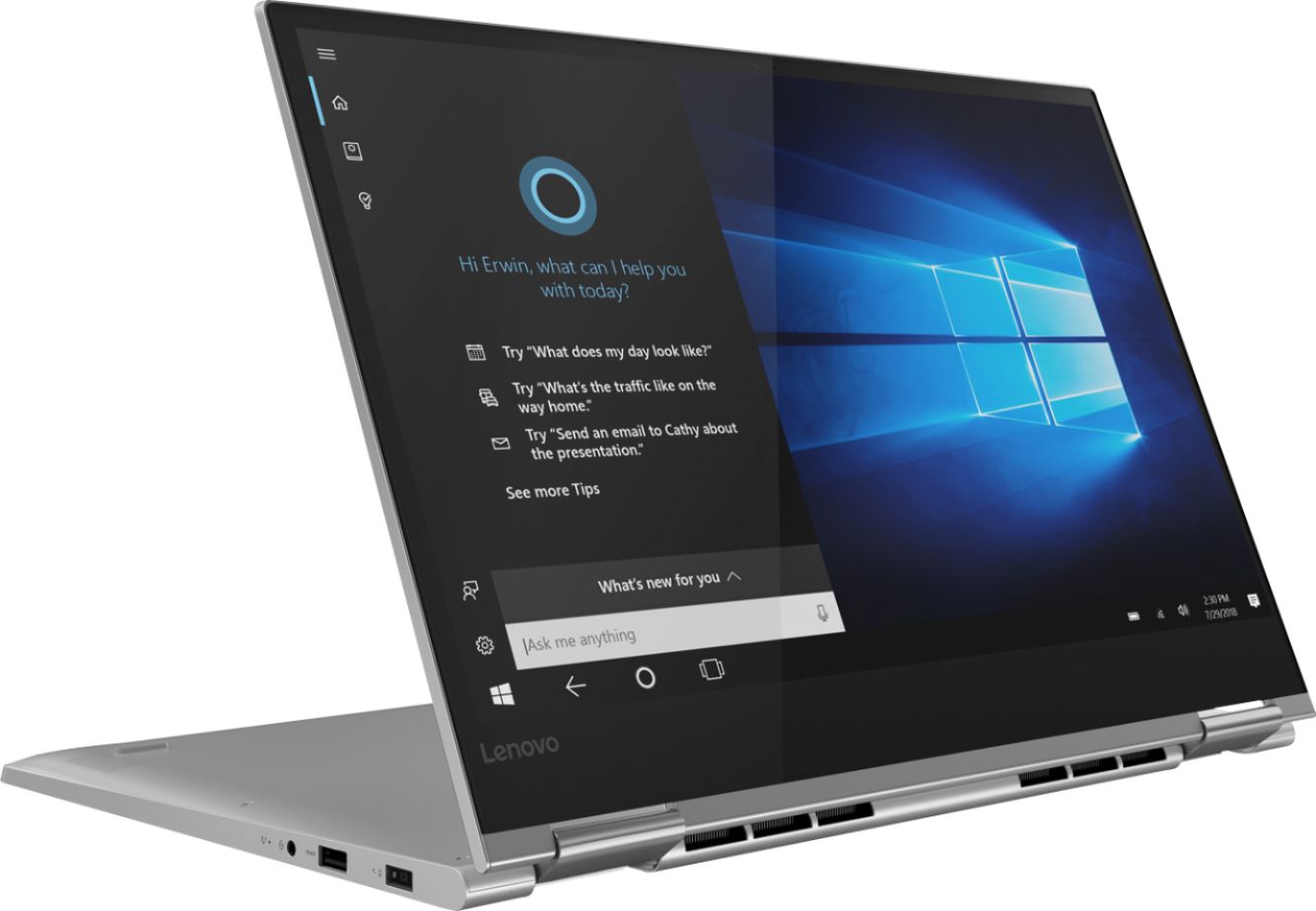
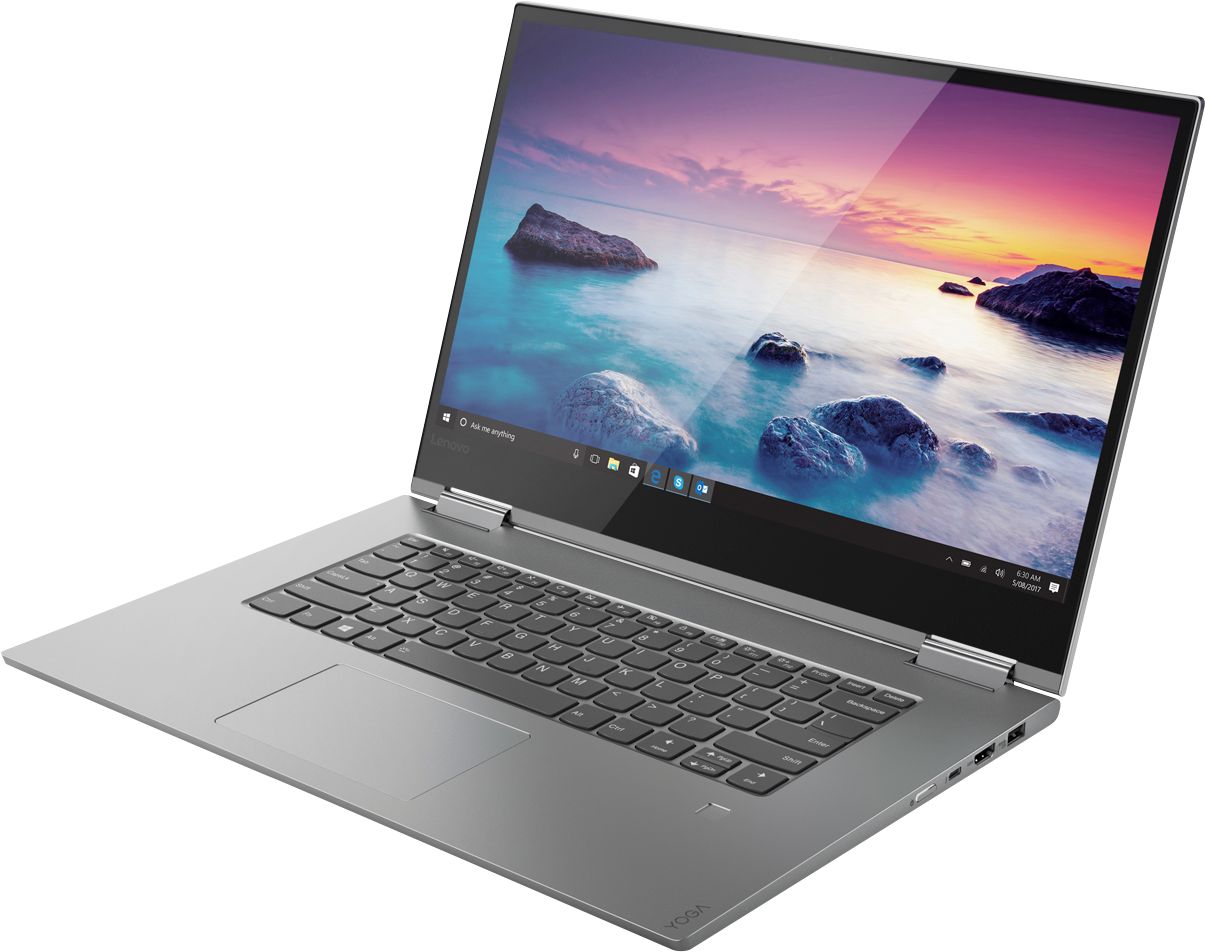
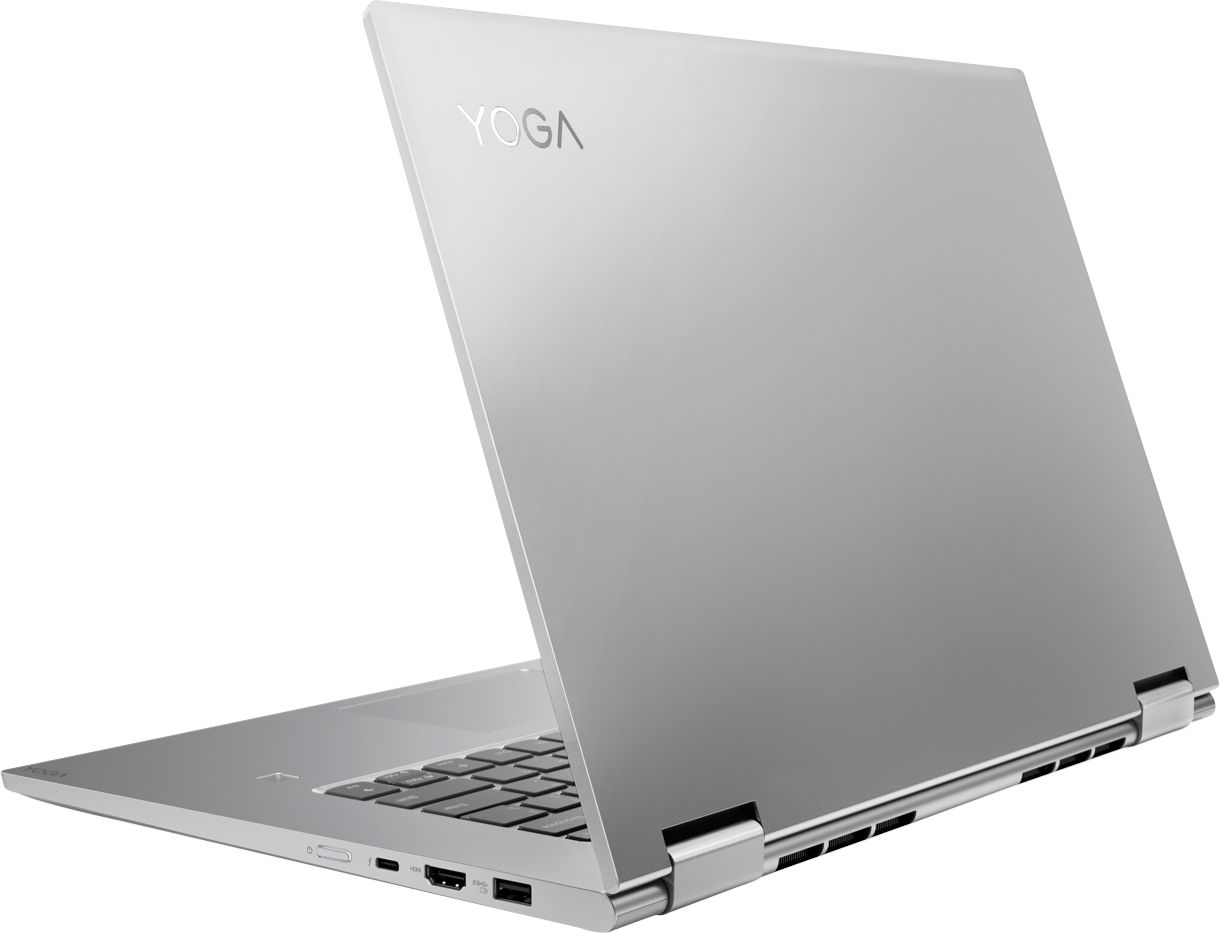
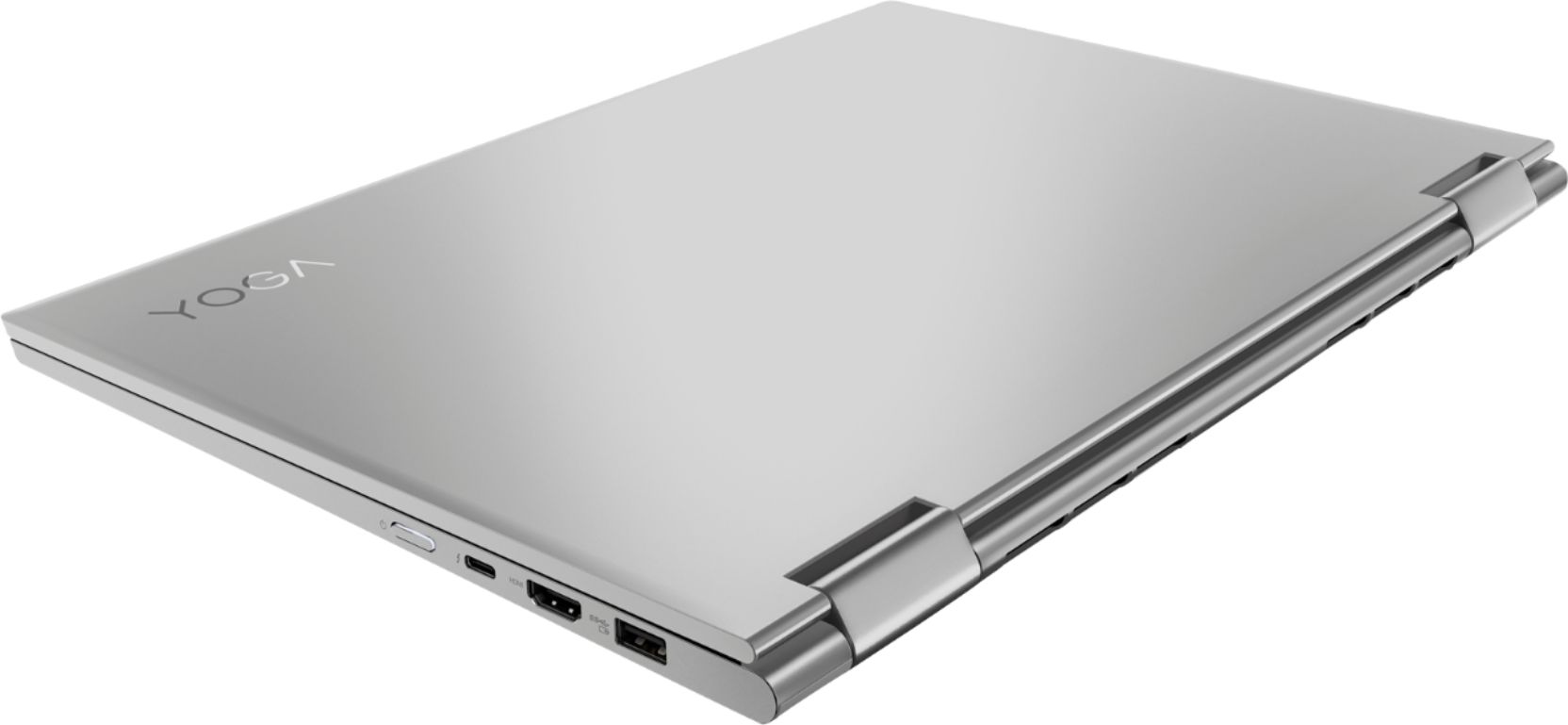
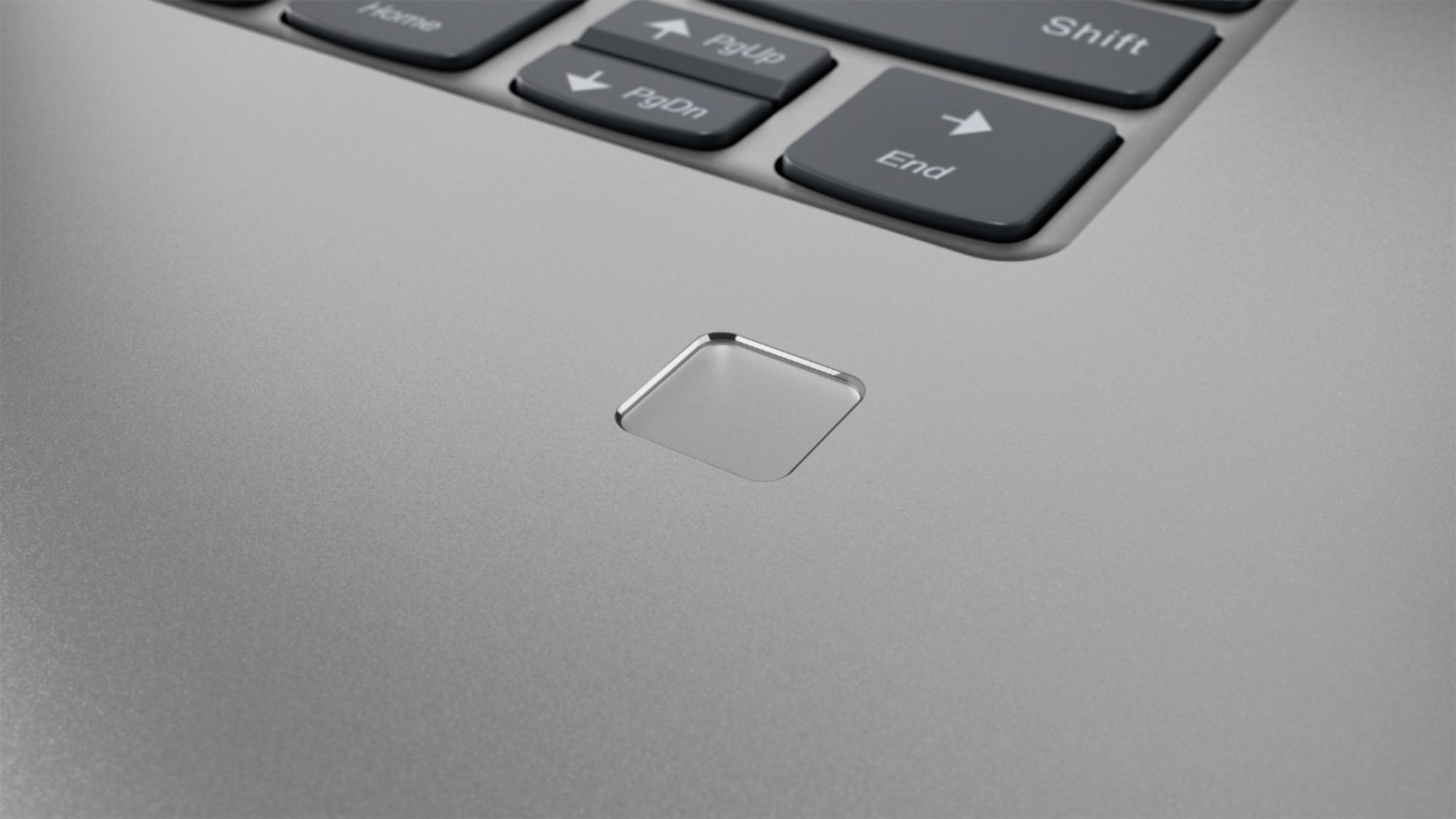
A:AnswerThe Lenovo Yoga 730-15 4K model is a 64-bit system. It ships with Windows 10 Home 64-bit operating system. Whether it is compatible with specific software will depend on the requirements and compatibility of the specific software. We recommend you check with the software publisher's web site for their compatibility with Windows 10 Home 64-bit operating system and the minimum/recommended hardware requirements (Is a Graphics card required, the processor speed and the minimum required system RAM and the minimum available hard drive space) to run their program, then compare those requirements to this system's configuration.
A:AnswerHere is a link to information about the replacement AC adapter for the Lenovo Yoga 730-15 4K model. The Lenovo part numbers that this replacement adapter covers are listed as well: http://www.ebuybatteries.com/product/models/2_Lenovo-TAC065W014LNSQ_Lenovo+Yoga+730+81CU0040US.htm
A:AnswerWith regard to WiFi connectivity, the Yoga 730-15 4K model ships with the latest 5G 802.11AC WiFi. It is not just resetting your WiFi before pairing your Yoga 730-15 to the router, be sure your router has the latest firmware updates available at the router manufacturer's web site, especially if you are using an older b/g/n router. Second, be sure you have the latest version of Windows 10 on the computer and all the supporting BIOS files and drivers are up to date. You can easily accomplish this by scanning the computer with the Lenovo Utility software on the computer. This system has Lenovo utilities installed to help maintain the health of the device and keep the operating system software up to date. Type "Lenovo Vantage" in the Cortana Search window (if Lenovo Vantage is not installed on your device, you can download the APP and install it now). Select Lenovo Vantage from the list. In the window that opens, click on "Health and Support". In the expanded menu, select "Hardware Scan" In the window that opens, select "Run Quick Tests". This will scan your entire system for errors. Follow any directions that may pop up. If the problem continues after this scan, now click on "System Update". First select Windows update from the menu. Scan your system to be sure you have the latest version of Windows 10. Once that scan is complete, select "Additional Updates". This will scan your device to be sure there are no new BIOS/Driver updates needed. Follow any instructions that may pop up. If the issue still continues after these updates, we recommend you call Lenovo Tech Support at: 877-453-6686 for additional help. For 2018, Lenovo retained its place for a second year as the best laptop vendor:
https://www.laptopmag.com/articles/laptop-brand-ratings