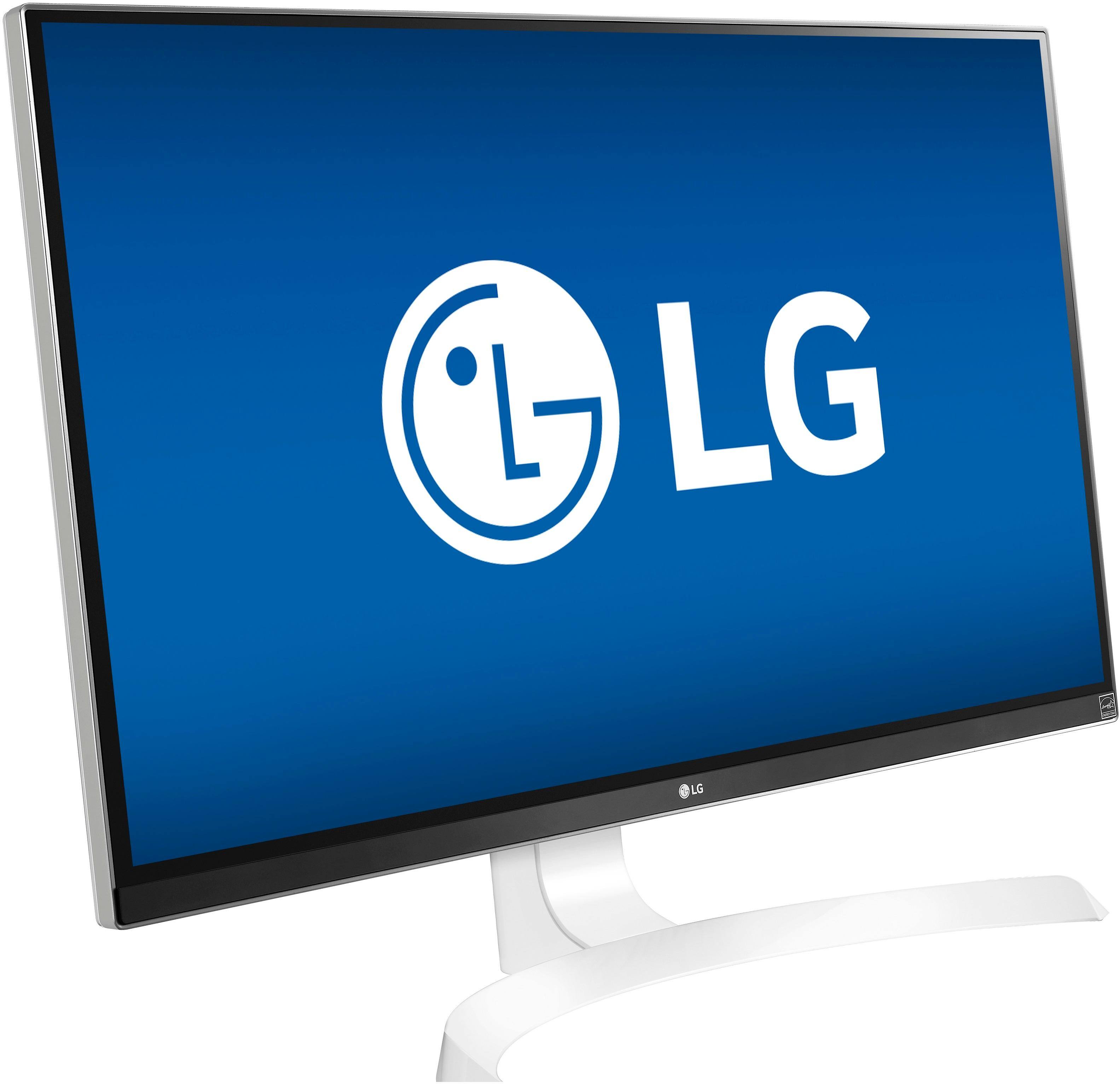
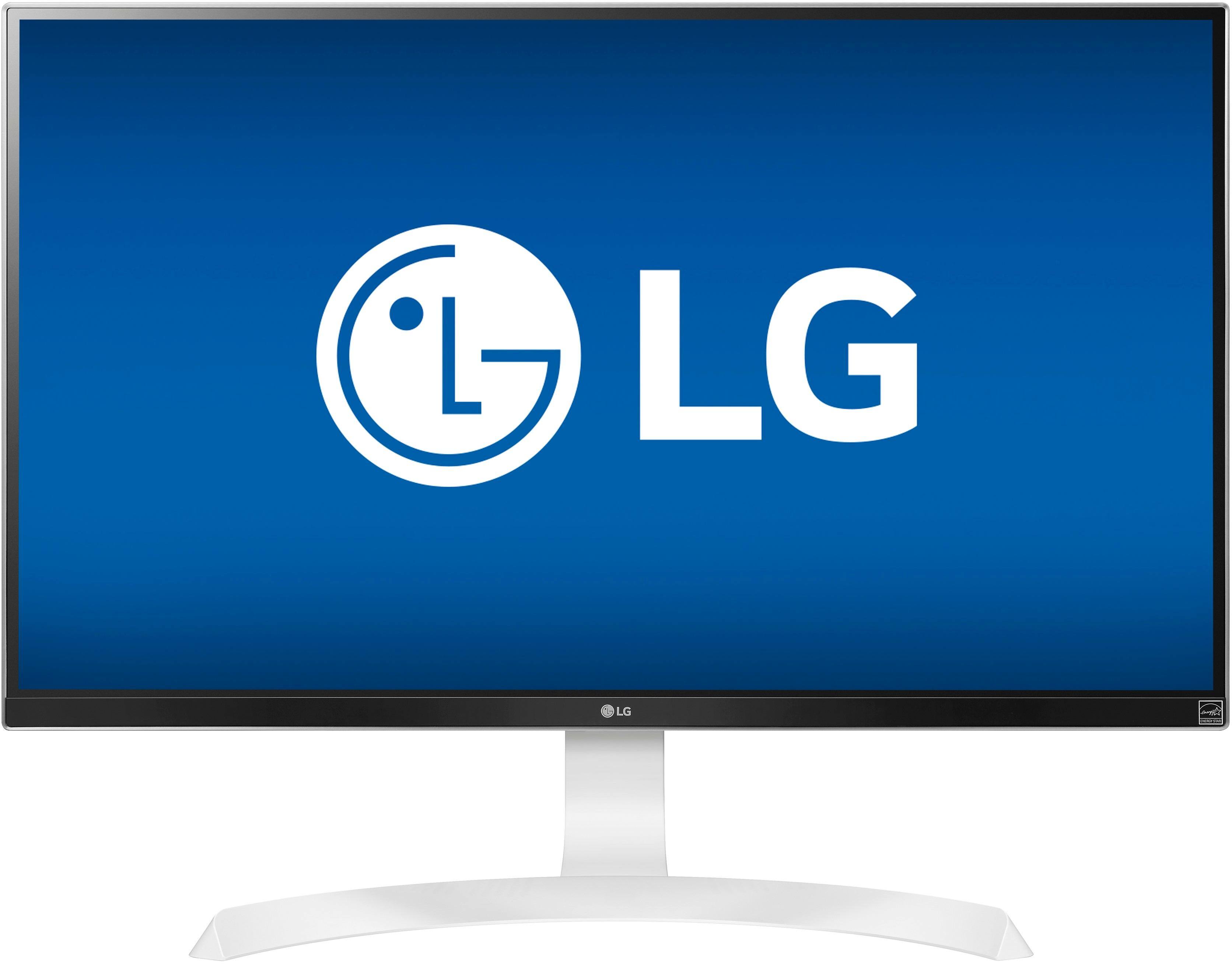
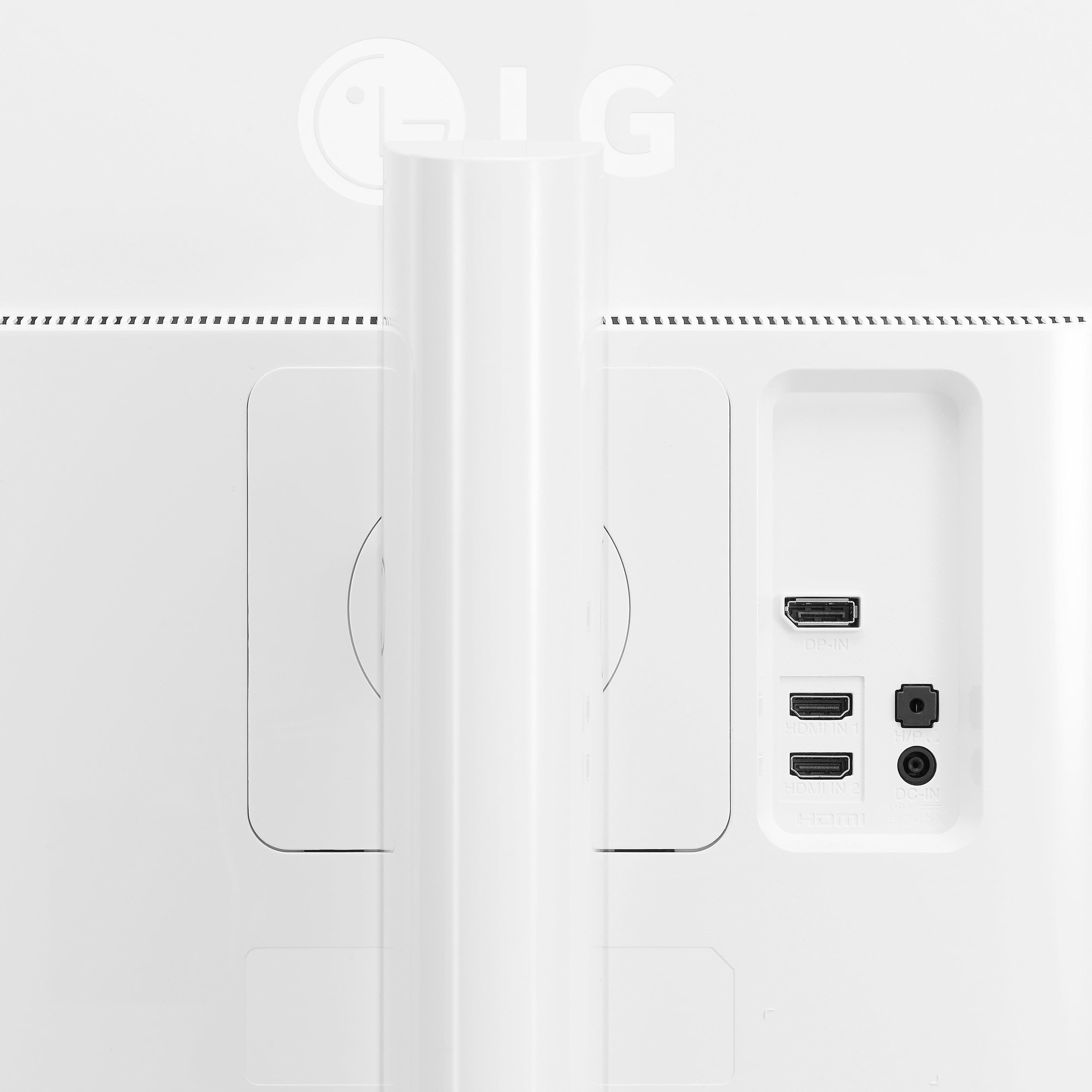
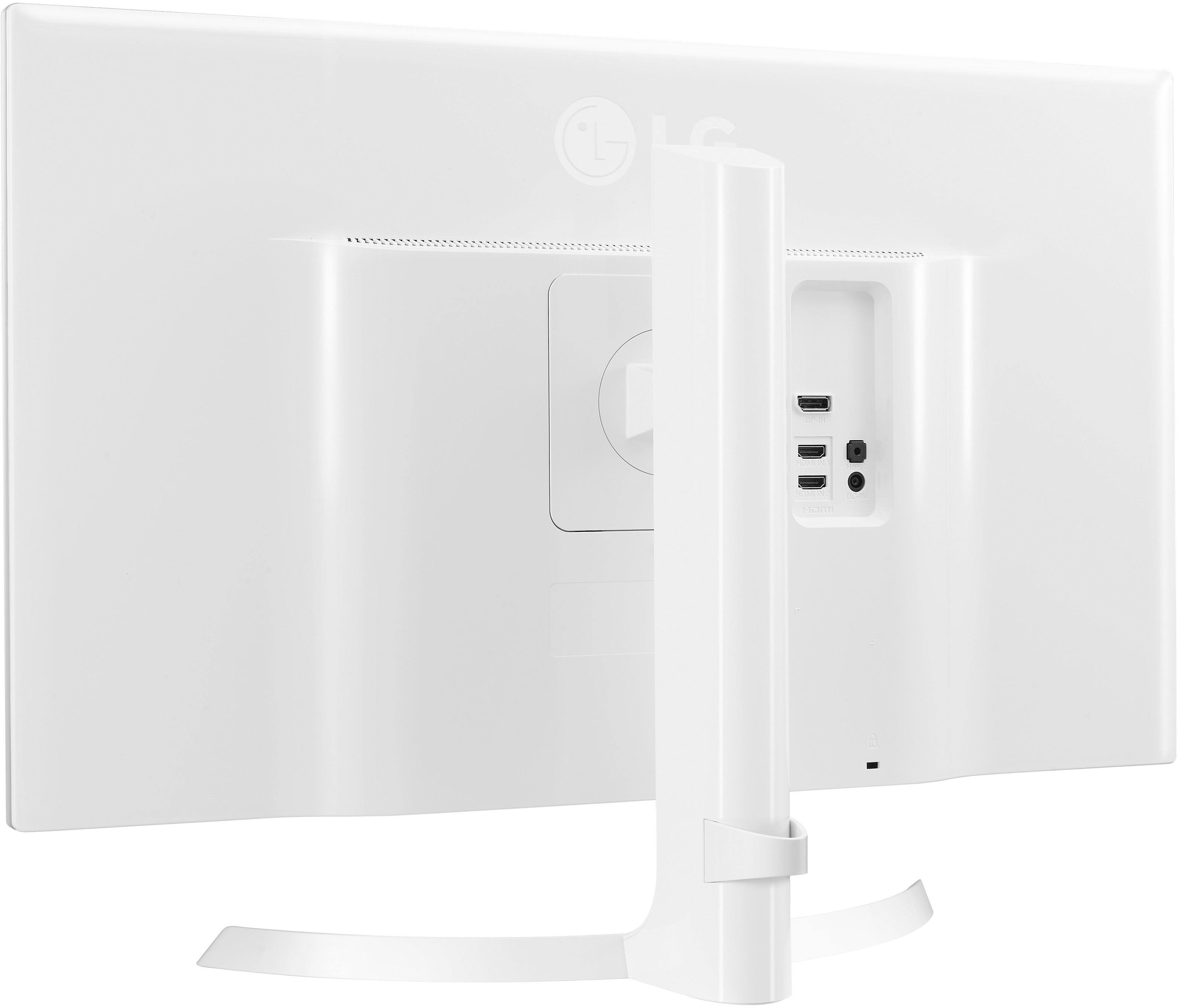
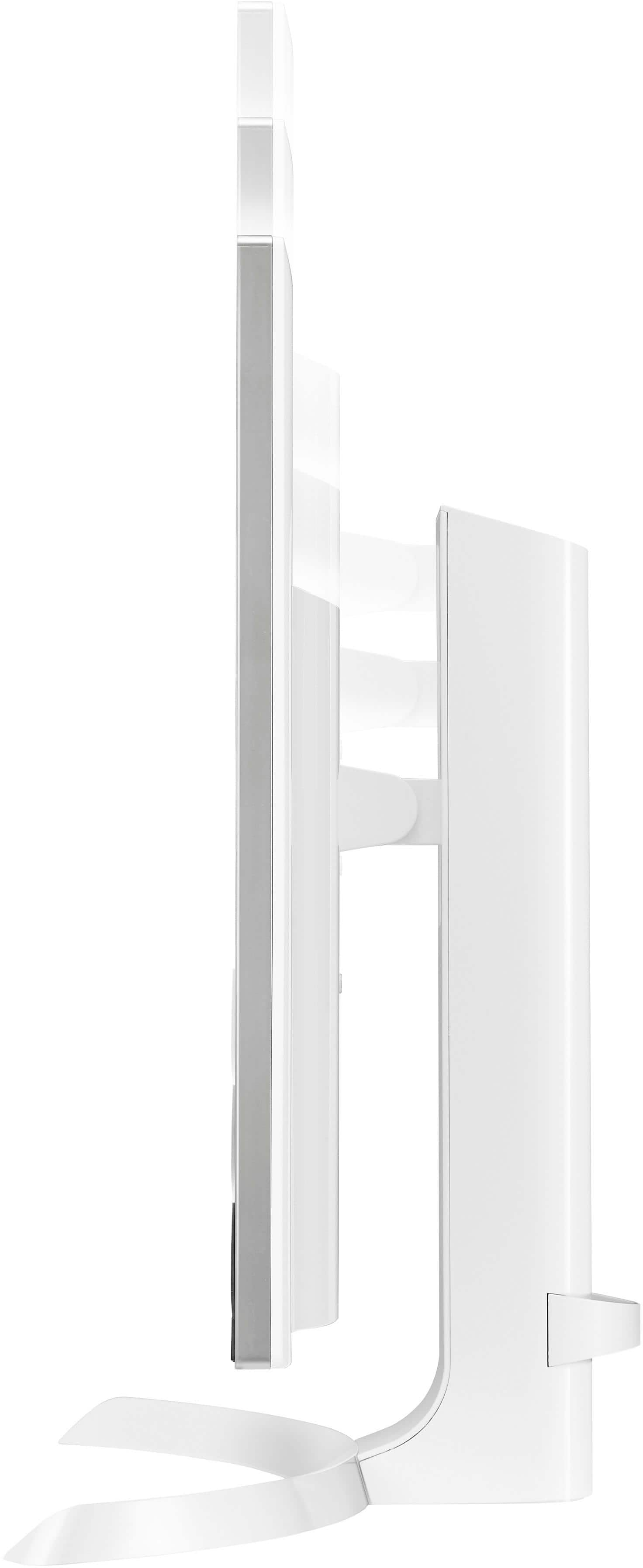
A:AnswerUnfortunately, the docking station does NOT help upscale your laptop to 4k. You have to have a 7th or 8th generation iCore to display in 4k. If you do, what you have to do is go into the Intel display tool (not the OS's display tool) and check your chip's maximum display resolution. After that, modify it to that specific resolution AND framerate (24 or 30) and it will display in 4k on the monitor (This is also done in the Intel Display Tool).
A:AnswerAll monitors are universally compatible as they just translate the same type of signal, but from what I remember, Macs require you to manually switch your display over whereas Windows has always been automatic. I could be wrong, but the last time I tried it on a Macbook Pro, it worked just fine. It could be just your settings or your port (or adapter) may be damaged on your Mac.
A:AnswerThis monitor does not support hardware calibration (e.g., writing calibration to the monitor's built-in LUT). It can be successfully calibrated using software color profiling and can even (mostly) be made to match another display technology albeit at significant cost to deltaE accuracy. I have this monitor paired against a Dell wide-gamut CCFL 100% Adobe RGB monitor and achieved a reasonable color match for whites and gray tones. I am using an X-Rite i1 Display Pro colorimeter,
Calibrating my monitors individually I am able to achieve a very high accuracy deltaE match and linear profile for each. However, when calibrated to the same apparent D65 white point the LG monitor has a definite reddish cast and my Dell a definite greenish cast. The net effect is that calibrating to white point with high overall accuracy was pretty much useless. I attribute this to the generic backlight profiles supplied by X-Rite. If you have an i1Pro2 (or better yet a reference spectrophotometer) I'd definitely recommend measuring the backlight spectra for your monitor(s) and using that as a reference calibration.
The resolution of a 4k or 5k "retina" monitor (>140ppi @ 30") is definitely worth it for photo editing. It is significantly easier to detect focus and sharpness issues on the 4K display than on my 2K display.
I am a hobbyist and was willing to spend the enormous amount of time it took me to accomplish the task of matching my displays. As a professional the money you save on this monitor will be wasted many times over versus the time you save by purchasing a higher priced Eizo or NEC display that supports the color accuracy features you need. Spend the money and don't look back.
A:AnswerI Hooked up my Roku Streaming Stick+ and I think it gave me 4K. After connecting, I went into the Roku Settings and told it to "Auto Detect". It didn't detect 4K 60hz so I selected that manually. It switched. I then went to Amazon Prime and searched for a 4K video and watched it. It looked pretty good, but not 100% sure if it was 4K. I do know that the monitor did not complain that it wasn't showing 4K resolution, so I think it was getting 4K input.
As far as sound goes, all you need to do is plug some headphones or external speakers into the monitory and the sound works great.
Hope that helps.
A:AnswerI've had this monitor for about a month for use with my MacBook Pro 2015. Works great! It took some time to adjust the color settings.
Please note that this monitor does not have internal speakers..
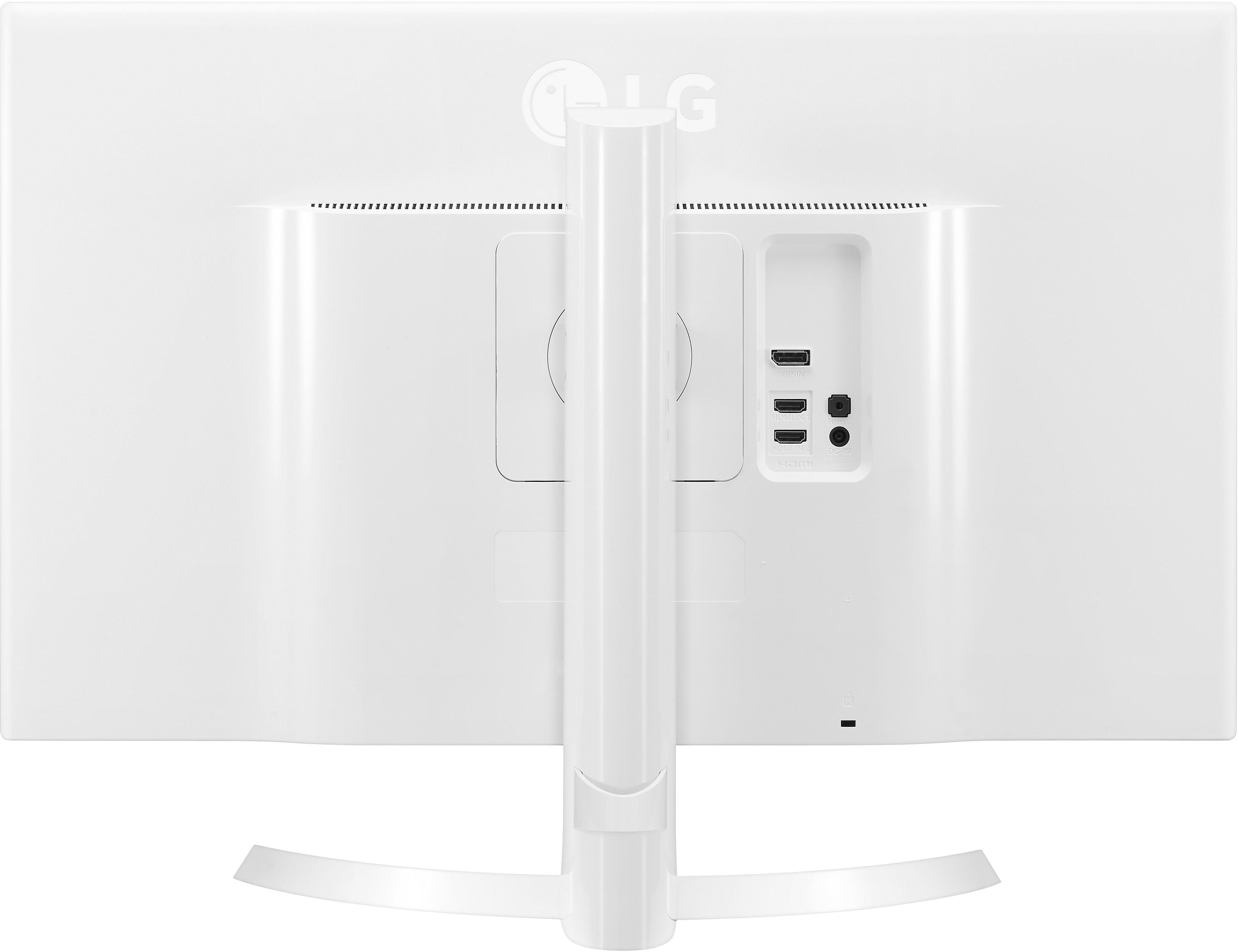
A:AnswerI tried both HDMI and DisplayPort, they both pass audio to the monitor so you can pull it from the aux port. However, I hear white noise with both of them and it gets louder as I turn the volume of the monitor up. The only way that static noise disappear is if I turn the volume of the monitor to 0.