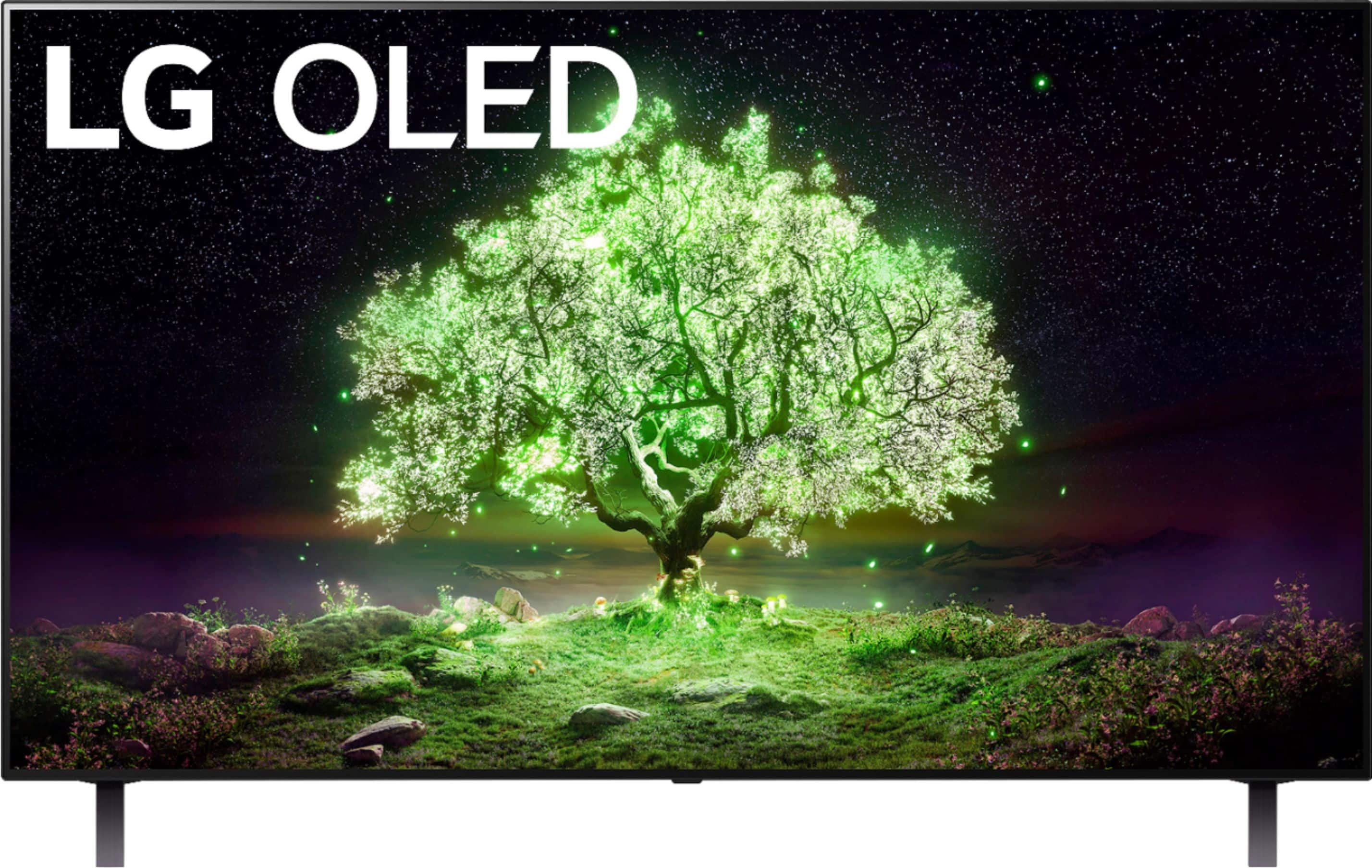
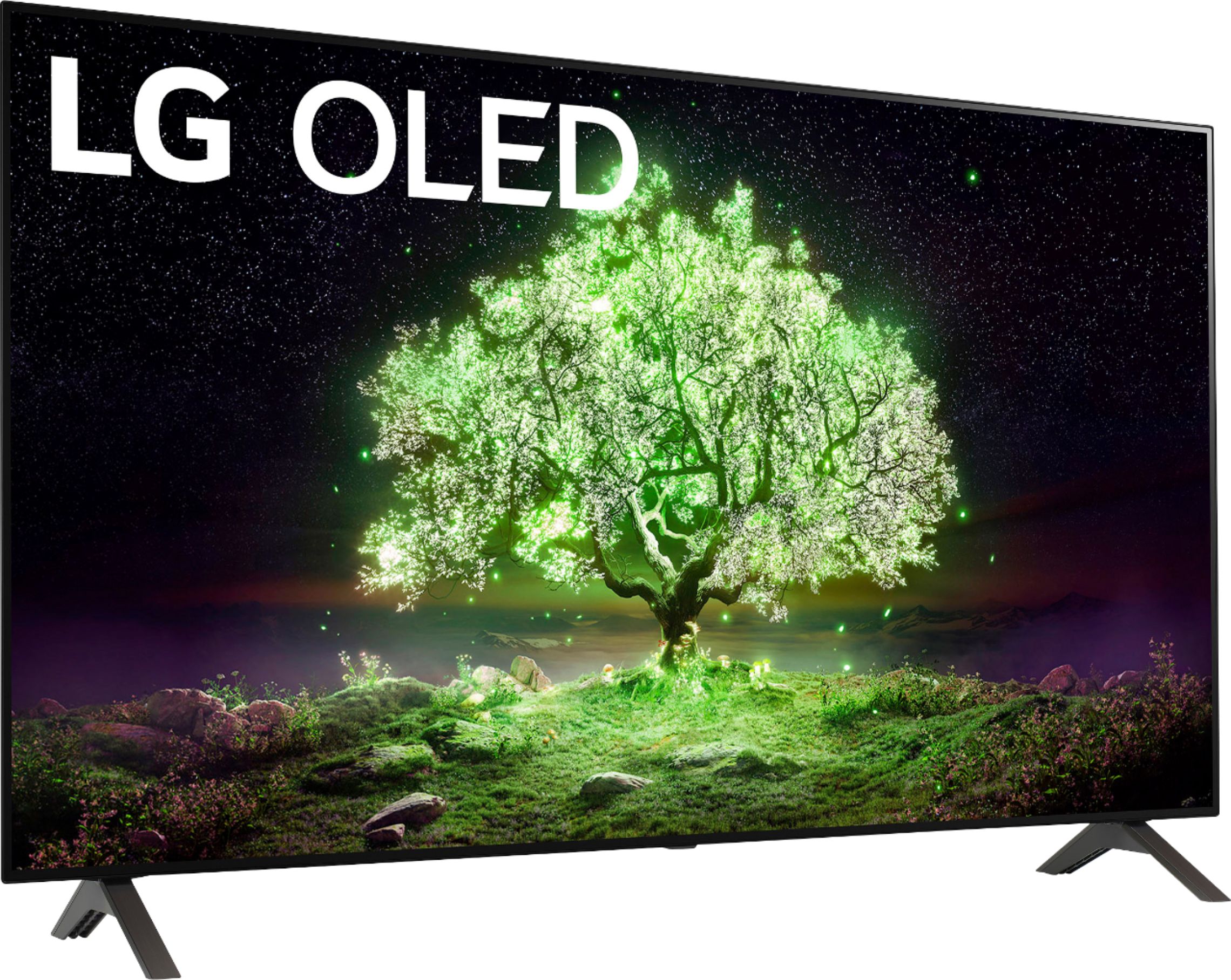
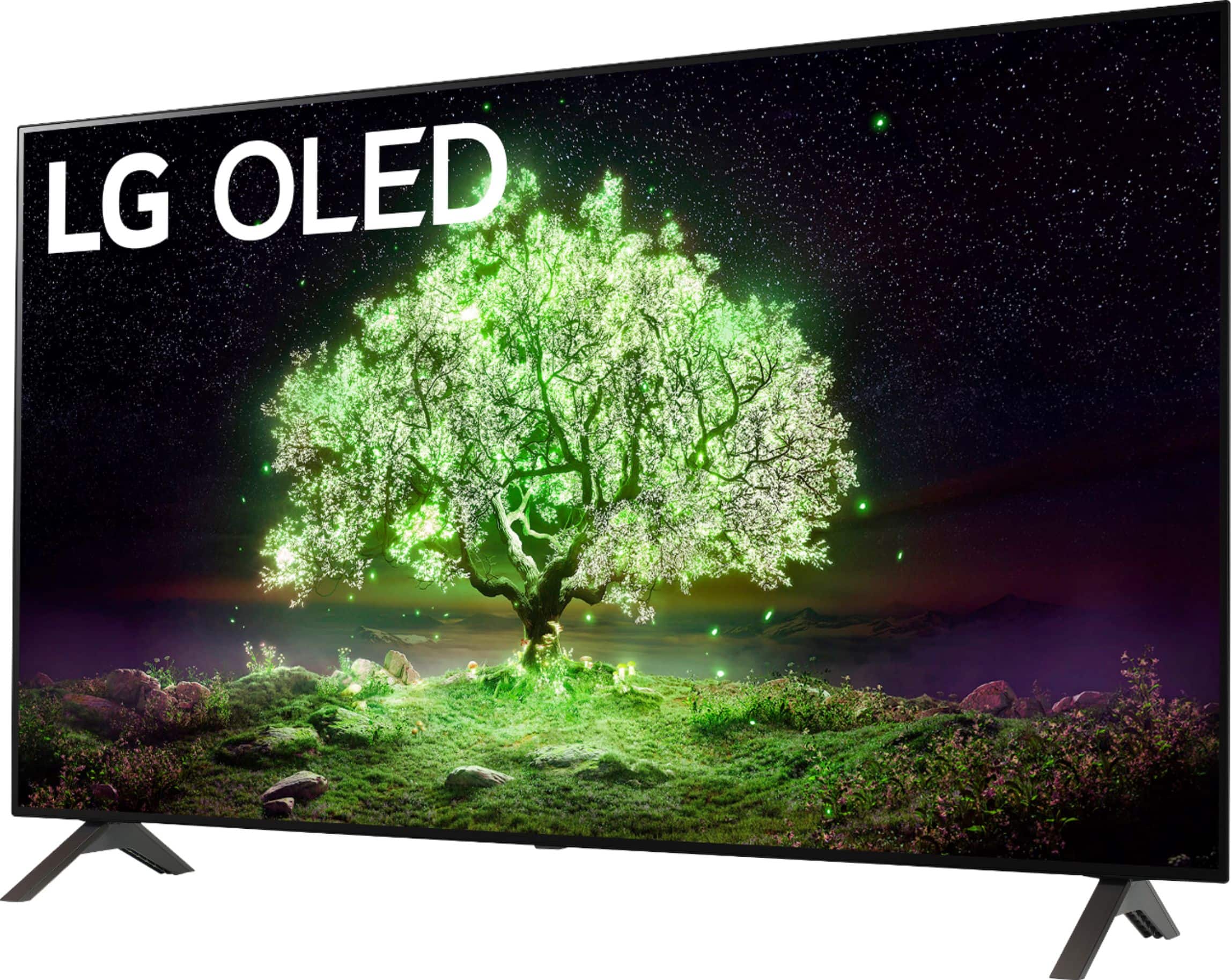
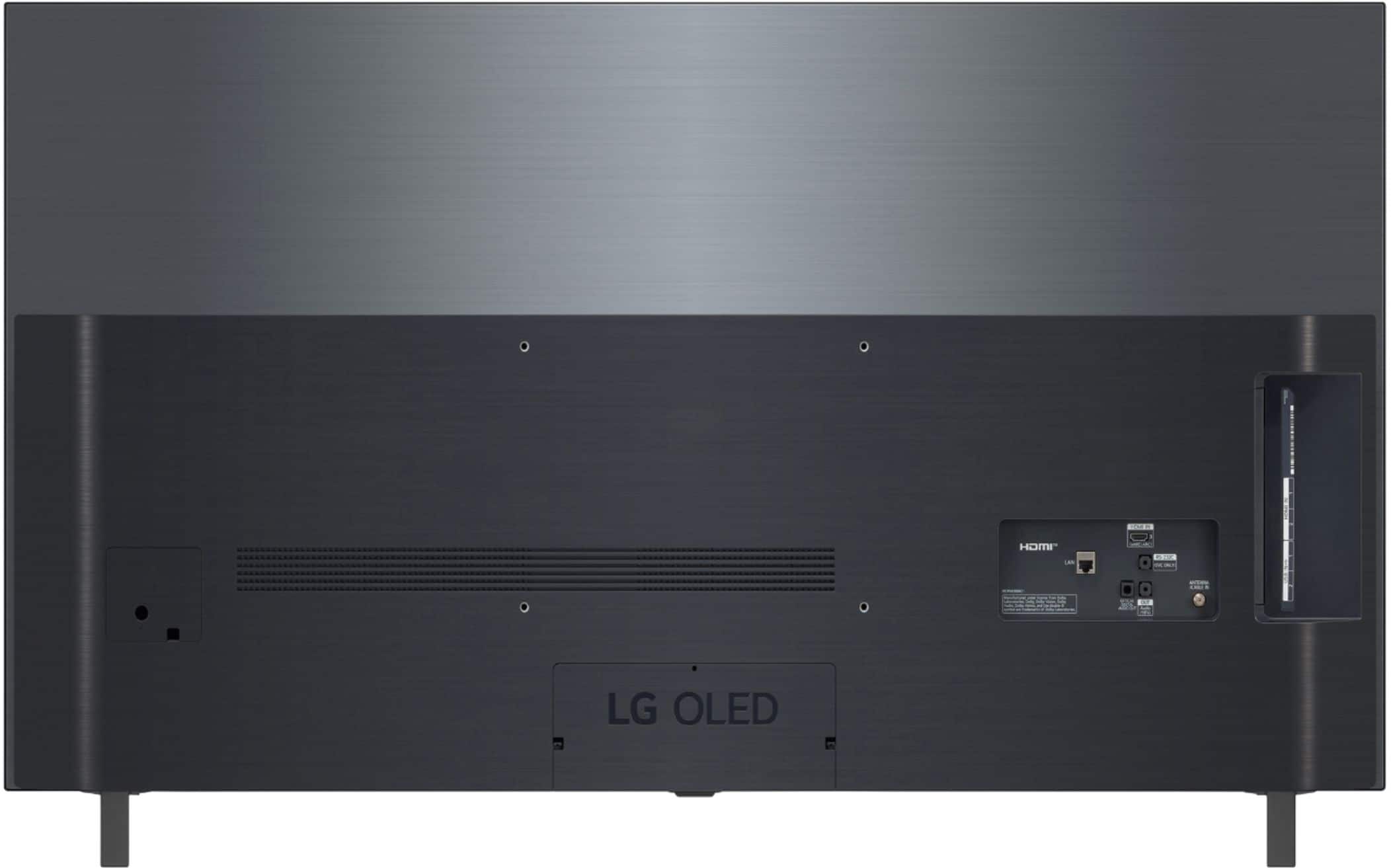
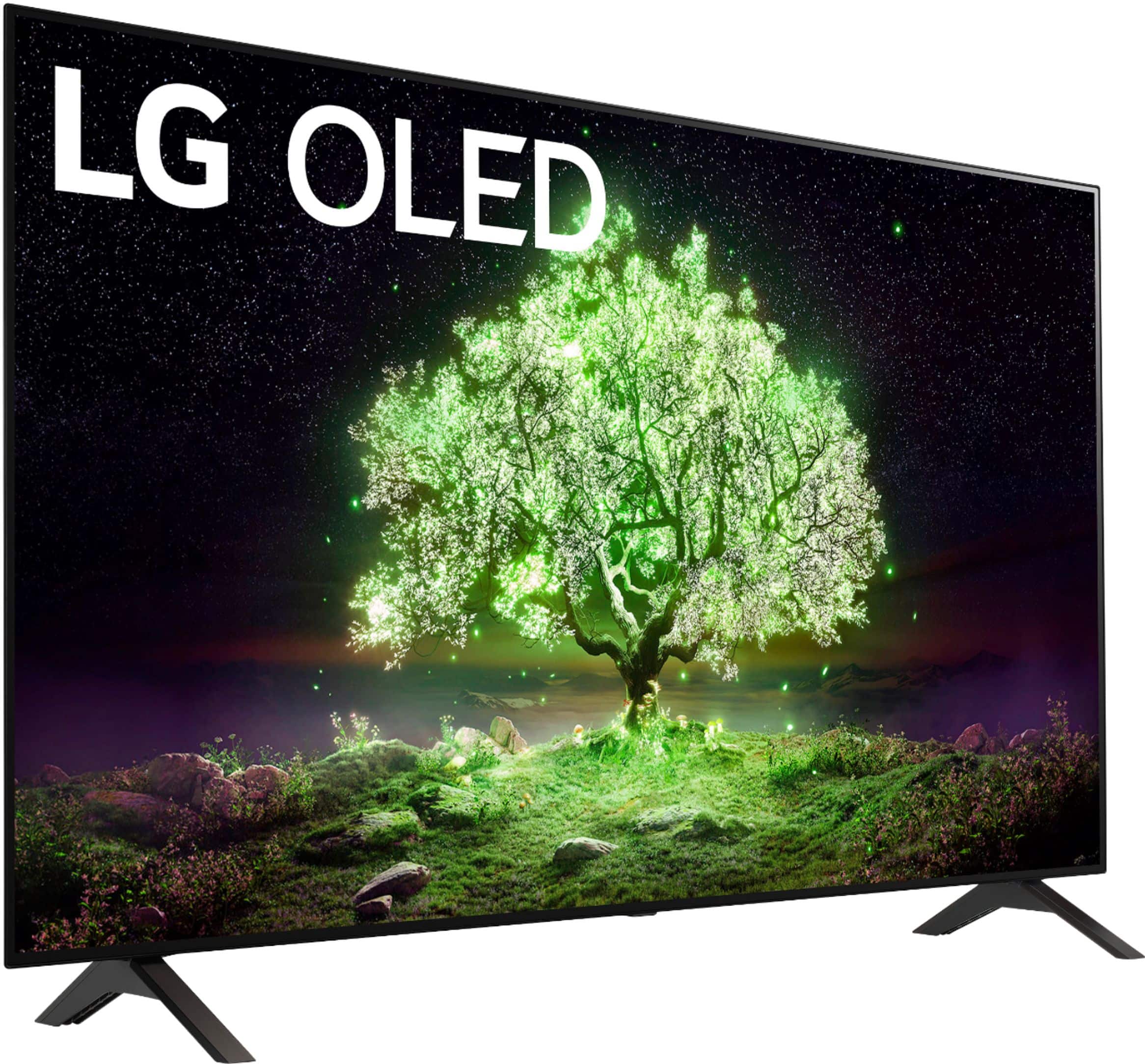
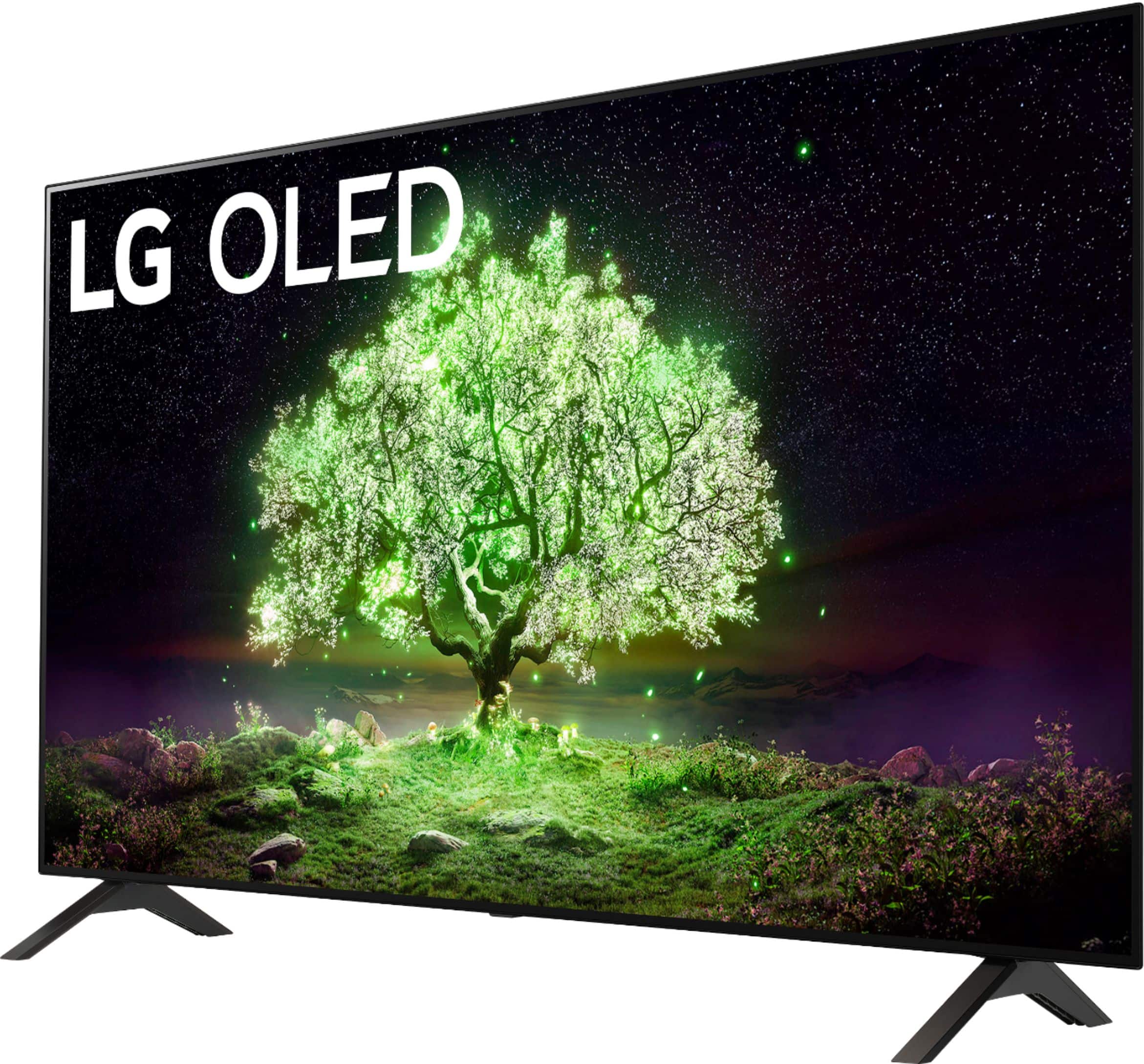
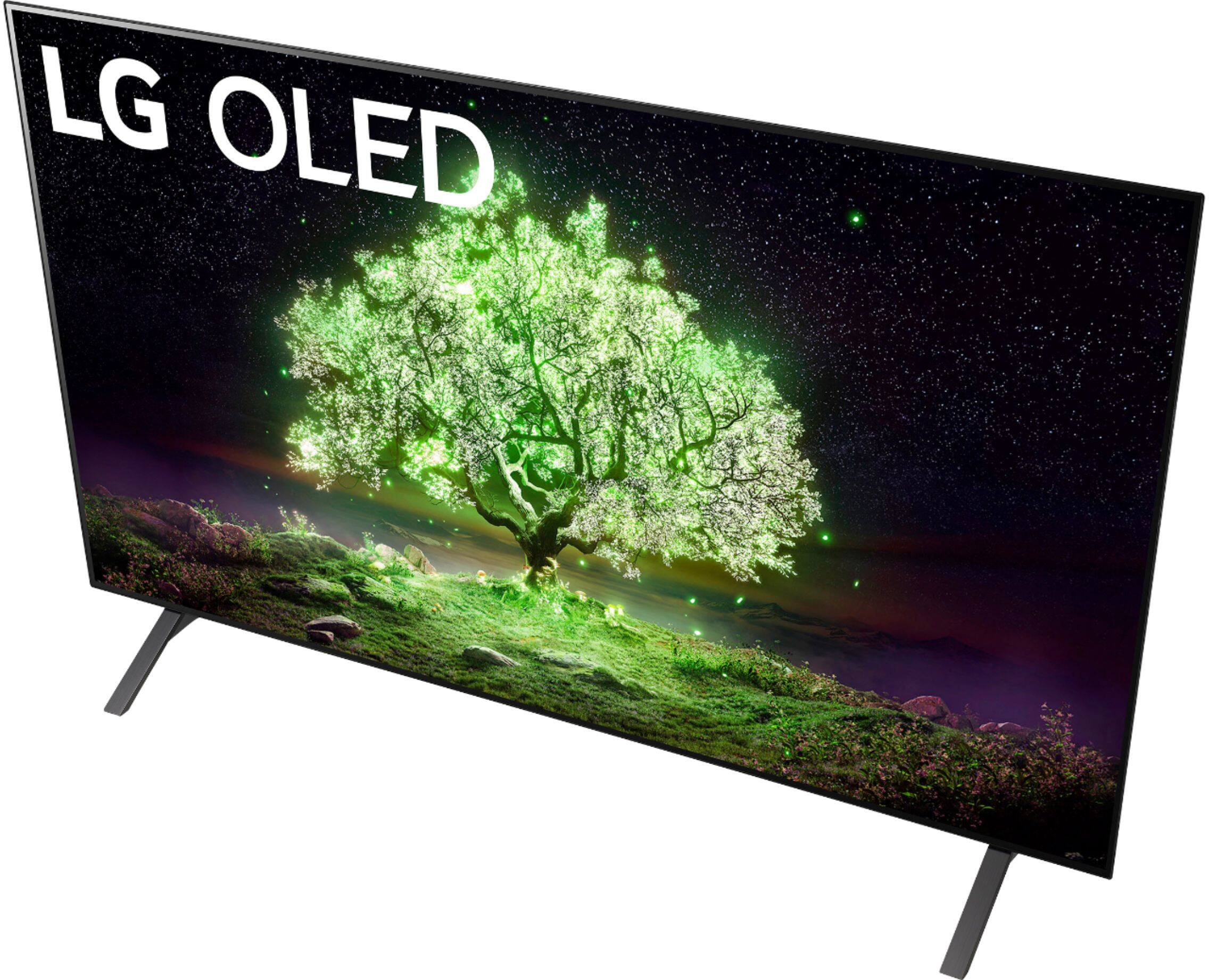
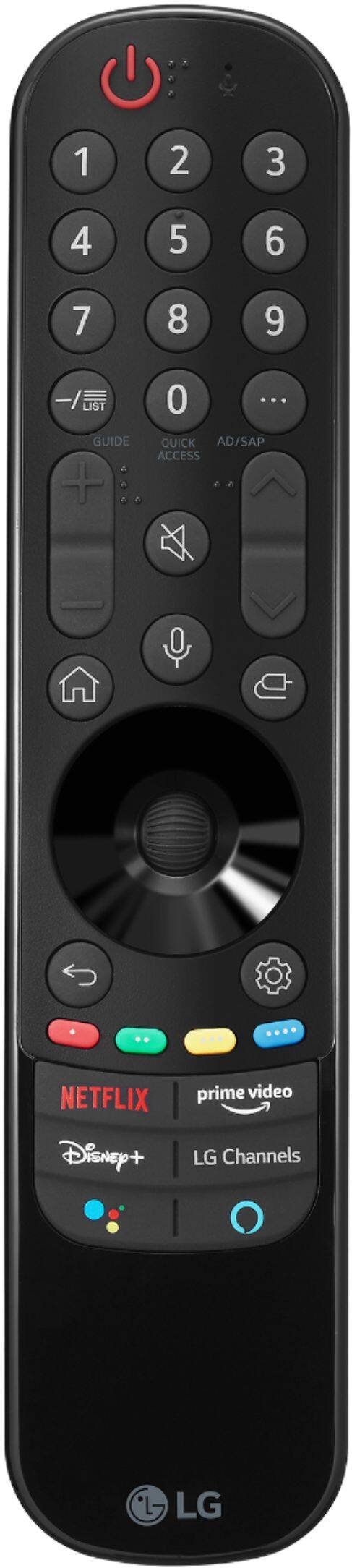
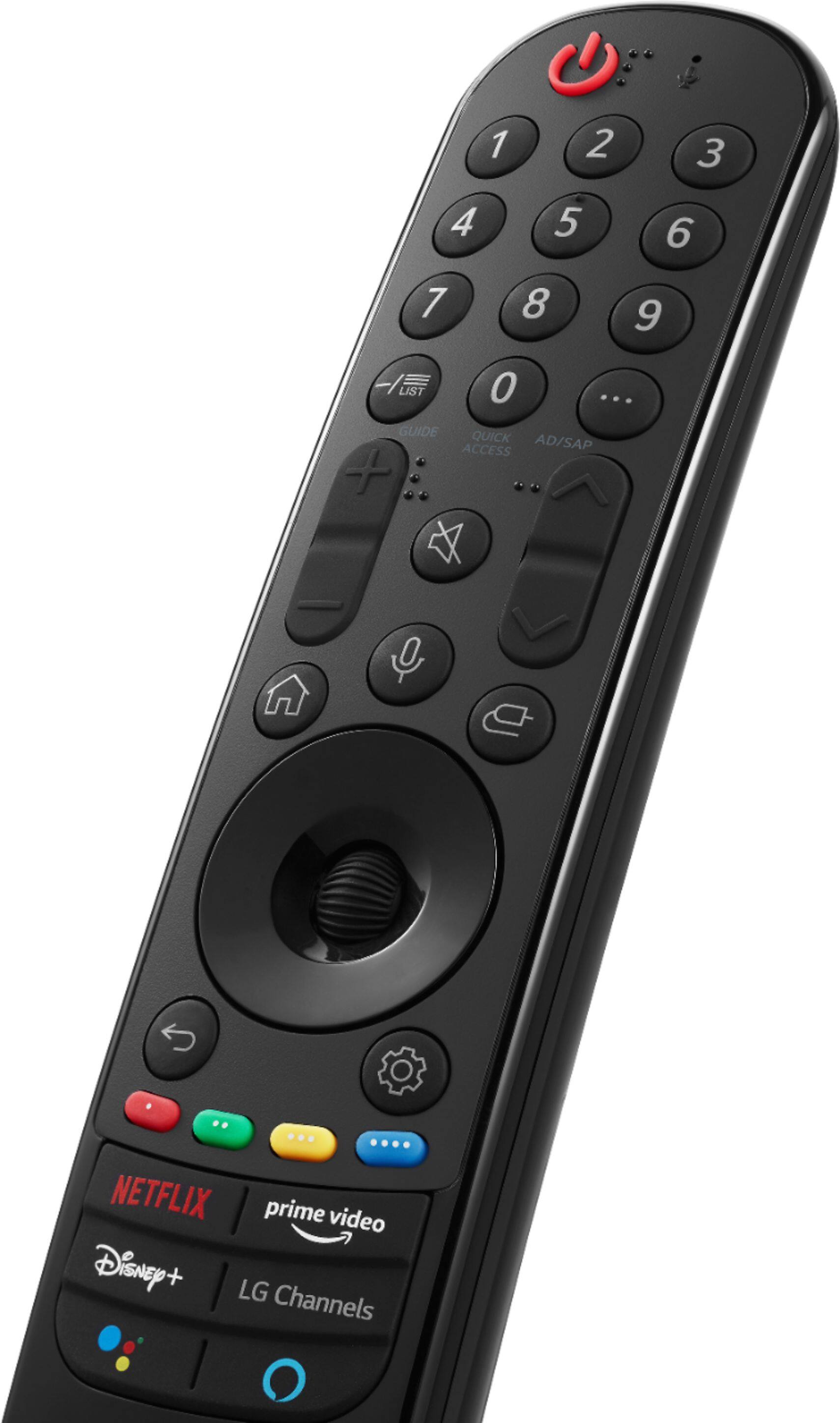
A:AnswerModel OLED48C1PUB is a higher end OLED than OLED48A1PUA. The C1 features a a 2.2 channel speaker system with greater output power, all 4 HDMI inputs are version 2.1 to support 4K@120Hz, a faster processor, Alpha 9 Gen AI processor 4K. ^Daphane
A:AnswerI have two computers in my home that are each using an LG OLED HDTV as a computer monitor. One is the OLED48A1PUA that you are asking about and the other is an OLED55CXPUA. They both make excellent computer monitors as long as you understand their limitations and use them accordingly.
1 - Before you configure an OLED HDTV for use with a computer, make sure the OLED HDTV has the latest firmware. Some of the settings you will need may not be present with the older firmware supplied when the HDTV was manufactured.
2 - OLED displays are not a good choice for bright environments. they work best in dark environments with low or no ambient light. This is because their maximum brightness is limited and, if you turn their brightness up, they will quickly suffer burn-in.
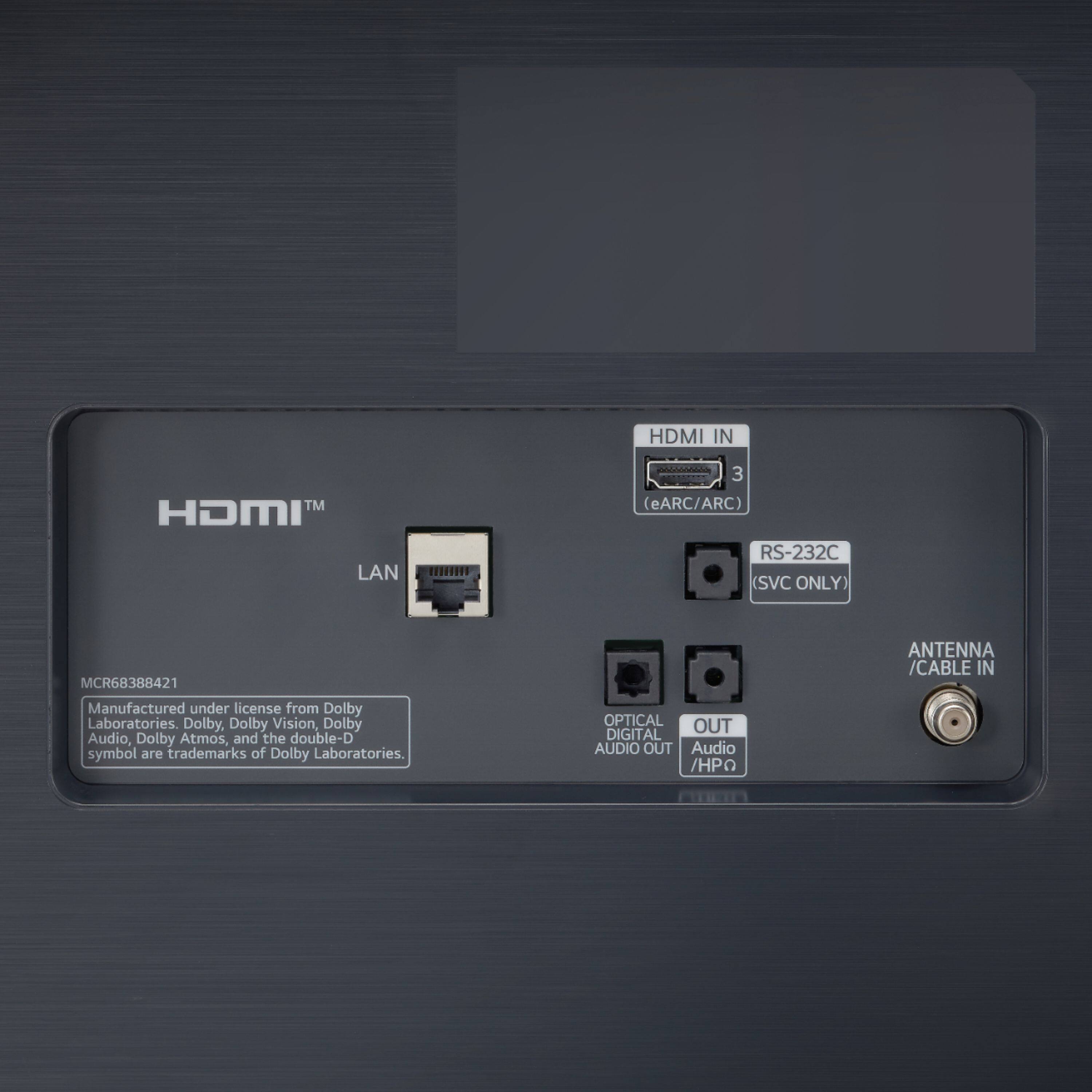
3 - Since these HDTVs only have HDMI inputs, you may need a DP (DisplayPort) to HDMI converter. Some PCs only provide their best video signal via a DP output. If you must use a DP output, you must use a high quality converter that converts from DP 1.2-1.4 to HDMI 2.0 or better and supports the refresh rate at 4K (UHD) that you plan to use.
4 - You must configure the HDMI input for use with a PC. This is usually done by setting it to type PC with the menu of the OLED HDTV. This will disable the overscanning which prevents the full 3840 x 2160 pixel desktop from being visible.
5 - Since OLED technology is susceptible to burn-in when a static image remains visible for a long time (like a the desktop image of your computer), you'll need to take steps to avoid it. The primary way to avoid this problem is to turn down the brightness and use SDR (standard dynamic range). First, turn down the brightness of the HDTV, itself. My HDTVs are used in a dark environment where the ambient light is low. In this environment, I'm using the "Expert (Dark Room)" picture mode. My OLED48A1PUA is set as follows: OLED Light = 40, Contrast 85, Brightness = 40, Sharpness = 10, Color = 50, Tint = 0. My OLED55CXPUA is set as follows OLED Light = 30, Contrast 85, Brightness = 60, Sharpness = 10, Color = 50, Tint = 0. Auto Contrast is turned OFF. Keeping the brightness to a modest level also prevents the ABL (Auto Brightness Limiter) from kicking in and auto-dimming your picture.
6 - LG OLED HDTVs include a hidden Service Menu that allows hotels and service technicians to access settings to customize the TV's operation. The menu is accessed with a special service remote control that can be purchased very inexpensively from a variety of online sellers. Mine cost only $8. To summon the Service Menu, press the "IN START" button on the service remote and enter the numbers "0413" for the password. Using the Service Menu, you'll need to turn off ASBL (Auto Static Brightness Limiter) or your OLED HDTV will frequently auto-dim to unusable levels. Moving the mouse and/or typing will not restore the brightness. Which is why this feature is not compatible with computer use. The ASBL settings are in the Service Menu at "12. OLED". Select it and set TPC (Temporal Peak Luminance Control) to zero or OFF and set GSR (Global Sticking Reduction) to zero or OFF. Lastly, press the "Exit" button on the service remote to exit the Service Menu. This is very important: Once you've turned off TPC and GSR, your HDTV will be more susceptible to burn-in. So you must be very careful to avoid excess brightness. My computers are configured to use a dark theme for the user interface to avoid unnecessary brightness. And keeping the brightness setting modest as described above, will usually be all the protection you need. But if you try to use your OLED HDTV at a high brightness level with TPC and GSR off, you are asking for trouble. Sadly, they must be turned off for computer use because they make it impossible to maintain a steady brightness level which makes virtual all graphics work (photo and video editing) impossible. WARNING: You can brick your OLED HDTV if you misuse the service remote. My recommendation is to avoid all other buttons. Never ever press the "IN STOP" button because it will do a complete pre-factory calibration reset and ruin the picture quality. The "IN STOP" button will also reset the UTT counter that keeps track of the number of hours on the OLED panel which will mess up its internal compensation for cycle operation. I always remove the batteries from my service remote and hide the remote when I'm finished using it so someone else can't accidently ruin the HDTV.
7 - Make sure that the signal from your computer is an RGB signal. If you are forced to use a DP-to-HDMI converter like me, be aware that many of the cheaper models will convert to a YCbCr422 signal which will ruin the pixel color accuracy of the signal. The most obvious effect will be in small text where the color red will appear to have a halo or appear to "bleed". Some computer video drivers also provide a manual setting that allows you to switch between RGB and YCbCr. If a setting is provided, make sure your computer's video driver is set to RGB. If your video driver does not offer a setting for this and you observe the problem, then you'll need to obtain a better DP-to-HDMI converter and, possibly, a better HDMI video cable. But be encouraged, when you get it working properly, it looks gorgeous and is reliable.
8 - Configure your computer's power and screen saver settings as follows: Using the power settings, set the display to dim after 5 minutes. Set the display to turn off NEVER. Set the computer to sleep NEVER. These power settings are important. You want your OLED HDTV to always have a video signal from your computer. If your computer goes to sleep, or if it tries to turn off the display (by killing the signal to it), your OLED HDTV will not like it and it will flash an irritating message about losing the signal and it will automatically turn off after a few minutes. Then, when you wake your computer, the HDTV will be off and it won't wake. This may cause the computer to reset its video driver settings to its minimal default state and ruin your desktop setup. For the screen saver, you want it to go "blank" after 5 minutes. This will cause your computer to send a solid black image to your OLED HDTV after 5 minutes of inactivity. This effectively turns off all 3840 x 2160 pixels of your display. And, since OLED HDTVs have a perfect black and draw very little power when they display a fully black image, it effectively puts your OLED HDTV into a low-power state. Now here's the beauty: Your OLED HDTV is not in standby and it is not sleeping---it's just displaying a black image. As soon as you move your mouse or tap a key on your keyboard, your computer's screen saver exits and your desktop is instantly restored.
Final words: I've got many hours on my LG OLED HDTVs solely as computer monitors. They produce the best image of any displays I have ever used (I've used calibrated displays for decades for image editing going back to high-end Sony CRTs) and my OLEDs are showing zero signs of burn-in. But I'm not using them for HDR (high dynamic range) editing and I'm not sure how that would be. HDR requires a higher max brightness which can make the avoidance of burn-in a bigger issue. However, for SDR, I've had no problems and I have a LOT of hours on my LG OLED HDTVs---all of it with computers.
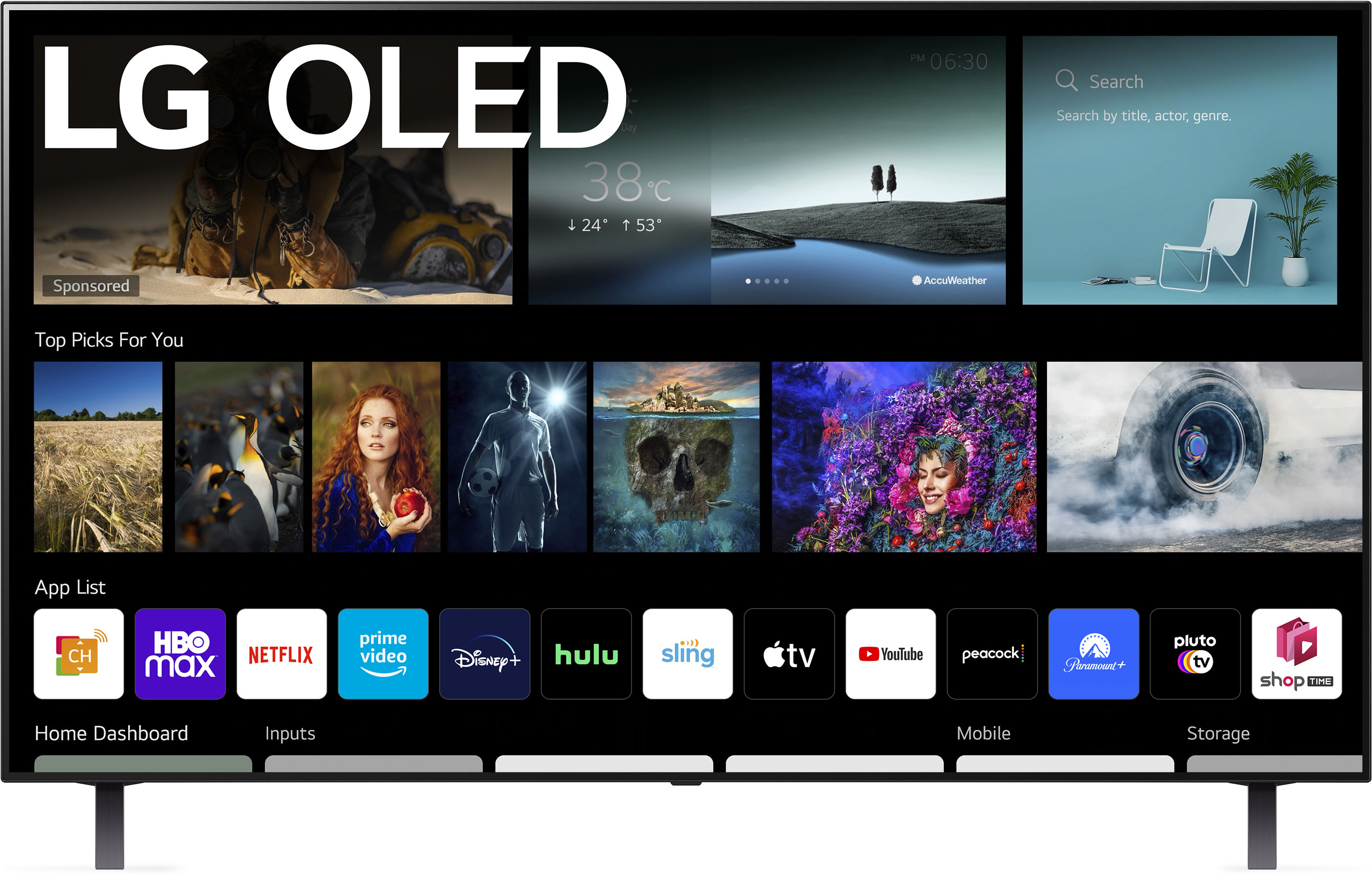
A:AnswerModel OLED48A1PUA has a 6.0 webOS platform. Our webOS platform offers over 600 apps including streaming content and games - including over 180 free streaming channels via the LG Channels (on select models). Additional charges apply for some streaming services. For a complete listing of available apps, please visit: https://us.lgappstv.com/main/tvapp. ^Daphane
A:AnswerRegrettably, LG TVs do not support the Spectrum TV app at this time. For a complete listing of available apps, please visit: https://us.lgappstv.com/main/tvapp. ^Daphane
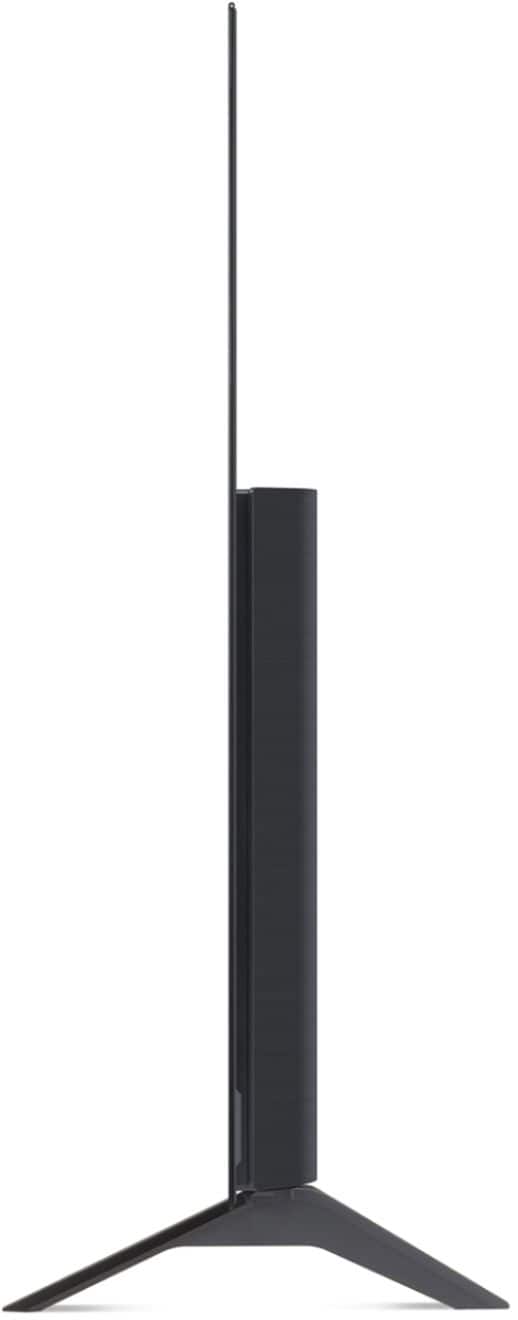
A:AnswerModel OLED48A1PUA has a VESA Mounting interface pattern of 300 x 200 (W x H). The top VESA holes are 10.591" from the top of the TV and the bottom holes are 5.669"/ 7.165"(max bottom) from the bottom of the TV. ^Daphane
A:AnswerModel OLED48A1PUA has built in tuners ATSC and Clear QAM. ATSC is used to receive digital channels over the air. QAM is used to receive digital channels from a cable TV provider without use of a cable box. ^Daphane
A:AnswerHi,there. this can be sit back about 8 feet. Here's the guide https://www.lg.com/us/support/video-tutorials/lg-smart-tv-optimum-viewing-position-CT10000018-1342474763453. ^Vanessa
A:AnswerThe answer is generally yes, but the longer explanation is "it depends".
First you need a certain minimum speed broadband connection to obtain 4k resolution (both the rate from your ISP and the actual rate your wifi router is able to deliver to the HDTV). Second, you need to indicate that you want to view 4k content. Because it consumes more bandwidth, this may require a higher tier of service from the app (for instance, Netflix charges more for 4k service). Of course, not all material is available in 4k format (generally only movies and shows produced in the last decade). But yes, if your ISP and router support it, and the app offers it, and you're viewing a program that's offered in 4k resolution, then you can view it in full glory on the LG ultra HD OLED TV.
A:AnswerPlease reach out to our support team on Facebook at @LGUSSupport and use #VOC in your first message to our social media support team. Please be sure to provide your name, phone number, address, email, model/serial numbers, and date of purchase and we will be happy to assist you. There are policies and procedures in place to ensure resolutions are consistent and fair. I am confident that we will work to provide an agreeable resolution.^Venette