Year-End SaleEnds 1/1/26. Limited quantities. No rainchecks.

Main Content

Questions & Answers

Your price for this item is $1,396.99
The comparable value price is $1,499.99
Page Showing 81-100 of 103 questions
  • Questioncan i listen to Spotify on my TV... is there a smart app for Spotify made available. ?

    Asked by bruce.

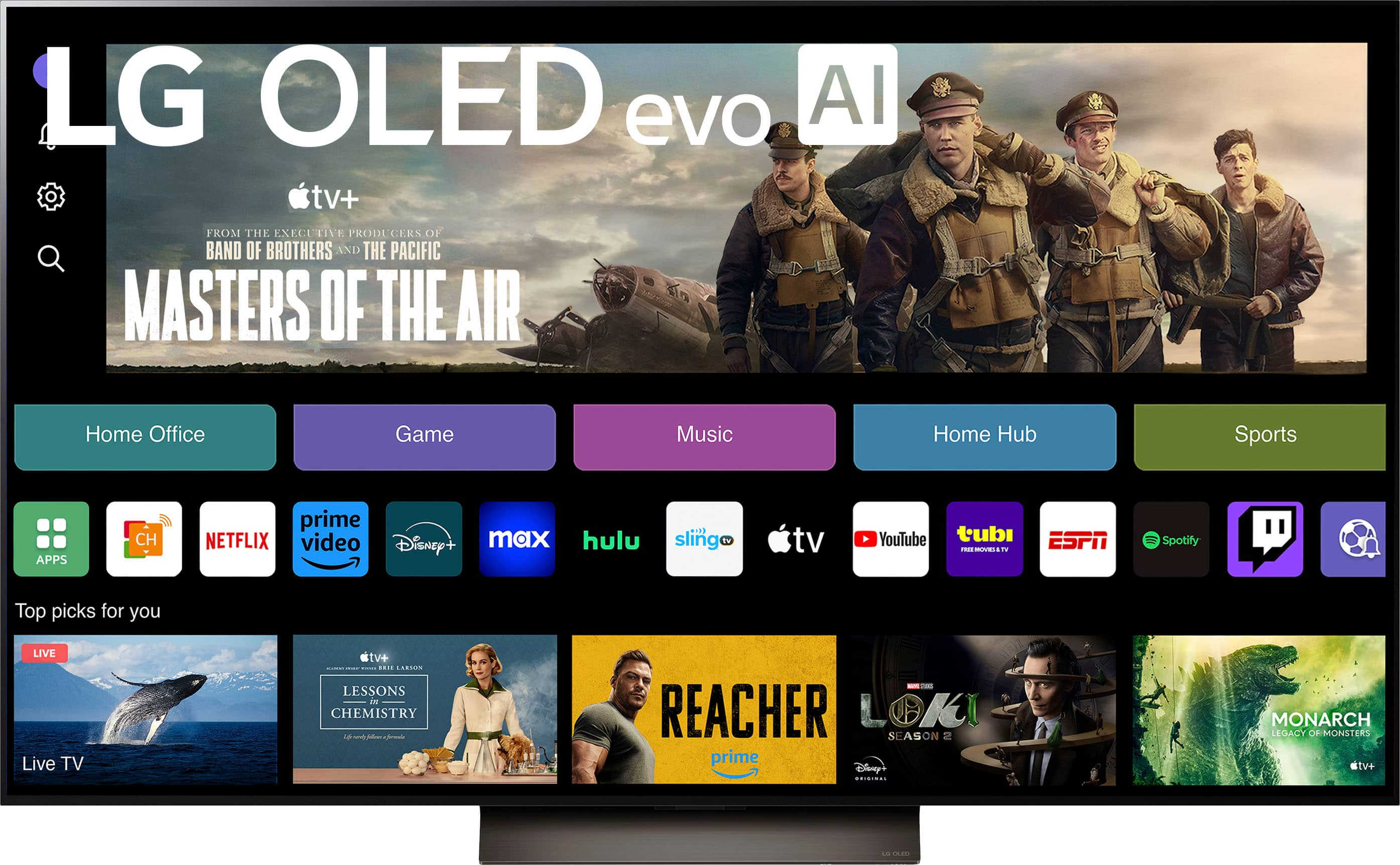
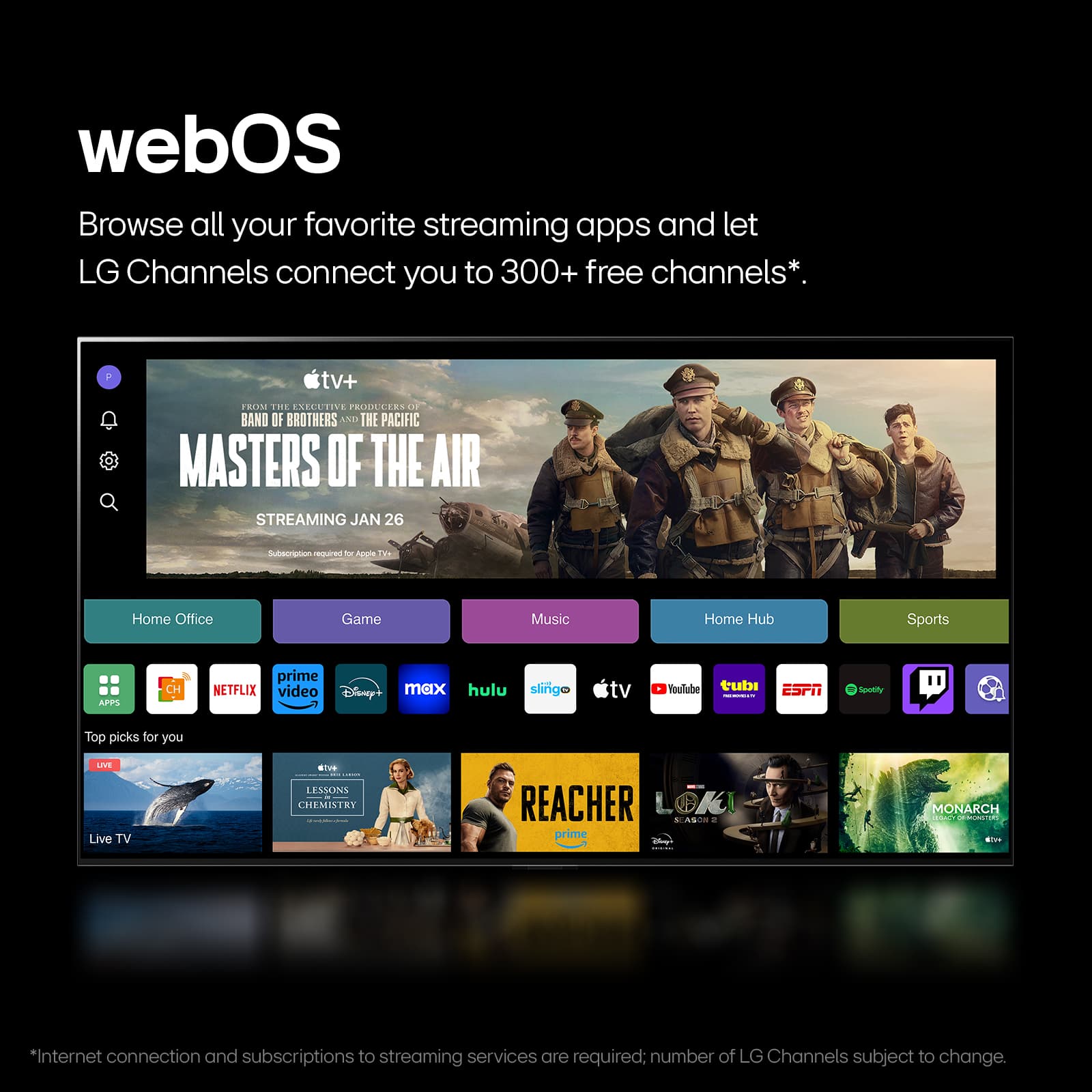
    • Answer Hi there, Bruce. Thank you for reaching out to us about the LG OLED65C4PUA. We understand you're curious about accessing Spotify on your TV. The great news is that with the built-in webOS platform, you can enjoy a wide variety of streaming apps, including Spotify! To get started, simply access the LG Content Store on your TV, search for the Spotify app, and download it. Once installed, log in with your Spotify account, and you're ready to stream your favorite tunes directly on the TV! https://www.lg.com/us/tvs/lg-oled65c4pua-oled-4k-tv#pdp_specs If you have any trouble setting this up or need further assistance, please send us a private message on social media @LGUSSupport, and we'll be happy to assist further. —Renzo

      Answered by LG Digital Customer Care

  • QuestionI have a 1984 Panasonic receiver that only has AV (RCA) ports (no optical audio, no HDMI) . It is mandatory to be able to connect the TV audio output onto my existing receiver for audio. photos of receiver & existing Samsung TV audio out

    Asked by bruce.

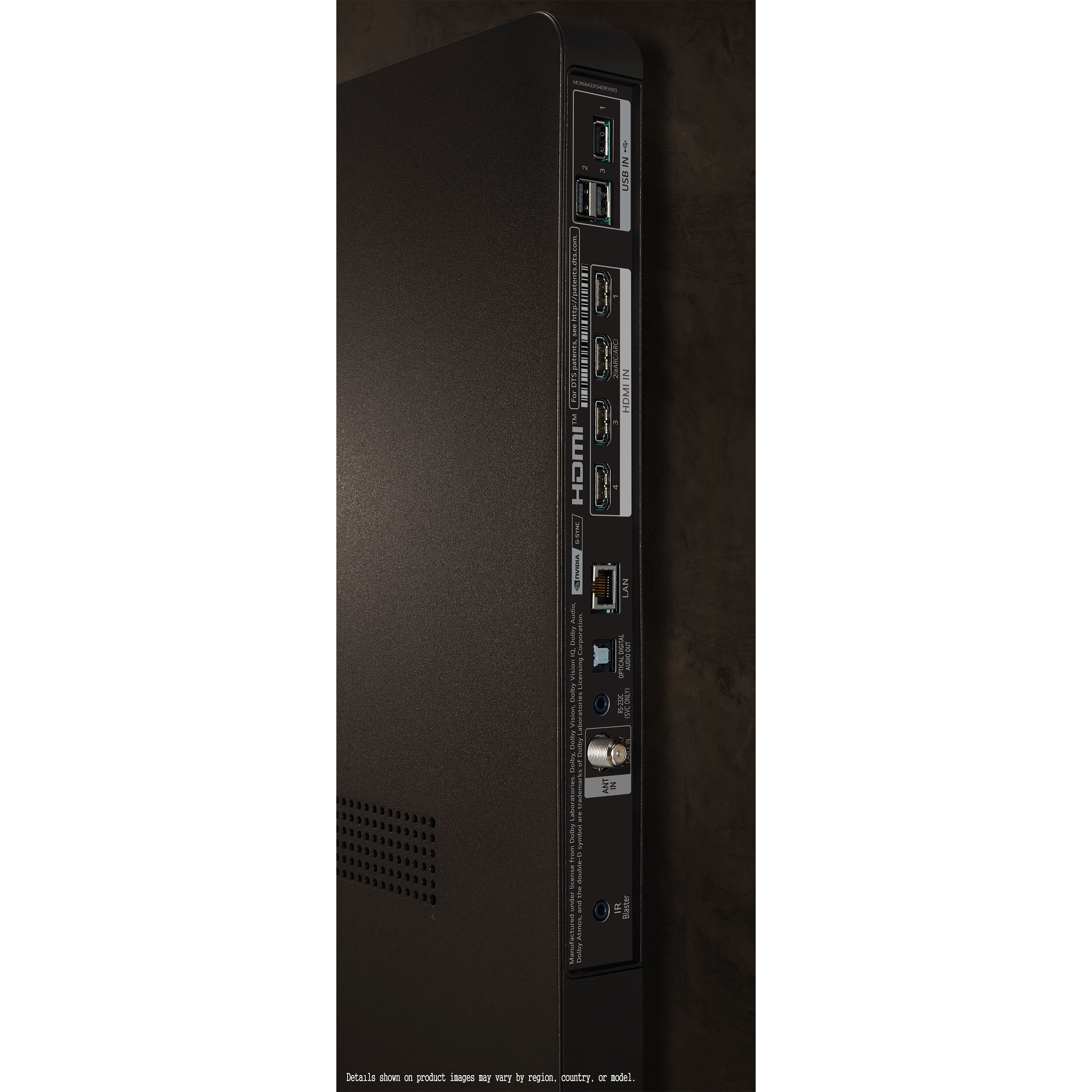
    • Answer Hi there, Bruce. Connecting your 1984 Panasonic receiver with only AV (RCA) ports to your LG OLED65C4PUA TV for audio is possible using a digital-to-analog audio converter. Here's a step-by-step guide to help: Why the TV Requires an Adapter Modern TVs like the LG OLED65C4PUA use advanced audio outputs, such as Optical Digital (SPDIF) or HDMI eARC, instead of older RCA (red/white) connections. Since your receiver doesn't have optical or HDMI inputs, you'll need a converter. Solution: Digital-to-Analog Audio Converter You’ll need a Digital-to-Analog Audio Converter with the following features: Optical (TOSLINK) input (from the TV’s optical audio output). RCA (red/white) output (to your receiver). Power adapter (to power the converter). Step-by-Step Setup Connect the TV to the Converter Use an optical (TOSLINK) cable to connect the TV's Optical Digital Out port to the converter’s Optical In port. Ensure the cable clicks into place for a secure connection. Connect the Converter to the Receiver Use an RCA cable to connect the converter’s RCA Out ports to the corresponding AV In ports on your receiver (match red to red, white to white). Set the TV Audio Output On your LG OLED TV, go to: Settings → Sound → Sound Out → Optical/HDMI ARC. Enable PCM as the audio format (important for compatibility with older devices). Power the Converter Plug in the converter’s power adapter and ensure it’s powered on. Select the Correct Input on the Receiver Switch your Panasonic receiver to the AV input channel corresponding to the RCA connection. Things to Note Cables Needed: Optical (TOSLINK) and RCA cables are typically sold separately. Converter Quality: For better audio, consider a higher-quality converter that supports noise reduction. Alternative: If your receiver supports AUX (3.5mm jack), use a digital-to-analog converter with a 3.5mm output and a 3.5mm-to-RCA cable. https://www.lg.com/us/tvs/lg-oled65c4pua-oled-4k-tv#pdp_specs Let us know if you need further assistance or recommendations for specific converters! —Renzo

      Answered by LG Digital Customer Care

  • QuestionBought LG TV June 2024. After few months, the TV screen goes black for a second or two and the picture comes back but very annoying. It seems to happen more when TV is on for hour or so. Has this been problem with this TV? How do we get it fixed?

    Asked by Scott.

    • Answer Hello there, Scott. Thank you for sharing your experience with your LG OLED65C4PUA. We understand how concerning it can be to have your TV screen go black intermittently. Let’s explore a few steps to address this issue: Check the HDMI Cable Connection: Turn off the TV and your connected device (like a set-top box), then disconnect and reconnect the HDMI cable. Ensure the cable is securely connected on both ends. Use a Certified HDMI Cable: If possible, use an HDMI 2.0 or higher cable to ensure optimal performance. Test with a Different HDMI Port or Device: Try connecting the device to another HDMI port or test a different device to rule out compatibility issues. If the problem persists, we’d like to assist you further. Please send us a private message on social media @LGUSSupport, and our team will gladly help resolve this for you. LG TV Screen] Does the screen flicker, accompanied by a scratchy sound? - https://www.lg.com/levant_en/support/product-help/CT20158005-20153271093129 We appreciate your patience and look forward to helping you enjoy your TV to its fullest. —Renzo Let me know if this

      Answered by LG Digital Customer Care

  • QuestionI bought a Samsung class S90C, 10 days ago and I don't like the darkness in picture. I want a TV that is brighter within a $1500 budget. Which is the better TV, A ( LG Oled class C4 ) or the Samsung Oled Class S90D. Thank you for a reply. Greg

    Asked by Greg.

    • Answer OLED struggles with overall brightness as opposed to its QLED or LCD counterparts. But I believe the C4 is brighter than the S90D. If you want a brighter OLED look into QD-OLED as it gets brighter

      Answered by MatthewP

  • QuestionWhat is the serial number for this lg65” tv

    Asked by Teeza.

    • Answer Hi there, Teeza. Thank you for reaching out about finding the serial number on your LG OLED65C4PUA TV. We understand your need to locate this information easily. The serial number is unique to each individual unit when you purchased it and isn’t listed on the website. To find the serial number for your TV for this model, you can find the serial number on a label on the back of the TV. Depending on the manufacturing date, it may be on either the back right or back left side of the unit. For 2018 models or newer, you can also retrieve this information on-screen by pressing the MUTE button 3 times in a row on your LG remote. The model information, including the serial number, will be displayed. For older models, you can go to Home > Settings > Support > Product/Service Info to view the serial number. How To Find My LG Model and Serial Number - https://www.lg.com/us/support/help-library/how-to-find-my-lg-model-and-serial-number--20152254906058 If you have any further questions or need additional assistance, please reach out to us on Social Media @LGUSSupport. We’re here to help! —Renzo

      Answered by LG Digital Customer Care

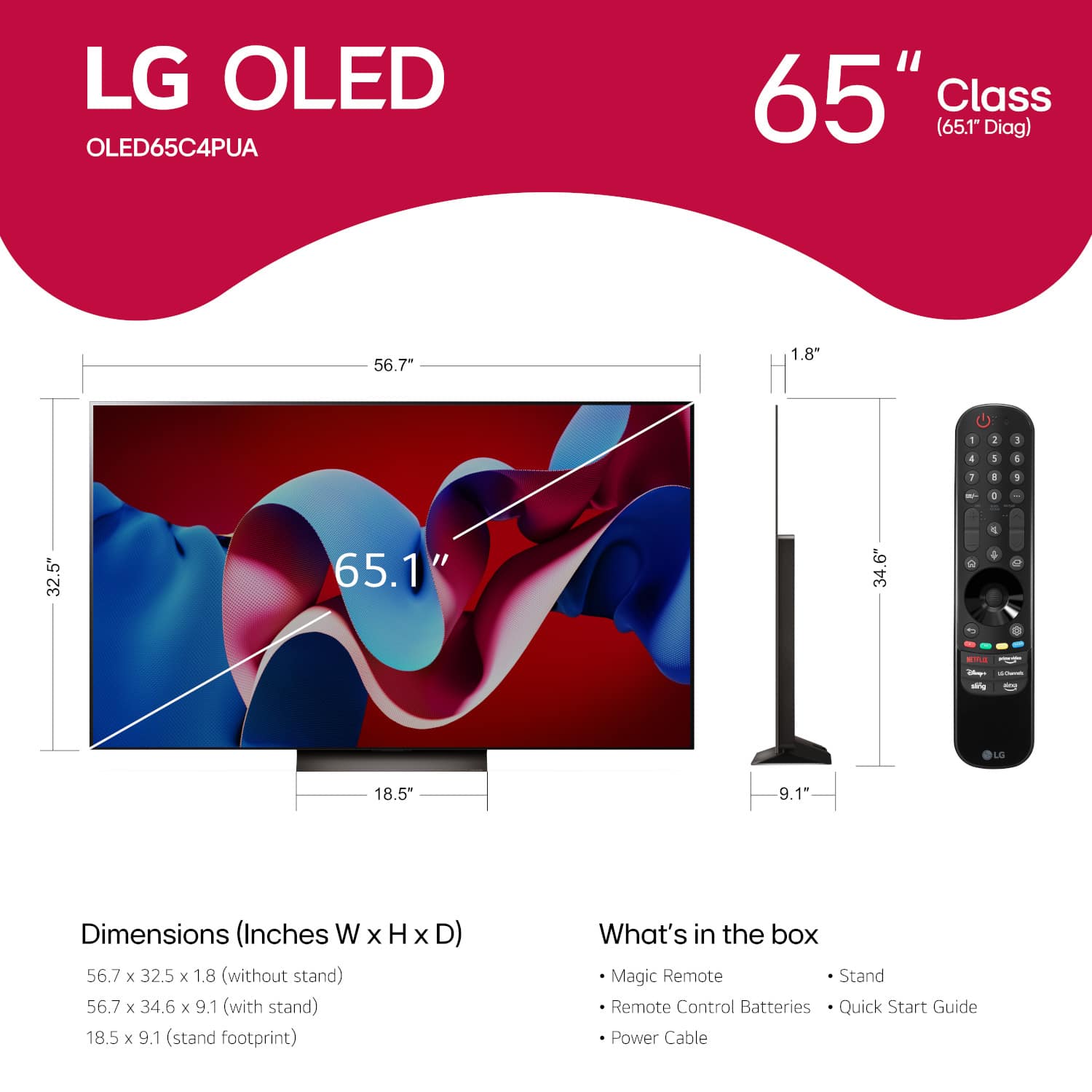
  • QuestionIs this TV compatible with a floor stand? I cannot mount the TV on the wall and I don’t want it set on my entertainment table.

    Asked by DTR.

    • Answer Hello there! Thank you for reaching out with your question about the OLED65C4PUA TV. The OLED65C4PUA can indeed be used with a floor stand, provided you have a compatible stand that supports the TV's size and weight. We recommend checking the specifications of the stand to ensure it can accommodate a 65-inch TV. You may access this link for more information, go to "All Specs":https://www.lg.com/us/tvs/lg-oled65c4pua-oled-4k-tv. If you need any specific recommendations for stands or have further questions about installation, please don’t hesitate to ask. Please send us a private message on Social Media @LGUSSupport, and our team will be more than happy to assist you further. We appreciate your inquiry and look forward to helping you set up your TV! —Avril

      Answered by LG Digital Customer Care

  • QuestionCan I run 2 laptops simultaneously with this TV? Operating both at the same time?

    Asked by Timcom.

    • Answer Hello there! Thank you for your inquiry about the OLED65C4PUA TV. While the TV supports various external devices such as Blu-ray players, HD receivers, DVD players, VCRs, audio systems, USB storage devices, PCs, and gaming devices, laptops are not specifically mentioned. For detailed compatibility and setup information, we recommend referring to the manual. You may access this link related to your concern and go to Page 8 for more information: https://www.lg.com/us/support/product/lg-OLED65C4PUA.AUS. If you have any more questions or need further assistance, feel free to reach out to us on social media @LGUSSupport. We're here to help! —Avril

      Answered by LG Digital Customer Care

  • QuestionHow can I pair Bose headphones to this TV? There is no option for wireless headphones in Sound Out.

    Asked by PJP98.

    • Answer Hello there! Thank you for your question about pairing Bose headphones with the OLED65C4PUA TV. To connect your wireless headphones, you’ll want to ensure that your headphones are in pairing mode. Then, go to the TV settings and navigate to [All Settings] > [Sound] > [Sound Out]. If you don't see an option for wireless headphones, make sure to select "Bluetooth" as your audio output. You may access this link related to your concern: https://www.lg.com/us/tvs/lg-oled65c4pua-oled-4k-tv. If you're still having trouble, please check that your headphones are compatible with the TV. If you need further assistance, feel free to reach out to us on social media @LGUSSupport. We're here to help! —Avril

      Answered by LG Digital Customer Care

  • QuestionWhat is the best or recommended hdmi cable to use for this tv to have the best picture and sound

    Asked by Will.

    • Answer Hi there, Will. Thank you for your question about the best or recommended HDMI cable to use for this LG TV to optimize the best picture and sounds. We recommend the HDMI 2.1 Input since this model has 4 HDMI 2.1 Inputs. Please be informed that the recommended HDMI Audio Return Channel for this is: eARC (HDMI 2). The recommended HDMI Input are: 4ea (supports 4K 120Hz, eARC, VRR, ALLM, QMS (4 port)). https://www.lg.com/us/tvs/lg-oled65c4pua-oled-4k-tv#pdp_specs -Renzo

      Answered by LG Digital Customer Care

  • QuestionI have a 65c8 oled model year 2018 how would the new c4 model compare if i want to replace. Would I see a noticeable difference

    Asked by spdbeach.

    • Answer It crushes it. The brightness alone is way better and the darks are more inky for sure.

      Answered by Montman

  • QuestionDo the new LGs have better than a one year warranty? What is the LG life expectancy? Our LG WebOS UH 6150 is 2 years 9 mo old. It turns on and immediately turns off. Tech says it needs a new power board. A 1 year warranty was not sufficient for the price.

    Asked by Cass.

    • Answer My LG Tv was just over a 1 1/2 years when it needed a new CPU. It actually was having problems from day one, but kept thinking it must be something else. Luckily I did buy the extended warranty thru Best Buy. Not happy with LG

      Answered by Cosmo

  • QuestionI have an LGC4 OLED65C4PUA TV periodically it makes a chirping/beeping sound throughout the day (TV on). When it chirps a white rectangular shape quickly flashes near the bottom of the screen. I've gone through sound test/settings nothing helps.

    Asked by JDScott.

    • Answer Hello, JDScott. We're sorry to read about your issues with your LG 65-inch Class OLED evo C4 4K Smart TV 2024, Model # OLED65C4PUA. The unit will need to be inspected by an LG Authorized Service Center or Service Technician to determine what is causing it to chirp/beep periodically, with a white rectangular shape quickly flashing near the bottom of the screen. You can contact our Support on social media using our handle @LGUSSUPPORT for assistance or visit our site at https://www.lg.com/us/support/find-service-center to find an LG Authorized Service Center near you that you can contact to make arrangements for a service technician appointment...^Ivan.

      Answered by LG Digital Customer Care

  • QuestionIs anyone having trouble with closed captioning? One reviewer did.

    Asked by CC.

    • Answer Thank you for reaching us regarding LG Smart webOS TV. If you're having trouble with closed captioning on your LG OLED65C4PUA, try these simple troubleshooting steps: 1. Check Closed Caption Settings: • Press the settings button on your remote. • Go to All Settings > General > Accessibility > Closed Caption. • Make sure the closed captions are set to ON. 2. Check Input Source: • Ensure the source you're using supports closed captions. Some streaming services or broadcast channels may not offer them. 3. Reset the TV: • Unplug the TV for a few minutes and then plug it back in. This can help fix temporary issues with closed captioning. 4. App-Specific Issues: • If you're using a streaming app (like YouTube TV), try uninstalling and reinstalling the app. This may resolve any app-related captioning problems. 5. Additional Considerations: • Check if your TV's firmware is updated, as updates can fix bugs related to closed captioning. • Keep in mind that some broadcasters may not provide closed captions, which can affect their availability even if the setting is turned on. You can download its owner's manual through this link for more information: https://www.lg.com/us/support/product/lg-OLED65C4PUA.AUS. For additional assistance, please reach out to us on social media @LGUSSupport so we can help you further. ^Cris

      Answered by LG Digital Customer Care

  • QuestionVolume on commercials frequently (not always) drops to zero. Normal volume returns when program returns/commercial ends. Prefer NO drop in sound. How to correct?

    Asked by Dcbanker.

    • Answer Thank you for reaching us regarding LG Smart webOS TV. If you're experiencing sound drops on your LG OLED65C4PUA TV, here are some simple steps to try: 1. Check Connections: Make sure all audio cables are firmly connected, especially for external devices. 2. Update Firmware: Ensure your TV has the latest software updates. This can often fix audio issues. 3. Adjust Sound Settings: • Go to Settings > Sound • Select the correct audio output (TV speakers or an external device). • Try different sound modes to see if the problem continues. 4. Turn Off AI Features: Some AI sound settings, like AI Sound Pro, may cause sound drops. Try disabling these features. 5. Check for Interference: Move any devices that could interfere with the TV away from it. 6. Reset Sound Settings: Go to Settings > Sound and choose "Reset" to return to default audio settings. 7. Power Cycle the TV: Unplug the TV for about 30 seconds, then plug it back in. This can help clear temporary issues. 8. Inspect Source Devices: If the sound issue happens only with certain devices, the problem may be with those sources. 9. Disable Bluetooth: If you're using Bluetooth audio, temporarily turn it off to see if that helps. 10. Consider External Audio: If the issue persists, using a soundbar or external audio system may provide better sound stability. You can download its owner's manual through this link for more information: https://www.lg.com/us/support/product/lg-OLED65C4PUA.AUS. For additional assistance, please reach out to us on social media @LGUSSupport so we can help you further. ^Cris

      Answered by LG Digital Customer Care

  • QuestionCan I add a second remote, identical to the included remote?

    Asked by TheOriginalGeek.

    • Answer I mean, will the tv work with two remotes? I want a second remote so my wife and I can each have our own.

      Answered by Anonymous

  • QuestionDoes this come with a wall mount?

    Asked by Anonymous.

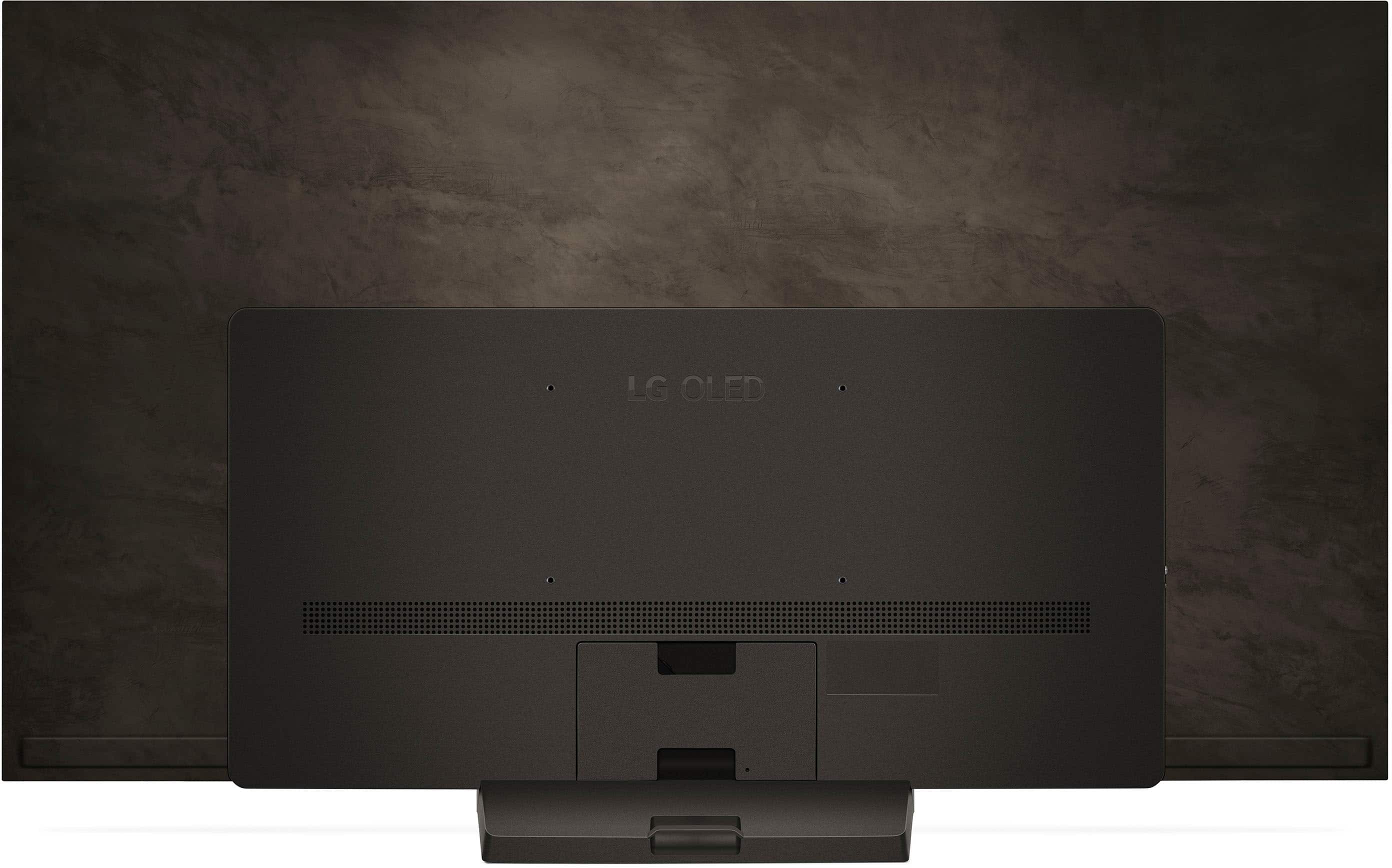
    • Answer Hi there! We understand your inquiry about your LG OLED65C4PUA 65″ Class C4 Series OLED evo 4K UHD Smart webOS TV. This model does not include a wall mount in the box. As a quick tip, before purchasing a separate wall mount, please verify that it’s rated for a 300 mm × 200 mm VESA pattern and can support a 36.6 lb (without stand) OLED panel—this ensures a secure fit and optimal viewing angle. https://www.bestbuy.com/site/lg-65-class-c4-series-oled-evo-4k-uhd-smart-webos-tv-2024/6578042.p?skuId=6578042 If you have any questions about selecting the right mount or need additional guidance, please send us a private message on social media @LGUSSupport and our team will be more than happy to explore possible solutions with you. We appreciate your patience and look forward to helping you get your OLED65C4PUA set up just the way you like. —Renzo

      Answered by LG Digital Customer Care

  • QuestionCan I use Fox Nation and Glen Beck TV streaming and others like paramount plus, peacock. I want to be able to download all kinds of variety. Thanks

    Asked by Tinaisit.

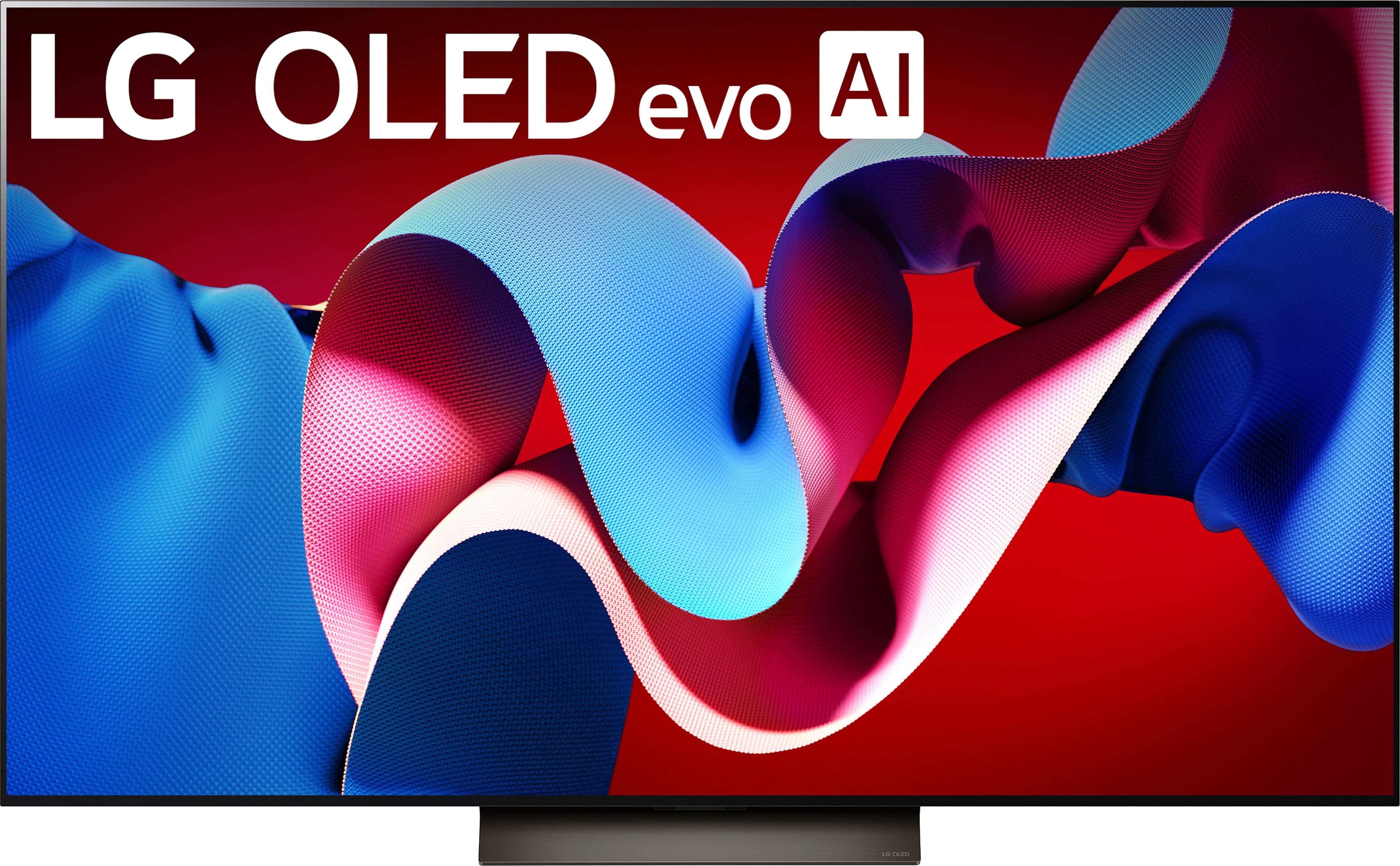
    • Answer Hi there, Tinaisit. Thank you for reaching out about streaming apps on the LG OLED65C4PUA. We understand how important it is to have access to your favorite content. This TV runs on webOS, which supports popular streaming apps like Netflix, Max, Disney+, YouTube, Prime Video, ESPN, Apple TV, Sling TV, and more. You can also browse and download additional apps from the LG Content Store. For Fox Nation and BlazeTV (Glenn Beck's network), availability may vary. We recommend checking the LG Content Store directly on your TV to see if these apps are available for download. Alternatively, if these apps are not natively supported, you can use a streaming device like a Roku, Fire Stick, or Apple TV to access them. https://www.lg.com/us/tvs/lg-oled65c4pua-oled-4k-tv#pdp_specs If you need further assistance, please send us a private message on Social Media @LGUSSupport. We're happy to help! —Renzo
      Answered by LG Digital Customer Care

  • QuestionCan I connect my Sonos sound bar to the tv? Will the tv lag and buffer with T-Mobile wireless internet service? Does the tv come with YouTube tv, paramount+, Netflix, Amazon video?

    Asked by Anonymous.

    • Answer Yes, I’ve used a Sonos without any issues. not sure (does your internet lag normally?) You will have to install those apps but yes it has them.

      Answered by MatthewP

  • QuestionIs it safe to mount my flatscreen tv above the mantle and fireplace? Does the heat bother the tv and does it void any warranties?

    Asked by fireside.

    • Answer Hi there, thank you for your question about mounting your LG OLED65C4PUA above the mantle and fireplace! We understand that you're concerned about the safety and potential impact of heat on your TV. When it comes to mounting a TV above a fireplace, it's important to consider several factors: Heat Exposure: Excessive heat from a fireplace can negatively affect the TV's internal components over time. We recommend ensuring that your fireplace is well-ventilated and that there is no direct exposure to heat. If you regularly use the fireplace, you might want to consider installing a heat shield or ensuring that the TV is placed at a sufficient distance from the heat source. TV Placement: The OLED65C4PUA has specific mounting requirements (VESA 300 x 200) and should be installed using a wall mount that is compatible with the TV's dimensions. Make sure the mount is securely attached to a solid structure, as mounting a TV above a mantle can sometimes involve additional considerations to ensure safety. Warranty Considerations: Mounting the TV itself will not void the warranty, as long as it's done according to the manufacturer's installation guidelines and using the correct mounting hardware. However, if the TV is exposed to heat or other environmental factors that cause damage, the warranty may not cover this type of damage. It’s always best to consult the warranty terms for specifics about heat damage exclusions. If you are unsure about installation or placement, we recommend consulting a professional installer to ensure safe and optimal mounting conditions. https://www.lg.com/us/tvs/lg-oled65c4pua-oled-4k-tv#pdp_specs For further assistance, please send us a private message on Social Media @LGUSSupport, and our team will be happy to help! —Renzo
      Answered by LG Digital Customer Care

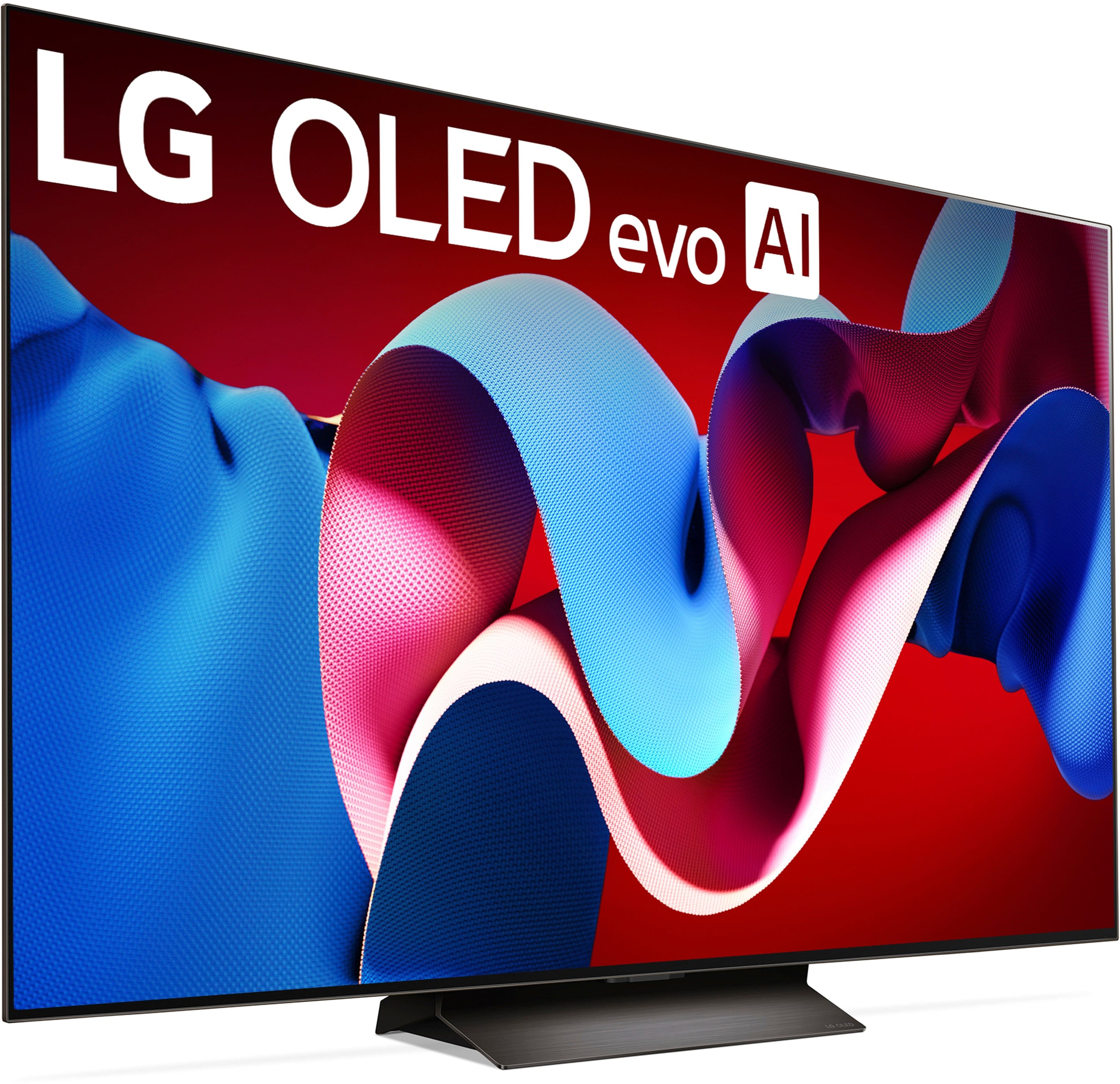
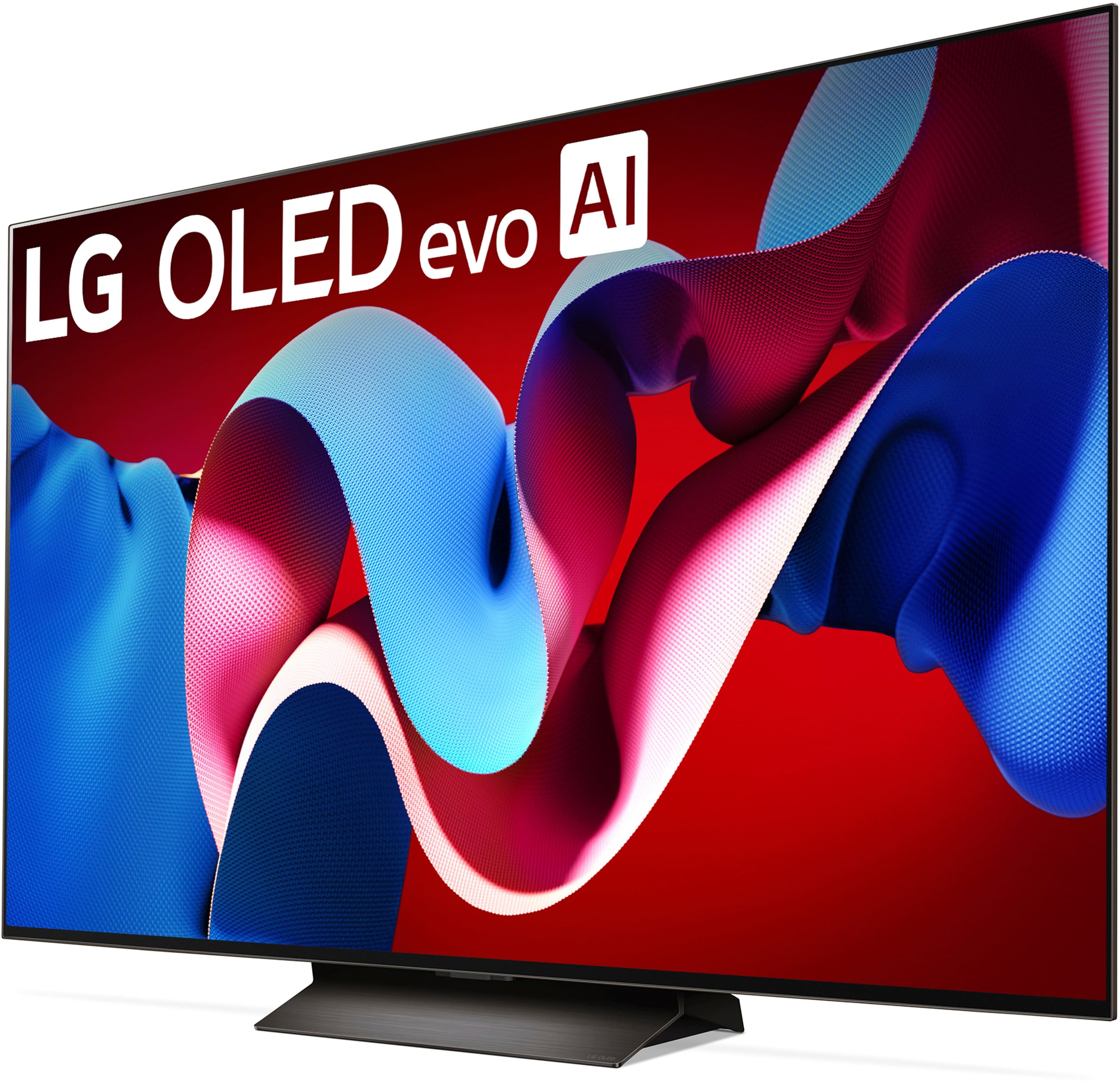
  • QuestionDoes the base of the C4 swivel to allow viewing from different angles?
    Asked by tvswivel.

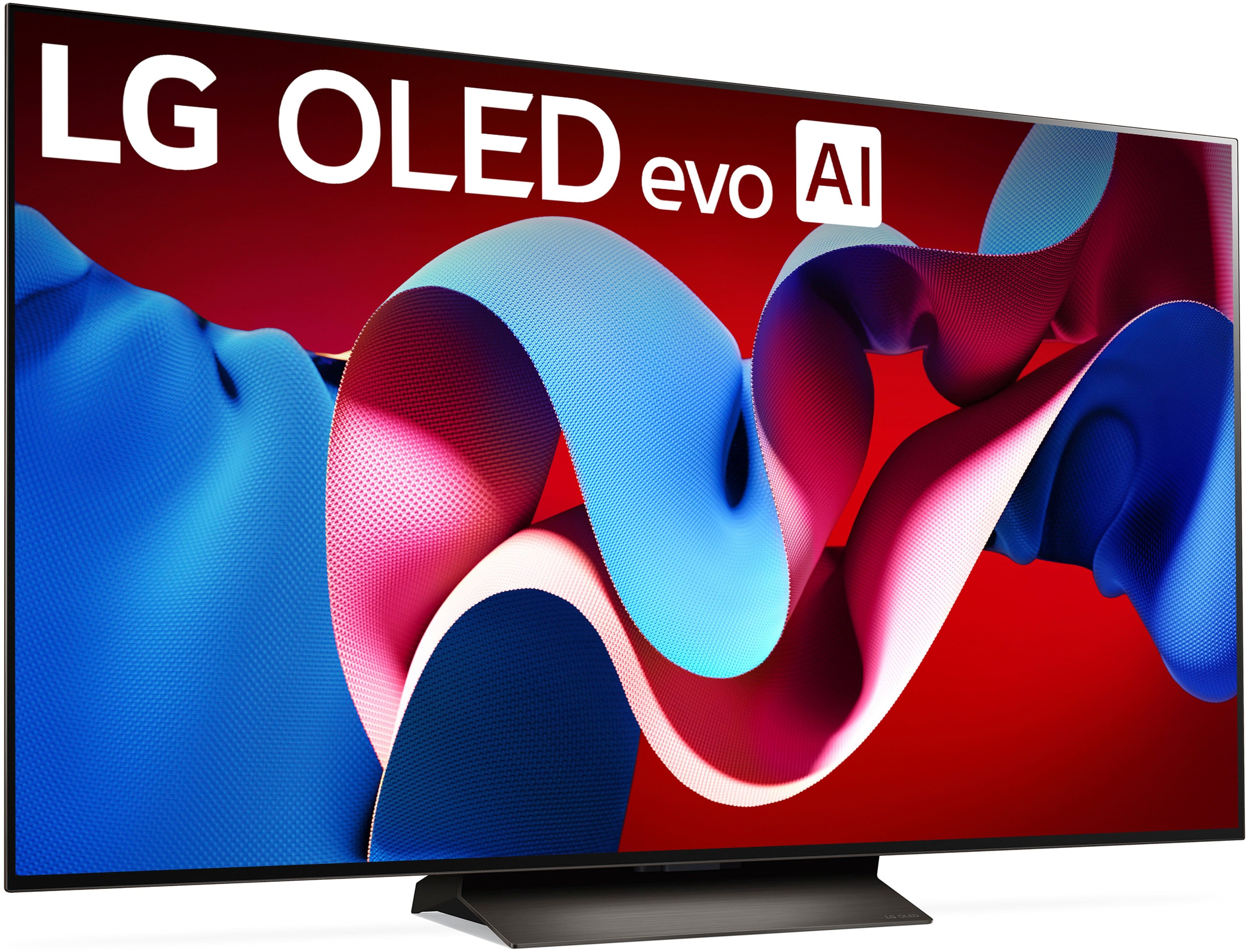
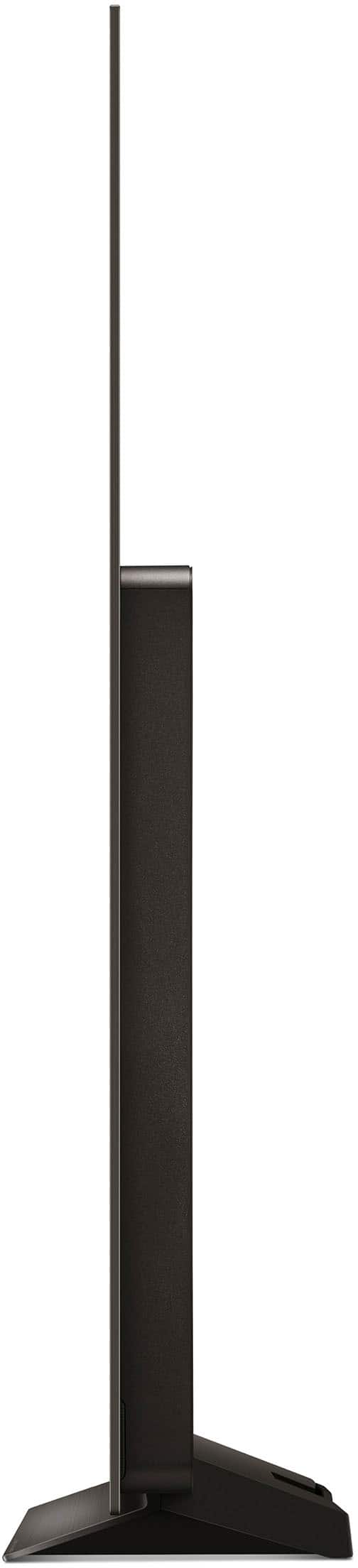
    • Answer It does not. You would need a swivel base for that.

      Answered by Montman