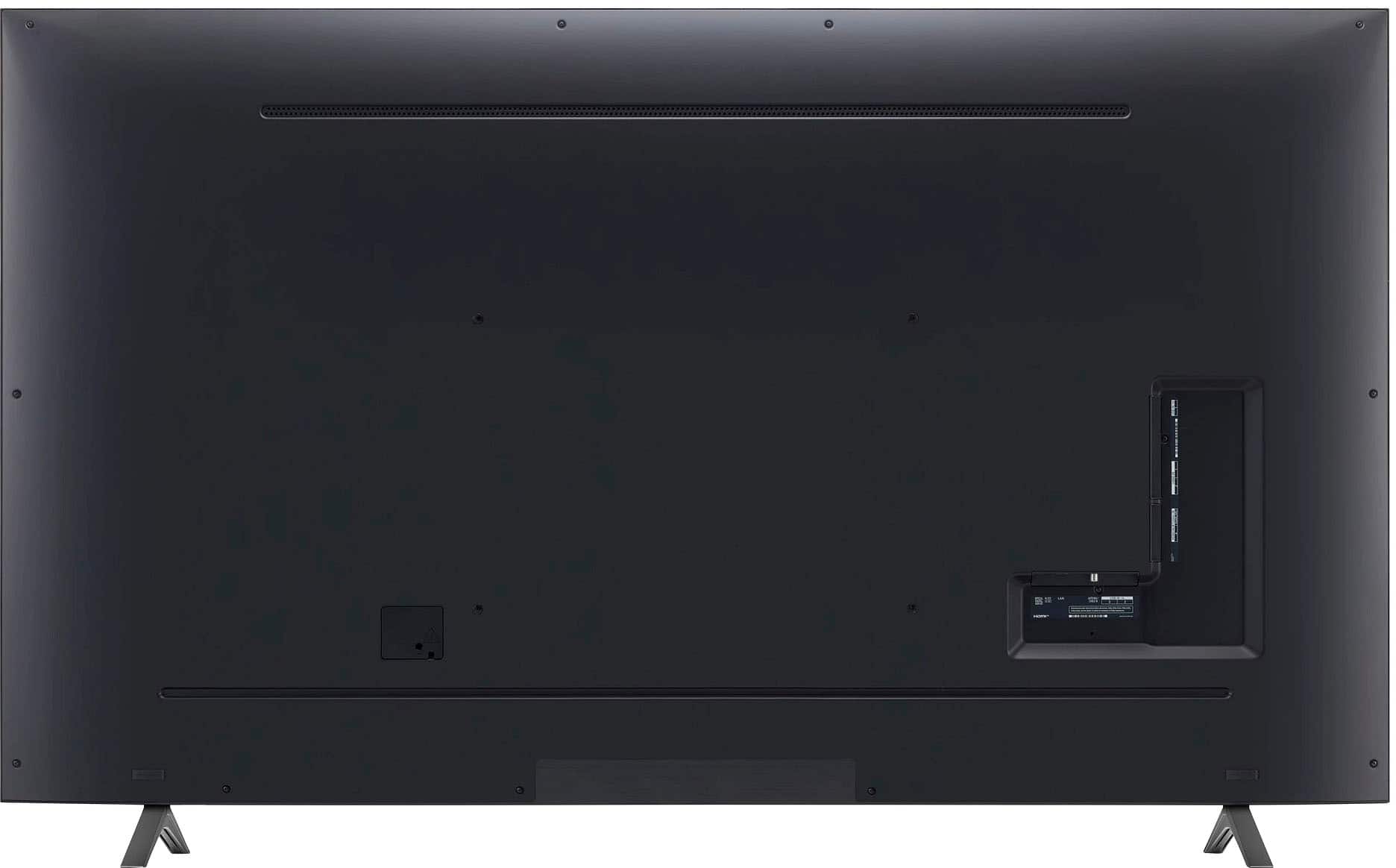
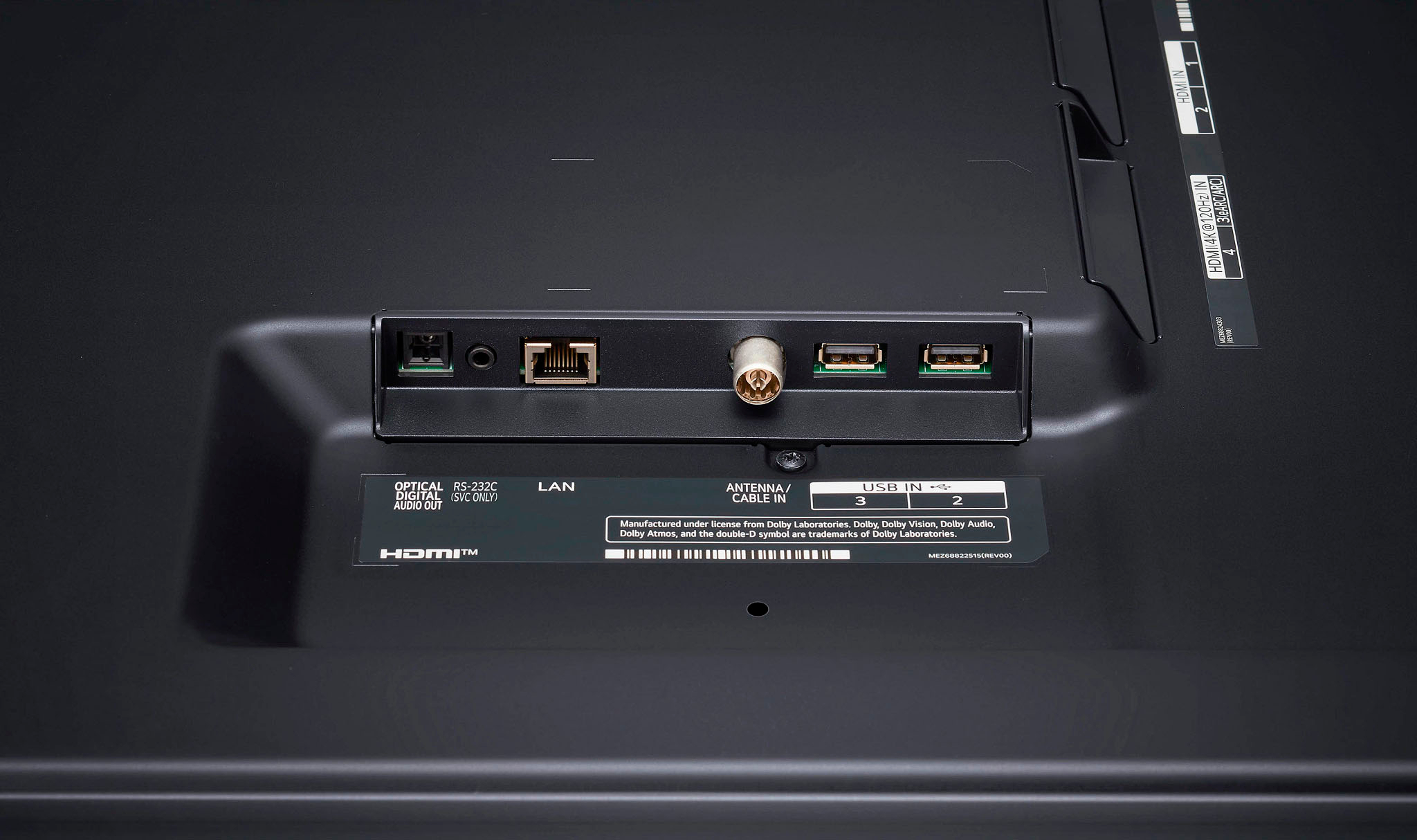
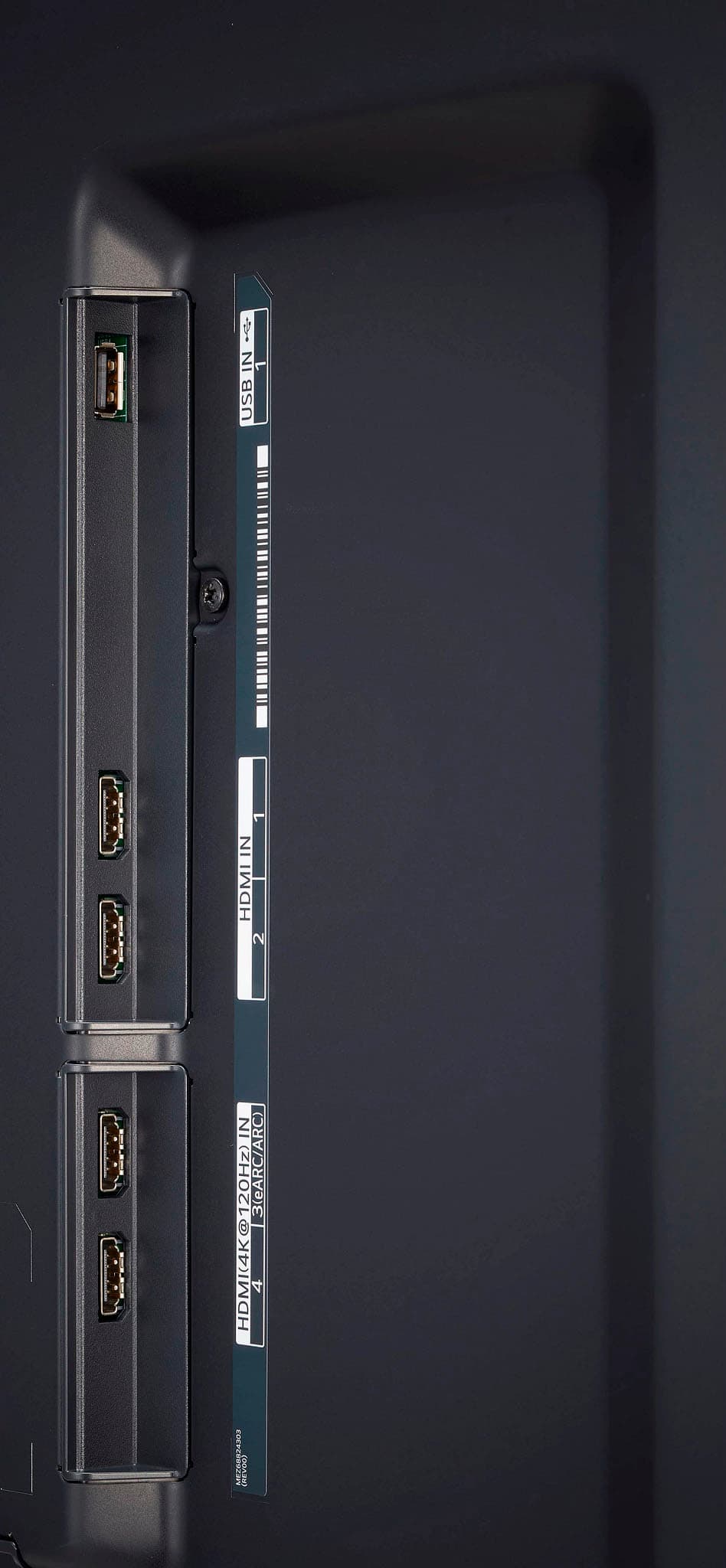
A:AnswerA. Yes, How Connect a Roku Stick to Your LG TV. Look for an open HDMI port at the back or side panel on your TV. Plug in the Roku stick directly or use a HDMI cable for more placement and concealment options. Alternatively – Connect your Roku stick to your home entertainment center that connects to the TV. Should you have further questions please reach out to us. ~Tanisha
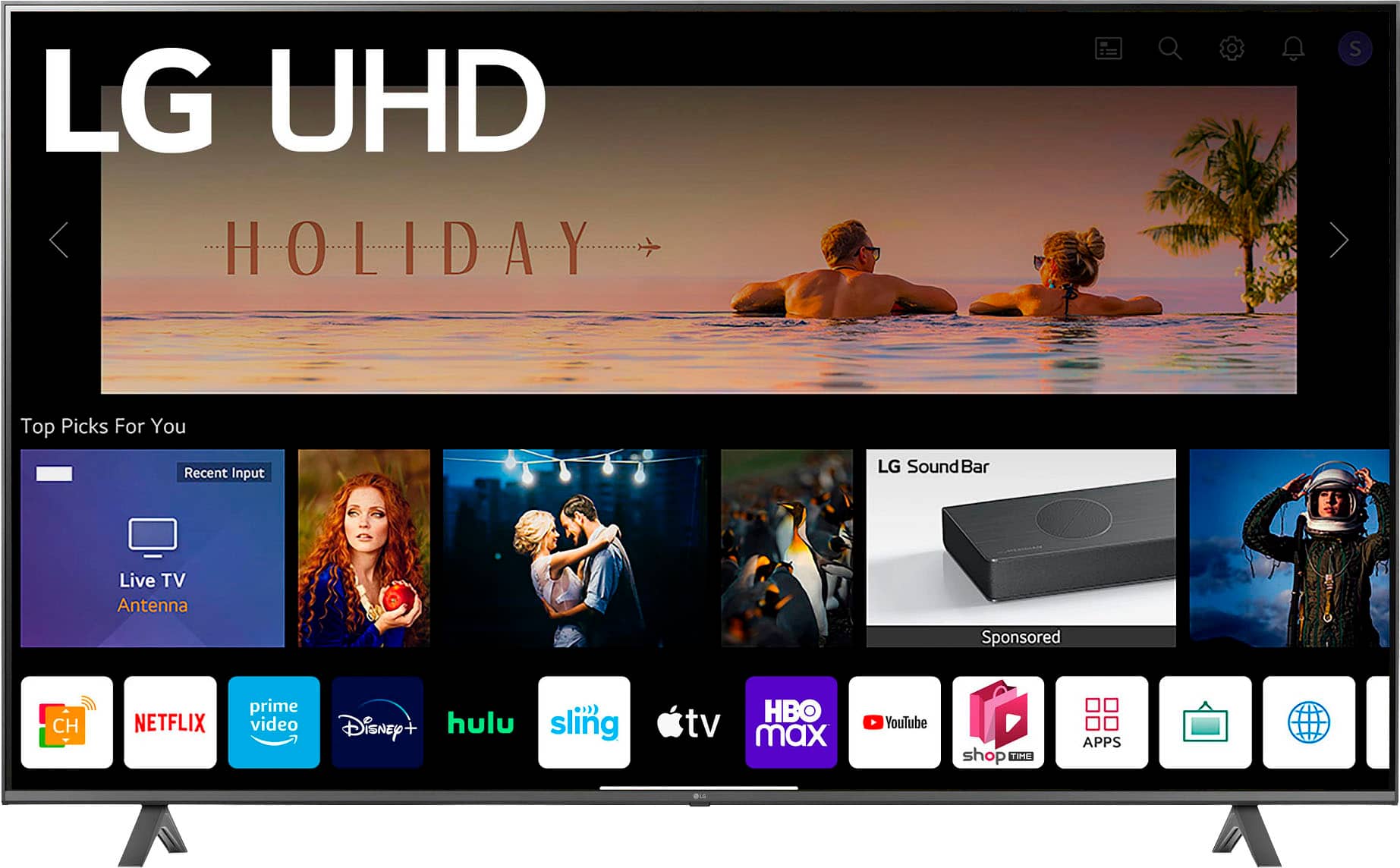
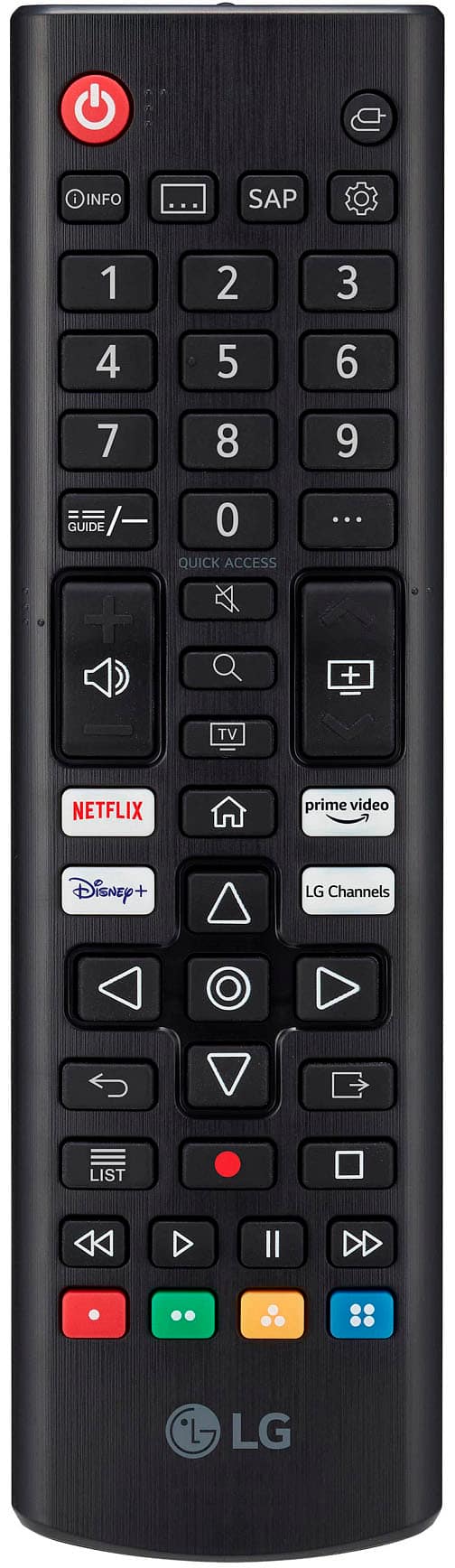
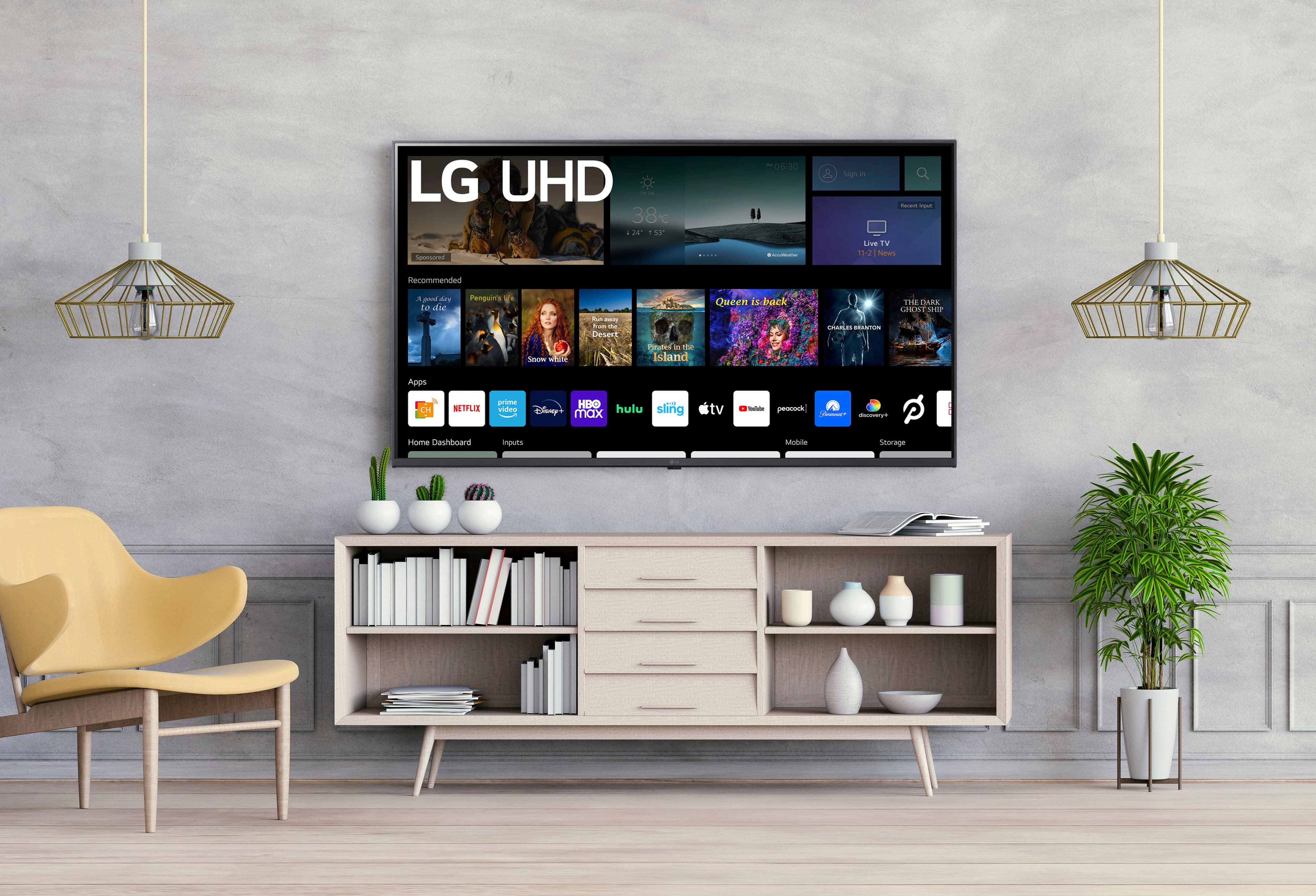
A:AnswerHey there. This TV does use WebOS and at the moment the services that can be used in this TV are Netflix, Prime Video, Disney+, HBO Max, Hulu, Peacock, Apple TV+, Sling TV, Paramount+, YouTube, YouTube TV, Vudu, Spotify, Apple Music, Tubi, Peloton, Pandora, SHOWTIME, STARZ. ~Anthony
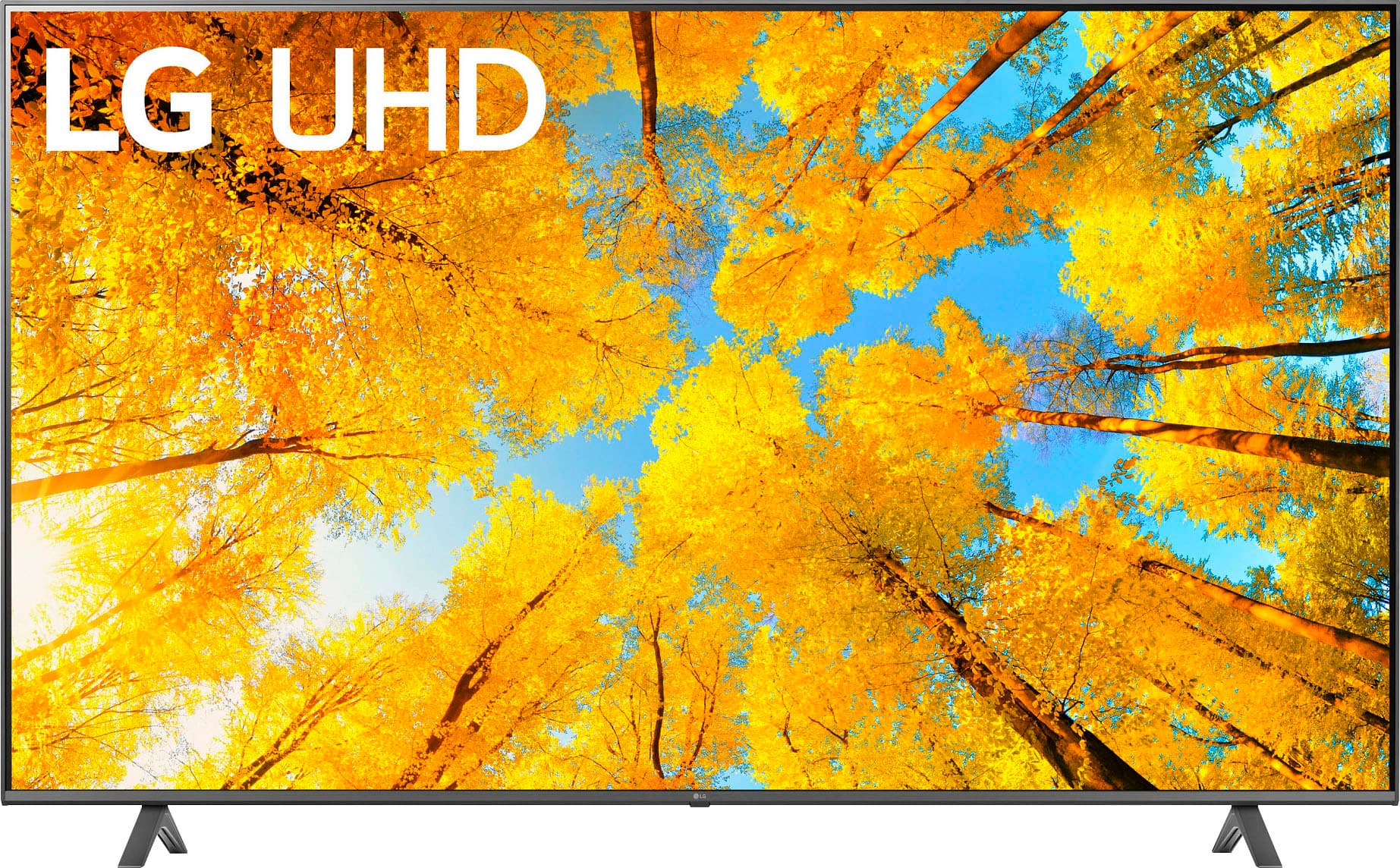
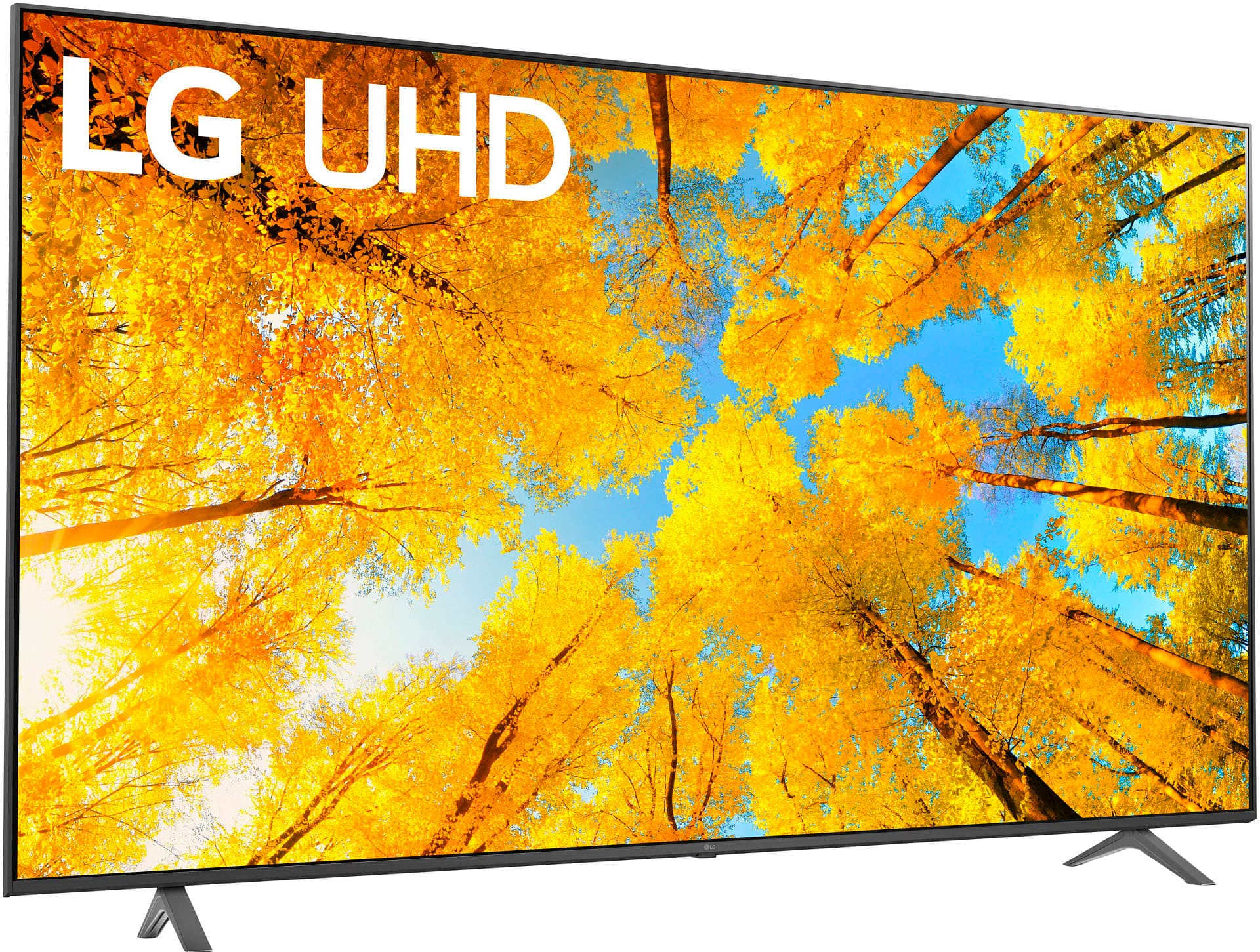
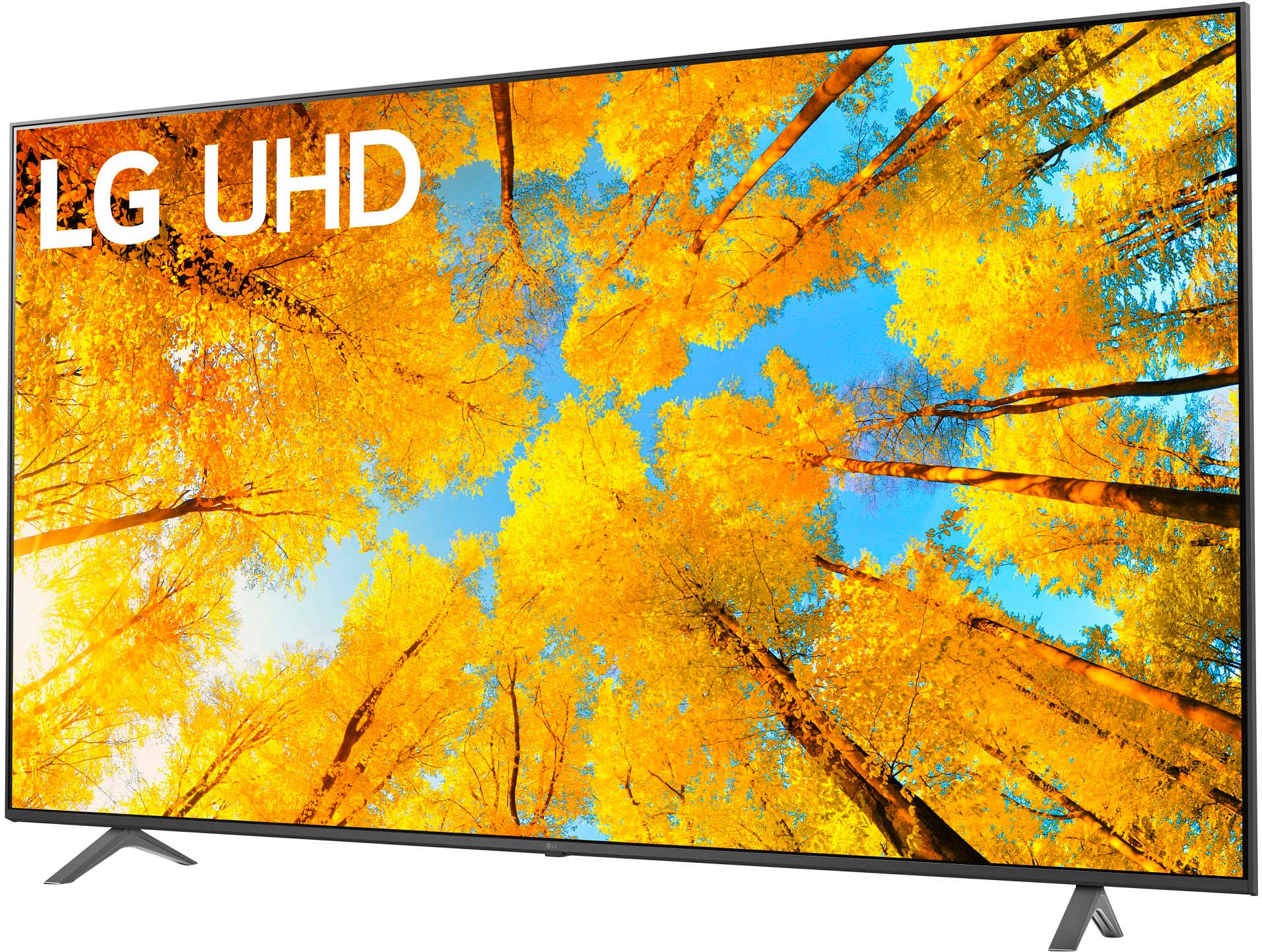
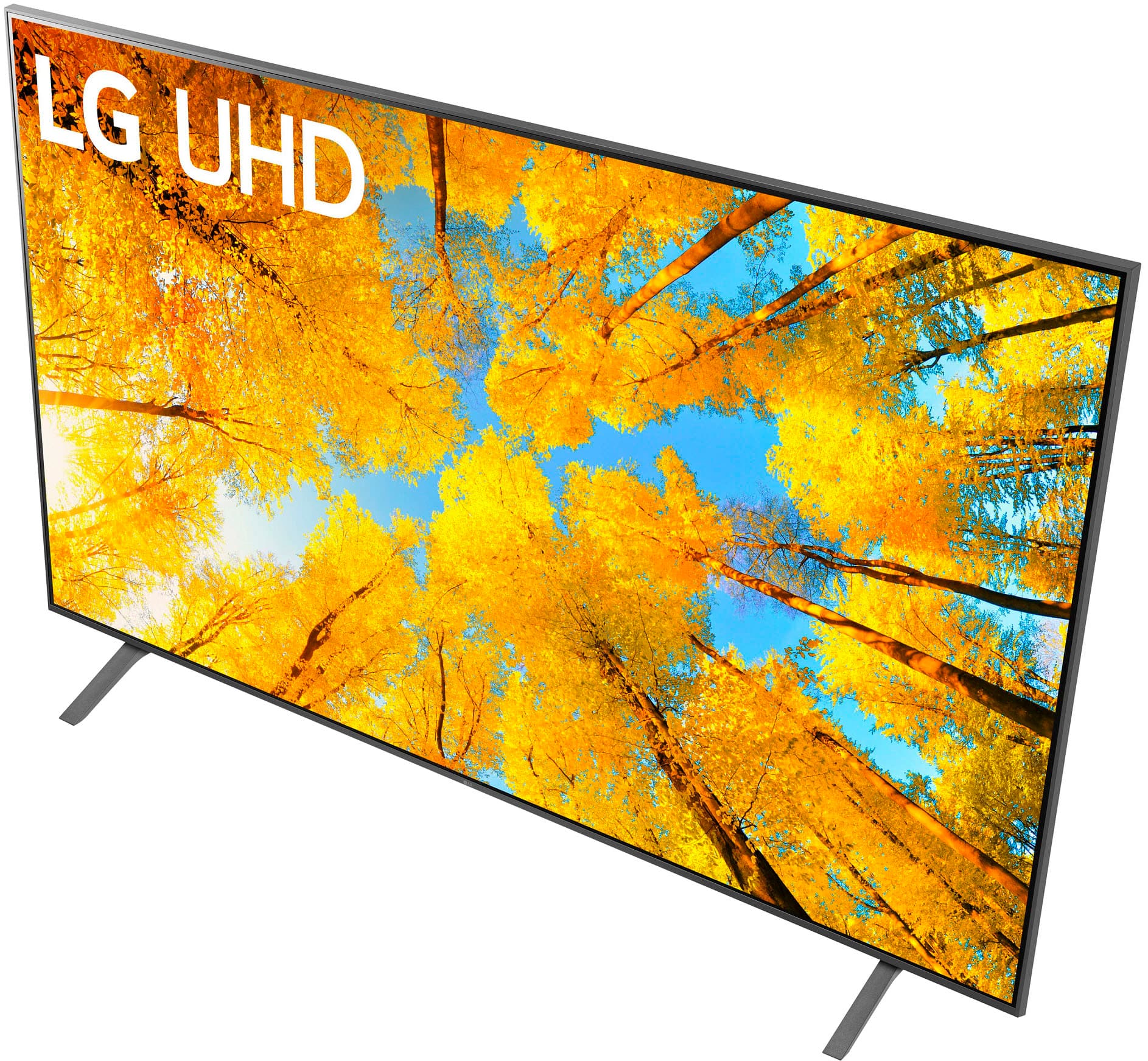
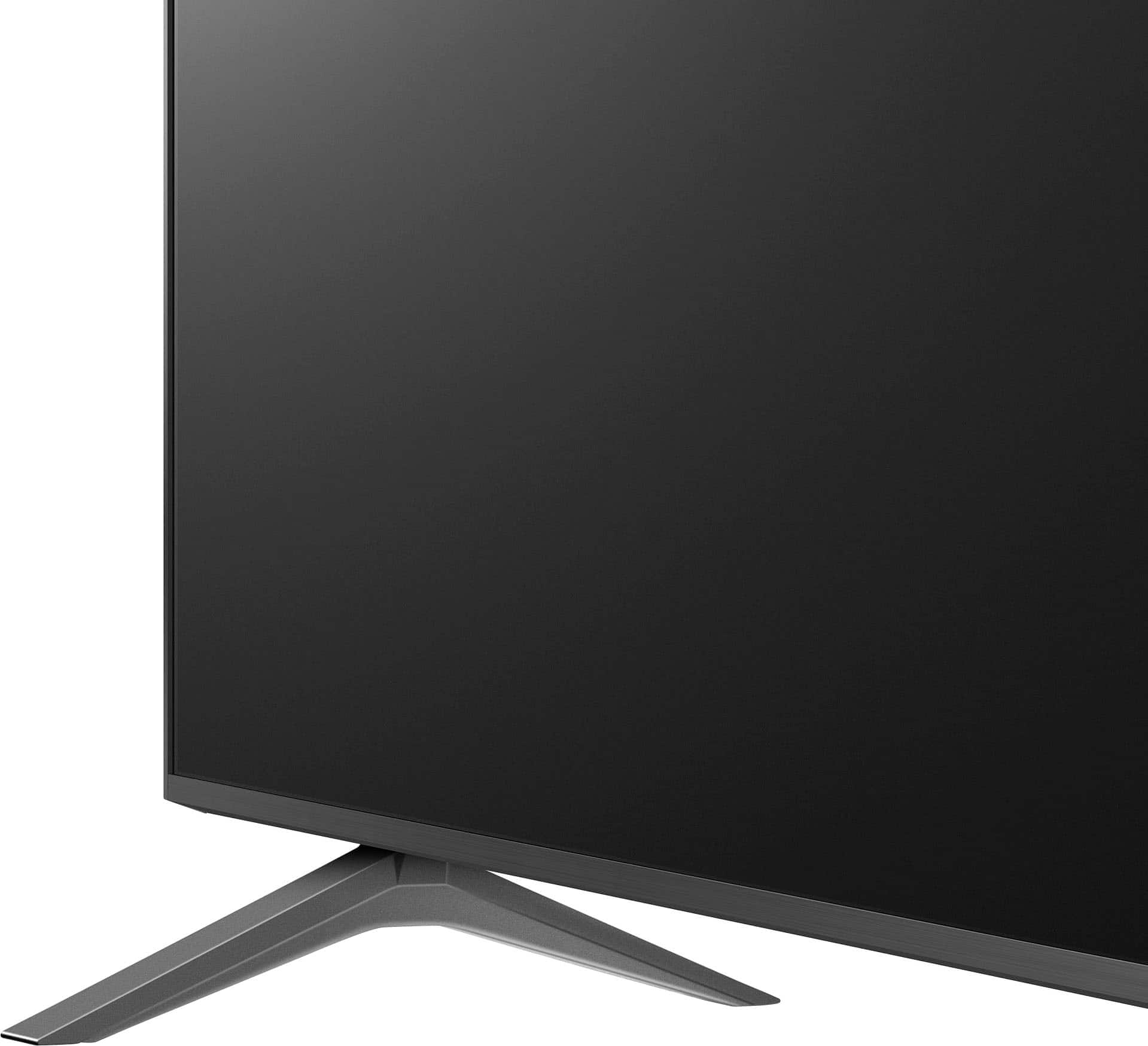
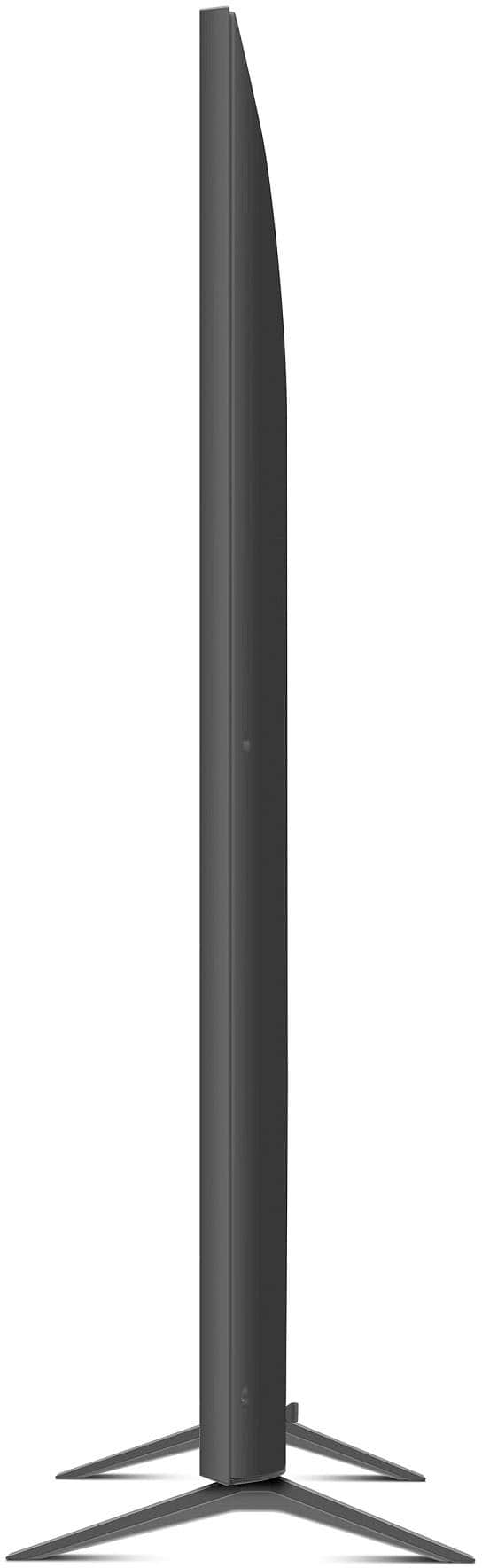
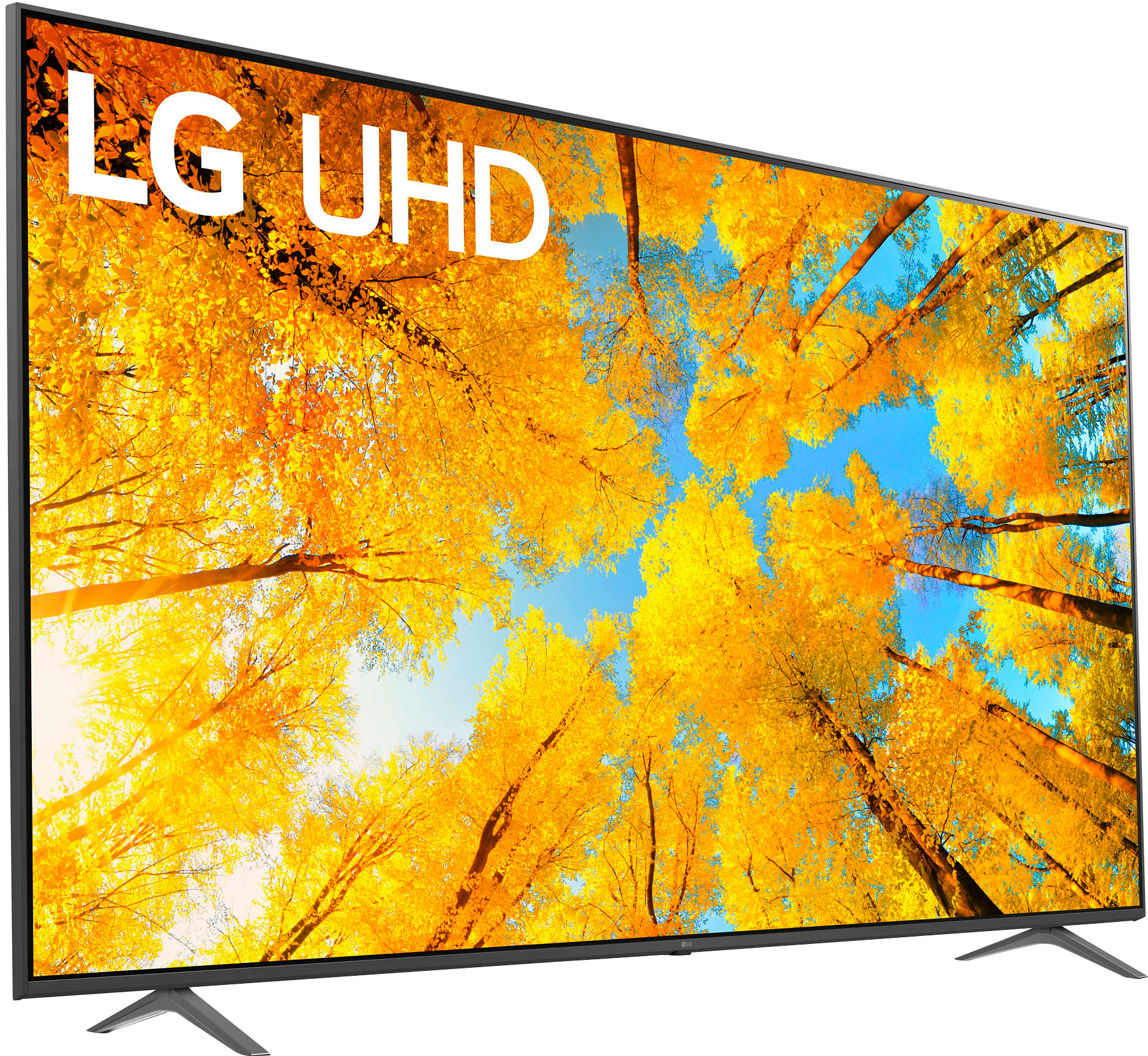
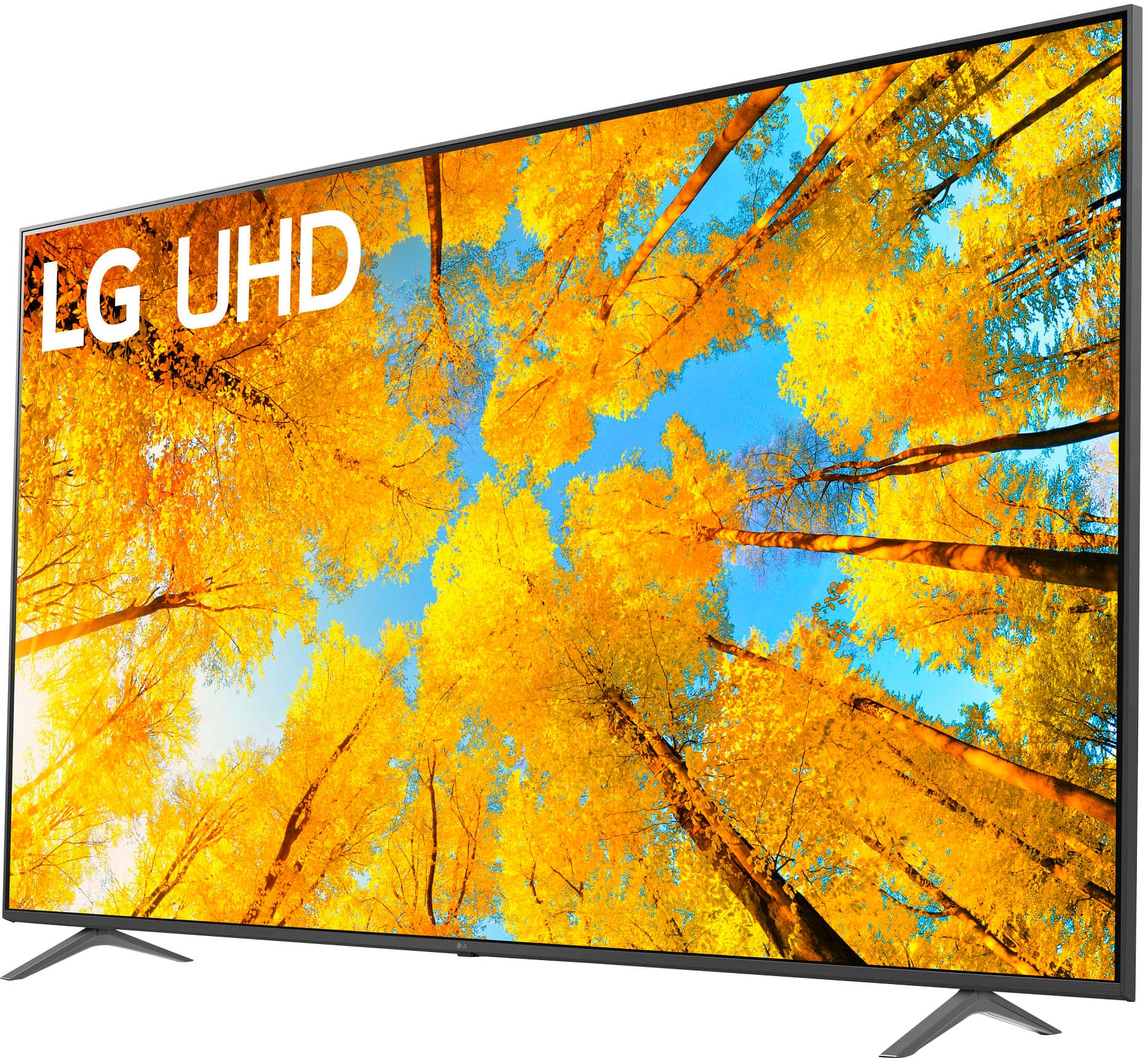
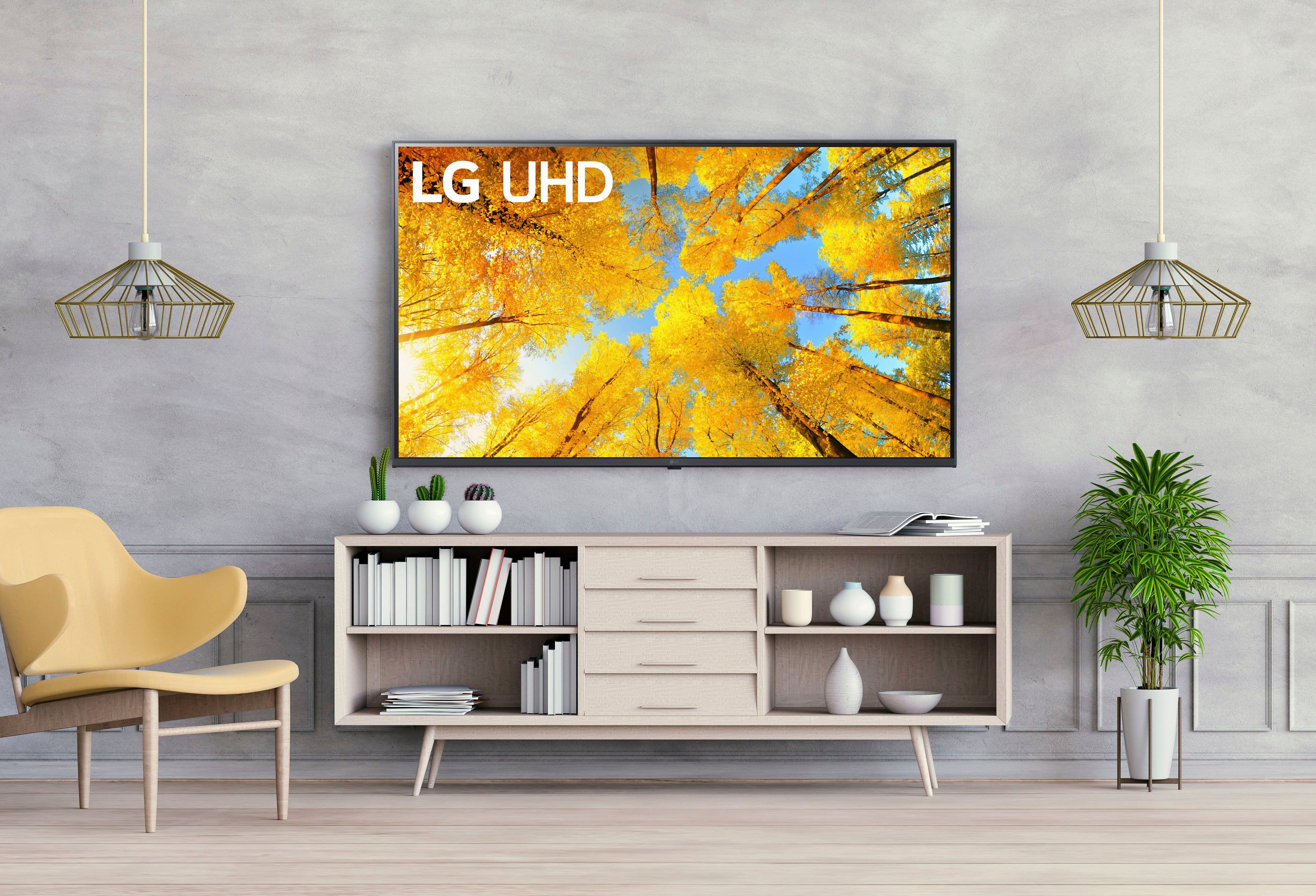
A:AnswerHi Kenny, the W x H x D dimensions for the 86 inch Class UQ7590 series LED 4K UHD Smart webOS 22 TV, Model # 86UQ7590PUD with the stand are 75.9" x 45.9" x 14.3" and they are 75.9" x 43.5" x 2.4" without the stand...^Ivan
A:AnswerThe W x H x D dimensions for the LG 86 inch Class UQ7590 series LED 4K UHD Smart webOS 22 TV, Model # 86UQ7590PUD without the stand are 75.9" x 43.5" x 2.4"...^Ivan
A:AnswerHi BigJohn. The Xfinity Stream app is compatible with the webOS 22TV Platform (operating System) that this LG 86 Inch Class UQ8000 AUB series LED 4K UHD Smart webOS 22 w/ ThinQ AI TV, Model # 86UQ8000AUB and it can be downloaded and installed on the TV from the LG Content Store (App Store)...^Ivan
A:AnswerPlease contact Best Buy's at 1-800-548-0828 to inquire what their Geek Squad charges for delivery and installation for this LG 86 inch Class UQ7590 series LED 4K UHD Smart webOS 22 TV, Model # 86UQ7590PUD...^Ivan