Black Friday is hereShop new DoorbustersShop now

Main Content

Questions & Answers

Page Showing 1-20 of 46 questions
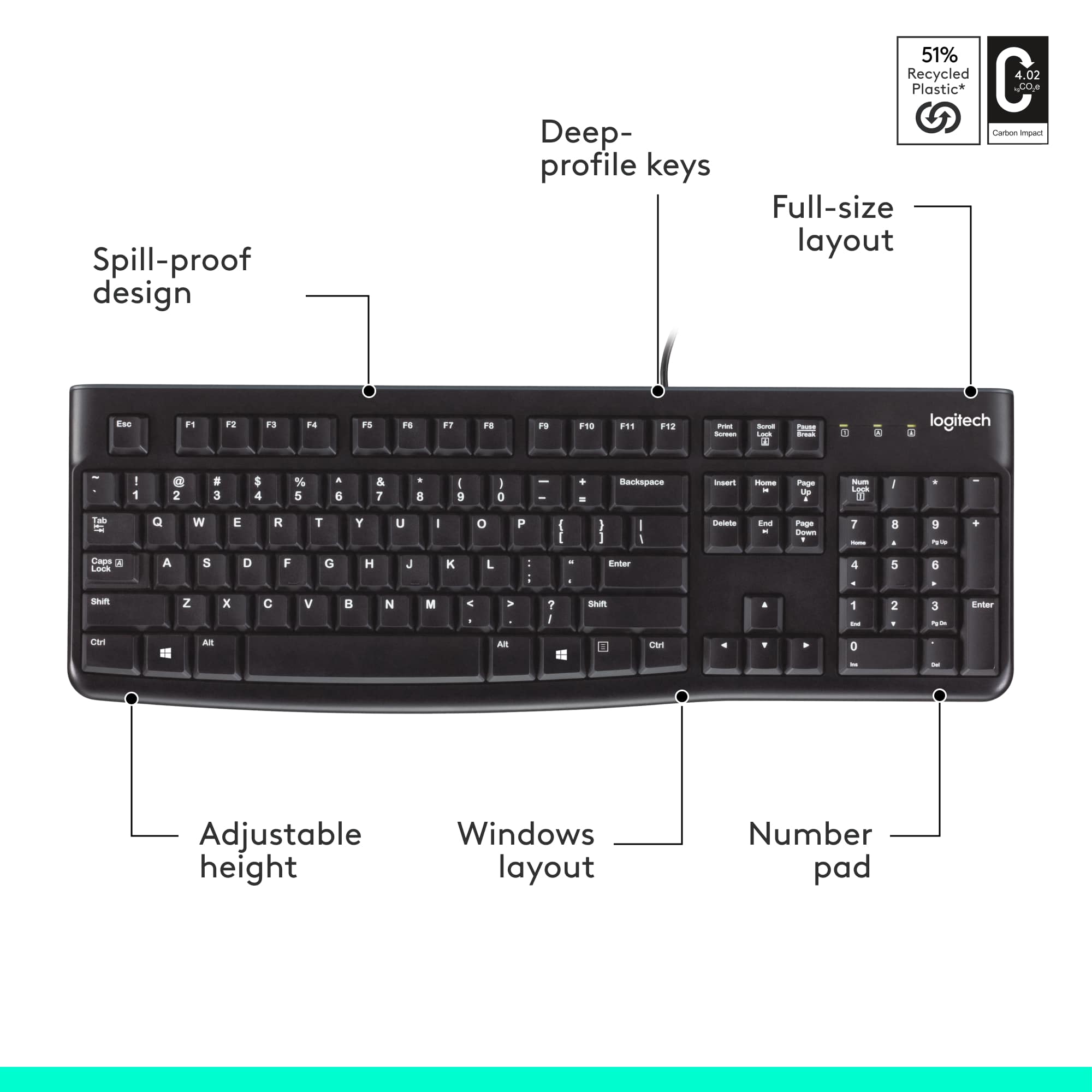
  • QuestionDoes this keyboard have a number pad?

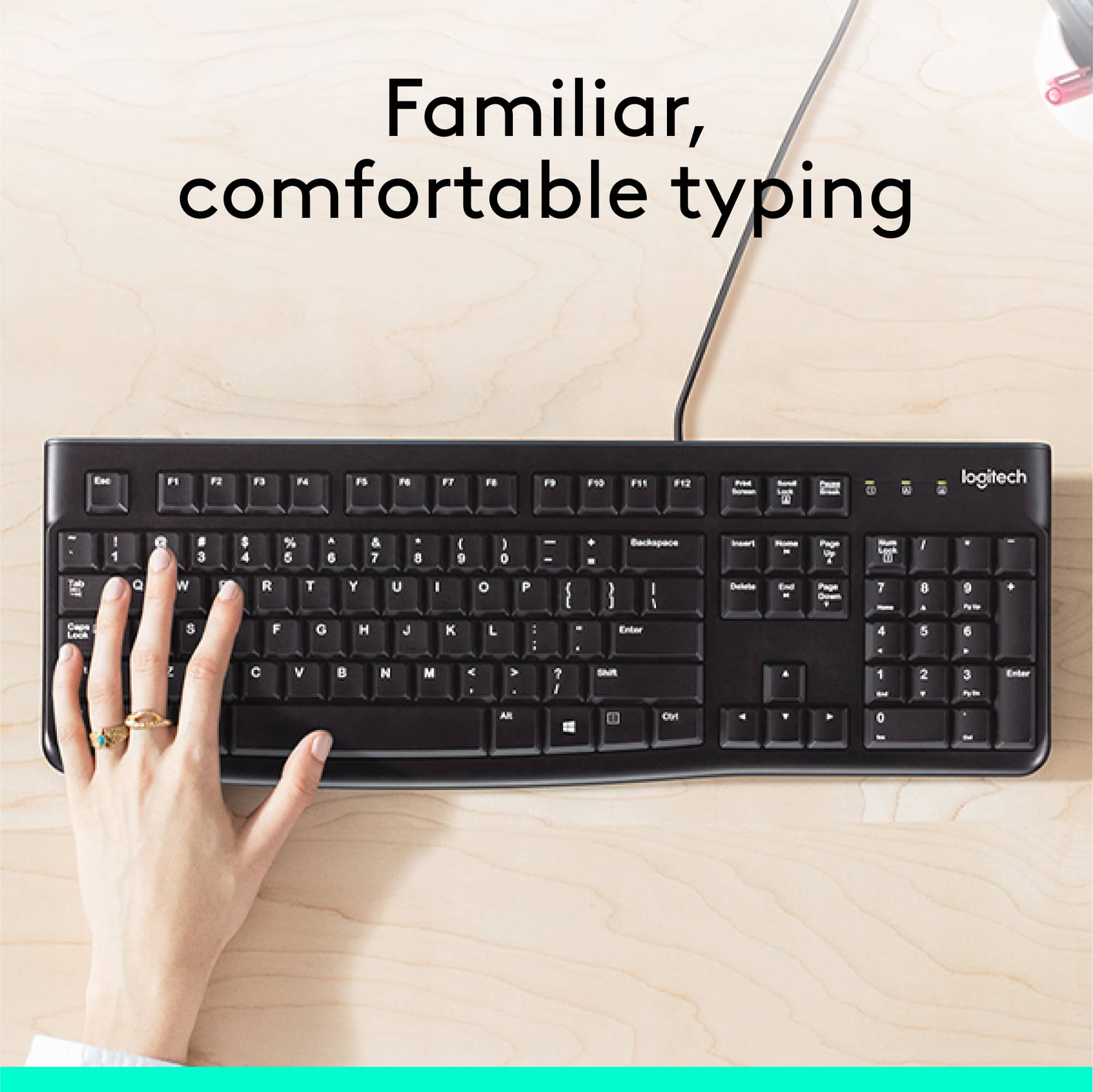
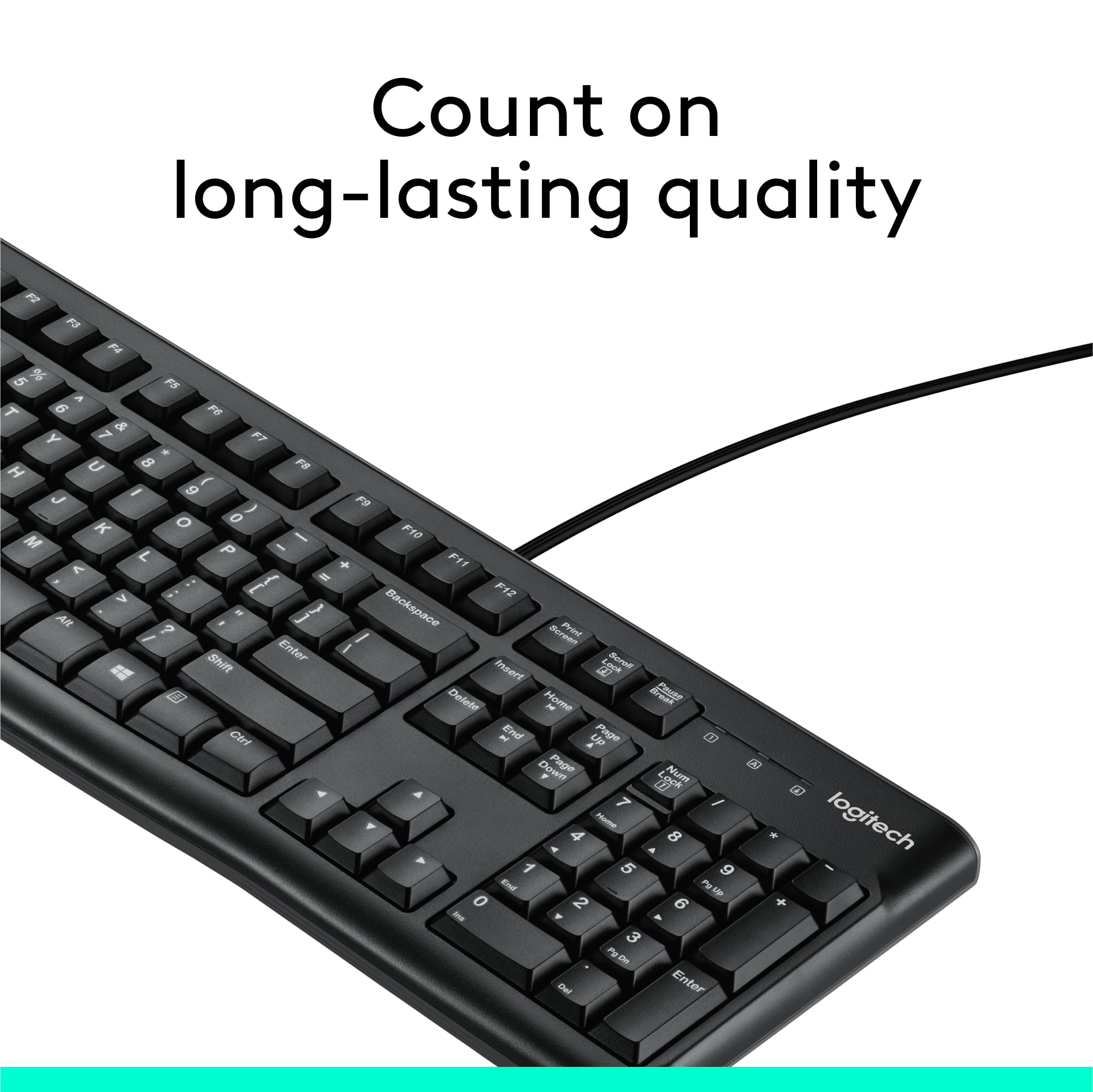
    • Answer Yes, this is a full-size keyboard and has a number pad.
    This question and answer was generated by AI based on customer and product data.
  • QuestionWhat is the connection type of this keyboard?

    • Answer This is a wired keyboard that uses a USB-A connection.
    This question and answer was generated by AI based on customer and product data.
  • QuestionWhat type of keys does this keyboard have?

    • Answer This keyboard has deep-profile keys.
    This question and answer was generated by AI based on customer and product data.
  • QuestionIs this keyboard compatible with Windows 10?

    • Answer Yes, this keyboard is compatible with Windows 10, 11 or later.
    This question and answer was generated by AI based on customer and product data.
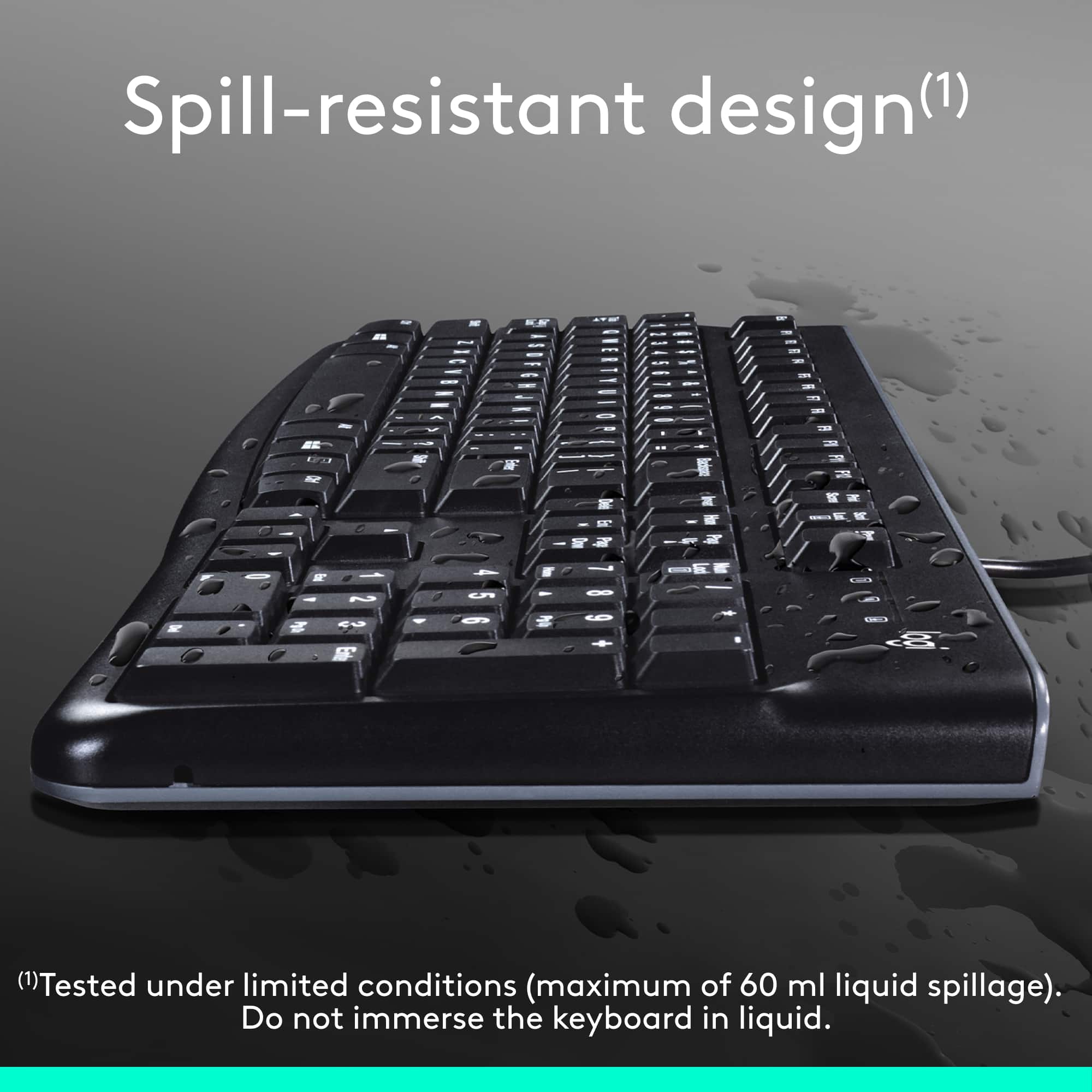
  • QuestionDoes this keyboard have a spill-resistant design?

    • Answer Yes, this keyboard has a spill-resistant design.
    This question and answer was generated by AI based on customer and product data.
  • QuestionHow many keystrokes can the keys on this keyboard withstand?

    • Answer The keys on this keyboard can withstand up to 10 million keystrokes.
    This question and answer was generated by AI based on customer and product data.
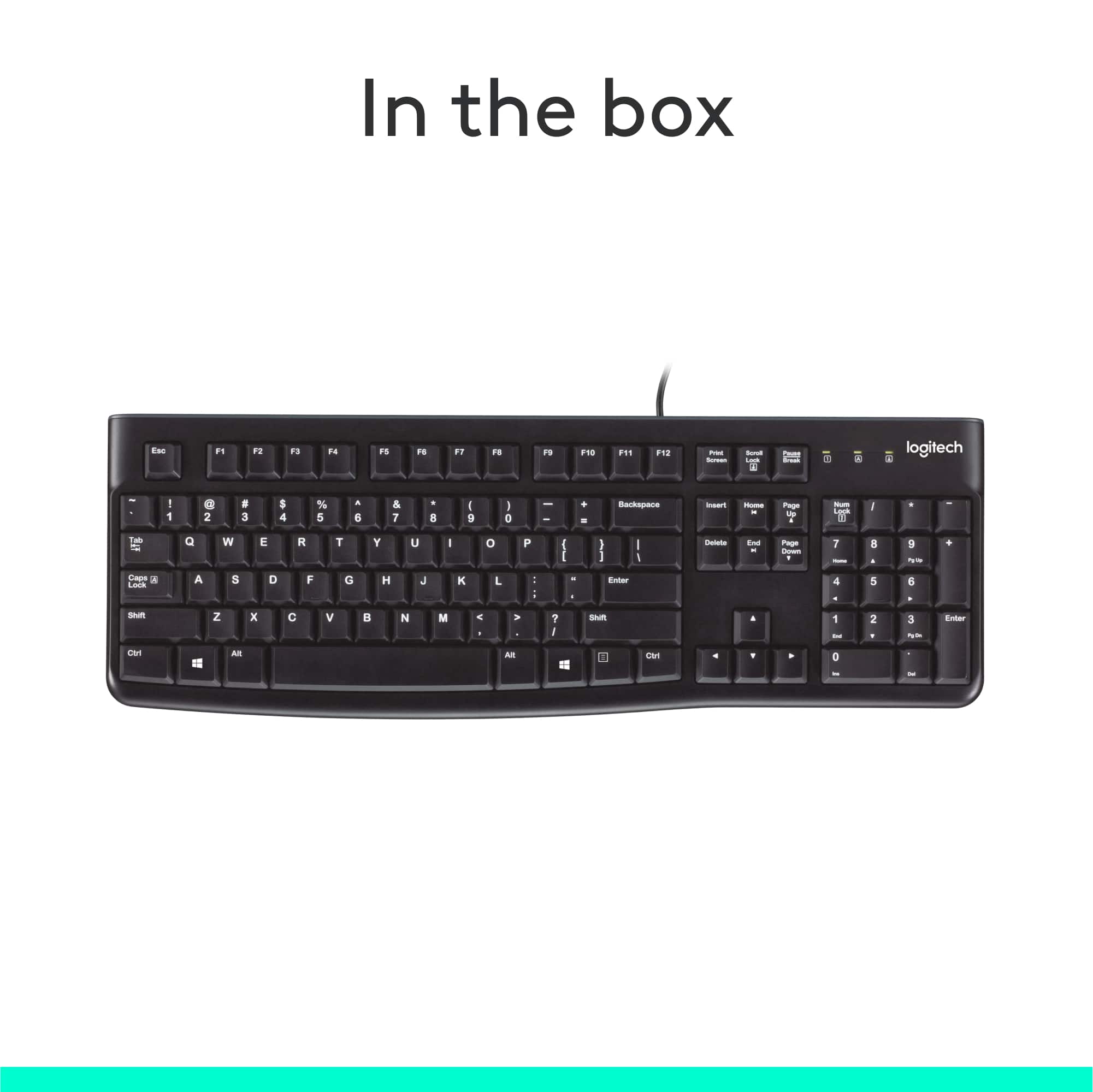
  • QuestionDoes it have a light to tell me that CapsLock is on?

    Asked by Poopsie.

    • Answer yes, but it is on the other end of the keyboard at the top.

      Answered by MRsunshine

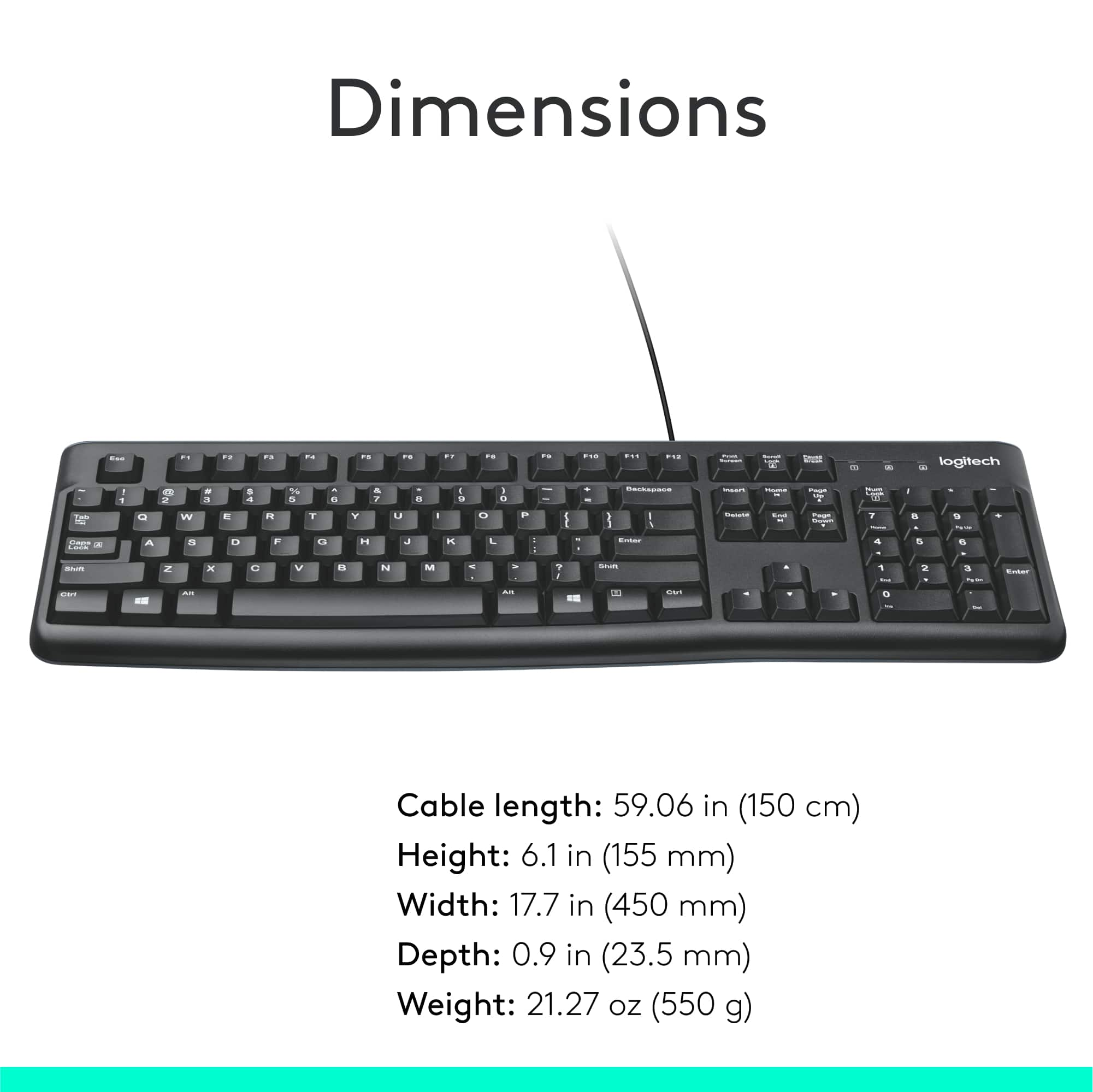
  • Questionhow long is the cord on logitech k120 keyboard?

    Asked by claudia.

    • Answer The K120 cable is 1.5 meters, so just shy of 5-feet long.

      Answered by Logitech

  • QuestionDo you carry a keyboard that does carry a CAPS LOCK indicator?

    Asked by poopsie.

    • Answer Yes

      Answered by Sharon

  • QuestionWhat are the dimensions of the keyboard overall, width and length? Thanks!

    Asked by RickeyWray.

    • Answer Hello, The length is 17.7 inches and the width is 5.9 inches -Danielle from Logitech

      Answered by Logitech

  • QuestionDoes it have extra USB ports for a mouse or to possibly charge a phone?

    Asked by Klaatu.

    • Answer No, it is a very basic keyboard.

      Answered by igal

  • QuestionWill this work with an older Compaq running an earlier version of windows?

    Asked by Mybad.

    • Answer Hey there Joe! The K120 is only compatible with Windows 10 or later. That's not to say it won't work with an older version of Windows, but you may lose some functionality. -Weston from Logitech

      Answered by Logitech

  • QuestionWould clear nail polish protect the letters from wearing off?

    Asked by suzyhen.

    • Answer Hi suzyhen, you could use clear nail polish to protect the letters from wearing off but eventually you would need to reapply it. Also, you do have a 3-year limited warranty that can be used to have a replacement sent to you. Hope that helps. -N from Logitech

      Answered by Logitech

  • QuestionWill this keyboard work on a HP computer ?

    Asked by Anonymous.

    • Answer Yes, as long as it has a USB Type A port.

      Answered by kippy1984

  • QuestionDoes this keyboard have N-rollover?

    Asked by Matt.

    • Answer Hello Matt! The K120 Desktop USB Keyboard has a 3-key rollover, it is an entry-level keyboard, so probably not something I'd recommend for Gaming in example.

      Answered by Logitech

  • QuestionAre there tilt legs under the front end (nearest end while typing) to provide some negative tilt?

    Asked by NegativeTiltFan.

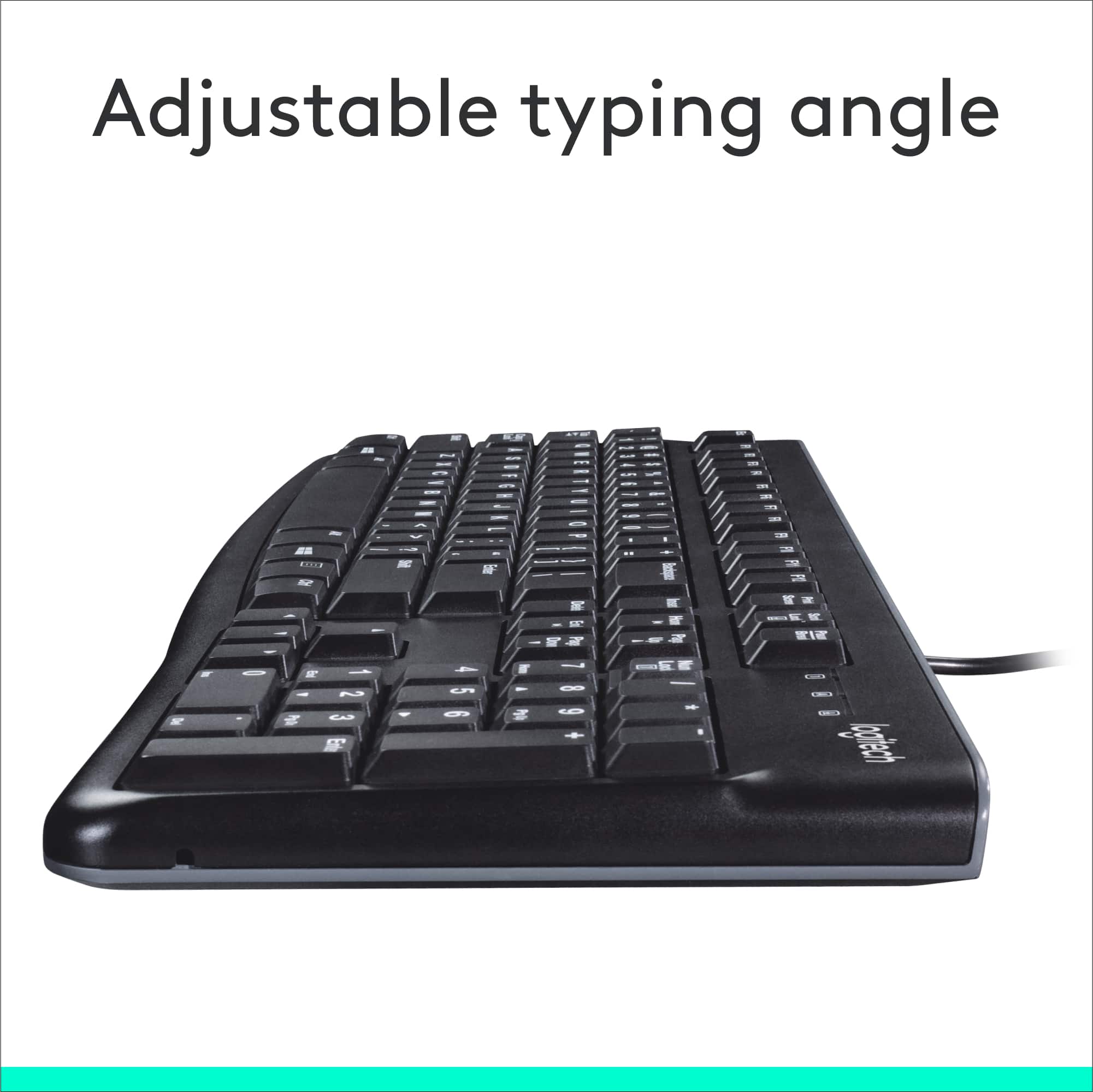
    • Answer Hey! No, the Logitech K120 keyboard does not have tilt legs under the front end (nearest end while typing) to provide a negative tilt. The K120 has two small, non-adjustable tilt legs that prop up the back of the keyboard slightly, offering a positive tilt for a more ergonomic typing position.

      Answered by Logitech

  • Questionwill this work on a mac computer?

    Asked by Anonymous.

    • Answer Hey! No, the K120 keyboard is not compatible with macOS.

      Answered by Logitech

  • QuestionWill this work on Mac?

    Asked by Killer.

    • Answer Hello Killer! The K120 Full-size Wired Membrane Keyboard for PC with Spill-Resistant Design won't work for Mac no, it is only compatible with Windows PCs. - Mathieu from Logitech

      Answered by Logitech

  • QuestionWill this work with an iMac?

    Asked by Tbone.

    • Answer The title says "Keyboard for Windows". I'm pretty sure that means that it only works with Windows Operating Systems.

      Answered by AmazedCustomer

  • QuestionCan audio volume be adjusted from the keyboard?

    Asked by Blanco.

    • Answer This keyboard does not have a dedicated "Volume Control" key on it. However, that doesn't meant you cannot adjust your audio volume from the keyboard! You can! In two steps! STEP ONE: To create Shortcut on desktop: A.) Right click an empty spot on your desktop and choose "Create Shortcut". B.) In the box type "sndvol -f 111111111" without the quotes (That's sndvol space -f followed by nine 1's which positions the popup volume control on the bottom right of your screen) C.) Click Next D.) In the box that comes up "SndVol.exe" is highlighted. That will be the name of your shortcut. You can leave the name of it as is, or you can rename it "Volume Control" or whatever works for you. E.) Click Finish and the icon/short cut will be on your desktop. STEP TWO: To make shortcut work with keyboard strokes: A.) Once the icon is on your desktop, right click the icon/shortcut and choose "Properties". B.) Under the Shortcut tab at the top, look for "Shortcut key" under that. Where it now says "None", put your cursor there then press the keys that will be your shortcut. That would be Ctrl+Alt+Shift+s meaning press all of those keys one at a time and hold them. It will show up in place of "None". Click "Apply" at the bottom of that same box and hit "Okay" to close it. TO USE THIS: Press and hold Ctrl+Alt+Shift and S (together) to bring up the volume control on your screen, then use your scroll wheel on your mouse to scroll the volume up and down. P.S. The reason for the need of using 4 keys for the keyboard short cut (Ctrl and Alt and Shift and S) is to keep from overwriting other keyboard shortcuts used by the system already.

      Answered by AmazedCustomer