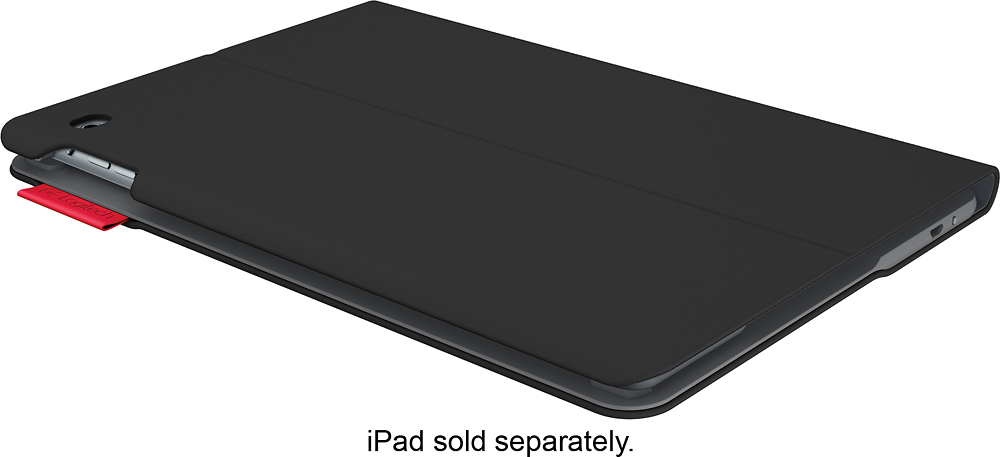
A:Answer 1) Pull the plastic tab out of the battery slot. This is a thin, clear piece of plastic with arrows on it, indicating you should pull it out of the slot to connect the battery.
2) Turn the keyboard ON via the switch on the RH side. It's the slider switch. If you look closely, the switch reveals either a red or green background depending which direction it's moved. Green is ON. The light on the keyboard should turn blue, and will flash until you get the bluetooth connection set up.
3) Go in to Settings on the iPad, and under Bluetooth, ensure it is ON. If not, turn it on. The iPad should search for and detect the keyboard.
Once the pairing is successful, the light on the keyboard will turn green.
![Pat 4:23 PM 100% Presentations Undo Presentation 2 DRIVE ACROSS COUNTRY Sharing my adventures Inge traveling around the country this past summer. From the unique nespie mel to the interesting cultures wias alle toce. A truly was memorabile enence STARTING MY TRID started my country wide adventure on the west coast with the intent drive - the way the ea coas and rake multiple stogs along the wty beng sure h many major cies could Starting om the went coas Focked on my trip by rela ing on the beaches mas the farst time nad been the oeman mmare the most and learned no sT Jman my west eoavt beach adventure headed East see what The nest The country har offer vy . - @ 2 # 3 $ 4 % 5 A 6 & 7 8 9 ) o + = dolate tab W E R T Y U O P 3 I - ] COps lock A S D F G H J K L ender return shift Z x x C V N M < > ? / shift alt x 3 alt in ctri option cmd cmd option Logitech iPad sold separately.](https://pisces.bbystatic.com/image2/BestBuy_US/images/products/9483/9483426_sd.jpg)