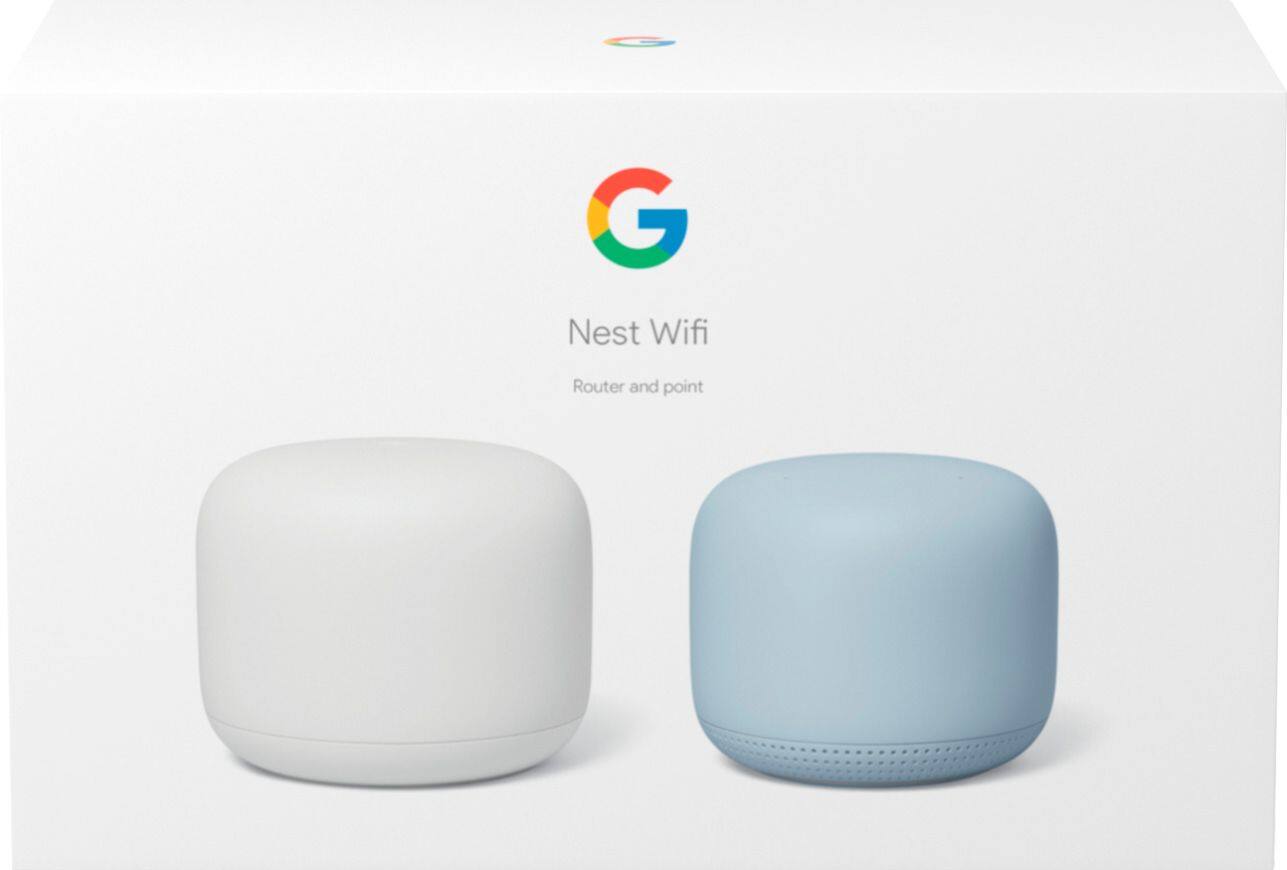
A:AnswerI had the Verizon modem and router before and all I did was unplug the network cable (coming from the Verizon box in my garage) from their modem / router and plugged it directly into my Nest router and completed the easy setup. After that, I instantly noticed the difference in speeds and connection using the Nest Wi-Fi and Point.
A:AnswerWe recommend setting up your Nest WiFi router and points no more than 2 rooms away from each other as a general rule. It's better to put the router and points in an elevated position like on a shelf, to provide better signal transmission.
A:AnswerI would say yes. No different than if you bought one point now and one point later. I’m not sure how many points the system can support though. That might be a Google question. Just ask how many points it can support and leave out all the other details about your place and his place.
A:AnswerGoogle Nest WiFi works with most modems and service providers. You can connect Nest WiFi directly to your modem with the Ethernet cable to set it up and broadcast your Wi-Fi network.
A:AnswerYes, Nest WiFi mesh system can help you extend your Wi-Fi coverage out to your pool area, but please make sure to place the Nest WiFi points no more than two rooms away from each other to ensure reliable connection. Also keep in mind, outdoor conditions may damage the Nest WiFi points.
A:AnswerWe recommend performing a power cycle; disconnect both your modem/router combo and Nest WiFi router, leave them unplugged for 5 minutes, make sure that the modem and Nest WiFi router lights turn off completely before plugging them back in. Some modems have backup battery packs, you will need to disconnect battery packs. Plug the modem and Nest WiFi router back to the power source and allow them to turn on fully, then connect the router to the modem via the WAN port with an Ethernet cable.
If power cycling doesn't work, you can try a factory reset. You can check the following link for instructions: https://support.google.com/googlenest/answer/6240987
If the problem still persists, we recommend contacting your ISP to provision your modem.
A:AnswerYes, Google Nest WiFi system can work with Xfinity WiFi. If your current modem is a modem/router combo, we recommend putting your combo in Bridge mode to avoid a Double NAT as it may cause connection issues due to creating 2 private networks. You can check out this support article for Bridge mode and Double NAT: https://support.google.com/googlenest/answer/6240987
A:AnswerLathe and plaster walls are known to block Wi-Fi access points from transmitting strong signals. However, Nest Wi-Fi is equipped with 4x4 antenna that that helps broadcast strong and reliable Wi-Fi throughout your home. Although 5GHz bandwidth can transmit relatively strong signals, 2.4GHz bandwidth may be blocked by the walls. A solution may be to have more than one Nest WiFi router and set one up as your primary router connected to the modem, and then hardwire the others as downstreams from your primary router. You can then connect the wireless Nest WiFi points to these routers and enjoy them both as Wi-Fi access points and Google Assistant-enabled speakers.
A:AnswerNo, this wouldn't be an issue as Google Nest WiFi is a dual bandwidth (5GHz and 2.4GHz) system. You can connect your devices to either of the bandwidths.
A:AnswerGoogle Nest WiFi requires to be connected to a modem with internet service. If you currently have a modem with working internet service by a service provider, you don't need another modem.
A:AnswerGoogle Nest WiFi is currently available in
Australia, Canada, France, Germany, Japan, Singapore, United Kingdom, and United States (except Puerto Rico). We recommend using Google Nest WiFi in the country of purchase as you may encounter issues and restriction due to regulations in a country Google Nest WiFi is not currently available.