A:AnswerHi Kem,
The camera being warm during operating is normal. However if you have any concerns, please contact our Technical Support Team at [email protected] or on 1-806-3419406 and we can help further.
A:AnswerI live in California. I did notice that when it gets hot the screen gets distorted but the video is still fine.
The screen also somehow fixes itself when it cools down. 115 degree weather
A:AnswerHello. Thankyou for getting in touch and sorry to hear you are having issues with your 322GW Dash Cam, this is not what we want to hear. I would recommend contacting our technical support centre on the details below and they can assist.
Contact Number
1-806-3419406
Contact Email
[email protected]
Helpline hours:- Weekdays 7am to 10.30pm CT
A:AnswerHello,
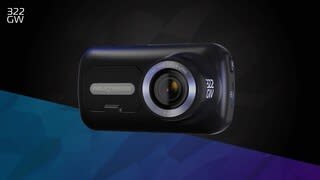
You can connect your 322GW Dash Cam to your computer using the provided USB cable.
1) Plug your Dash Cam in. Ensure the cable is plugged directly into the dash cam and NOT via the mount.
2) On the dash cam's screen you'll see a menu of 3 options. Please select 'Access Files' on the Dash Cam's screen.
3) If the dash cam does not appear as a drive on your computer, please try all the USB ports on your computer. Double check that the cable is via the camera and not via the mount. If it still does not show, please remove the cable from the computer, press the reset button on the underside of the camera and plug the USB cable back into the camera.
4) Then the Dash Cam will be visible as a removable drive on your computer. If you go into My Computer (Windows) or Finder (Mac) you will be able to see the Dash Cam listed as a drive, usually called NEXTBASE.
5) Double click on this drive. You should then see nextbase.com, nextbase.info and DCIM.
6) Double click on 'DCIM'. Inside this you'll see a selection of folders. Inside these folders are your photos and footage.
7) You can copy the files onto your PC to save, view them using your computer's media player, or view the files using the correct Nextbase app- MyNextbase Player.
This can be downloaded on the 322GW's Nextbase Support Page here:
https://www.nextbase.com/en-gb/help-and-support/dash-cams/322gw-dash-cam-support/
A:AnswerHello Frank,
When the 'Protect' function is activated a file containing 10 seconds prior to the incident and 20 seconds after is written to the Protected folder. The Protected Files are recorded for three different reasons:
1. The G-Sensor on the camera automatically protects the footage when unusual G-force is detected. You can adjust how sensitive the G-Sensor is within the camera's settings:
A) Turn the Dash Cam on
B) Ensure it is not recording (by pressing the red circle if required)
C) Go into Settings (the button in the top left)
D) Go into Video settings
E) Scroll across to ‘G-Sensor’
F) Change this to Medium, or Low.
2. The Protect Button is pressed (the 'Nextbase' button under the screen).
3. Parking Mode footage.
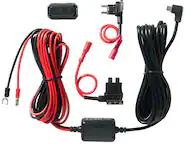
A:Answeryou need to get a wiring kit and direct wire it to your inside car fuse box and it will stay charged when the car is off cause mine was that way
A:AnswerYes the camera comes with an internal battery although I've never had to unplug it from my vehicle because you'll be downloading an app on your phone during setup and I just transfer any video I want to keep over to my phone.
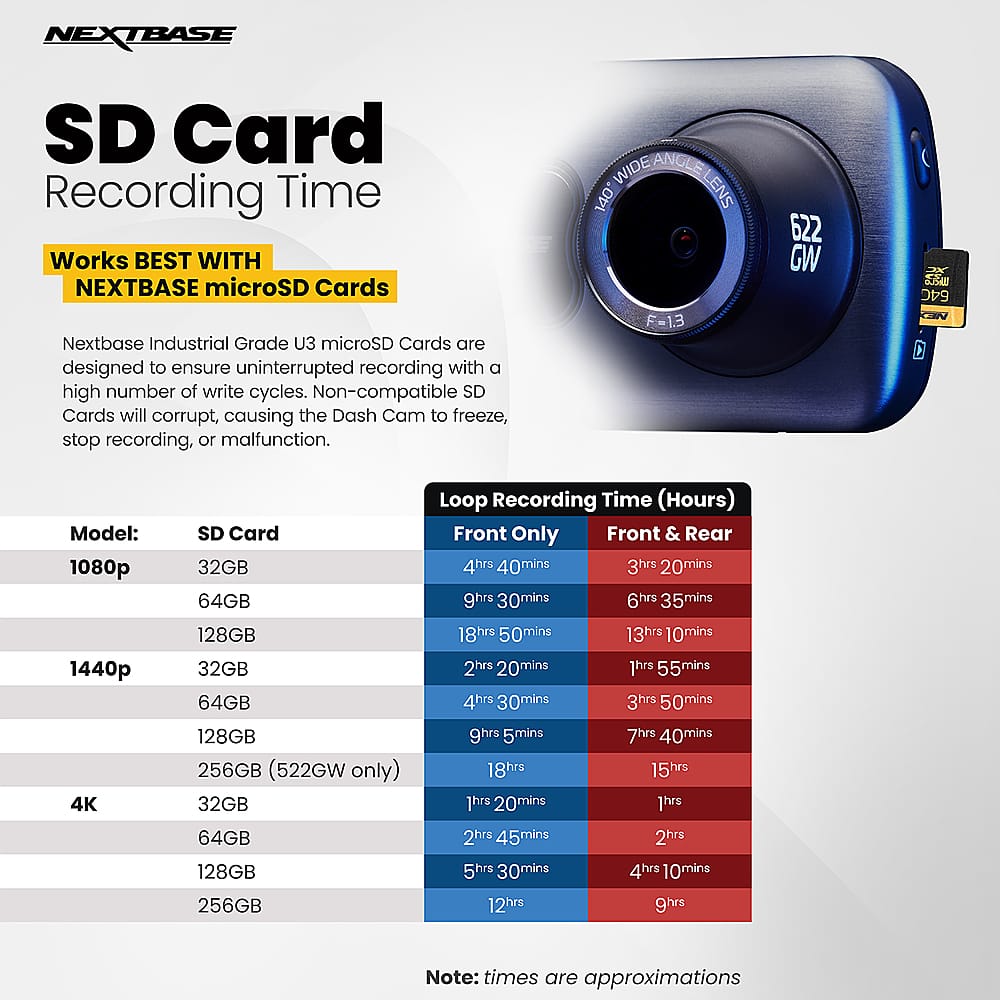
A:AnswerWhen disconnected it shuts down after about a minute. I have two 322GW's, one in front and one in the back window. I've left them plugged in overnight and they had no impact on my car battery. I've not checked current draw, but I'm guessing it is in the low milliamps. A 256GB memory card will not hold 12 hours of 1080p video though, so it will overwrite before dawn.
A:AnswerYes, this 322GW has Intelligent Parking Mode. More information is available in the manual on Page 23:
https://cdn.nextbase.co.uk/manuals/237B9134-BE28-471E-AD5C-151404336B5A/NBDVR322GW%20User%20Manual%20(English%20R9)_compressed.pdf
Regards,
Nextbase