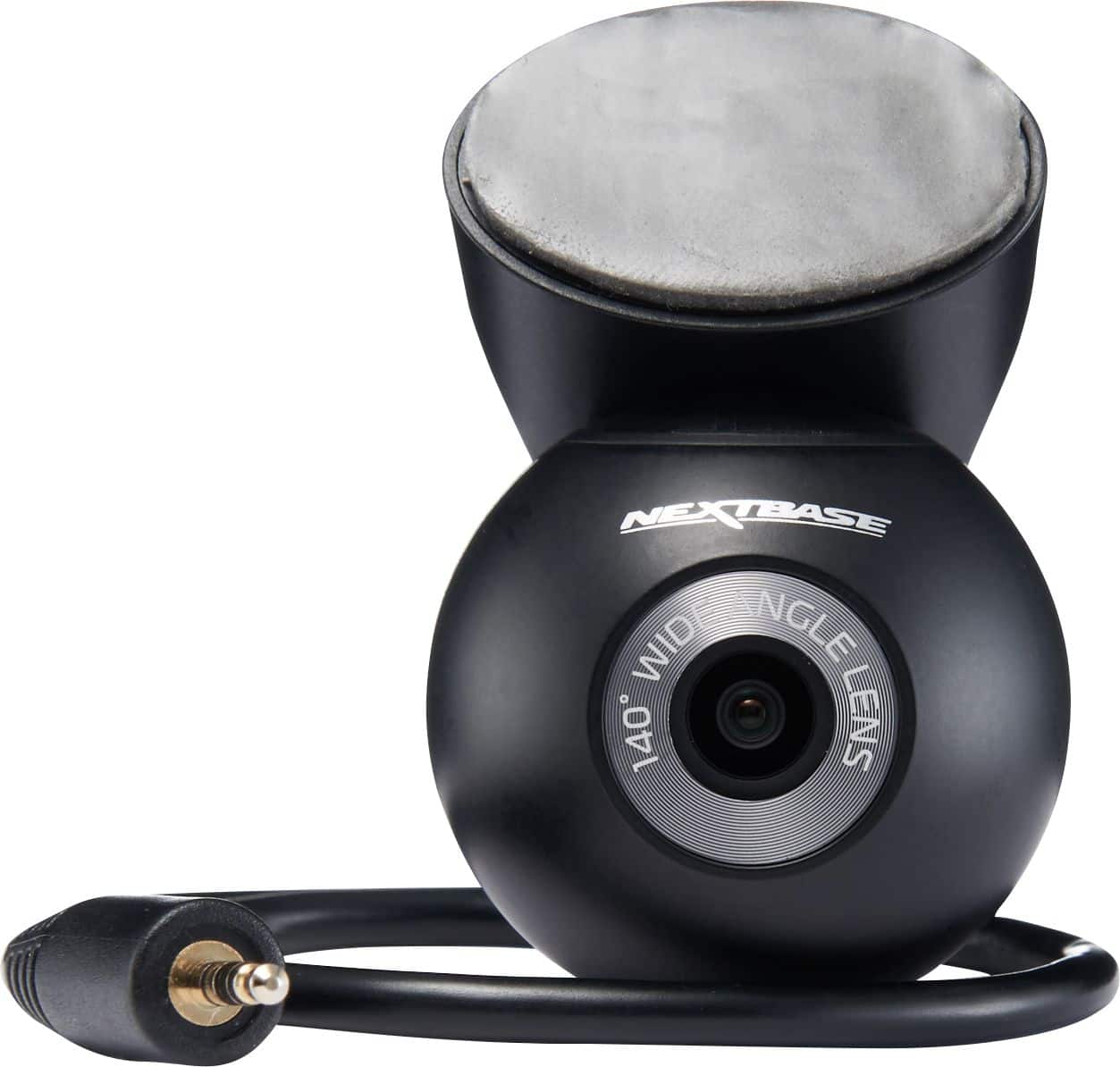
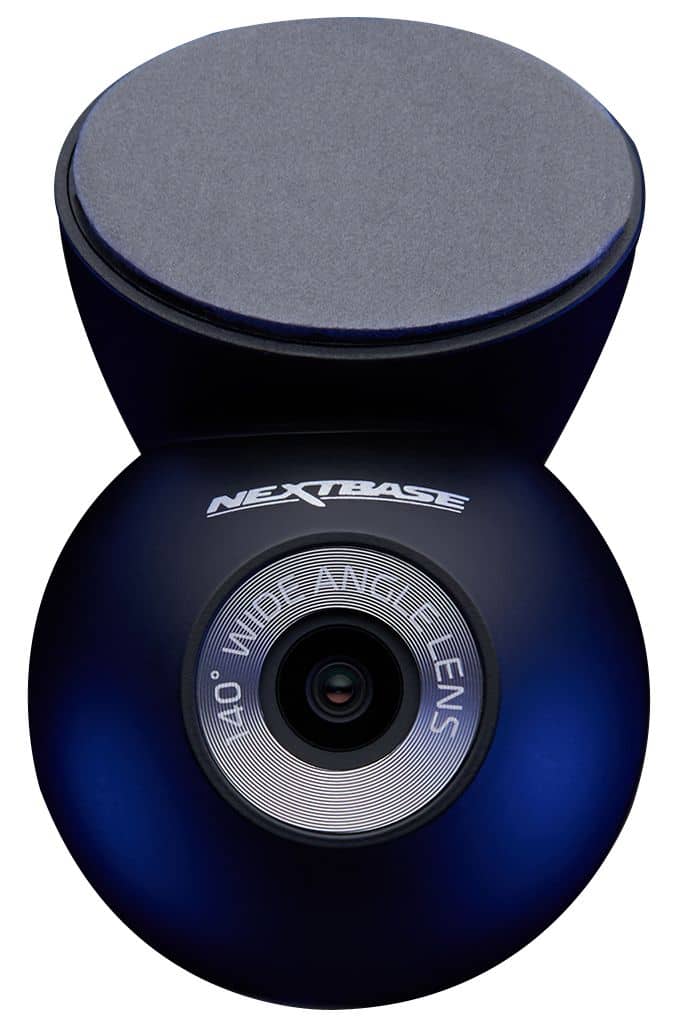
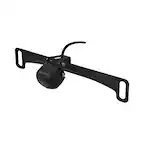
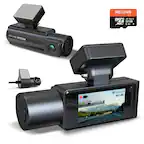
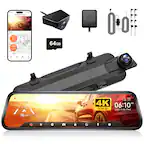
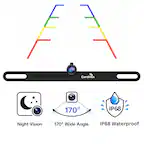
A:AnswerThis is a 1080p camera. I don't know if there is a 4K version in the works. The image from this camera shows up as a picture-in-picture on your front facing camera.
A:AnswerThis can be easily mounted anywhere with the adhesive mount. You just have to make access from the bed to the cab to route the very small cable to the dash cam.
A:AnswerHello Liz,
The Rear Window Camera is not weatherproof and is only designed to be used internally in the vehicle. We do not advise fitting the camera externally.
A:AnswerThe Rear Window Camera affixes onto the rear window of your vehicle. It then connects to the front camera using a 6.5 meter cable which can be tucked under your vehicle's internal trim using the provided trim tool.
The Rear View Camera plugs straight into the front camera and films the rear view through your car.
A:AnswerYou don't need to mount it directly to the window. Not sure how the interior of your truck looks but if you have a hard frame roof either plastic covering or straight metal in the inside near the rear window you are able to mount it there and have it look out the rear. Not sure how it would be if you have a cloth lining. Hopefully that helps and give you some ideas how to mount it.
A:AnswerHi Brandon,
Please contact your local BestBuy that offer the fitting service, and they will be able to advise on the fitting cost and whether this also includes the rear camera module.
A:AnswerHello,
Yes, this can be done in the settings on the front camera.
1) Turn the Dash Cam on
2) Ensure it is not recording (by pressing the red circle in the bottom left of the screen if required)
3) Go into Settings (the icon in the top left of the screen)
4) Go into Driver Assistance
5) Select Reversing Camera
6) Enable this here.
When you wish to rotate the rear camera to use as a reversing image (the image will show like the rear mirror), just click on the image of the rear camera on the front camera's screen. The picture in picture will then fill the whole camera's screen and the image will be flipped.