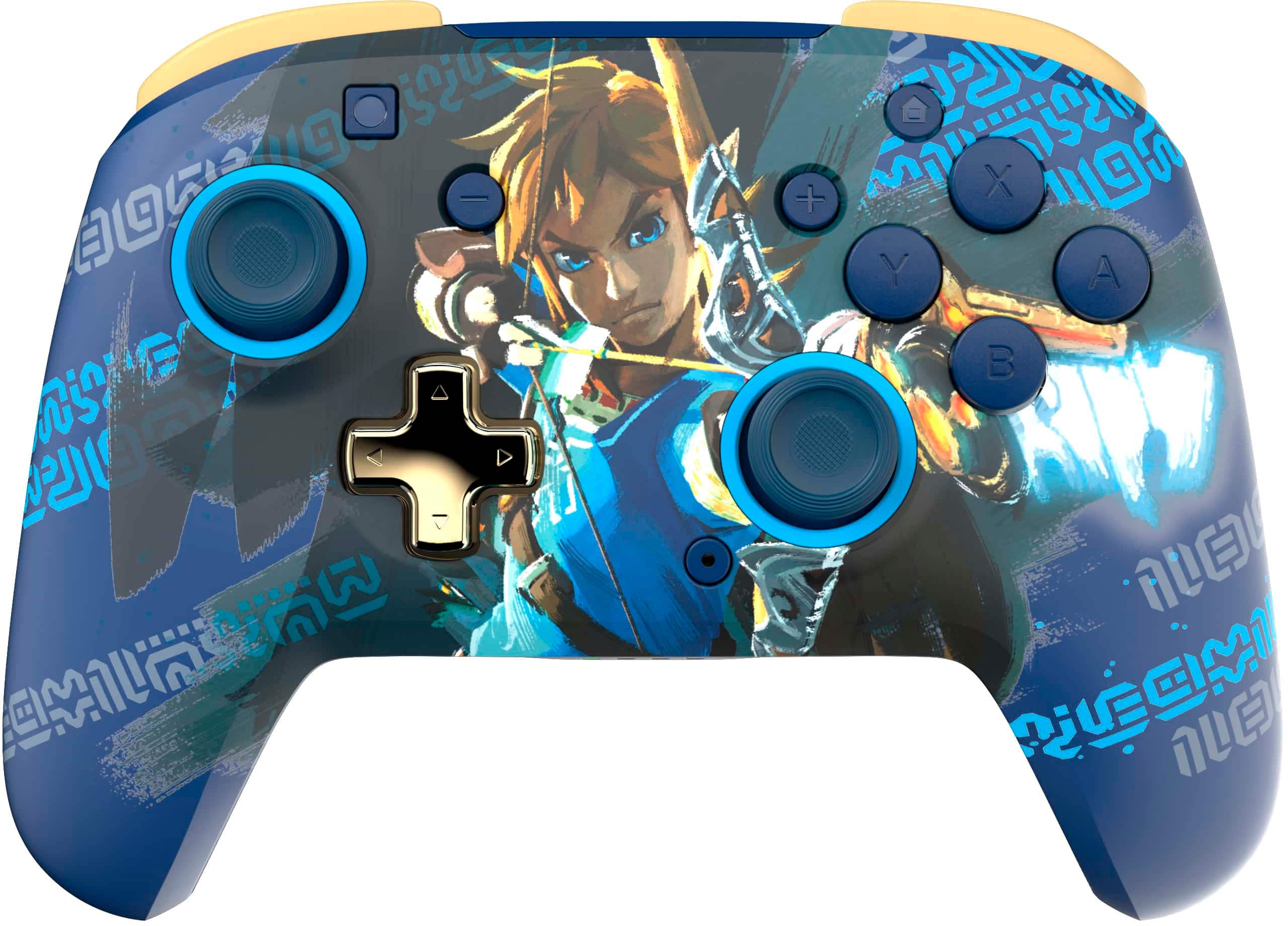
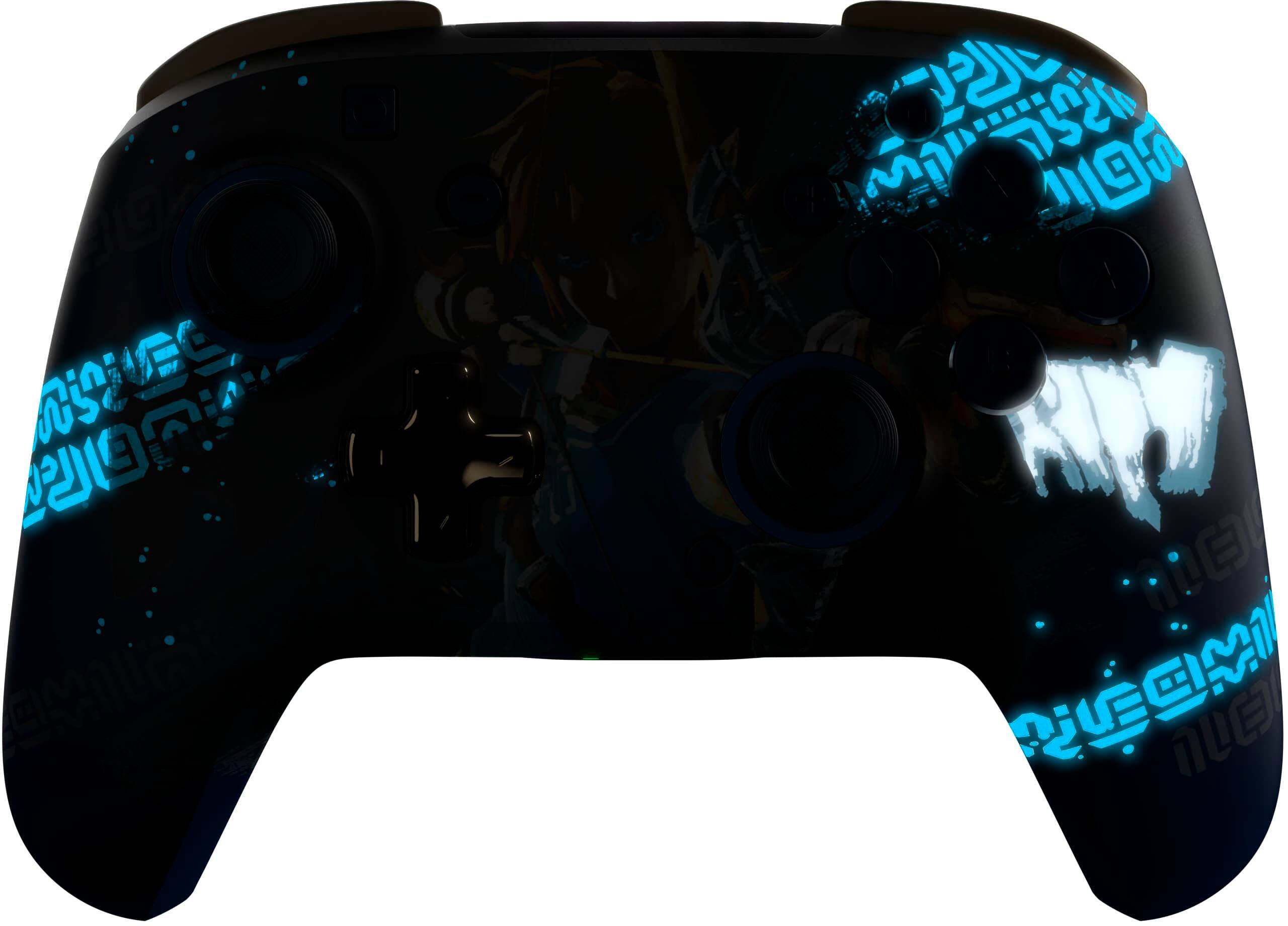
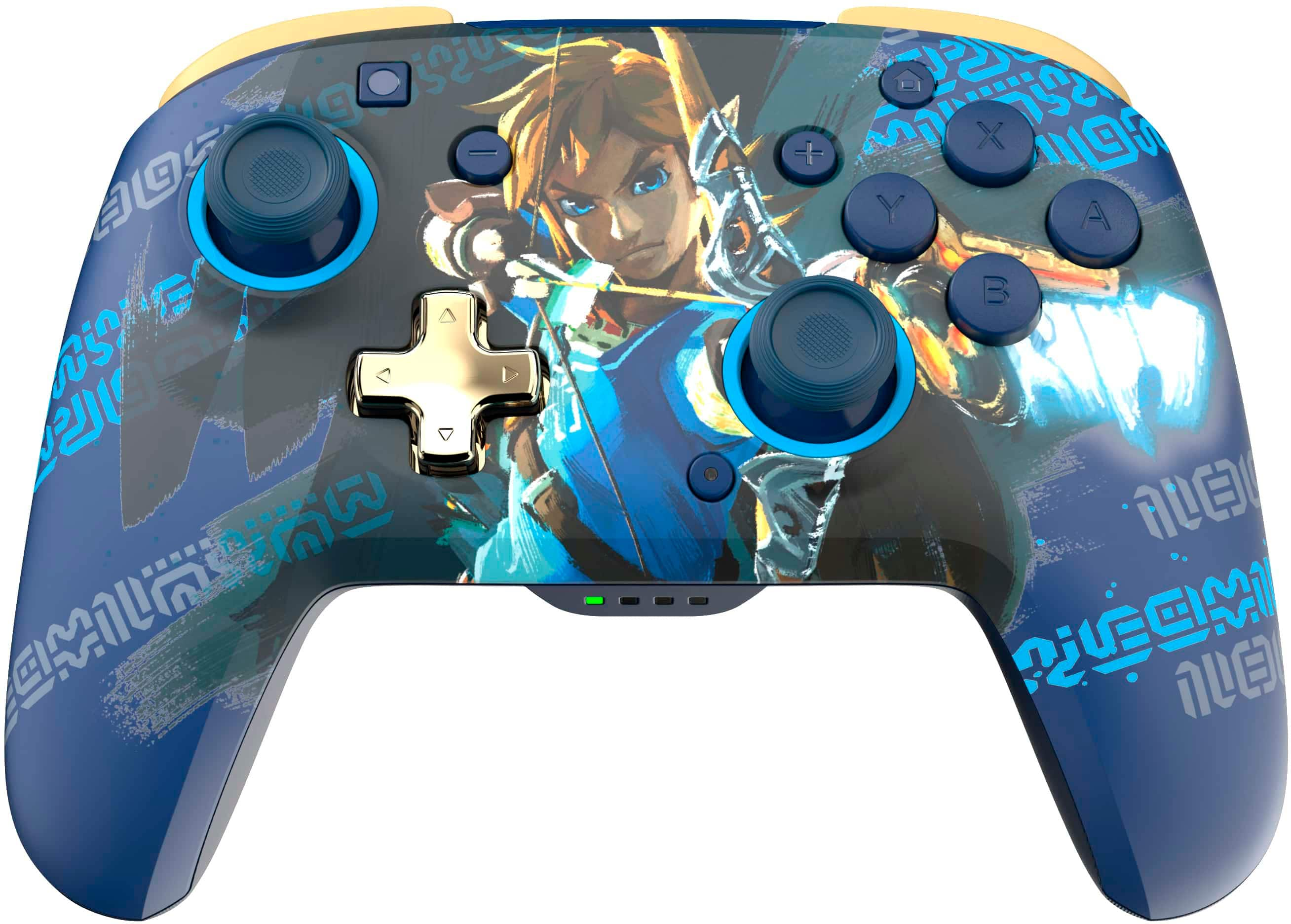
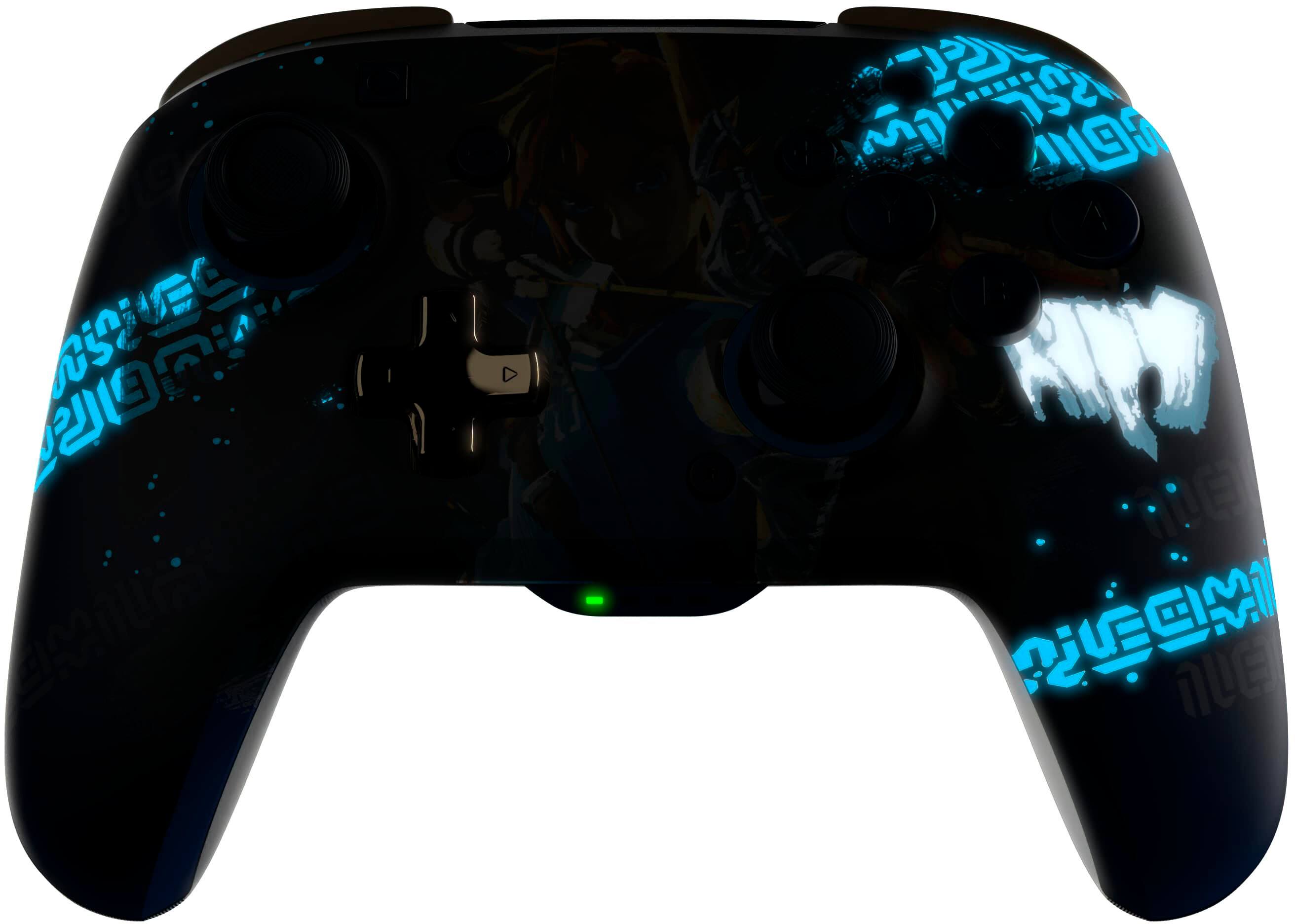
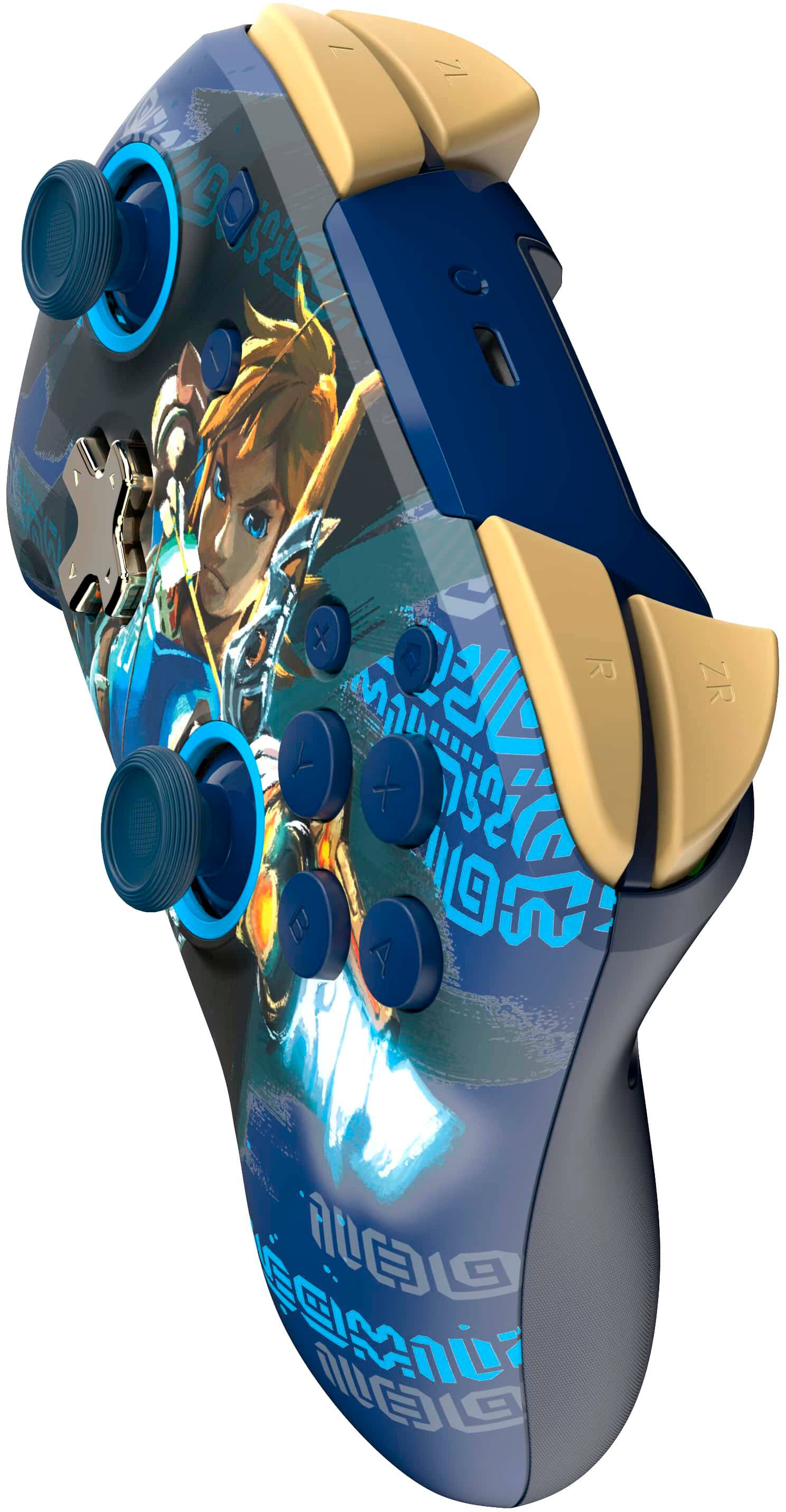
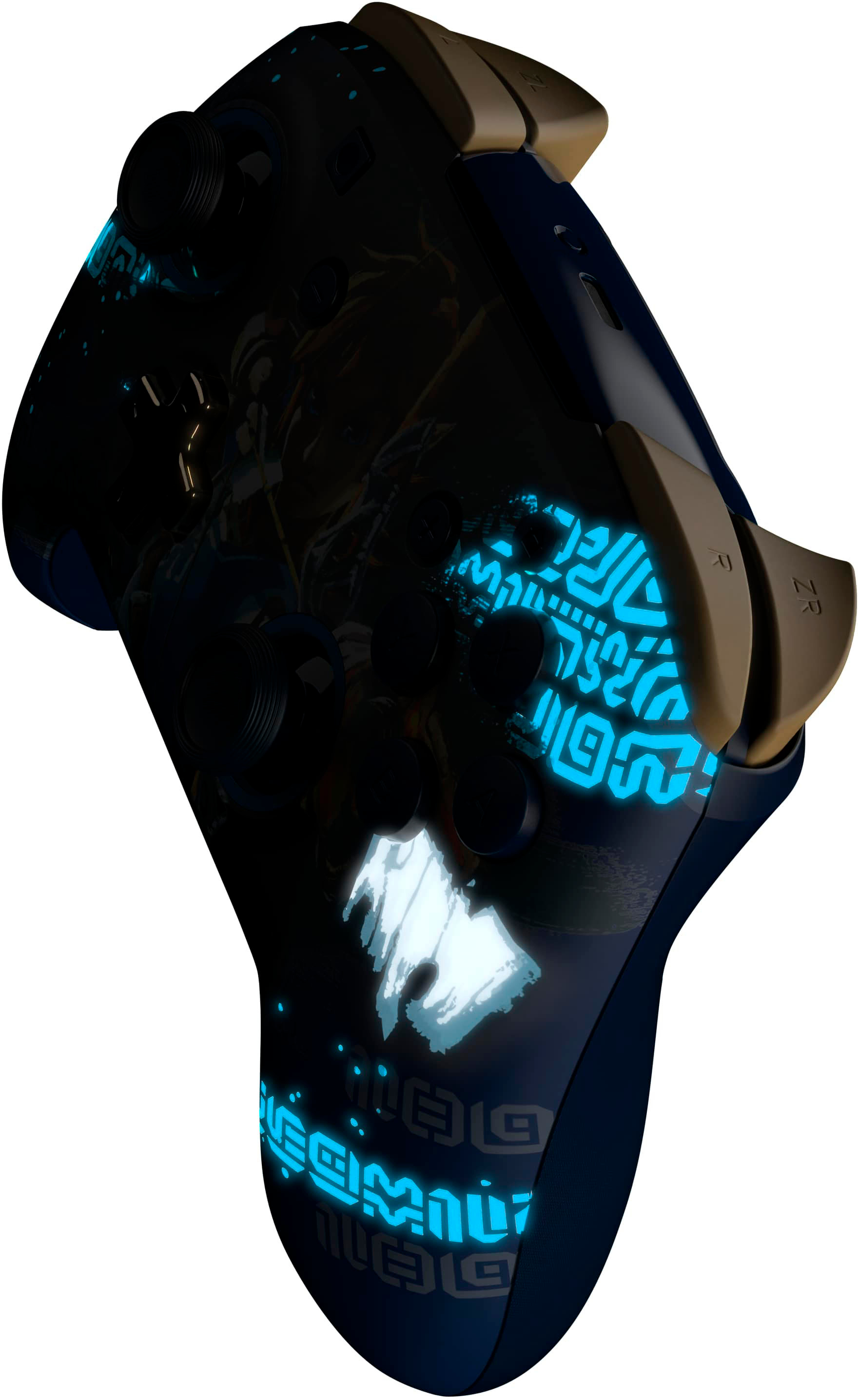
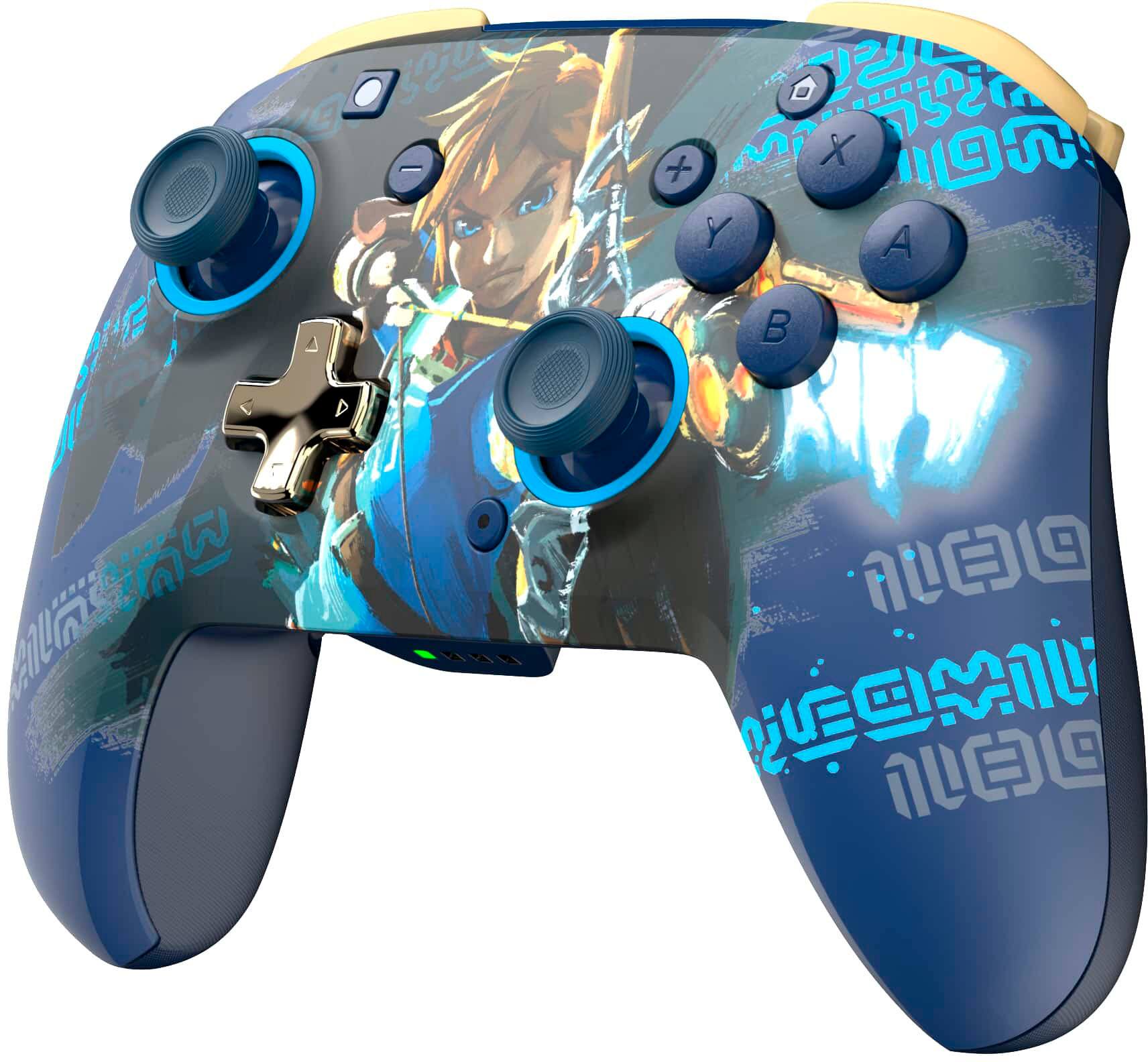
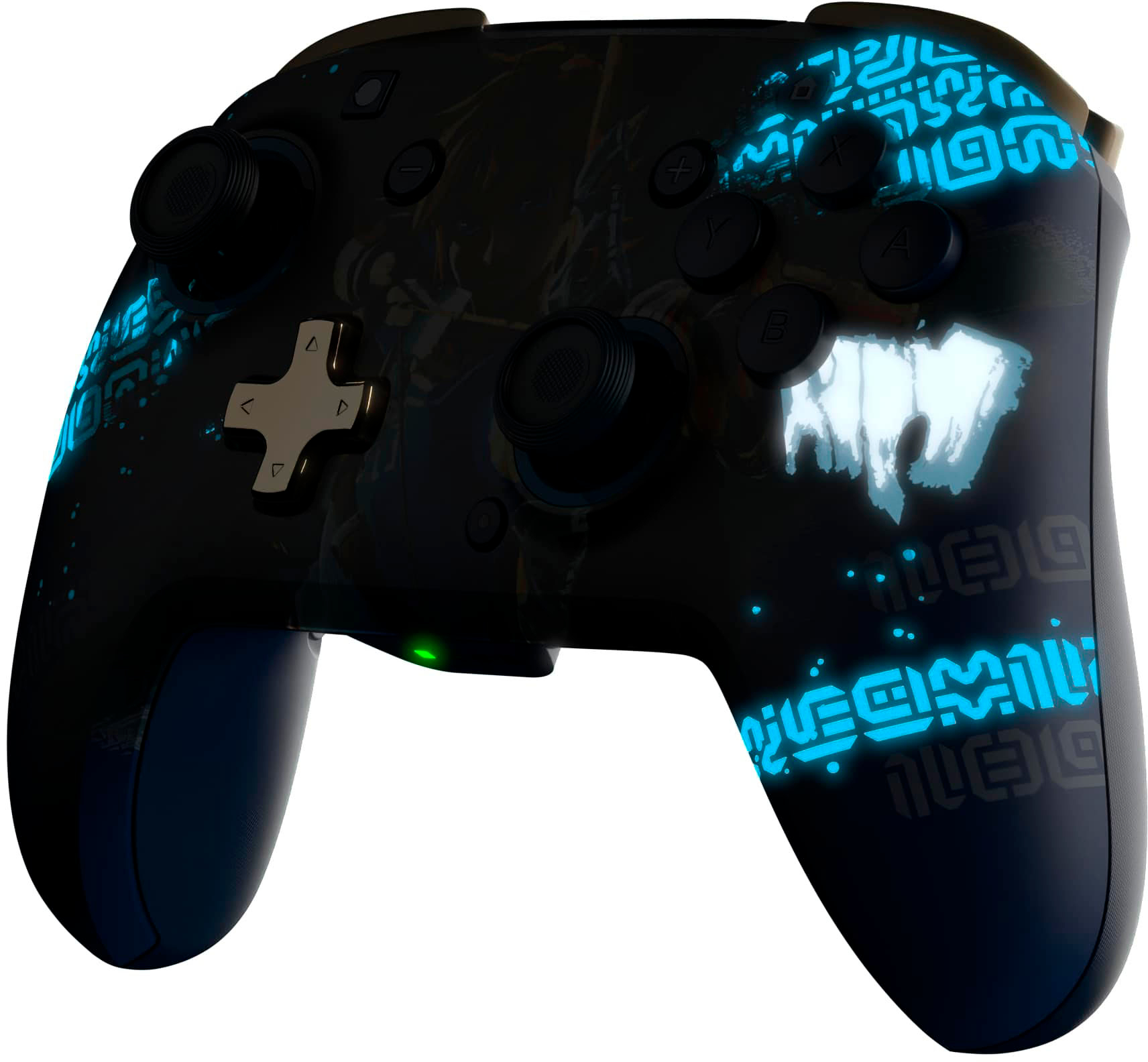
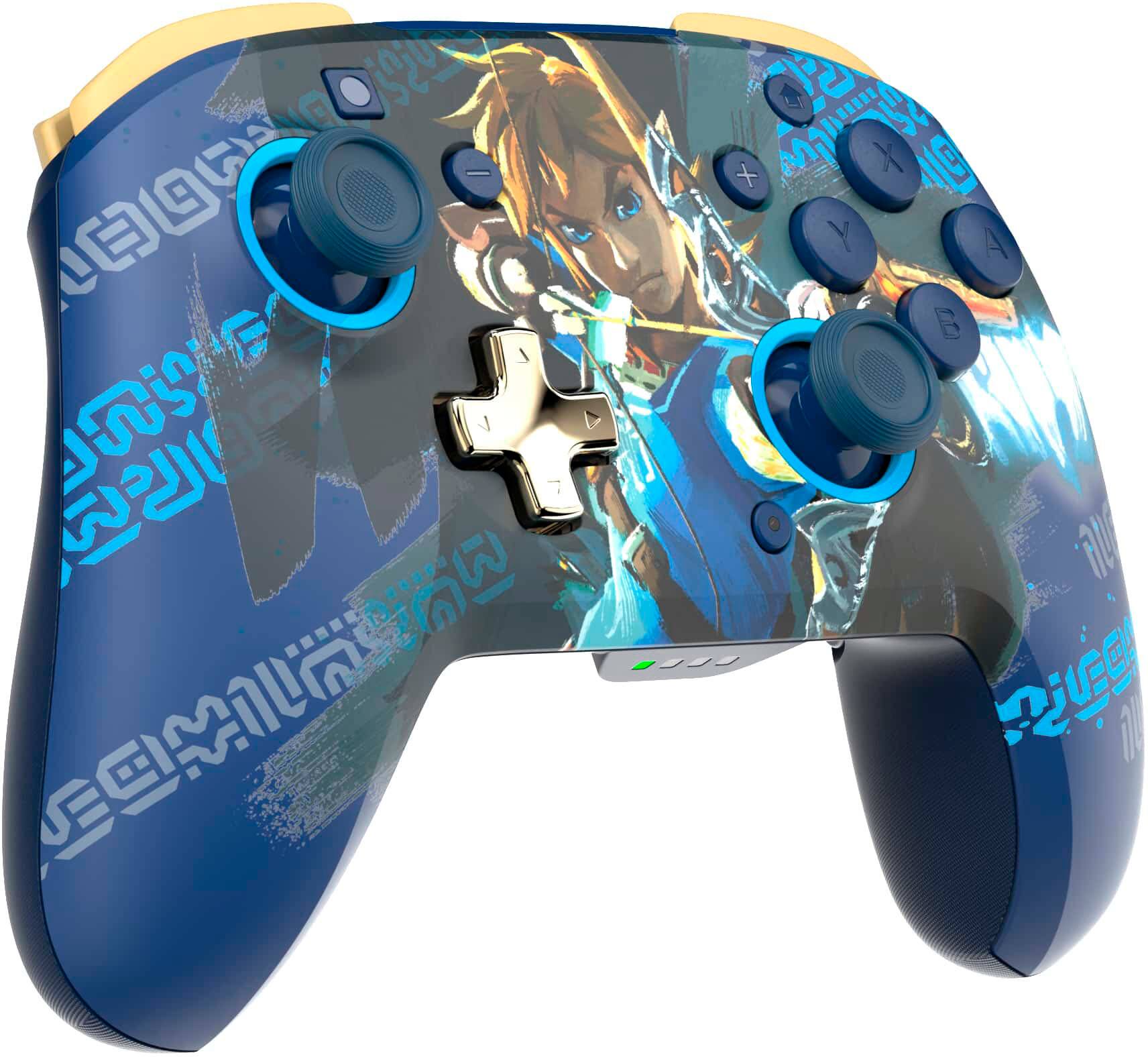
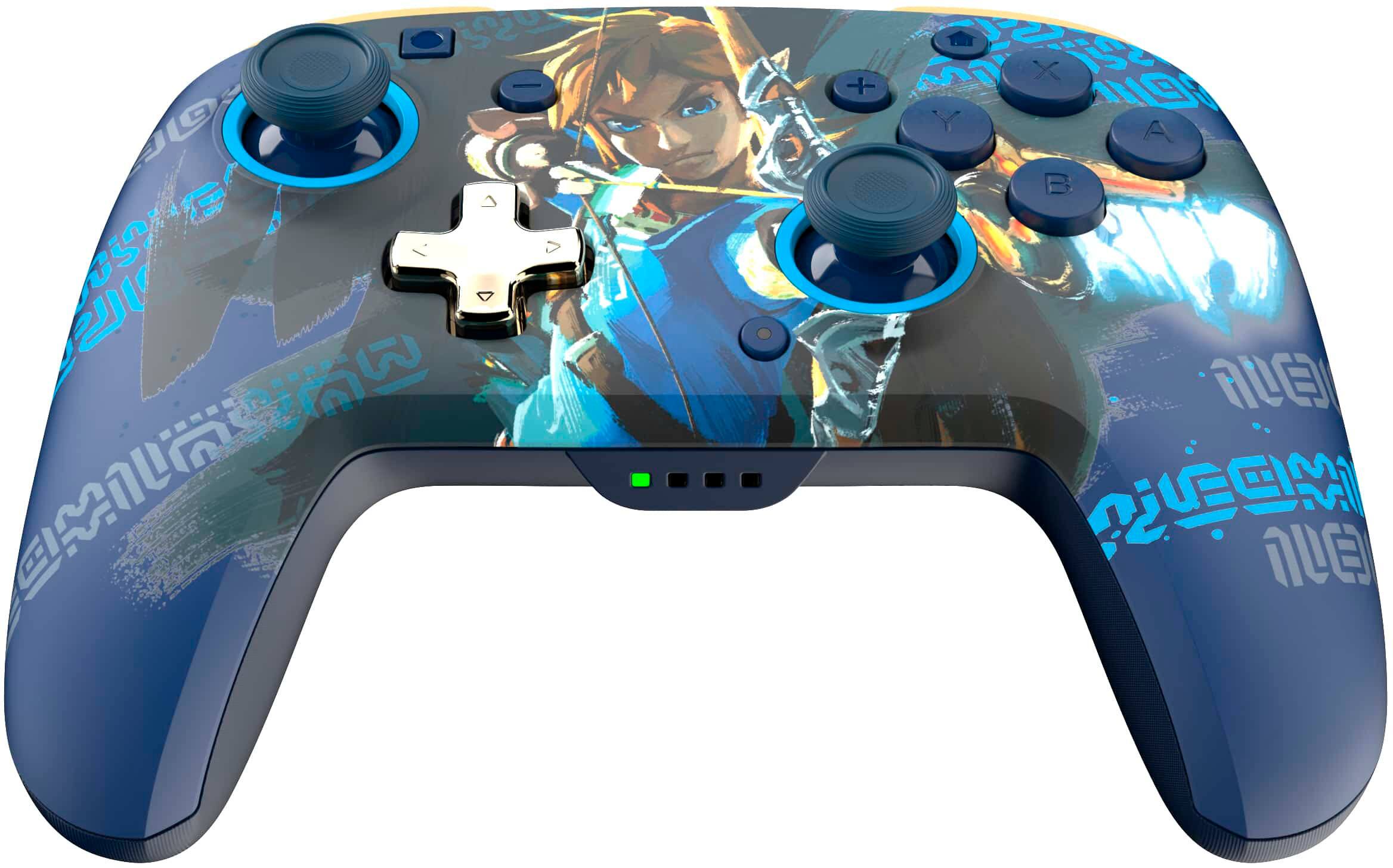
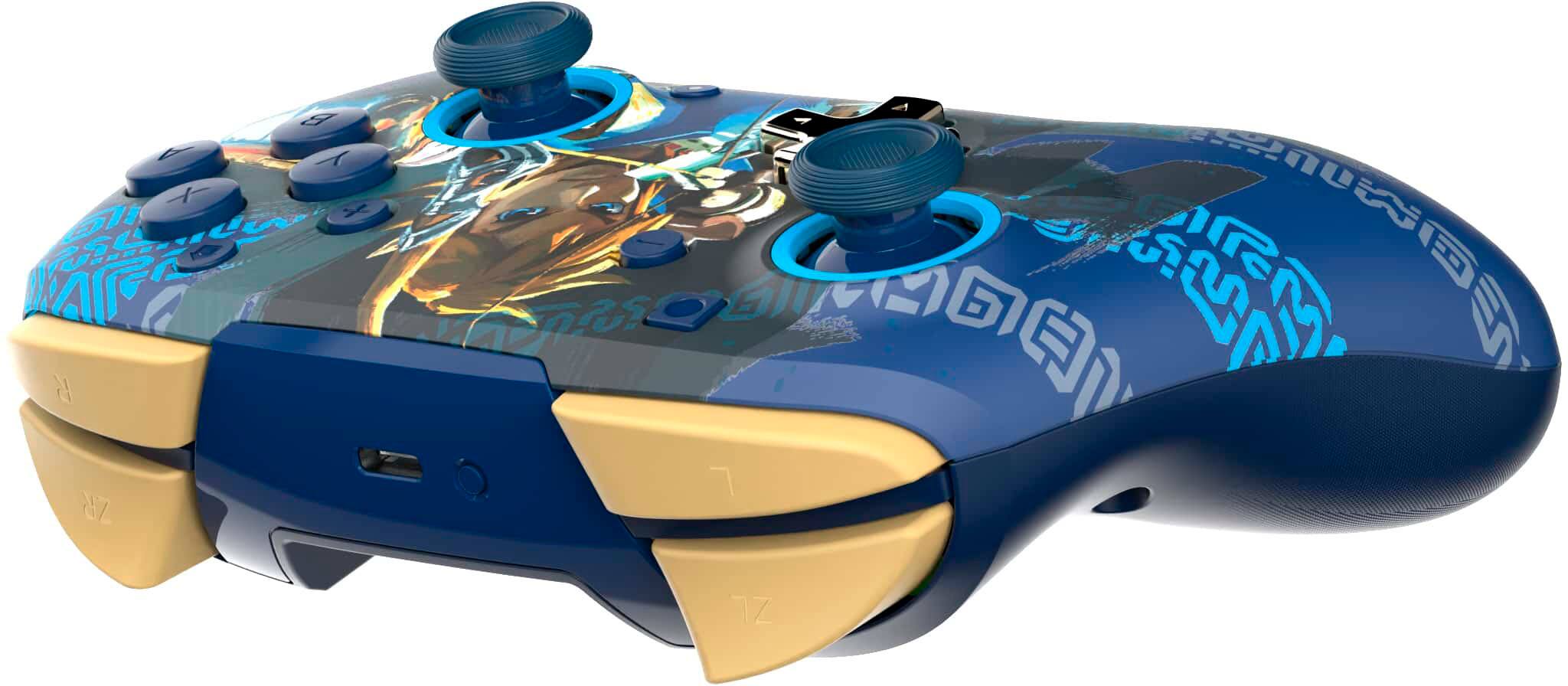
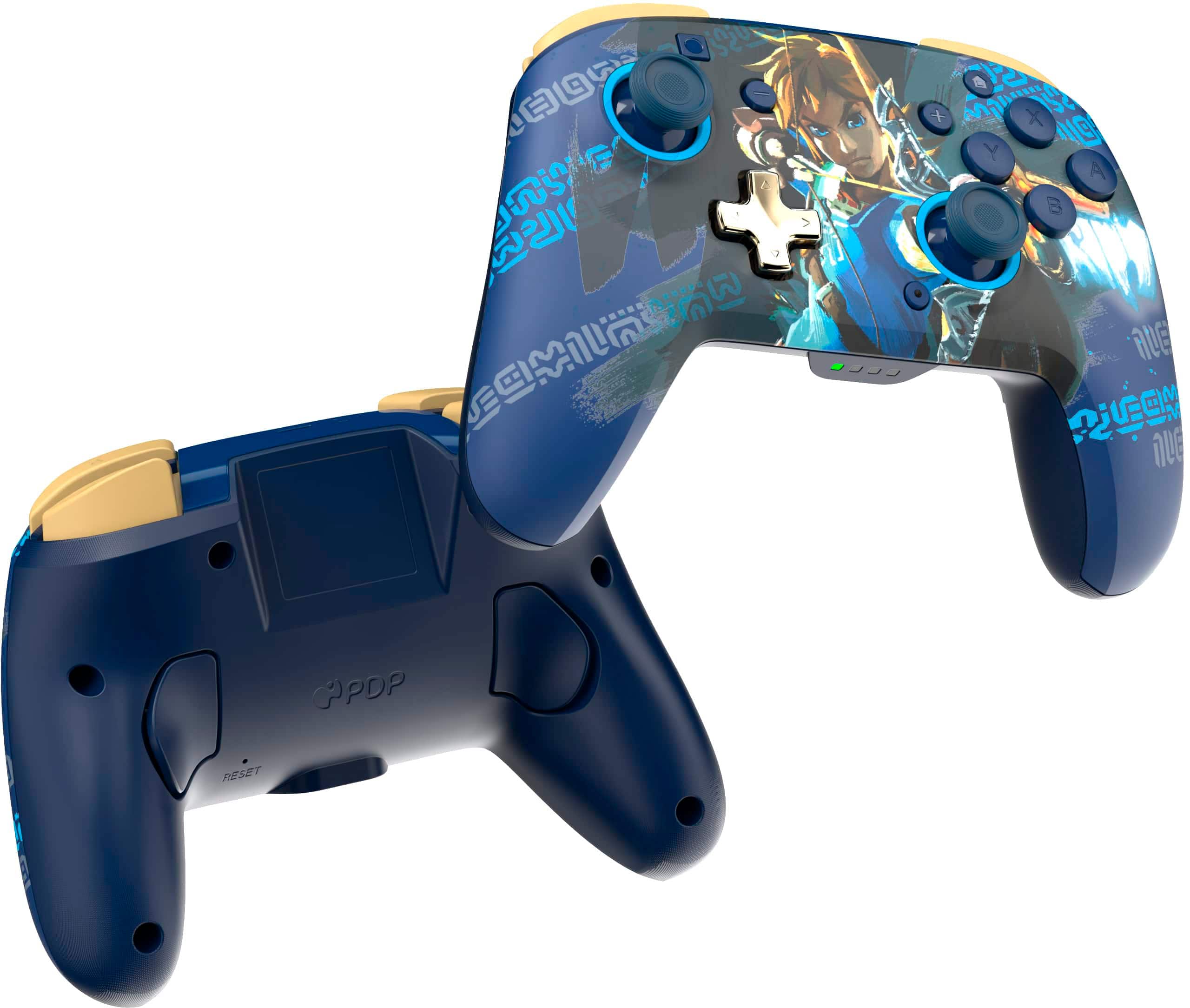
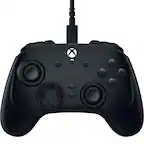
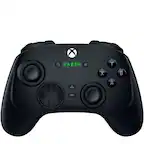
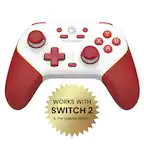
A:Answer PC Devices: Yes, the wireless connection works with Windows 11 if your computer has Bluetooth compatibility. I don't know for sure about Mac/iOS devices.
PC Wireless Connection Instructions:
1. Fully charge the controller.
2. Open the system tray and right-click the Bluetooth icon. Select "Add Bluetooth Device".
3. Click the + icon that reads "Add Bluetooth or other device."
4. Click "Bluetooth" to confirm.
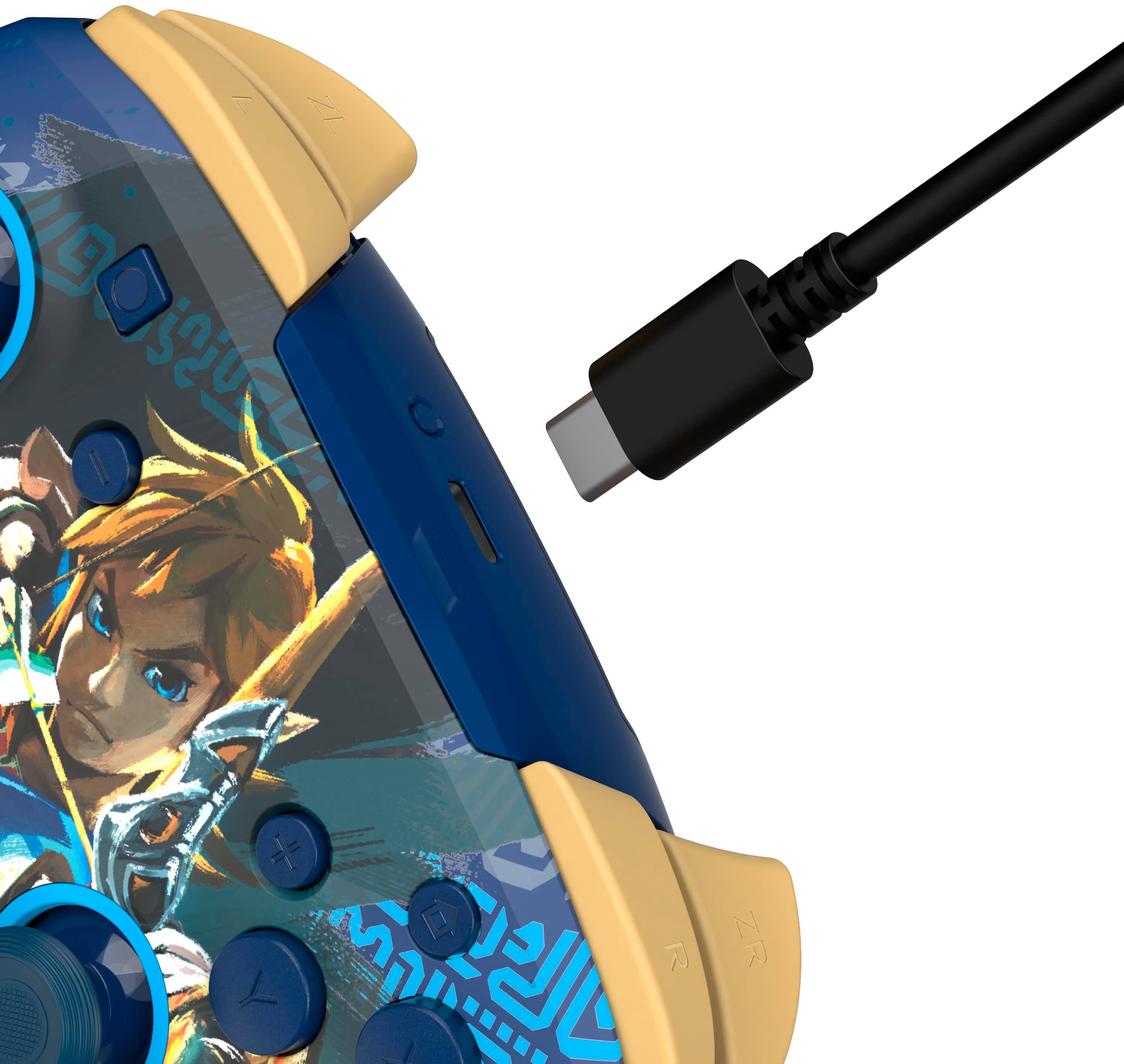
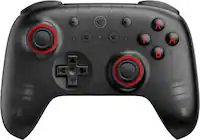
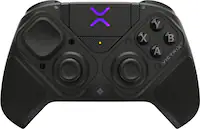
5. Press the small "Sync" button at the top of the controller, near the charger port, until indicator lights begin flashing (see picture).
6. The pro controller should now show up in the list of available Bluetooth devices on your computer. Click it and press "pair."
You may have calibration issues when you first pair the device. To help combat this, you can do the following:
1. Open the Control Panel on your computer (you should be able to find this by typing "Control Panel" in the search bar)
2. Under "Hardware and Sound", click "View Devices and Printers".
3. The pro controller should show up under the list of devices. Right click on it and select "Game controller settings".
4. Click "Properties".
5. Click the "Settings" tab, then click "Calibrate" and follow the onscreen instructions for the calibration wizard.
6. The onscreen instructions may be confusing, depending on the controller you have paired and the system you're using. If they refer to the "D-Pad" they mean the Left control stick. If they refer to "X Rotation" or "Y Rotation" they mean the Right control stick.