A:AnswerYes... so long as you can take the back off of your unit. The newer generation units have a unibody design that is impossible to get into. You can probably also upgrade your RAM... check at the Apple website for compatibility and upgrade potential for RAM. I took my 2010 MBP to 8 GB, which was the upper limit for its processors.
A:AnswerAll new hard drives are new and unpartitioned. If you're setting this as a second drive you have format it first. For brand new installation the OS will do it automatically.
A:AnswerYou bet. I bought this when my computer drive crashed about 3 weeks ago - I use it on my desktop and it works great. Love the speed of booting!
A:AnswerSure can. I use a program called Macrium Reflect it is free at www.macrium.com/reflectfree. Samsung SSDs also have something as well to image your disk, but they are expensive to buy.
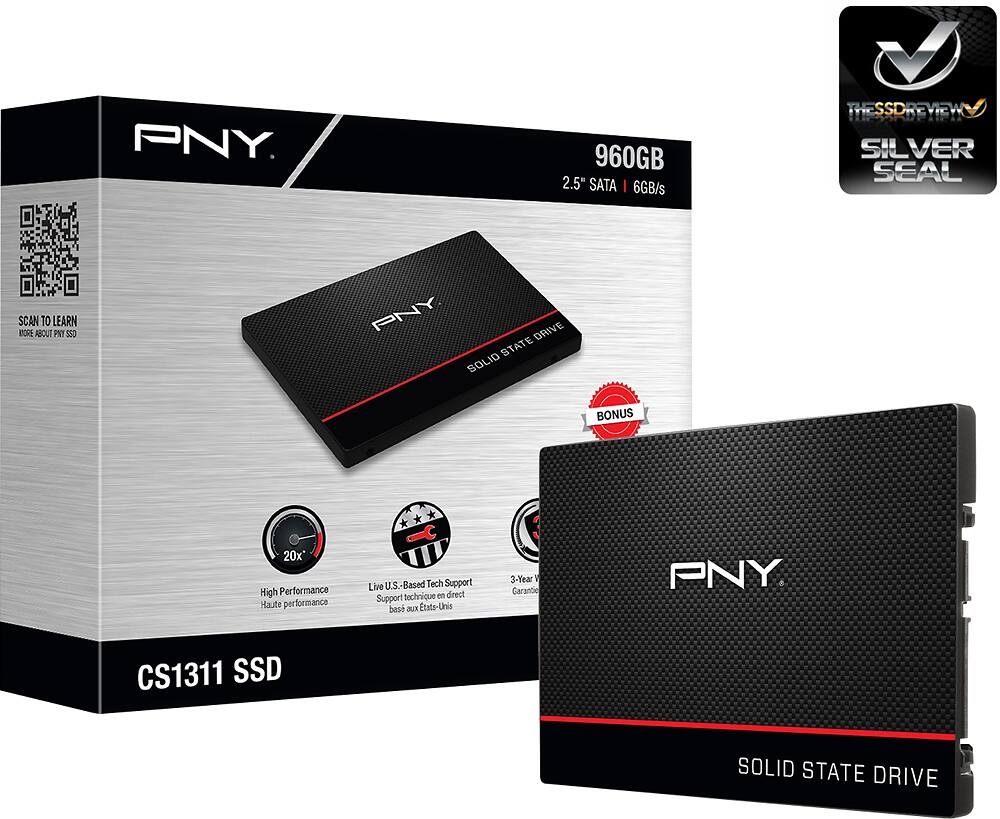
A:AnswerYes you can use this to replace your current HDD. You will need to use a program like the free Macrium Direct software to clone your existing drive. You will also need to buy a data cable to do the clone before you remove your old drive. Just search YouTube for a video on how to do this if you have not opened up a laptop before. If your still not comfortable ask the Geek Squad to do it for you.
A:AnswerCheck at the Apple website to see if it has an upgradable hard drive and RAM. You can probably do both at the same time... can you remove the back of the computer body?
A:AnswerYou download the Acronis from their website, and there is a small folded instruction sheet that comes with the drive that has your license code. Once unlocked, you're good to go. (Good luck though, I could never get Acronis to clone completely.)
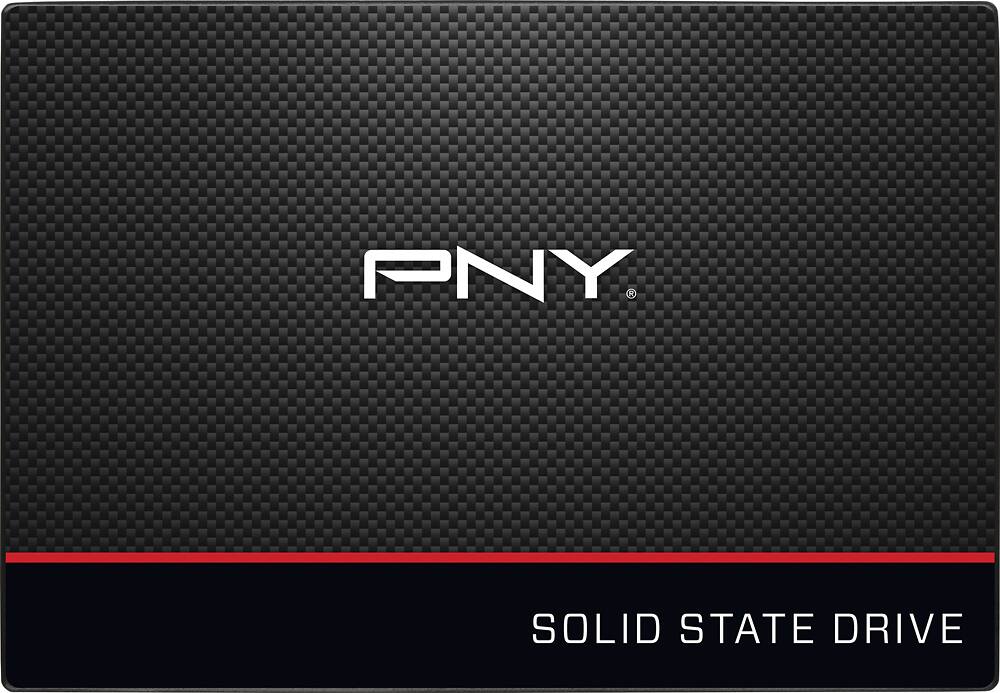
A:AnswerI installed this SSD into my Macbook pro. It is half the thickness of a standard HDD, there is an adapter piece that comes with it if the thickness needs to be greater. Some laptops need that thicker drive to mount correctly.