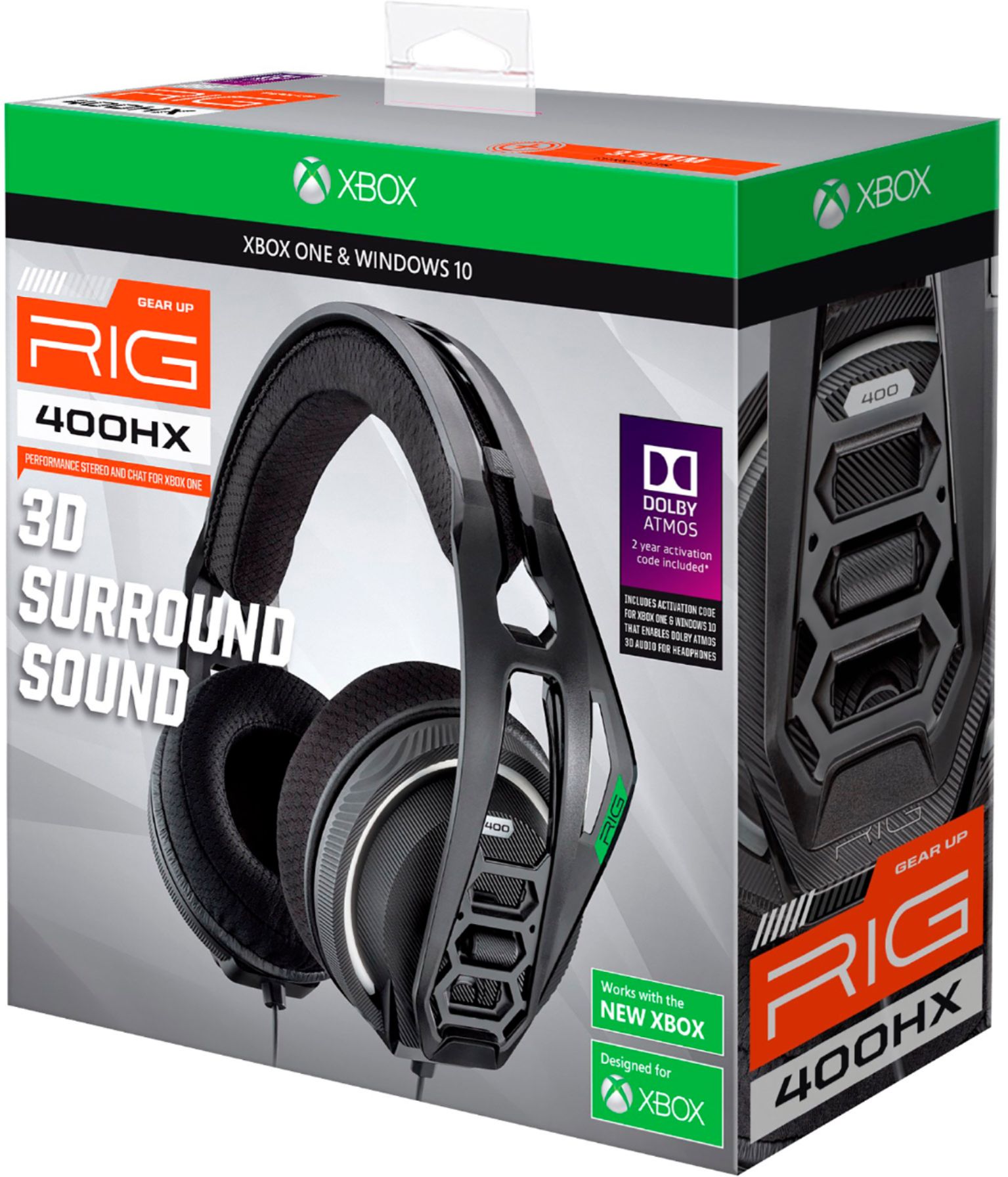
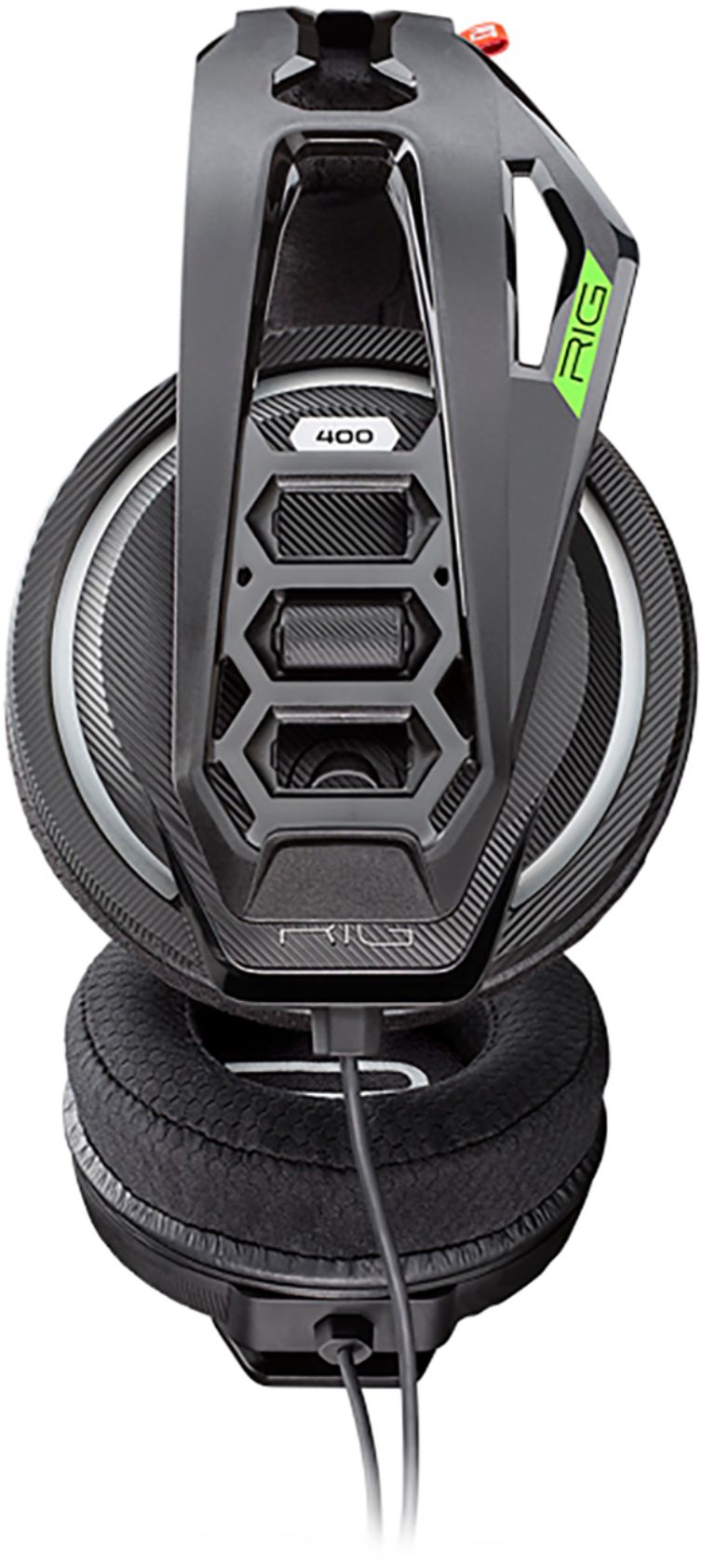
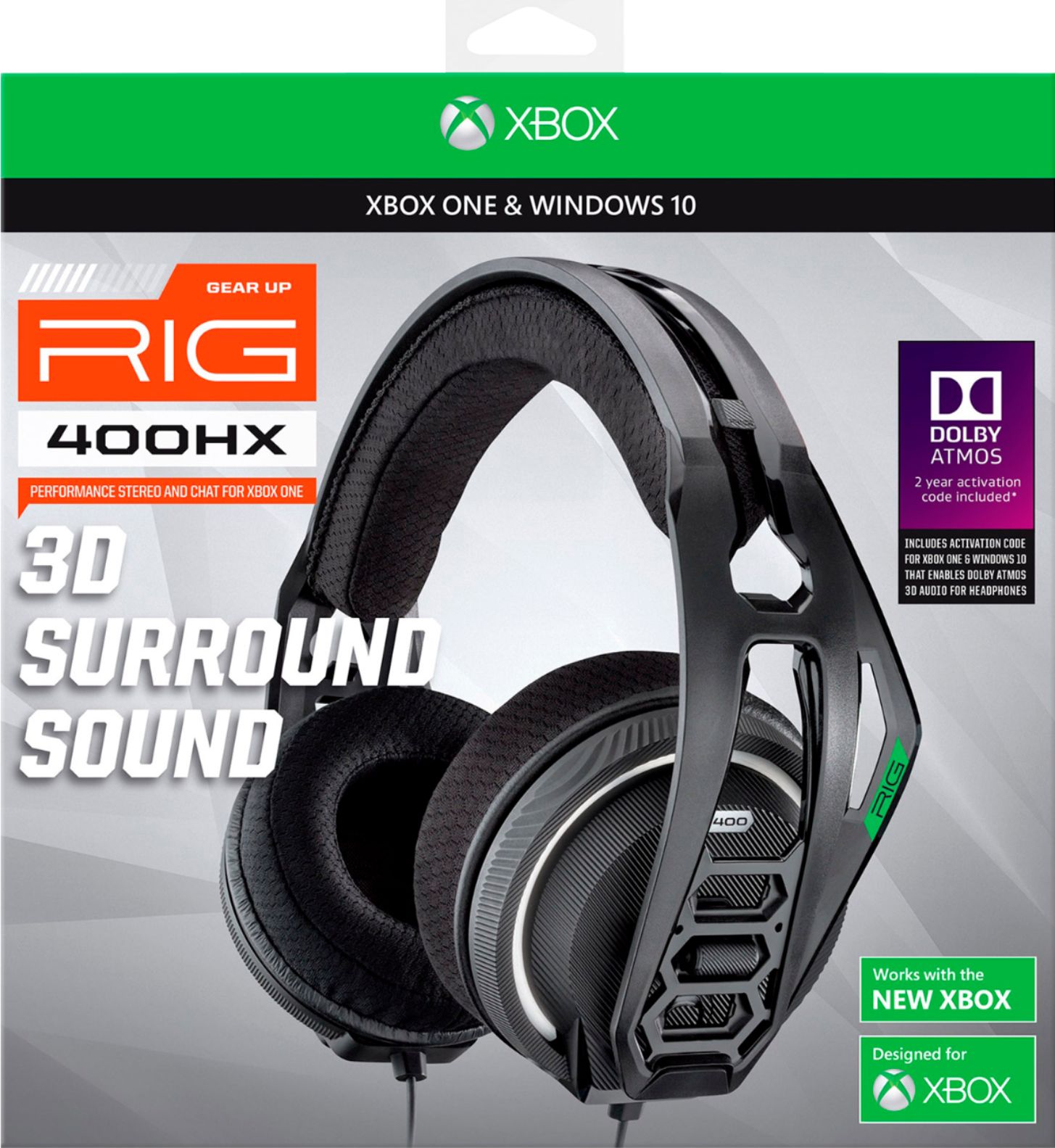
A:AnswerRIG 400HX has a standard 3.4mm audio connection. So it will work with your PC for conference calls if you have a single audio port for headphones on your PC. If you have a dual port for headphones (one plug for speaker, one plug for microphone), you will need to purchase a splitter. A 3.5mm audio splitter should be available on BestBuy.com.
If you need any other assistance, RIG Customer Support is available via email at [email protected] .
A:AnswerHi Neel. Most likely you need to go into your PC sound settings and manually chose your sound output device. Likely it is set to the internal speakers as default. Some PC's will switch automatically when a headset is plugged in. Other PC's, you need to manually chose your audio output device.
Hope that helps. If you need additional info, you can reach RIG Customer Support via email at [email protected]
A:AnswerHello! We would like to inform you that, as of March 16 of 2020, the Poly RIG and GameCom Gaming product lines are owned by Nacon.
All Technical, Customer Support and RMA's for these products will now be provided by this company. Please reach out to Nacon if you are in need of support.
A:AnswerI had this problem too make sure it is plugged in all the way and that the mic is plugged in all the way also make sure your not muted because it still plays a little bit of sound even when your muted hope I helped
A:AnswerCould be your audio settings if you are on Xbox you will need to press the x on your remote and go to your party if you are in one and press on the options audio and turn up game volume or turn down chat for mixer
A:AnswerIt needs to be plugged into a remote that is on so if you are listening to YouTube or Netflix on your Xbox or ps4 then yes it should work as long as y plug have audio output set to the headset
A:AnswerYes, as long as you have the lightning to 3.5mm jack adapter for your iPhone 7. But, that shouldn’t be a problem because whenever I get a brand new iPhone since they updated to the lightning cable, Apple has always included said adapter.
A:AnswerYes. I entered the code via Microsoft store and downloaded right to my desktop. I highly recommend using an Xbox controller for Windows and plugging directly into the controller port. Great product for the price!
A:AnswerYou can fix this by pressing the glowing Xbox button at the top of the controller going over to the right to the little gear go downstairs to the audio button and click it ones you've done that turn mic monitoring off or move the little bar all the way to the left
A:AnswerHi Hypothetical,
Good question. And yes, you do need a specific extension cord if you want the microphone to work. It’s typically called a "4-pole 3.5mm extention cable". You can identify a 4-pole connector by the three black rings around the microphone plug and four metal contact areas along the length of the plug (Left/Right/Mic/Ground). See your RIG headset plug for reference. The plug on your extension cord should look just like this. Also, if you have an older PC with separate 3.5mm ports for speaker and microphone, then you would need a PC audio splitter, which would be a 4-pole female to split 3-pole mic male jack and 3-pole speaker male jack.
Hope that helps.
Thanks...
A:AnswerHello this is a common quest as I go through and answer them make sure the mic piece is plugged in all the way and plugged in right and make sure your not muted
Sry for bad English