A:AnswerHi Nightrider! You can access the display settings by going to Settings > Display type > Auto Detect (Automatically adjusts to your TV's best video capability).
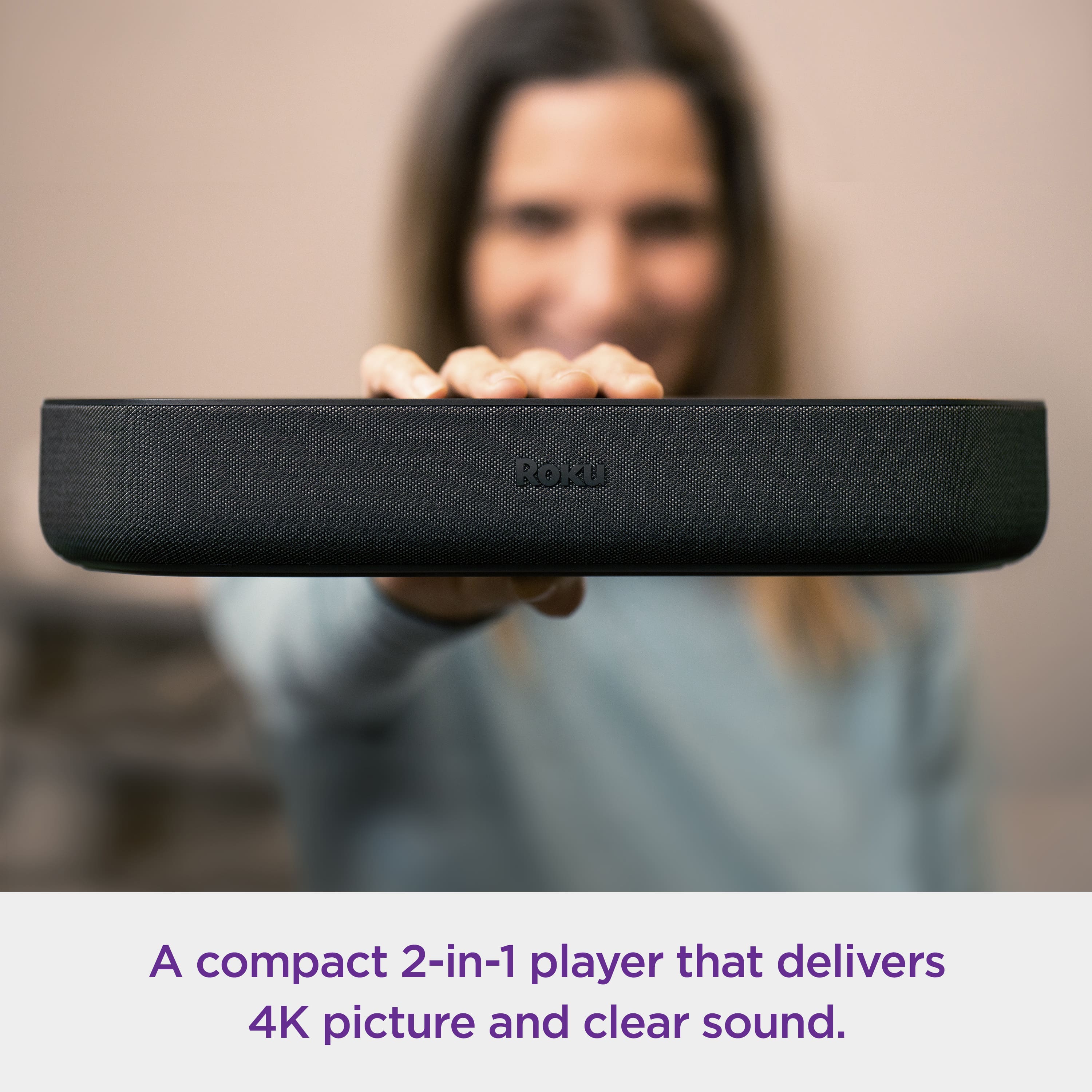
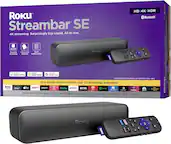
A:AnswerHi ! The Roku Streambar connects directly to a TV, letting you stream movies and TV shows with exceptional, big-picture sound. You can also enjoy the same amazing sound from your TV's built-in tuner and any device connected to a TV, such as a Blu-ray player, Game Console, or cable set-top box.
A:AnswerTurning closed captions on or off
Closed captions are not visible until activated. For some service providers, closed captions are activated from within the channel. The closed captioning settings available on your Roku® streaming device have no effect on the content from these service providers. See a list of a few common channels at the bottom of this article.
For many channels, closed captions can be activated from the settings of your Roku device.
Press the Home button home button on Roku remote on your Roku remote.
Scroll up or down and select Settings.
To open the captions menu, select Accessibility. If Accessibility is not listed, select Captions.
Select Captions mode and choose when captions appear.
Off – captions never appear
On always – captions always appear (when available from the service provider). When service providers use their own settings, closed captions are activated within their channel.
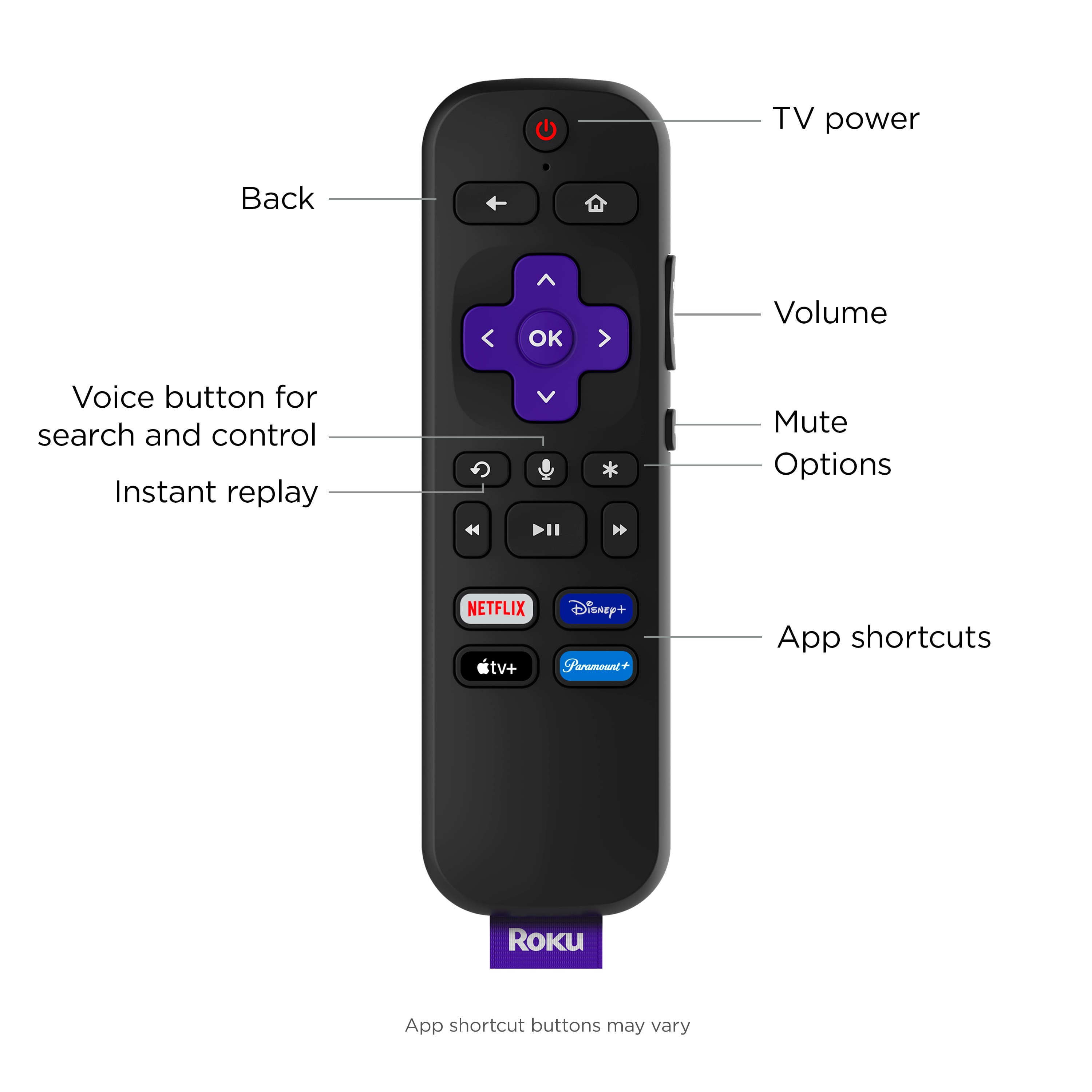
On replay – captions appear only after pressing the Replay button replay button on Roku remote on your Roku remote (with content that supports instant replay)
On mute – captions appear only when volume is muted.
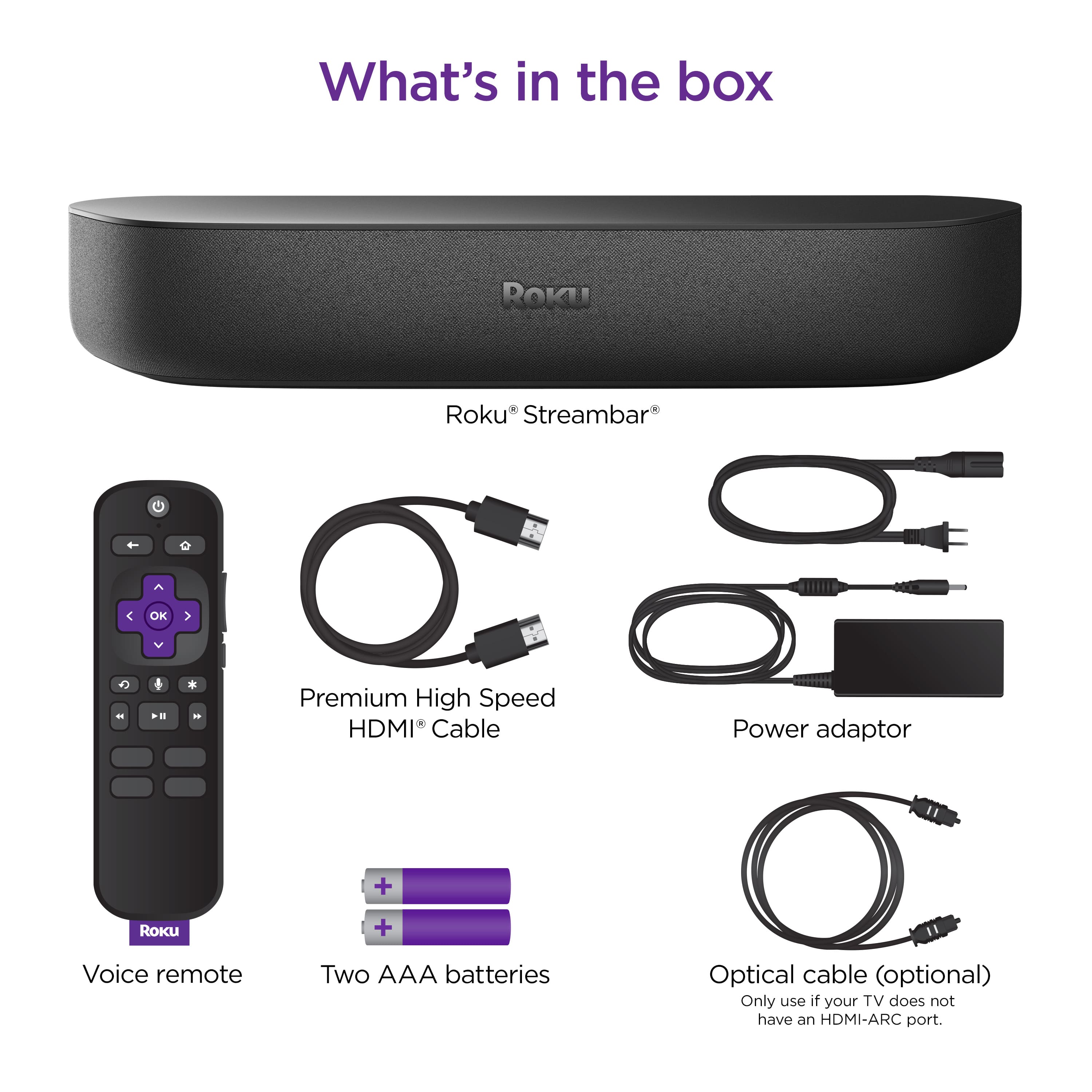
A:AnswerHi ! You do not need batteries for the Roku Streambar itself as it plugs into a power outlet. The only batteries used are the two AAA batteries for the Roku Voice remote, both the remote and batteries are included with the Roku Streambar.
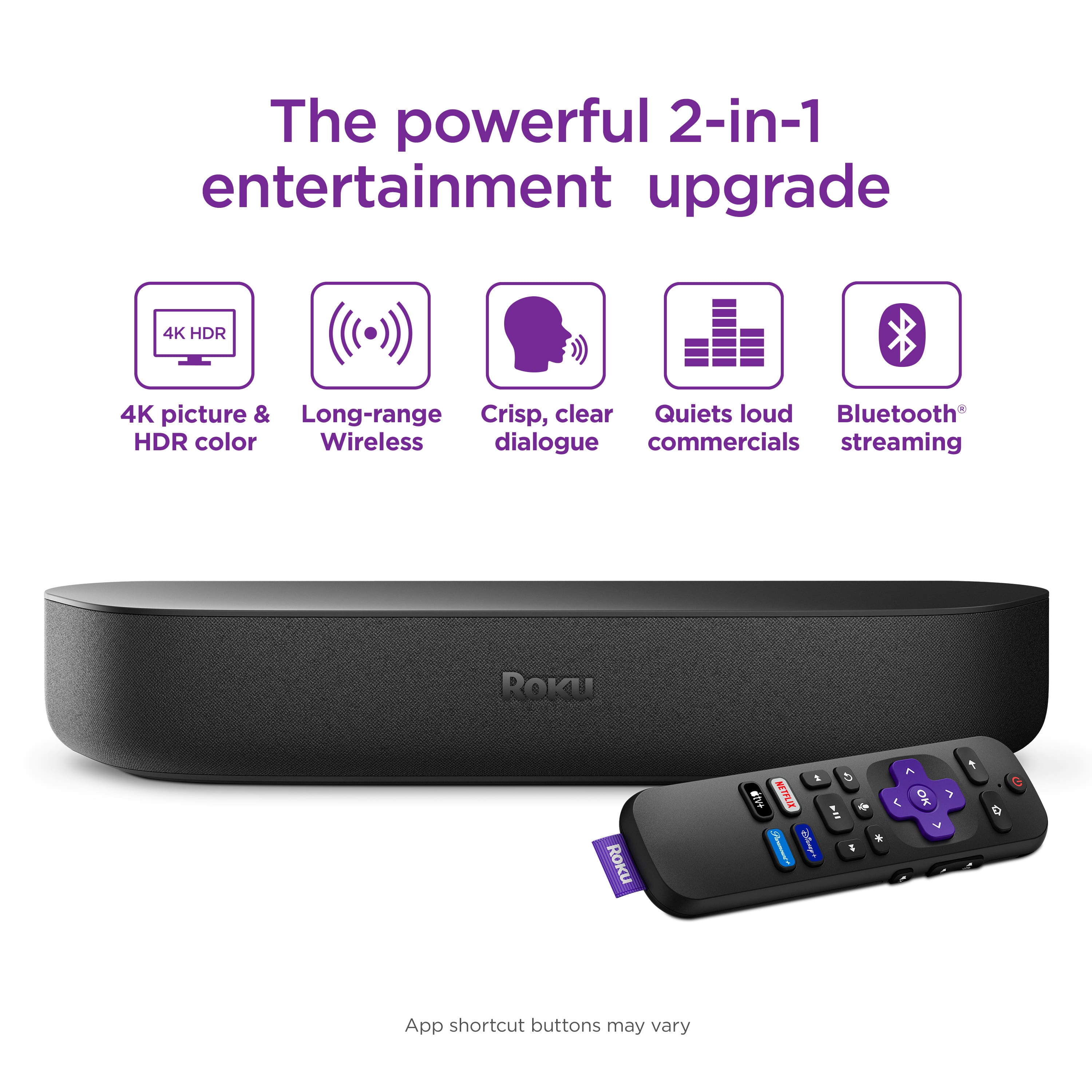
A:AnswerHi Mike! Aside from the added feature of upgrading your TV’s audio with premium sound, the Roku Streambar also features a voice remote which will control your Roku Streambar and your television, as well as Bluetooth to bump your music in vibrant, studio-quality sound from your favorite channels or your connected Bluetooth® device.
A:AnswerHello Holyfrejole! It is possible to connect your Roku Streambar to a mobile hotspot. Please note, hotspots don't always have the most stable connection. It is recommended you connect your Roku streaming device to a dedicated home internet network.
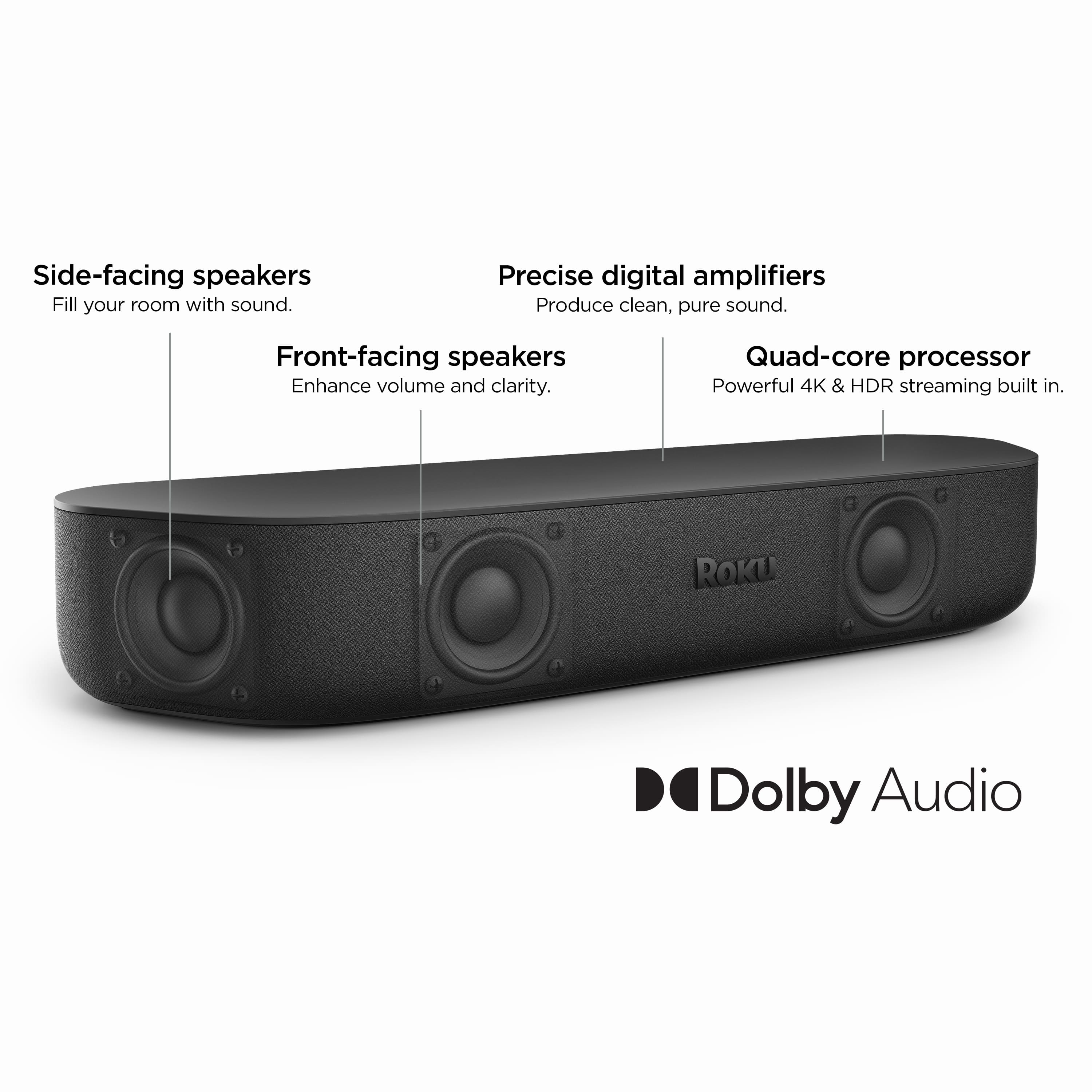
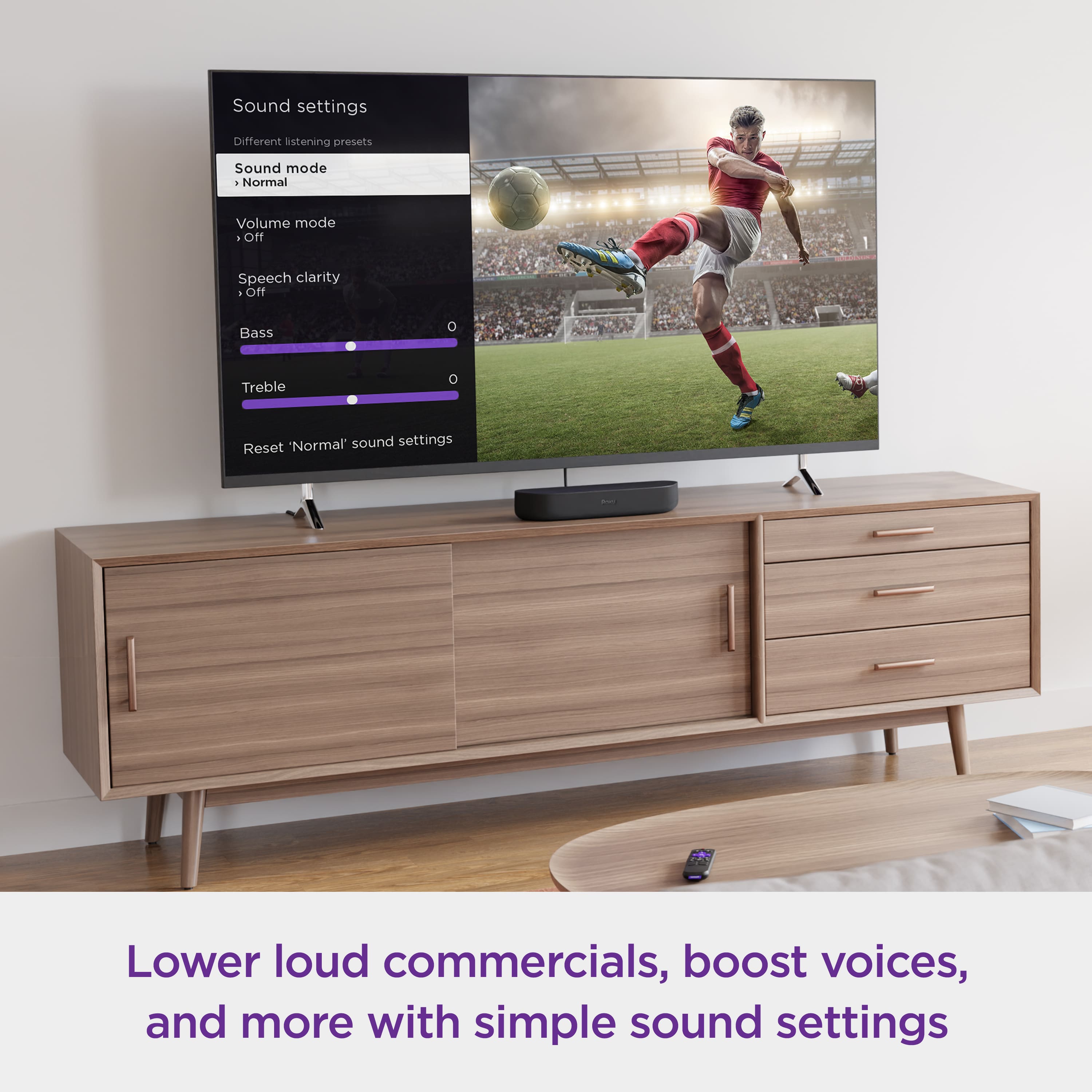
A:AnswerHi ! The Roku Streambar has its own audio settings built in. If you're having a difficult time hearing dialog you can enable Speech Clarity which boosts dialogue content relative to other sounds. The Streambar also has Volume modes that automatically level audio and night mode offers varying levels to lower volume on loud scenes and boost volume on quieter scenes. Additionally the Streambar features Sound modes that adjust the audio track to hear less bass or more bass. For additional information on Roku audio settings take a look at the guide linked here: https://support.roku.com/en-ca/article/226802507#!
A:AnswerHi ! Yes, Roku® streaming players (including the one built into the Roku Streambar™, Roku Streambar Pro, and Roku Smart Soundbar) can be connected to any TV with an HDMI® connection.
A:AnswerI’m not sure you can program it to work. I have both
The ultra Roku with the headphone Jack for one room and this one the streaming bar for another & I just tried using headphone Jack remote on the stream bar Roku and it didn’t work with it. Maybe some where it could be programmed, call Roku but for now that’s what I found.
A:AnswerHi Chuck! When using the Roku Streambar with your TV ,all audio will be output from the Streambar. However, there are several different audio configurations that are supported with the Roku Streambar when used with Roku Wireless Speakers and/or Roku Wireless Subwoofer. For additional information on setting up a Roku surround sound system take a look at the guide linked here: https://support.roku.com/article/360043306413
A:AnswerHello! The Roku Streambar does not have an ethernet port built in. However, you can connect your Streambar with ethernet to your network using a compatible wired ethernet USB adaptor (sold separately). To view a list of compatible USB ethernet adapters take a look at the link here: https://support.roku.com/article/360058027813
A:AnswerHI Keith! Roku devices are designed to turn a non-smart TV into a smart TV by plugging the device into your TV's HDMI port and connecting the device to your homes Wi-Fi network. With certain cable providers, you are able to use your Roku player as a replacement for your cable box. For more on how it works and how to get the most out of your Roku Streaming Media Player, check out: https://www.roku.com/how-it-works
A:AnswerI’m using it on my non smart tv just fine. One day I’ll get rid on cable until then I have this streaming bar with different channels and my DIRECTV. I just go back and forth. For instance DIRECTV doesn’t have paramount + or peacock or Disney + etc etc so I switch over to the Roku steam bar to watch those.
A:AnswerHI Evan, to disable HDMI-CEC simply press the Home button on your Roku remote. Scroll up or down and select "Settings", then select "System". Select "Control other devices" (CEC) and check the box to enable 1-touch play or unselect the box to disable 1-touch play.
A:AnswerHi, Ladybug! Roku streaming players (including the one built into the Roku Streambar) can be connected to any TV with an HDMI connection. All Roku Streaming Players will come with some of the most popular channels already added. Just like your smartphone accesses an “app store” to add new applications, your Roku Streambar accesses the Roku Channel Store to add new channels. To add a channel to your Roku Streambar start by pressing the Home button on your Roku remote. Then scroll up or down and select Streaming Channels to open the Channel Store. You can enter a keyword in Search Channels to find choices based on the title of a channel. When you want to learn more about a channel, press the OK button on your Roku remote to open the details. Then you can select Add Channel to install the channel on your Roku Streambar. For additional information on adding channels to your Roku you can take a look at the guide linked here: https://support.roku.com/article/208756388
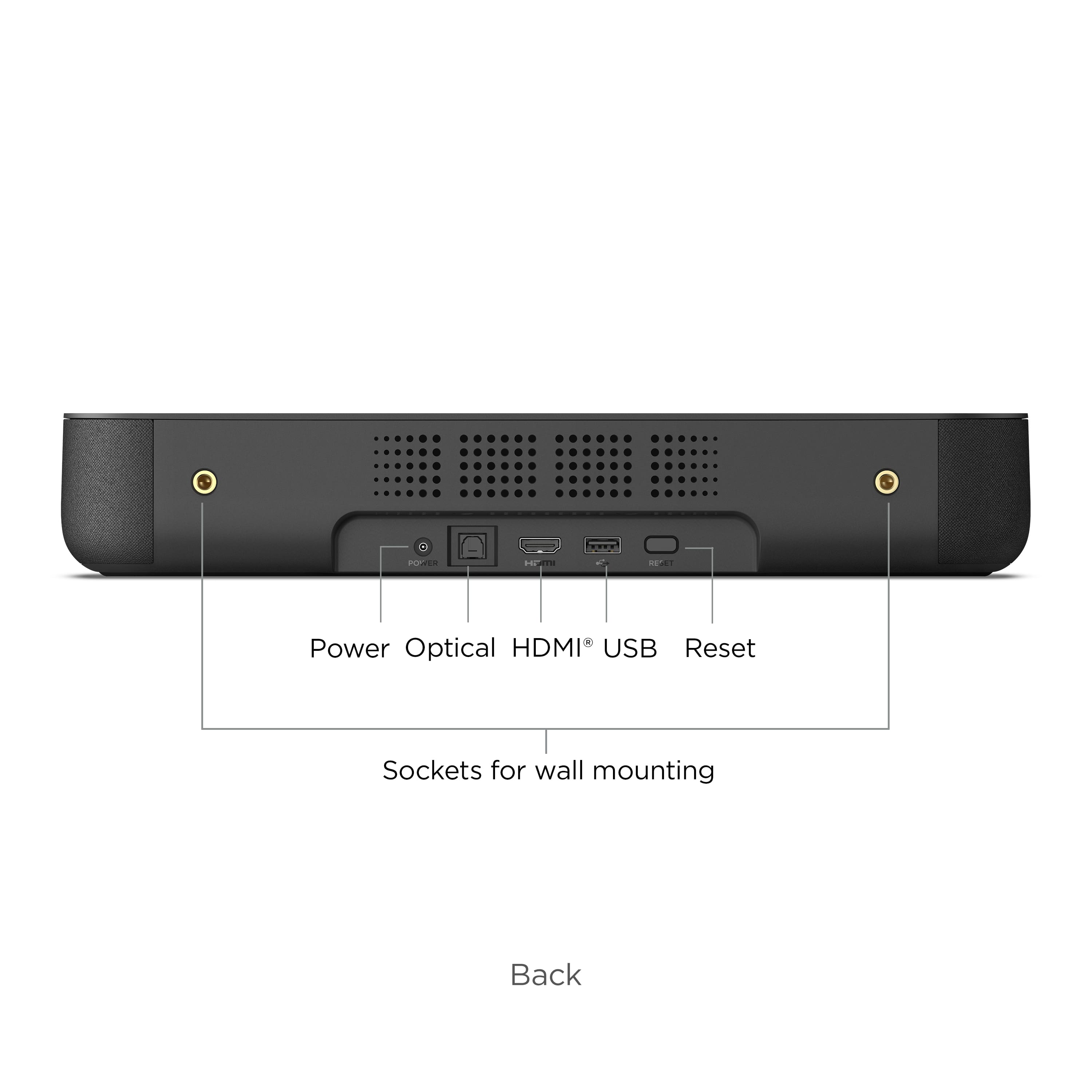
A:AnswerHi, Libby! The Roku Streambar has a single HDMI 2.0a (ARC) port. ARC, or Audio Return Channel, lets your TV send audio to an external audio device such as a Roku Streambar without the need for additional cables. This allows audio from your TV's tuner and devices connected to your TV such as a Blu-ray player, game console, cable/satellite set-top box to be enjoyed on an audio device other than your TV's built-in speakers. In order to use this feature, the Roku Streambar must be connected to the "HDMI ARC'' or "ARC" port, which is common on smart TVs manufactured in 2009 or later.
A:AnswerHi ! To connect your Roku Streambar to your network via an Ethernet connection you will need to use a USB 2.0 Type A to 10/100mbps Ethernet adapter. The following Ethernet adapters have been tested and work with the Roku Streambar; Plugable USB 2.0 to Ethernet fast 10/100 LAN wired network adapter and TRENDnet USB 2.0 to 10/100 fast Ethernet LAN wired network adapter. For additional information on using USB to connect your Roku Streambar to a wired network take a look at the guide linked here: https://support.roku.com/article/360058027813
A:AnswerHi, TJ! If your Panasonic TV has a HDMI port labeled "ARC", you will only need to connect the included HDMI cable from your Roku Streambar to the HDMI-ARC port on your TV. If you do not see an HDMI-ARC port on your TV, you can use the included Optical Cable along with the HDMI cable to connect your Roku Streambar to your Panasonic TV. For additional information on setting up your Roku Streambar you can view the Quick Start Guide linked here: https://image.roku.com/c3VwcG9ydC1B/Roku-Streambar-QSG-2020-US.pdf
A:AnswerHi, Patti! The Roku Streambar features the following audio-video inputs; HDMI ARC, Optical audio, USB and Bluetooth. If your record player uses one of these connections it may be possible to use it with your Roku Streambar. However most record players utilize an analog audio output, where the Roku Streambar utilizes all digital inputs. For additional information on Getting to know your Roku Streambar take a look at the guide linked here: https://support.roku.com/article/360049264634