A:AnswerThe new smart tv remote will not control your cable box. You need to use your cable box remote to get your cable channels and use your smart tv remote to get your streaming channels.
Best Buy should have explained it to new buyers of smart tv’s.
A:AnswerHi Linda,
Yes, the BN59-01315J is an IR remote and compatible with the F6000F TV. However, you will find that the remotes are quite similar.
~Samsung Advisor
A:AnswerHi Agedone,
To mirror from your phone to the TV, please follow these steps:
Using the SmartThings App:
1. Open the SmartThings app on your phone or tablet, and select the TV you’d like to mirror to.
2. Tap More options (three vertical dots) in the TV's page, then select Mirror screen (Smart View).
3. Tap Start now. If prompted, allow your TV to access your device.
Using Smart View (Quick Panel):
1. Swipe down from the top of your screen using two fingers to open the Quick settings panel.
2. Tap the Smart View icon.
3. Select your TV from the list, then tap Start now. If prompted, enter a PIN or allow access to connect.
Make sure your device and TV are also connected to the same Wi-Fi network.
If you need further help, please contact Samsung Support at 1-800-SAMSUNG, 8AM – 12AM EST, 7 days a week. LiveChat agents are also available through the ‘Support’ link on our website.
~ Samsung Advisor
A:AnswerHi 2ndPurchaseReqd,
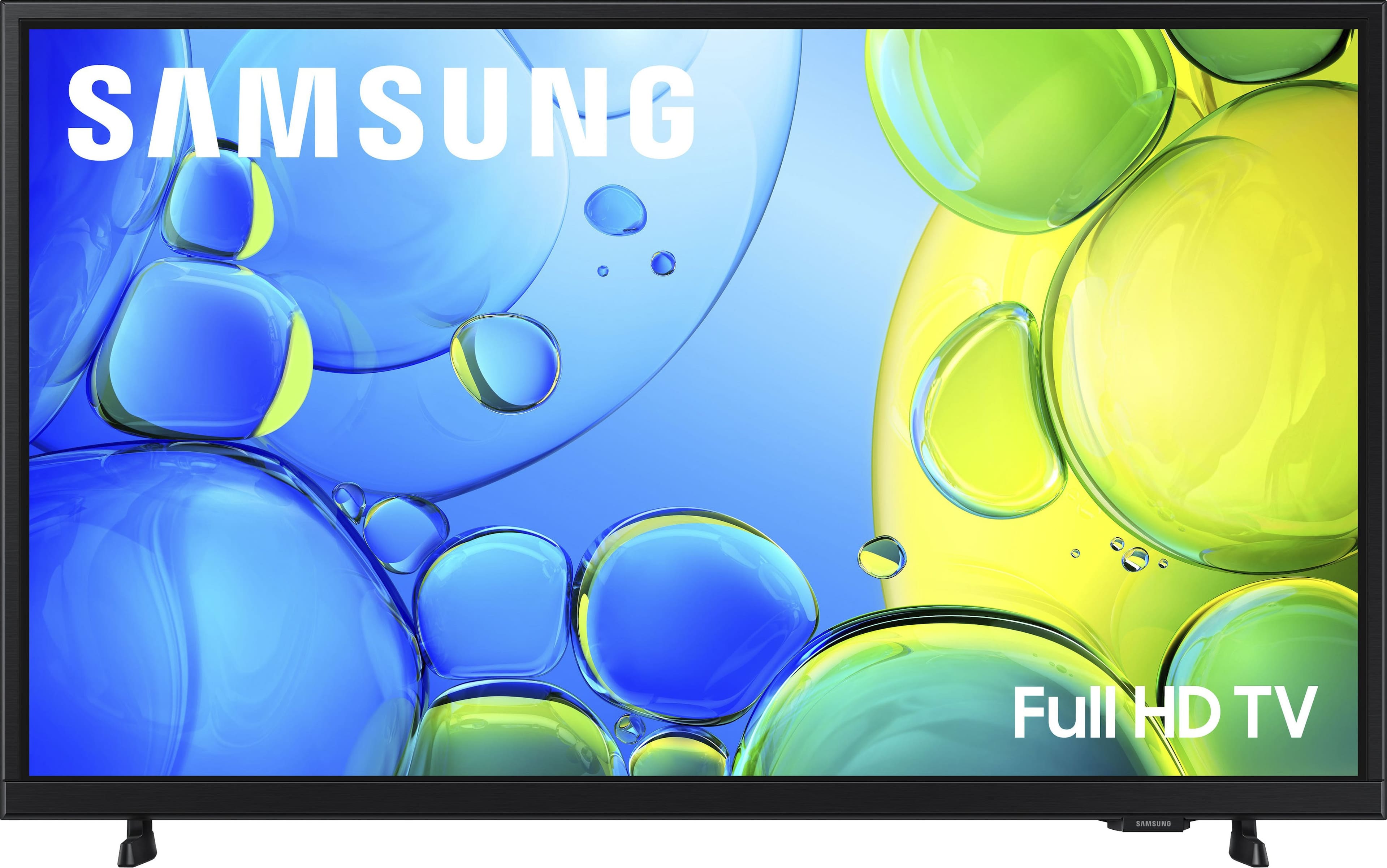
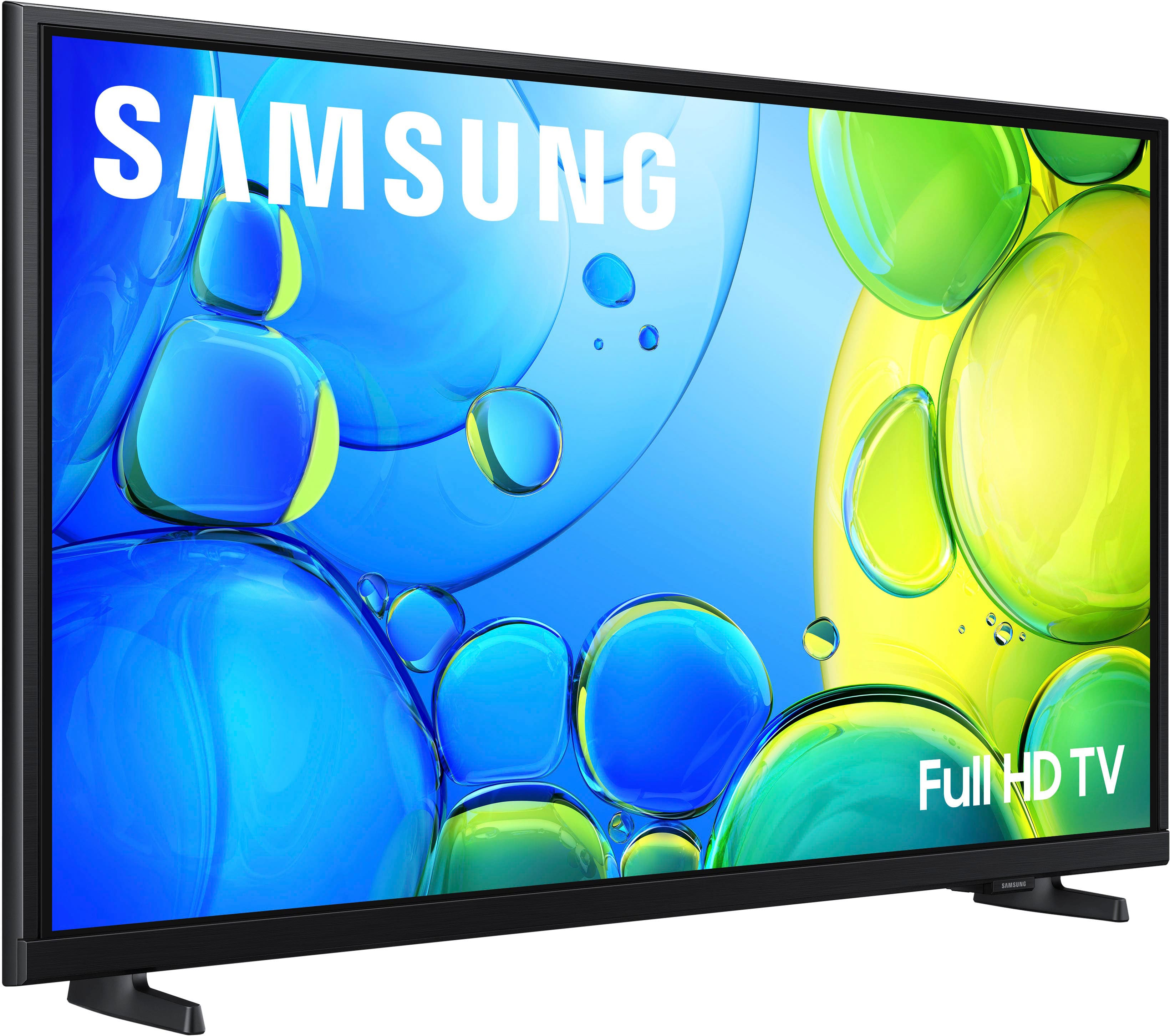
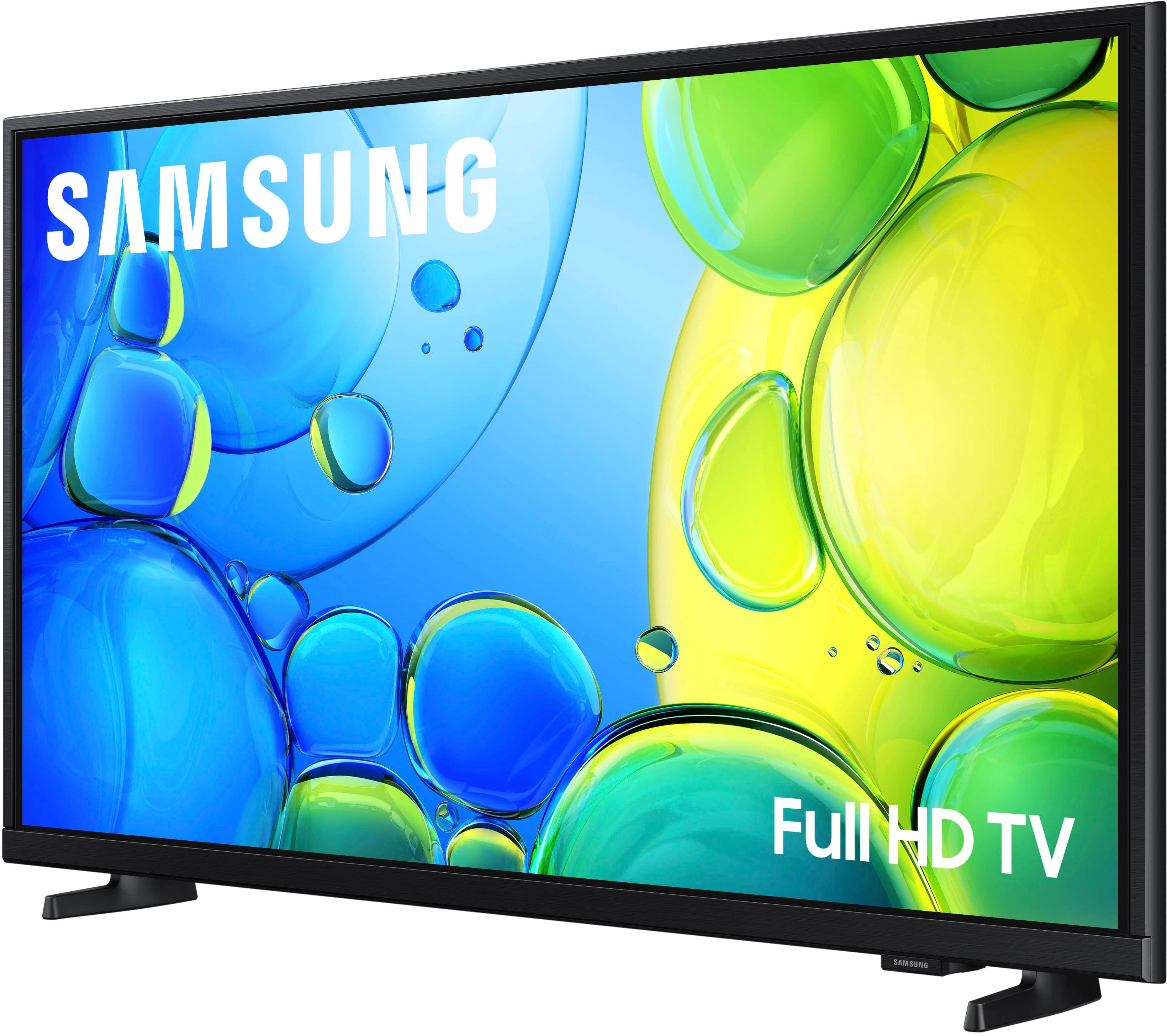
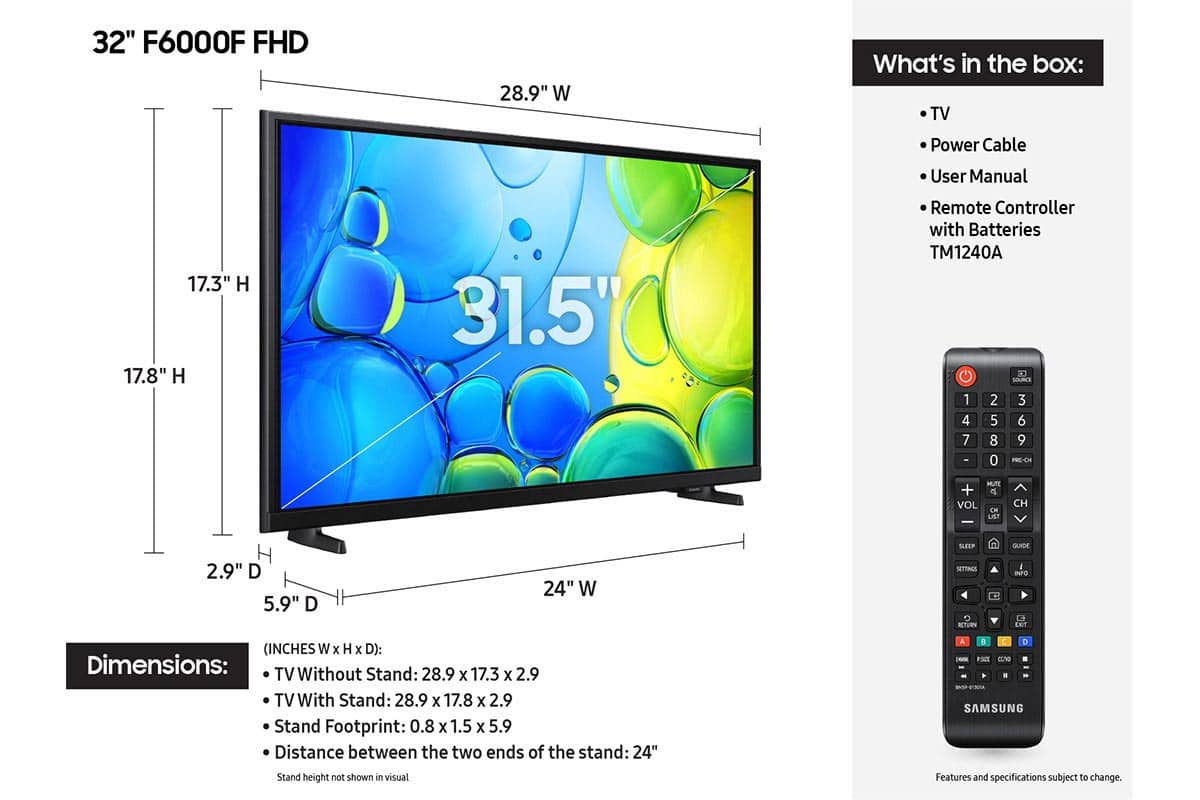
The F6000F comes with two removable legs that attach at the bottom of the TV. If you did not receive the legs, please contact Best Buy or call Samsung for more help. Call 1-800-SAMSUNG from 8AM - 12AM EST, seven days a week, or connect with a LiveChat agent anytime by selecting ‘Support’ on our website.
~ Samsung Advisor
A:AnswerHi Bubba,
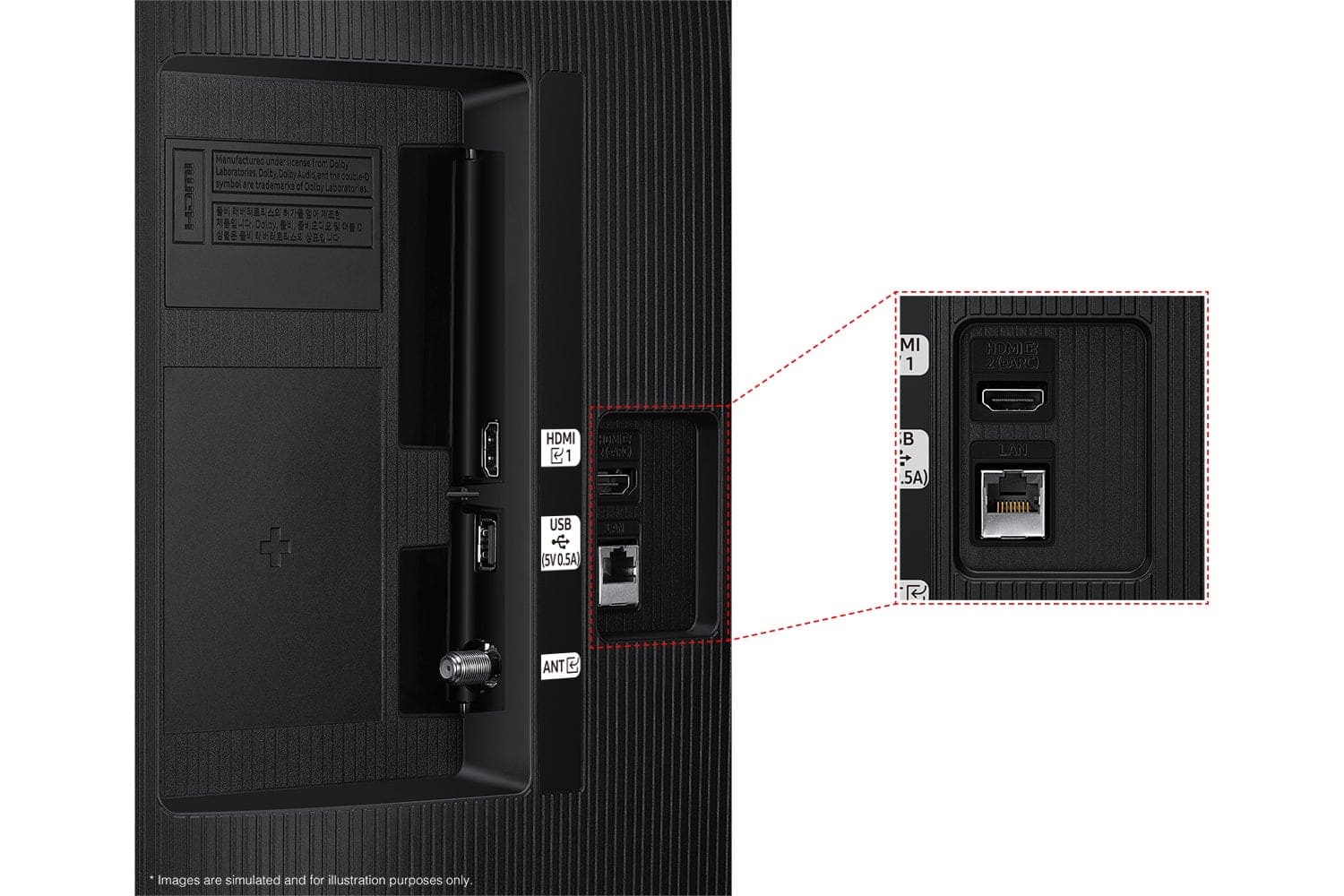
It entirely depends on the brand of the device you connected to and their settings. It may show up as "Spectrum" or HDMI 1.
~Samsung Advisor
A:AnswerHi Deb,
The F6000F TV comes with the TM1240A model remote, which features a number keypad. You can easily connect cable TV via an HDMI cable connection, which is sold separately.
~Samsung Advisor