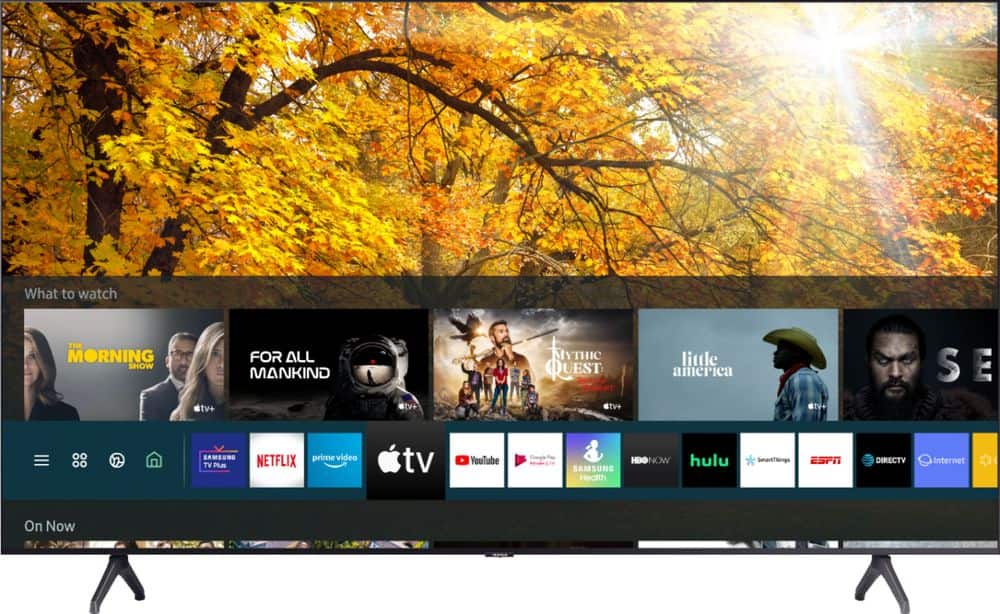
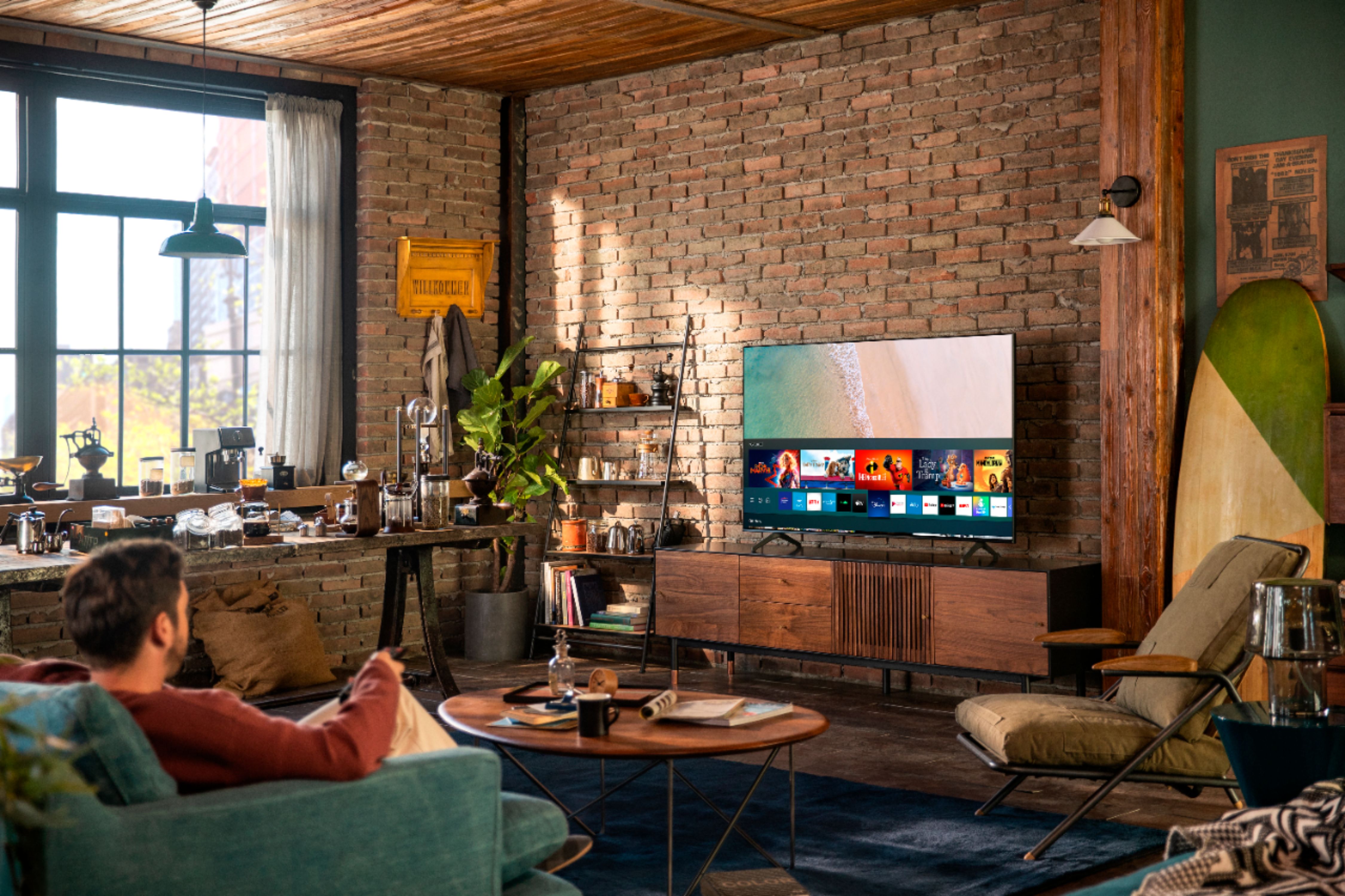
A:AnswerHi Bob - Roku is not built into Samsung TVs. Samsung utilize the Tizen Smart operating system, which includes a built-in App Store where you can choose from and download hundreds of apps. ^Gina
A:AnswerHi Lynn - To activate or deactivate the Caption function, go to Home > Settings > General > Accessibility. Select Caption Settings, and then select Caption to turn captions on. Select it again to turn them off. ^Gina
A:AnswerLinda254 - The Peloton app is not available in the TV's App Store; however, you can cast this app from a tablet or mobile device to your TV via screen mirroring. You can screen mirror to your TV via AirPlay with iOS devices, or SmartThings with Android devices. ^Gina
A:AnswerHi there! The TU7000 includes a 1 Year Parts and Labor Manufacturer's Warranty. You can see the full details here: https://www.samsung.com/us/support/service/warranty/UN50TU7000FXZA. ^Gina
A:AnswerHi stacy - If you are looking for a Samsung Smart TV featuring Ultra Viewing Angle with Anti-reflective technology, we recommend checking out our Q80T model and above. ^Gina
A:AnswerHi there! Yes, you can place the TU7000 in a trailer - you will need a power source, and Wi-Fi connectivity if you wish to utilize the TV's Smart features. ^Gina
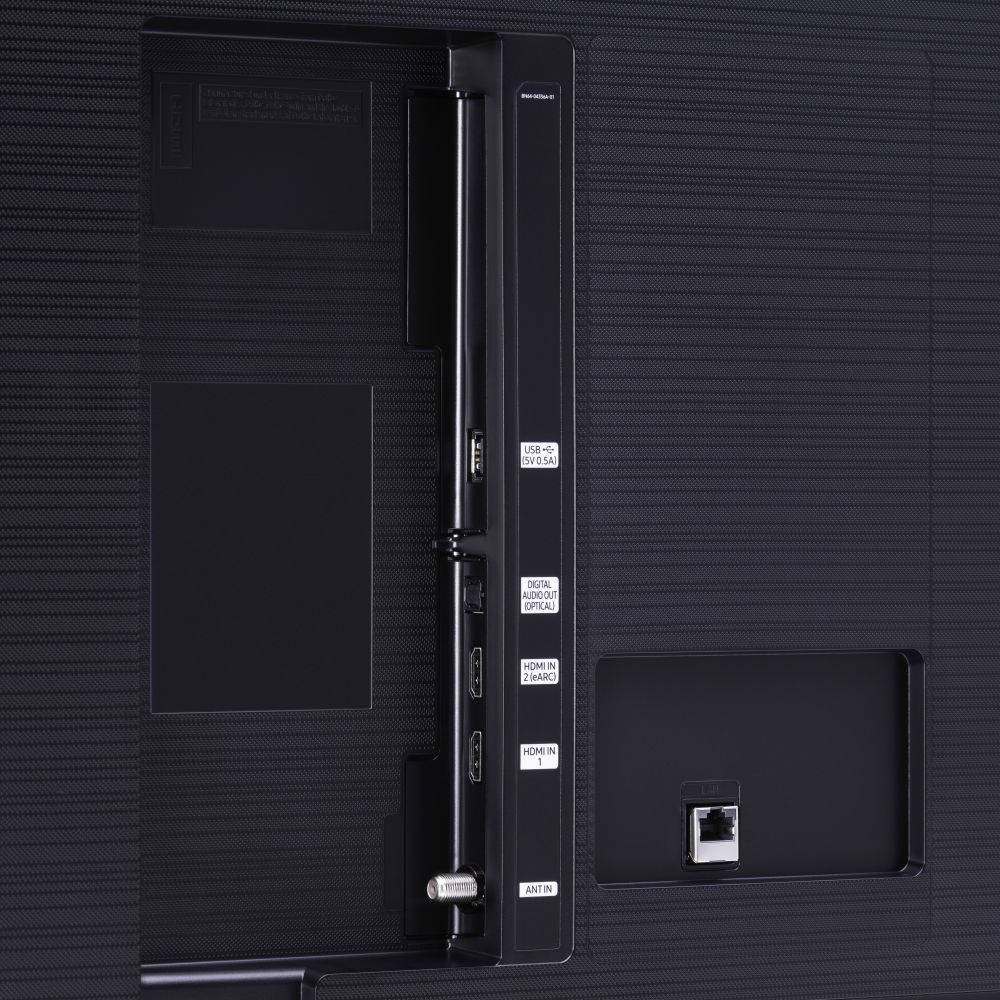
A:AnswerHi Pat! If your TU7000 has HDMI CEC activated (Anynet+), the TV should turn on when any connected external devices are powered on. You can enable CEC by going to Settings > General > External Device Manager > Anynet+ (HDMI-CEC) = on. Should you have further questions, please reach out to us at 1-800-SAMSUNG. ^Gina
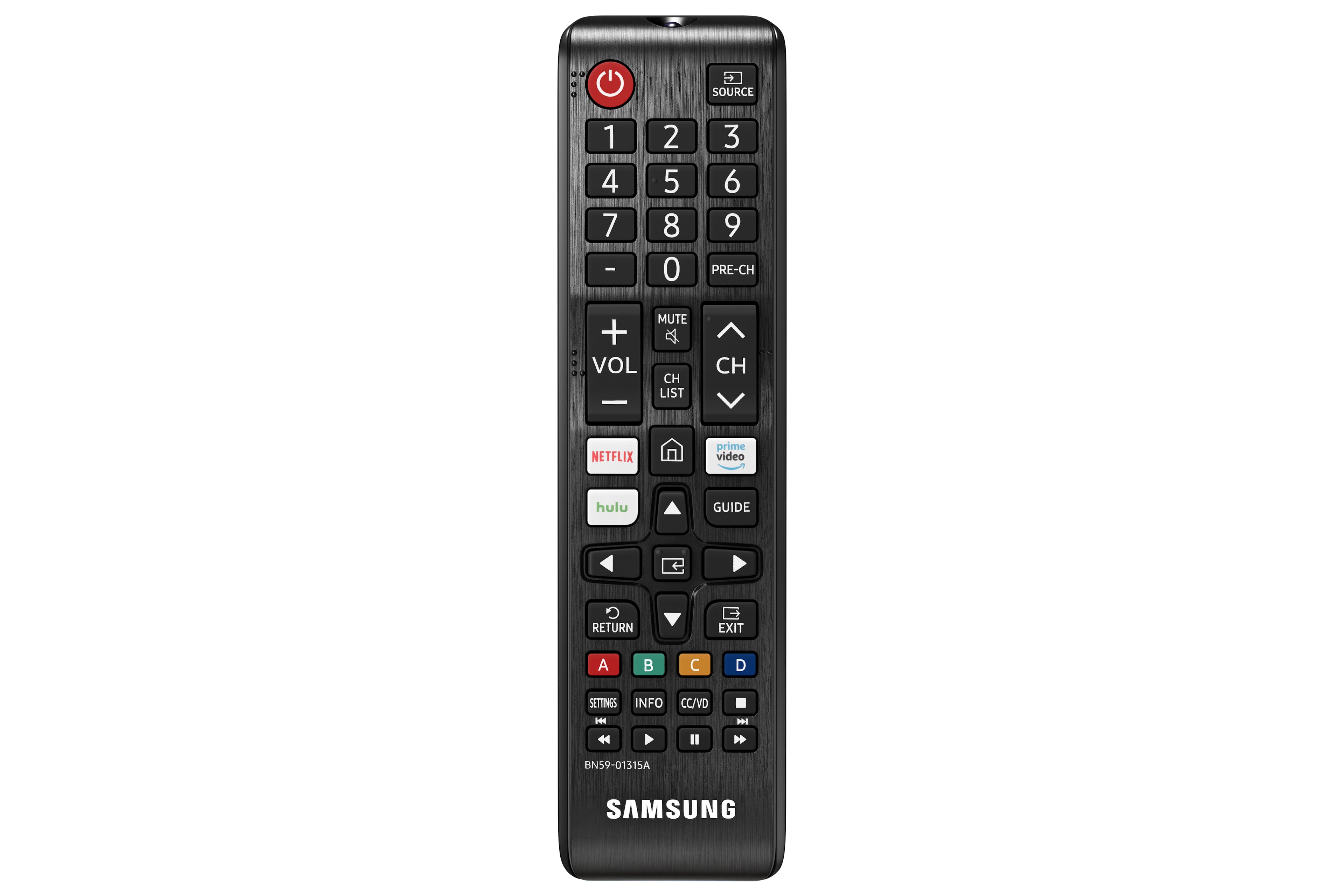
A:AnswerHi evilsideofmath - The TU7000 will work with any Bluetooth enabled products. To connect a Bluetooth device to your TU7000: First, refer to your Bluetooth device's user manual for how to pair. Once paired to the TV, press HOME on the TU7000 remote. Then go to Settings > Sound > Sound Output > Bluetooth Speaker List. Choose the Bluetooth device you wish to use for sound output. ^Gina