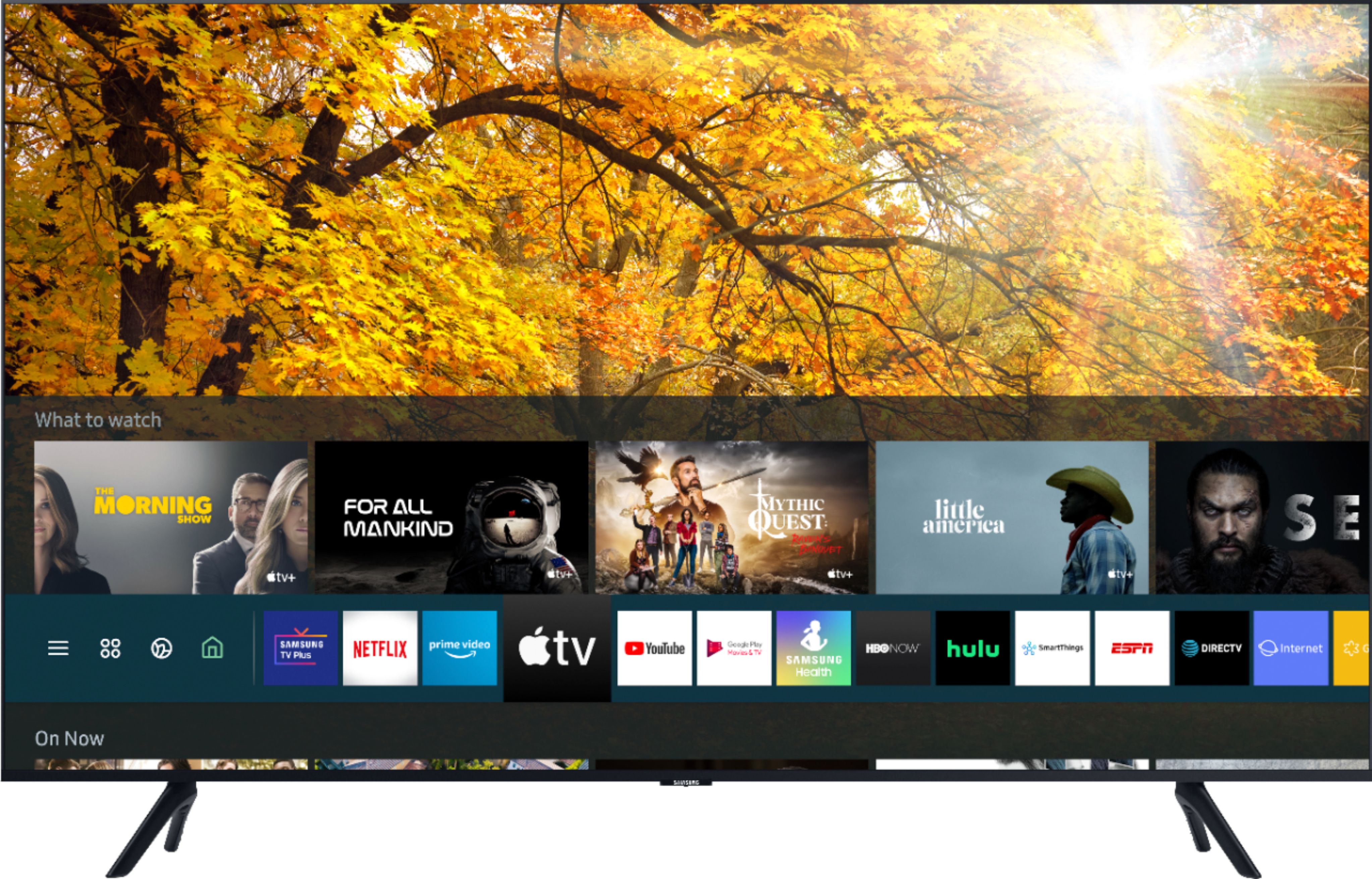
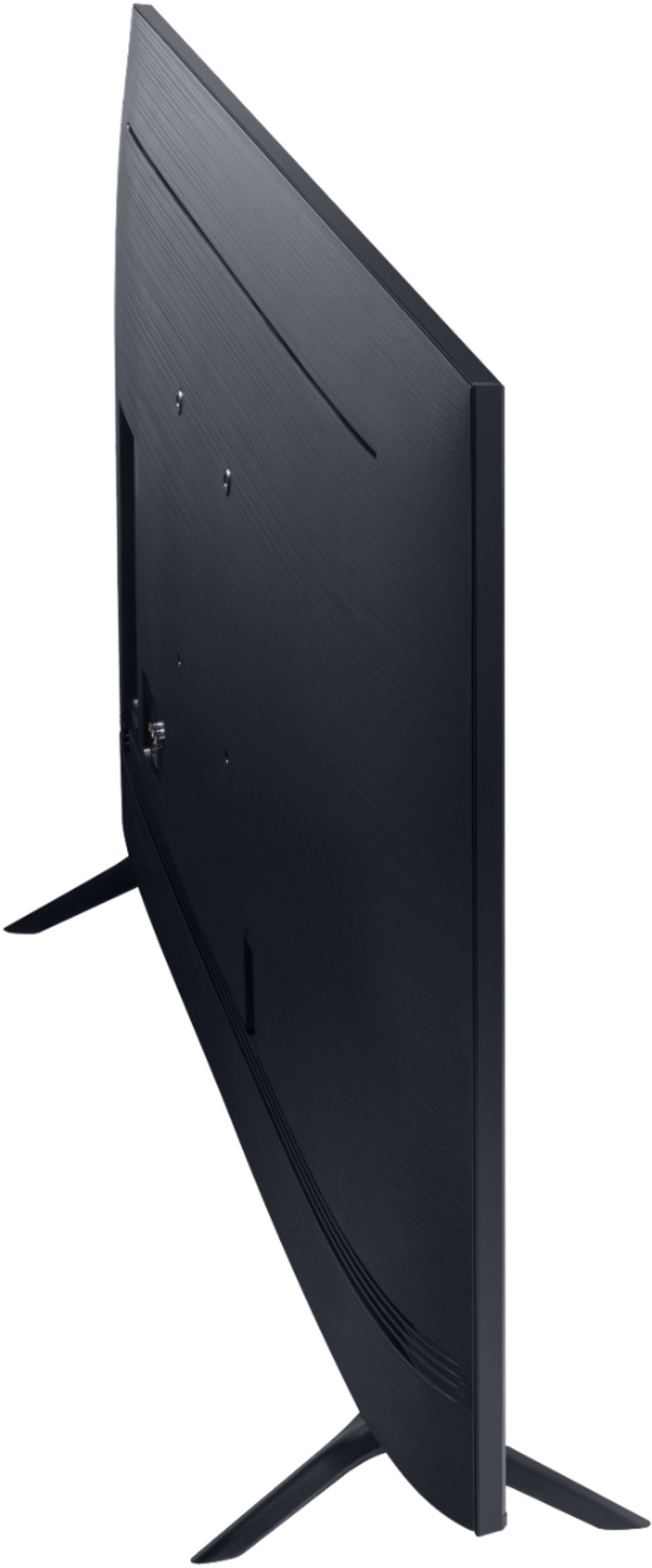
A:AnswerHi Margiesue! For further installation and setup information, please contact your local Best Buy or visit https://www.bestbuy.com/site/electronics/services/pcmcat1528819595254.c?id=pcmcat1528819595254 ^Gina
A:AnswerHi Dolly! We recommend using any headphones that are Bluetooth enabled to allow wireless connectivity to the TU8000. Check out some options at Best Buy: https://www.bestbuy.com/site/searchpage.jsp?_dyncharset=UTF-8&id=pcat17071&iht=y&keys=keys&ks=960&list=n&qp=features_facet%3DFeatures~Bluetooth%20Built-In&sc=Global&st=bluetooth%20headphones&type=page&usc=All%20Categories ^Gina
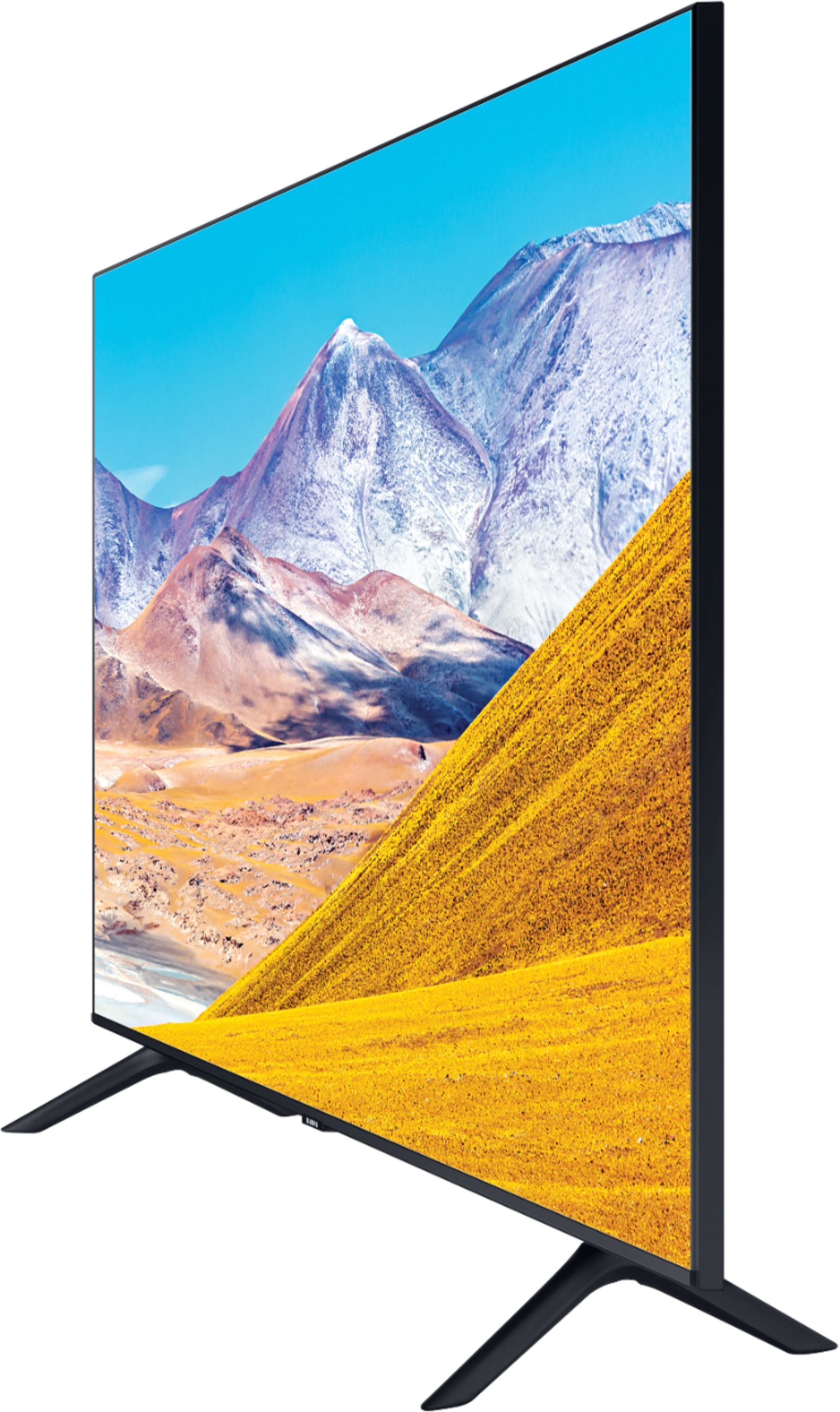
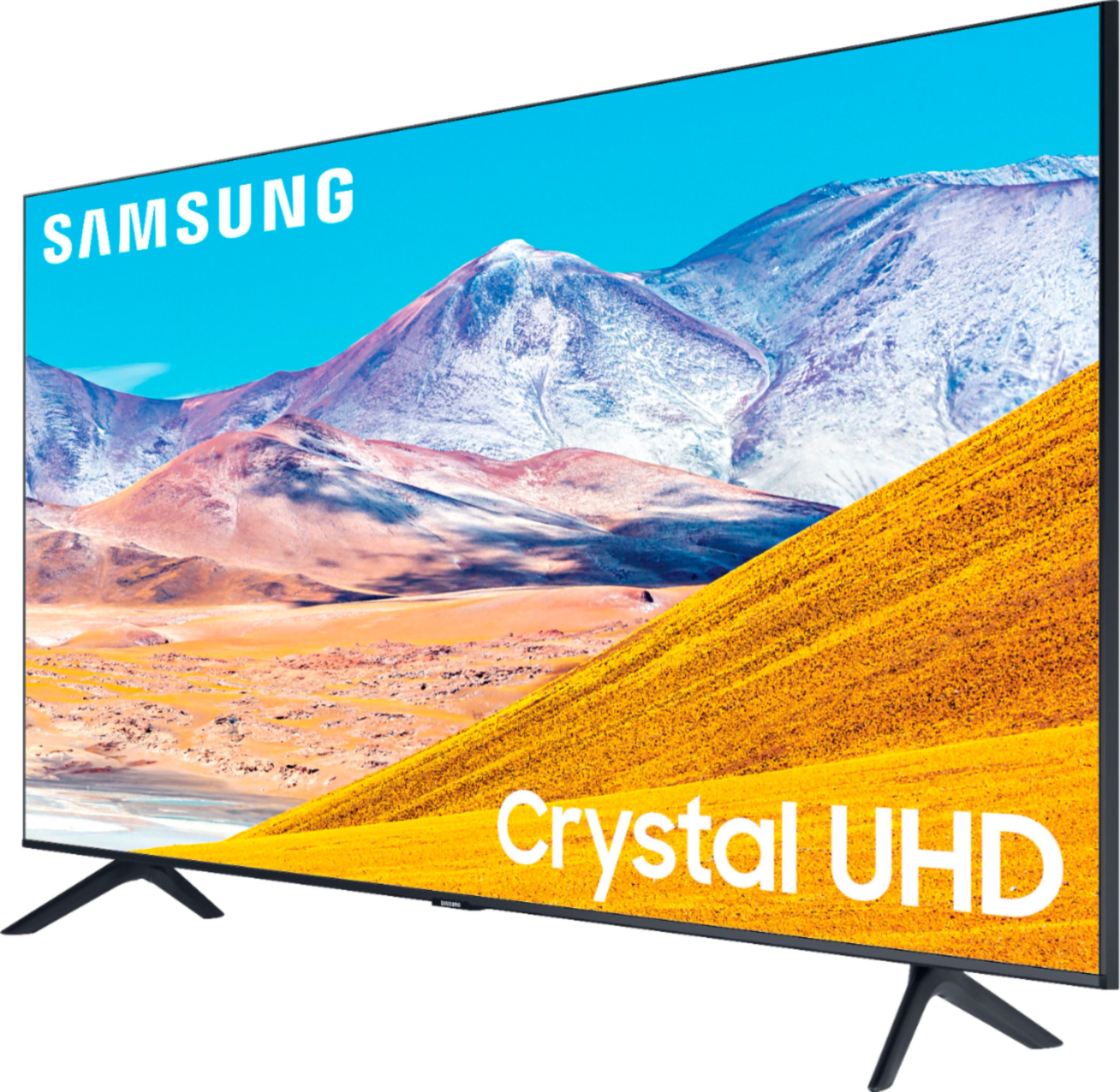
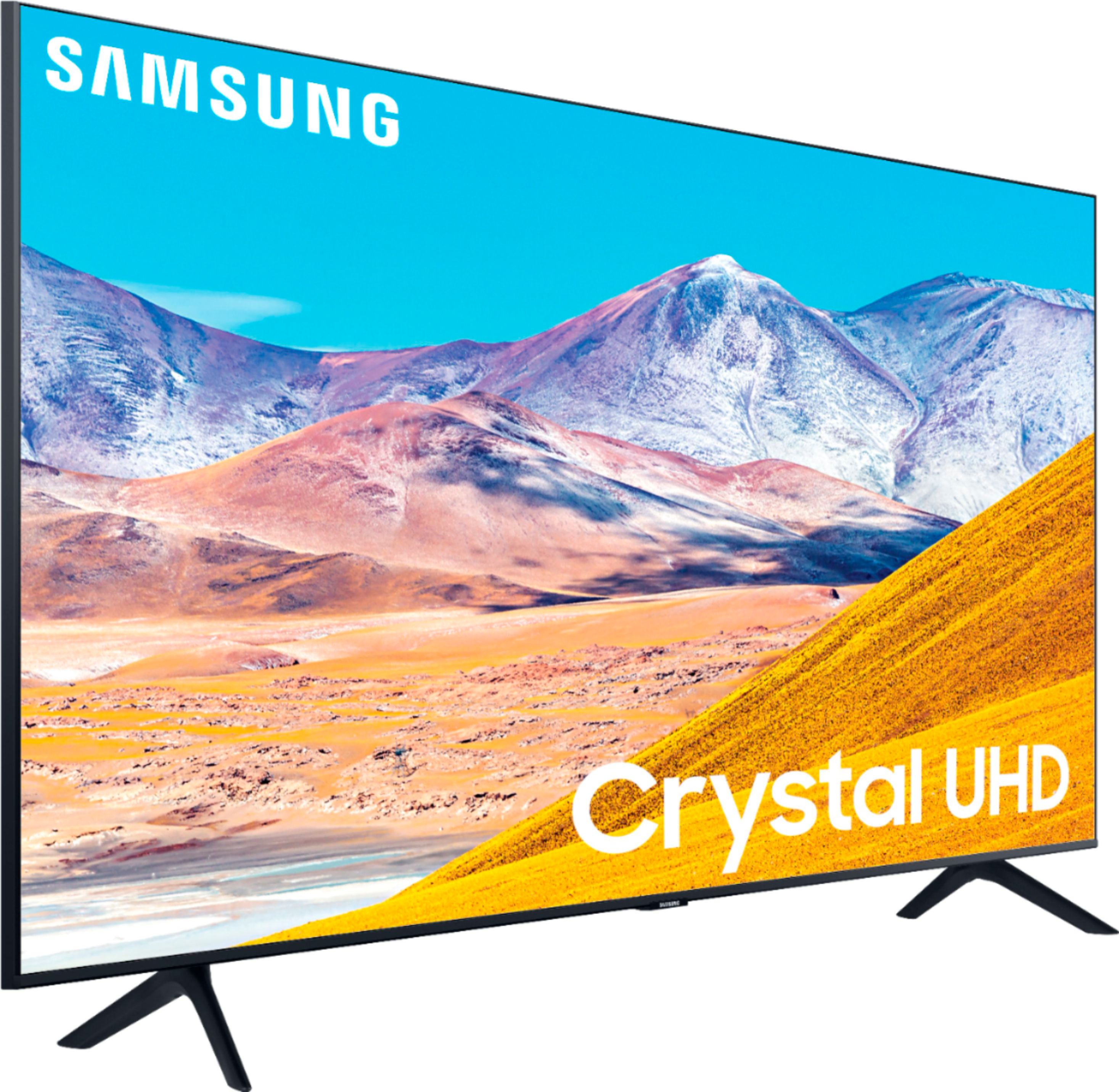
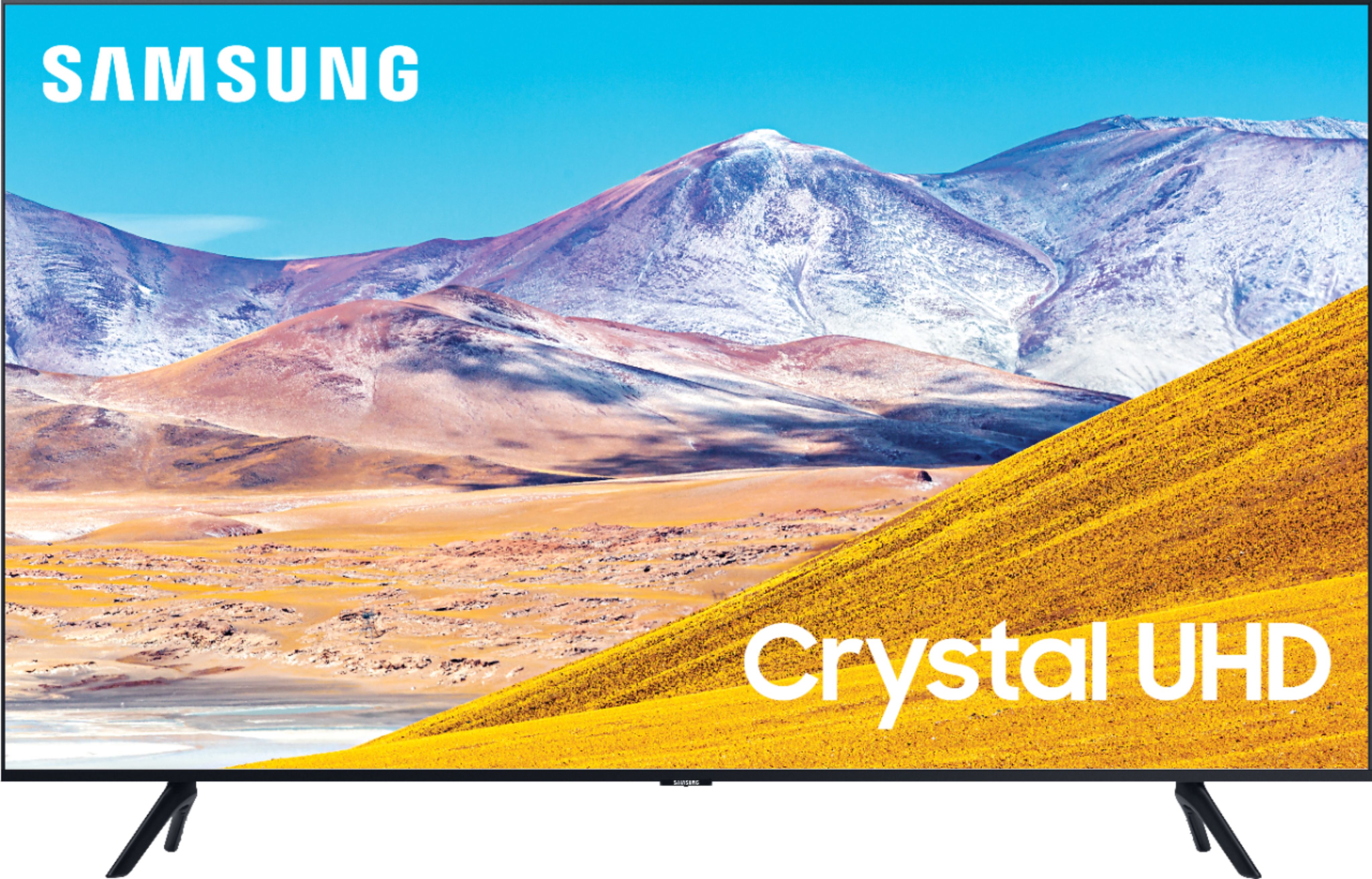
A:AnswerHi there! Thank you for your interest in the TU8000. With HDMI 2.1 being such a complex topic, we feel it is clearer to highlight the specific features supported by each TV model.
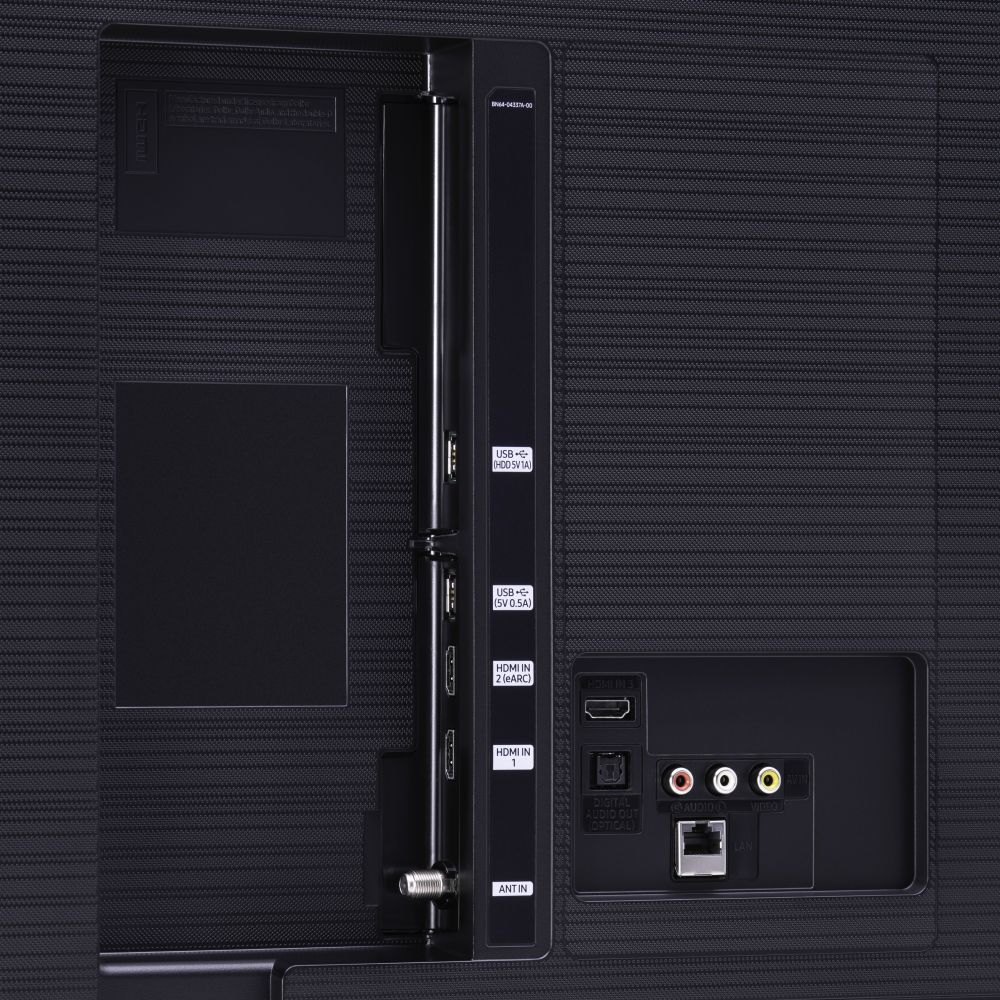
The TU8000 has 3 HDMI ports, all of which support Auto Low Latency Mode (Auto Game Mode). The “HDMI In 2” port further supports eARC.
If you are looking for a TV capable of 4K@120fps (FRL), please consider a step up to the 55" Q70T, which supports FRL on HDMI 4.
All Samsung 2020 model year QLED TVs 55” and larger starting from the Q70T Series are capable of 4K@120fps, as well as FreeSync, and VRR.
If we can help answer any other questions, please call us at 1-800-SAMSUNG. ^Gina
A:AnswerYou can set up the remote to control other devices, but you might find that it takes more steps to use it that way. It took me a while to learn how to control my cable box, DVD player, and external speakers. Functions that take just one button push on the cable box remote, for example, might require going up a couple of layers or levels on the TV remote.