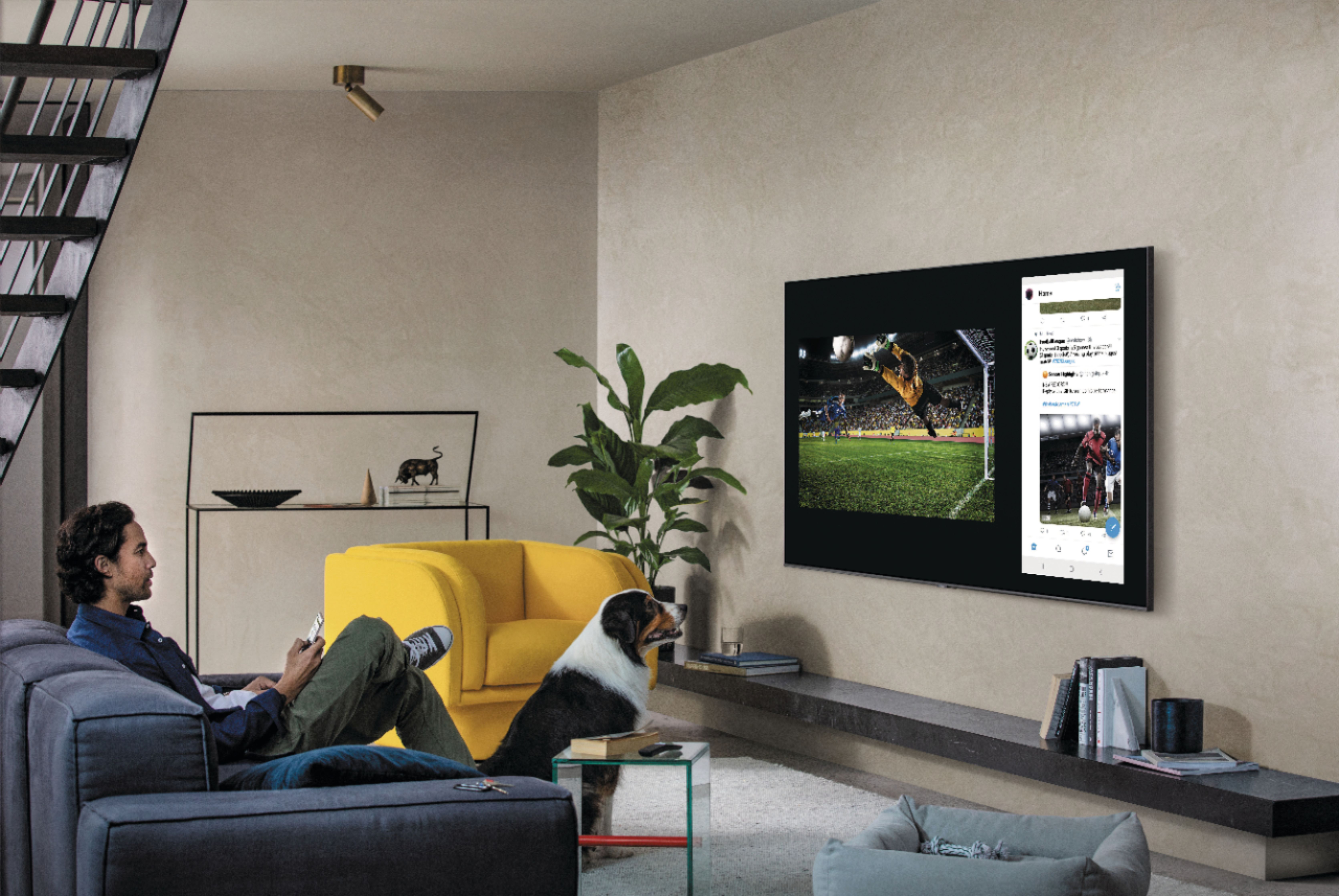
A:AnswerHi Ronnie! The Q70T does not support the TVision or Philo applications at this time. For content not supported through the built in app store you can take advantage of the built in screen mirror and cast functionality from Android or Apple mobile devices. This allows you to put the content on your phone on the big screen for everyone to watch. Check out the following link from Samsung for additional information on installing and managing applications: https://www.samsung.com/us/support/answer/ANS00062169/
^Tim
A:AnswerIt does support it. For instance for the new call of duty you have to change settings in Xbox first then in call of duty. Are you also using the gaming hdmi port on the tv with the Xbox Hdmi. It will also have to be the new Xbox series x.
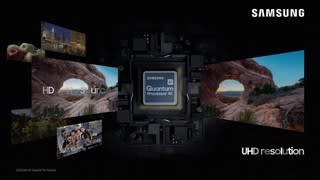
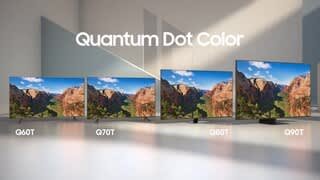
A:AnswerHi rick716! The 55Q70T features Samsung's fastest 4K processor yet with the Quantum Processor 4K. This allows for a fast and smooth smart experience when navigating between applications or using the web browser. The included web browser does not feature Flash support, meaning certain videos and images may not load.
^Tim
A:AnswerHi Ronnie! You can use both TV and Bluetooth device audio simultaneously on the Q70T using the Multi Output audio function. When this function is active, you can set the volume of the Bluetooth headphones higher than the volume of the TV speaker. First, make sure your Bluetooth headphones are paired. Press HOME on your Q70T remote. Then go to Settings > General > Accessibility > Multi-output Audio. Find the device you'd like to pair.
If you need assistance or have questions, please call us at 1-800-SAMSUNG, available 8AM - 12AM EST, 7 days a week.
^Tim
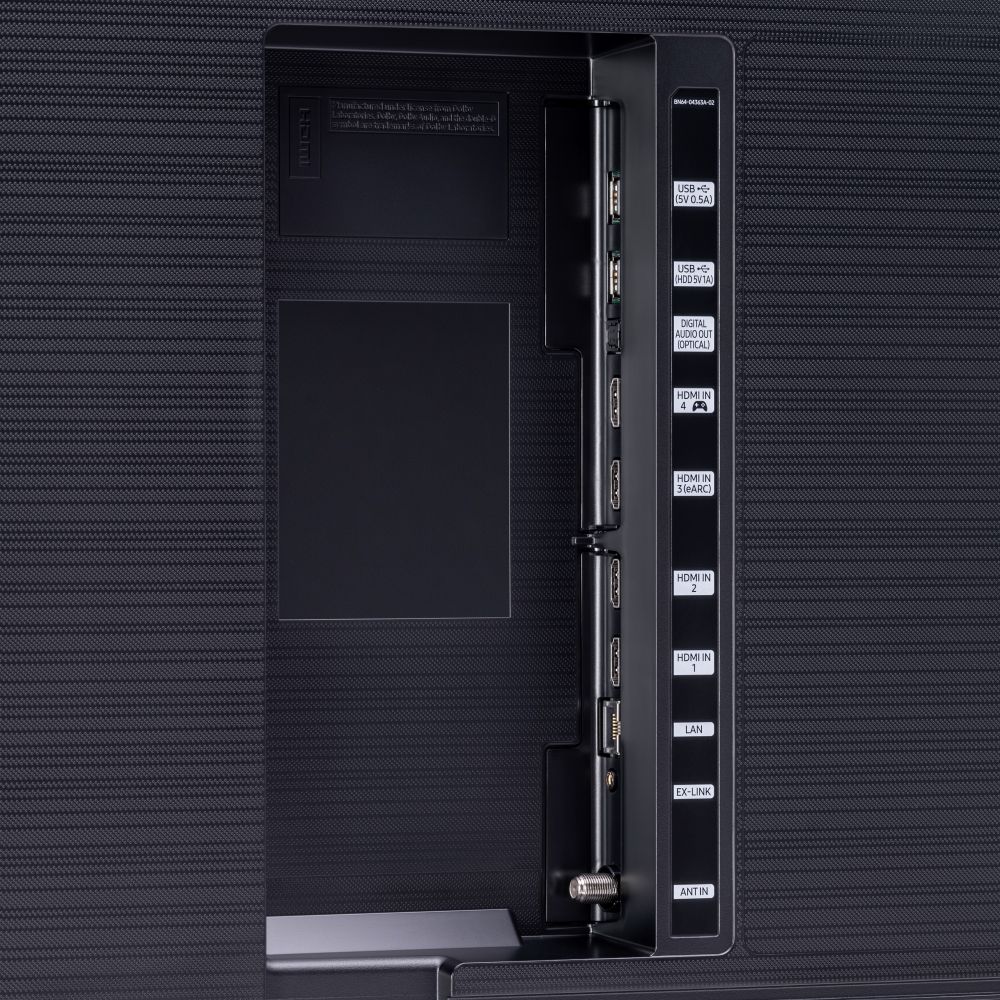
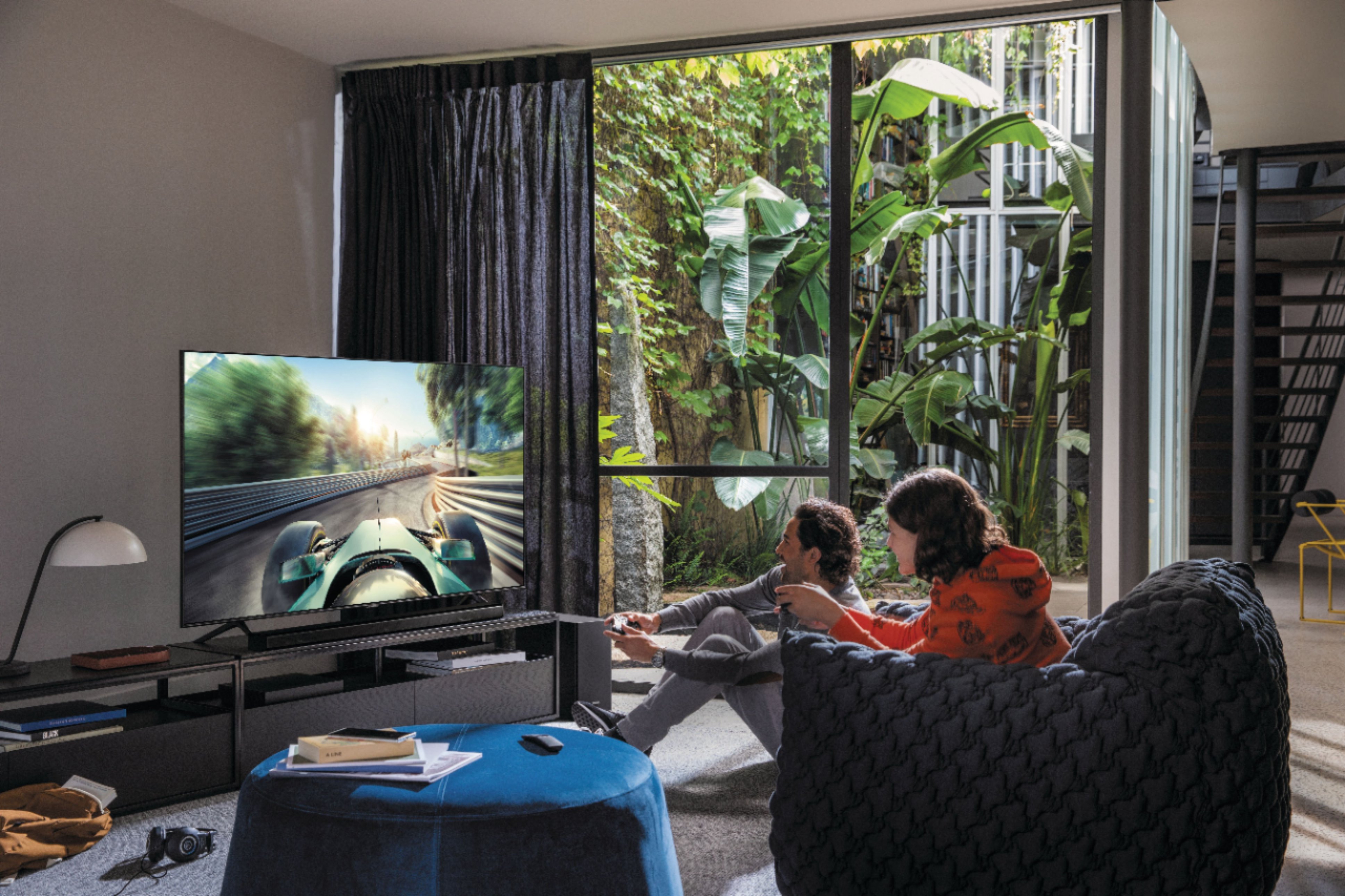
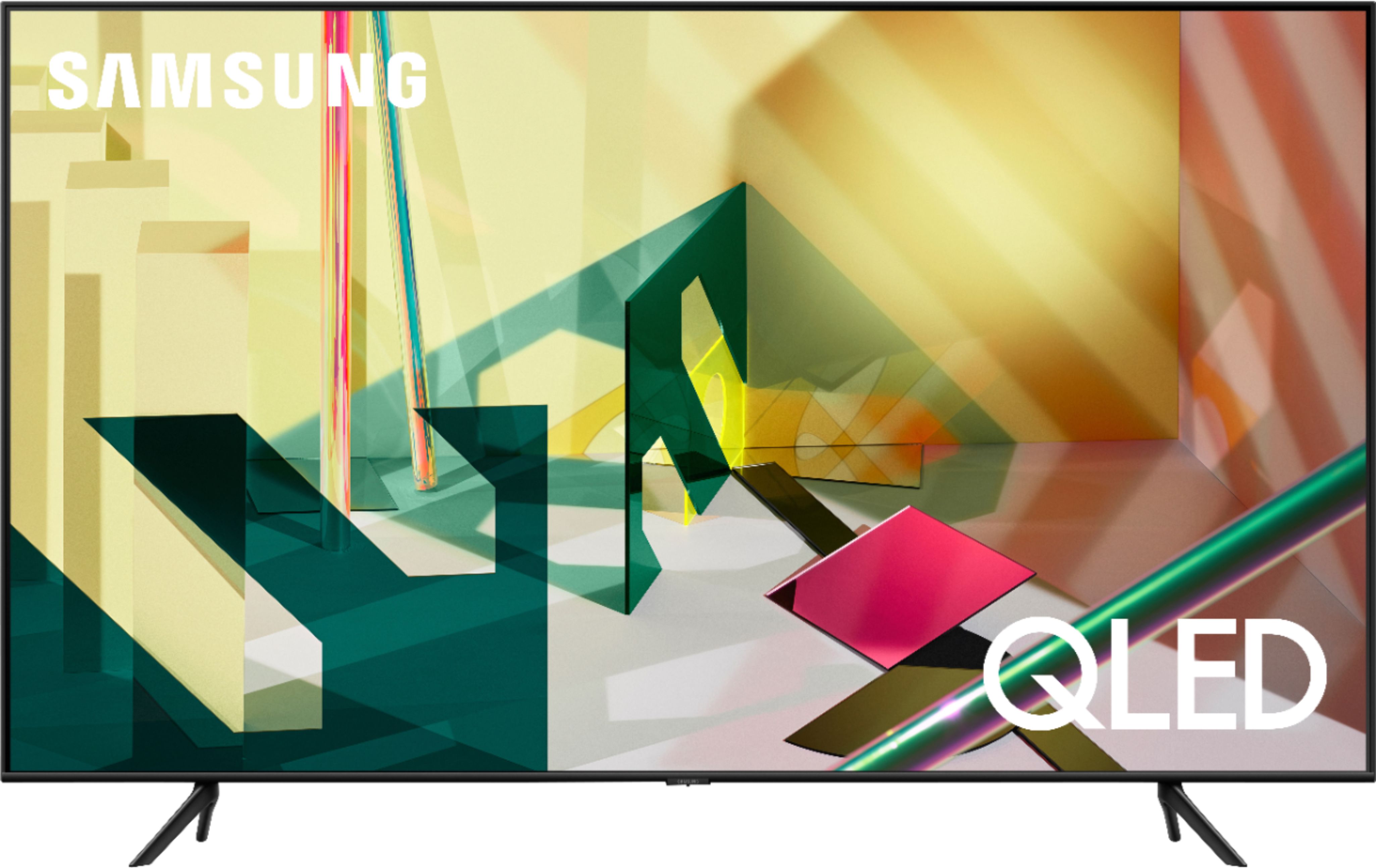
A:AnswerHi Packersfan! Yes, the 55" Q70T is a great choice for next-gen gaming consoles as it is equipped with 4 HDMI ports, all capable of Variable Refresh Rate (VRR), FreeSync, HDR10+, and Auto Low Latency Mode (Auto Game Mode).
HDMI 3 additionally offers Enhanced Audio Return Channel (eARC), while HDMI 4 gives you 4K@120fps (FRL).
If we can further help, please reach out to us at 1-800-SAMSUNG.
^Tim
A:AnswerHello,
When stepping up from the Q70T and Q80T you gain features like Ultra Viewing Angle - New panel design provides a vibrant picture to any seat in the house, even during day time hours or when the lights are on. Engineered to reduce glare and enhance color, providing a vibrant picture no matter where you sit. Object Tracking Sound (OTS)- OTS is an AI Sound feature that uses the additional arrangement of dedicated up-firing speakers, to experience realistic 3D sound that tracks with the motion on the screen. ^Cristian
A:AnswerHi Evan! The 55Q70T supports full 4K at 120Hz resolution through HDMI port 4 when connected to a compatible next generation console such as the Xbox Series X or PlayStation 5 while also using the proper cable supporting at least 40Gbps speeds. Ensure you are using a device that supports 4K at 120hz, it is connected to HDMI port 4, and a cable supporting the proper speed is being used. ^Tim
A:AnswerWhether there will be an update or not I don't know. But at least right now, only port 4 is an HDMI 2.1 port. I somewhat doubt you can turn the other ports into HDMI 2.1 ports with a software update since I think you would have to have built them that way from a hardware standpoint.

A:AnswerHi Trenton! The box dimensions of the 55Q70T are (W x H x D) 55" x 33.3" x 6.2". We recommend measuring your car to see if pick up is possible. ^Gina
A:AnswerThis TV does not have built-in Roku. If you do a Roku search on the Best Buy site, Best Buy will tell you which TVs have Roku built-in. There are not many.... Make sure they specifically say "Roku".
A:AnswerHi there! So that we can better assist you, please reach out to Samsung Support at:
― Phone: 1-800-SAMSUNG / Available 8AM - 12AM EST, 7 days a week
― LiveChat or Email: https://www.samsung.com/us/support/#contact_us_for_support
We look forward to hearing from you. ^Gina
A:AnswerHi Saint! The Q70T is Bluetooth enabled, and will seamlessly pair with any Bluetooth wireless headphones you wish to utilize. Refer to your headphone's user manual for how to pair. Once paired to the TV, press HOME on the Q70T remote. Then go to Settings > Sound > Sound Output > Bluetooth Speaker List. Choose the headphones you wish to use for sound output. ^Gina