A:AnswerHi Me,
You can connect to your cable box, or, depending on your service, you can download your specific cable provider's app and access your channels that way. However, you would need either the cable box or app to access the service.
~Samsung Advisor
A:AnswerHi Dalick,
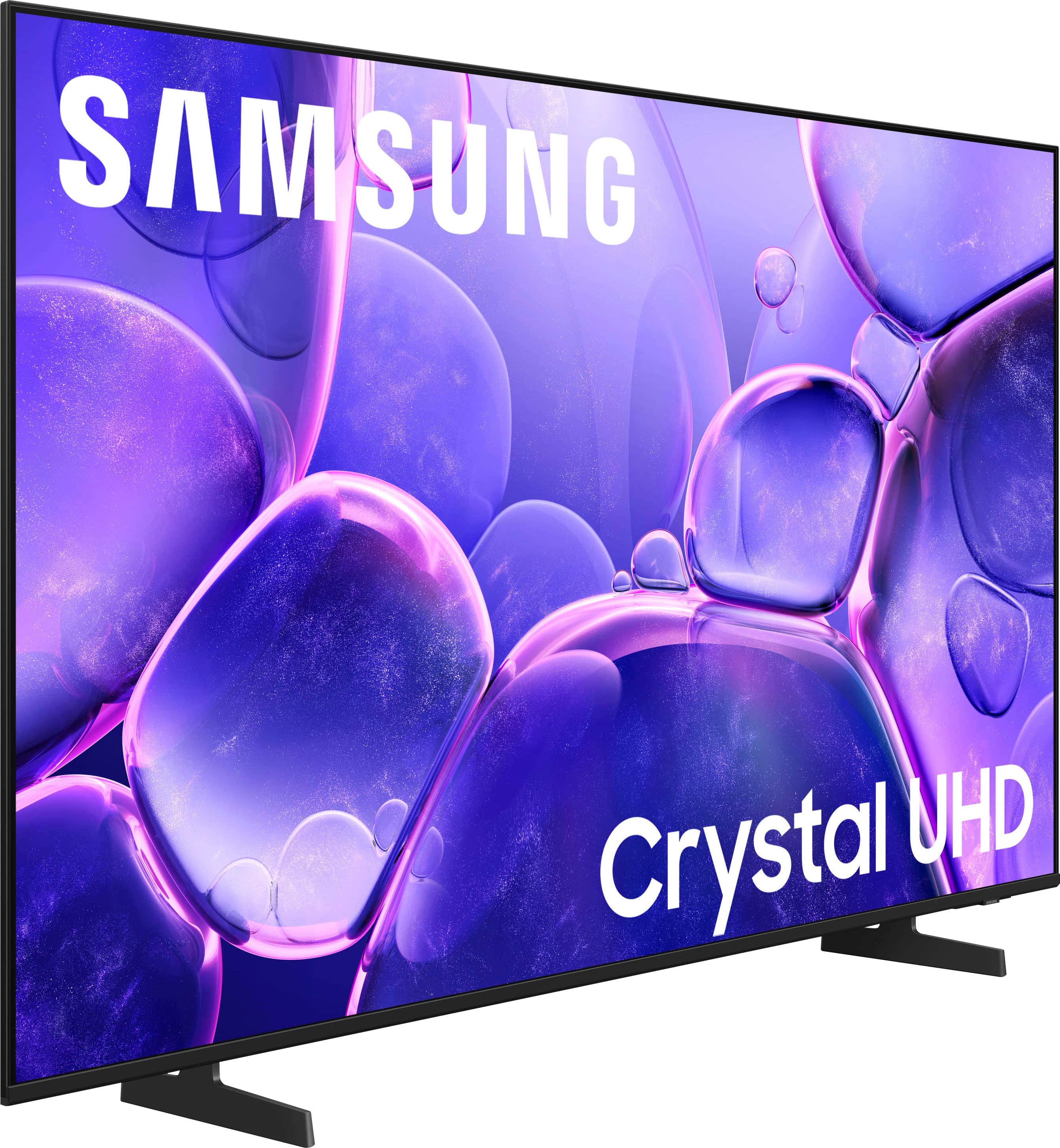
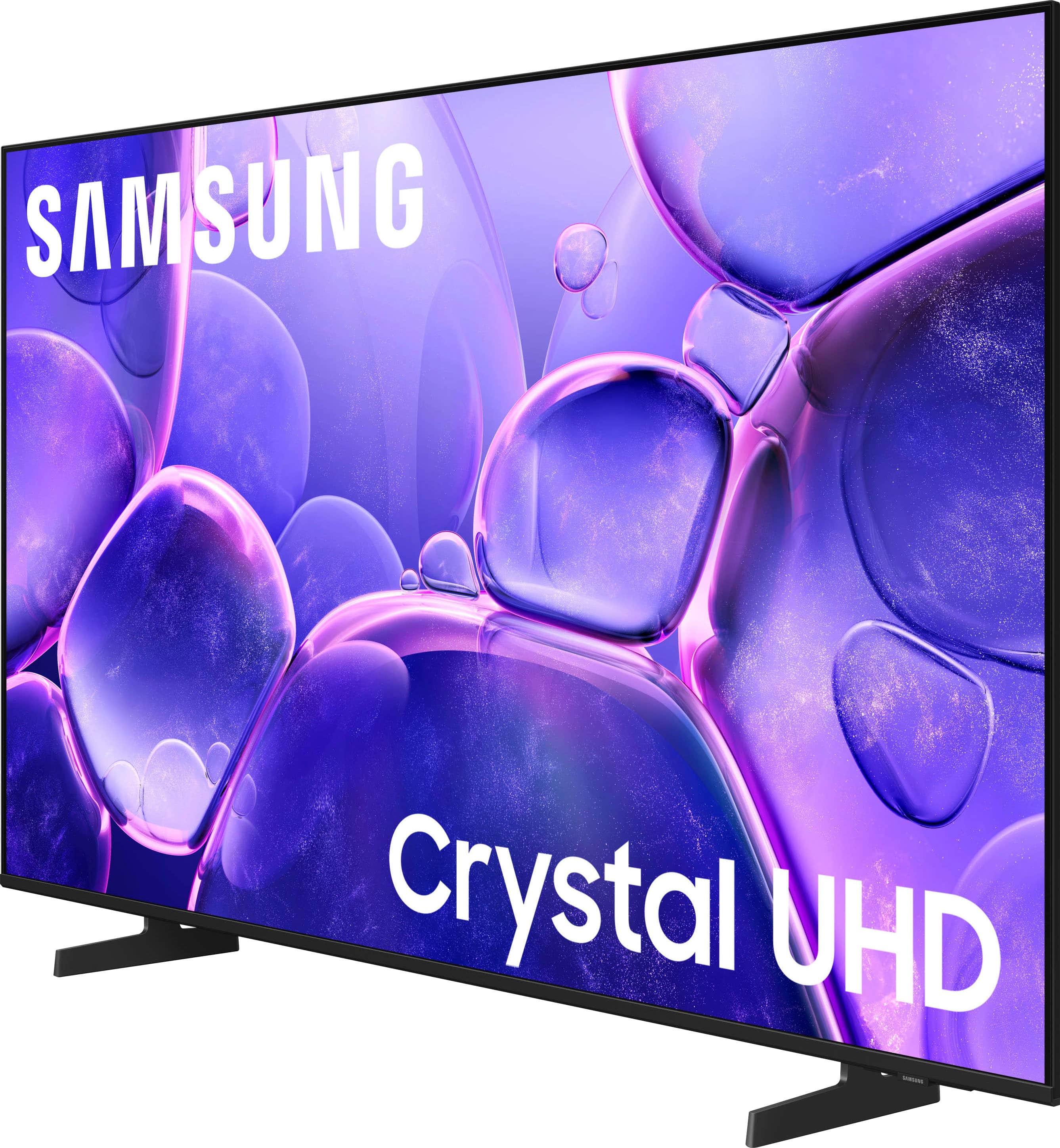
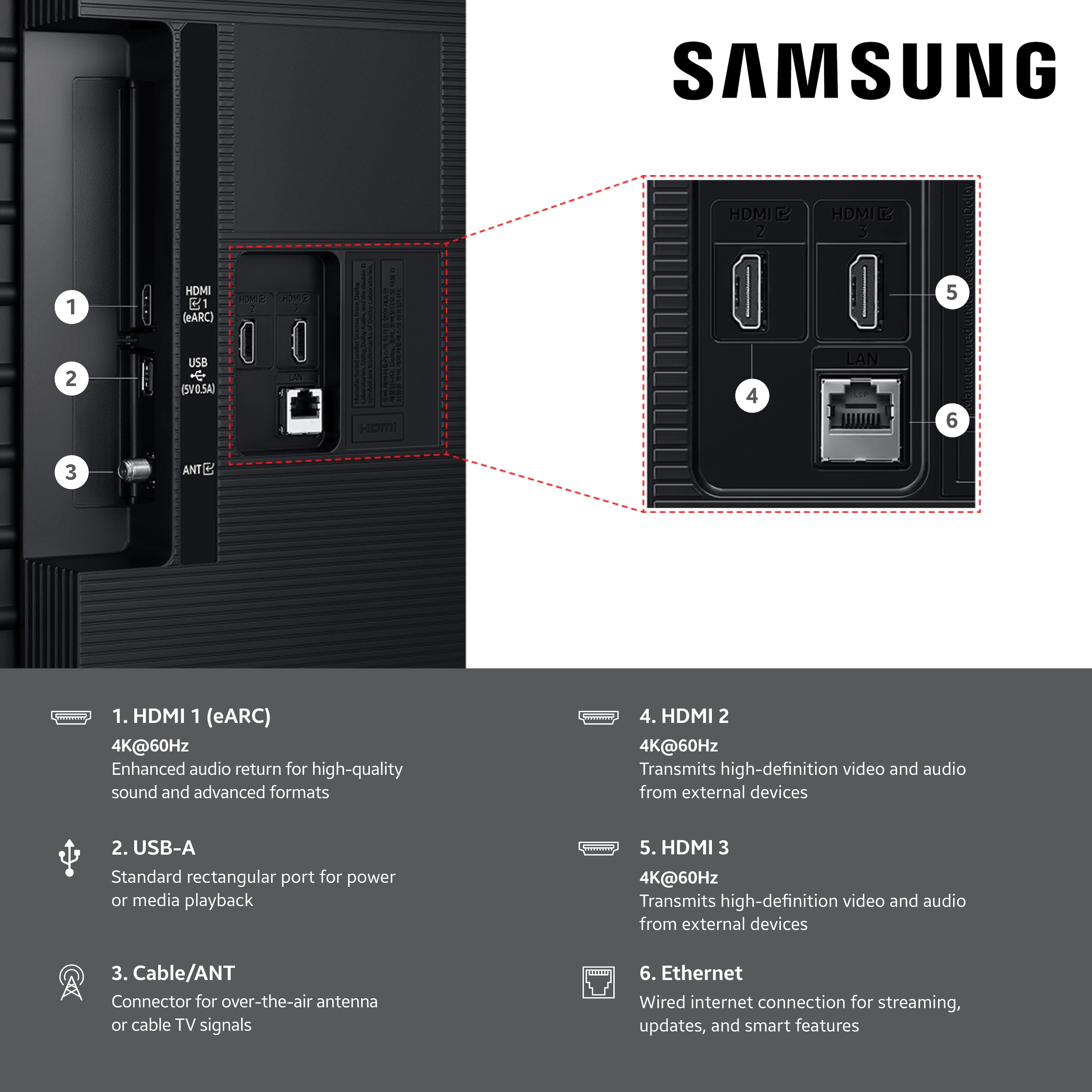
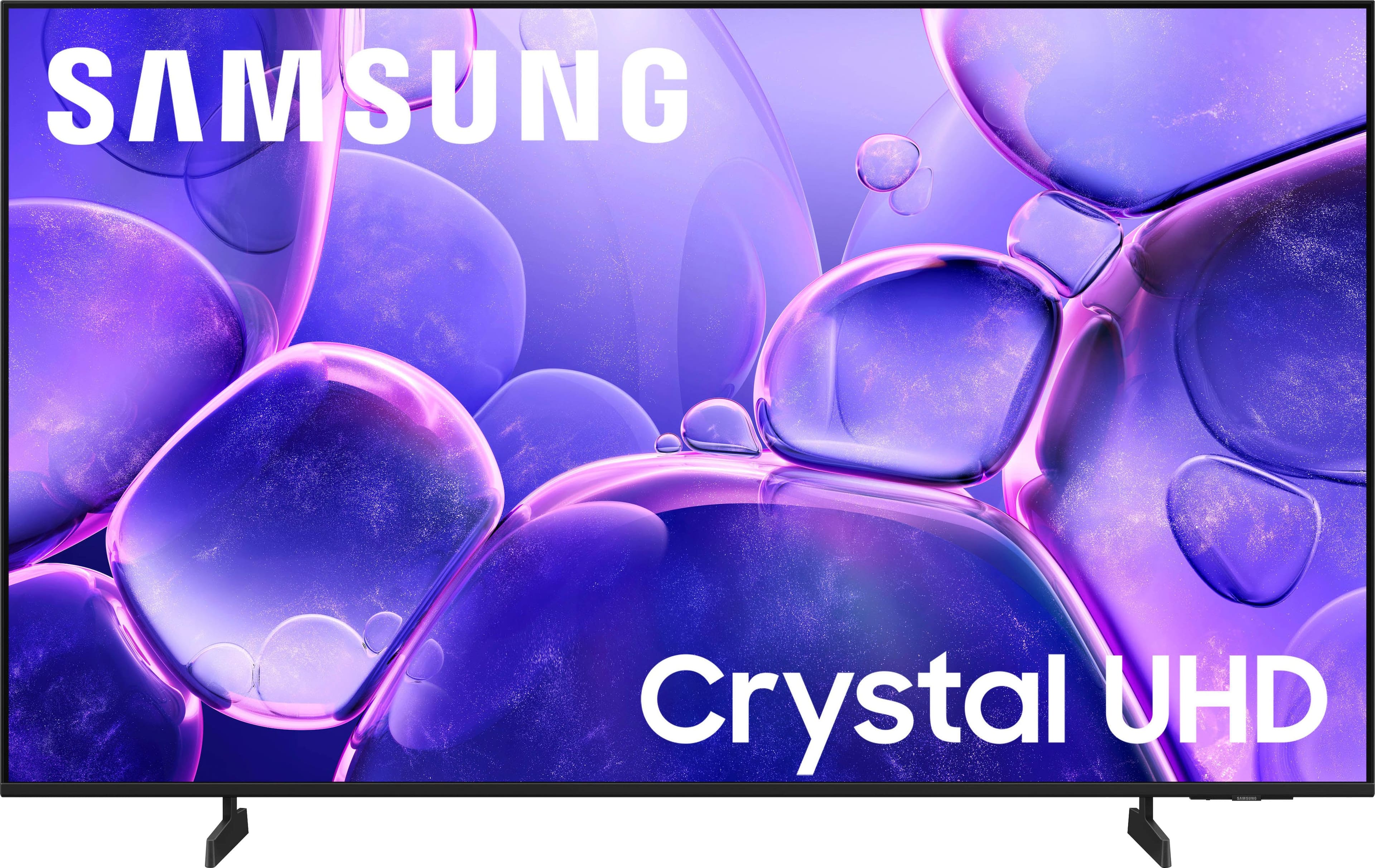
Thank you for considering the U8000F for your gaming needs. This model is equipped with 3 HDMI ports, all of which support HDR10+ and Auto Low Latency Mode (Auto Game Mode). HDMI port #2 further supports eARC. If you’re looking for a TV capable of VRR and 4K@120Hz, please consider a step up to the 55-85” Q8F TV, which supports this feature in all HDMI ports.
~ Samsung Advisor
A:AnswerHi Dave,
Yes, the U8000F TV is designed to be able to connect to external devices, like your cable box and be able to access all the intended features from Comcast and Samsung.
~Samsung Advisor
A:AnswerHi Rosie,
In order to connect an external soundbar, you will need to connect it via HDMI or Bluetooth. The U8000F TV does not feature an optical input.
~Samsung Advisor

A:AnswerHi 08,
If you are looking for a TV with Active Voice Amplifier, I recommend starting with the Q7F TV Series. Otherwise, there are a few Settings adjustments you can make to enhance the audio.
Sound Mode: Navigate to: Settings > All Settings > Sound > Sound Mode
Auto Volume: This feature helps maintain consistent volume levels across content and input sources. Turn it on under: Settings > All Settings > Sound > Expert Settings > Auto Volume = On
I hope this helps!
~Samsung Advisor