A:AnswerI can confirm that SuperDisplay works great on a Windows 10 machine. You do need to download the SuperDisplay driver and install it. Trying that should tell you if it will work on Windows 8 or not. Note that the driver is free to install, but the Android app is paid.
A:AnswerYes it's an android tablet and uses the google play store just like any android smartphone. It also has the Samsung app store if that's your thing
A:AnswerAloha Mbuso, thank you for finding the opportunity to ask us your question about the Samsung Galaxy Tab A9+. Those are great questions! Yes, you can with Samsung Smart Switch! Take a moment to review, "Content that can be transferred with Smart Switch" and "Use Smart Switch to transfer content with your PC or Mac" to learn what content can be transferred and how you can accomplish it in the timeliest manner. If you have any other questions for us, feel free to reach out to Samsung Support at your leisure. Thanks for choosing Samsung! - Debra
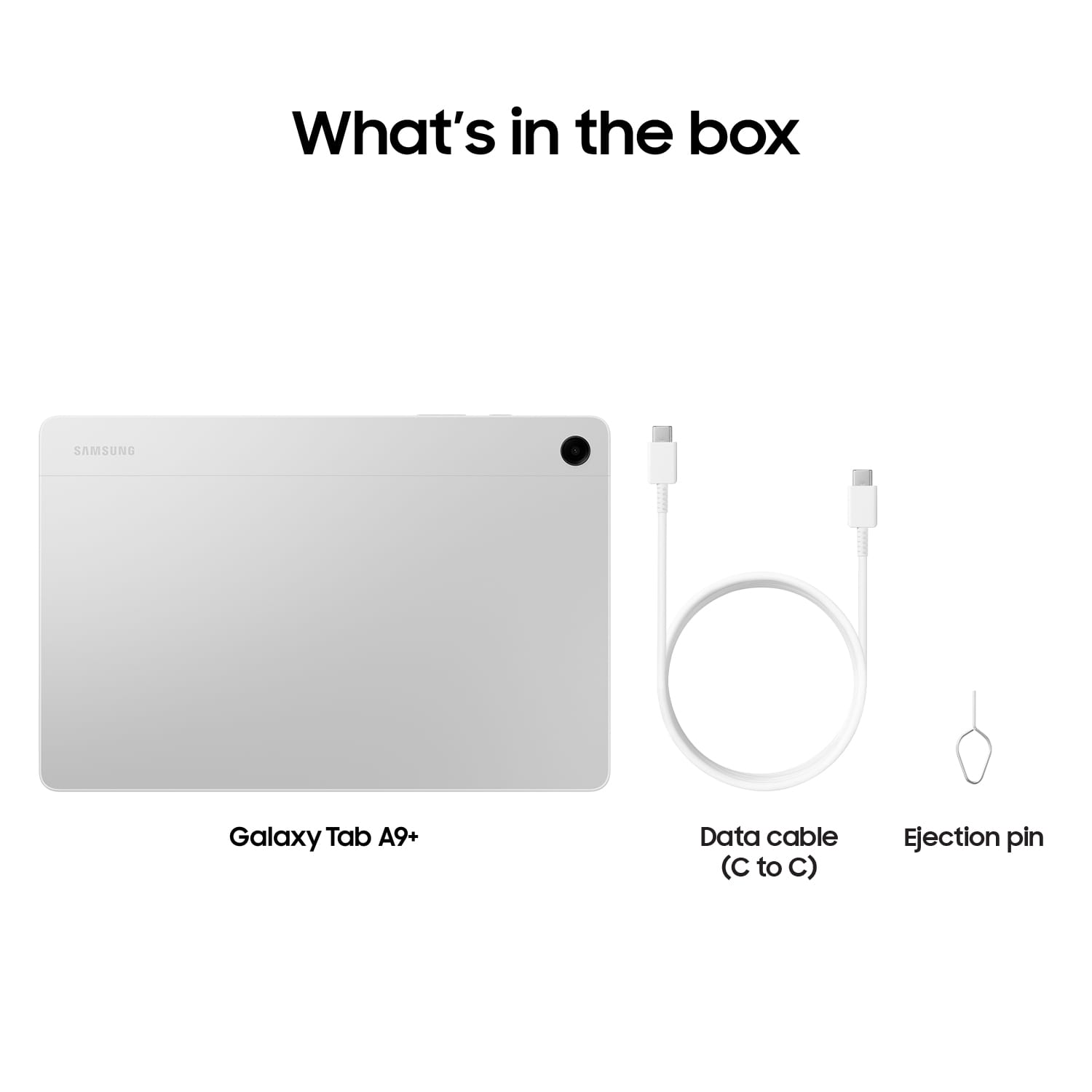
A:AnswerWhen setting up this tablet you have the option to create a pass pin. Or if you are asking if it comes with a physical pin then yes it does for opening the microSD tray.
A:AnswerHi there Cre, thank you for your question about the Samsung Galaxy Tab A9+. You can absolutely download any apps you want to use from the Google Play Store and use the Microsoft apps with your device. This device is Bluetooth enabled and you can connect any accessory that is Bluetooth enabled to this device, but it does not have a USB-A port to plug in a keyboard or mouse. Thank you for being a Samsung customer. -Elizabeth
A:AnswerHi there Bee, we appreciate you reaching out to us with your question about the Samsung Galaxy Tab A9+. This device does not have a fingerprint sensor, but you can lock and unlock your device with either pattern, PIN, or password options. Thank you for being a Samsung customer. -Elizabeth
A:AnswerYes, you can download and use the Kindle app on the Samsung Galaxy Tab A9+ 11" to access all your Kindle books and content. Here's how you can do it:
Open the Google Play Store on your Samsung Galaxy Tab A9+ 11".
In the search bar, type "Kindle" and press Enter.
Locate the official "Kindle" app developed by Amazon Mobile LLC and tap on it.
Tap the "Install" button to download and install the Kindle app onto your tablet.
Once the installation is complete, open the Kindle app.
Sign in to your Amazon account using your credentials.
After signing in, you will have access to all your purchased Kindle books and content.
You can browse, download, and read your Kindle books directly within the Kindle app on your Samsung tablet.
A:AnswerHi there Nookuser, thank you for your question about the Samsung Galaxy Tab A9+. When setting up your new device the apps and data should transfer once you have logged in to your Samsung account. However, if this does not occur, you can go in to the Google Play Store and download the Nook App and log in to see all of your purchases. Thank you for being a Samsung customer. -Elizabeth
A:AnswerGood day Auroran, thank you for asking us your question about the Samsung Galaxy Tab A9+. As of January 2024, we are extending our security update support for Samsung Galaxy devices by up to 7 years, to help our users enjoy the latest Galaxy experiences longer and securely. If you have additional questions for us, please do not hesitate to reach out to Support. Thanks for being a loyal Samsung customer. - Debra
A:AnswerHi LAR, thanks for taking the time out of your day to ask us your question about the Samsung Galaxy Tab A9+. If your phone or tablet is not recognizing your PIN, pattern, password, fingerprint, or face unlock, rebooting the device or entering Safe Mode can help solve the problem. Sometimes you may be prompted to try an alternate method, like your password. Check out, "Unable to unlock Galaxy phone or tablet's screen" to help resolve what you've described to be experiencing with your tablet. Feel free to reach out to Support afterward if you would like any further assistance. Thanks for being a faithful Samsung customer. - Debra