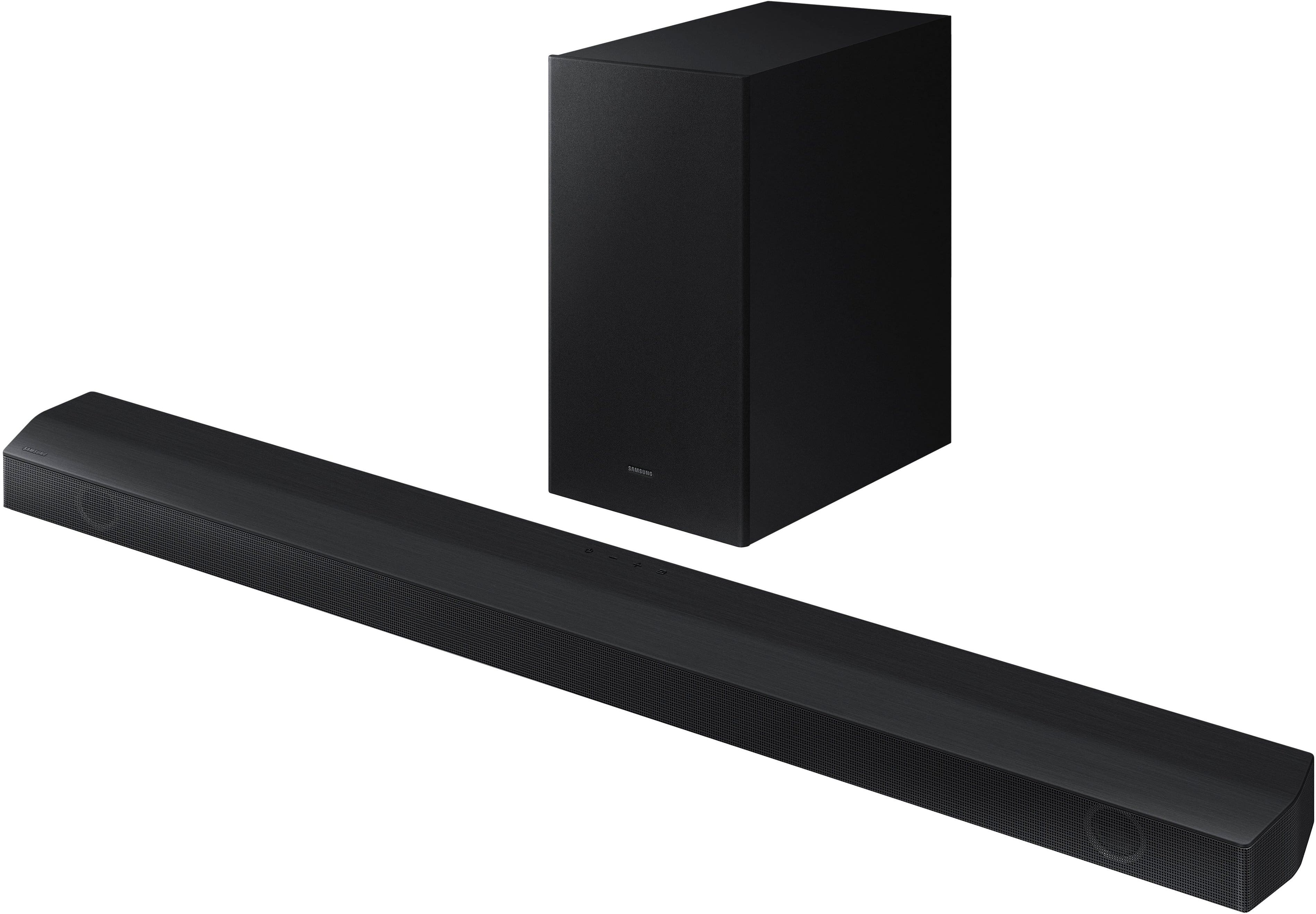
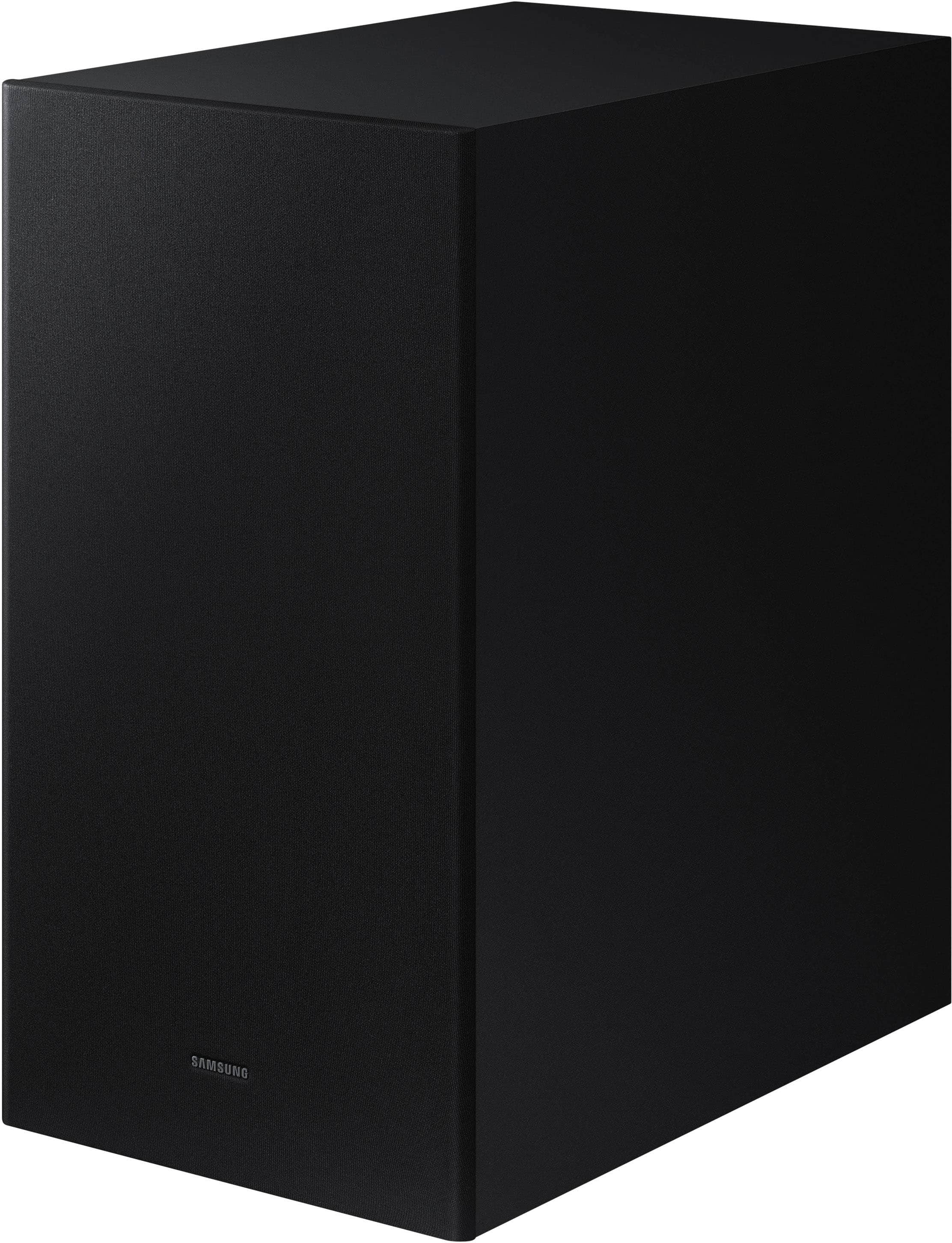
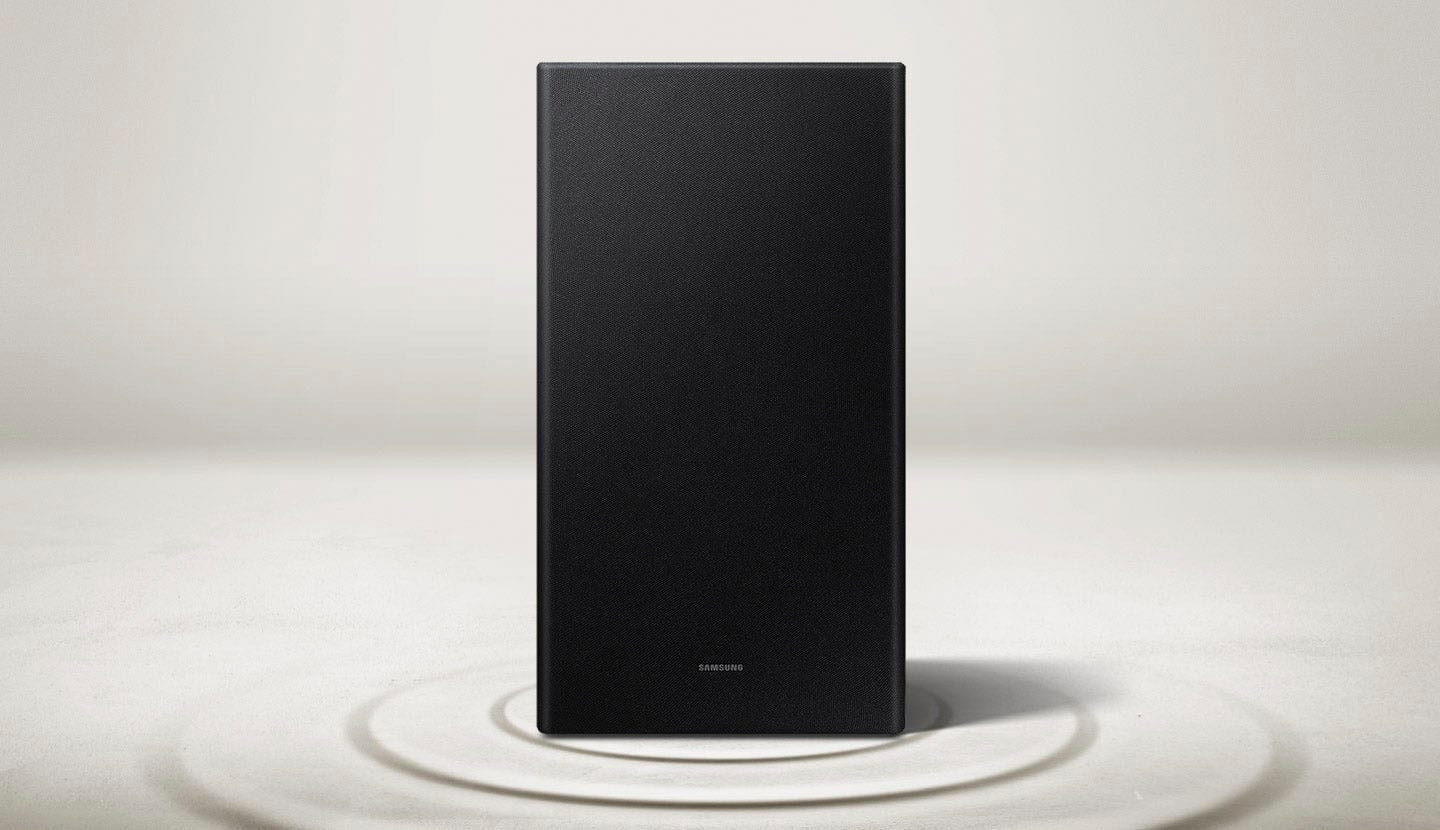
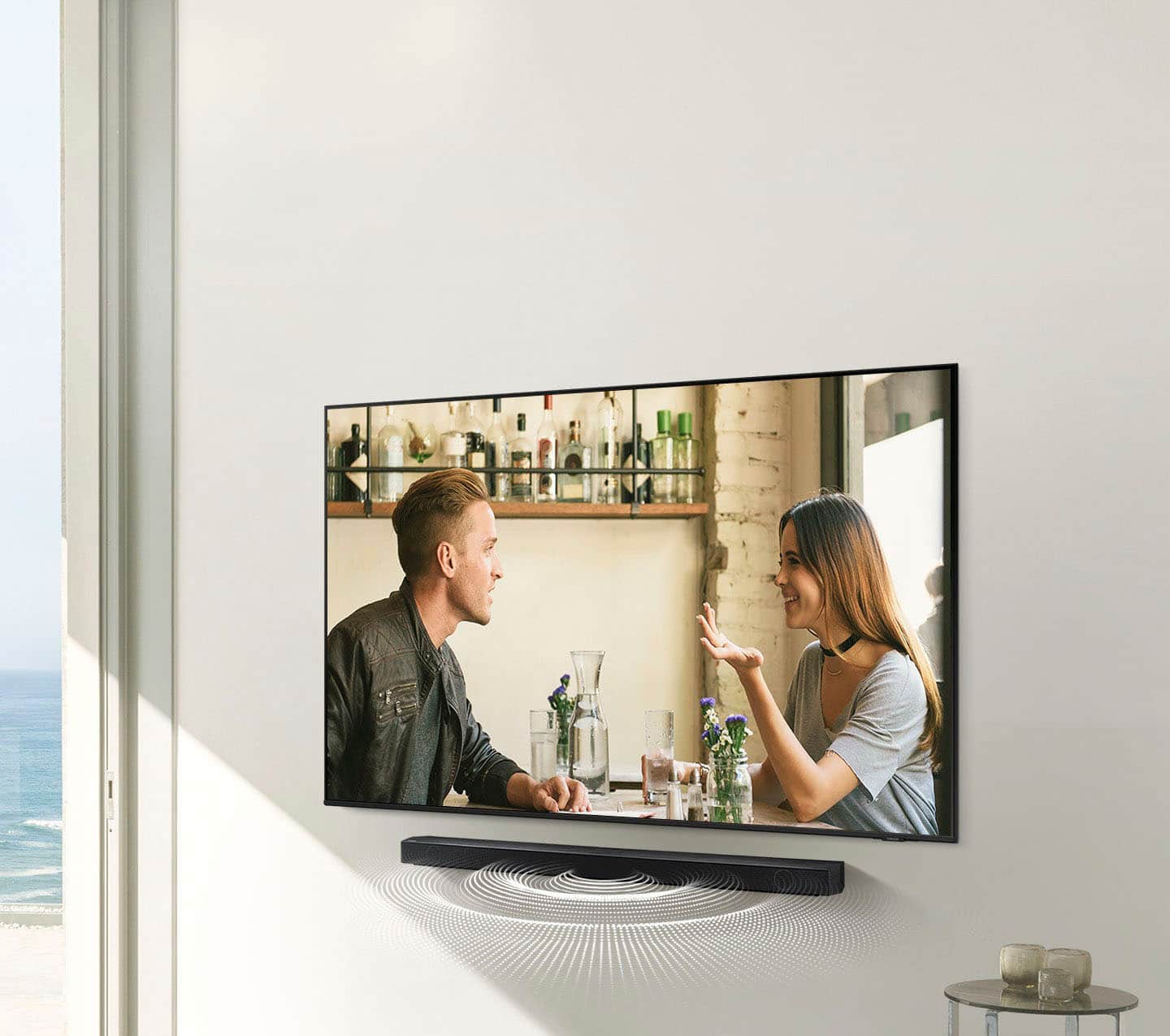
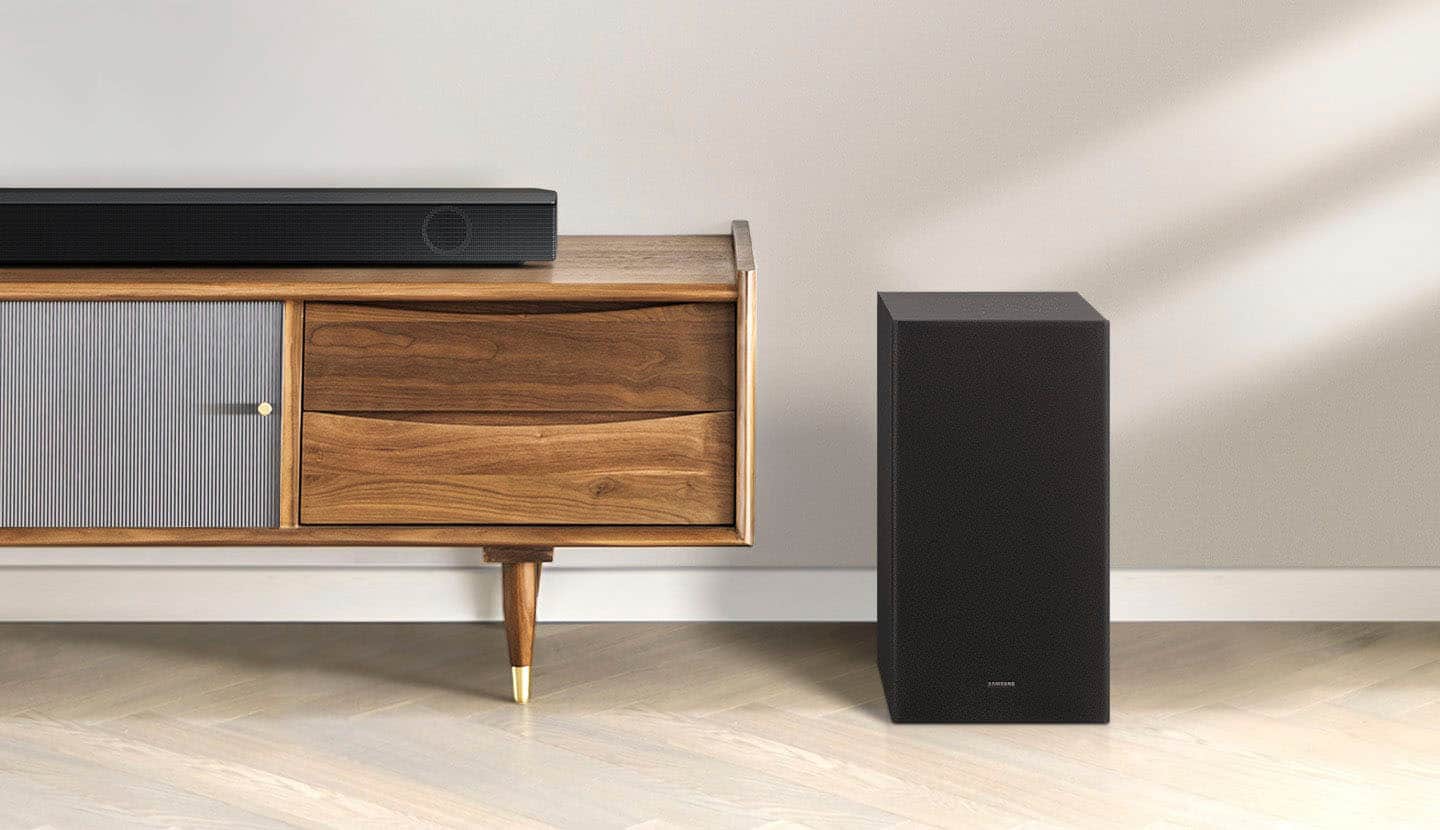
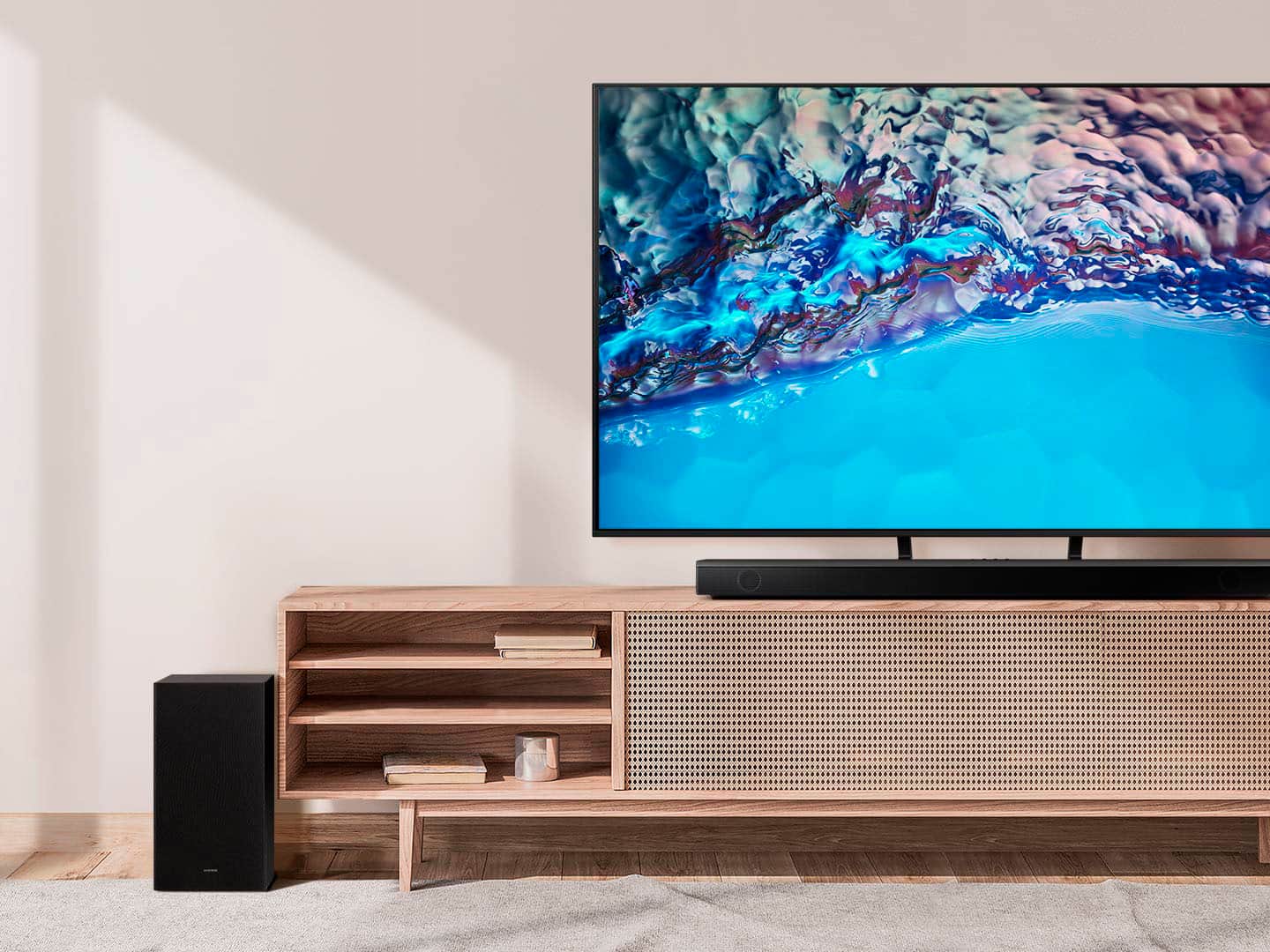
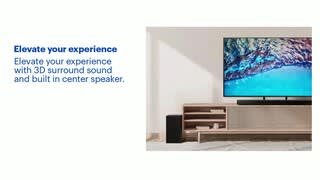
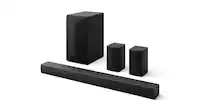
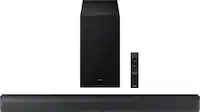
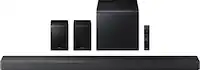
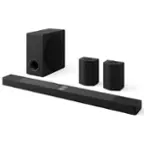
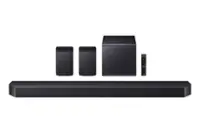
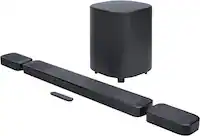
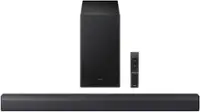
A:AnswerAny Samsung soundbar will work with your Samsung tv. I like doing this because when I turn on the tv the sound bar automatically turns on. I also like using the HDMI cable to connect to the tv. Place the sub in a corner of the room. Hope this helps, Enjoy some big sound!
A:AnswerNot sure, but I don't think so., Connect from the ARC port on the TV to the HDMI on the media center and see if you get sound. If yes, good to go, if not then scrap the media center and grab yourself one of the newest soundbars on the market. ease of use is simple as the components all communicate via bluetooth. No more wires.
A:AnswerHi there,
Please contact Samsung Customer Support for step-by-step troubleshooting at 1-800-SAMSUNG (ask for Soundbars), available 8 AM – 12 AM EST, 7 days a week.
LiveChat with an agent by clicking the ‘Support’ link on the Samsung website.
~Samsung Solutions
A:AnswerHi Mike,
Yes you can! As long as your soundbar is connected to your TV with either an optical cable or HDMI via ARC, you can control the volume and mute the soundbar using your Samsung TV's remote. The soundbar should also turn on and off with the TV.
1. Use the TV remote to navigate to Settings, select Sound, and then select Sound Output on your Samsung TV.
2. Select your Samsung soundbar, and then select Close. Now you can use your TV remote to adjust volume and mute the soundbar. The soundbar should also turn on and off with the TV.
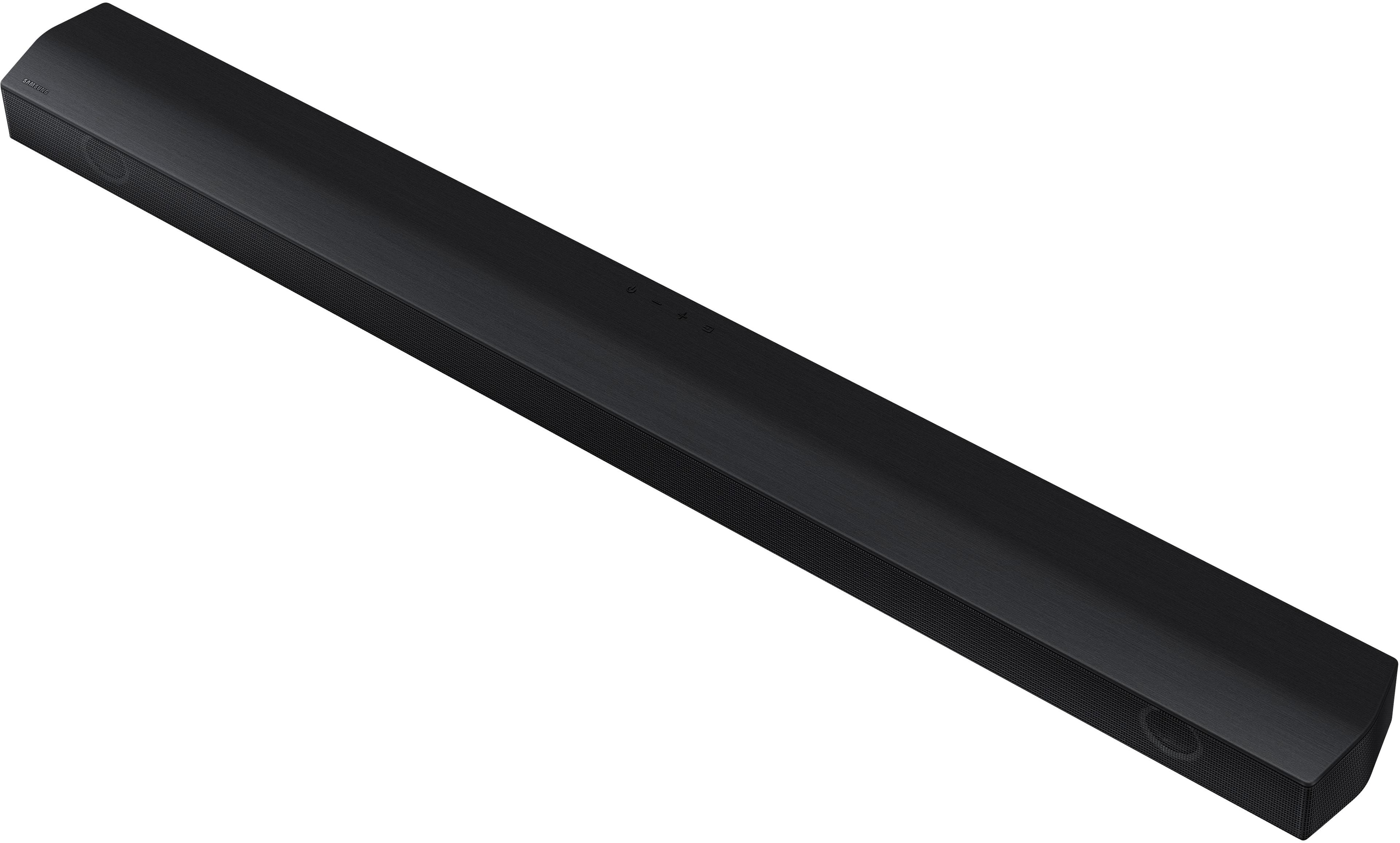
By default, Samsung TV remotes should be able to control Samsung soundbars. If it isn't working, be sure the soundbar is powered on, and then press and hold the WOOFER button up until "ON - TV REMOTE" appears on the display (about 5 seconds). Next, you'll need to choose between connecting with an optical cable or an HDMI cable.
For detailed instructions, please visit: https://www.samsung.com/us/support/answer/ANS00049279/
~Samsung Solutions
A:AnswerHi Eric,
There are a few steps you can take to troubleshoot your Soundbar.
First, you will want to download the latest software for your Soundbar. You can download the firmware directly from Samsung’s website by clicking “Support” in the top right corner. Then go to “Manuals & Software” > “TVs & Home Theater” > “Home Theater” > “Sound Bars”. From there, you can select the HW-B650 under Standard.
Download the update and install it via USB thumb stick to your soundbar. If you need additional help, there are how-to instructions on this page. Please know that Samsung Customer Service is here to assist as well.
Also, try doing a soft reset, unplug the soundbar from the outlet for roughly 30 seconds and then plug it back in.
If this still does not correct your issue, then do a hard reset. With the Soundbar on, press the + & - Volume buttons on the body of the soundbar at the same time for at least 5 seconds. INIT OK” appears on the display and then the Soundbar is reset.
If you need extra assistance please call us at 1-800-SAMSUNG (ask for Soundbars), available 8 AM – 12 AM EST, 7 days a week.
LiveChat with an agent by clicking the ‘Support’ link on the Samsung website.
~Samsung Solutions
A:AnswerHi MIkieguns,
Please call us at 1-800-SAMSUNG (ask for Soundbars), available 8 AM – 12 AM EST, 7 days a week.
We will be happy to offer step by step troubleshooting on how to setup your Soundbar with your Nintendo Switch.
~Samsung Solutions