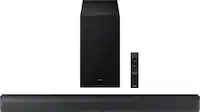
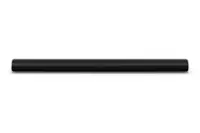
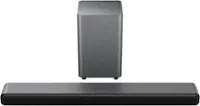
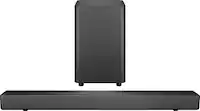
A:AnswerHi there Neil, You can find the manual for the HW-S50B on Samsung .Com: https://www.samsung.com/us/support/downloads/?model=N0060054&modelCode=HW-S50B/ZA
~ Samsung Solutions
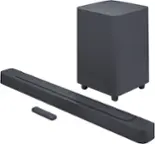
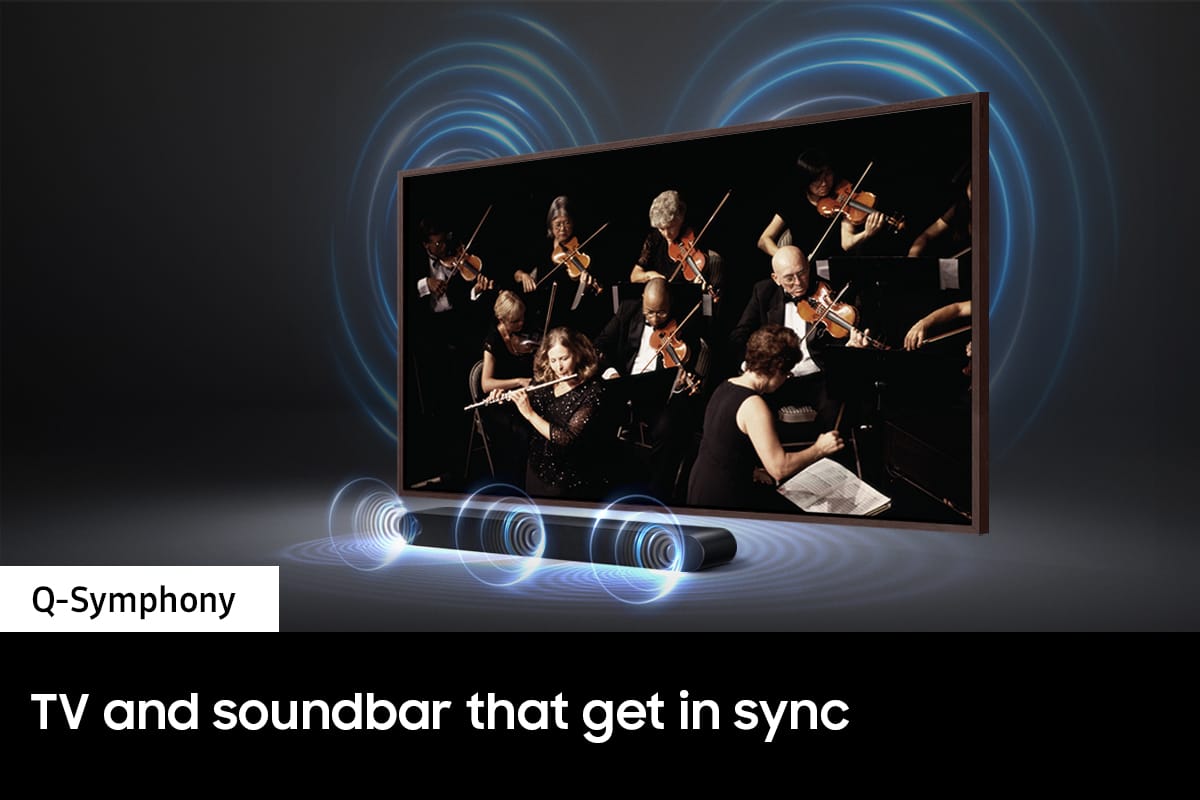
A:AnswerHi Walt, Yes you can connect the HW-S50B Soundbar to your TV with the included HDMI cord. It also does have our Q-Symphony feature. ~ Samsung Solutions
A:AnswerHi John, Before performing the manual connection procedure, check whether the power cables for the Soundbar and subwoofer are connected properly and make sure that the Soundbar is turned off.
Press and hold ID SET on the rear of the subwoofer for at least 5 seconds. The red indicator on the rear of the subwoofer turns off and the blue indicator blinks. Press and hold the Up button on the remote control for at least 5 seconds. The ID SET message appears on the display of the Soundbar for a moment, and then it disappears. The Soundbar will automatically power on when ID SET is complete. The LINK LED indicator stops blinking and glows a solid blue when a connection is established between the Soundbar and the Wireless Subwoofer. ~ Samsung Solutions
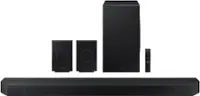
A:AnswerHi Mikey, When an update is available, you can update the Soundbar by connecting the USB drive that contains the update firmware to the Micro USB port of the Soundbar.
1.Go to the Samsung Electronics website (www.samsung.com) → click on the “Support” option in the upper right corner.
2.Click on “Manuals & Software” from the pop-up list > TVs & Home Theater > Home Theater > Select your model
2. Download the firmware file (USB type).
3. Save the downloaded software to a USB memory stick and select “Extract Here” to unzip the folder.
4. Turn on the Soundbar and connect the USB memory stick containing the software update to the female port on a Micro USB adapter cable (not supplied). Connect the cable to the USB port on the Soundbar.
5. Plug USB into Soundbar and switch to USB source, the software will update automatically and will complete update within 2 minutes. During the update process, the 5 LEDs will start flashing in a loop, and then the 5 LEDs will all be bright white, and then the 5 LEDs will flash in a loop again. When the update is complete, the cyan indicator blinks 3 times, and the soundbar automatically restarts.
If LED sequence flashing is not displayed:
1. Turn off the Soundbar, disconnect and then reconnect the USB storage device that contains the update files to the Soundbar’s USB port.
2. Disconnect the Soundbar’s power cord, reconnect it, and then turn on the Soundbar.
If your soundbar fails to update or is experiencing problems, please contact Samsung Customer Support us at 1-800-SAMSUNG, 8AM - 12AM EST (Ask for Soundbars), 7 days a week. Our Live Chat agents are also available by clicking on the ‘Support’ link on our website.
~ Samsung Solutions
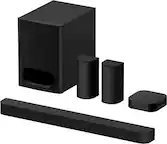
A:AnswerHello RamsFan, Connecting your soundbar to a TV through HDMI will give you the best audio because HDMI cables transmit sound digitally. There are 2 ways to connect your soundbar with HDMI: you can connect a device to your soundbar (like a Blu-ray player) and then connect the soundbar to the TV, or you can use HDMI ARC. The first method will give you the best possible sound from external devices you regularly use. ARC is the way to go if you want great sound from streaming apps on your TV and a soundbar. ~ Samsung Solutions
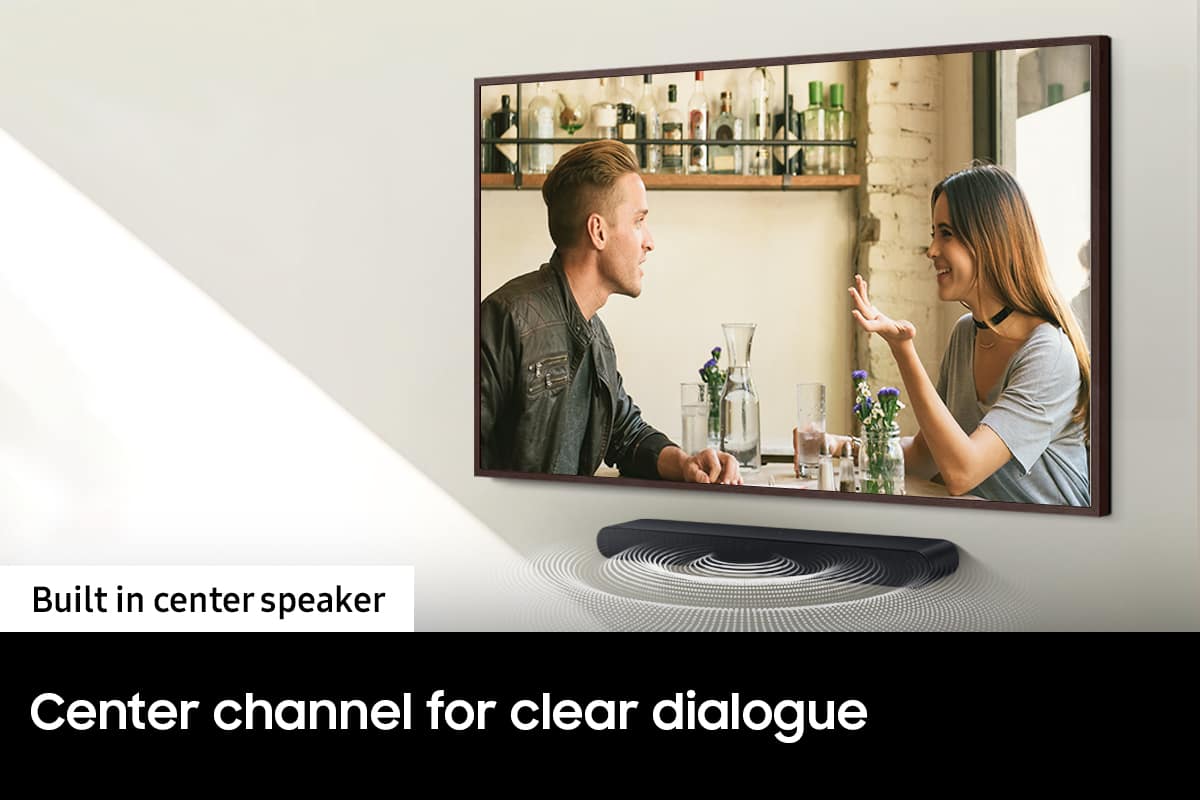
A:AnswerHi EdinJax, With the HW-S50B Soundbar you can press the CH LEVEL button on the remote, you can adjust the volume of the CENTER speaker using the UP/DOWN buttons between -6 to +6. If the Rear Speakers (sold separately) are connected, the setting “Rear Level” is supported.
You can further adjust TREBLE and BASS via the TONE CONTROL button using the UP/DOWN buttons on the remote between -6 to +6.
Press and hold the SOUND CONTROL button for about 5 seconds to adjust the sound for each frequency band. 150Hz, 300Hz, 600Hz, 1.2kHz, 2.5kHz, 5kHz, and 10kHz are selectable using the Left/Right buttons and each can be adjusted to a setting between -6 to +6 using the Up/Down buttons. (Make sure the Sound mode is set to "Standard".
I would recommend testing the settings in Netflix to see which you prefer.
~ Samsung Solutions
A:AnswerHi there, Unless you have the HW-S50B Soundbar connected to a Samsung TV you are unable to see the soundbar's volume level. ~ Samsung Solutions
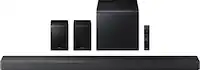
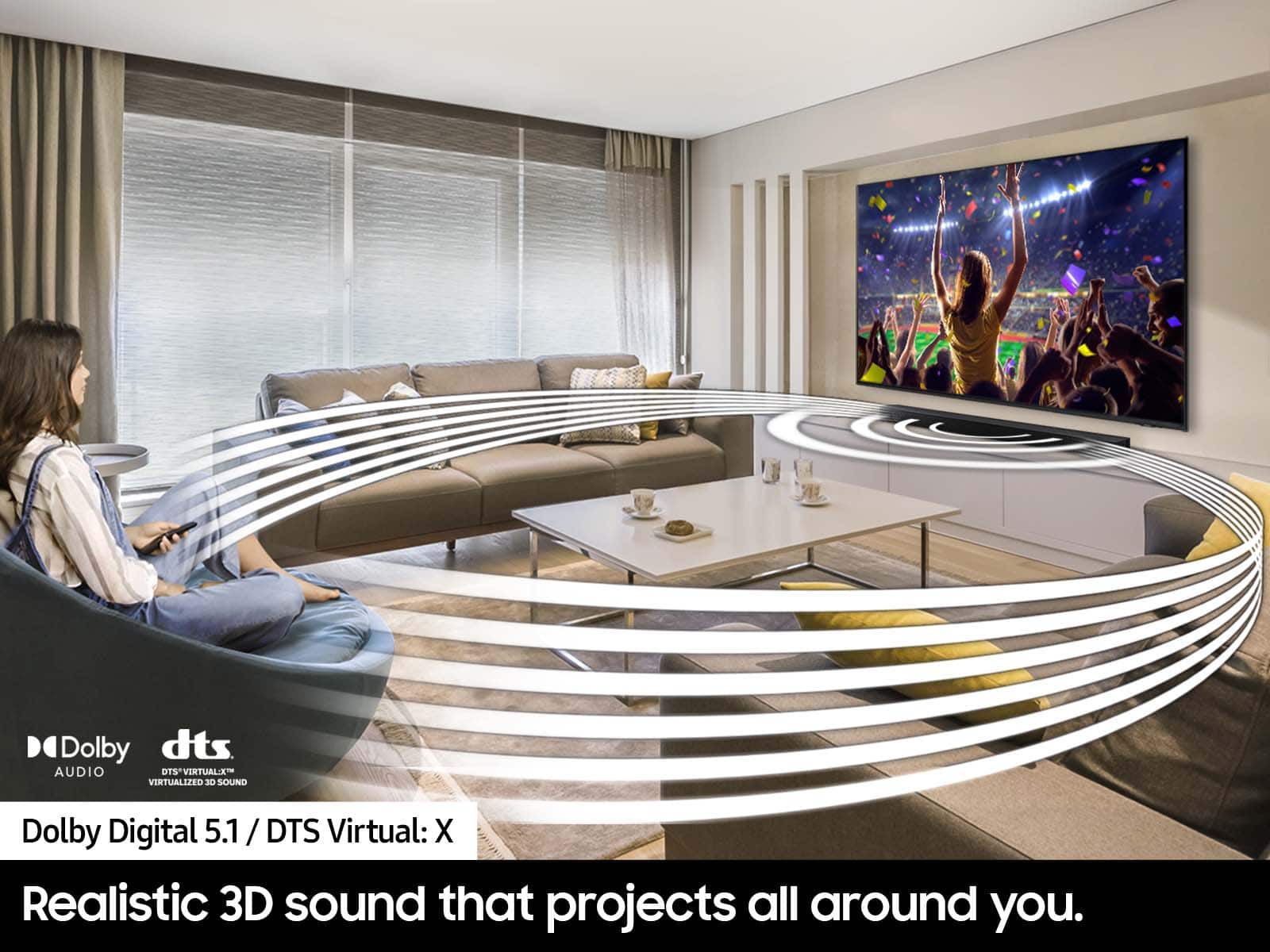
A:AnswerHi! The HW-S50B features three ways to connect to an external device: HDMI (ARC), digital optical audio, and Bluetooth wireless audio technology. If your TV is compatible with one of these three audio connections, you should have no issue connecting the soundbar to your TV. Here is a Universal Soundbar Mounting Bracket, check it out at Best Buy: https://www.bestbuy.com/site/rocketfish-universal-soundbar-mounting-system-black/6354301.p?skuId=6354301 ~Samsung Solutions