A:AnswerYes, the Sonos system does require wifi connections. I believe the arc ultra can work through Bluetooth but it’s really optimized for wifi. I love my Sonos setup. The app can be funky at times but usually just requires updating. Overall I definitely recommend it.
A:AnswerI’m sorry to hear about the trouble you’re experiencing with your Sonos Arc and Samsung TV remote. I can understand how frustrating it must be when the volume controls suddenly stop working.
Here are some troubleshooting steps to help resolve the issue:
Check Remote Control Settings:
Ensure that your TV remote is set up to control external devices like the Sonos Arc. You may need to reprogram the remote in the TV settings.
Go to your TV's Settings > Sound > Sound Output > Receiver (HDMI ARC) to ensure the correct sound output is selected.
HDMI-CEC Settings:
HDMI-CEC (Consumer Electronics Control) allows your TV remote to control other devices connected via HDMI. On Samsung TVs, this feature is called Anynet+.
Make sure Anynet+ is enabled under Settings > General > External Device Manager > Anynet+ (HDMI-CEC).
Reboot Devices:
Unplug your TV and Sonos Arc from power for about a minute, then plug them back in. This can sometimes reset any connection issues between the two devices.
Re-pair TV Remote with Sonos Arc:
Open the Sonos app and go to Settings > System > Arc > Remote Control Setup. Follow the prompts to re-pair your TV remote with the Arc.
Update Firmware:
Ensure both your Samsung TV and Sonos Arc are running the latest firmware versions, as updates may resolve any compatibility issues.
If the issue persists after trying these steps, please don’t hesitate to reach out to Sonos support at support.sonos.com for further assistance. I’m confident we can help get this resolved for you.
A:AnswerThe issue you're experiencing with your Sonos Arc taking a long time to produce sound or not producing sound at all when changing channels is likely due to a communication issue between the TV and the soundbar. Here are several troubleshooting steps you can try to correct this problem:
1. Check HDMI-ARC/eARC Connection:
Ensure Proper Connection: Make sure your Sonos Arc is connected to the TV’s HDMI-ARC or eARC port using the provided HDMI cable. The HDMI-ARC/eARC port on your TV is designed for audio return, and using the correct port is crucial for seamless audio performance.
Re-seat the HDMI Cable: Unplug the HDMI cable from both the TV and the Sonos Arc, wait a few seconds, and then plug it back in. This can sometimes reset the connection and resolve the issue.
2. Update Firmware/Software:
Update TV Firmware: Check if there is a firmware update available for your Sony TV and apply it if there is. Firmware updates can fix bugs and improve compatibility with connected devices.
Update Sonos Firmware: Similarly, ensure that your Sonos Arc is running the latest firmware. You can check and update the firmware through the Sonos app.
3. Adjust Audio Settings on the TV:
HDMI-CEC Settings: Ensure that HDMI-CEC (Consumer Electronics Control) is enabled on your Sony TV. This feature allows the TV and soundbar to communicate and synchronize properly.
Audio Output Settings:
Go to the TV’s audio settings and set the audio output to "Auto" or "Passthrough."
Try switching the audio output format between different settings like PCM, Dolby Digital, and Auto to see if this resolves the delay.
eARC Mode: If your TV supports eARC, make sure that eARC mode is enabled on both the TV and the Sonos Arc.
4. Check for Interference:
Eliminate Possible Interference: Ensure that there are no other electronic devices nearby that might be interfering with the HDMI connection, such as routers, gaming consoles, or other HDMI devices. Try unplugging other HDMI devices from the TV temporarily to see if that resolves the issue.
5. Power Cycle the Devices:
Restart TV and Sonos Arc: Turn off both the TV and the Sonos Arc, unplug them from the power source, wait for about a minute, and then plug them back in and turn them on. This can help reset the connection and fix any temporary glitches.
6. Test with Different Content:
Channel or Input Testing: Test the Arc with different channels or inputs (e.g., streaming apps, Blu-ray player) to see if the issue is isolated to specific channels or content. This can help identify if the problem is related to certain audio formats or content types.
7. Check Audio Sync Settings:
Adjust Lip Sync/Audio Delay: Some TVs have settings to adjust the audio delay or lip sync. Adjusting these settings might help synchronize the audio more quickly when changing channels.
8. Factory Reset (As a Last Resort):
Factory Reset the TV and Sonos Arc: If all else fails, performing a factory reset on both the TV and the Sonos Arc might resolve any underlying issues. Be sure to back up any important settings before doing this.
If the Problem Persists:
If none of these steps resolve the issue, it might be worth contacting Sonos support or Sony support for further assistance, as there could be a more complex compatibility issue between the devices.
A:AnswerI understand your frustration with trying to connect your BSSATM1-B1 soundbar and SUBGUSI subwoofer when your internet connection is weak. Unfortunately, most modern soundbars and subwoofers, including those from Best Buy’s Insignia brand, are designed to connect wirelessly and don’t have an option for a wired connection.
However, there are a few steps you can try to improve your connection:
Move Closer: Ensure the subwoofer and soundbar are as close to each other as possible. Physical obstructions can weaken the signal, so reducing the distance can help.
Reduce Interference: Make sure there are no other electronic devices between the soundbar and subwoofer that could cause interference.
Router Placement: If possible, move your router closer to your entertainment setup to strengthen the overall Wi-Fi signal.
Wi-Fi Extender: Consider using a Wi-Fi extender to boost the signal in your home. This can improve connectivity for all your devices, including your soundbar and subwoofer.
If these steps don't help, you might want to contact the manufacturer’s customer support to see if they have any additional solutions or if there are firmware updates that might improve connectivity.
Best of luck with your setup, and I hope you get to enjoy your new sound system soon!
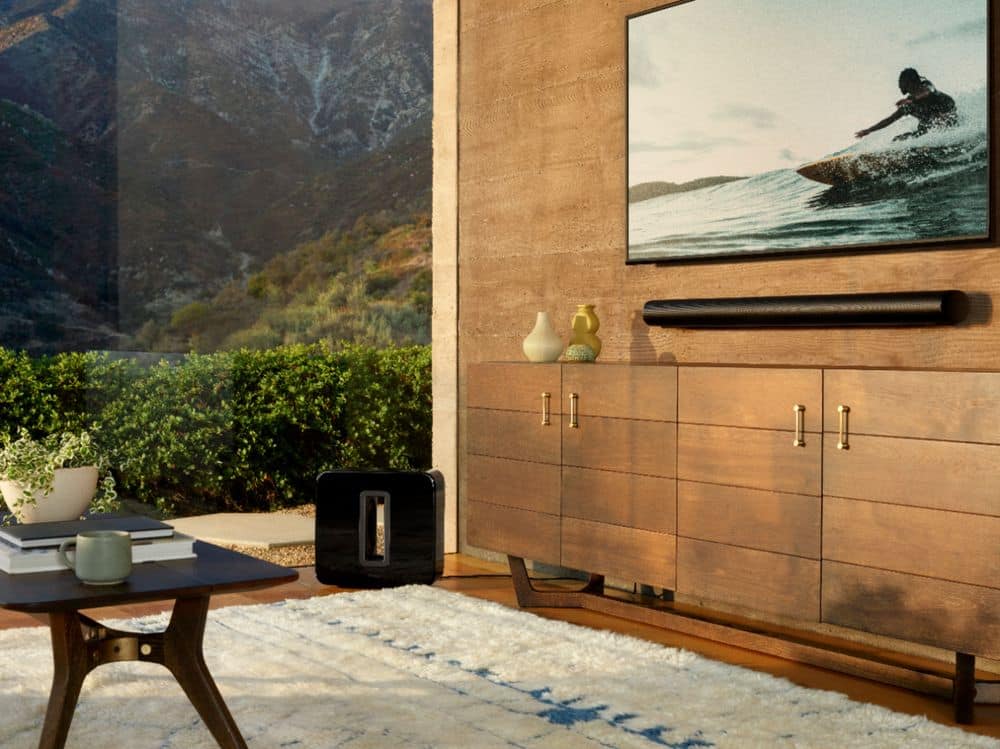
A:AnswerWall mounting the Sonos Arc involves a few key steps and considerations. Here’s a detailed guide to help you with the process:
1. Gather Materials:
Sonos Arc (including mounting hardware)
Wall Mount Bracket specifically designed for Sonos Arc
Drill and appropriate drill bits
Screws and anchors (usually included with the mount)
Level
Measuring Tape
2. Choose the Location:
Height: Mount the Sonos Arc so that it is aligned with your TV screen for optimal audio performance. Typically, this means mounting it just below or above the TV.
Centering: Ensure the Sonos Arc is centered relative to your TV and listening area.
3. Install the Wall Mount Bracket:
Measure and Mark: Use the measuring tape to mark where you want to place the wall mount brackets. Ensure they are level and aligned with the width of the Sonos Arc.
Drill Holes: Drill holes into the wall at the marked locations. Use appropriate wall anchors if drilling into drywall.
Attach Brackets: Secure the wall mount brackets to the wall using screws and anchors. Ensure they are firmly attached and level.
4. Mount the Sonos Arc:
Align the Arc: Carefully align the Sonos Arc with the mounted brackets.
Secure the Arc: Depending on the bracket design, you may need to slide or hook the Sonos Arc onto the brackets. Follow the specific instructions provided with your wall mount bracket.
Check Stability: Ensure the Sonos Arc is securely mounted and does not wobble.
5. Connect Cables:
HDMI ARC/eARC Cable: Connect the HDMI cable from the Sonos Arc to the HDMI ARC or eARC port on your TV. This allows the Sonos Arc to receive audio from the TV.
Power Cable: Plug the power cable into the Sonos Arc and connect it to a power outlet.
6. Final Adjustments:
Level Check: Use the level to ensure the Sonos Arc is perfectly horizontal.
Test: Power on the Sonos Arc and check that it is functioning correctly with your TV and other connected devices.
Additional Tips:
Cable Management: Consider using cable management solutions to keep cables organized and out of sight.
Professional Installation: If you are unsure about drilling or mounting, consider hiring a professional installer.
By following these steps, you can securely wall mount your Sonos Arc and enjoy an enhanced audio experience in your home.
A:AnswerIf using an Onkio receiver, you will need a Sonos Port to integrate your Onkio system into the Sonos ecosystem. From there you can have the Sonos Arc and your Onkio system work together for whole room audio.
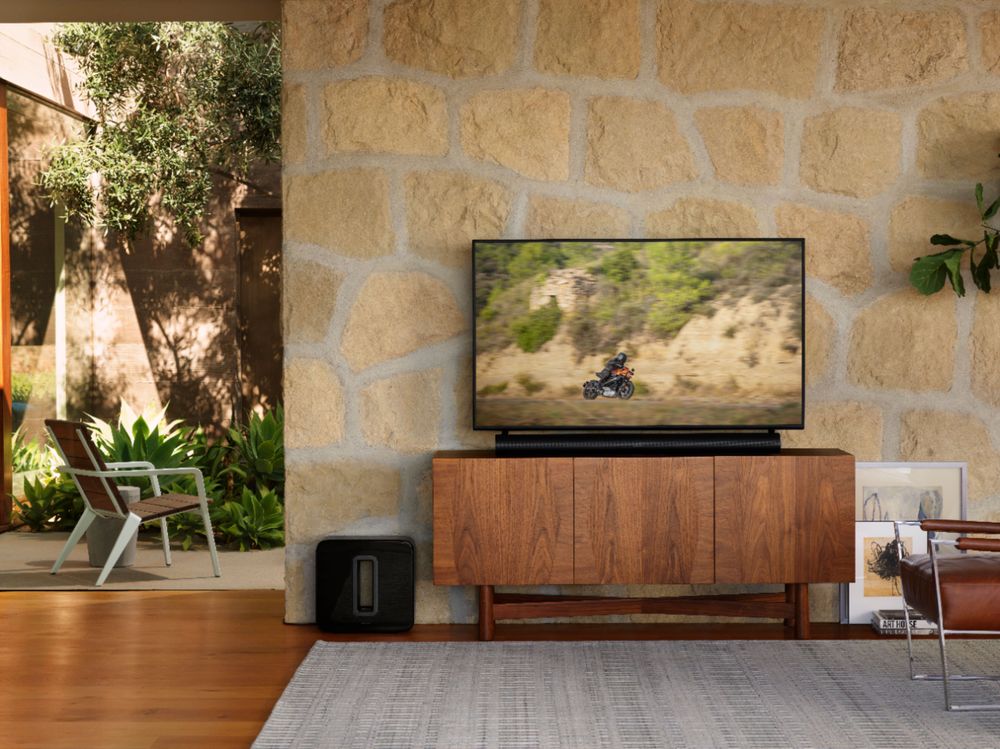
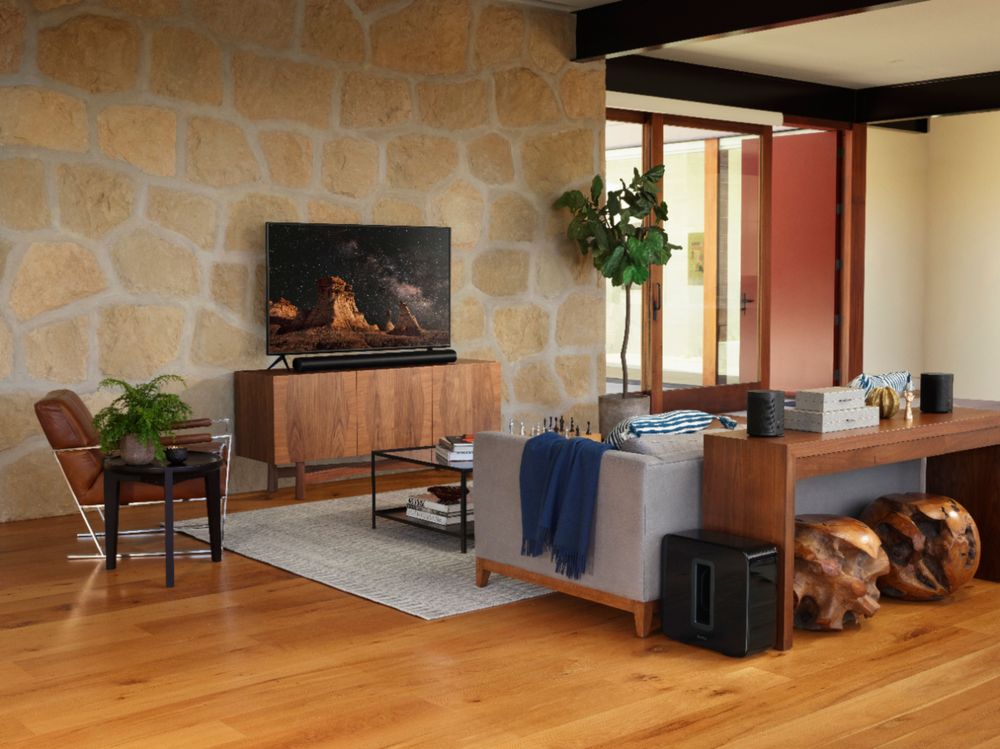
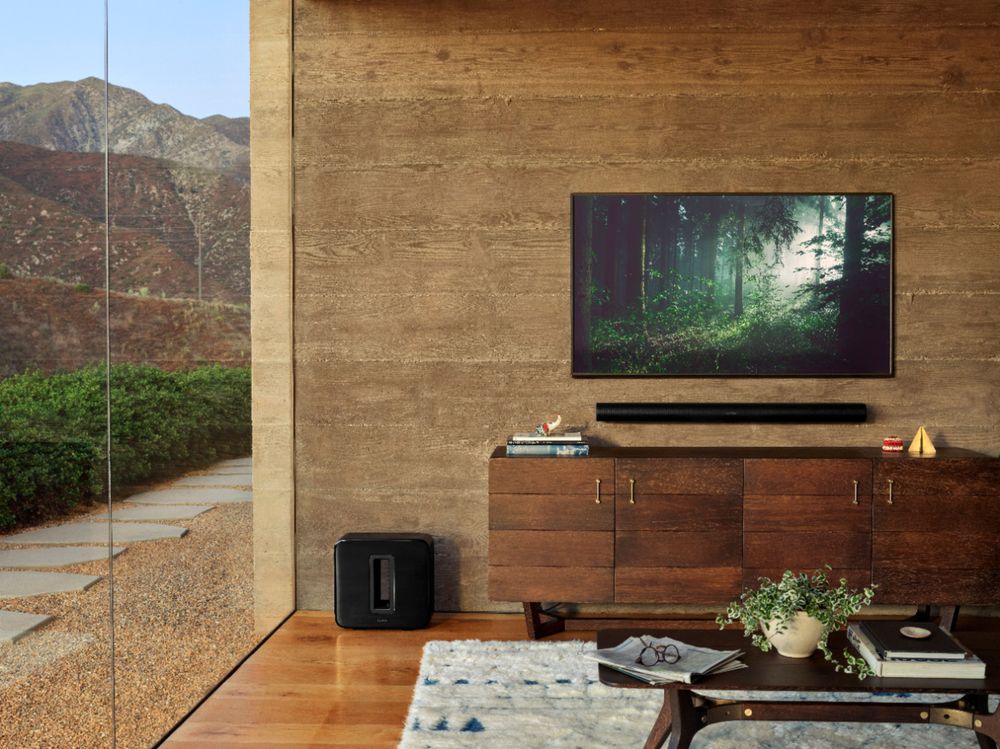
A:AnswerFor optimal performance, the subwoofer should be placed within a reasonable distance from the soundbar, typically no more than 10-15 feet (3-5 meters) away. However, Sonos subwoofers, such as the Sub Gen 3, are designed to work effectively over various distances. Here are some general guidelines:
Distance: While there is no strict maximum distance, keeping the subwoofer within the 10-15 feet range helps ensure that it maintains a strong and reliable wireless connection with the soundbar.
Positioning: Avoid placing the subwoofer in corners or against walls, as this can cause excessive bass buildup and muddy the sound. Ideally, it should be placed in a location that allows for even bass distribution throughout the room.
Placement Tips:
Avoid Obstructions: Ensure that the subwoofer is not obstructed by furniture or other objects.
Test Placement: You may need to experiment with different locations to find the spot where the bass response sounds best in your room.
Wireless Connection: Ensure that there are minimal obstructions between the subwoofer and soundbar to maintain a stable wireless connection. If you experience connection issues, consider reducing the distance or minimizing obstacles.