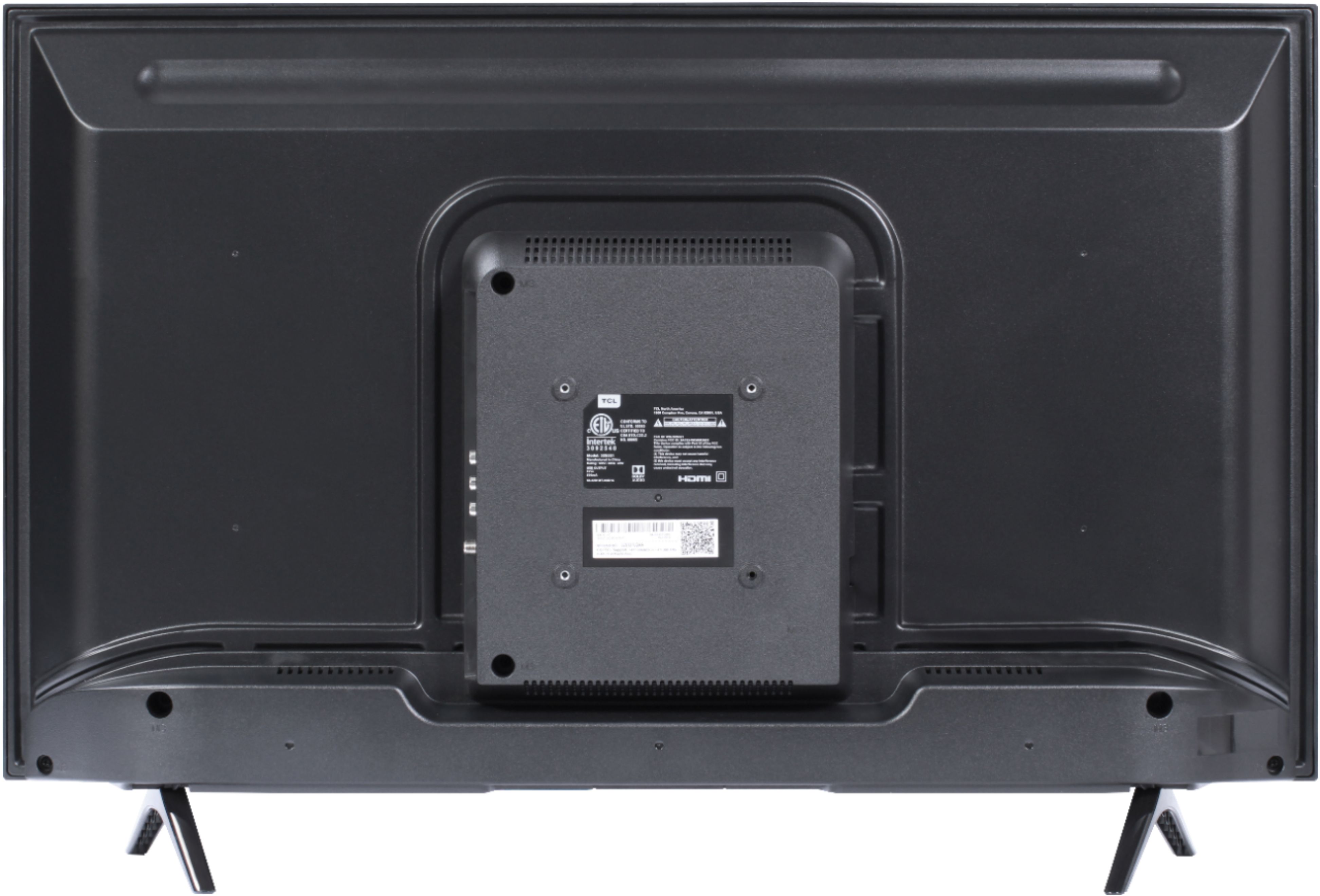
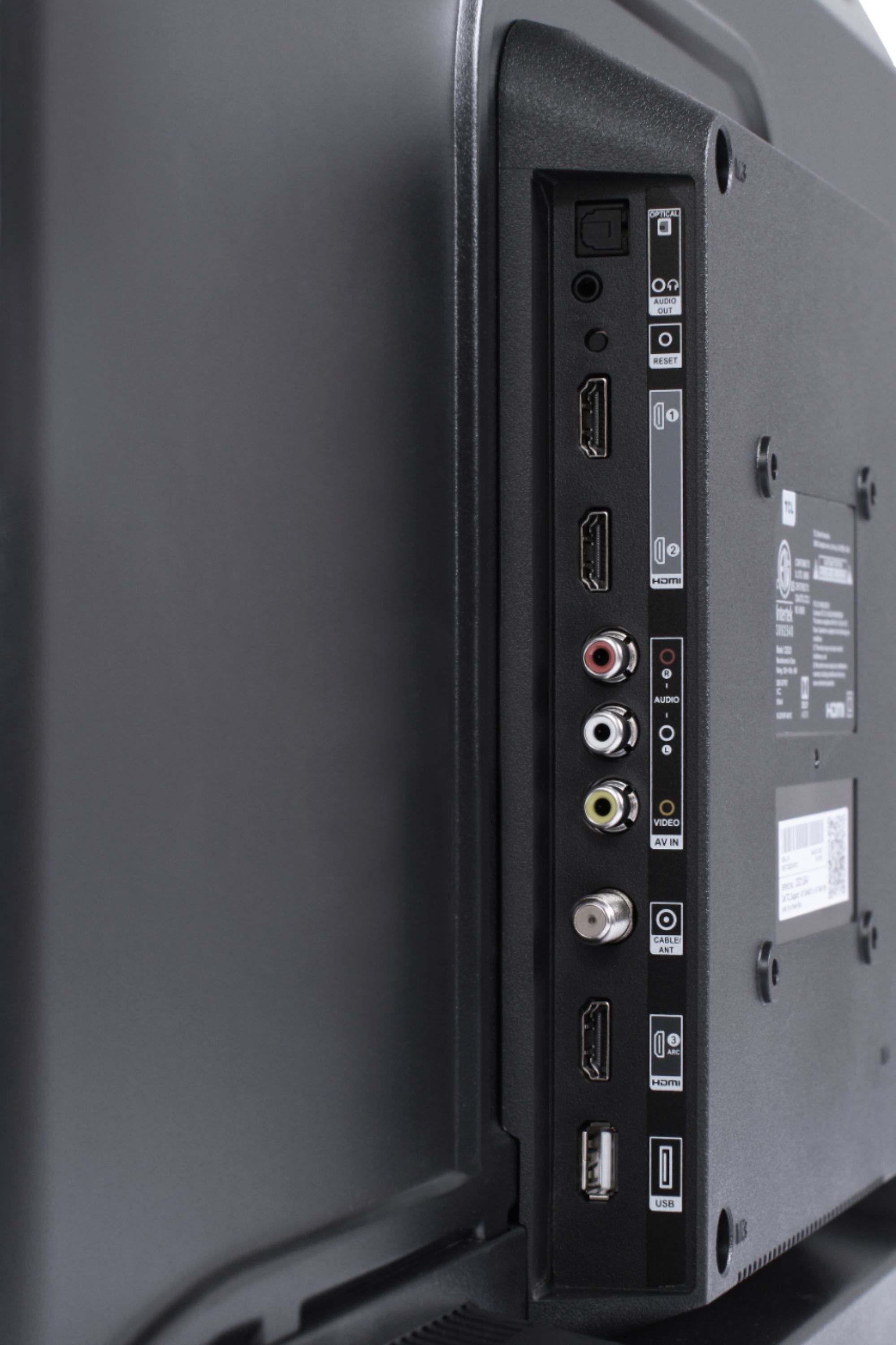
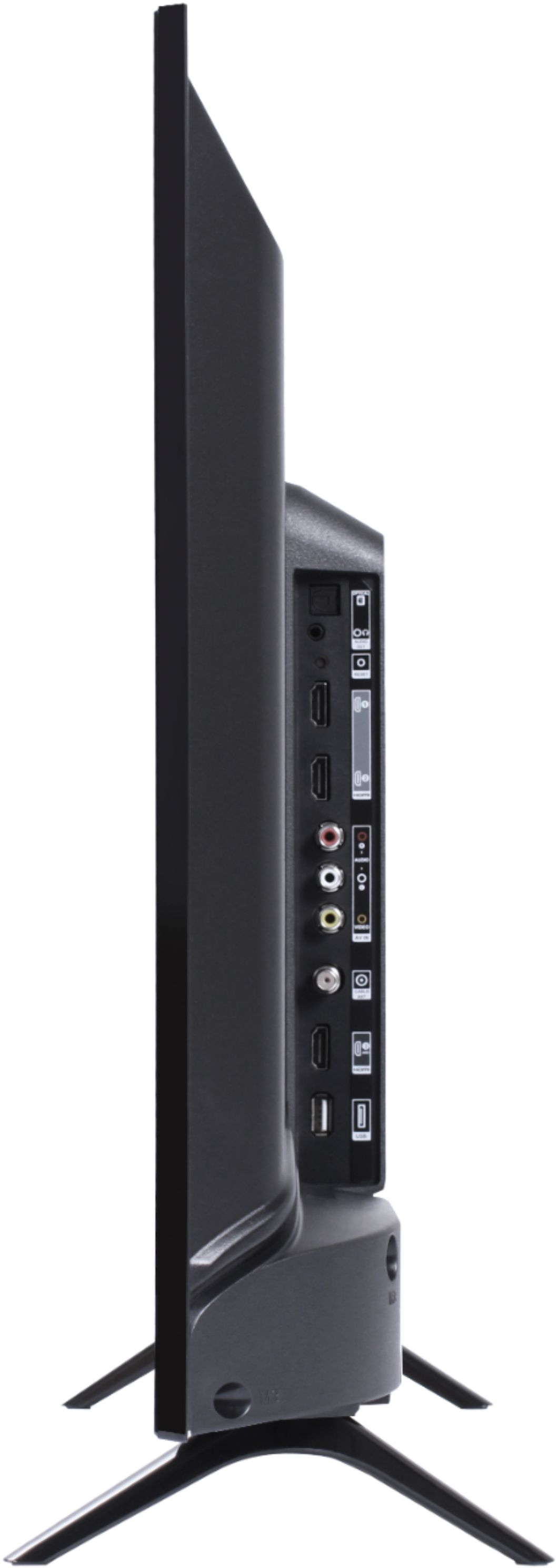
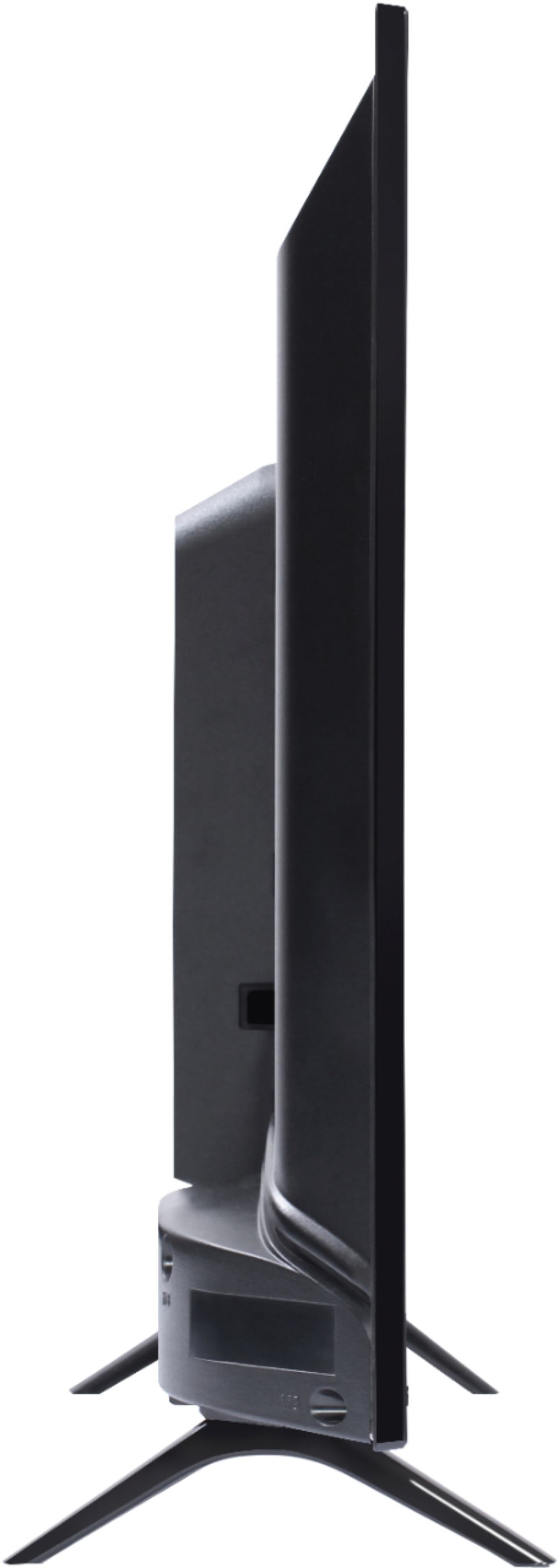
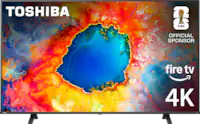
A:AnswerThis TCL Roku TV has the following inputs: Inputs: 3 HDMI (one with HDMI ARC), 1 USB (media player), Coaxial, Composite, Headphone Jack, and Optical Audio Out. Hope this helps! Thank you, TCL Customer Support
A:AnswerThe Xfinity streaming channel is one of the thousands of streaming channels offered through the Roku Channel Store. You can also visit www.roku.com/whats-on to see other streaming channels Roku offers. Hope this helps! Thank you, TCL Customer Support
A:AnswerThis TCL Roku TV is compatible with most wall mounts that support a 100mm x 100mm VESA mounting pattern and utilizes M4 screws. Hope this helps! Thank you, TCL Customer Support
A:AnswerIn order for us to better assist, please reach out to us at [email protected] with your contact information and a description of what you need help with. Thank you, TCL Customer Support
A:AnswerThis TCL Roku TV has various inputs, including HDMI, Composite, and Coaxial, that can be used to connect external devices like a DVD player. You would simply want to make sure that both the TV and DVD player have a compatible input. Hope this helps! Thank you, TCL Customer Support
A:AnswerThis TCL Roku TV is compatible with most soundbars and can be connected via HDMI ARC, Optical, or the 3.5mm headphone jack. Hope this helsp! Thank you, TCL Customer Support
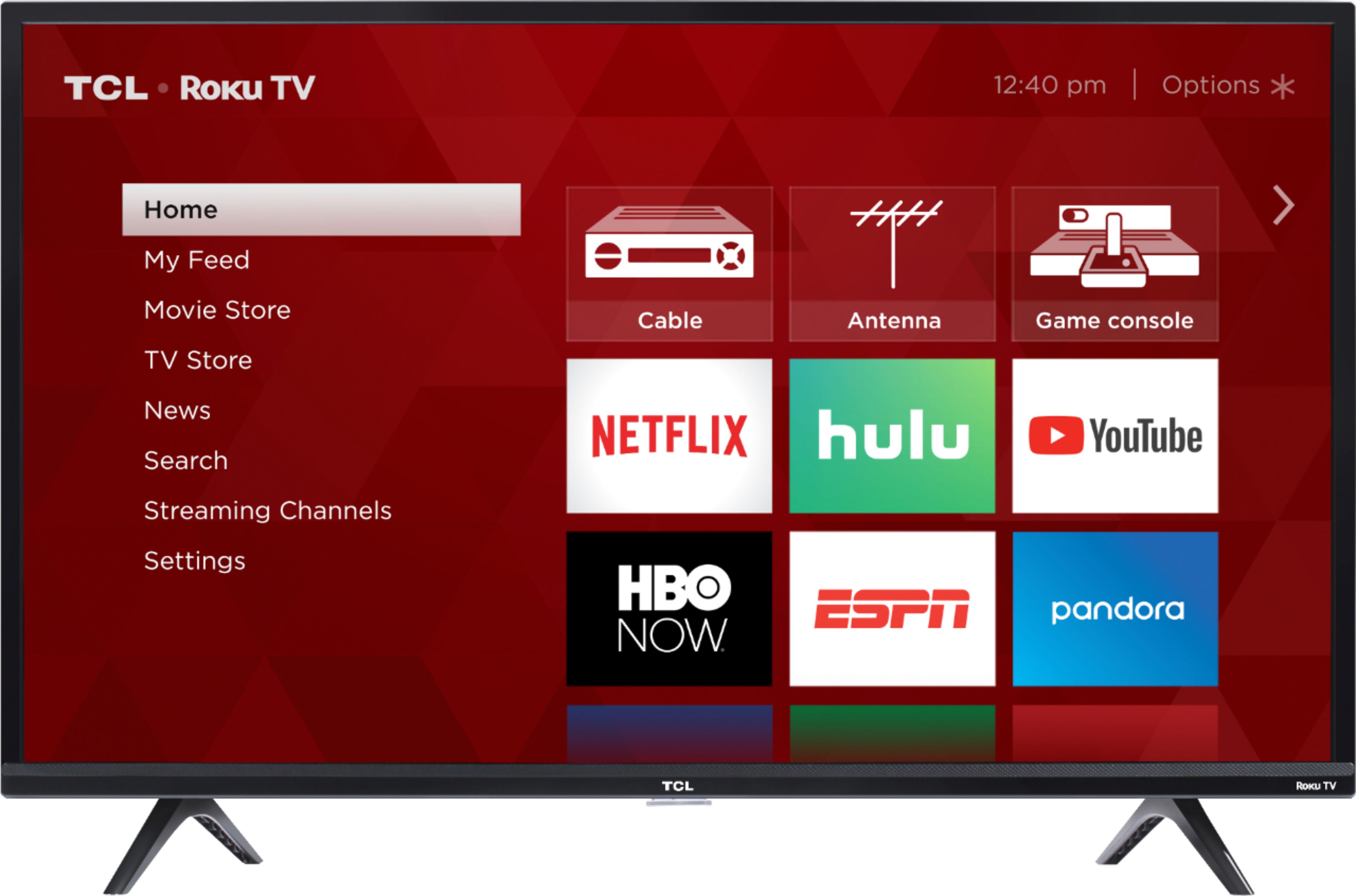
A:AnswerThe physical power button is located under the status light you can see on the front of the TCL Roku TV under the TCL logo. Hope this helps! Thank you, TCL Customer Support
A:AnswerThis TCL Roku TV has the ability to connect to the Internet via WiFi and supports both 2.4GHz and 5GHz. Hope this helps! Thank you, TCL Customer Support
A:AnswerAbsolutely! In order to use the smart features of this TCL Roku TV, you would need to complete the guided setup. This includes connecting to the Internet via WiFi, creating a Roku account (completely free), and activating the TV (completely free). In addition to the smart features, there are also various inputs that can be used to connect external devices like an antenna or cable box. Hope this helps! Thank you, TCL Customer Support
A:AnswerIn order to use the smart features of this TCL Roku TV, you would need to complete the guided setup. This includes connecting to the Internet via WiFi, creating a Roku account (completely free), and activating the TV (completely free). In addition to the smart features, there are also various inputs that can be used to connect external devices like a cable box. Hope this helps! Thank you, TCL Customer Support
A:AnswerYou can go to www.Roku.com/whats-on to see what streaming channels and apps are offered through the Roku Channel Store. To search for a specific channel you would simply want to enter that information into the search section. Hope this helps! Thank you, TCL Customer Support
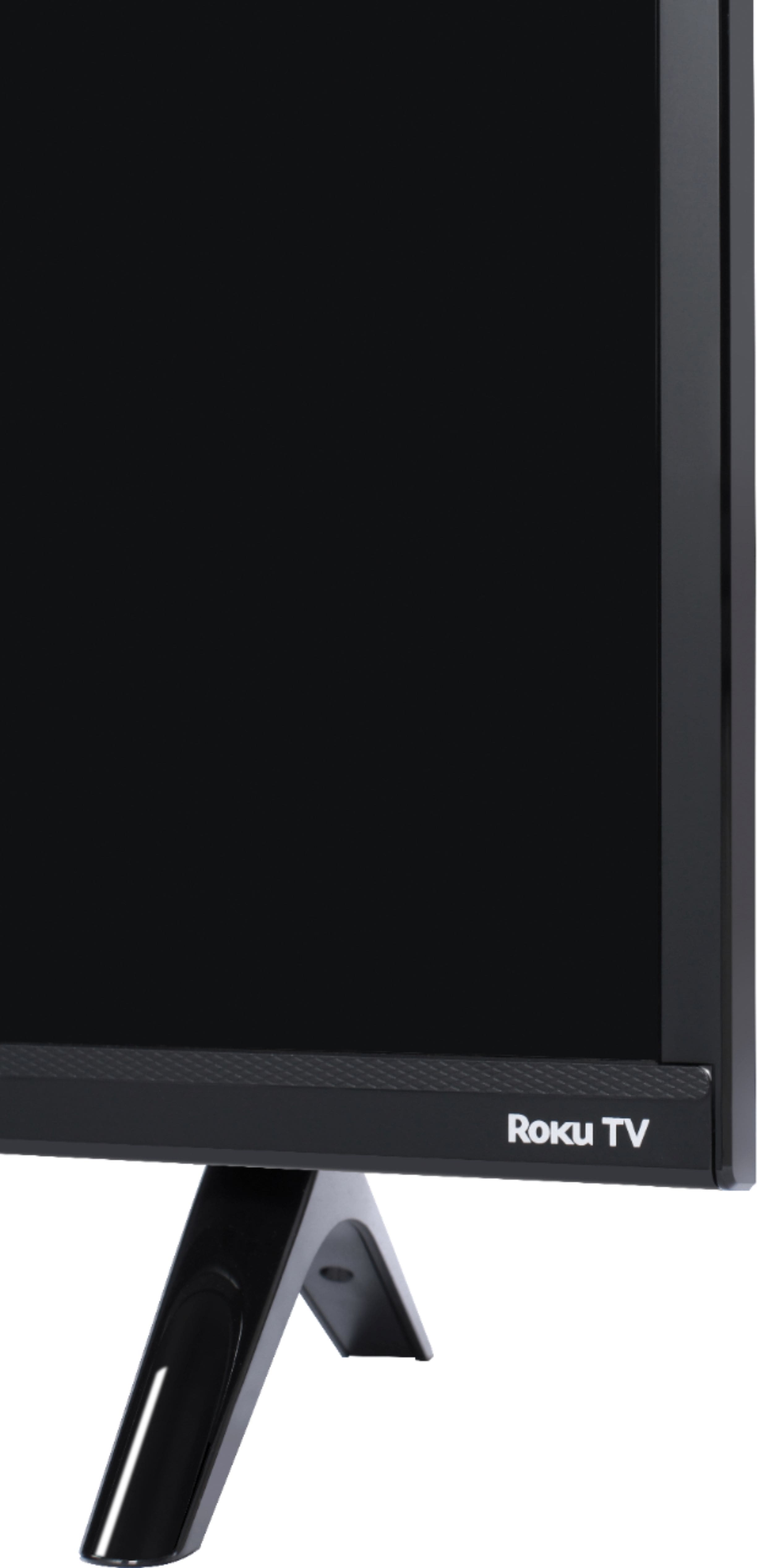
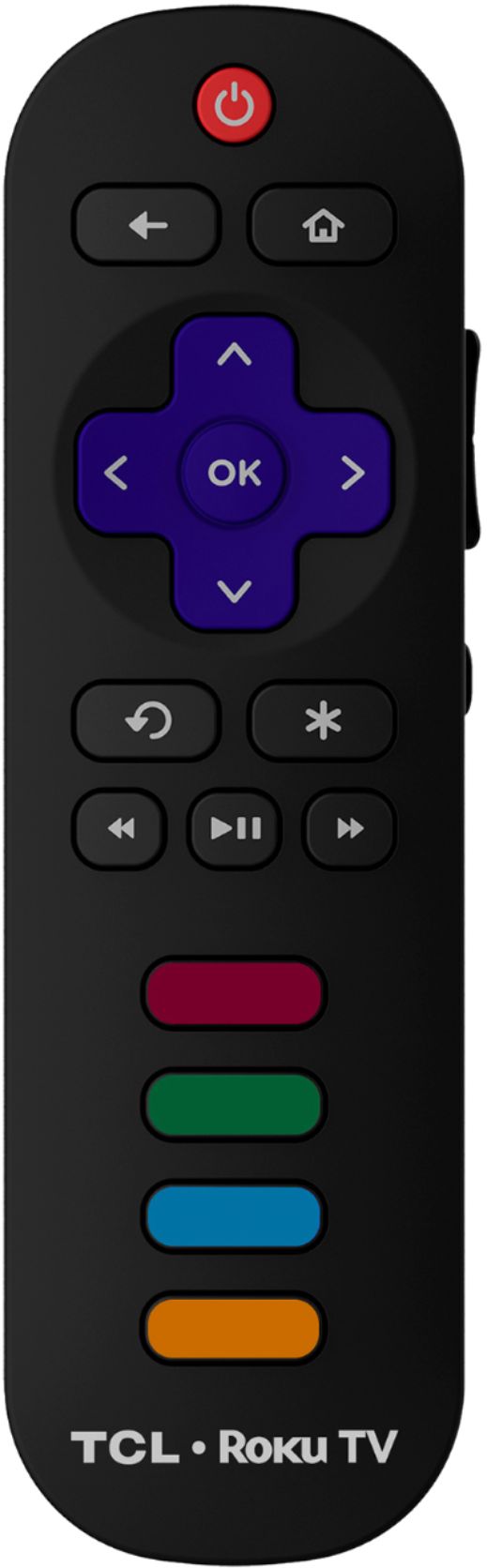
A:AnswerThis TCL Roku TV comes with two feet with screws to secure them, a power cord, a TCL Roku remote with batteries, and a quick start guide. Hope this helps! Thank you, TCL Customer Support
A:AnswerThis TCL Android TV has 1 USB port. It supports the following languages: English, French, and Spanish. Hope this helps! Thank you, TCL Customer Support
A:AnswerIt sounds like your TV may be in "Store Mode". You would need to factory reset the TV and then select "Home Use" during initial setup. You TV can be factory reset by going to Home>Settings>System>Advanced System Settings>Factory reset>Factory reset everything. Hope this helps! Thank you, TCL Customer Support
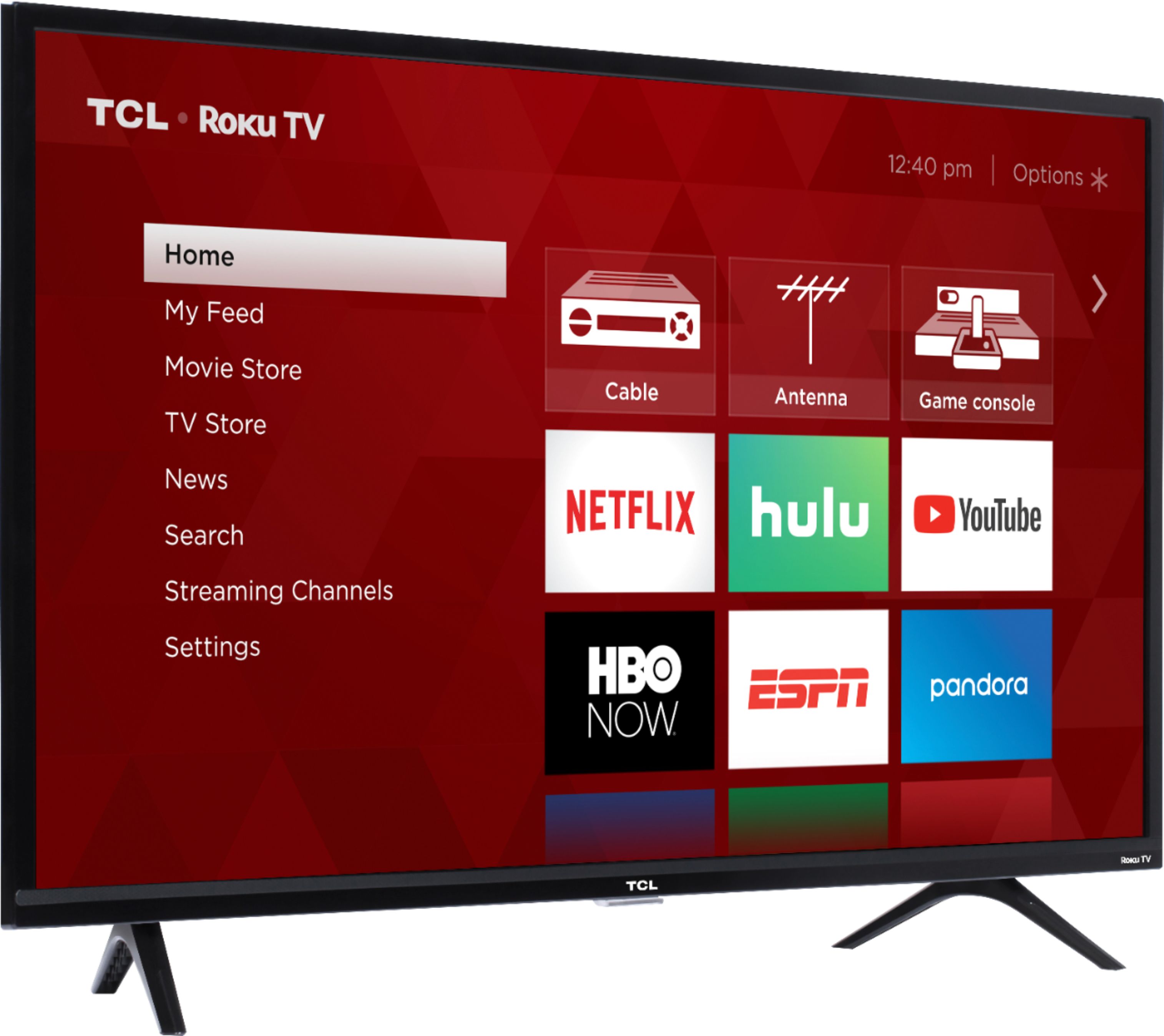
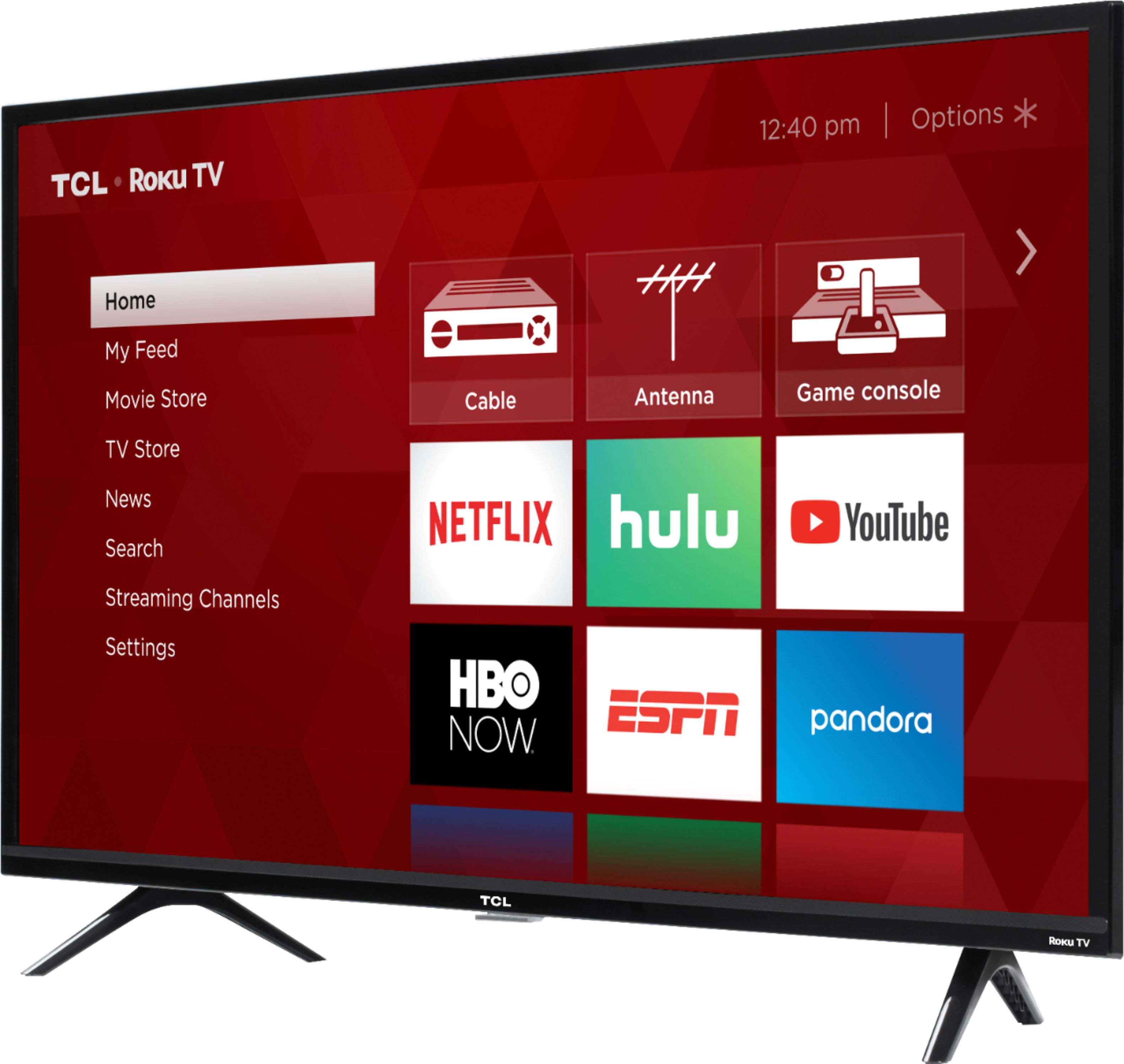
A:AnswerAll of our TCL Roku TVs have Roku operating systems incorporated. There is no need for an addition Roku device. Hope this helps! Thank you, TCL Customer Support
A:AnswerThe Spotify streaming channel is one of the thousands of streaming channels offered through the Roku Channel Store. You can also visit www.roku.com/whats-on to see other streaming channels Roku offers. Hope this helps! Thank you, TCL Customer Support
A:AnswerThis TCL Roku TV comes with two feet with screws to secure them, a power cord, a TCL Roku remote with batteries, and a quick start guide. Hope this helps! Thank you, TCL Customer Support