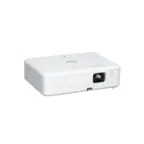
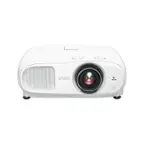
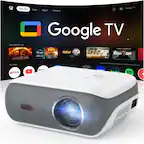
A:AnswerSorry, if you play movies from Netflix or Disney+, I'm afraid that's expected. Since all content on these streaming services, such as Netflix, is classified by the HDCP protocol, our projector does not support streaming movies over mobile devices. On the contrary, you can play Netflix on your computer and mirror the image to the projector via an HDMI cable.
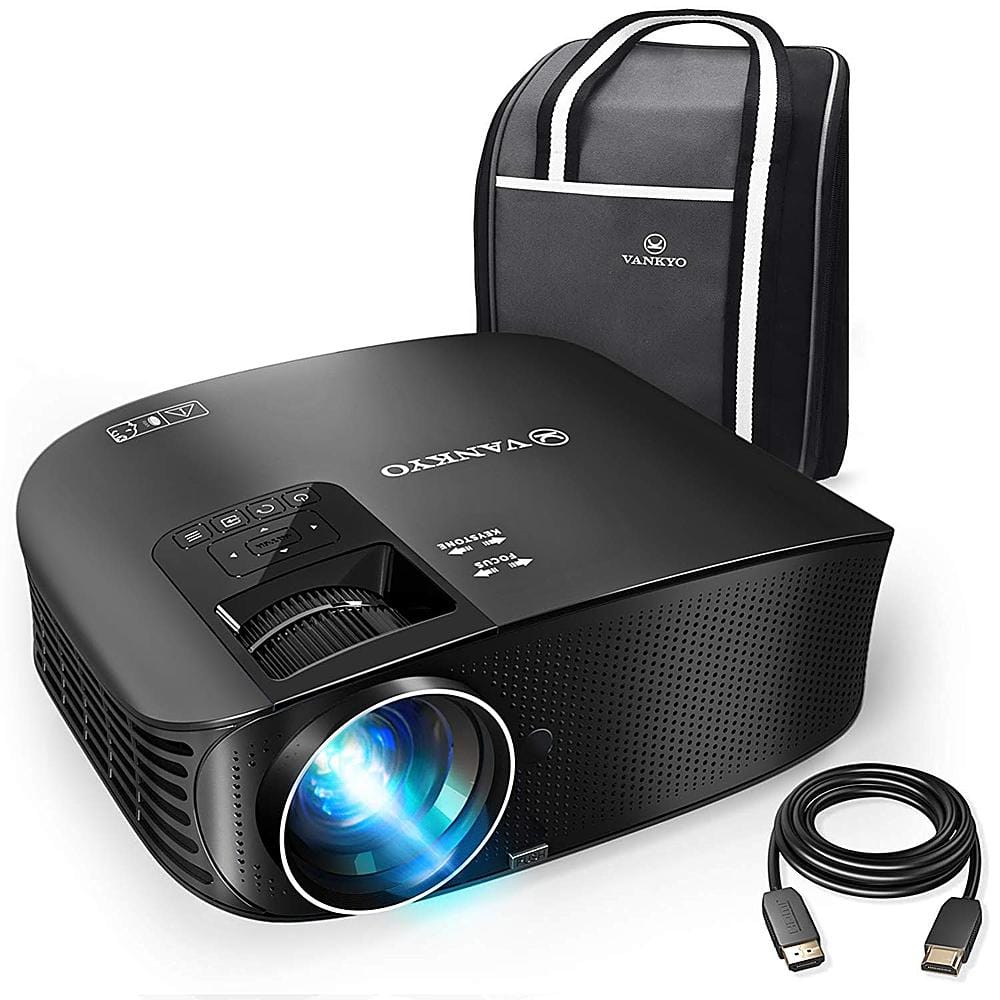
A:AnswerThis projector support displaying PowerPoint files when a computer is connected to it, but kindly note that the PowerPoint file is opened on your computer and the remote cannot be used to control it.
A:AnswerHi Chris, could you please reach out to our support at [email protected] to ask for help? Our support will reply to you within 24 hours and we will try our best to solve the problem for you.
A:AnswerHi there,
The projector can be used to project Keynote presentation. As long as you connect your Mac to the projector via an HDMI cable, it will display anything on the laptop screen.
Regards,
Aech
- Vankyo Support Team
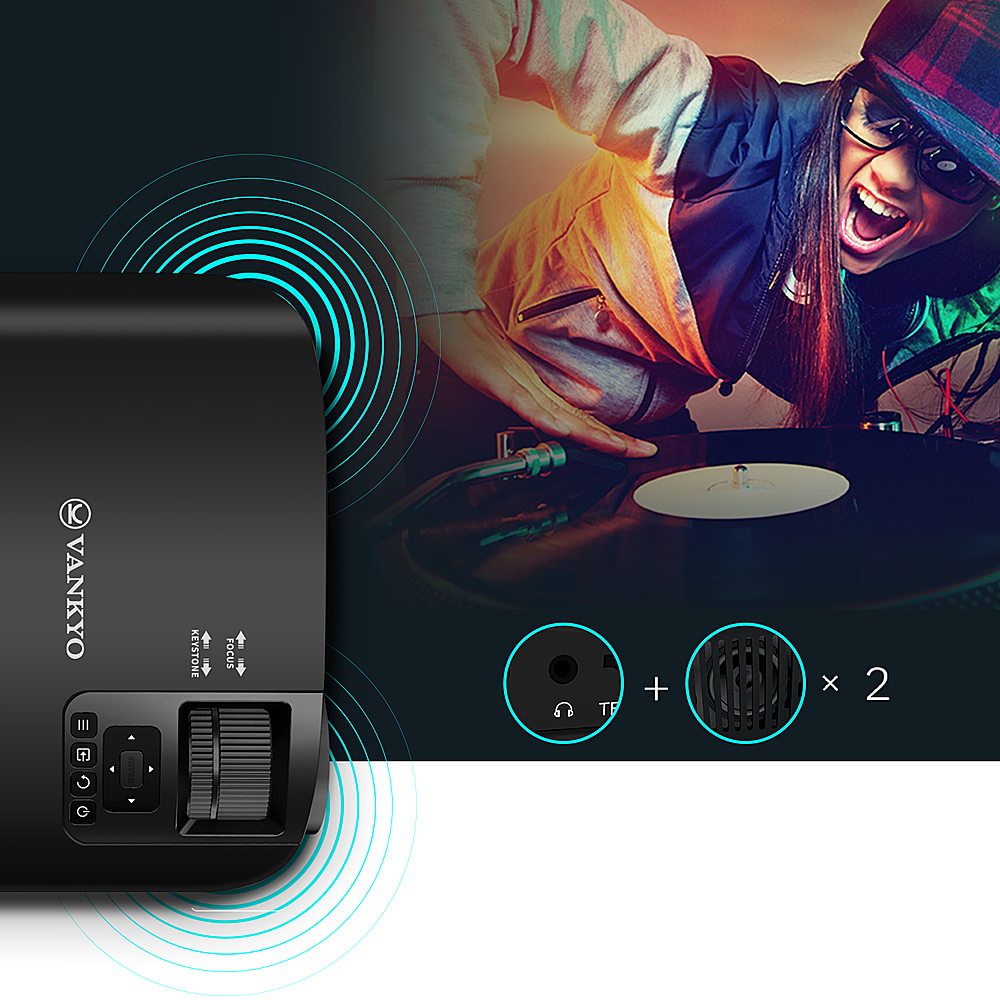
A:AnswerThe projector has a built-in speaker but the volume control is not easily found in the menu. The maximum volume is only loud enough for a smaller audience. Better to use a separate amplifier if you have a larger audience.
A:AnswerSorry, you can only connect an external speaker to the projector via the 3.5 mm headphone jack, not the HDMI port. The HDMI port on the projector is only used to take input from TV sticks, gaming consoles and the like, and it can't be used to connect a soundbar.
A:AnswerHi Sophia, Thanks for asking. Sorry that this projector does not support Bluetooth or wireless screen mirroring. You can connect an external speaker via a 3.5 mm audio jack. To connect your phone with a lightning / USB-C/ USB port to the projector, you need to use an HDMI to USB-C/ lightning/ USB port adapter for your phone. And it's recommended to use an adapter that requires an additional power supply.
While using the adapter for connection, the adapter itself also requires an additional power supply. Here are the detailed steps to connect your phone to the projector.
1. Turn on your mobile device and projector.
2. Prepare an HDMI adapter according to the port your phone has.
3. Connect the HDMI port of the cable to the projector.
4. Connect the other end with the port of your mobile device.
5. Select HDMI as the input source on the projector.
Hope this could help you.
- Vankyo Support Team
A:AnswerHi there, thanks for asking. Please note that this projector does not support connecting to WiFi. Therefore, you cannot find a MAC address on this item.
- Vankyo Support Team
A:AnswerSorry to tell you that there is no separate bulb for sale at the moment, and it is not suggested that you replace the bulb yourself.
For further arrangements, please email us your order number/ a copy of the receipt, and a picture showing the issue at [email protected] or call at 1-800-531-0915.
- Vankyo Support Team
A:AnswerHi there,
The Leisure 510 projector can be used for zoom meettings if you connect a laptop to it via HDMI. Also, you can use a 3.5mm AUX cable to connect an external speaker to it.