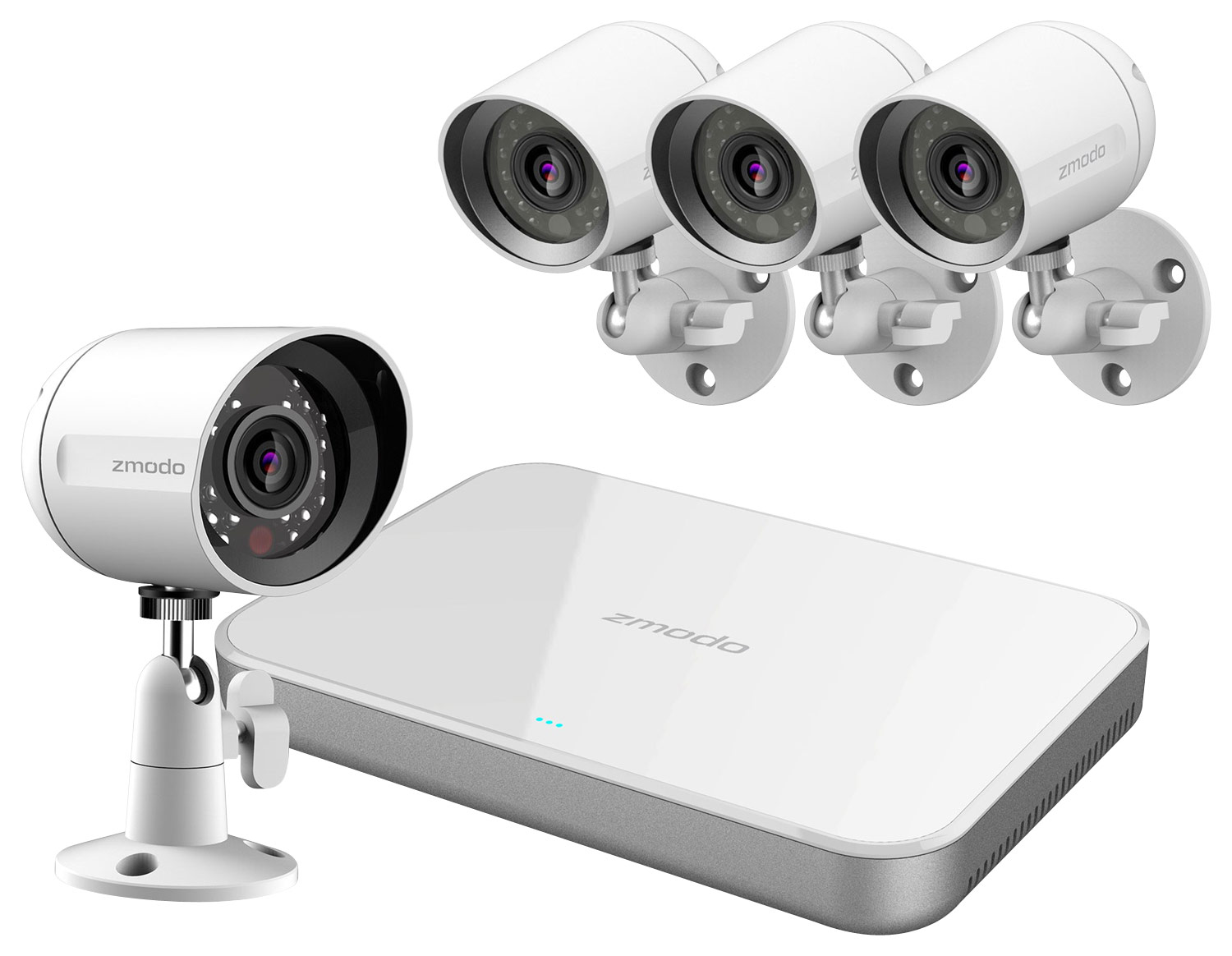
A:AnswerYes, these cameras are powered by our sPoE technology. The cameras connect to the back of the NVR with a provided network cable that will send both power and video to the cameras. You can substitute your own Cat5 or Cat6 cable for longer runs, if needed.
A:AnswerYes, these system uses network cables from each camera to the back of the NVR to provide power and video. If you connect the NVR to a monitor, you don't need WiFi or high speed internet.
A:AnswerYou can access the video feed on any web browser by going to user.zmodo.com and entering the same username and password that you use on the app.
A:AnswerYes! There is an HDMI port to connect the NVR to a TV or monitor. Most laptop's HDMI ports are for video out, so please check your laptop's specifications to make sure it will work.
A:AnswerIt has smart recording options. You can have it record constantly, or just certain times of the day, or just when motion is detected if you want to save HD space on the NVR.
A:AnswerYes, through our free smartphone app (simply called Zmodo) you can access the cameras any time on your Android or IPhone. You can set up the system so that an alert is sent to your phone whenever motion is detected.