Customer Ratings & Reviews
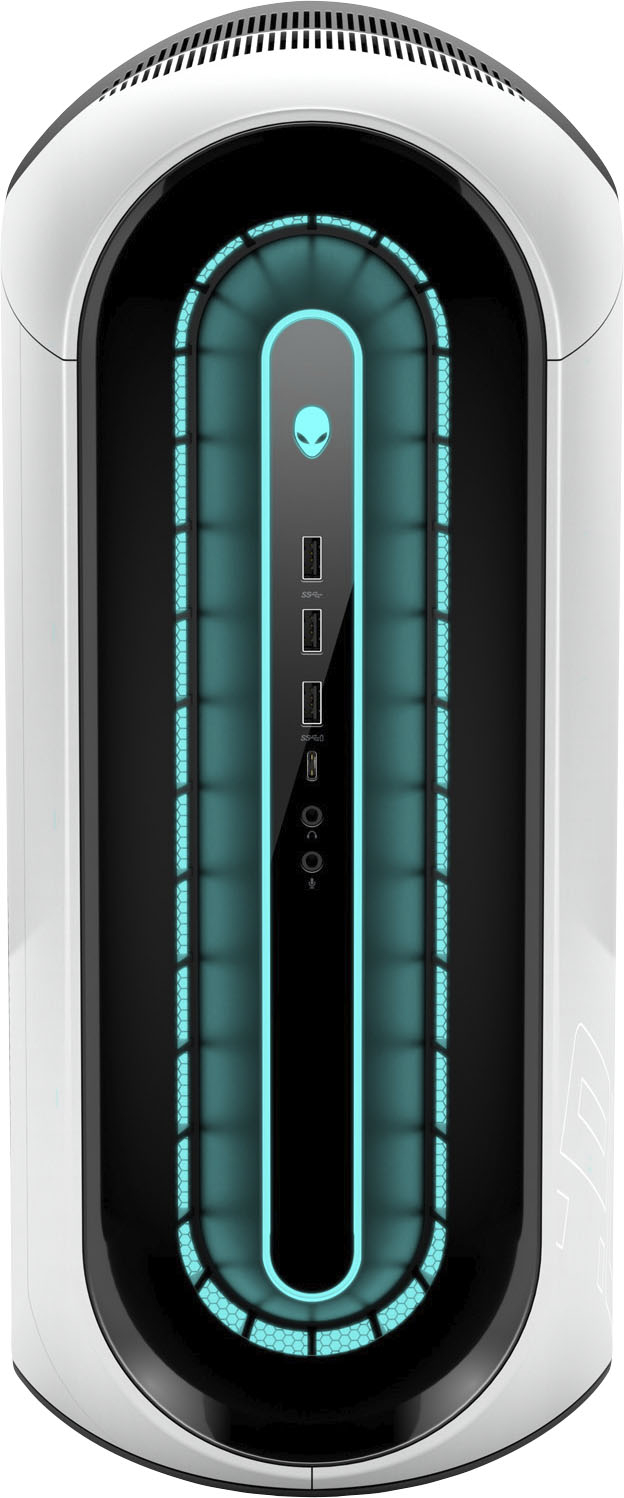
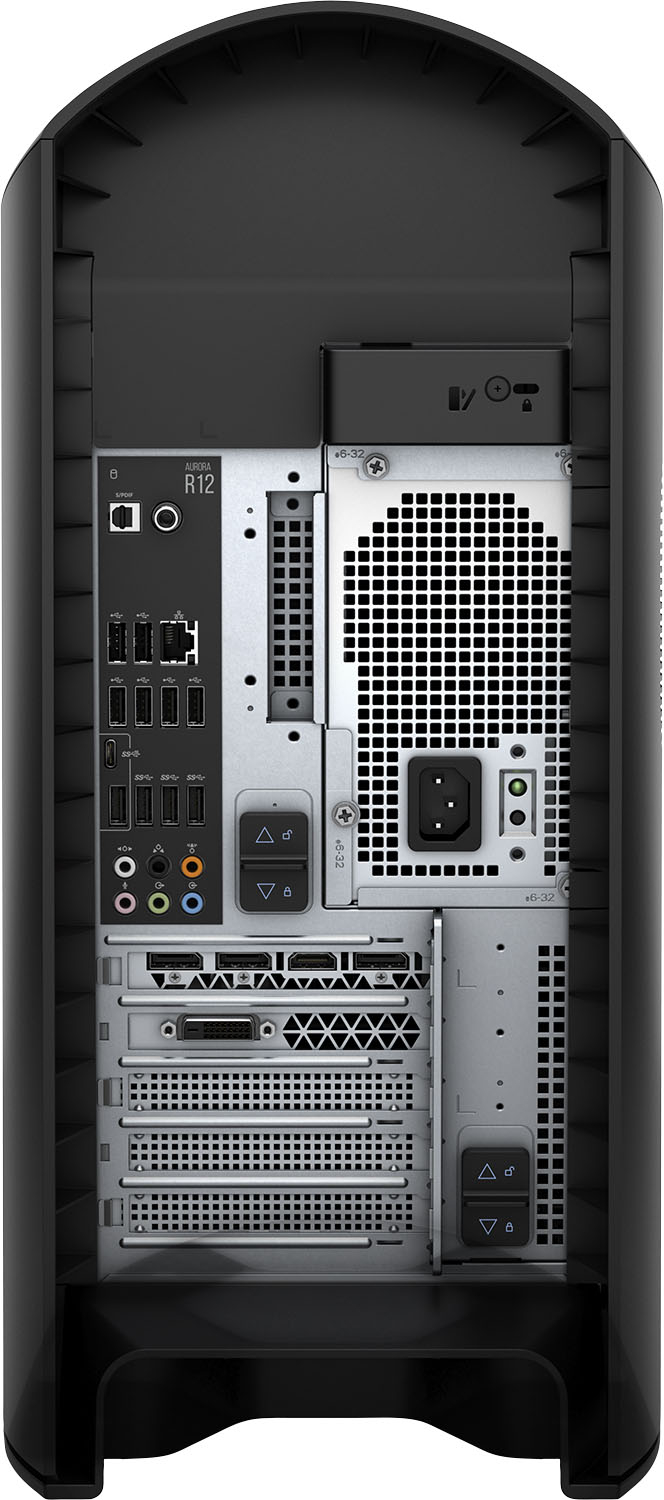
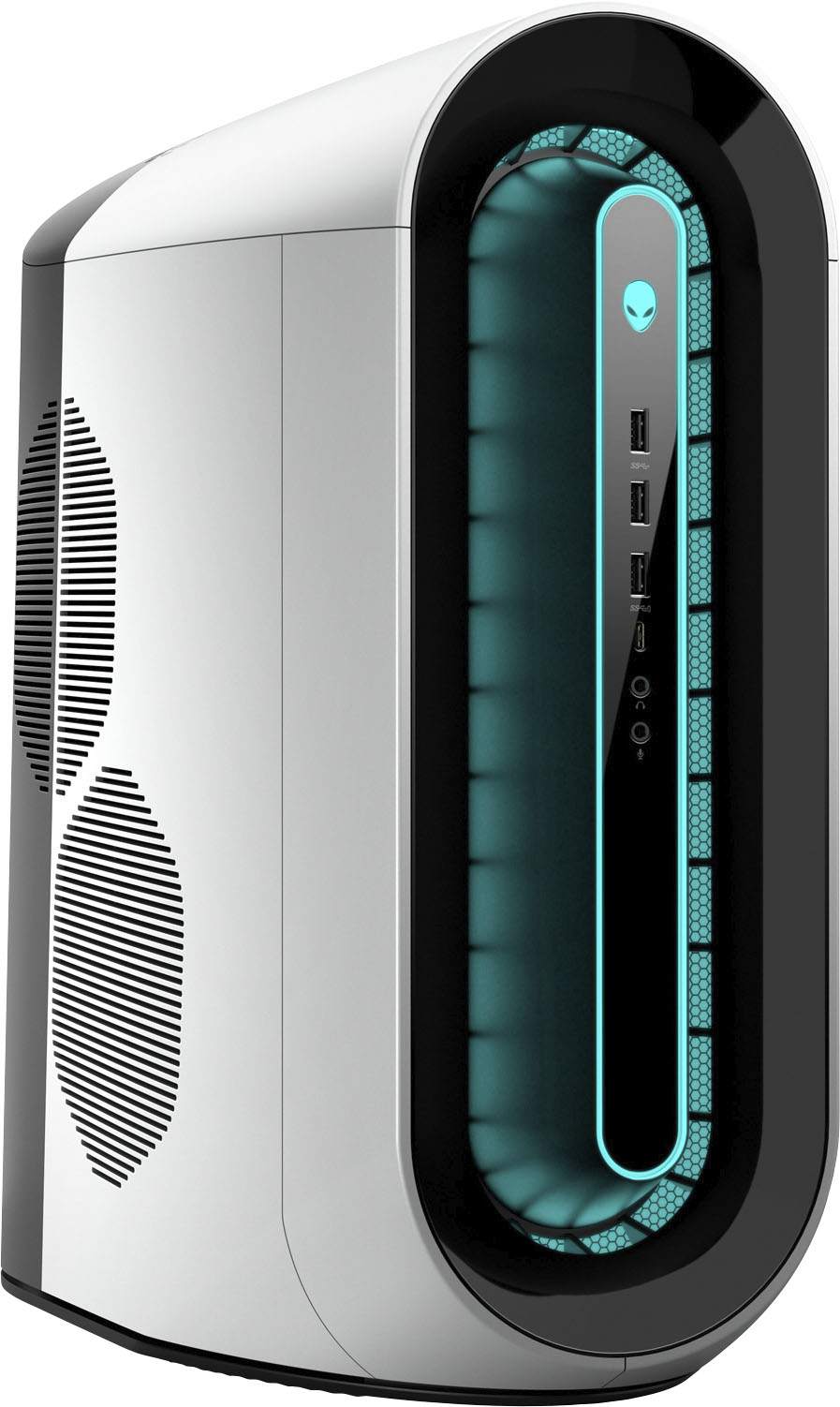
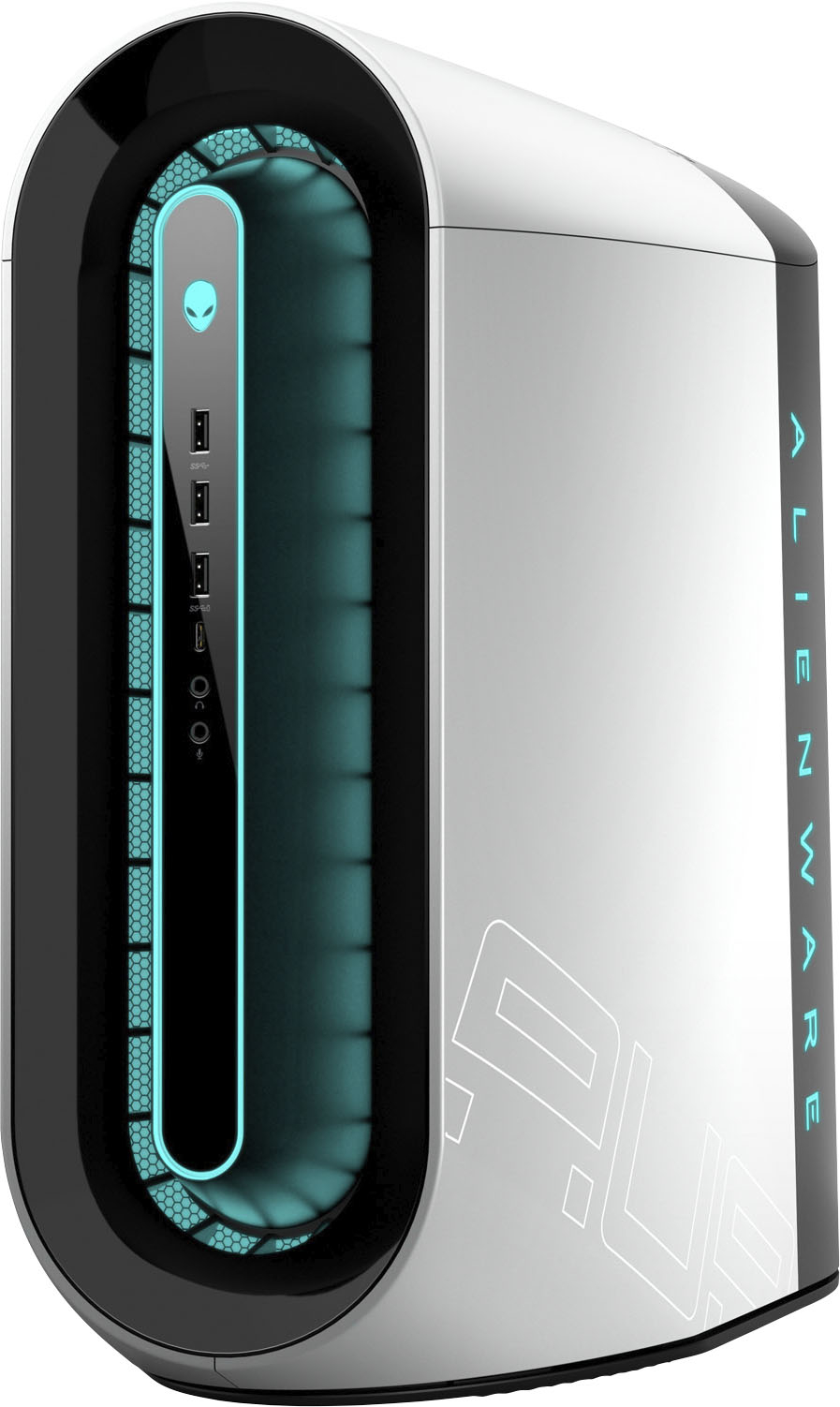
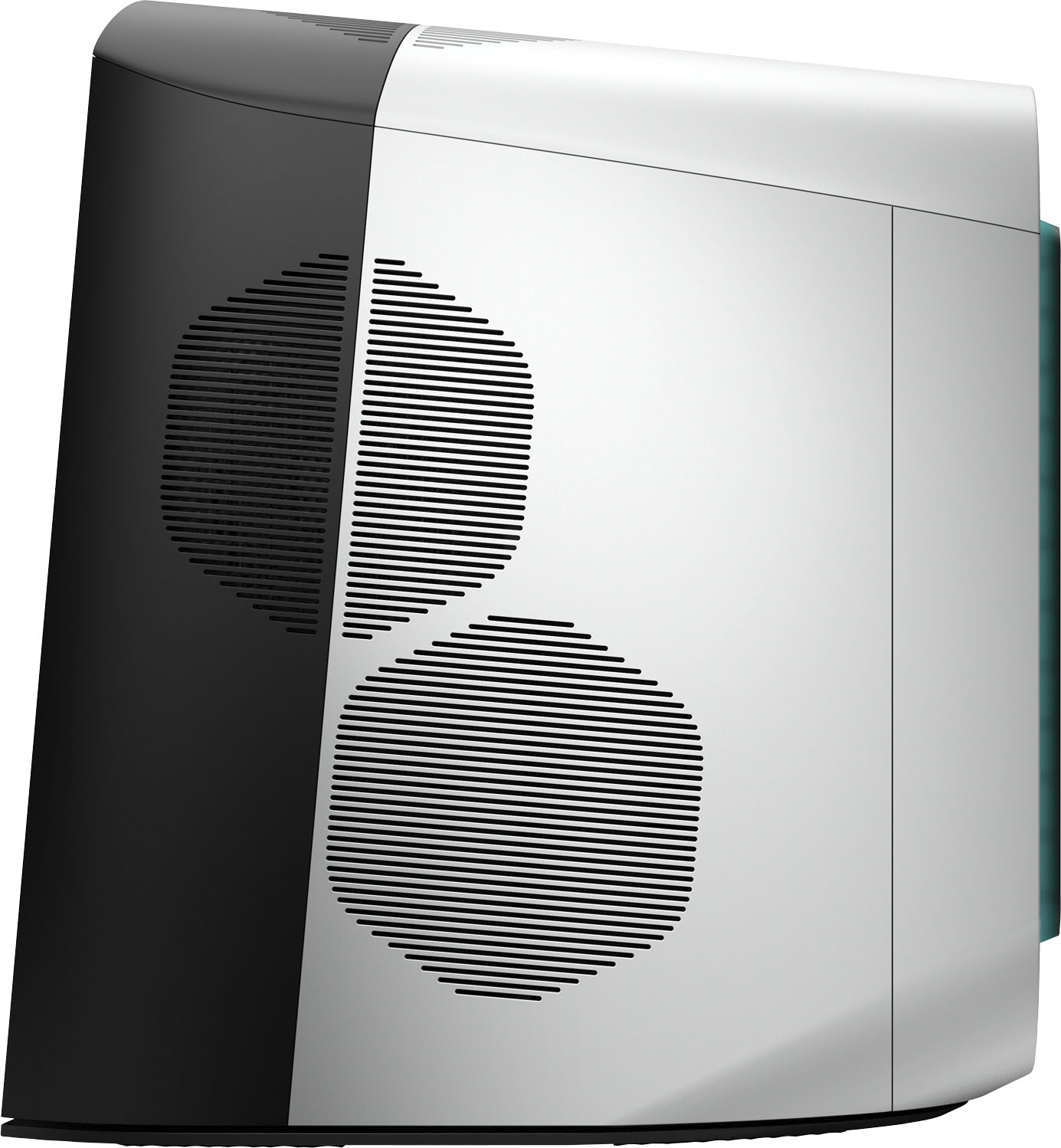

- Model:
- AWAUR12-7139WHT-PUS
- SKU:
- 6479038
Rating by feature
- Value
Rating 3.7 out of 5 stars
- Quality
Rating 3.7 out of 5 stars
- Ease of Use
Rating 4.3 out of 5 stars
Customers are saying
Customers consistently note the Aurora R12's powerful graphics card, enabling smooth gameplay at high settings. However, many express concerns regarding the system's cooling capabilities and resulting high temperatures and noise levels during intensive use. The system's overall performance is praised for its ability to handle demanding tasks. While some users find the fan noise noticeable under load, others highlight the excellent performance in gaming.
This summary was generated by AI based on customer reviews.
Not happy, I had to return it
||Posted . Owned for 1 week when reviewed.This reviewer received promo considerations or sweepstakes entry for writing a review.Graphic card was not working as it should. PSU will make a clicking sound every once in a while
No, I would not recommend this to a friendBrand response from YourDellTeam
Posted .Dear Carlosfl,
Thank you for your valued feedback. We apologize for the trouble you had with the graphics card of your Alienware Aurora R12 not working. We will share your comments with our quality team so improvements can be made to current and future products.
If you require further assistance, you can contact Dell directly with the information below.
Chat or call: https://bit.ly/DellSupportTeam
Phone number to Dell 1-800-624-9896
Best,
Ashley@Dell
Great for mining ETH
||Posted .This reviewer received promo considerations or sweepstakes entry for writing a review.Non-LHR 3080 under $2200 currently mining at 100.44 Hashrate ETH VRAM was at 102 degrees with 86 mh/s first run, replaced the pads 2.5 mm and added thermal paste to the plate temp is now 86-88 degrees
I would recommend this to a friend- Cons mentioned:Cooling
Over Heats
||Posted . Owned for 1 month when reviewed.This reviewer received promo considerations or sweepstakes entry for writing a review.Graphics card is an NON LHR 3080 and it kicks butt. But the cooling is terrible. It will restart randomly. It runs about 110C and this is not a ideal temp for a gaming PC
No, I would not recommend this to a friendBrand response from YourDellTeam
Posted .Hello Josh,
We would like to thank you for taking the time to provide us with your feedback. We are sorry to hear your Aurora Gaming Desktop is overheating. We understand how frustrating this can be.
To help with this issue, Dell has released an Intel Power Management Utility to help with the overheating that you may be experiencing on your computer. For this package to take effect, the system power plan must be set to Balanced under the Additional Power Settings. Also, the Power Mode option that is displayed when you click the battery icon, should be set to Better Performance. This package only takes effect on AC power and not on battery power. The Intel Power Management Utility can be found here - http://dell.to/3tStRgX.
We also recommend that all drivers are up to date. I have provided a link to the drivers and downloads page below, where you can check for any applicable updates.
Drivers and Downloads Page: https://dell.to/3ITKXC9
If your desktop is still overheating after applying the troubleshooting tips above, please contact the Dell Support Team for further guidance at 1-800-624-9896.
Best,
Katarina@Dell
Should you need further assistance, you can contact Dell directly with the information below.
Chat or call: https://bit.ly/DellSupportTeam
Phone number to Dell 1-800-624-9896
Awesome gaming experience
||Posted . Owned for 1 month when reviewed.This reviewer received promo considerations or sweepstakes entry for writing a review.Has everything and really nice looking materials and has everything you need for years
I would recommend this to a friend- Pros mentioned:GpuCons mentioned:Cooling, Noise
worth it
Posted .This reviewer received promo considerations or sweepstakes entry for writing a review.pros: mid tower case strong wifi card RTX 3080 beautiful exterior ascetics, especially with the ring lights in the front where the black r10 model does not have the ring lights. cons: air cooled when liquid cooled is much more preferable the mobo looks from the early 2000s, just looks old quite loud w/ heavy loads cannot fit larger gpus OEM cpu cooler with the tiniest amount of thermal paste no hdmi on the mobo, requires gpu for display Biggest complaints I see is that it gets loud and hot during heavy loads and thats true but you can get a low profile aftermarket cooler. The liquid cooled version of this PC is much better for thermals.
I would recommend this to a friend sad
Posted .This reviewer received promo considerations or sweepstakes entry for writing a review.MY GPU has low usage and my cpu is overheating waste of money
No, I would not recommend this to a friendBrand response from YourDellTeam
Posted .Hello MARCOS,
Thank you for taking the time to leave us your review. We sincerely apologize for the overheating issue you are experiencing with your Alienware Aurora R12. Your feedback about discrepancies in our products helps us improve with future developments. Below I have provided troubleshooting instructions with the full article that can help resolve this issue.
Here are the steps to help resolve your issue:
1. Make sure the system is in a well-ventilated area.
2. Use laptops on flat surfaces to improve airflow. Hard table tops are recommended and avoid using any type of cloth or any other soft material under the laptop.
3. For desktop systems make sure there is enough clearance around the system to allow the air to flow. If the system is in an enclosure try to move it to a more ventilated area for testing.
4. Check that the air vents are clean and that there is nothing obstructing them.
5. Update your system BIOS to the latest available in Dell Support Site.
6. You can reset your BIOS settings to undo any changes that could be causing the system to overheat.
7. Disable NVIDIA G SYNC and run a stress test using SupportAssist.
8. Navigate to the Thermal Controls in the Alienware Command Center, which is found under the Fusion tab. There you can adjust thermal control of system fans and change the status of active venting. This link is for the Alienware Command Center Quick Guide, where you can find a video to explain how to use the Manual Mode for the Thermal Controls: https://dell.to/3nZtYDm.
You can read the full article to help minimize high temperatures here: https://dell.to/3nmRfiZ
After utilizing the troubleshooting options provided above, if the issue is not resolved, please feel free to contact our support team here: 1-800-624-9896.
If you require further assistance, you can contact Dell directly with the information below.
Chat or call: https://bit.ly/DellSupportTeam
Phone number to Dell 1-800-624-9896
Best,
Ashley@Dell