Customer Ratings & Reviews


- Model:
- AWAUR12-7419WHT-PUS
- SKU:
- 6499893
Rating by feature
- Value
Rating 4.3 out of 5 stars
- Quality
Rating 4.5 out of 5 stars
- Ease of Use
Rating 4.6 out of 5 stars
Customers are saying
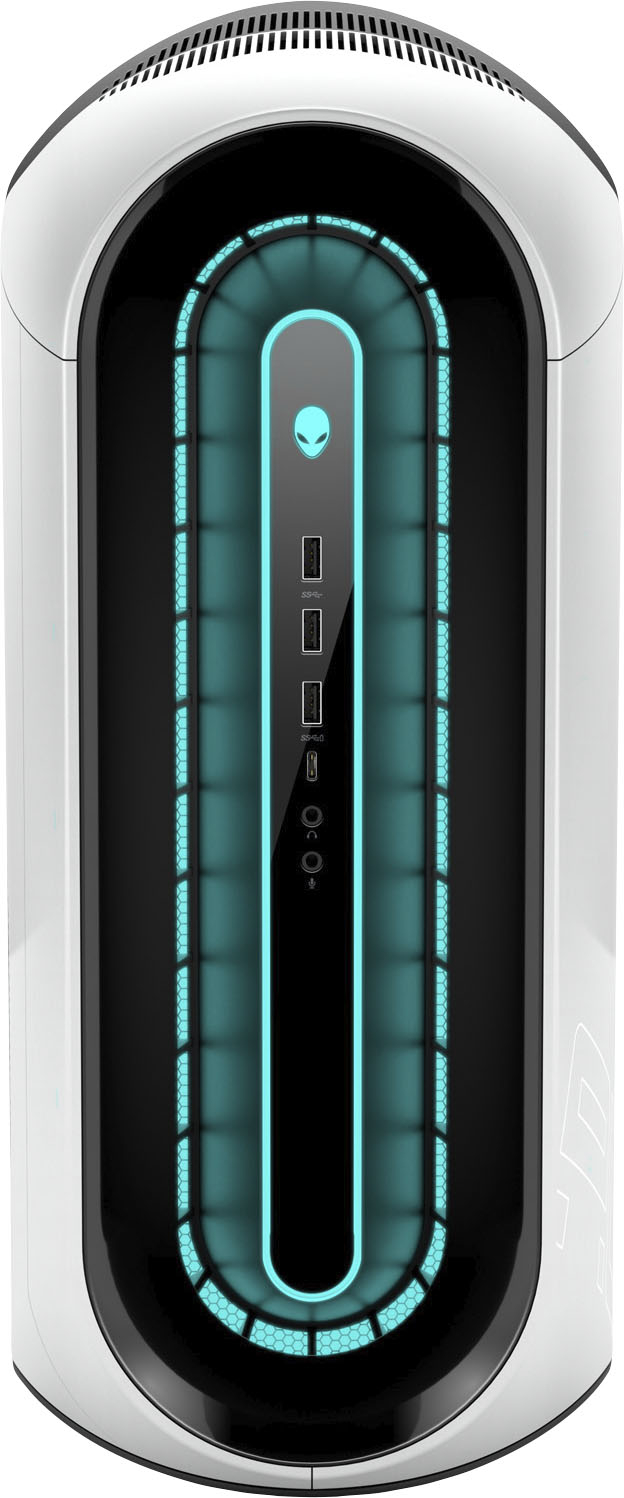
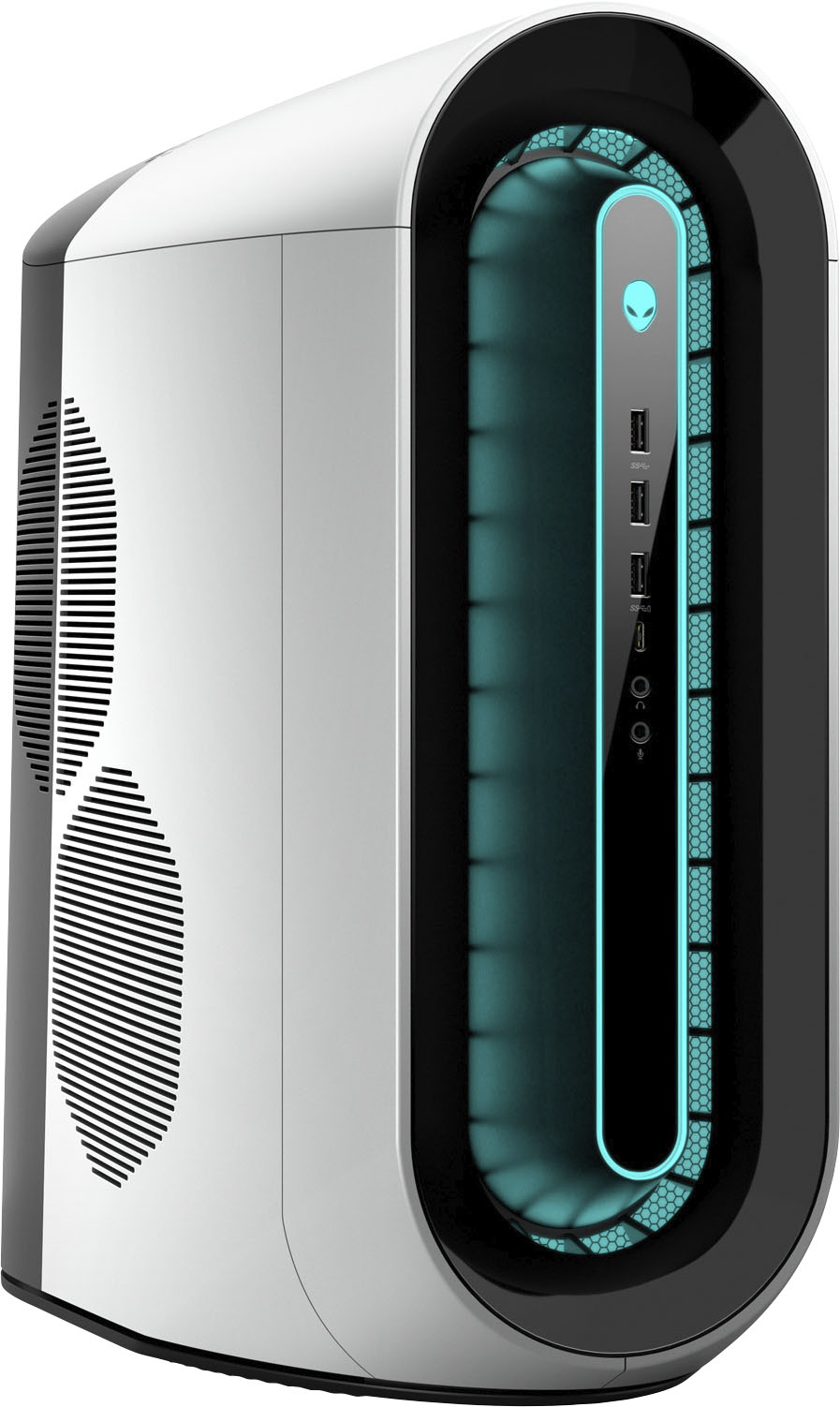
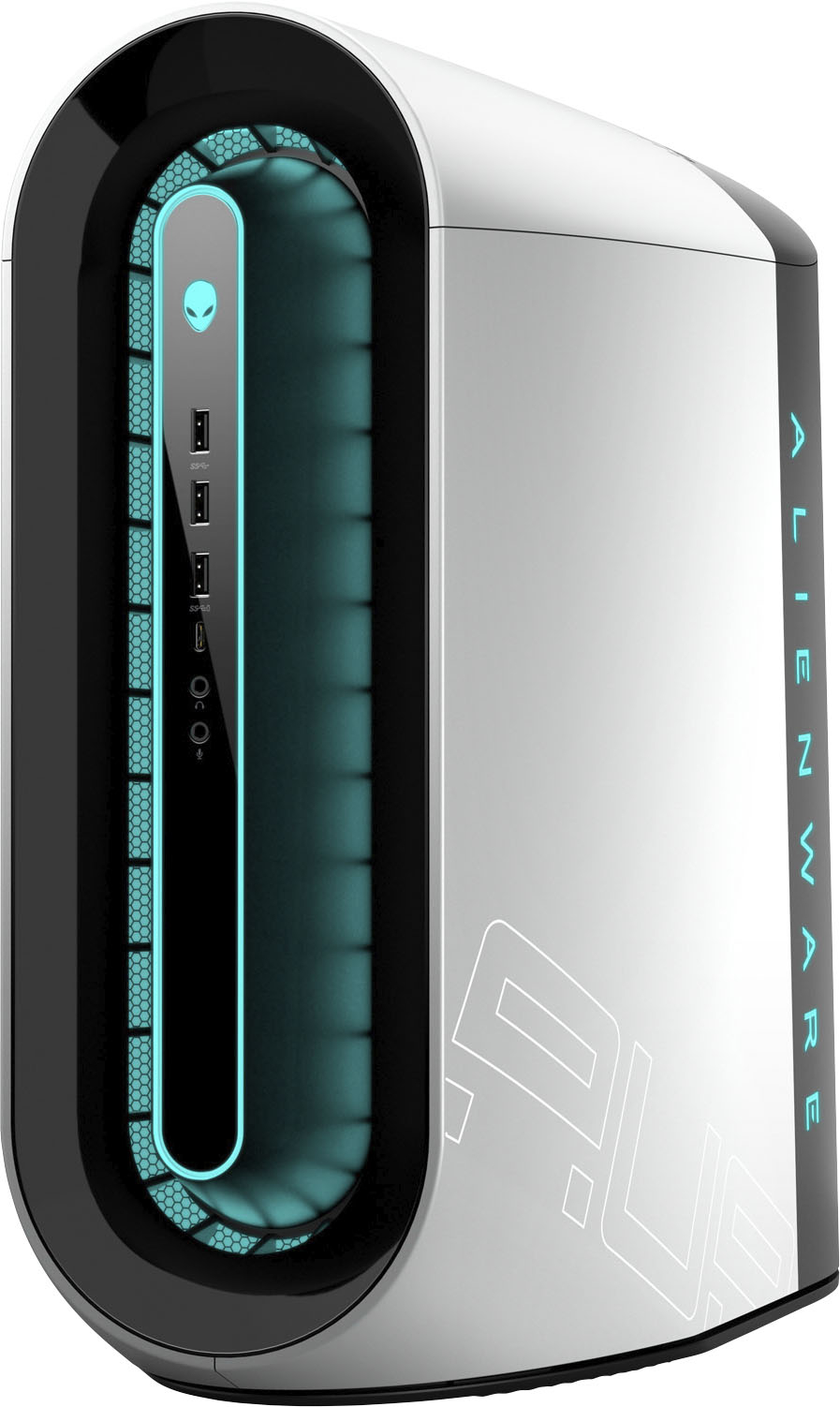
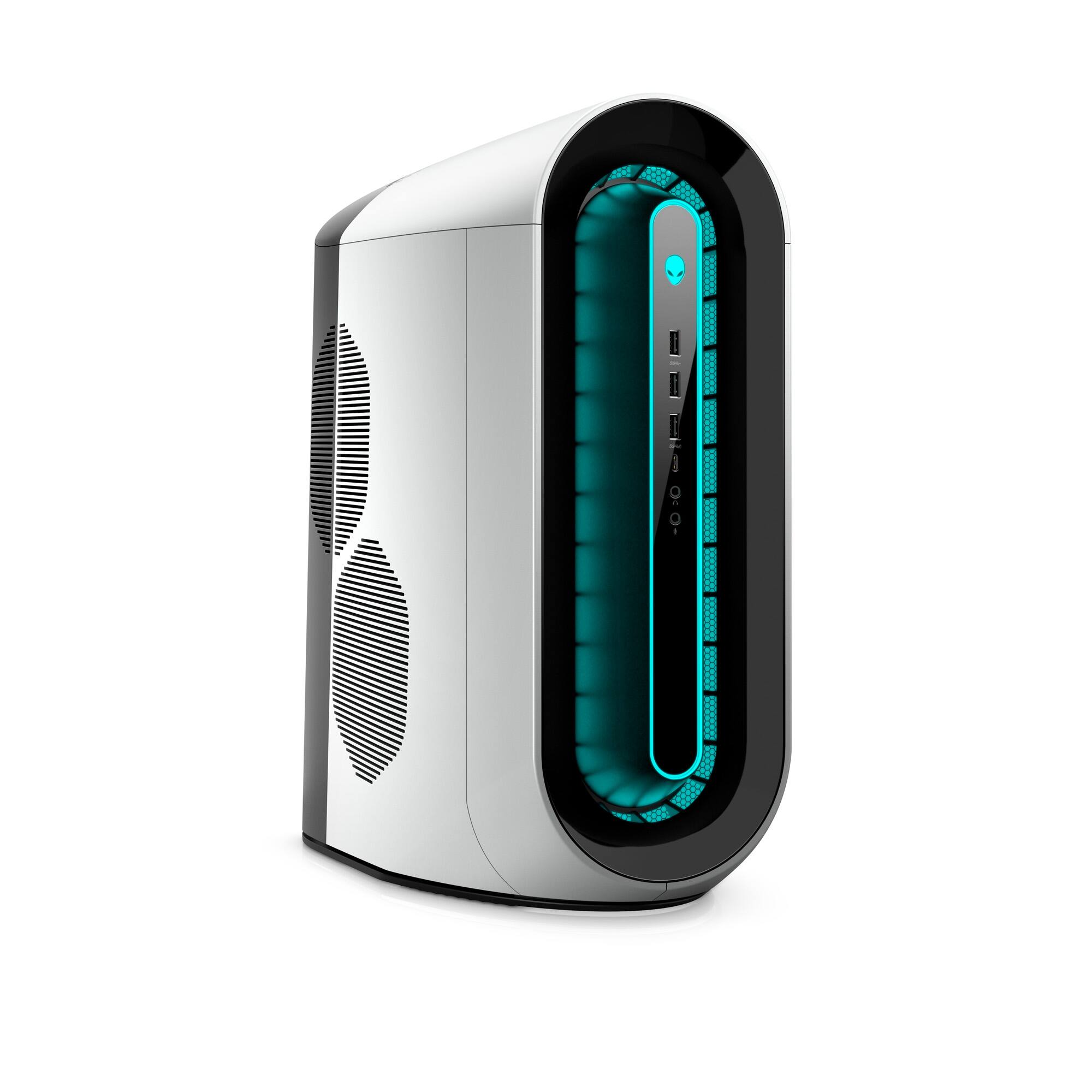
Customers appreciate the Aurora R12's excellent performance and graphics capabilities, frequently praising its speed and ability to run games smoothly at high frame rates. Many also highlight the quiet operation and effective cooling system. However, some users express concerns regarding the limited RAM and potential issues with the motherboard.
This summary was generated by AI based on customer reviews.
Son thinks it looks cool
||Posted .This reviewer received promo considerations or sweepstakes entry for writing a review.Love the look. Our son has wanted one for a long time.
I would recommend this to a friendHelpful
||Posted . Owned for 3 weeks when reviewed.This reviewer received promo considerations or sweepstakes entry for writing a review.Very helpful, was able to help my find what I wanted
I would recommend this to a friendGreat experience
||Posted . Owned for 1 week when reviewed.This reviewer received promo considerations or sweepstakes entry for writing a review.Excellent product, curbside pickup likewise very good.
I would recommend this to a friendAlien
||Posted . Owned for 1 week when reviewed.This reviewer received promo considerations or sweepstakes entry for writing a review.Nice computer., I absolutely recommend it, good job.
I would recommend this to a friendWould not recommend
||Posted . Owned for 8 months when reviewed.This reviewer received promo considerations or sweepstakes entry for writing a review.Man this pc came out the gate with problems wouldn't work its graphic cards was a disappointment wouldnt update or work
No, I would not recommend this to a friendAlienware
||Posted . Owned for 10 months when reviewed.This reviewer received promo considerations or sweepstakes entry for writing a review.after owning this for a while, im very underwhelmed with the performance at this price. don't recommend
No, I would not recommend this to a friendBrand response from YourDellTeam
Posted .Dear OmarA,
Thank you for taking the time to leave a review of your Alienware Aurora R12 Gaming Desktop. We are sorry to hear that you are experiencing an issue with the performance of your device. That is not the type of feedback we like to hear from our customers, or the type of product Dell intends to deliver. We have noted the details of your statement and will use them to improve current and future products. Below I have provided troubleshooting steps to help resolve your issue.
Here are the steps to help you with slow performance issues:
1. Run the automated tools in SupportAssist to ensure that the drivers are up to date and your computer is optimized.
2. Restart the computer
3. Run a hardware diagnostic test
4. Scan your computer for malware
5. Restore the computer using Windows System Restore
6. Restore the computer to factory default settings
You can read the article that can help you with slow performance issues here: https://dell.to/3yqre8r
Should you need further assistance; we recommend that you contact Dell directly with the information below.
Chat or call: https://bit.ly/DellSupportTeam
Phone number to Dell: 1-800-624-9896.
Regards,
Summer@Dell
Overall good
||Posted . Owned for 3 weeks when reviewed.This reviewer received promo considerations or sweepstakes entry for writing a review.Its good but im having uses with loading websites only on this computer.
I would recommend this to a friendBrand response from YourDellTeam
Posted .Hello Sellers,
We would like to thank you for taking the time to provide us with your feedback. We are glad you like your Alienware Aurora R12 but we are sorry to hear that you are having issues with loading web pages. This is certainly not the experience that we like to hear from our customers. We appreciate your feedback and will use it to help improve our current and future products.
Below I have provided the steps that should help with this issue. I have also provided the full article link, which has more options if they are needed. I have also included a link to the Drivers and Downloads page for your PC so you can check for applicable updates to the WIFI drivers.
1. Download and install the latest Wireless Card driver. (https://dell.to/2th3Tpe) After updating the driver, re-establish the connection with the Wireless Access Point and check the wireless performance.
2. If the issue persists, proceed to step 3.
3. Power-cycle the local network. Shut down the Dell system, the Wireless Access Point/Router, and the Modem. Wait a minimum of 60 seconds before powering up the components in the following order:
4. Power ON the Modem and wait for it to boot fully.
5. Power ON the Wireless Access Point/Router and wait for it to boot fully.
6. Power ON the Dell system.
7. Open Network and Sharing Center
8. In the left-side navigation pane, click on Change Adapter Settings
9. Right-click on the wireless connection icon and select Properties followed by the Configure button
10. Under Wireless Options, select the Wireless N mode
11. For Windows 8 or later systems click the Advanced tab and look for 802.11n Mode on the right you will be given the option to Enable or Disable. If the mode is not visible you may need to update your drivers and firmware.
12. From the drop-down menu, choose Disable followed by Ok
13. This should restore the wireless download and upload speed. Internet speed can be tested at http://speedtest.net
Full article link: https://dell.to/2RefLVN
Drivers and Downloads Page: https://dell.to/3M3CpKJ
After utilizing the troubleshooting options provided, if the problem persists, please reach out to our support team for further guidance here: 1-800-624-9896.
Best,
Katarina@Dell
Should you need further assistance, you can contact Dell directly with the information below.
Chat or call: https://bit.ly/DellSupportTeam
Phone number to Dell: 1-800-624-9896
idek what i just bought. a PcOrA ps4 at this point
||Posted . Owned for 1 week when reviewed.This reviewer received promo considerations or sweepstakes entry for writing a review.it has one fan.. it reminded me of the ps4 turning on but it wasnt that bad
No, I would not recommend this to a friend- Cons mentioned:Ram
Bottlenecked
||Posted . Owned for less than 1 week when reviewed.This reviewer received promo considerations or sweepstakes entry for writing a review.This machine is loaded with power but disappoints. I believe the issue is the single dimm slot of ram which bottlenecks the machine and causes any cpu/gpu heavy task to just lag.
No, I would not recommend this to a friendBrand response from YourDellTeam
Posted .Hi Jadajord,
We appreciate your feedback and review. We apologize for the issues you have come across with your Alienware Aurora R12 desktop because it is lagging and performing very slowly.
Please make sure you have downloaded the latest system update and that software you are using meets all system requirements. I have provided a link to the drivers and downloads page where you can check for any applicable updates.
Drivers and Downloads Page: https://dell.to/3M3CpKJ
I have also provided some steps you can take that should help with the slow performance issue.
There are several ways to help improve the performance of your computer if it is running slower than you expected it to. We'd recommend the following steps to help improve your computer's overall performance and speed:
1. Restart your computer regularly.
2. Run the automated tools provided in the SupportAssist Tool.
3. Run a complete hardware diagnostic test.
4. Scan your computer for malware.
5. Restore your Dell computer using Windows System Restore.
6. Reinstall Microsoft Windows.
You can read the full steps associated with each of these recommendations here: https://dell.to/3n29QjE.
If the performance issue with your Aurora R12 desktop is still not resolved after utilizing the troubleshooting options above, please contact the Dell Support Team at 1-800-624-9896 for further guidance.
Best,
Katarina@Dell
Should you need further assistance, you can contact Dell directly with the information below.
Chat or call: https://bit.ly/DellSupportTeam
Phone number to Dell 1-800-624-9896
- Cons mentioned:Motherboard
Utterly disappointed
||Posted . Owned for 1 month when reviewed.This reviewer received promo considerations or sweepstakes entry for writing a review.This was sold to me with a bad motherboard. Two weeks after the product was no longer returnable the motherboard failed.
No, I would not recommend this to a friendBrand response from YourDellTeam
Posted .Hi MorganE,
Thank you for taking the time to leave us your review. We are sorry to hear that you are experiencing motherboard issues with your Alienware Aurora Gaming Desktop. That is not the type of feedback we like to hear from our customers. It's important for us to hear about inconsistencies in our products for consideration of future development. If you continue to experience issues, please reach out to Dell Support directly by using the information provided below.
Regards,
Summer@Dell
Should you need further assistance; you can contact Dell directly with the information below.
Chat or call: https://bit.ly/DellSupportTeam
Phone number to Dell: 1-800-624-9896.
Huge Disappointment
||Posted . Owned for 1 month when reviewed.This reviewer received promo considerations or sweepstakes entry for writing a review.Mine keeps freezing and my apps keep crashing. I am not running any demanding games. This unit is struggling to run Roblox. I am very disappointed. This was a gift for my daughter, but now I have to return it.
No, I would not recommend this to a friendBrand response from YourDellTeam
Posted .Hi Youlawn,
We appreciate you taking the time to leave us your review. We are sorry to hear that you are not too happy with your Alienware Aurora R12 gaming desktop because it keeps crashing and freezes up.
Please make sure you have downloaded the latest system update and that software you are using meets all system requirements. I have provided a link to the drivers and downloads page where you can check for any applicable updates.
Drivers and Downloads Page: https://dell.to/3M3CpKJ
For the issues with crashing, I have provided a link below to help troubleshoot and resolve this issue.
Resolutions
1. Run a Computer Diagnostic. To determine if your computer is experiencing a hardware problem, run the Dell Preboot System Assessment (PSA) Diagnostics. For information on how to run Diagnostics, and to determine the issue, refer to Dell Knowledge Base Article: http://dell.to/2iaiujA
2. Check Safe Mode for Symptoms. To boot into safe mode, please follow the instructions below:
a) Start the computer.
b) Tap 'F8' on the keyboard immediately and every one second until the Dell logo screen disappears. From there you will see the Windows Advanced Options Menu on the screen. (If the Windows Advanced Options Menu does not appear, restart the system and try again.)
c) Select Safe mode with Networking and press Enter.
d) Log on as the administrator or as a user with administrative access.
e) Open applications and test the computer in safe mode. If the symptoms exist in safe mode, please continue the troubleshooting steps in this article. If the symptoms do not exist in safe mode, the issue is likely related to a driver or software and you may wish to complete step 3 to see if you are able to resolve the lockups or freezing.
3. Check for Malware. Malware (Virus, Spyware, etc.) can definitely cause a Windows system to lock up or appear to hang. To check for malware on your system and to ensure that your computer is up to date on security software, visit Dell Knowledge Base Article: http://dell.to/2wWP1zI
The computer restarts or shuts down intermittently, locks up, stops responding or an error occurs: https://dell.to/3GX6BVf
If the issues with your computer are still not resolved after utilizing the troubleshooting options above, please contact the Dell Support Team at 1-800-624-9896 for further guidance.
Best,
Katarina@Dell
Should you need further assistance, you can contact Dell directly with the information below.
Chat or call: https://bit.ly/DellSupportTeam
Phone number to Dell 1-800-624-9896
This is trash
||Posted . Owned for 3 months when reviewed.This reviewer received promo considerations or sweepstakes entry for writing a review.Bought mw2 an cant even play it due to it crashing an this thing struggles to get 60 fps in warzone or any fps game an crashes all the time been dealing with this for 6 months
No, I would not recommend this to a friendBrand response from YourDellTeam
Posted .Dear TimothyB,
Thank you very much for your valued feedback. We are sorry to hear you are experiencing problems with your Alienware Aurora R12 gaming desktop because it is randomly crashing. Please make sure you have downloaded the latest system update from the product page and that software you are using meets all system requirements. I have provided a link to the drivers and downloads page where you can check for any applicable updates.
Drivers and Downloads Page: https://dell.to/3M3CpKJ
For the issues with crashing, I have provided a link below to help troubleshoot and resolve this issue.
Resolutions
1. Run a Computer Diagnostic. To determine if your computer is experiencing a hardware problem, run the Dell Preboot System Assessment (PSA) Diagnostics. For information on how to run Diagnostics, and to determine the issue, refer to Dell Knowledge Base Article: http://dell.to/2iaiujA
2. Check Safe Mode for Symptoms. To boot into safe mode, please follow the instructions below:
a) Start the computer.
b) Tap 'F8' on the keyboard immediately and every one second until the Dell logo screen disappears. From there you will see the Windows Advanced Options Menu on the screen. (If the Windows Advanced Options Menu does not appear, restart the system and try again.)
c) Select Safe mode with Networking and press Enter.
d) Log on as the administrator or as a user with administrative access.
e) Open applications and test the computer in safe mode. If the symptoms exist in safe mode, please continue the troubleshooting steps in this article. If the symptoms do not exist in safe mode, the issue is likely related to a driver or software and you may wish to complete step 3 to see if you are able to resolve the lockups or freezing.
3. Check for Malware. Malware (Virus, Spyware, etc.) can definitely cause a Windows system to lock up or appear to hang. To check for malware on your system and to ensure that your computer is up to date on security software, visit Dell Knowledge Base Article: http://dell.to/2wWP1zI
The computer restarts or shuts down intermittently, locks up, stops responding or an error occurs: https://dell.to/3GX6BVf
If the issue with crashing is still not resolved after utilizing the troubleshooting options above, please contact the Dell Support Team at 1-800-624-9896 for further guidance.
Best,
Katarina@Dell
Should you need further assistance, you can contact Dell directly with the information below.
Chat or call: https://bit.ly/DellSupportTeam
Phone number to Dell: 1-800-624-9896
Eh
||Posted . Owned for 3 weeks when reviewed.This reviewer received promo considerations or sweepstakes entry for writing a review.Looks nice but gets hot like all the other alienware gear. Over priced just for the name really, was disappointed to see my ryzen 9 laptop performed better.
No, I would not recommend this to a friendBrand response from YourDellTeam
Posted .Hi Mateo,
Thank you very much for your valued feedback. We are sorry to hear that you are not too happy with your Alienware Aurora R12 gaming laptop because it is overheating, and its performance is slower than you expected. This is certainly not the experience that we like to hear from our customers. We appreciate your feedback and will use it to help improve our current and future products.
Below I have provided troubleshooting tips with the full article that can help resolve the overheating issue:
1. Make sure the system is in a well-ventilated area.
2. Use laptops on flat surfaces to improve airflow. Hard table tops are recommended and avoid using any type of cloth or any other soft material under the laptop.
3. For desktop systems make sure there is enough clearance around the system to allow the air to flow. If the system is in an enclosure try to move it to a more ventilated area for testing.
4. Check that the air vents are clean and that there is nothing obstructing them.
5. Update your system BIOS to the latest available in Dell Support Site.
6. You can reset your BIOS settings to undo any changes that could be causing the system to overheat.
7. Disable NVIDIA G SYNC and run a stress test using SupportAssist.
8. Navigate to the Thermal Controls in the Alienware Command Center, which is found under the Fusion tab. There you can adjust the thermal control of system fans and change the status of active venting. This link is for the Alienware Command Center Quick Guide, where you can find a video to explain how to use the Manual Mode for the Thermal Controls: https://dell.to/3nZtYDm.
Alienware System Overheats or Shuts Down: https://dell.to/3nmRfiZ
Drivers and Downloads Page: https://dell.to/3M3CpKJ
There are several ways to help improve the performance of your computer if it is running slower than you expected it to. We'd recommend the following steps to help improve your computer's overall performance and speed:
1. Restart your computer regularly.
2. Run the automated tools provided in the SupportAssist Tool.
3. Run a complete hardware diagnostic test.
4. Scan your computer for malware.
5. Restore your Dell computer using Windows System Restore.
6. Reinstall Microsoft Windows.
7. Ensure Windows Update and BIOS is up-to-date.
8. Run Windows Task Manager to check if any device usage over 90%. If yes, try to End Task to some processes which use higher resource.
You can read the full steps associated with each of these recommendations here: https://dell.to/3n29QjE.
If the issues with your gaming laptop are still not resolved after utilizing the troubleshooting options above, please contact the Dell Support Team at 1-800-624-9896 for further guidance.
Best,
Katarina@Dell
Should you need further assistance, you can contact Dell directly with the information below.
Chat or call: https://bit.ly/DellSupportTeam
Phone number to Dell: 1-800-624-9896
Junk.
||Posted .This reviewer received promo considerations or sweepstakes entry for writing a review.Bought this PC and it doesn't even work. Dell said the graphics card is bad in a "brand new" PC. Won't ever buy again.
No, I would not recommend this to a friendBrand response from YourDellTeam
Posted .Hi Minihulk82,
We appreciate you taking the time to leave us your review. We are sorry to hear that you are not too happy with your new Alienware Aurora R12 gaming desktop because it has a faulty graphics card. This is certainly not the experience that we like to hear from our customers. We appreciate your feedback and will use it to help improve our current and future products.
Please take a moment to contact Dell Support Team at the information provided below at your earliest convenience so we can help you to resolve this issue to your satisfaction.
Best,
Katarina@Dell
Should you need further assistance, you can contact Dell directly with the information below.
Chat or call: https://bit.ly/DellSupportTeam
Phone number to Dell: 1-800-624-9896
not a good gaming pc
||Posted . Owned for 4 months when reviewed.This reviewer received promo considerations or sweepstakes entry for writing a review.DO NOT BUY you cant even modify the bios for gaming since its locked
No, I would not recommend this to a friendBrand response from YourDellTeam
Posted .Dear Kenobi,
Thank you very much for your valued feedback. We are sorry to hear you are not happy with your Alienware Aurora R12 gaming desktop computer because you are not able to modify bios. We will share your review with our quality team so improvements can be made now and in the future.
For your reference, I have provided a link to the Drivers and Downloads Page for your computer where you can check for any applicable updates:
Drivers and Downloads Page: https://dell.to/3M3CpKJ
If you come across any questions or have concerns about Dell products, please don’t hesitate to contact Dell Support Team at the information provided below.
Best,
Katarina@Dell
Should you need further assistance, you can contact Dell directly with the information below.
Chat or call: https://bit.ly/DellSupportTeam
Phone number to Dell: 1-800-624-9896
- Pros mentioned:Performance
Love it still
Posted .This reviewer received promo considerations or sweepstakes entry for writing a review.3 years ago I bought this unit and it’s still running strong. I’m very impressed
I would recommend this to a friend - Pros mentioned:Performance
It's good *E* mean warranty expires in one month.
Posted .This reviewer received promo considerations or sweepstakes entry for writing a review.It's excellent for gaming and streaming. E. 9-23-23
I would recommend this to a friend - Cons mentioned:Ram
Alienware Aurora R12
Posted .This reviewer received promo considerations or sweepstakes entry for writing a review.Great gaming pc. Could be better if it came with 32gb of rams but very flexible as you can add an additional 16gb ddr4 3200hz per slots.
I would recommend this to a friend - Cons mentioned:Build quality
Not a good computer
Posted .This reviewer received promo considerations or sweepstakes entry for writing a review.Please, don’t do the same mistake I did in purchasing this desktop.
No, I would not recommend this to a friend Storage options limited
Posted .This reviewer received promo considerations or sweepstakes entry for writing a review.I have been an alienware buyer for nearly 10 years, and sadly this can only hold 2 drives, one of which must be an m.2. I'd like to have multiple m.2 and a 3.5" for storage, but this is not possible. I wanted to retire my m17 r4 but it holds more drives and I can use the GFX amp.
No, I would not recommend this to a friendBrand response from YourDellTeam
Posted .Hi Paidbytheword,
We would like to thank you for taking the time to provide us with your feedback. We are sorry to hear that you are not too happy with your Alienware Aurora R12 gaming desktop because its storage options are very limited.
We will share your comment about this issue with our quality team, so future improvements can be made.
If you come across any questions or have concerns about this product, please don’t hesitate to contact Dell Support Team at the information provided below.
Best,
Katarina@Dell
Should you need further assistance, you can contact Dell directly with the information below.
Chat or call: https://bit.ly/DellSupportTeam
Phone number to Dell 1-800-624-9896