Black Friday is hereShop new DoorbustersShop now

Main Content

Customer Ratings & Reviews
Your price for this item is $799.99
The comparable value price is $1,199.99

Customer reviews

Rating 4.7 out of 5 stars with 672 reviews

Rating Filter

Rating by feature

  • Display Quality

    Rating 4.9 out of 5 stars

  • Ease of Use

    Rating 4.7 out of 5 stars

  • Features

    Rating 4.7 out of 5 stars

Pros mentioned filter

Cons mentioned filter

94%would recommend to a friend

Customers are saying

Customers praise the AW3225QF monitor for its exceptional picture quality, silky smooth refresh rates, and vibrant colors. The OLED quality and HDR performance also receive positive feedback. Some customers feel it should have built-in audio and mention the price as a concern, while others point out the lack of an aux port. A few customers have noted the absence of ghosting or trailing pixels.

This summary was generated by AI based on customer reviews.

The vast majority of our reviews come from verified purchases. Reviews from customers may include My Best Buy members, employees, and Tech Insider Network members (as tagged). Select reviewers may receive discounted products, promotional considerations or entries into drawings for honest, helpful reviews.
Page 6 Showing 101-120 of 672 reviews
  • Rated 5 out of 5 stars

    Best choice for 4K monitor

    |
    |
    Posted . Owned for 3 weeks when reviewed.
    This reviewer received promo considerations or sweepstakes entry for writing a review.

    Incredible monitor! This is my first time using an OLED 4k monitor, which is definitely one of the best choices available. Highly recommend it!

    I would recommend this to a friend
  • Rated 5 out of 5 stars

    Epic

    |
    |
    Posted . Owned for 1 month when reviewed.
    This reviewer received promo considerations or sweepstakes entry for writing a review.

    The best monitor I ever owned! Hands down, oled is a game changer

    I would recommend this to a friend
  • Rated 5 out of 5 stars

    Love this monitor

    |
    |
    Posted . Owned for 3 weeks when reviewed.
    This reviewer received promo considerations or sweepstakes entry for writing a review.

    Slightly used but great condition 4k monitor for an amazing price

    I would recommend this to a friend
  • Rated 5 out of 5 stars

    Best bang for buck

    |
    |
    Posted . Owned for 1 week when reviewed.
    This reviewer received promo considerations or sweepstakes entry for writing a review.

    The oled 4k is amazing wish I would of bought sooner

    I would recommend this to a friend
  • Rated 5 out of 5 stars

    Alienware QD Oled

    |
    |
    Posted . Owned for 1 week when reviewed.
    This reviewer received promo considerations or sweepstakes entry for writing a review.

    I love it and very beautiful everything is perfect PC gaming and Console ! It’s highly recommended!

    I would recommend this to a friend
  • Pros mentioned:
    Color, Hdr, Picture quality
    Tech Insider Network Member

    Rated 5 out of 5 stars

    240Hz QD OLED Gaming Beast from Alienware

    |
    Tech Insider Network Member
    Posted .
    This reviewer received promo considerations or sweepstakes entry for writing a review.

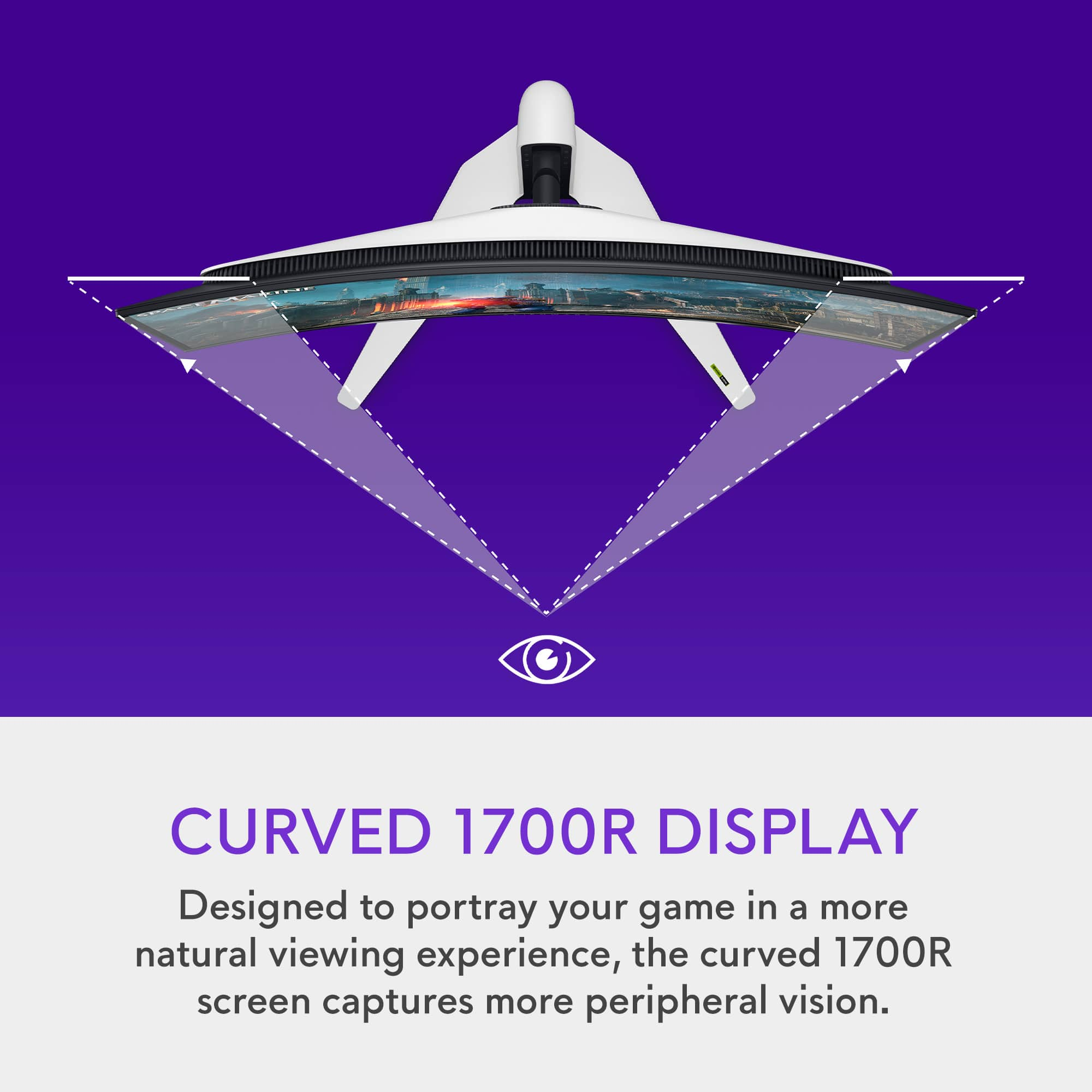
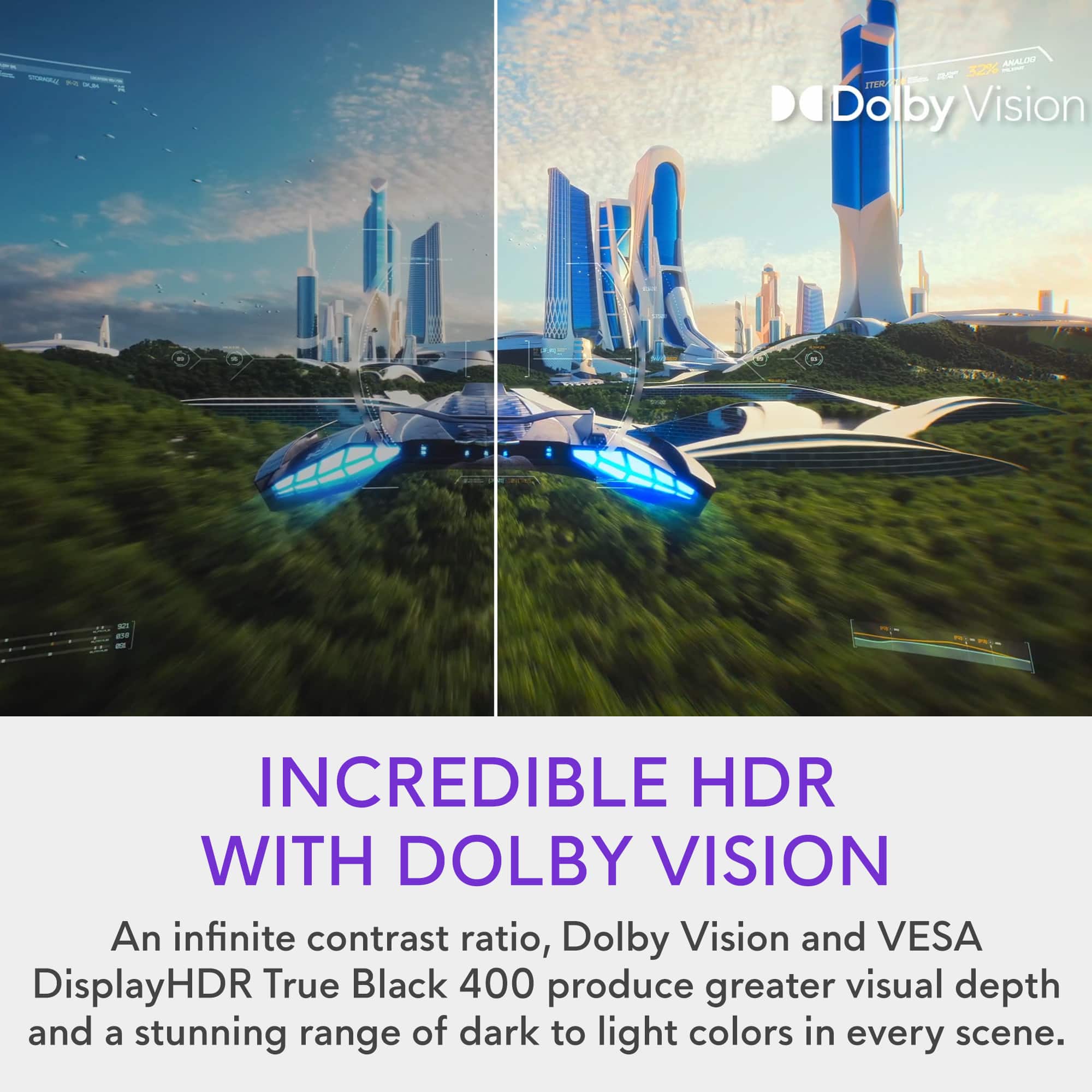
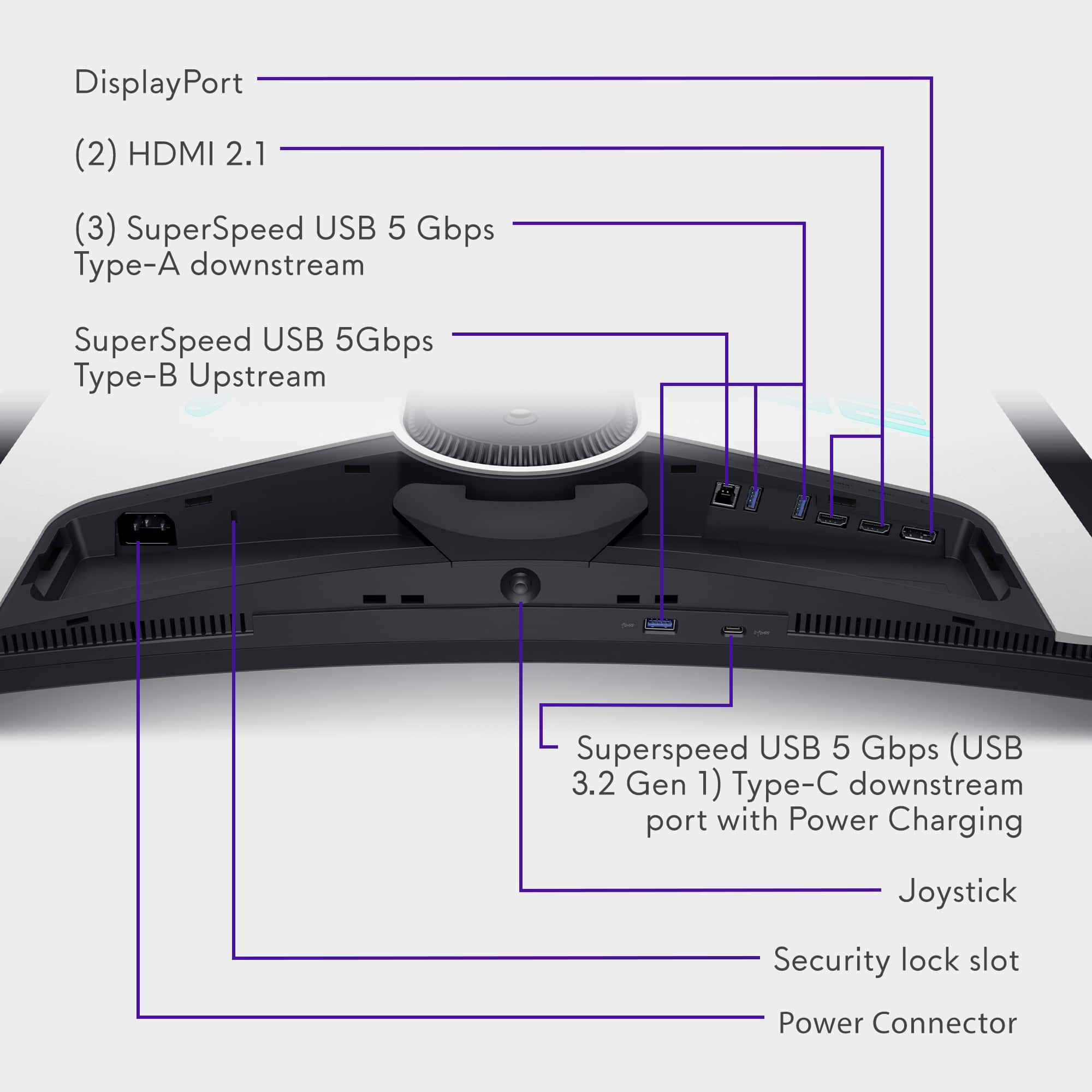
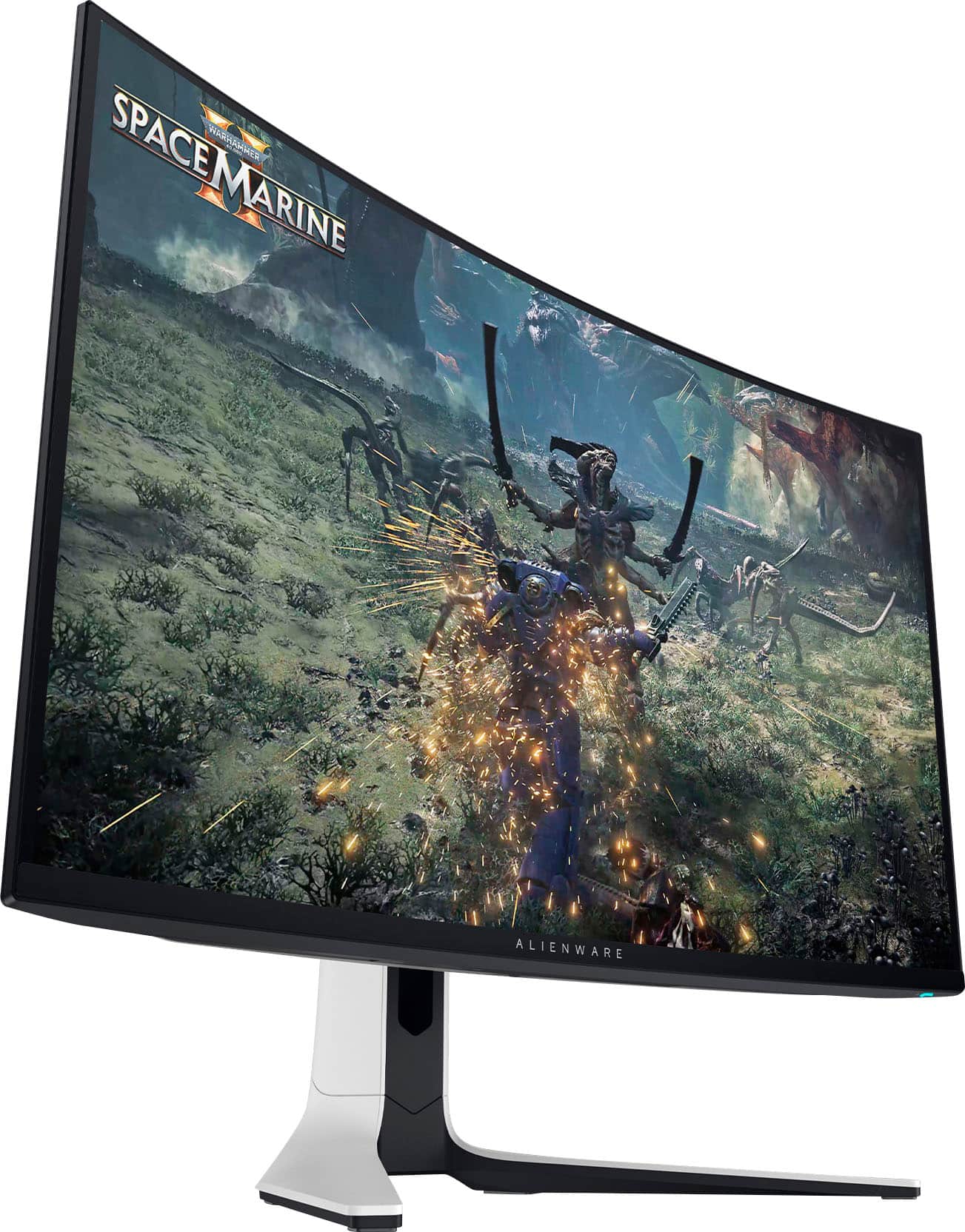
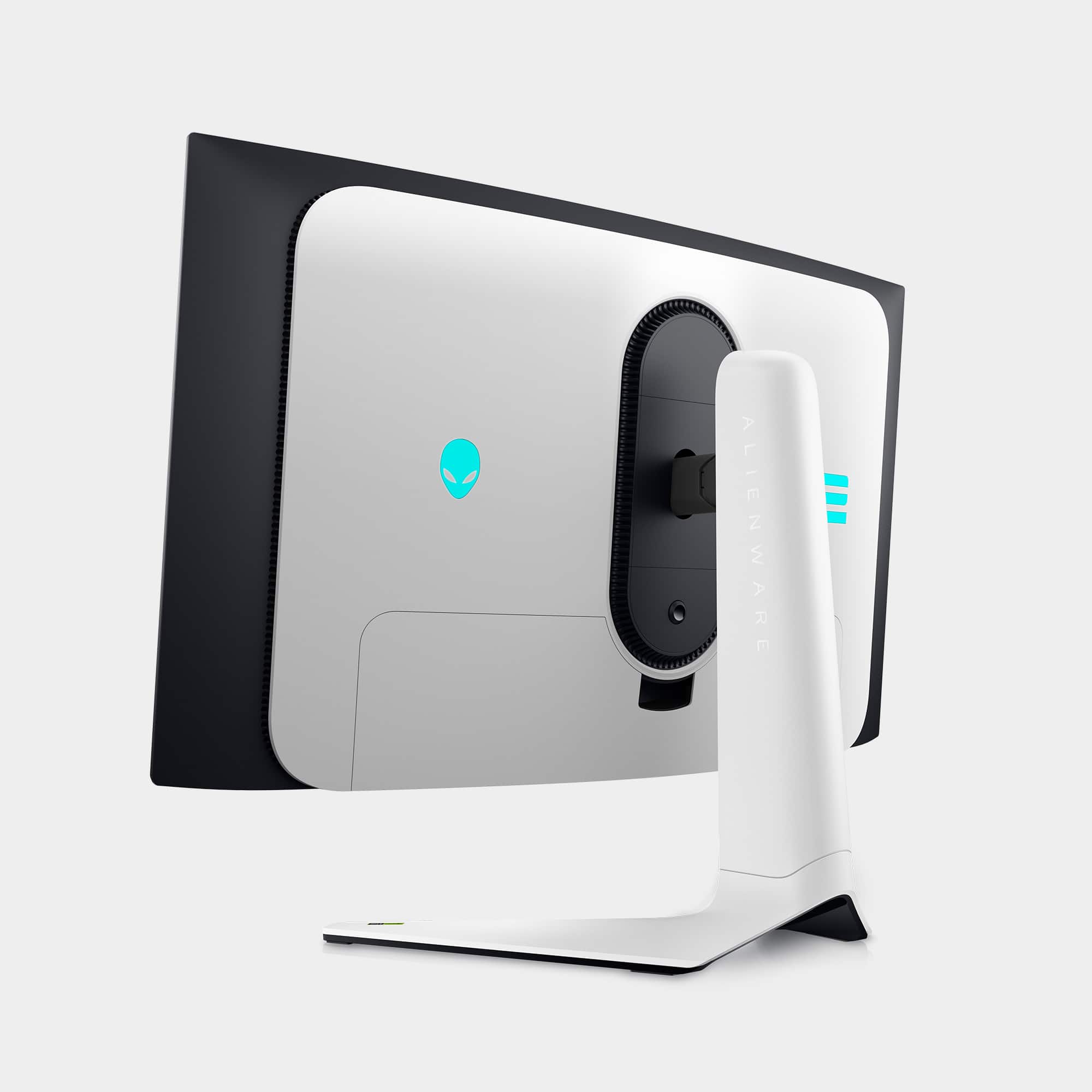
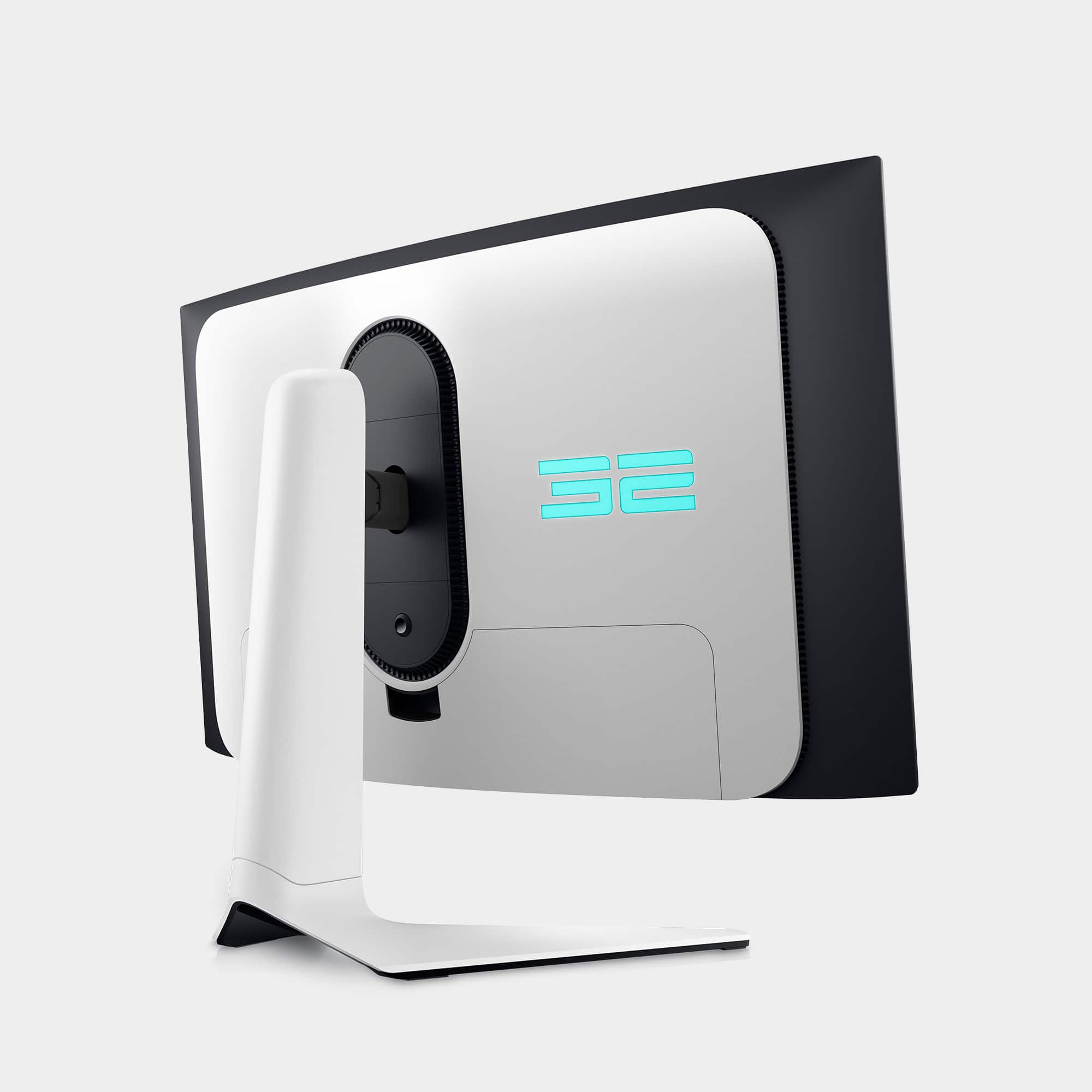
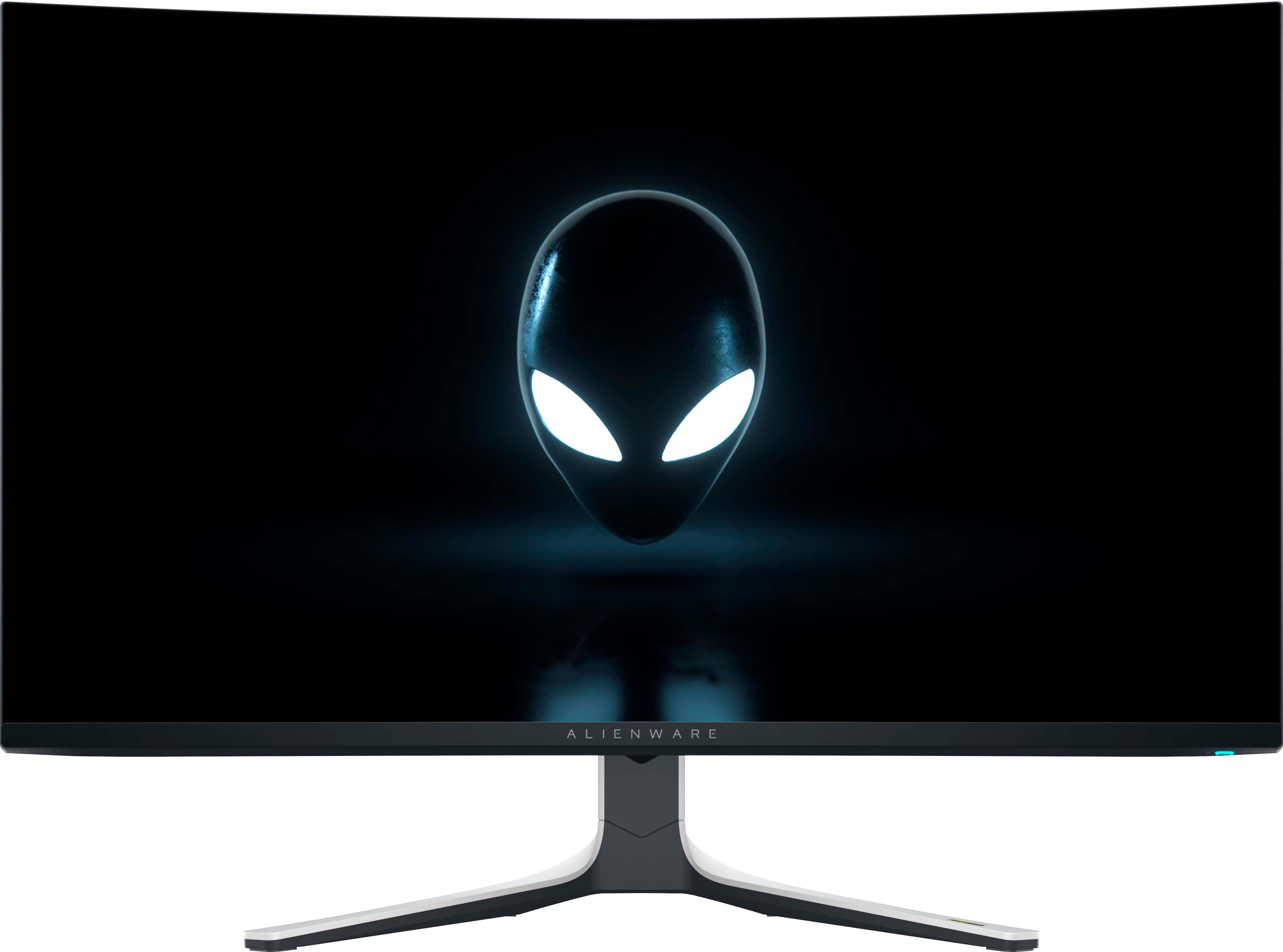
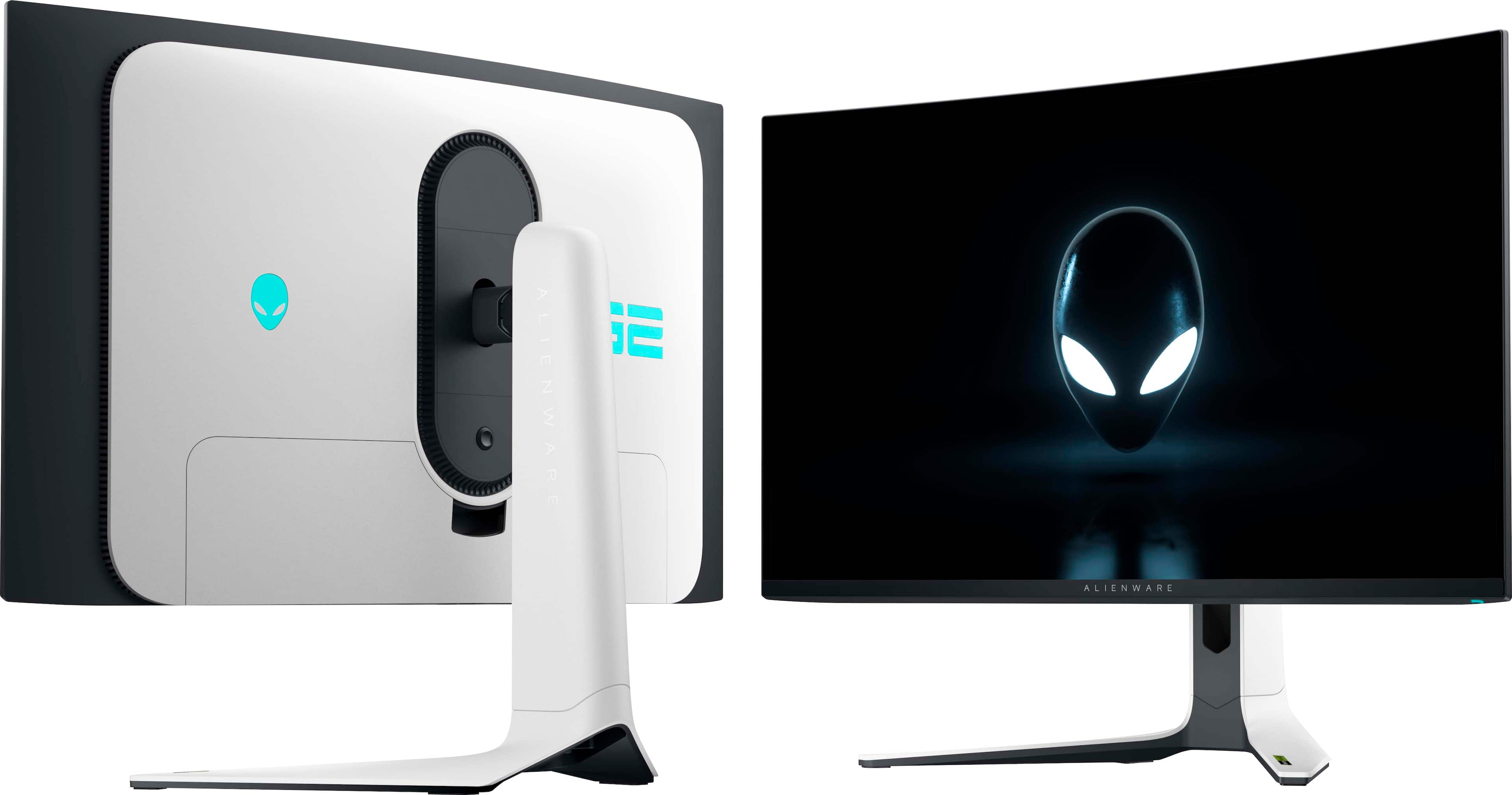
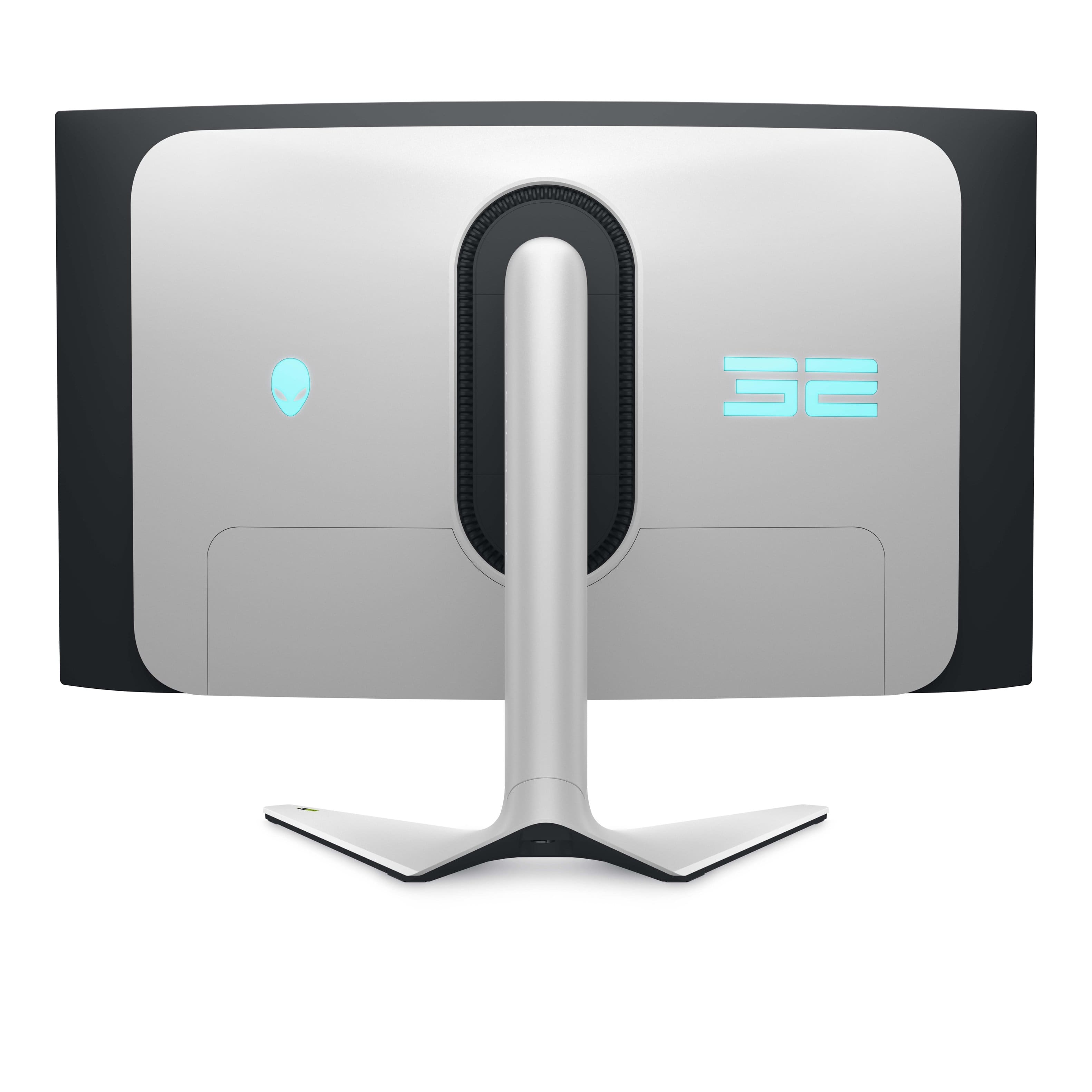
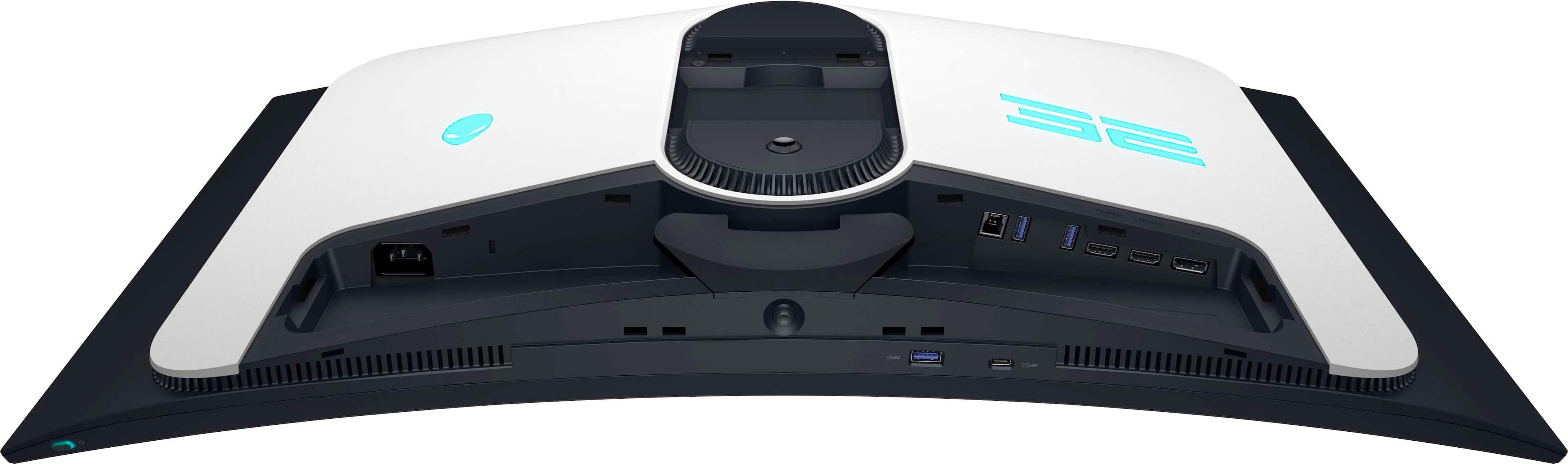
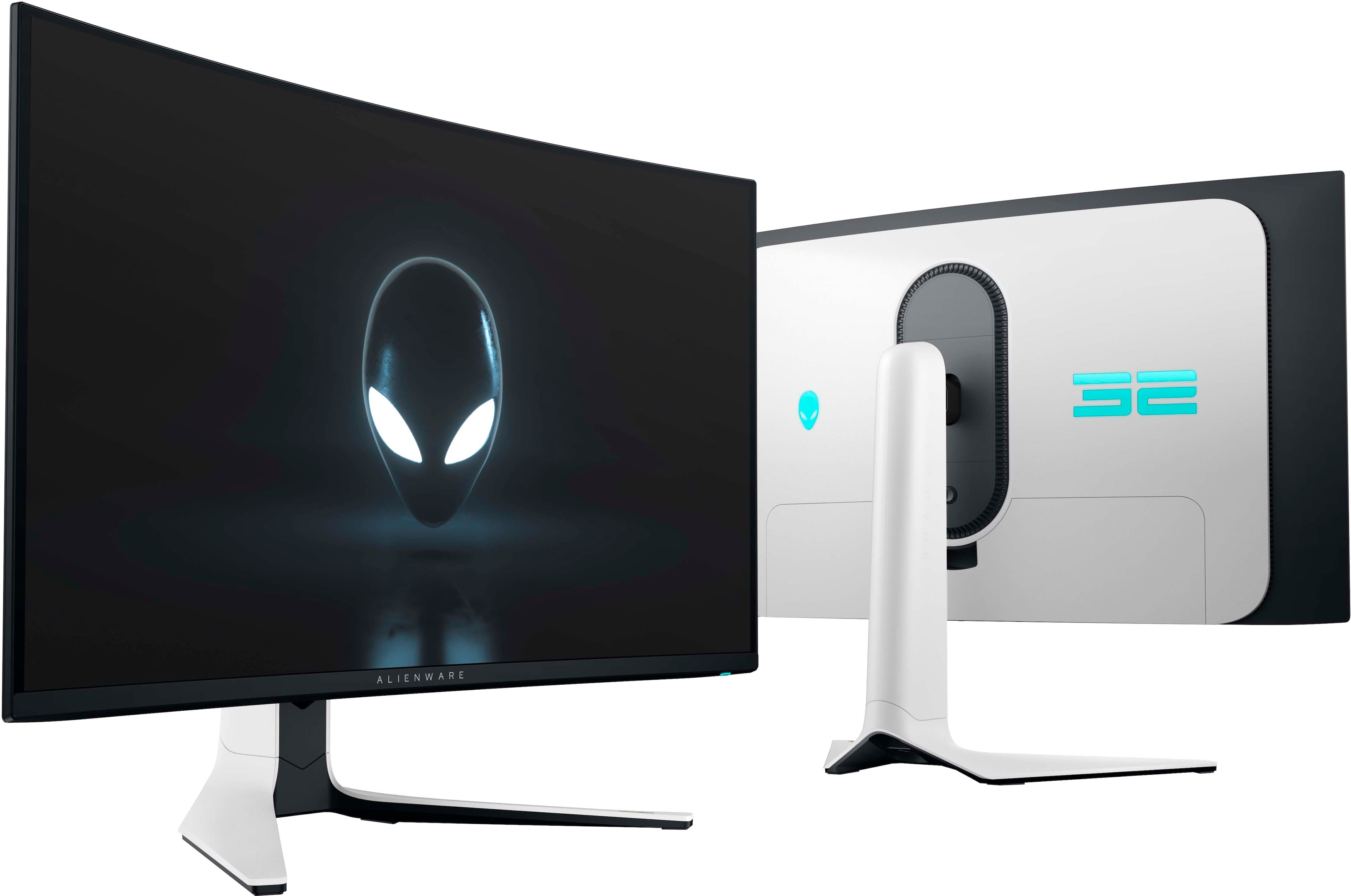
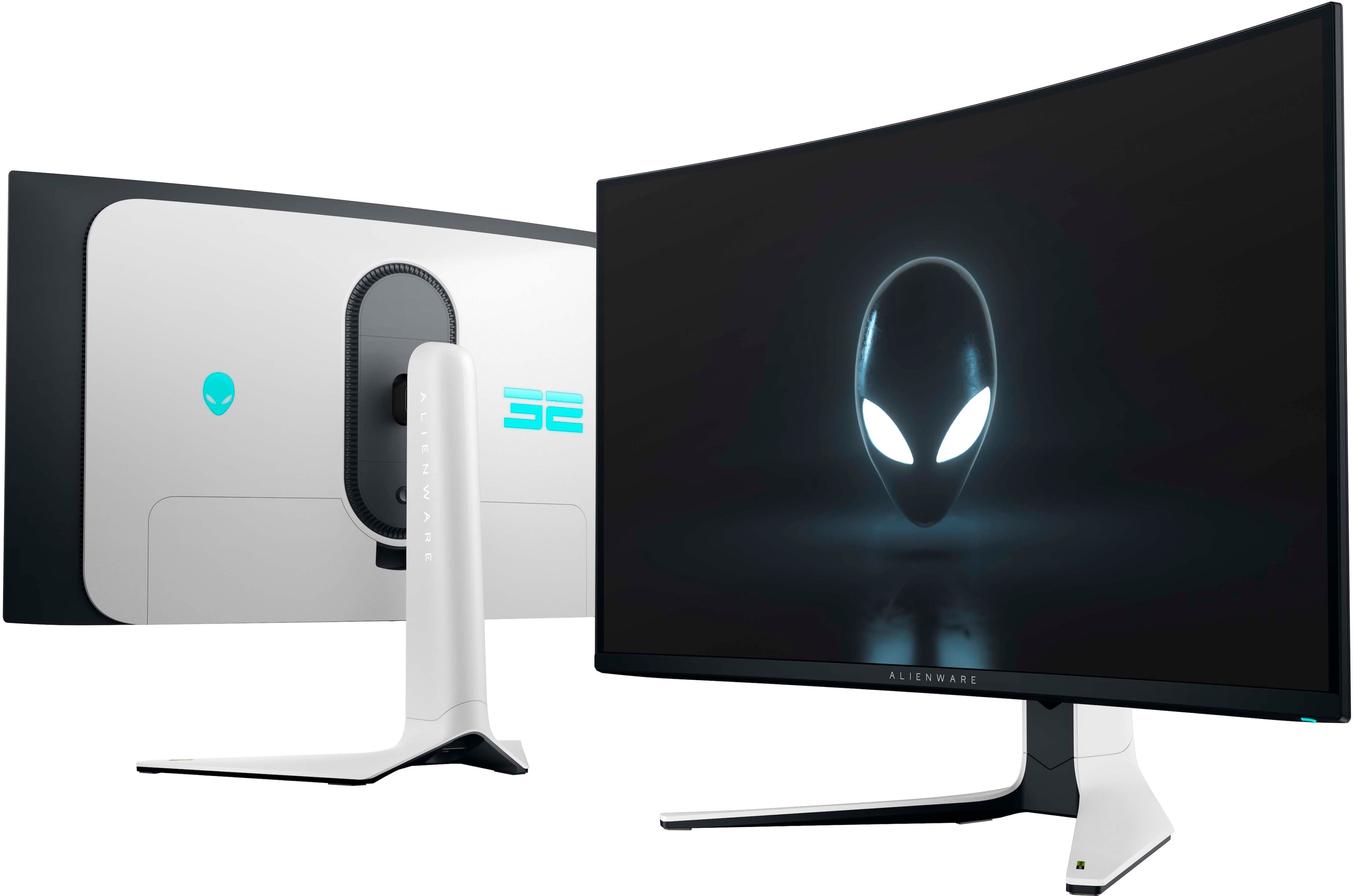
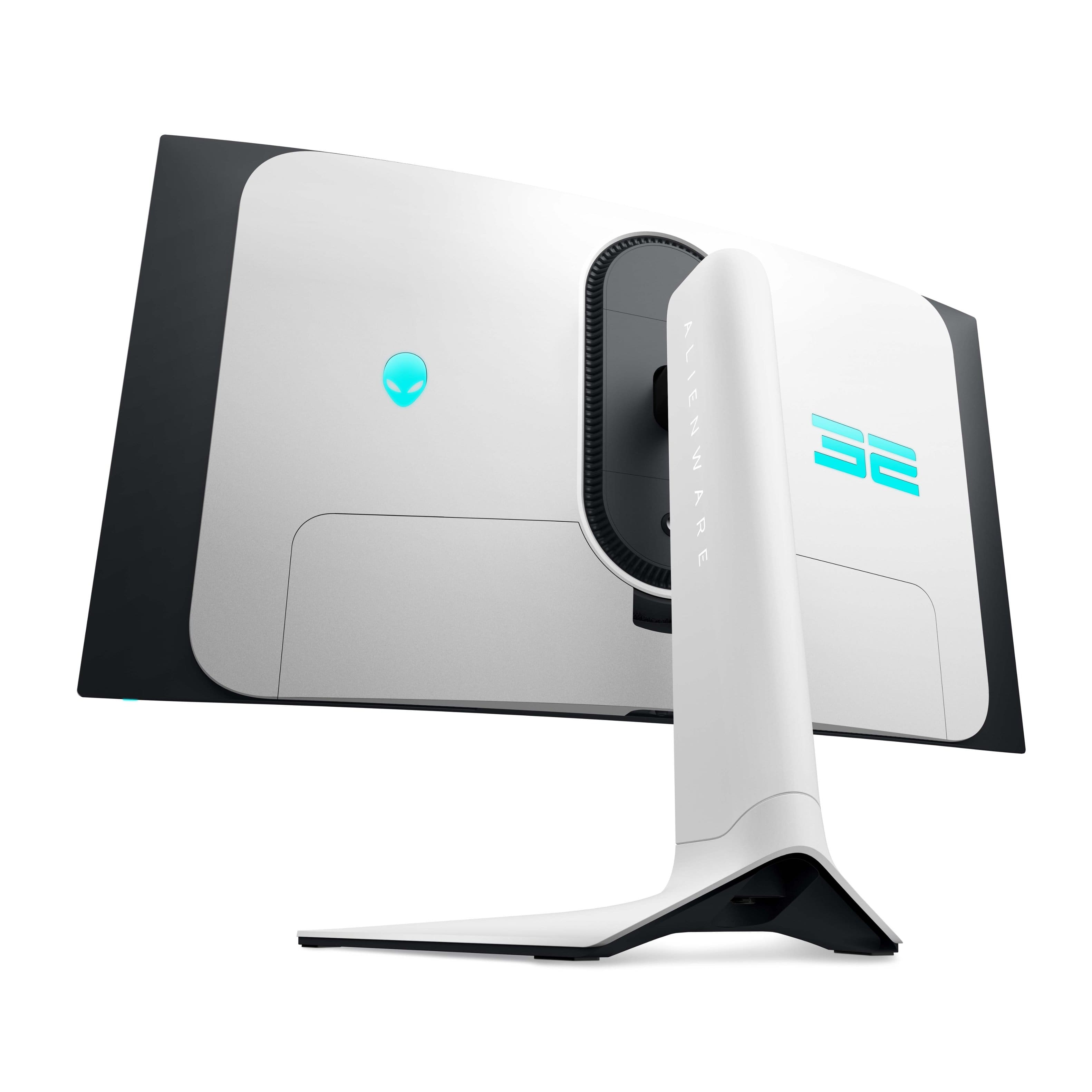
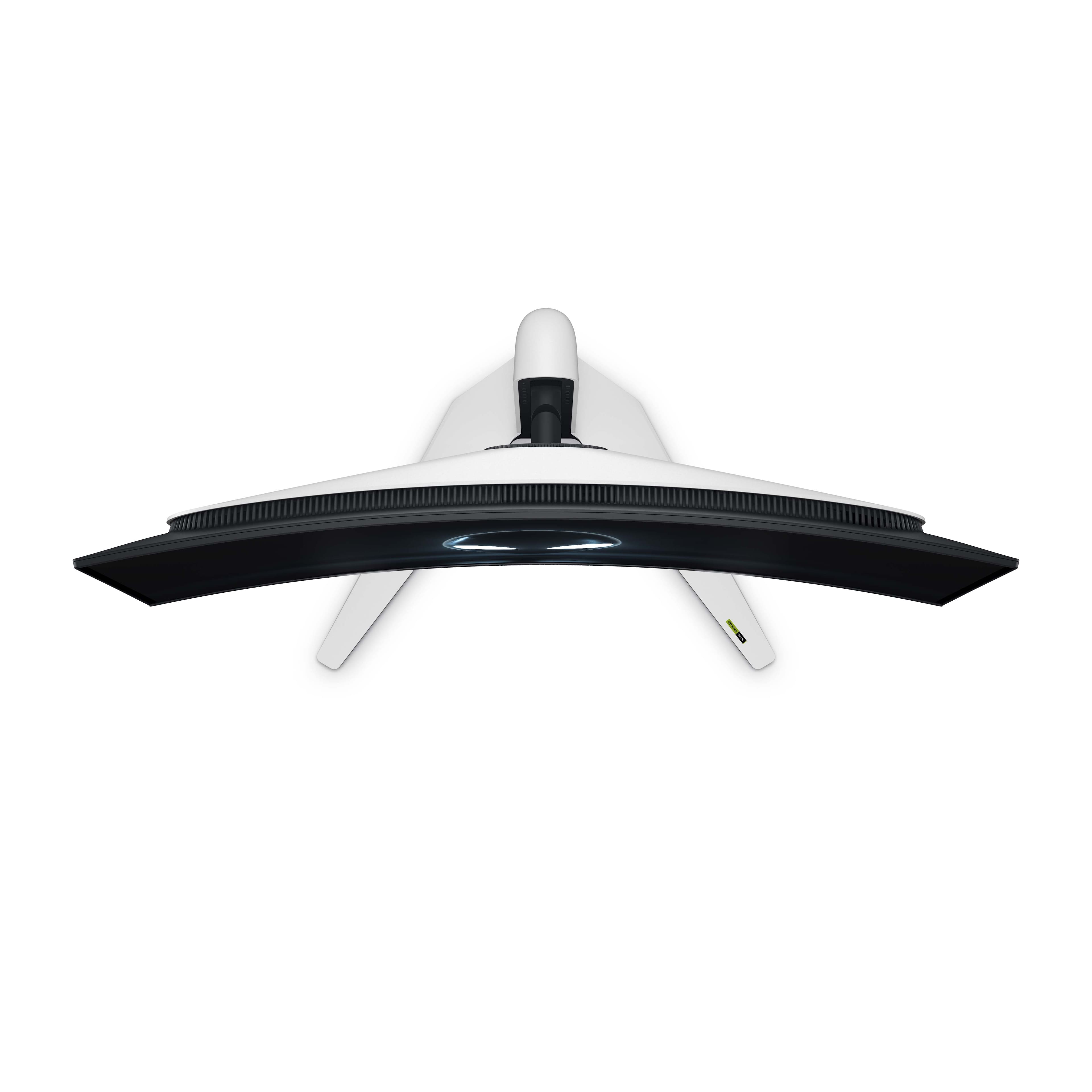
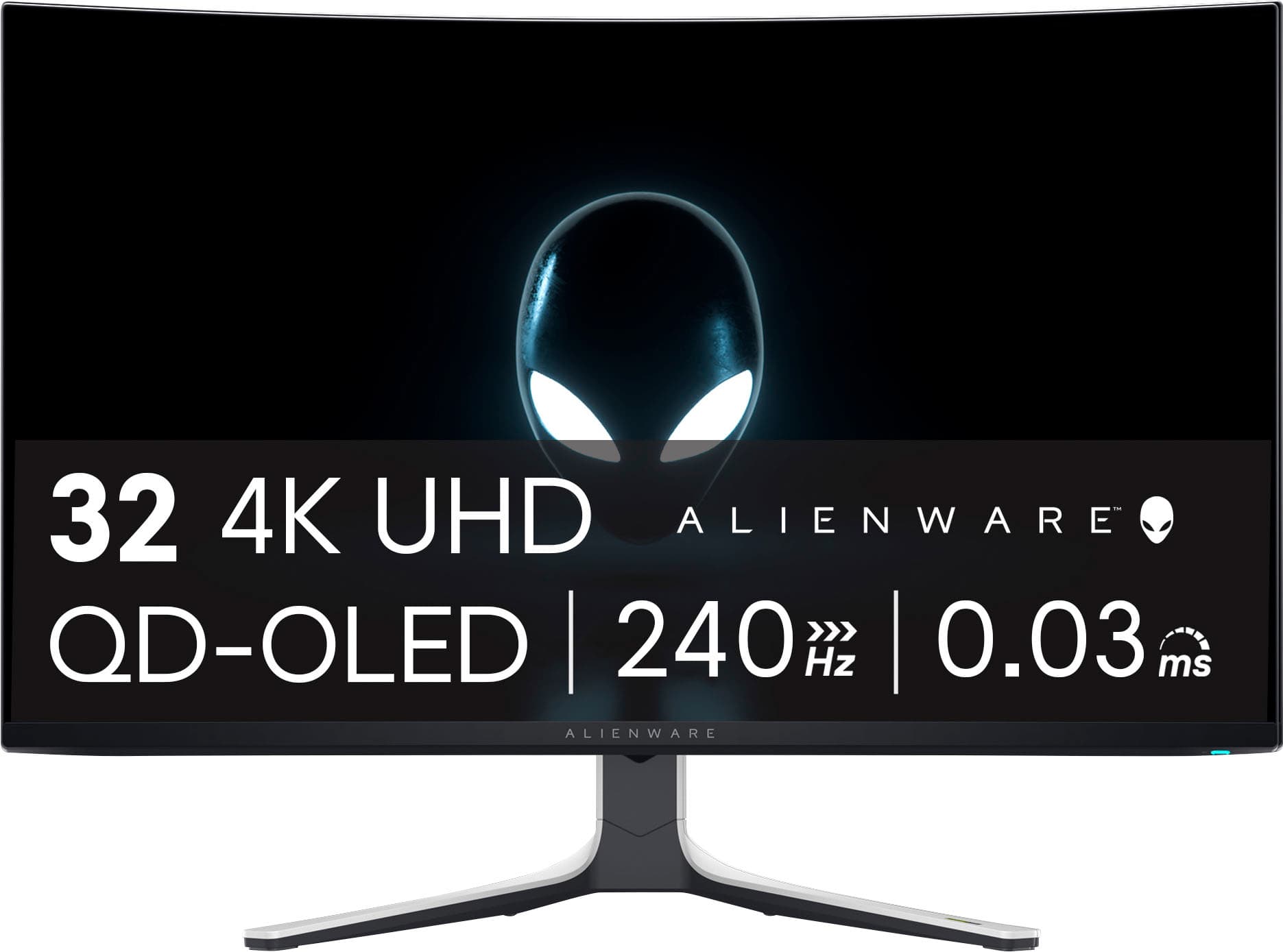
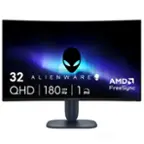
    The Alienware AW3225QF 32 inch QD OLED gaming monitor is a 240hz beast! The monitor comes well packed in a large box to protect the OLED screen. The screen itself has an adherent scratch protector with a bubble wrap cushion taped on top of that to protect the screen that rests in a curved form fitting support to ensure you get a pristine screen. Dell packs all the goodies to get you connected an High speed HDMI cable, a display port cable and a USB B to USB A ver 3.2 to connect to the built in USB hub. The power supply is built in the monitor so just a power cord. Cable management is great, there is a space for all cables with the ports at the top and a supplied cover hides all those making the back of the monitor look great. The cables exit and can be fed through the stand to exit the rear of the base completing the excellent cable management. As for ports they are 1 display port with 1.4 , 2 HDMI 2.1, (HDCP 1.4 & 2.3), 3 USB A gen 3.2 (2 on the rear and one front lower bezel) and 1 USB C gen 3.2 front lower bezel). HDMI1 is eARC and can be connected to a soundbar and pass through Dolby Atmos. The additional USB A port and the USB C Port are on the bottom of the lower bezel to the left of the Joystick. The led accents at the back of the monitor include The Alienware logo and 32 as well as the power button (The colors and even turning them off can be controlled with the Alienware Command center App) The included monitor stand is stable and very adjustable to get just the right position. The 100 x 100 Vesa mount is built in but recessed, you may have to use spacer depending on your monitor arm mounting plate size. The white back and stand against the black bezel give this monitor a very clean and cool look. The 1700R curved panel is a shallow curve that gives you great peripheral visibility with no distortion. The on off button is at the right and the display controls are in the center of the bottom bezel. The display control consists of a joystick, this takes a bit to get used to but easy after you figure it out and is actually a great way to control the myriad of functions with minimal buttons. So how does it look? In a word, absolutely amazing! The blacks are ink dark due to the OLED, i.e. it is able to turn off individual pixels so black is absolutely black. Colors are Vibrant and deep. At 240 hz your games look like a movie, no halos, no blur, no tearing, no ghosting. Like all OLED gaming monitors you can have some flicker with VRR in dark areas but with the latest firmware and the 240 hz capability this is minimized. You have to have a graphics card that can keep up the refresh rate in the resolution you desire if it adjusts a lot that's where you can get flicker. You have several modes to choose from in the Dell Display manager or the monitor control menu. The higher pixel density of 140 DPI makes text much clearer than older gen OLED panels in fact I would say it is now not an issue compared to my other LED or LCD monitors and is ok for everyday use. Pixel and panel refresh routines are available to help prevent burn in. This panel has an active cooling fan but I did not hear it at any time during operation. If you need truest color you can select creator mode to put the monitor in SRGB and choose 2.2gamma this also bypasses the logo detection that dims the panel in game play allowing about 240 nits of brightness vs about 210 nits in the other modes. Viewing angles are great with really no drop in any normal angle you may experience in normal use. Dolby vision: The monitor supports Dolby vision however if you are using windows to game you might want to switch it off because windows tries to push some HDR10 games to the monitor in Dolby vision resulting in incorrect color mapping and dark display. This is a windows issue. If you have a game that is true Dolby vision enabled you can switch the mode back on. The auto switching works perfectly fine with consoles, streaming devices and blu ray players. For HDR content I found the HDR 1000 mode to give the best results, colors are accurate and brightness is excellent during gameplay and streaming. There is also an HDR Movie mode in the Dell display manager that you can use. I turned the Smart HDR off in the Gaming section, I think this will keep the Dolby from coming on incorrectly until Microsoft fixes the way Windows handles HDR. This monitor has DSC (display stream compression) on all the time without any way to turn it off. There is a possible work around when you activate 'Legacy Device' in console mode in the OSD, the DSC is disabled, allowing you to use the DSR, create a custom resolution or anything else that the DSC won't let you do. Then, when you deactivate console mode (in Legacy device), the customs resolutions will still be present. This seems to only work when using HDMI. There is some talk on the Alienware form that the DSC disable is coming in a future firmware update just like they added the Dolby Vision disable in the latest firmware. Dell includes a 3 year warranty covering panel burn in which is a welcome addition since OLEDs are prone to this. I recommend you visit the Support page for the monitor on the Dell website and download the latest firmware, The Dell Display Manager, the Alienware command center and the monitor drivers for your operating system to give you the best experience and control the monitor completely. I really love this monitor. The subtle curve and the OLED colors and performance are outstanding. After the latest firmware update the VRR flicker is not really noticeable. This is my go to for gaming for 2024!

    I would recommend this to a friend
  • Rated 5 out of 5 stars

    Eye candy

    |
    |
    Posted . Owned for 1 week when reviewed.
    This reviewer received promo considerations or sweepstakes entry for writing a review.

    Amazing monitor. Running this with a 4080 super and it looks stunning.

    I would recommend this to a friend
  • Rated 1 out of 5 stars

    Dell will not warranty for manufacturer defect.

    |
    |
    Posted .
    This reviewer received promo considerations or sweepstakes entry for writing a review.

    Monitor came with what looks like bubbles on display. There were only a few to start but the problem has gotten significantly worse. Dell support refuses to replace the monitor under the 3 year OLED warranty. Stay away from Dell/Alienware monitors. They will not stand behind the warranty.

    No, I would not recommend this to a friend
  • Pros mentioned:
    Oled quality, Picture quality, Refresh rate

    Rated 5 out of 5 stars

    Happy customer

    Posted .
    This reviewer received promo considerations or sweepstakes entry for writing a review.

    I was a little hesitant to buy an OLED monitor because I heard that they were more susceptible to burning, but that is a problem of the past. I love this thing. It’s got a 240 Hz refresh rate Dolby Vision it’s curved. It’s 32 inch. It’s very nice monitor. It looks very good. The HDR 1000 is a must have if you ever get a monitor and it has HDR make sure it’s HDR 1000 because all the others suck but I am very happy with this monitor. It looks very very good.

    I would recommend this to a friend
  • Pros mentioned:
    Hdr, Picture quality, Refresh rate
    Tech Insider Network Member

    Rated 5 out of 5 stars

    Big, Bold and Beautiful!

    |
    Tech Insider Network Member
    Posted .
    This reviewer received promo considerations or sweepstakes entry for writing a review.

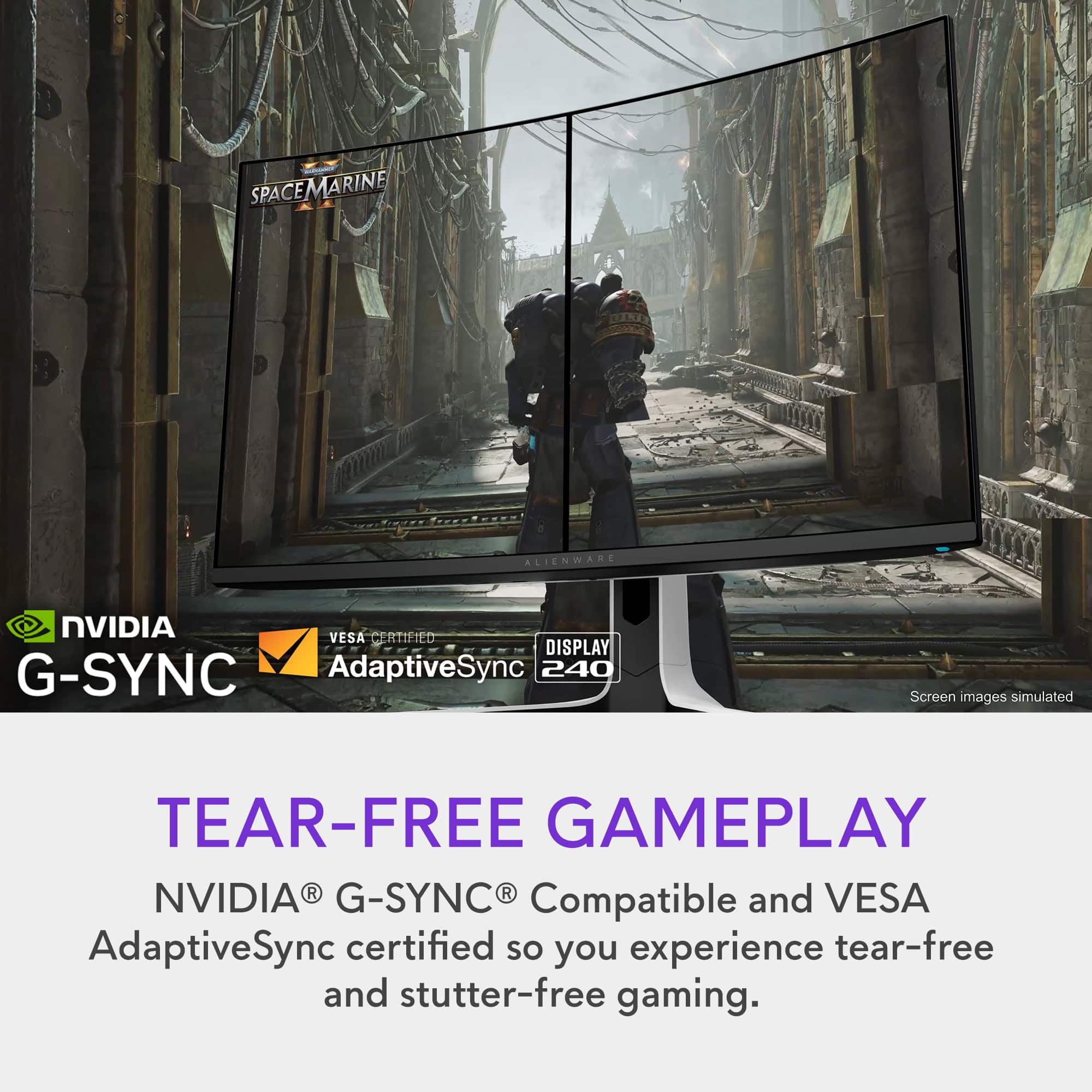
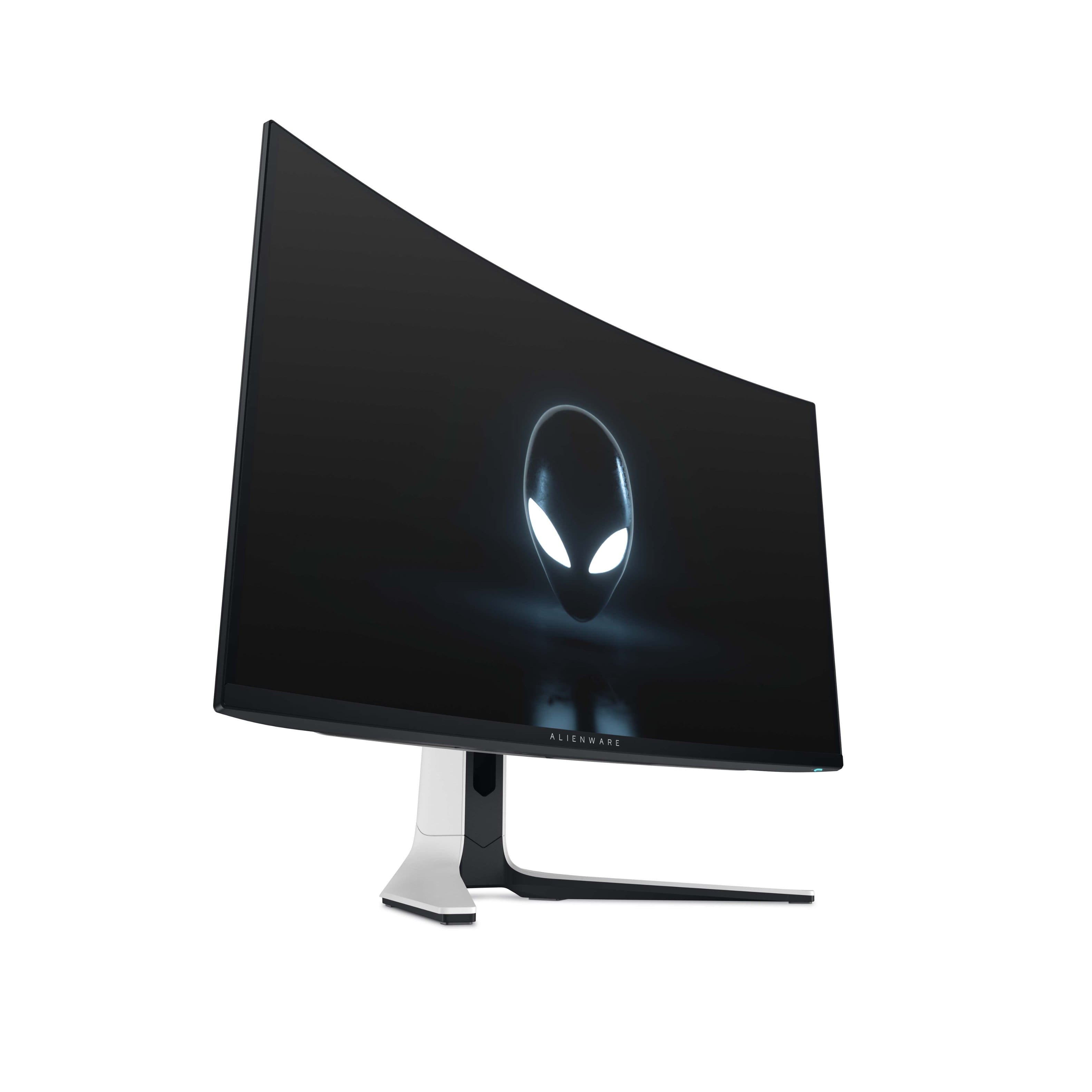
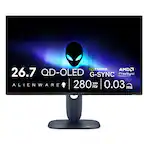
    The Alienware - AW3225QF 31.6" Quantum Dot OLED Curved Gaming Monitor - 240Hz - NVIDIA G-Sync - VESA - HDMI, USB-C - Lunar Light is Big, Bold and Beautiful! This is the first monitor of this size that I've tried out and the first OLED monitor. Upgrading from a Dell Gaming S2716DGR 27.0" QHD Wide 1440p Screen LED-Lit Monitor with G-SYNC monitor, so this is quite a bit more screen real estate. I have an Alienware Aurora desktop and this matches it perfectly! The monitor arrived very well packaged and in perfect condition. Setup was easy and only took about 10 minutes to get it swapped out with my old monitor. I run a 3 monitor setup so this is the new centerpiece. The curve is subtle and works well in my setup. You will need some decent desk space for this monitor! The stand is solid and allows for good up and down, swivel and angle adjustment. The stand has a cable management slot which is nice and a cover that pops off to hide the ports and cables if you're concerned with how the back of the monitor looks on your desk. It comes with power cable, USB in cable and HDMI cable and Display Port cable. Easy to read instructions for monitor setup are provided. The monitor has plenty of ports for multiple inputs. 1 Display Port and 2 HDMI 2.1 ports so very convenient to have your PC and gaming console connected at the same time and swap between inputs. It also has several USB ports for connecting devices and one USB-C port. The display itself is beautiful! Ultra crisp 3840 x 2160 resolution with vibrant colors and blazing fast refresh rates 240Hz and .03ms response times. With the GSync enabled gaming on this is a treat to behold. Gaming in 4K does take a substantial amount of gfx power if you want to have all the bells and whistles enabled (3XXX series and beyond would be ideal). My 2080 series handles it fairly well but I do have to turn down the Ultra settings in some games to a more reasonable level for FPS preservation. Action filled sequences are ultra smooth with 0 screen tearing issues. The 32 inch size is really a sweet spot for the 4K video... big enough but not so big you're straining your neck to move around the view. Watching movies or video on the monitor is just as lovely! Just a side-note the monitor doesn't have internal speakers which most likely isn't an issue for most. It is a glossy finish with anti-glare coating so there will be some reflection in bright rooms but the monitor brightness and vibrancy overcomes this in most situations where it's not noticeable. I've been waiting for a good reason to upgrade my 2080 gfx card and this monitor is that reason so I can enjoy it without restraint :) Hands down the most beautiful display I've ever owned! The many Dell monitors I've owned over the years have been issue free and have lasted me many years, so I expect the same with this monitor. It does come with a 3 yr warranty as well!

    I would recommend this to a friend
  • Pros mentioned:
    Color, Oled quality, Picture quality
    Tech Insider Network Member

    Rated 5 out of 5 stars

    Boss level display that satisfies all my criteria

    |
    Tech Insider Network Member
    Posted .
    This reviewer received promo considerations or sweepstakes entry for writing a review.

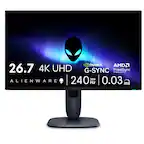
    Let me preface this review with it appears Dell has fixed the "arriving with scratches" issue due to bubble wrap making contact with the display by applying a proper screen protector to the screen and then attaching bubble wrap to the screen protector. As a result, my unit arrived properly protected with no scratches. I've included a picture showing the new packaging over the display. On to the review.... I've been gaming for decades and as technology as marched forward, I was there to jump on "the next big thing," in display technology. I had one of the famed Sony CRTs for years. I moved to an Apple 30" Cinema display on launch and then jumped ship to an HP 30" display when I wanted a 10-bit screen. As soon as BenQ introduced a 32" 4k 10-bit display that supported G-sync I was there and finally my last display was a Samsung G7 43" Gsync 4k 144hz mLED display. Each had its pros and cons but there was always something lacking that didn't make it the full "gaming" display I sought. The Sony display lacked the real estate, vibrancy and reproduction of an LED. The Apple display had an 8-bit panel, 60hz and painful response times. The HP was fixed at 60hz, still bad response time and didn't support Gsync. All the previous mention panels lacked any local dimming. The Samsung was the closest but regressed back to an 8-bit panel but at least the Samsung had dimming zones but 43" was a bit too large. My holy grail of displays was a 4k 30" to 35" display with a 144hz+ panel, low response time, 10-bit color and as high as possible dimming available and real HDR. Enter the Alienware AW3225 QF. For the first time ever, all my gaming display criteria has been met. Arriving in a large box, the display itself is actually not that heavy even with the stand and setting it up is assisted by the box itself. It adjusts nicely vertically and horizontally. You get an HDMI, DP and USB cord along with a few decent flair pack ins and a cleaning cloth. Setting up the monitor took less than 15 minutes to swap out my now old Samsung 43" display. The panel itself is perfect. No scratches, marks or issues. No dead pixels and properly lit from top to bottom. On paper, it checks ALL the boxes I could want in a proper gaming display and after having spent several hours using and gaming on it, it delivers. The colors are crisp and accurate with the 10-bit panel. The response time is silky smooth. OLED means per pixel dimming gives amazing blacks 31.6" is the ~32" sweet spot 10-bit color gamut is absolutely gorgeous HDR is great for shows/movies and some games The knock on older OLED panels was they were not bright enough but the Alienware is plenty bright. I had to adjust the brightness down a bit it was so bright out of the box. I play a lot of Fallout 76 and WoW and the colors are just so vibrant and the explosions bright and beautiful along with fast, smooth response times. I rewatched the first episode of the Fallout Prime series in HDR and it was amazing compared to not only my 43" display but my 65" Sony display too. The colors are really that good. So perfect, right? Well, almost. HDR adjustments must be made with HDR set to OFF which is not a deal breaker but a bit cumbersome. I actually find normal mode to work better for the majority of use cases versus HDR on but luckily I can toggle it real quick from the display properties in Windows 11. I'm not a big fan of curved displays but at least on a 32" the curve is not super obtuse but I would prefer it to not be curved at all. My Samsung display used a remote for control of settings while the Dell uses a thumbpad on the bottom center of the display. Even with the few negatives, I am hard pressed to find what else I could possibly want in a gaming display. I've effectively reached end game for now and will happily use the Alienware A3225 QF for years to come.

    I would recommend this to a friend
  • Pros mentioned:
    Hdr, Picture quality
    Tech Insider Network Member

    Rated 5 out of 5 stars

    Excellent 4K Gaming and a Desktop Right Size

    |
    Tech Insider Network Member
    Posted .
    This reviewer received promo considerations or sweepstakes entry for writing a review.

    The Alienware AW3225QF QD-OLED 4K gaming monitor is impressive. 16:9 aspect ratio, almost instantaneous pixel response, perfect blacks, and 240hz over HDMI 2.1 makes for an amazing and versatile gaming experience. Gaming visuals are excellent in both SDR and HRD. Console gaming with my Xbox Series X is full 4K at 120hz with Dolby Vision and VRR active. Text quality is clean and crisp without any color fringing. There are two HDMI Inputs, a single Display Port, a high-speed USB B input, 2 USB A ports on the back, one USB B and USB C port on the bottom bezel. The AW3225QF mounts easily to my monitor arm which frees up space and optimizes my ergonomics. The onscreen controls are easy to access and navigate using the built-in joystick. Overall, this monitor is big, bright, beautiful, and provides a premium gaming experience. Screen protection packing: First, I want to address screen protection packing. I have read that the bubble wrap used to protect the screen during shipping leaves scratches on the screen. I think Dell updated the packing material. My monitor arrived with zero screen damage. The screen protection system on my monitor is a multi-layer assembly consisting of a sheet of bubble wrap on the outer layer, two-sided tape in the middle, and smooth plastic on the inside layer. The smooth plastic layer is affixed to the screen with a low tack adhesive to prevent it from shifting or rubbing against the screen. Added stability is provided by tape securing the screen protector to the monitor bezel. I uploaded a photo for your review. Maybe early shipments had issues. My monitor came with the most substantial screen protection I have ever seen with a monitor. Kudos to the Dell and Alienware team. PC Gaming: Gaming is awesome on this monitor. I played MW Online, Diablo 4, and Forza Horizon 5. Diablo 4 and Forza are visual feasts that look amazing on the AW3225QF. Older games like MW Online was butter smooth at 240hz screen refresh. I tried all games with both SDR and HDR. Honestly, I did not notice much of a difference. This may be because switching from SDR to HDR is not a simple A/B switch which comparing the two impossible for me. I am happy either way. On thing I did not like was fighting with the monitor over HDR on and using the monitor presets built into the OSD. If HDR is on then the presets are unavailable. This means that I have multiple use cases for the monitor I am forced to either chose HDR for all content or use SDR presets for gaming, General Desktop usage, or Creative Mode for example. HDR does have multiple presets but they are not as easy to access from the OSD as the SDR modes. My preferred functionality would be each preset was HDR capable thus allowing me to essentially program all my use cases into a single list of presets. Xbox Gaming: I connected my Xbox Series X and configured the system, through Xbox Settings to use 4K, 120hz refresh, HDR Gaming, and Dolby Vision. I did not go through the trouble of switching between SDR and HDR on my Xbox simply because the process was clumsy and cumbersome. Again, without a simple A/B function it is impossible for me to tell which is superior. The Xbox Series X was built specifically for 4K gaming so all but one of my gaming experiences was flawless. Star Wars Battlefront II had some strange white out ghost phenomenon. For example, while looking down a hallway, what looks like a white fog would develop at the end of the hall, travel towards me, pass through me, and then travel behind me, vanish, and then start again in a perfectly timed cycle. The only difference I can think of between the AW3225QF and my LG 4K OLED was that the AW3225QF had VRR turned on. Otherwise, this issue does not exist for me. I cannot confirm this was the issue. But it was an issue, and a difference between my PC and Xbox configuration, so I am sharing it with you here. Otherwise, my gaming experience was flawless. Size and Quick compare: The pictures do not provide a reference to how big this monitor is. In the photos, I show my Alienware M18 gaming laptop driving the AW3225QF over HDMI. The M18 is a monster with its 18-inch screen. The AW3225QF dwarfs the M18. The screen is squarish with a 16:9 aspect ratio. There is a slight curve to the screen. It took minutes for my eyes to adjust. Now I don’t even notice. I purchased the 34” Alienware Ultrawide 1440p AW3423DWF back in March 2023. For those of you who may also own this monitor and are considering moving to the AW3225QF for 4K then I have posted some side by side and in-use photos. Both are excellent monitors. Upgrading from 1440p to 4K did have me worried. Like my AW3423DWF, AW3225QF will be used for both gaming and work. My under powered work laptop drives the AW3225QF at full resolution at 60hz. My Alienware M18 and Gaming Desktop’s 4070 had no issues keeping my games above 60FPS. In most cases, FPS remained above 90 FPS at a full 240hz refresh. Mounting: The AW3225QF includes mounting holes with screws. They are located where the included stand attaches to the monitor. This is a 100 x 100mm VESA Mount interface. I included photos of the mounting interface as well as the monitor on my desktop’s monitor arm. Super easy to mount. Everyday Usage: I also use this monitor for Work from Home and general computer usage. For either SDR or HDR usages I set brightness and contrast to 30%. I also reduce blue light where I can be either use Windows Night mode or the Warm monitor preset. Windows and MS Office apps are set to Dark Mode to reduce overall monitor brightness and light intensity. Finally, I set the taskbar to auto hide to help avoid monitor burn in. After an eight-hour day, when I turn off my computer and the monitor input turns off, the AW3225QF will go into a short pixel refresh cycle. My office gets direct sunlight in the mornings. The AW3225QF does a good job of combatting reflections. Typically, I close the curtains and that solves all my reflection issues. Late afternoon light or overhead lights can cause some reflections, but it is very muted. And if they are not then I just tilt the monitor slight along its Y-axis and the reflections vanish. The anti-reflective coating is excellent. The viewing angles of this monitor are also excellent. So, tilting the monitor left or right slightly is not a big deal by any measure. Additional Comments: First, connect the supplied high speed USB A to USB B cable that Dell supplies to your computer. This will allow windows to detect the monitor and load the most up to date drivers and monitor firmware. Second, if you experience any poor monitor performance, low refresh, or other monitor issue then make sure you are using the cables provided by Alienware before decaling this is an issue with the monitor. I had an issue out of the box where monitor refresh would not go above 60hz. It turned out to be an issue with a cable Adapter I was using to convert my Display Port cable to mini-Display Port for use with my M18 Laptop. Switching to the supplied HDMI cable resolved the issue and performed as well as the Display Port that I wanted to use. It is not a total 1 to 1 replacement but close enough when HDMI is 2.1 at 240hz. Final thoughts: Overall, I think this is both a wonderful gaming monitor and work monitor. Honestly, who swaps monitors between the two activities? These things have just gotten too big to play that game. I love the flexibility the AW3225QF affords me, the image quality, the near instantaneous pixel response, and the high refresh. Colors are vibrant, text is crisp, blacks are excellent, and, to my untrained eye, brightness is uniform across the screen. VESA mounting is a huge must for my setup and the AW3225QF looks beautiful mounted over my desk. See the included photos. I would like to see SDR and HDR features programmable to each monitor preset. Configuring SDR, HDR, and balancing the monitor presets is a real pain and forces me into SDR modes unless there is a real special reason to turn HDR on. Besides, I do not feel that my gaming experience, with the games I play the most, is impacted one way or the other. If you are in the market for a 32” class 4K QD-OLED then I think you will find a lot to like in the AW3225QF.

    I would recommend this to a friend
  • Rated 1 out of 5 stars

    Do Not Buy Open Box

    |
    |
    Posted . Owned for less than 1 week when reviewed.
    This reviewer received promo considerations or sweepstakes entry for writing a review.

    “Open box excelent” means they will just toss the panel in with loose cables and mount so it bangs up the monitor and makes it trash. Then they wont honor the sales price for you to exchange in store asking me to spend another $400. Very disapointed in best buy, how this even left your store and shipped this way is just plane ignorance.

    No, I would not recommend this to a friend
  • Pros mentioned:
    Color, Oled quality, Picture quality

    Rated 5 out of 5 stars

    Best monitor I have owned

    |
    |
    Posted .
    This reviewer received promo considerations or sweepstakes entry for writing a review.

    I come from a 1080p TN panel, so obviously I am pretty biased. But I can confidently say this is still one of the best monitors out there period. 4k at this size is extremely crispy, it is OLED so blacks are great and colors pop. And the HDR is honestly really great too when the media uses it well. It can get very bright. The panel is rated for 1000 nits but keep in mind this depends on the area, so small sections of the panel can get 1000 nits in HDR but if the area of max brightness gets bigger, that area will get dimmer because it cannot do 1000 nits on the entire display. But this is a normal technological limitation will all displays. My one issue with the panel is setting up HDR is a bit of a pain. When you have HDR off, you get the panel’s regular picture quality which is amazing and very colorful and vibrant. To see HDR content, you have to flip to the menu and enable Smart HDR. The issue with this is when you enable HDR, your regular SDR content will become a bit dull with washed out colors. The HDR content can get very colorful, depending on what you’re viewing and if they have done the colors right. But you pretty much have to enable HDR when you boot into a game or watch a movie, and disable it when you stop and go back to desktop which is clunky because you have to operate the joystick. I can see this being a problem when you’re watching youtube or something. There was some point where I was able to have the HDR setting enabled and it turned HDR on when I had HDR content and off when I didn’t, but something happened one day and smart HDR just gets stuck on HDR on. Otherwise, still a very great monitor. And for a monitor of this caliber, you can get it relatively cheap. I spent around $900 on mine and got it $800 refurbished at like-new quality. Other brand similar models can run you $1200+ so if you find this on sale it is a steal.

    I would recommend this to a friend
  • Pros mentioned:
    Picture quality
    Cons mentioned:
    Audio
    Tech Insider Network Member

    Rated 5 out of 5 stars

    Perfect size,great PQ,great design,but no aux out

    |
    Tech Insider Network Member
    Posted .
    This reviewer received promo considerations or sweepstakes entry for writing a review.

    If you have a decent budget and really want the best gaming monitor for a fair price, then this one is what you should aim for. I know it’s not as cheap as say a VA panel or an ips but you don’t get the beautiful picture quality of an oled, a QD oled is unmatched In every way. This Alienware monitor will blow you away. Super vivid colors, solid brightness with HDR400(this monitor also has DOLBY VISION) and the fastest response time of 0.3ms response time(typical for oled) grey to grey. I’m not over exaggerating when I say the PQ is beautiful! I love this monitor so much that I went for only using this for my PC exclusively to now bringing my ps5 downstairs to my gaming set up. I went from using my 65 inch mini led to a 32 inch oled that should say a lot. The ppi is higher and this monitor looks shaper due to the pixels being denser in the smaller size. Not always bad to go small. If you play FPS like warzone or overwatch even valorant then you want a gaming monitor with the fastest response time. I have been getting more kills with this monitor since I can aim and move faster. It really is noticeable. Now this is a 4K monitor so you will need a beefy graphics card, I have a 3080 which is still powerful enough but I have to use DLSS to get higher frame rates. I won’t ever hit 240hz at 4k like this Monitor offers but it’s better to have the specs when you upgrade later as I will do eventually. Some people don’t like curved monitors, personally I do but if that’s something you are worried about, don’t, because the curve on this monitor is very subtle and you probably won’t notice tbh. I care about aesthetics so that when family or friends come over I can say “check this out” and they are like man that’s nice lol. So the design is super nice. White back with the Alienware symbol and number 32 lit up with RGB lighting that is customizable through the on monitor menu or via the Alienware app on your PC. The RGB lighting is actually bright which I prefer, some other monitors have lighting on the back but you can hardly see it. This monitor will light up your wall nicely. They also thought to include a removable back plate to hide the wires which is a nice touch. You have 1 DisplayPort(for PC), 2 hdmi (one for a game console and 1 for a compatible EARC/ARC device) 2 USB SS, 1 port to connect directly to your PC to run your devices through the monitor which is a great added feature, and a usb type C at the bottom of the monitor bezel. You have plenty adjustability on the monitor to suit your liking as well. Menu has a lot of options, all the standard stuff and newer things like console mode and alien vision. So again truly I love this monitor and I will use this exclusively for both pc and console. My wife and kids love it to. Friends have said how the picture is so sharp and vibrant. I wouldn’t change this monitor for anything. Perfect imo. But there are a few things that I need to mention that I don’t like or I don’t get why they did these things. 1st and maybe most importantly, Dell didn’t include a 3.5mm aux port to hook up standard computer speakers.they opted instead for an HDMI EARC which works out for me as I have a smaller form factor Bose soundbar with EARC but majority of people won’t be able to take advantage of this feature. The ps5 doesn’t allow for Bluetooth audio streaming so you are stuck using headphones. Who wants to use headphones 100% of the time I don’t. Disappointing to be honest. 2. If you plan on using this with you PS5(I’m not sure about XBOX) and you have auto switch (inputs) set to on, after you press the home button on the ps5 controller the monitor will go black and attempt to switch input. I figured out how to avoid this annoying issue, make sure you turn off HDMI CEC setting in the menu. This will fix it. It took me a while to figure it out. Only happens with my ps5 not the PC. Hope this helps you. 3. Very minor issue but Dell placed one of the USB and the USB type C on the bottom of the monitor close to the menu button. Most people won’t read the whole manual like I do so some folks might not even see them there. Again minor but it might be an issue. But those are not enough to take off a star because when you buy a gaming monitor it’s for the picture quality, the refresh rate and the response time. And this has everything you could ask for. I recommend this 1000% percent. This really is the absolute best monitor out!

    I would recommend this to a friend
  • Pros mentioned:
    Picture quality, Refresh rate
    Tech Insider Network Member

    Rated 5 out of 5 stars

    The AW3225QF; Truly Out of this Gaming World!

    |
    Tech Insider Network Member
    Posted .
    This reviewer received promo considerations or sweepstakes entry for writing a review.

    Alienware AW3225QF was made for gamers, period. Enjoy 4k games with almost near instantaneous response time thanks to the 0.03ms response time. There’s also no sacrifices made here for motion clarity as refresh rate is up to 240Hz. What do these 2 things mean? Crisp motion and low input lag gives you an optimal responsive feel in your games. In addition to that, Alienware has done an amazing job with their infinite contrast ratio which really gives you as close to perfect blacks as there is, yet bright enough to make things pop (where they need to pop) and colors look amazingly vivid. Alienware AW3225QF, the first 32 inch 4k QD-OLED curved gaming monitor and I gotta say I am here for it all! Alienware has done an amazing job with the AW3225QF. Everything from the build quality to make it look premium down to the actual internal specs and features really makes this a sure choice for gamers. Yes the price point may be a bit steep for some but you are really getting something amazing here (you are getting what you pay for). For those of you wondering about ports you have two HDMI 2.1 ports, two USB-A 3.2 ports, a USB-B upstream port, DisplayPort, along with additional USB-A and USB-C connectors which can be all found under the monitor. I had the luxury of being able to throw various games on this beauty and the beast (by all means in a VERY good way) and the Alienware AW3225QF did not disappoint. Yes, as some have mentioned and I am sure you have read other reviews; there have been some issues with software. But to be completely honest that shouldn’t persuade you to skip on this monitor. Dell is doing an amazing job with releasing firmware updates (the most recent one I downloaded and installed was M2b104 which just released March 18 2024. They are working on the “kinks” and have been quite on top of it. On a side note, Dell has already made the improvements with proper packaging. There were a lot of reviews stating they received their AW3225QF scratched due to the bubblewrap having direct contact with the screen. Dell has remedied this issue by putting a protector in between the bubblewrap and the screen (great work Dell!). So all in all, are there some issues to be worked out? Yes. Does it cause so much of an issue at this time to skip on this monitor? Absolutely and positively not. The Alienware AW3225QF is a supreme gaming monitor in every way which includes instantaneous response time, 240Hz refresh rate, amazing deep blacks while boasting true OLED HDR brightness and rich vivid colors. I highly encourage you to give the Alienware AW3225QF a go.

    I would recommend this to a friend
  • Pros mentioned:
    Color, Refresh rate
    Tech Insider Network Member

    Rated 5 out of 5 stars

    A Beast of a Display

    |
    Tech Insider Network Member
    Posted .
    This reviewer received promo considerations or sweepstakes entry for writing a review.

    The Alienware AW3225QF monitor is a thing to behold. Assembly was easy, but make sure to follow the instructions and put together and attach the stand first as it makes it easy to remove the monitor from the packaging. The stand does have cable management and a portion of the back of the monitor slides off to access the ports. There is 1 DisplayPort (1.4), 2 HDMI 2.1 ports (with one being eARC capable), 3 USB-A 3.2 ports, and 1 USB-B 3.2 port for upstream. There is also 1 USB-C port that supports charging but cannot be used as a Power Delivery port. This means you cannot use the monitor as a hub or docking station for a laptop if you have a need for that feature. The box contained an HDMI Ultra High-Speed cable, DisplayPort 1.4 cable, USB-B 3.2 cable, and a power cable. Out of the box it looks great on the desk. I like the size and the fact that it has a 16x9 aspect ratio. Coming from a 27” monitor is a noticeable difference in size. I wasn’t sure how I would like the curved screen, but it pleasantly surprised me. The curve is mild and is rated at 1700R so it’s there, but it’s subtle. The lighting on the back isn’t overpowering so you won’t really notice it reflecting off surfaces behind the monitor. The internals are vented and there is a fan inside, but I believe it only turns on when the monitor reaches a certain temperature because I’ve never noticed it running even with my ear up to the vents. The monitor is VESA compatible so you can hook it up to a monitor arm or wall mount, but the stand has height, swivel, and tilt adjustments. There is a firmware update available and to get the most out of the monitor you should update it. You will just need the Service Tag # to download the update file from Dell. Once I got up and running, I found that I had to disable HDR in Windows 11 to access the different color profiles. While I was doing that, I also updated the refresh rate to 240 Hz since Windows defaulted to a much lower rate. To access the settings for the monitor you will need to use the nipple on the bottom edge. The menu was easy to navigate, and I quickly adjusted the monitor’s settings to my liking. The screen has a glossy finish, not matte, and it has an anti-reflective coating, but because it‘s a QD-OLED panel it doesn’t have a polarizer filter. This is most noticeable in a room that is moderately or well lit. This gives the black screen a slight gray hue that affects the overall contrast ratio. Because of this you may want to ensure you have a way to control the amount of light in your room either with shades, blinds, or curtains. This really isn’t noticeable when viewing most content, but when you get to a dark scene where a good portion of the background is black, you will notice the screen has a gray hue to it rather than displaying complete black. The positive about not having this filter is that your screen will get brighter. The lack of the filter really didn’t affect my experience with the monitor, but you should be aware that it does exist. Because this is an OLED screen, I decided I wanted to prolong its life as much as possible to I installed a program that runs live wallpapers and adjusts the opacity of the desktop icons. This should help prevent burn-in since OLED’s are known for that issue. One positive on this front is the warranty. It’s a 3-year warranty and it does cover burn-in so it’s a huge plus that they are willing to stand behind the product for that long. As for the screen itself during use, this thing provides a beautiful image. Thanks to the display having 140 pixels per inch, the text is easily readable, and you can’t see the individual pixels at a seated viewing distance at a desk. There is more than enough real-estate to use multiple programs or windows at the same time and I had no issues using word or reading articles on the web. The contrast the monitor provides really makes the screen pop. I’ve played World of Warships, Fallout 76, and Gears of War 5 and the visuals were stunning and smooth, however you will need a beefy graphics card to fully utilize 4k on Ultra graphics settings. I have an RTX 3050 and had to lower the in-game settings slightly to get a good framerate. The display is compatible with Nvidia’s G-Sync, but not with AMD’s Free-Sync. I had no issues with screen tearing, input lag, or stutter since I have a compatible graphics card. There are only 2 things I wish this monitor had. A DisplayPort 2.0 or better and a USB-C port with PD 2.0 capability or better. Even without those two things this is still an excellent monitor that will provide years of exceptional viewing experiences for me. The construction is top notch, and the display provides a beautiful picture. You can’t really go wrong with this monitor.

    I would recommend this to a friend
  • Pros mentioned:
    Color, Oled quality
    Tech Insider Network Member

    Rated 5 out of 5 stars

    I am so impressed!

    |
    Tech Insider Network Member
    Posted .
    This reviewer received promo considerations or sweepstakes entry for writing a review.

    TLDR - The best monitor I've ever owned, the picture is amazing, I LOVE it! Works really well with my consoles, but I love it more on PC! Highly recommended from a gamers perspective! ---- Unboxing this thing was a treat, super easy to set up and I LOVE the cable management routing through the stand. I thought that was a nice touch. Love the design, especially the curve. I know it’s hit-or-miss for some people, but for me, it really makes the games I play feel more immersive. I’m not sharing my screen with anyone, and for me it is a good perk. The screen is glossy but, in my environment, I don't get many reflections so it's a non-issue for me. The first thing I did was do a firmware update. The out of box firmware was M2B102 and I updated it to M2B104! In hindsight I should have perhaps tested things before and after to see if I noticed any difference, but as just a gamer that’s not doing much creative work so I wouldn't have been able to say much there anyway. To be honest I wouldn’t have noticed much of a difference anyway, but still. The only bummer with the firmeware update process was the firmware updater stated it’d take 10 mins to update, but for me not sure why, it took longer. My monitor update took almost 15 minutes. I almost thought it froze! I started to panic a little bit! My main use for this monitor is for my gaming PC. I have a PS5 and Xbox Series X and tested them both and they work incredibly well too. So, if you’re looking to buy this for your console, you WILL NOT be disappointed with the image quality and compatibility on them. Both support 120 Hz, VRR, and ALLM. For me though I fully intend to use this for my gaming PC. Font appears super clear to me without any noticeable fringing. I didn’t have to run the ClearType utility! It looked perfectly fine to me out of the box. HDR performance was great for shows and games. The blacks are legit darks were legit perfectly dark and the brights were very bright! What I found interesting though is I like the HDR image without Dolby Vison. There are three Dolby Vison profiles; Bright, Dark, and Game. Bright and Game seem identical to me and really crank up the brightness of the overall image. I had a tough time seeing a difference. Dark on the other hand I liked more than the other two. It wasn't as bright but it also seemed more vibrant. However turning off Dolby Vision all together seemed to provide an even better image with more vibrant colors to my eye. So, I’ll likely leave it off. Response times during gaming, I felt at home! It was quick, and responsive! No complaints there! I'm really glad to see a 3 year warranty for burn in is included! This is great because sometimes Steam's store page or your game controller can sometimes prevent the screen from sleeping! Luckily there's a very convenient power button on the right hand side that can quickly turn off the screen when you're done with it. I don't anticipate me having burn in issues. I played a long session of Starfield and when I quit it asked me to do a pixel refresh, I didn't even turn this on. Seems like it already has some OLED maintenance built in. Overall, this is THE BEST monitor I’ve ever used! It looks better than my TV, and honestly, I’m so happy with this and would recommend it to anyone; PC gamer, Console gamer, or someone just wanting good picture for media consumption! I love it! Do yourself a favor and get it!

    I would recommend this to a friend
  • Pros mentioned:
    Color, Refresh rate
    Tech Insider Network Member

    Rated 5 out of 5 stars

    Awesome monitor!

    |
    Tech Insider Network Member
    Posted .
    This reviewer received promo considerations or sweepstakes entry for writing a review.

    To start this review, I’ll say this… this monitor is a winner. The box that the monitor arrived in was quite large. The box itself wasn’t heavy so that was a relief. Once you set the box down and open it, you’ll be pleasantly surprised to learn that everything is packed quite nicely. You’ll notice immediately that there’s a calibration document right on top. This shows that the color calibration was done before it was packed. Out of the box you get the monitor, a base, a neck, a HDMI/Display port/USB 3.2 upstream cable, a quick set up sheet, a small cleaning cloth, and a box containing a small sticker and documentation. Assembly is super easy. You take the neck and assemble the base and secure it via the screw on the underside of the base. From there you take the neck and press it on the back of the monitor. The easy part is due to the fact that the monitor is face down. Once everything is installed, you set it up where you want, plug in the connection cable type to the computer, and off you go. I’ve only tried the HDMI cable. I did this because there was a sticker saying that it was ultra certified cable. The monitor has a curve, but you can barely notice it. Personally I don’t think it adds to the immersion. The monitor has a glossy finish which honestly; if you’re in a dark room, you’ll hardly to never experience any glare. A few ambient lights won’t hurt, but it’s best to have any lights next to or behind the monitor. The base is sturdy and there’s barely any wiggle. The monitor has vertical movement, tilt, and pan. Now, let’s get into the good stuff. The monitor is a QD-OLED, 4K monster. What this means in simple terms is that you’ll get a stunning viewing experience. You’ll have to change the refresh rate in the Windows setting to get it to the optimal 240. You have the freedom to change options from the little joystick nub under the center of the monitor. Once you press the nub, you’re shown what preset mode is present, HDR, panel health, and dark stabilizer. One of the best features is the pixel refresh. This hopefully will help prevent burn in. Dell offers a 3 year burn in warranty so there’s a little peace of mind there. Once you’ve chosen a preset setting or played around with everything to your liking, it’s time to experience an optimal viewing experience. Like with most OLED screens, you’ll see the colors pop and the blacks be actual black and not a dark murky gray. I decided to try the monitor out with a fast paced first person shooter, and it was a thing of beauty. The curved screen didn’t really add or distract to the experience. The 240hz refresh rate kept the action going without any ghosting. The one thing I did notice is that the default brightness is at 75. The screen was darker than my OLED laptop, so I raised it to 85, despite the warning that doing so would raise the power consumption. Once I did that, the experiencer was better. I left the contrast at 75. I’ll have to do some digging to see what the best settings would/should be. I watched a few movies, and saw significant difference from the laptop that it was plugged into. The laptop’s colors were washed out. You don’t see anything like that on this monitor. I haven’t been this impressed with a monitor in a very long time. During my use, I didn’t feel any significant heat coming from it or any type of noise. There are RGB lights on the back of the monitor, an Alienware logo, and a “32” and you’d never notice them unless you’re monitor wasn’t facing a wall. It’s a nice subtle touch, but I don’t think I would ever see it. Monitor has a nice build quality to it. I’m not a big fan of plastic in such a high priced item, but it’s sturdy, so not so bad. The little nub/joystick work well. I think adding some good speakers would have been nice, but that would have raised the price even further. I use headphones when I game, so no big loss there. All in all, this monitor is a sight to behold. I want to make this my primary monitor but I’m so scared of burn in that I only use this to game, and I use my other IPS monitor for productivity. I would definitely recommend this monitor as long as the price doesn’t scare you away.

    I would recommend this to a friend
  • Pros mentioned:
    Picture quality, Refresh rate
    Tech Insider Network Member

    Rated 5 out of 5 stars

    Best 4K QD-OLED of 2024

    |
    Tech Insider Network Member
    Posted .
    This reviewer received promo considerations or sweepstakes entry for writing a review.

    The Alienware – AW3225QF 31.6-inch Quantum Dot (QD) OLED monitor is a phenomenal gaming monitor featuring a beautiful 4K QD-OLED display with lifelike colors, fast refresh rate, and ultrafast response time. Pros: • Packaging – The monitor packaging is designed with one purpose - to keep the monitor from being damaged or scratched during shipping and it definitely succeeds. Everything is packed nicely inside the box with fitted cardboard and foam pads. There is a quick start assembly slip with directions on how to connect the stand riser to the base and then how to subsequently connect it to the monitor. The monitor itself has a film over the screen to prevent scratches and a second thin sheet of bubble wrap attached to the front. • Included accessories – The monitor comes with a HDMI 2.1 FRL cable, DisplayPort to DisplayPort 1.4 cable, USB 3.2 Gen 1 upstream cable, and a microfiber cloth. • Display – This is the biggest selling point of the monitor. The display is gorgeous. It has rich vivid colors and deep blacks all while maintaining up to 1000nits peak luminance. It has an anti-reflective coating and large viewing angle (178 degrees with both horizontal and vertical viewing angles). The monitor I received had no dead pixels and passed all the factory checks for accurate, precise, and consistent onscreen colors. There is a sheet included with the monitor that shows the various tests that were done and the results. I really wanted to upgrade from my Alienware 34 curved 2K QD-OLED (2560x1440) to a 4K QD-OLED (3840x2160) to take full advantage of my 4090 graphics card but was waiting for the perfect monitor. This is that monitor. Playing Cyberpunk on a QD-OLED at 4K resolution with max settings is really something to see. The monitor is adjustable with the included stand for height, tilt, and swivel. The stand is sturdy and I have no concerns about the monitor falling over. • NVIDIA G-SYNC and VESA AdaptiveSync – I like that this is compatible with both benefiting NVIDIA and AMD users as it allows for tear and stutter free visuals. • Warranty – The monitor includes a 3-year advanced exchange service to cover OLED burn-in. As someone who already owns the Alienware 34 Curved 2K QD-OLED, I have not had any issues with burn-in as there is prompted monitor maintenance. I don’t expect to have any issues with this monitor as well but nonetheless I am glad they have a solid warranty. Overall, I absolutely love this monitor. The 4K QD-OLED display, fast refresh rate, ultrafast response time, and competitive price makes this a top buy in 2024.

    I would recommend this to a friend

Sponsored