Customer Ratings & Reviews

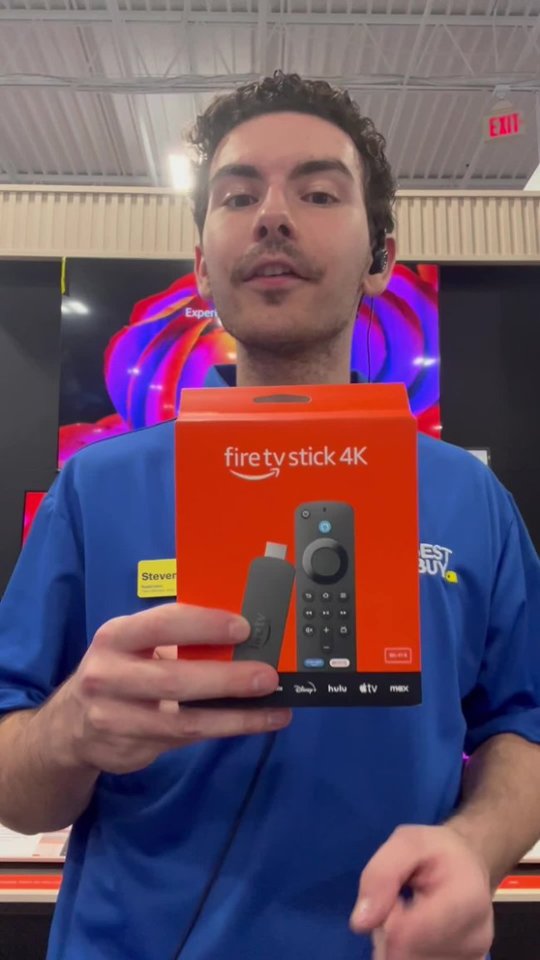
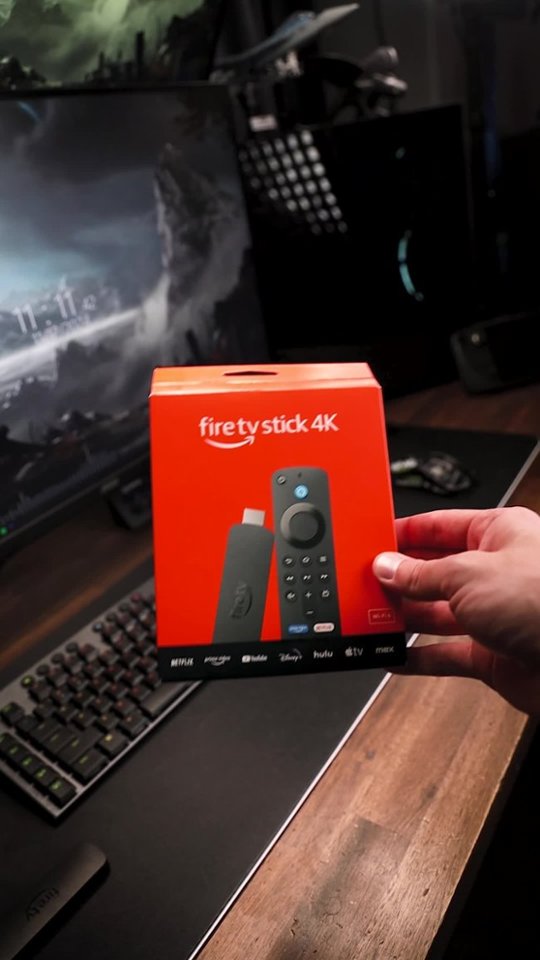
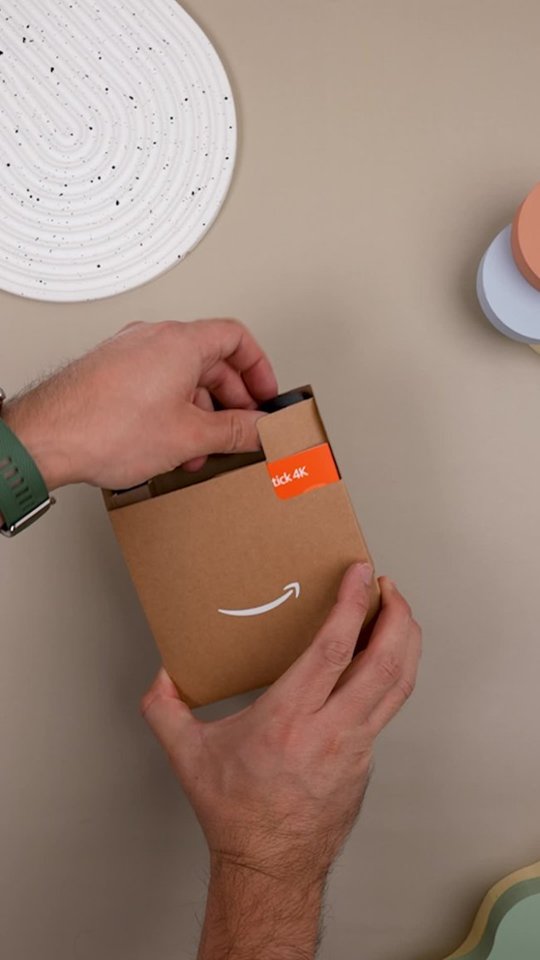

- Model:
- B0CJM1GNFQ
- |
- SKU:
- 12007043
Customer reviews
Rating 4.8 out of 5 stars with 3704 reviews
(3,704 customer reviews)Rating by feature
- Value4.8
Rating 4.8 out of 5 stars
- Quality4.8
Rating 4.8 out of 5 stars
- Ease of Use4.8
Rating 4.8 out of 5 stars
Rated 5 out of 5 stars
Fire sticks
||Posted . Owned for 1 month when reviewed.This reviewer received promo considerations or sweepstakes entry for writing a review.Always in stock and a very good price! Staff always helpful!
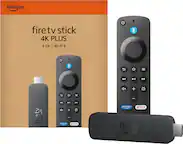
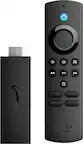
This review is from Amazon - Fire TV Stick 4K streaming device, includes support for Wi-Fi 6, Dolby Vision/Atmos, 8 GB, free & live TV - Black
I would recommend this to a friendRated 5 out of 5 stars
Great investment
||Posted . Owned for 3 weeks when reviewed.This reviewer received promo considerations or sweepstakes entry for writing a review.Great I’m enjoying my fire stick I’m going to get another one
This review is from Amazon - Fire TV Stick 4K streaming device, includes support for Wi-Fi 6, Dolby Vision/Atmos, 8 GB, free & live TV - Black
I would recommend this to a friendRated 5 out of 5 stars
Firestick purchase
||Posted . Owned for 1 week when reviewed.This reviewer received promo considerations or sweepstakes entry for writing a review.Pleased with the purchase, installation was straight forward.
This review is from Amazon - Fire TV Stick 4K streaming device, includes support for Wi-Fi 6, Dolby Vision/Atmos, 8 GB, free & live TV - Black
I would recommend this to a friendRated 5 out of 5 stars
Firestick
||Posted . Owned for 3 weeks when reviewed.This reviewer received promo considerations or sweepstakes entry for writing a review.Absolutely love the firestick and its capabilities!
This review is from Amazon - Fire TV Stick 4K streaming device, includes support for Wi-Fi 6, Dolby Vision/Atmos, 8 GB, free & live TV - Black
I would recommend this to a friendRated 4 out of 5 stars
Ditch the satellite
||Posted . Owned for 4 months when reviewed.This reviewer received promo considerations or sweepstakes entry for writing a review.Finally traded in satellite tv for the fire stick. Wish I had done it earlier. Set up was a bit tricky. Instructions could have been clearer.
This review is from Amazon - Fire TV Stick 4K streaming device, includes support for Wi-Fi 6, Dolby Vision/Atmos, 8 GB, free & live TV - Black
I would recommend this to a friendRated 5 out of 5 stars
On firer
||Posted . Owned for 1 month when reviewed.This reviewer received promo considerations or sweepstakes entry for writing a review.We love the fire sticks, it's the best thing we ever used
This review is from Amazon - Fire TV Stick 4K streaming device, includes support for Wi-Fi 6, Dolby Vision/Atmos, 8 GB, free & live TV - Black
I would recommend this to a friendRated 4 out of 5 stars
Fire TV Stick review
||Posted . Owned for 1 month when reviewed.This reviewer received promo considerations or sweepstakes entry for writing a review.Fire Stick was easy to hook up, however it would not connect to the Spectrum App so that we could use our subscription with Spectrum who supplies our bandwidth. Otherwise I recommend the firestick
This review is from Amazon - Fire TV Stick 4K streaming device, includes support for Wi-Fi 6, Dolby Vision/Atmos, 8 GB, free & live TV - Black
I would recommend this to a friendRated 5 out of 5 stars
Fire stick
||Posted . Owned for 3 weeks when reviewed.This reviewer received promo considerations or sweepstakes entry for writing a review.Makes a great present for birthdays or other occasion.
This review is from Amazon - Fire TV Stick 4K streaming device, includes support for Wi-Fi 6, Dolby Vision/Atmos, 8 GB, free & live TV - Black
I would recommend this to a friendRated 5 out of 5 stars
Happy
||Posted . Owned for 1 month when reviewed.This reviewer received promo considerations or sweepstakes entry for writing a review.It gives the access I need for streaming Love it!!!
This review is from Amazon - Fire TV Stick 4K streaming device, includes support for Wi-Fi 6, Dolby Vision/Atmos, 8 GB, free & live TV - Black
I would recommend this to a friendRated 4 out of 5 stars
Good product and high price.
||Posted . Owned for 3 weeks when reviewed.This reviewer received promo considerations or sweepstakes entry for writing a review.It does the job. I have 2 of them with no wifi conections issues so far. Price is extremly high and I'm pretty sure it can go to a lower level. I recommend it to any of my friends.
This review is from Amazon - Fire TV Stick 4K streaming device, includes support for Wi-Fi 6, Dolby Vision/Atmos, 8 GB, free & live TV - Black
I would recommend this to a friendRated 2 out of 5 stars
Wanted it to work, but...
||Posted . Owned for 1 month when reviewed.This reviewer received promo considerations or sweepstakes entry for writing a review.Would not work with my older Vizio Smart TV. I plugged it into the correct HDMI slot, but it never could "find" it. I moved it to othe HDMI slots and it would load "Fire TV" in the middle of the screen, but nothing else happened. Finally, I just returned it.
This review is from Amazon - Fire TV Stick 4K streaming device, includes support for Wi-Fi 6, Dolby Vision/Atmos, 8 GB, free & live TV - Black
No, I would not recommend this to a friendRated 5 out of 5 stars
4k max
||Posted . Owned for 3 weeks when reviewed.This reviewer received promo considerations or sweepstakes entry for writing a review.Best fire stick yet ! Extra space for apps is great
This review is from Amazon - Fire TV Stick 4K streaming device, includes support for Wi-Fi 6, Dolby Vision/Atmos, 8 GB, free & live TV - Black
I would recommend this to a friendRated 5 out of 5 stars
Fire stick
||Posted . Owned for 3 weeks when reviewed.This reviewer received promo considerations or sweepstakes entry for writing a review.I like that, I used before and is a great product for streaming
This review is from Amazon - Fire TV Stick 4K streaming device, includes support for Wi-Fi 6, Dolby Vision/Atmos, 8 GB, free & live TV - Black
I would recommend this to a friendRated 5 out of 5 stars
Amazon Fire Stick
||Posted . Owned for 3 weeks when reviewed.This reviewer received promo considerations or sweepstakes entry for writing a review.Works great! I can access all my apps now. Saves me money.
This review is from Amazon - Fire TV Stick 4K streaming device, includes support for Wi-Fi 6, Dolby Vision/Atmos, 8 GB, free & live TV - Black
I would recommend this to a friendRated 5 out of 5 stars
Fire Stick
||Posted . Owned for 1 month when reviewed.This reviewer received promo considerations or sweepstakes entry for writing a review.It was no charge, because I have a membership. Love the products.
This review is from Amazon - Fire TV Stick 4K streaming device, includes support for Wi-Fi 6, Dolby Vision/Atmos, 8 GB, free & live TV - Black
I would recommend this to a friendRated 5 out of 5 stars
Firestick
||Posted . Owned for 1 month when reviewed.This reviewer received promo considerations or sweepstakes entry for writing a review.Exactly what I was looking for. Fantastic customer service.
This review is from Amazon - Fire TV Stick 4K streaming device, includes support for Wi-Fi 6, Dolby Vision/Atmos, 8 GB, free & live TV - Black
I would recommend this to a friendRated 5 out of 5 stars
Switched from Roku to FireStick
||Posted . Owned for 3 weeks when reviewed.This reviewer received promo considerations or sweepstakes entry for writing a review.Finally made the switch from Roku TV... what a HUGE upgrade!
This review is from Amazon - Fire TV Stick 4K streaming device, includes support for Wi-Fi 6, Dolby Vision/Atmos, 8 GB, free & live TV - Black
I would recommend this to a friendRated 5 out of 5 stars
Joym
||Posted . Owned for 1 month when reviewed.This reviewer received promo considerations or sweepstakes entry for writing a review.Worked great on my tv and enjoying watching my other networks
This review is from Amazon - Fire TV Stick 4K streaming device, includes support for Wi-Fi 6, Dolby Vision/Atmos, 8 GB, free & live TV - Black
I would recommend this to a friendRated 5 out of 5 stars
Firestick
||Posted . Owned for 2 months when reviewed.This reviewer received promo considerations or sweepstakes entry for writing a review.Works great, very responsive. Turns any tv into a smart tv
This review is from Amazon - Fire TV Stick 4K streaming device, includes support for Wi-Fi 6, Dolby Vision/Atmos, 8 GB, free & live TV - Black
I would recommend this to a friendRated 5 out of 5 stars
Fire up your savings
||Posted . Owned for 3 weeks when reviewed.This reviewer received promo considerations or sweepstakes entry for writing a review.The product really delivers. It will enable you to save a bundle.
This review is from Amazon - Fire TV Stick 4K streaming device, includes support for Wi-Fi 6, Dolby Vision/Atmos, 8 GB, free & live TV - Black
I would recommend this to a friend