Customer Ratings & Reviews








- Model:
- I7791-7452SLV-PUS
- SKU:
- 6372667
Rating by feature
- Battery Life
Rating 4.2 out of 5 stars
- Speed
Rating 4.4 out of 5 stars
- Display
Rating 4.6 out of 5 stars
Customers are saying
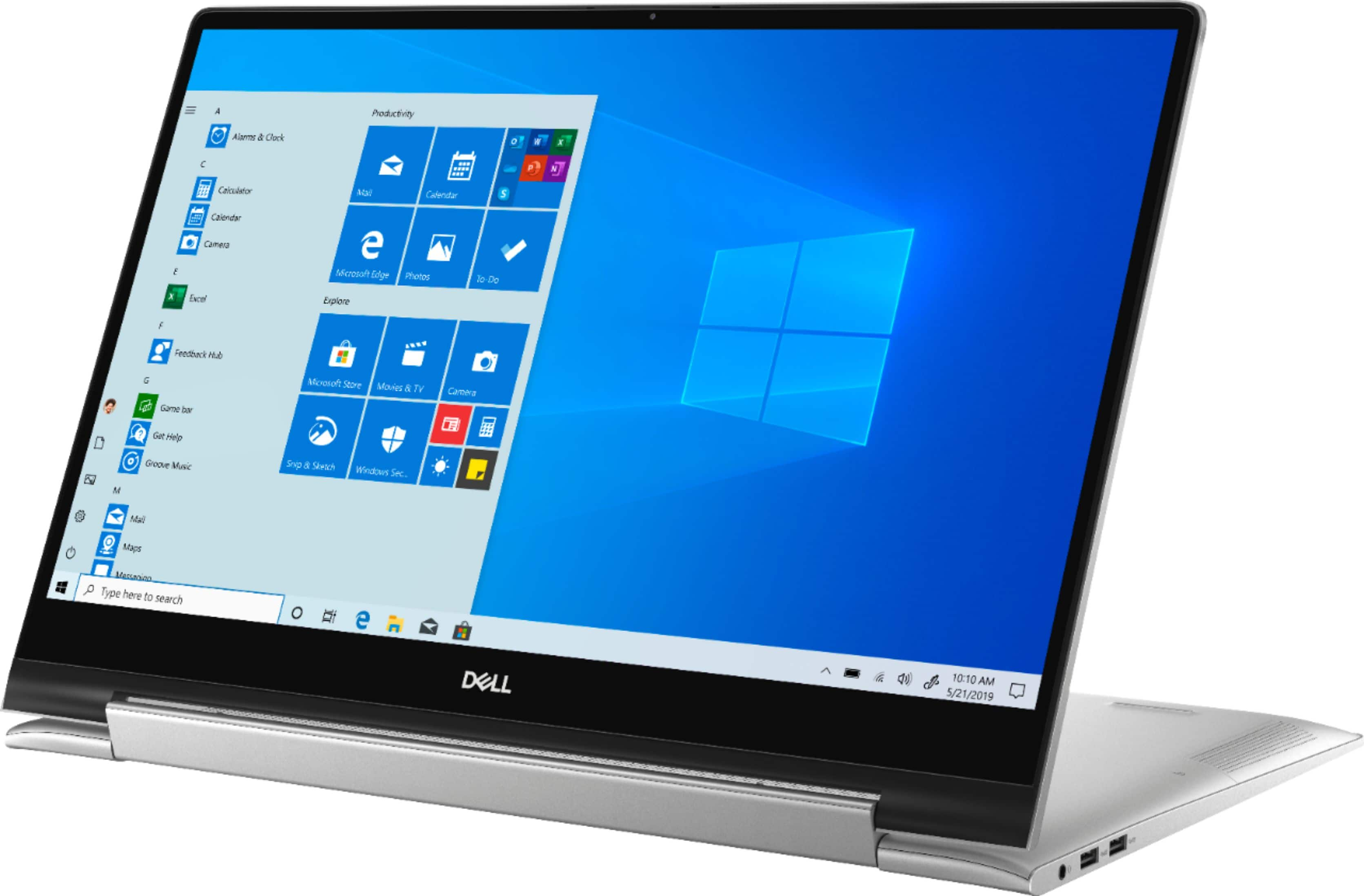
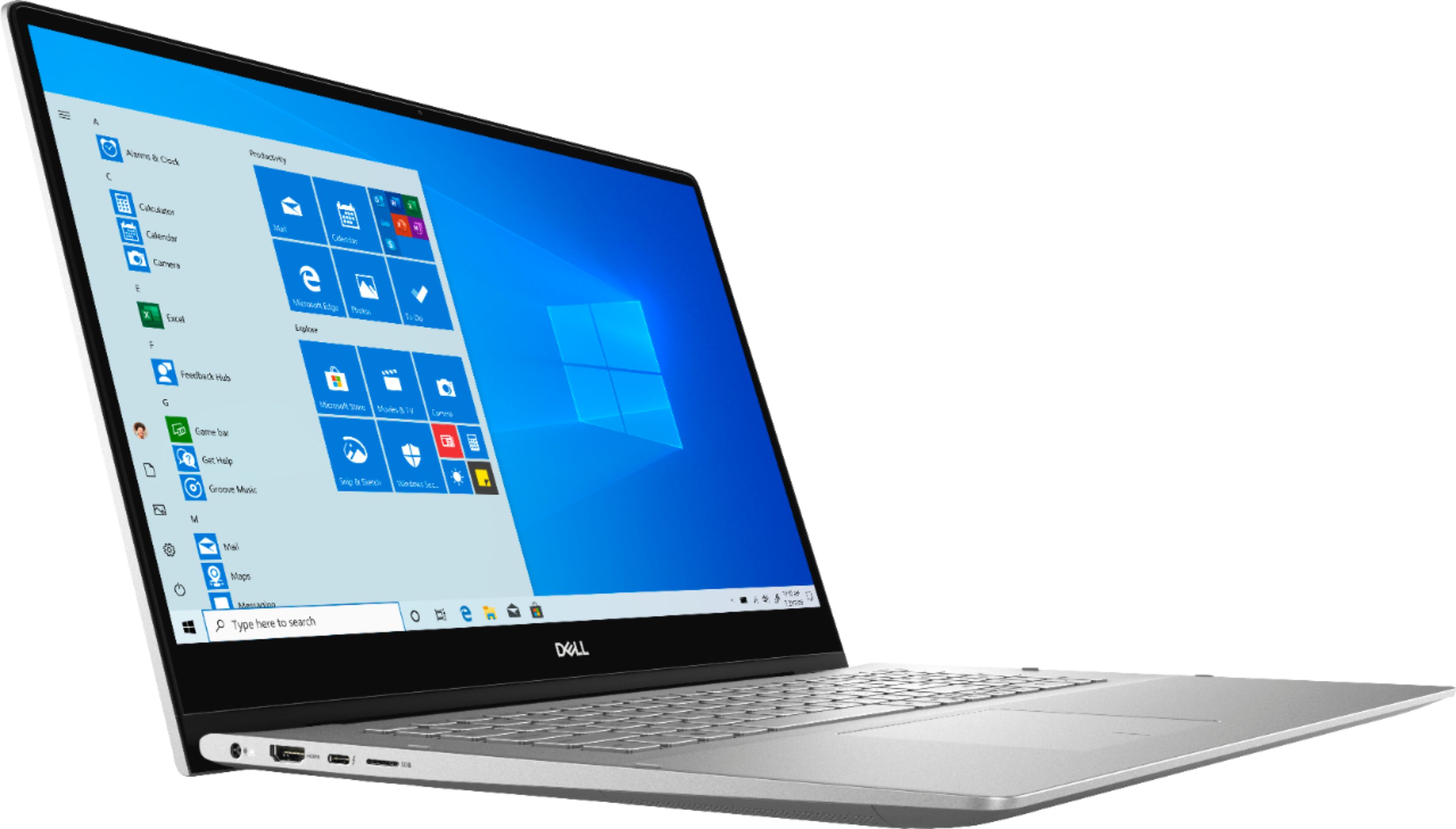
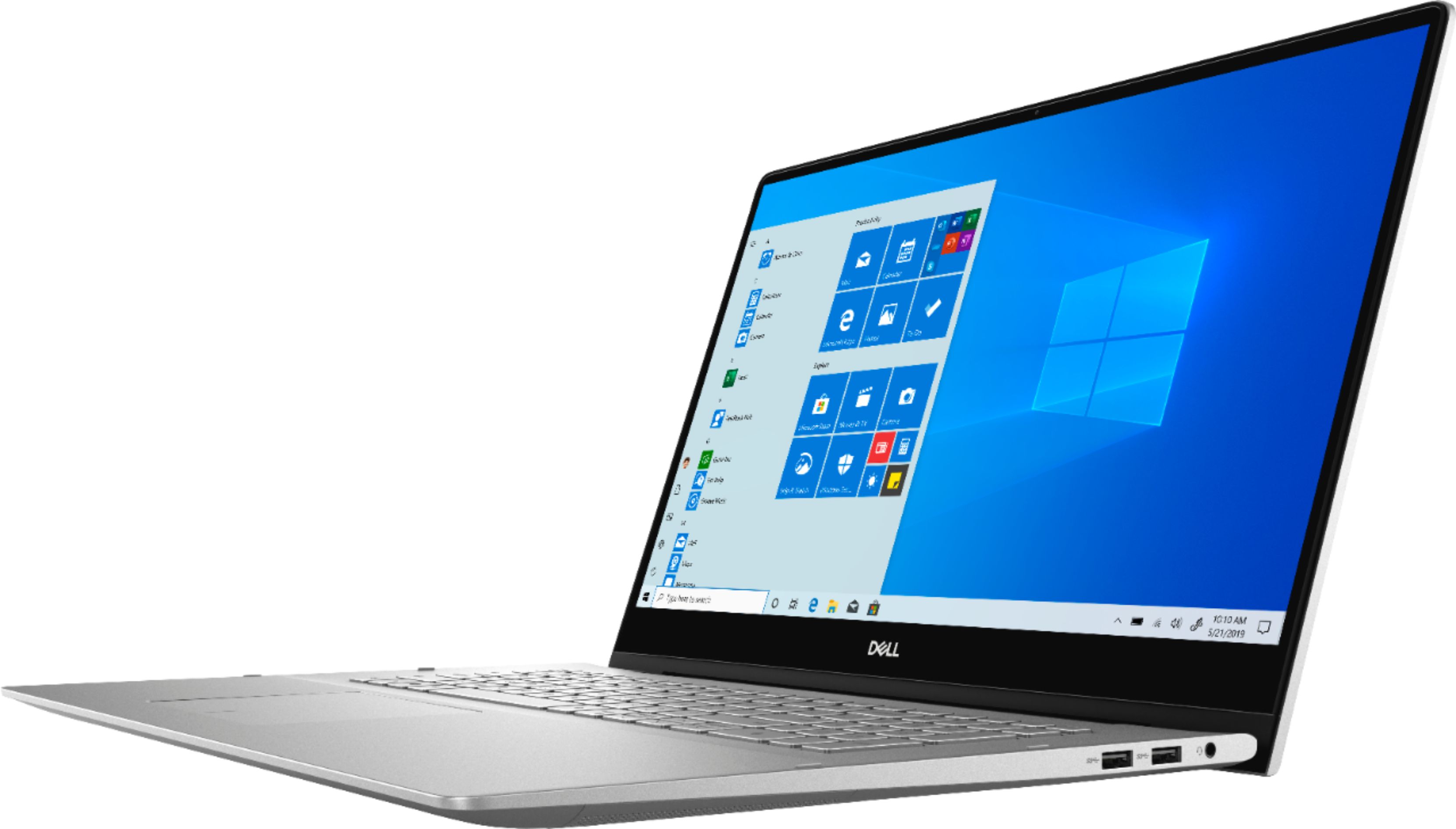
Customers commend the Inspiron 17.3" 2-in-1 laptop's large screen size, ease of use, and strong performance, frequently praising its touchscreen functionality and impressive graphics capabilities. Positive feedback also highlights the fast SSD and ample memory, along with the appreciated 2-in-1 versatility. However, some users note the laptop's considerable weight and tendency to overheat during extended use, while others find the price point to be somewhat high.
This summary was generated by AI based on customer reviews.
Too big for my needs.
||Posted . Owned for 3 weeks when reviewed.This reviewer received promo considerations or sweepstakes entry for writing a review.I returned it and bought a 15" from another business which was in stock. I am still waiting for the refund.
I would recommend this to a friendLaptop
||Posted . Owned for less than 1 week when reviewed.This reviewer received promo considerations or sweepstakes entry for writing a review.battery life is a joke of one hour but i mean it looks pretty right?
No, I would not recommend this to a friendBrand response from YourDellTeam
Posted .Kano,
We're sorry to hear about your computer's battery life so far. We'd recommend looking at some of these suggestions to help extend the life of your computer's battery:
Change the Power Plan:
1. On the notification area of the taskbar, right-click the Battery icon.
2. On the options list, click Power Options.
3. Select a power plan on the battery meter, such as Power Saver or Balanced. Windows 10 has a built in 'Battery Saver' mode that can be activated to extend your system's battery life. The Battery Saver mode will monitor and limit background activity and other features such as push notifications. You do have the option to enable or disable this mode within settings or within advanced Battery Saver settings, you can customize the mode to best suit your needs.
a) Click on the Action Center icon in the taskbar and select the tile for Battery Saver.
b) If running Cortana then type Battery Saver into the search box and select from the results.
Within the Battery Saver settings page, you will be able to turn on and off the feature and customize the feature to best meet your needs.
c) Turn Battery Saver On or Off.
d) Additional settings available via the Battery use and Battery saver settings links.
e) Battery use shows further info on apps and their power usage.
f) Battery Saver Settings screen allows you to customize further Battery Saver feature.
You can read the full article here - http://dell.to/2vfXWf4.
Best,
Bryan
1-800-624-9896
Don't buy this
||Posted . Owned for 1 month when reviewed.This reviewer received promo considerations or sweepstakes entry for writing a review.Worse computer purchase ever ! only 2 weeks old, almost $1,500.00 and it is already having issues with the fans. Every time it starts it goes into a screen with a 'FAN FAILED TO START' error message. Updated BIOS and everything else as recommended to no avail ! unbelievable !!!
No, I would not recommend this to a friendBrand response from YourDellTeam
Posted .DELL,
Thanks for your review and we're sorry to hear about your computer's performance. We'd recommend reaching out to Dell's Technical Support Team so they can help you troubleshoot the issues that you're having: http://dell.to/2sH7Qlm.
Best,
Bryan
1-800-624-9896
Slow touch screen response
||Posted . Owned for 3 weeks when reviewed.This reviewer received promo considerations or sweepstakes entry for writing a review.The computer is fast and easy to use, except when it's flipped. The "touch" function is very slow.
No, I would not recommend this to a friendBrand response from YourDellTeam
Posted .Townplanner,
Thanks for your review. We're sorry that your computer's screen is not as sensitive as you'd like it to be. We'd recommend trying to re-calibrate your touchscreen by following these steps:
1. Restart the Computer and the Monitor
2. Go to Control Panel and select Tablet PC Settings.
3. Under Display tab, select Calibrate.
4. Choose Pen or Touch input.
5. Perform the point calibration that appears on the screen to correct the linearity problems.
6. Save the calibrated data.
You can read the full article here - http://dell.to/2uLztub.
Best,
Bryan
1-800-624-9896
The camera is blurry.
||Posted . Owned for 3 weeks when reviewed.This reviewer received promo considerations or sweepstakes entry for writing a review.The camera is blurry and hours on line with the geek squad didn't help. Might return it.
No, I would not recommend this to a friendBrand response from YourDellTeam
Posted .Scarygary,
Thanks for your review and we're sorry that your camera is not as clear as you hoped it would be. We'd recommend checking to make sure that all of your drivers are up to date: https://dell.to/356Ykeu.
Best,
Bryan
1-800-624-9896
Labtob
||Posted . Owned for 3 weeks when reviewed.This reviewer received promo considerations or sweepstakes entry for writing a review.Screen frozen for 20 sec, not able to touch any icon , but good resolution display
I would recommend this to a friendBrand response from YourDellTeam
Posted .Luis,
Thanks for your review. We're sorry to hear about the freezes that you're experiencing with your new computer. Here are some tips to diagnose the freezes:
1. Run a Computer Diagnostic. To determine if your computer is experiencing a hardware problem, run the Dell Preboot System Assessment (PSA) Diagnostics. For information on how to run Diagnostics, and to determine the issue, refer to Dell Knowledge Base Article: http://dell.to/2iaiujA.
2. Check Safe Mode for Symptoms. To boot into safe mode, please follow the instructions below:
a) Start the computer.
b) Tap 'F8' on the keyboard immediately and every one second until the Dell logo screen disappears. From there you will see the Windows Advanced Options Menu on the screen. (If the Windows Advanced Options Menu does not appear, restart the system and try again.)
c) Select Safe mode with Networking and press Enter.
d) Log on as the administrator or as a user with administrative access.
e) Open applications and test the computer in safe mode. If the symptoms exist in safe mode, please continue the troubleshooting steps in this article. If the symptoms do not exist in safe mode, the issue is likely related to a driver or software and you may wish to complete step 3 to see if you are able to resolve the lockups or freezing.
3. Check for Malware. Malware (Virus, Spyware, etc.) can definitely cause a Windows system to lock up or appear to hang. To check for malware on your system and to ensure that your computer is up to date on security software, visit Dell Knowledge Base Article: http://dell.to/2wWP1zI.
You can read the full article here - http://dell.to/2tW5m33.
Best,
Bryan
1-800-624-9896
Not rigid product.
||Posted . Owned for 1 year when reviewed.This reviewer received promo considerations or sweepstakes entry for writing a review.I don't think this is good product at all, after one year from use it I travelled and I put it on my backpack and it jut hit the ground and the laptop starting fallen apart. screen is cracked, cracked in the motherboard. This is not rigid laptop and it breakable easy.
No, I would not recommend this to a friendBrand response from YourDellTeam
Posted .Hello Luay,
We want to thank you for taking the time to leave us your review and valued input. We are sorry to hear your Inspiron 7791 2 in 1 sustained some damage when it was dropped. We will share your comments with our quality team so improvements can be made to current and future products. Should you need further guidance, please feel free to reach out to our support team here: https://bit.ly/DellSupportTeam.
Sincerely,
Ashley@Dell
If you should have any questions or concerns, you can contact Dell directly with the information below.
Chat or call: https://bit.ly/DellSupportTeam
Phone number to Dell 1-800-624-9896
Would be nice if they cared I was in the store
||Posted . Owned for 1 month when reviewed.This reviewer received promo considerations or sweepstakes entry for writing a review.Wanted to buy 2-3 monitors and a desktop. Spent 15-20 minutes in the store being ignored. Found 2 monitors and left with them. Checkout guy asked "Did you find everything..." and I answered no, no one would help me in computers. Checkout guy then took my credit card and I left, without even trying to find me a computer
No, I would not recommend this to a friendBrand response from YourDellTeam
Posted .Chuck,
We're sorry to hear about your in-store experience purchasing your monitors. Thank you for purchasing a Dell Touchscreen laptop. If you have any questions about your Dell laptop you can check our Product Support Page here: https://dell.to/2DgLo9u.
Best,
Bryan
1-800-624-9896
DO NOT BUY LAPTOPS
||Posted . Owned for less than 1 week when reviewed.This reviewer received promo considerations or sweepstakes entry for writing a review.This was a lemon laptop- the service dept had it more than I did!!!! After a third return to correct the same issue- I was to get a new laptop- NO it had been delayed in delivery- first 5 day now 14 days!!!! I was forced to buy a second laptop for work due to the first one being bad- GIVE ME MY LAPTOP!!!!!!
No, I would not recommend this to a friendBrand response from YourDellTeam
Posted .Dear Valued Customer,
We're sorry to hear about the lack of support that you've had for your computer so far. We hope that once you receive your computer back that it will perform the way that you intended it to. Please feel free to follow up with Dell's Technical Support Team here: http://dell.to/2sH7Qlm.
If you'd like Best Buy Support you can reach them here: http://bit.ly/2v2IVhI.
Best,
Bryan
1-800-624-9896
broke screen
||Posted . Owned for 4 months when reviewed.This reviewer received promo considerations or sweepstakes entry for writing a review.After just four months the screen broke. I never even used the touch screen.
No, I would not recommend this to a friendBrand response from YourDellTeam
Posted .fisherman,
We're sorry to hear about your screen. If you have any technical questions about your computer you can always check our Product Support Page here: https://dell.to/2DgLo9u.
Best,
Bryan
1-800-624-9896
VERY DISAPPOINTED
||Posted . Owned for less than 1 week when reviewed.This reviewer received promo considerations or sweepstakes entry for writing a review.I bought this computer for work. I travel and use my laptops out of town as well as in my home office. No matter where I was, this laptop would buffer when trying to load. I was very thankful for the return policy at Best Buy. I was able to return it and get a HP Spectre and it is 100% better, except for the smaller screen size.
No, I would not recommend this to a friendMeh
||Posted . Owned for 1 year when reviewed.This reviewer received promo considerations or sweepstakes entry for writing a review.Screen started getting dead pixel lines after the first year of use.
No, I would not recommend this to a friendBrand response from YourDellTeam
Posted .Noel,
Thanks for your review and we're sorry to hear about the dead pixels that you're experiencing. Here's a link to where you can read about Dell's Dead Pixel Guidelines: https://dell.to/2lCLW0I.
Best,
Bryan
1-800-624-9896
Non-working microphone and audio sound after 1 day
||Posted . Owned for less than 1 week when reviewed.This reviewer received promo considerations or sweepstakes entry for writing a review.Just bought this brand new in box laptop as it was on sale $250 off. To my absolutely shocking frustration, the audio and microphone stopped working after one day. On my way to Bestbuy to return it!
No, I would not recommend this to a friendBrand response from YourDellTeam
Posted .Nikki,
We're sorry to hear that your system audio stopped working. We'd recommend checking the audio drivers for your computer to see if there is an update: https://dell.to/356Ykeu.
Best,
Bryan
1-800-624-9896
Crappy Camera
||Posted . Owned for 7 months when reviewed.This reviewer received promo considerations or sweepstakes entry for writing a review.This review is for the camera only, which sucks big time for a 1500 hundred dollar laptop. Very disappointed in Dell and a little confused why they would put such a crappy camera on a rather nice laptop ?????????
No, I would not recommend this to a friendBrand response from YourDellTeam
Posted .Hello Ronnie,
Thank you for your review. We are sorry to learn that your Inspiron didn't quite meet your expectations. We suggest downloading and installing the latest firmware using the SupportAssist application that came pre-installed with your PC for the best experience. If you come across any further questions, issues, or concerns, please contact Dell Support at your earliest convenience at 1-800-264-9896.
Best regards,
Anthony P.
Terrible - overheats and stops running
||Posted . Owned for 3 months when reviewed.This reviewer received promo considerations or sweepstakes entry for writing a review.After reinstalling the operating system and updating drivers, even buying a cooling mat, the computer overheats, then hangs, and finally a BSOD. This happens on a daily basis, and they won't take it back. I've had tech support help me with it, to no avail. No I'm stuck with it! Miserable.
No, I would not recommend this to a friendBrand response from YourDellTeam
Posted .Hummingbird,
We're sorry that your computer is not performing the way that you hoped it would. We'd recommend the following tips for helping to keep your computer cooler:
Tips for Proper Usage:
1. Dell does not recommend placing portable systems directly on your lap. Due to reductions in the thickness of modern portable systems, heat transfer can be an issue.
2. Using a portable system (Laptop) on a hard, flat, non-cloth surface will increase airflow and reduce heat from underneath and inside the system.
Using the portable system on a blanket, pillow, or other types of cloth will cover up the fan cause the computer to overheat and can cause permanent damage.
3. It is recommended to use the portable system in a Room temperature of 0°C to 35°C (32°F to 95°F) with a Humidity level no greater than 90%.
4. Use compressed air to clean the vents on a regular basis.
5. Using a cooling pad can decrease heat and increase performance.
6. If you want to know the temperature limitations for your system, go to the Dell Support Website, look up your system model then open the user guide under the manuals link.
You can read the full article here - http://dell.to/2uJ8AdG.
If you continue to have Blue Screen Errors, here are some steps you can follow to diagnose the issue:
1. At the desktop, click the Search the web and Windows box and type "problem reports".
2. Select View all problem reports to view a list of errors that have occurred on your computer and possible solutions for them, such as updating drivers, flashing your system BIOS, or checking for updates to the software.
3. Under the Source column, look for Windows and under Summary, look for Shut down unexpectedly.
4. Right-click the line item and select Check for a solution.
We'd also suggest checking to make sure that your software and drivers are up to date on Dell's Product Page - https://dell.to/356Ykeu.
You can read the full article here - http://dell.to/2u98Cct.
Best,
Bryan
1-800-624-9896
Junk
||Posted . Owned for 5 months when reviewed.This reviewer received promo considerations or sweepstakes entry for writing a review.I would not waste my money on this if I were you. Haven't even had for 6 months and had to send it off to be repaired for the same issue... TWICE. And seeing how it takes about two weeks to ship, repair, and return, I've been without my laptop for collectively a whole month.
No, I would not recommend this to a friendBrand response from YourDellTeam
Posted .Hi Mike,
We appreciate your review. I am sorry to hear that you have had issues with your computer. I can understand how upsetting this could be to be without a computer for an extended period. If you need further troubleshooting concerns when you receive your computer, feel free to reach out to Dell Support for assistance.
http://dell.to/2sH7Qlm
Thank you for your continued patience.
Best,
Meridith 1-800-624-9896
Horrible
||Posted . Owned for 1.5 years when reviewed.This reviewer received promo considerations or sweepstakes entry for writing a review.Do not buy this laptop. I purchased it for $1200, 2 years ago and now I’m having tons of problems with it. In addition the plug will not charge the laptop anymore. I purchased a new one and it still doesn’t work.
No, I would not recommend this to a friendWill no power on.
||Posted . Owned for 3 weeks when reviewed.This reviewer received promo considerations or sweepstakes entry for writing a review.I have the computer three weeks and now it will not power on. It appears the battery with not charge with power adaptor.
No, I would not recommend this to a friendBrand response from YourDellTeam
Posted .Scott,
Thanks for your review and we're sorry to hear that your computer is not turning on. We'd recommend reaching out to Dell's Technical Support Team so they can confirm if the battery and the power adapter are correct for this computer: http://dell.to/2sH7Qlm.
Best,
Bryan
1-800-624-9896
Not good product
||Posted . Owned for 1 week when reviewed.This reviewer received promo considerations or sweepstakes entry for writing a review.Did not work as advertised, it has a glitch on the monitor - I have yet to get it replaced by either Best Buy it te manufacturer . So frustrating.
No, I would not recommend this to a friendBrand response from YourDellTeam
Posted .Hello CyndiH,
Thank you for your review. I am sorry that this computer has not met all your expectations. I am sorry to hear about the issues you are having with your screen. I will provide some troubleshooting steps that may help repair this issue.
Below are the steps required to calibrate your Touchscreen:
1. Restart the Computer and the Monitor
2. Go to Control Panel and select Tablet PC Settings.
3. Under Display tab, select Calibrate.
4. Choose Pen or Touch input.
5. Perform the point calibration that appears on the screen to correct the linearity problems.
6. Save the calibrated data.
You can read the full article here - http://dell.to/2uLztub.
Best,
Meridith 1-800-624-9896
This item was replaced with a wrong specification
||Posted .This reviewer received promo considerations or sweepstakes entry for writing a review.I'm not pleased at all because the replacement has been shipped before I realized the specs I wanted has been changed without my knowledge. I'll have to return again after delivery
No, I would not recommend this to a friendBrand response from YourDellTeam
Posted .Ewajesuwumi,
We're sorry to hear about your replacement experience. Please follow up with Best Buy directly to see how this can be resolved for you so that you receive the same computer that you originally had: http://bit.ly/2v2IVhI.
Best,
Bryan
1-800-624-9896